Studio Assistant

An AI front desk for fitness, pilates and yoga studios that books classes and free trials on WhatsApp and Instagram, runs the waitlist and turns trials into members.
Overview
Studio Assistant is the front desk of a pilates, yoga or dance studio, a boutique fitness studio or a gym with group classes, on WhatsApp, Instagram and web chat.
It answers questions about classes, levels, trainers and plans from your own information, books people into classes and free trials with real places left, puts them on the waitlist when a class is full, and keeps members coming with reminders, trial follow-ups and renewal reminders.
It understands voice messages and replies in the person’s language.
Highlights
- Only real places. Places come from your weekly timetable, each class’s capacity and the bookings already made. It never offers a class the timetable does not have.
- Trials that become members. One free trial per new person, a thank-you after the class with a button to see which plan fits, and a recommendation from your plans when they answer.
- Waitlists that run themselves. A full class puts people on the waitlist. When someone gives a place back, the first person waiting gets it and is told at once.
Install and set up
- Install Studio Assistant from Settings › MonoStore › Apps, or open the install link app.monochat.ai/apps/Xk7MCXhEp5p6uZc7h. Without a MonoChat account, the link lets you sign up first and installs the app for you.
- Open the Get started tab on your MonoChat home page and choose Set up your studio. The form asks for What kind of studio? (classes, a weekly timetable and plans are filled in for you), the Studio name, phone, address, currency, time zone, Reception hours (when your team answers) and Who teaches?. Tick Also load sample data so I can see it full if you want every screen filled with example records. Click Save and continue.
- Open Studio › Timetable and check the weekly classes, then add your prices on the Plans tab. The assistant never quotes a price you did not enter. Check Booking rules (free trials, drop-ins, waitlist, cancellation window) and Automatic messages too.
- Open Studio in the left menu and click the green power button (Turn on) in the header. The Turn the assistant on drawer lists what will start; confirm it. The badge next to the title changes from Off to On. Only someone who can manage automations in the workspace sees the power button and can turn the assistant on or off.
- Choose Try it on your own phone on the Get started tab and message your own number the way a customer would.
- Turning the assistant on submits the WhatsApp templates its reminders and follow-ups need on your number; their approval status is shown in the app.
- Plans are paid with your team: the assistant passes the request and you record the plan.
- Sample data fills the week, members and reports so you can try everything on day one. Sample members are never messaged, and it all comes out with one click.
Features
Fill classes around the clock
People ask, pick a class and get a place while you are teaching.
Fewer empty mats
A reminder a few hours before each class with “I’m coming” and “Can’t make it”. A place given back goes straight to the waitlist.
Plans that renew
Members on a class pack or monthly plan are counted down class by class. When a plan is nearly used up they get a Renew button that reaches your team.
Know every member
Plan and classes left, classes attended, and the goals and injuries the assistant saved for the trainers.
Studio screens
This week’s classes with places taken (open one to see who is coming and mark attendance), bookings, members, plans sold and messages taken, plus settings for classes, timetable, trainers, plans, booking rules, automatic messages, how it talks and handover.
Studio reports
Fill rate per class, no-shows with and without reminders, free trials and how many bought a plan, plans sold and revenue, and attendance per trainer.
Beside the conversation
The person’s plan, classes left, next classes and health notes, with a button to sell a plan.
Your rules
Free trials, drop-ins, waitlists, the cancellation window and late cancellations follow your rules, checked on the server for every booking.
Screenshots
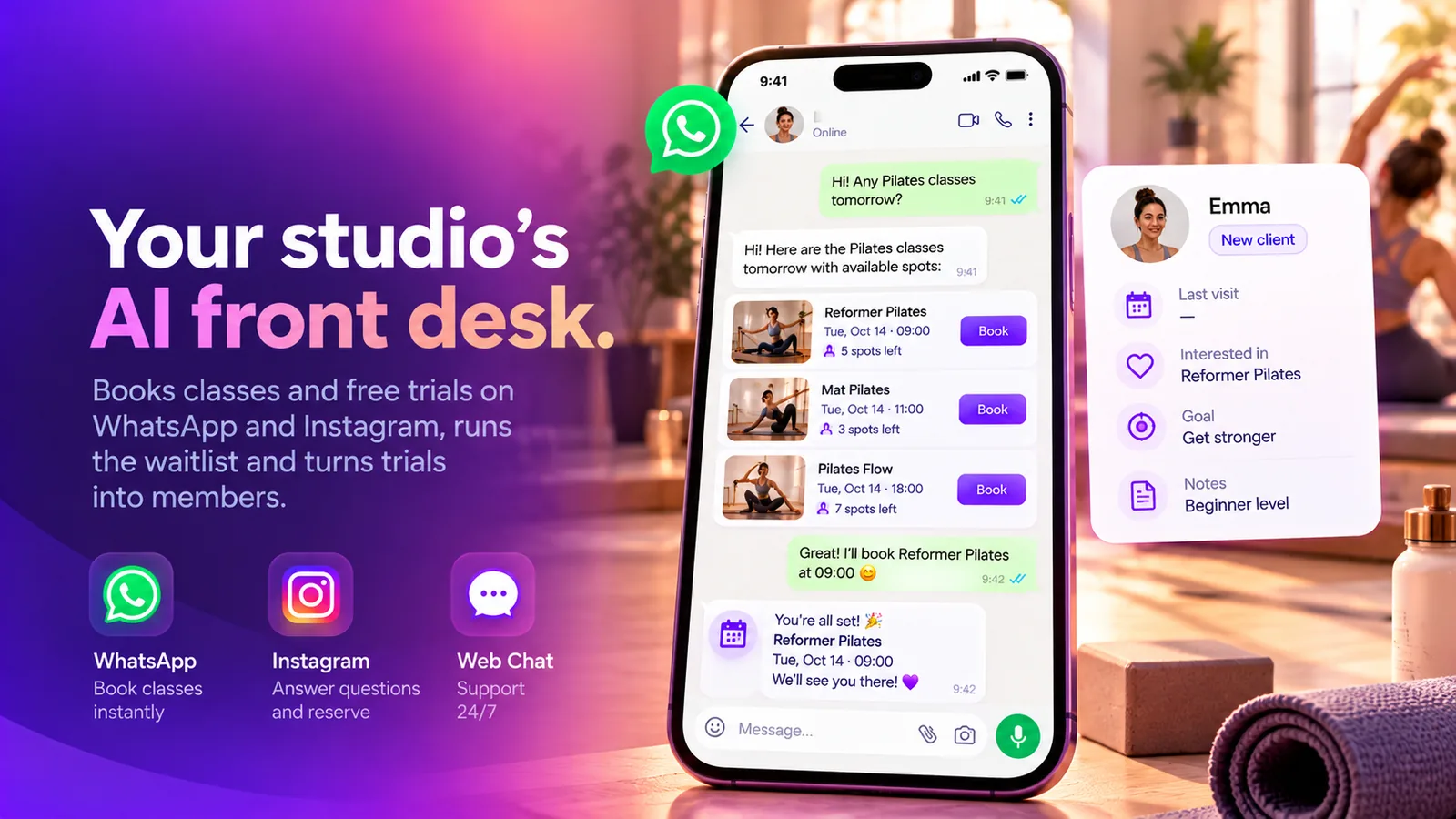 Studio Assistant booking a Reformer Pilates class on WhatsApp with the places left
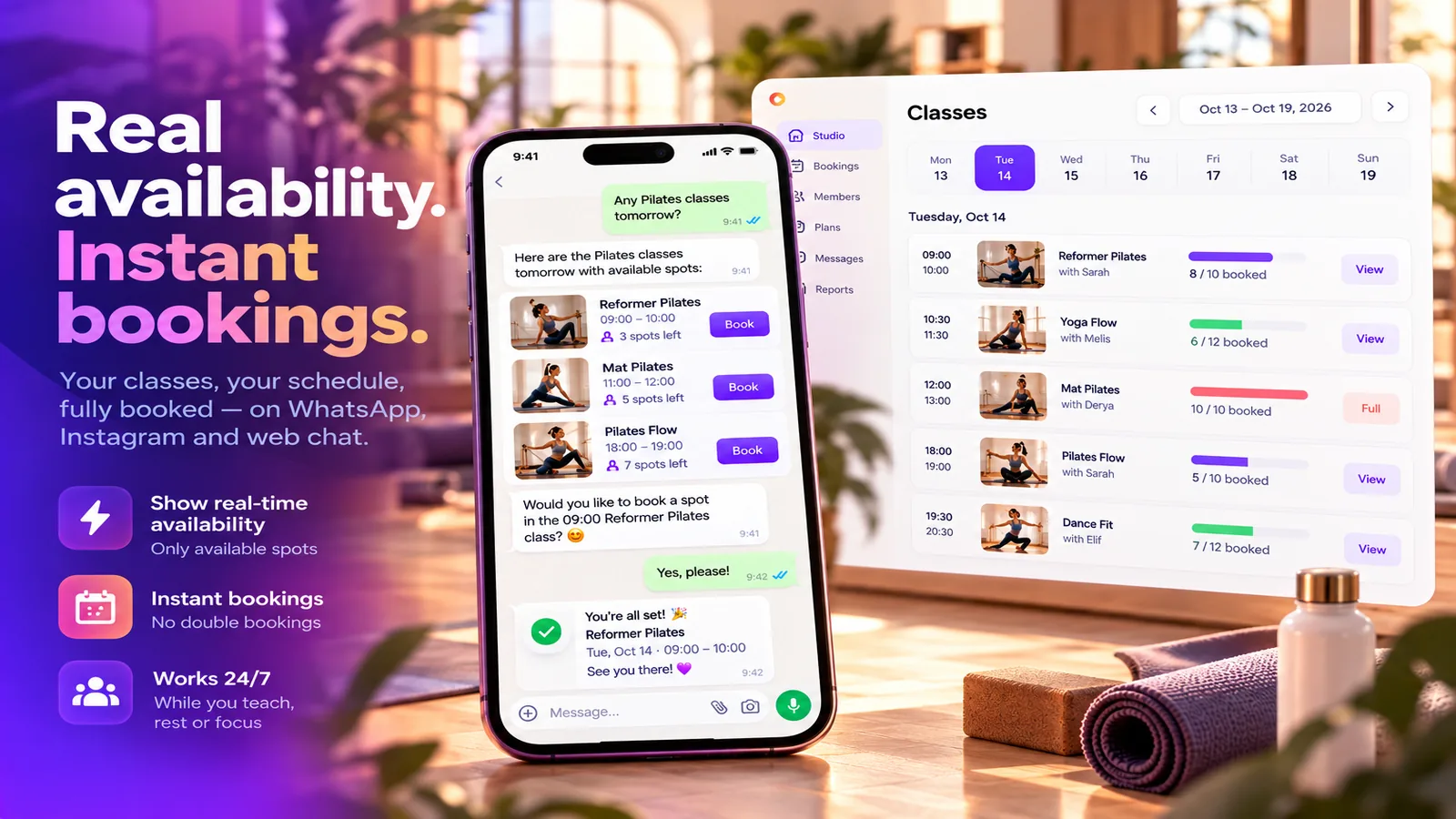 Week of classes with places booked next to a WhatsApp chat that books a free spot
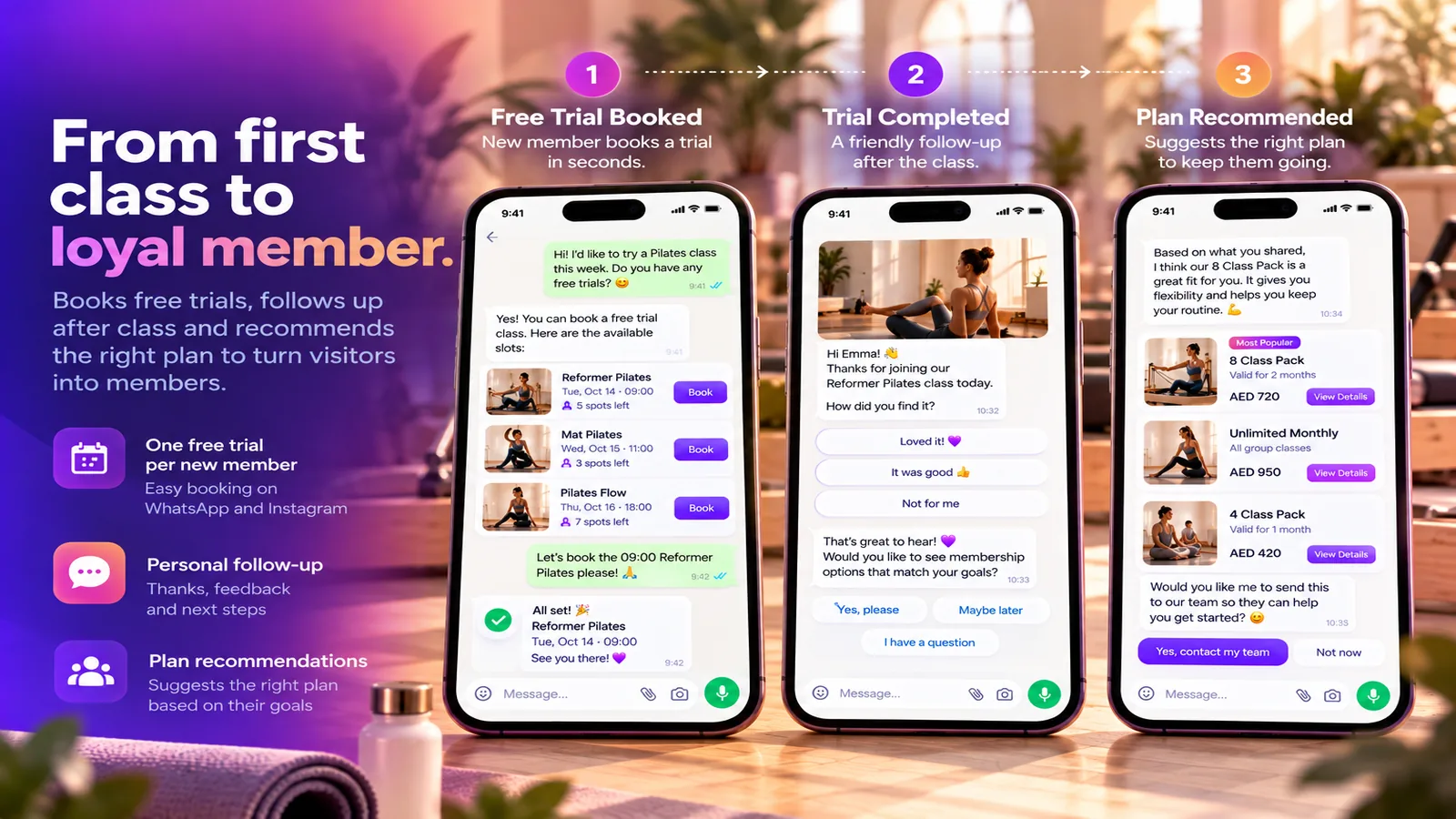 From free trial to a plan recommendation in three steps on WhatsApp
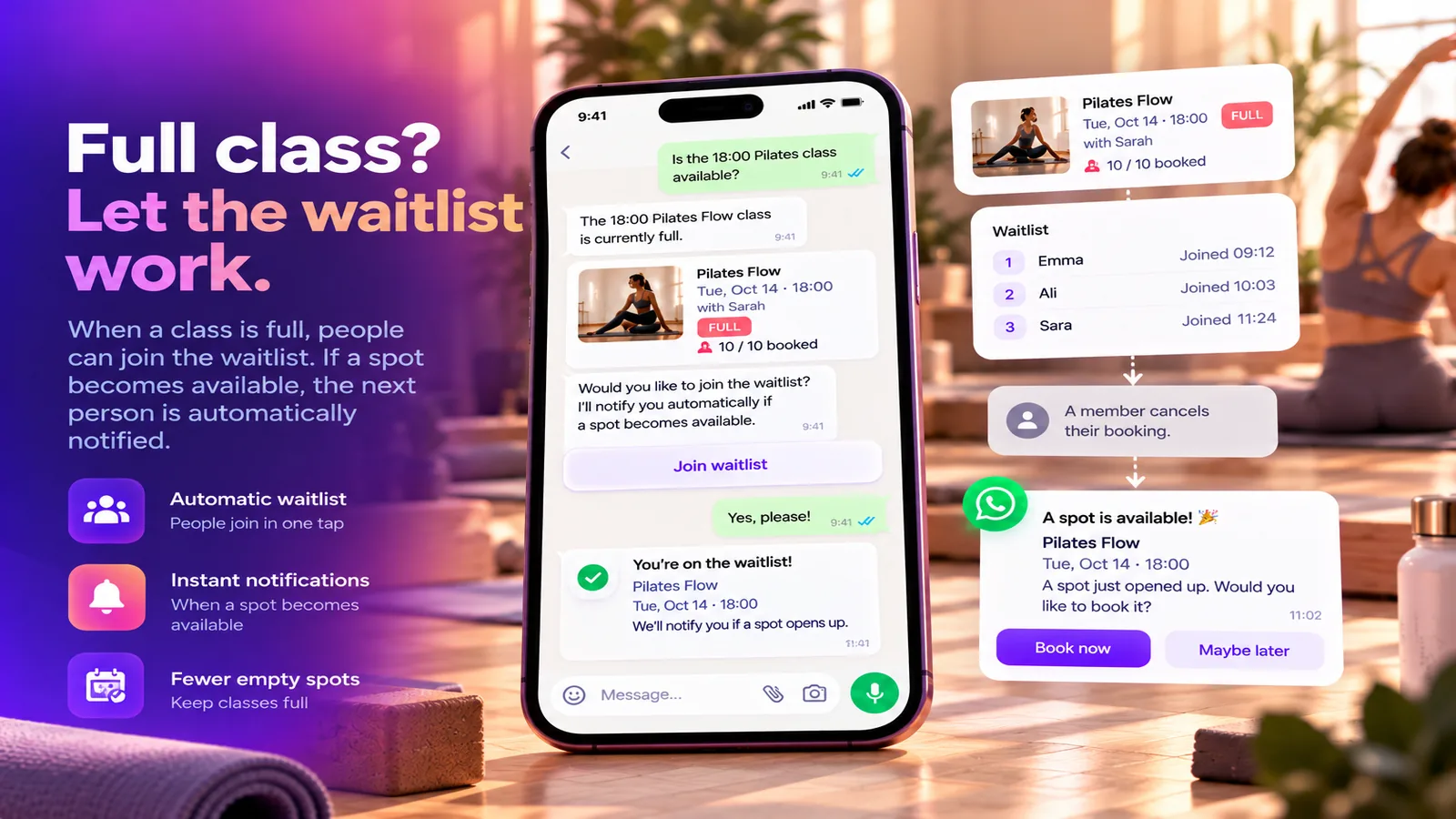 A full class: joining the waitlist and getting the place when someone cancels
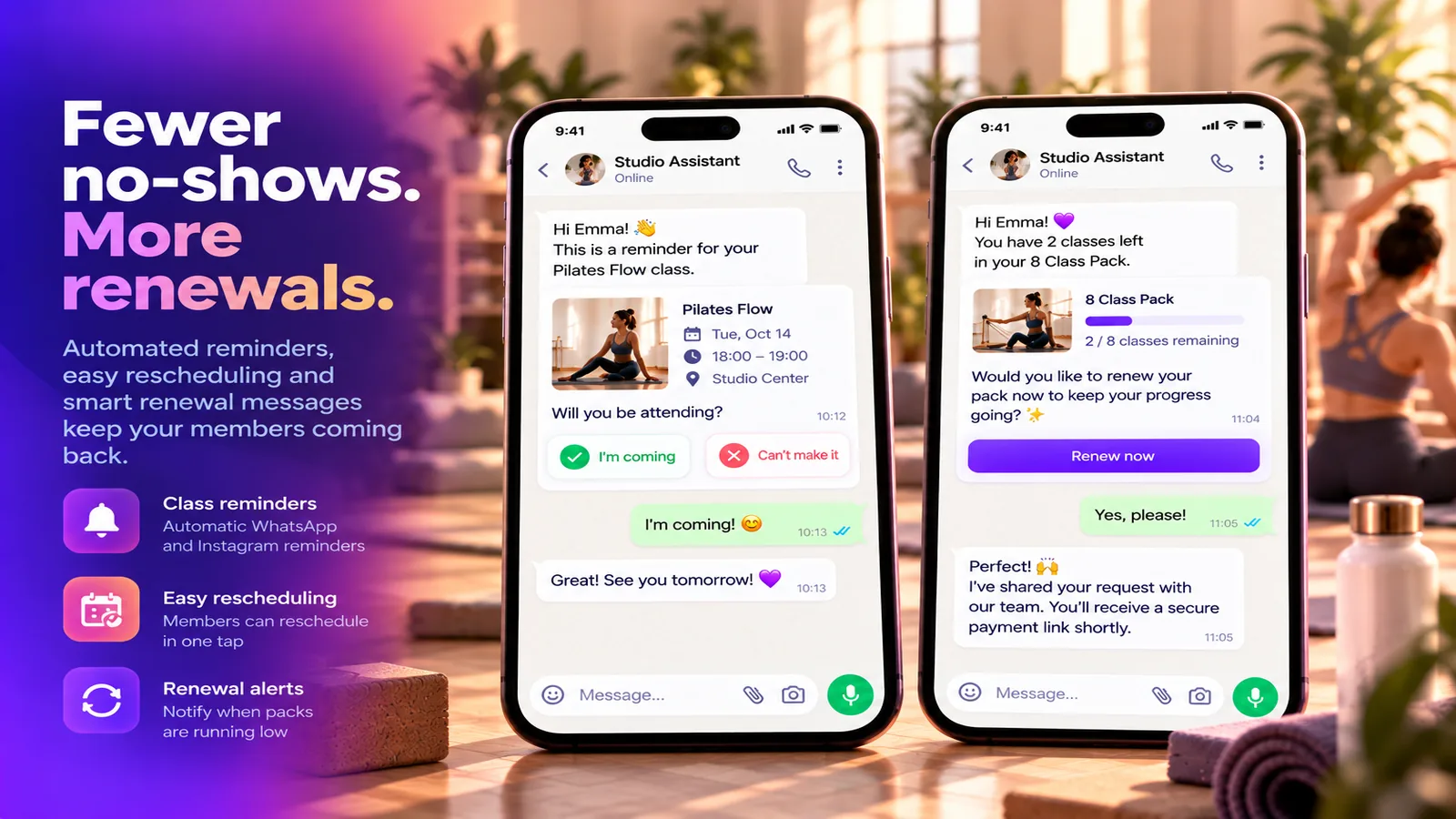 Class reminder with I’m coming and Can’t make it buttons, and a renewal message when a class pack runs low
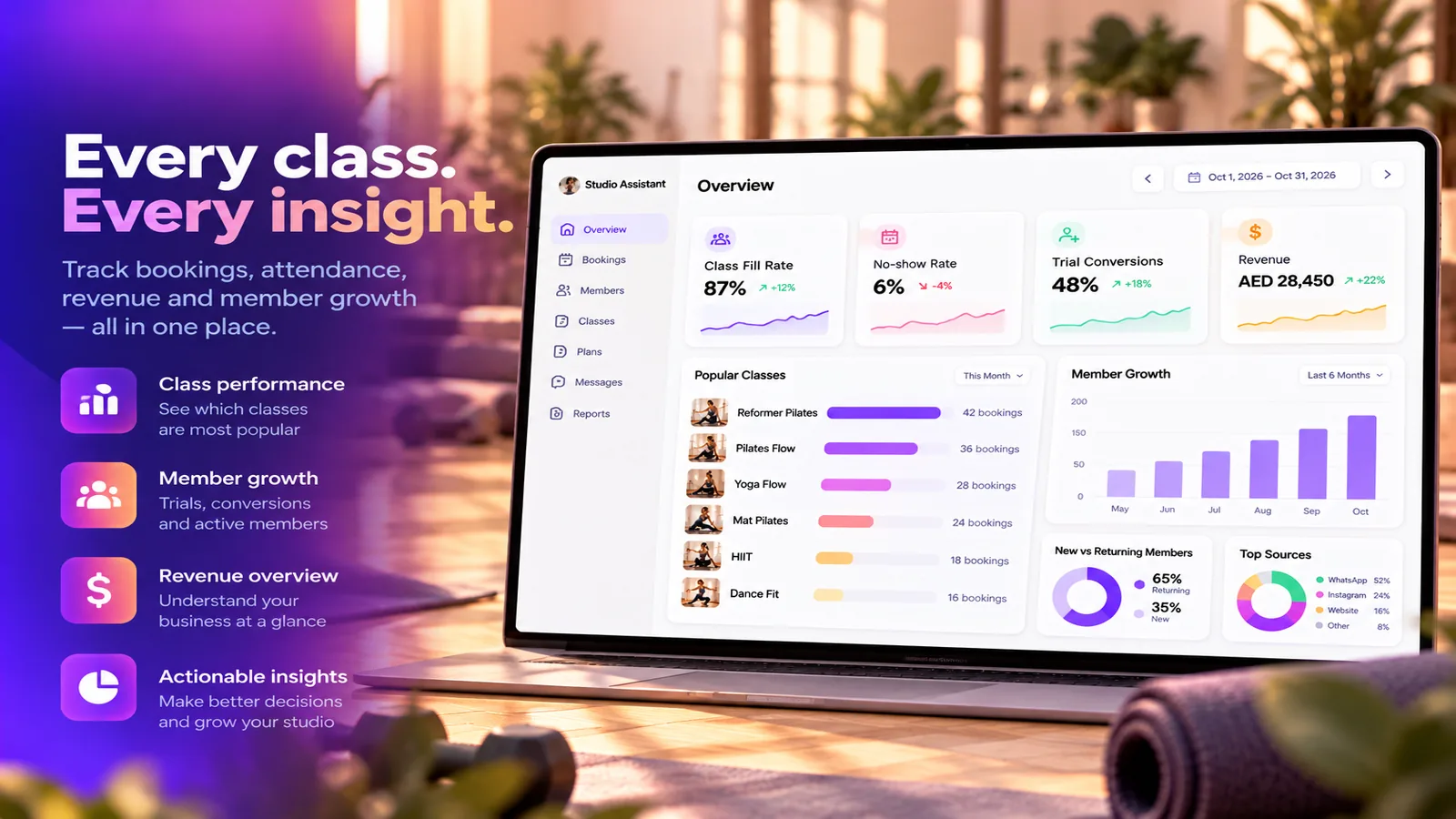 Studio report with class fill rate, no-shows, trial conversions, revenue and popular classes
FAQ
Which studios is it for?
Pilates, yoga and dance studios, boutique fitness studios and gyms with group classes. When you set it up you pick your kind of studio and classes, a weekly timetable and plans are filled in for you.
Which channels does it answer on?
WhatsApp, Instagram and web chat. It understands voice messages and replies in the person’s language.
What happens when a class is full?
The person goes on the waitlist. When someone gives a place back, the first person waiting gets it and is told at once.
How does it handle free trials?
One free trial per new person. After the class it sends a thank-you with a button to see which plan fits, and recommends one of your plans when they answer.
Does it take payments for plans?
No. Plans are paid with your team: the assistant passes the request and you record the plan. It never quotes a price you did not enter.
Will it message members before I am ready?
No. Nothing runs until you turn the assistant on, and sample members are never messaged.