MonoStore
MonoStore is MonoChat's app store. An app packages everything a use case needs (flows, AI assistants, custom screens, functions and profile fields) so you can install it in one step instead of building it yourself. For example, an app can add a sector assistant for salons or clinics, a reporting screen, or an API integration.
For the apps available today and a page for each one, see MonoStore Apps.
Open MonoStore
Go to Settings › MonoStore. The store lists the apps you can install; Settings › MonoStore › Installed Apps lists the ones already in your workspace.
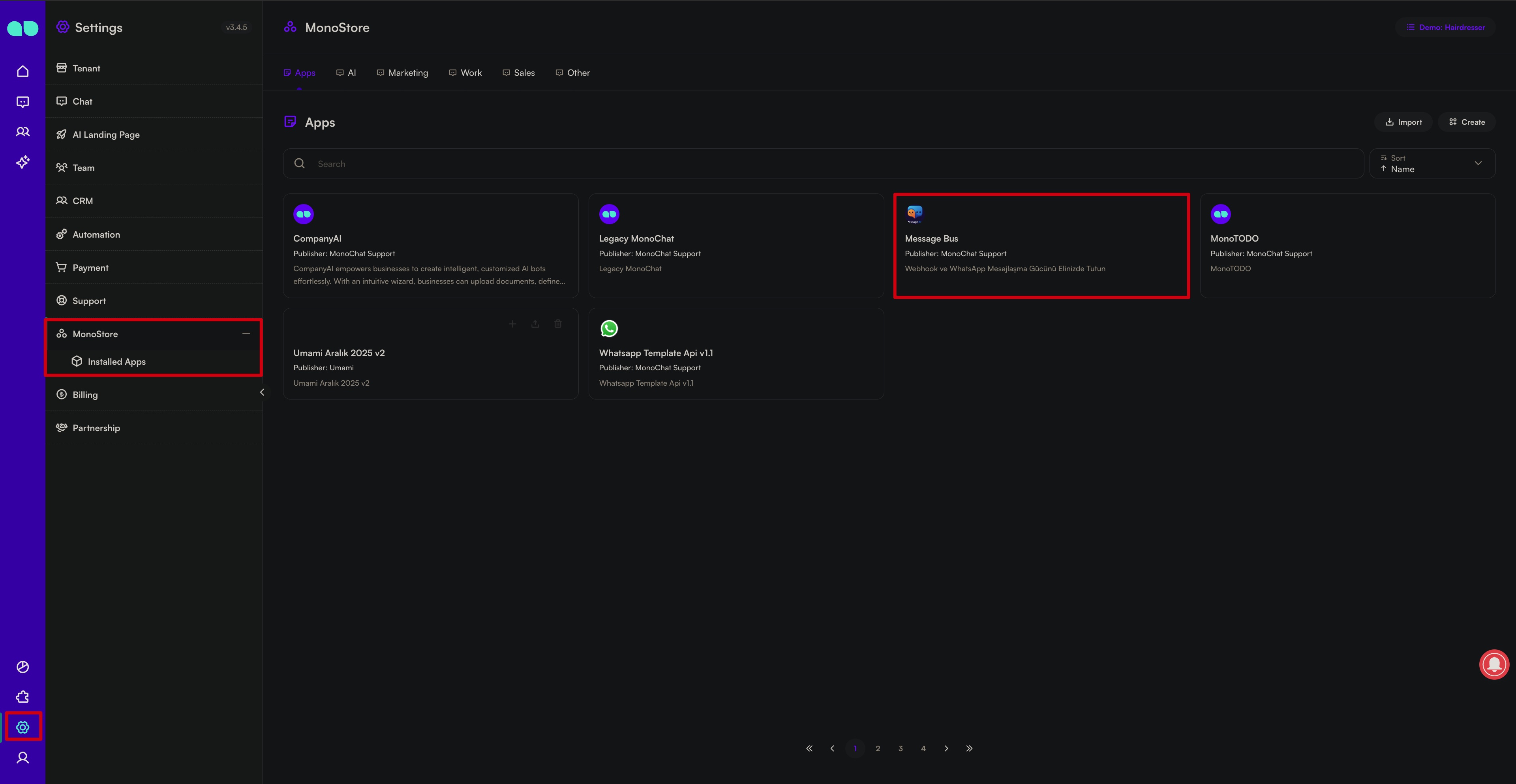
Browse and filter
- Categories: the tabs at the top (Apps for everything, then one tab per category) narrow the list.
- Search finds apps by name.
- Sort by Name, Created At or Update Date.
- Filters:
- Recommended shows only the apps MonoChat recommends.
- Created At and Update Date show apps published, or last updated, within a date range.
- Visibility (Public / Private) appears only if your workspace publishes its own apps.
Each card shows the app's icon, name, Publisher and a short description.
Badges
| Badge | Meaning |
|---|---|
| Recommended | MonoChat suggests this app to new workspaces. The card is tinted, and the same app appears on the Get started panel. |
| Private | The app is not public. Only the workspace that publishes it can see it in the store. |
App details
Click a card to open the app's page: a gallery of screenshots and videos, the icon and name with its badges, and the full description (what the app does, how to set it up, what it needs). From this page you can install the app.
Install an app
- Click the Install button (the + icon) on the app's card or on its details page.
- MonoChat sets up the app's flows, functions, custom screens and profile fields in your workspace and shows a confirmation.
- If the app brings its own screen, its tab appears in the navigation bar straight away. If it brings setup steps, they appear at the top of the Get started panel.
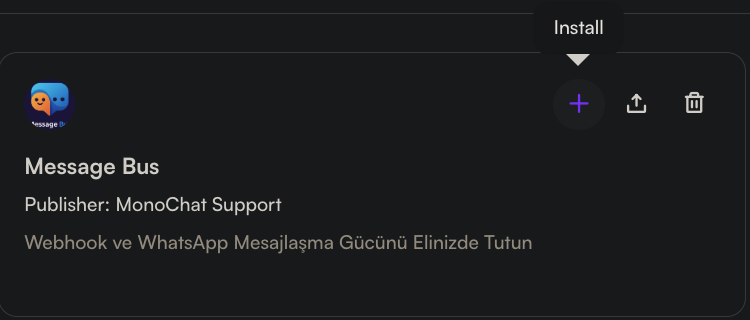
You need permission to install apps in the workspace. If you do not see the + button, ask a workspace admin.
Bot flows are installed switched off
An app that answers customers comes with a bot flow: a flow that takes every new conversation in the workspace as soon as it is active. To keep an assistant that has not been set up yet away from your customers, bot flows are installed switched off. Flows that only automate things in the background are switched on as usual.
After installing such an app:
- Finish the app's setup (its steps on the Get started panel, or its own settings screen).
- Turn the assistant on, either from the app's own screen if it has an on/off switch, or by activating its flow in Settings › Automation › Flows.
Until you do this, the app is installed but does not answer anyone.
Share an app's install link
Every app has a link of the form:
https://app.monochat.ai/apps/<app id>
You will find these links on monochat.ai and on partner pages. When someone opens one:
- No MonoChat account yet: they are taken to sign up, and the app is installed in the first workspace they create.
- Signed in: MonoChat opens the app's install window in their workspace. If the app is already installed, they land on Settings › MonoStore.
The link is remembered for 7 days, so signing up or verifying the email address in between does not lose it.
Update an installed app
When a newer version of an installed app is available, its card in Installed Apps shows the current and the new version (for example v1.0 → v1.1) and the description reads A version update is available in this application!
- Click the Update button (the circular arrows icon) on the card.
- Confirm.
What an update keeps:
- On/off state: each of the app's flows keeps the state you gave it. An assistant you switched off stays off; one you switched on stays on.
- Function ids: the app's functions keep their ids, so the AI tools and node functions you use in your own flows and AI nodes keep working. Only functions the new version no longer has are removed.
An update sets the app's flows up again, so conversations that are in the middle of one of the app's flows at that moment are stopped. Update at a quiet time.
Remove an app
- Go to Settings › MonoStore › Installed Apps.
- Click Delete (the trash icon) on the app and confirm.
Removing an app deletes its flows and functions and removes its tab and setup steps. Profile fields the app created stay, because they may hold data about your customers.
Publishing your own apps
Workspaces allowed to publish apps also see Create and Import at the top of the store, and an Export icon on each card. App descriptions are written in Markdown. Contact MonoChat if you would like to publish apps.