Salon Assistant
An AI front desk for salons that books appointments on WhatsApp and Instagram, sends reminders and brings clients back.
Overview
Salon Assistant is the front desk of a hair salon, barber, nail studio, beauty studio or spa, on WhatsApp, Instagram and web chat.
It answers price and service questions from your own menu, offers only times that are really free, books the appointment with the right person, and keeps the calendar full with reminders, aftercare and review requests.
It understands voice messages and answers in the client’s language.
Highlights
- Only times that are really free. Times come from your opening hours, each team member’s hours and days off, the services they do and what is already booked. Every booking is checked again on the server.
- Never a price you did not enter. Price and service answers come from your own service menu. The assistant never quotes a price you did not enter.
- Fewer no-shows. A reminder the day before with Confirm, Reschedule and Cancel buttons, answered on the spot. Changes inside your cancellation window come to you instead.
Install and set up
- Install Salon Assistant from Settings › MonoStore › Apps, or open the install link app.monochat.ai/apps/EbJteyqCXeTc6sQ5Z. Without a MonoChat account, the link lets you sign up first and installs the app for you.
- Open the Get started tab on your MonoChat home page and choose Set up your salon. The form asks for What kind of salon? (a starting service menu you can edit is filled in), the Salon name, phone, address, currency, time zone, Opening hours and Who works here? (one name per line; everyone works the opening hours, change that per person later). Tick Also load sample data so I can see it full if you want every screen filled with example records. Click Save and continue.
- Open Salon › Services and add your prices. Prices stay empty until you add them, and the assistant never quotes a price you did not enter. Check the Team, Booking rules and Automatic messages tabs while you are there.
- Open Salon in the left menu and click the green power button (Turn on) in the header. The Turn the assistant on drawer lists what will start; confirm it. The badge next to the title changes from Off to On. Only someone who can manage automations in the workspace sees the power button and can turn the assistant on or off.
- Choose Try it on your own phone on the Get started tab and message your own number the way a customer would.
- Turning the assistant on submits the WhatsApp templates its reminders and follow-ups need on your number; you see their approval status in the app.
- Runs on MonoChat’s AI Agent with voice message support and built-in safety checks.
- Sample data is never messaged. Remove it on the Sample data tab before real clients write.
Features
Book around the clock
Clients ask, pick a time and get booked while your hands are busy or the salon is closed.
Aftercare and reviews
A care message per service after the visit, then “How was it?”. Happy clients get your Google review link; unhappy ones reach you.
Bring clients back
An invitation when a service’s “come back in” time passes, and a “we miss you” for clients who have not been for a while. Both stay off until you switch them on.
Bookings at the desk too
The same calendar and rules for bookings you take on the phone; the client gets the confirmation and reminders on WhatsApp.
Salon screens
A week calendar coloured by team member, appointments, clients, reviews and messages taken, plus settings for services, team, booking rules, automatic messages, how it talks and handover.
Salon reports
Bookings made (and how many while you were closed), no-show rate with and without reminders, revenue, reviews, most booked services and appointments per team member.
Beside the conversation
The client’s next appointment, visits, allergies and notes, next to the chat. Allergies the assistant hears are saved on the client card.
Sample data
Sample data fills the calendar, clients and reports so you can try it on day one. It is never messaged and comes out with one click.
Screenshots
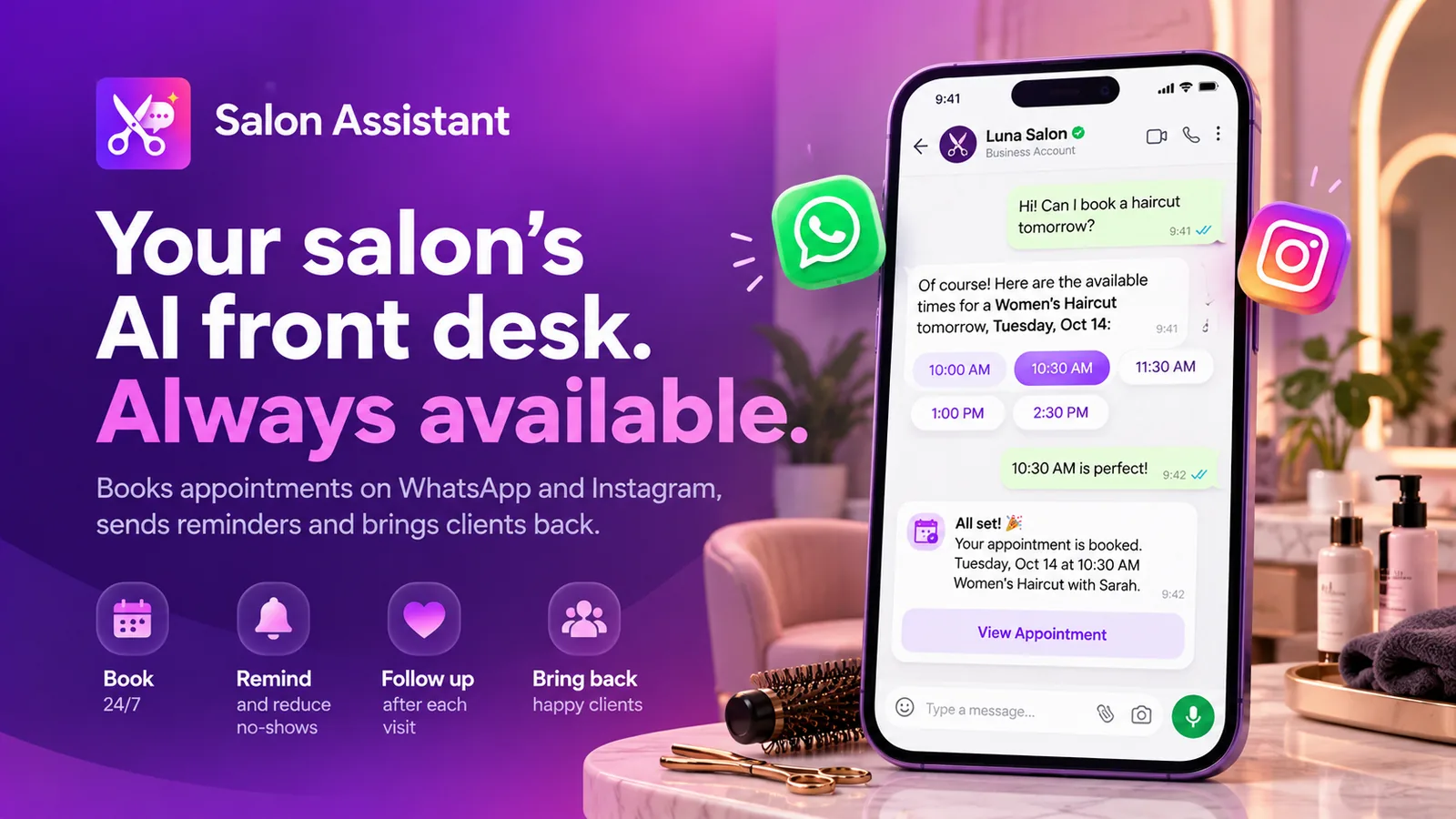 Salon Assistant booking a women’s haircut on WhatsApp with the available times as buttons
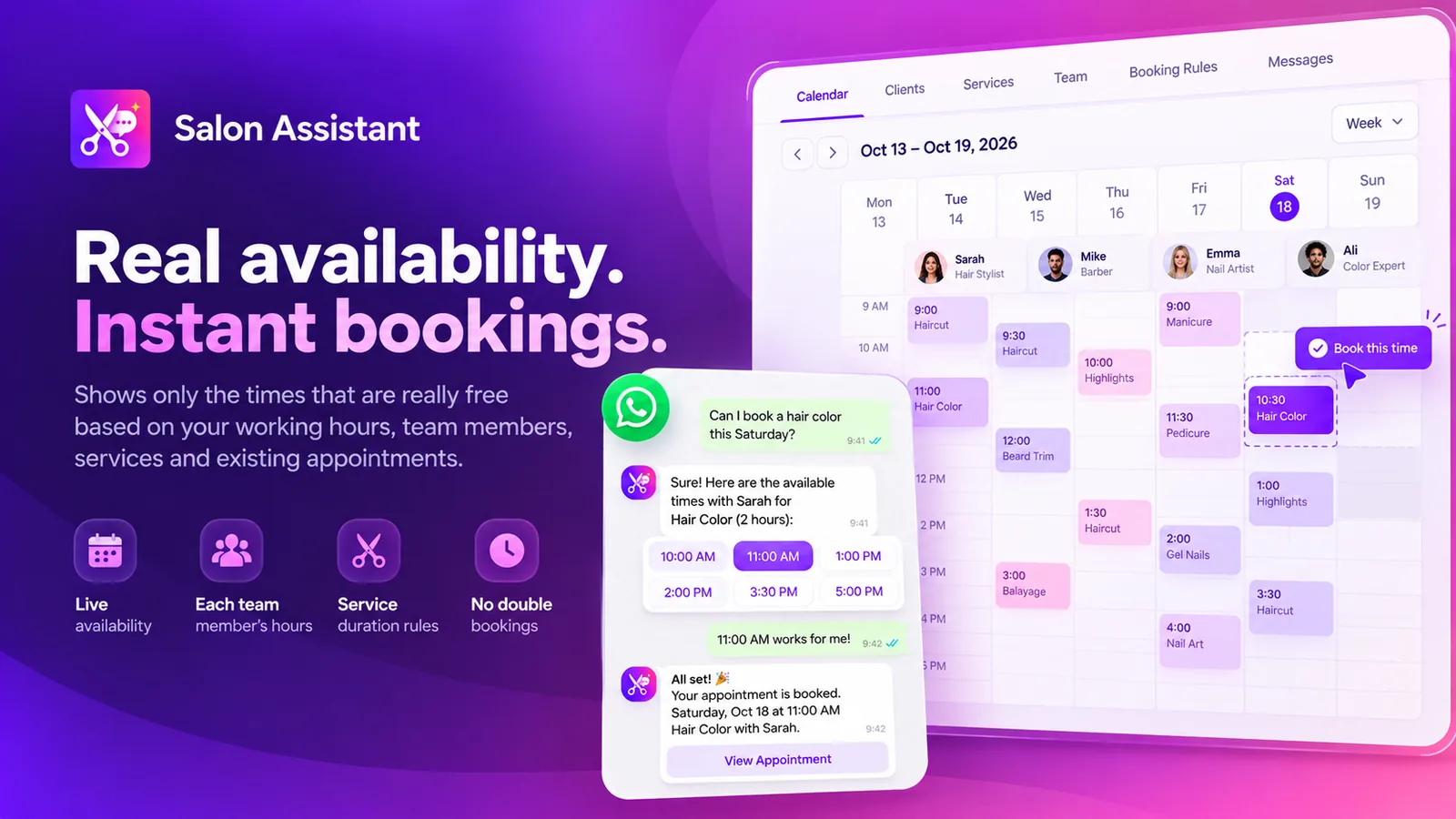 Week calendar by team member next to a WhatsApp chat that books a free Saturday slot
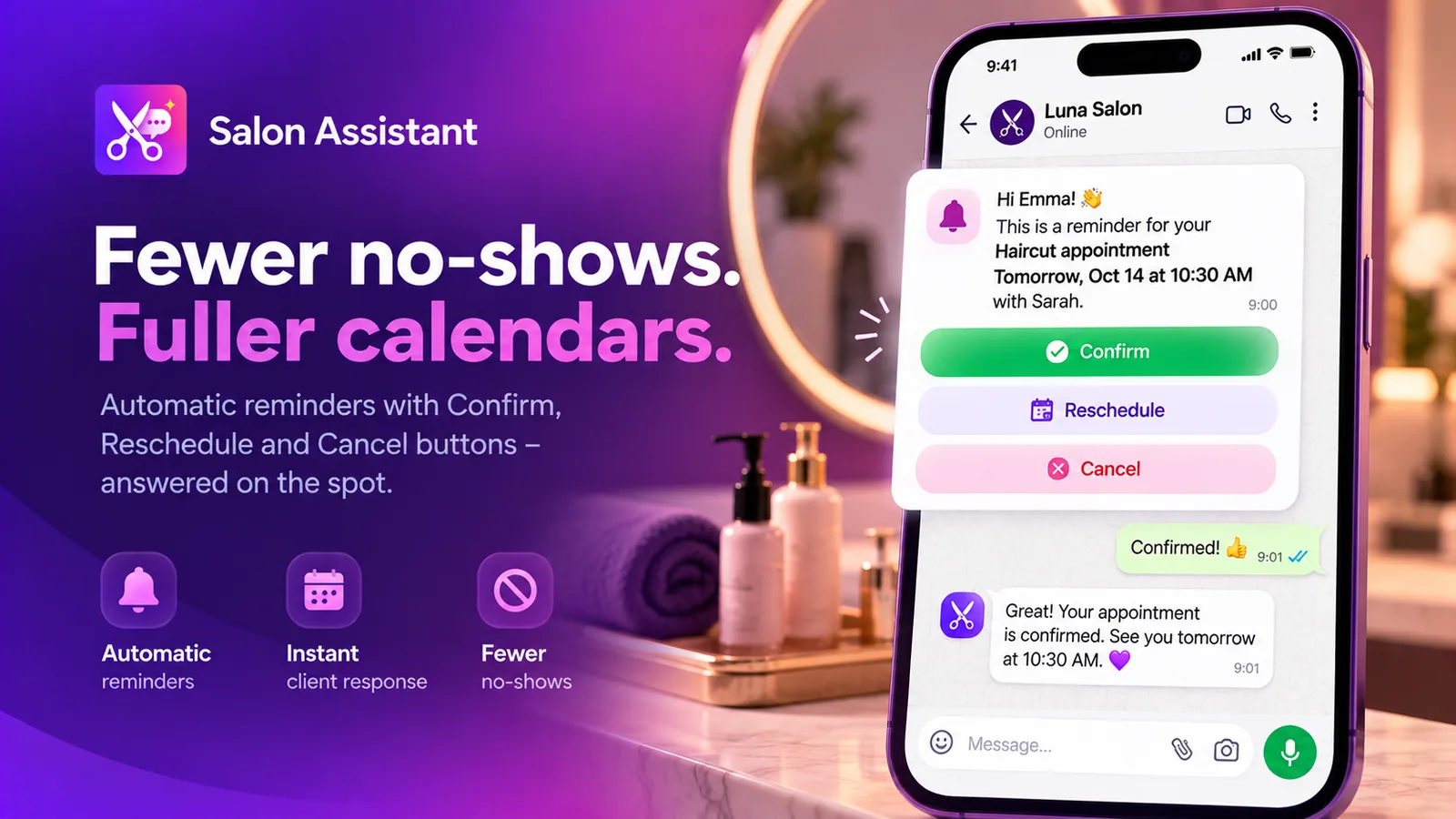 Reminder the day before with Confirm, Reschedule and Cancel buttons
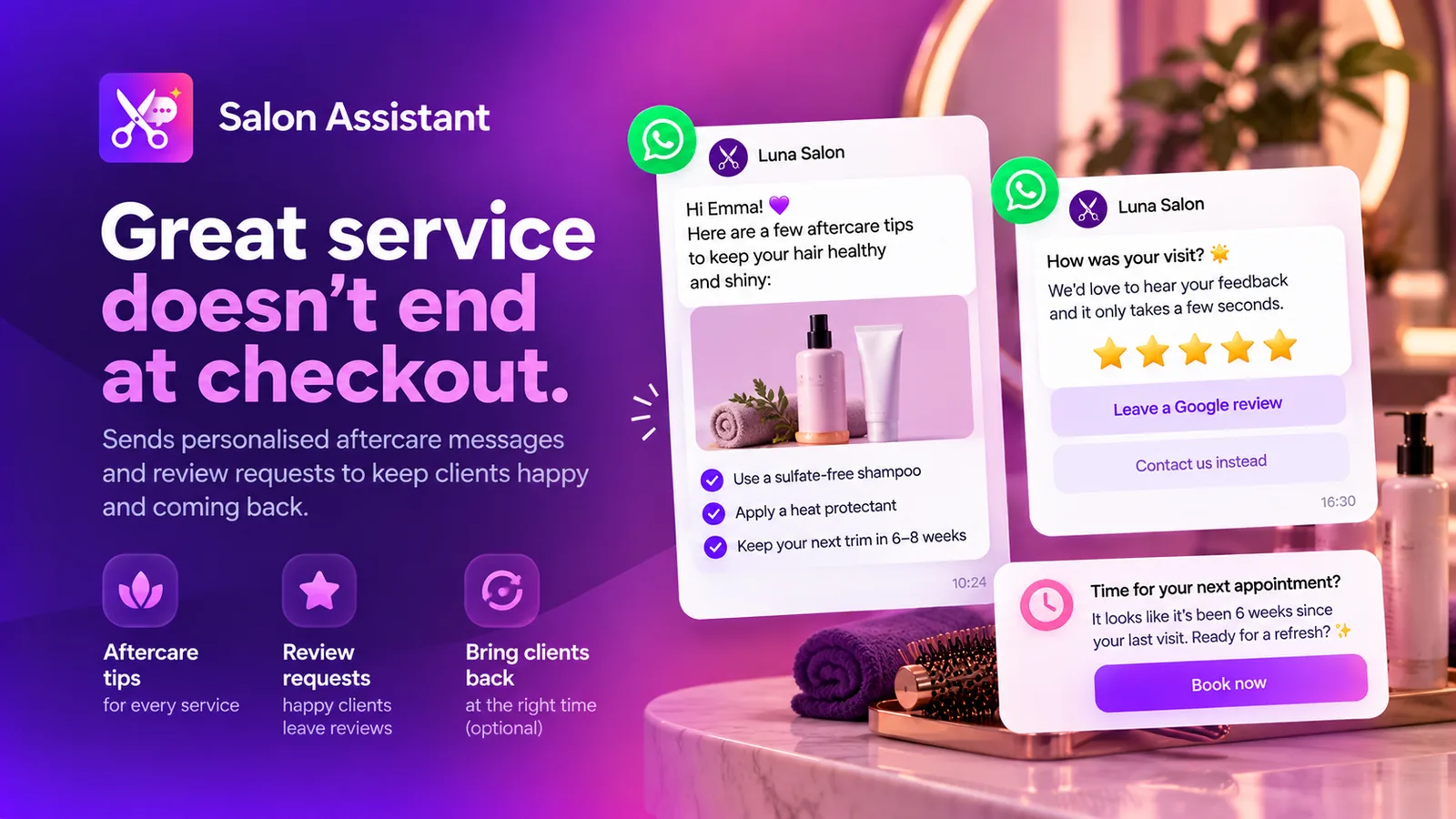 Aftercare tips after the visit and a review request that leads happy clients to Google reviews
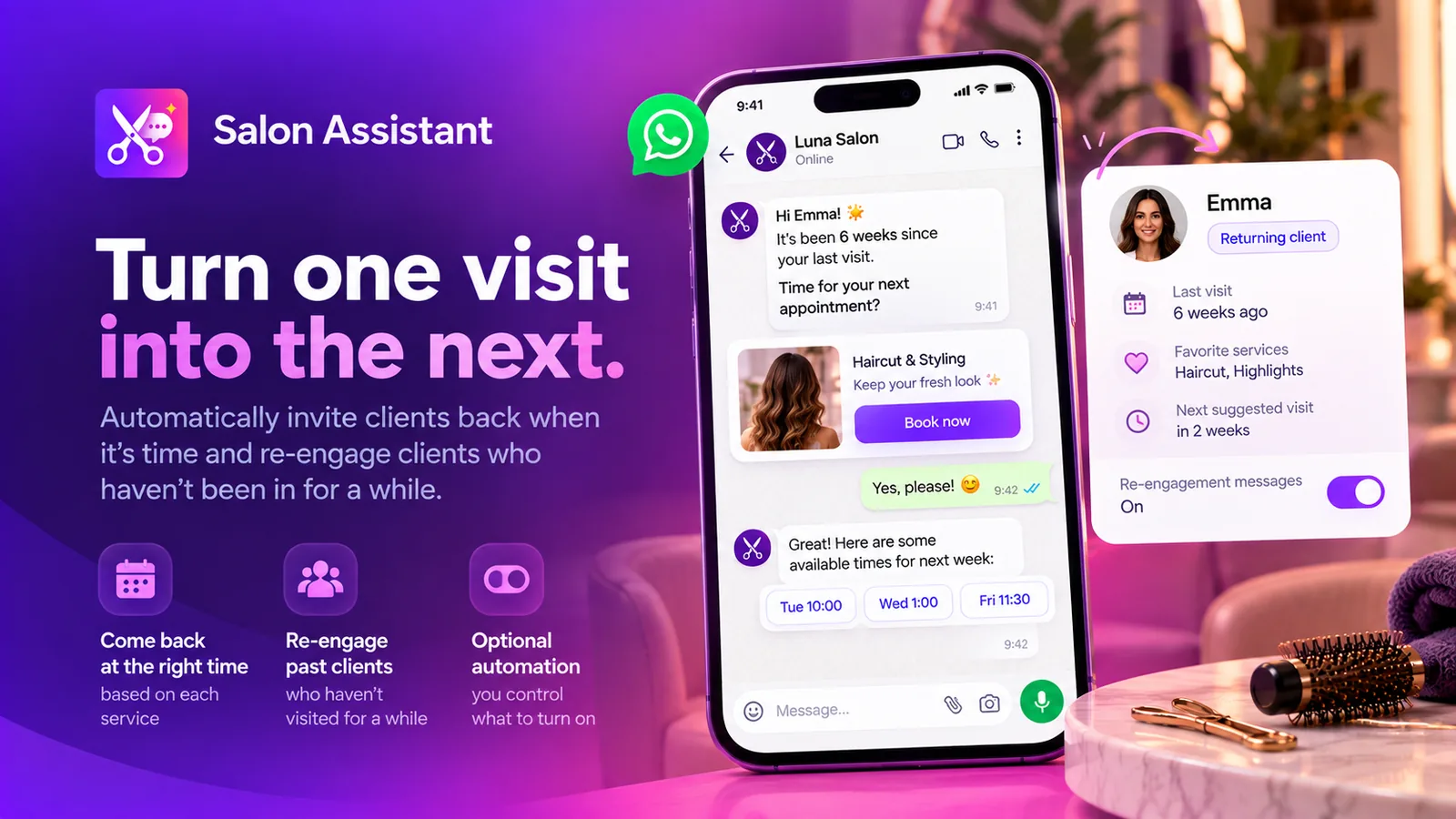 Come-back invitation when it is time for the next visit, with the client card beside it
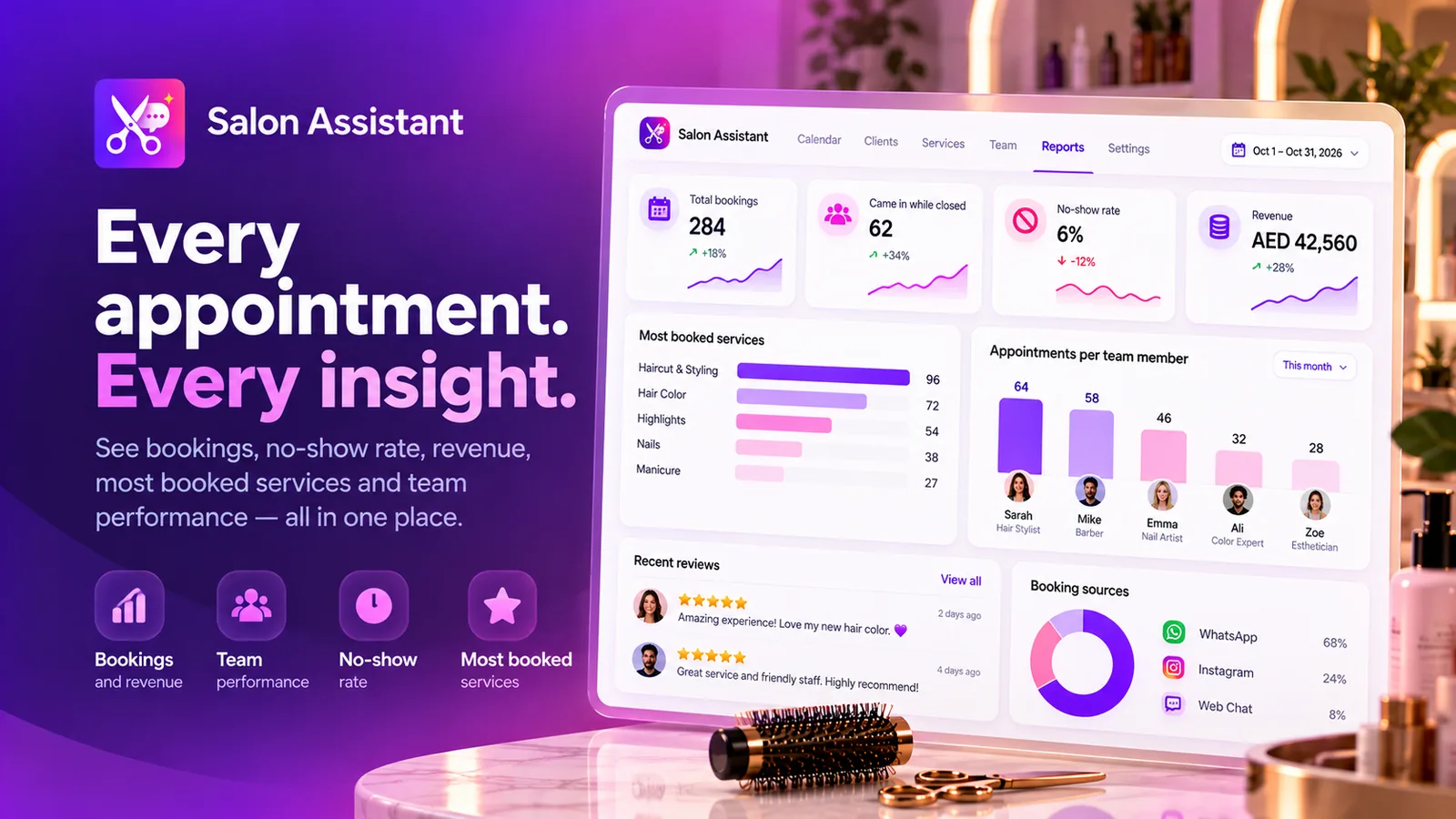 Salon report with bookings, bookings while closed, no-show rate, revenue and most booked services
FAQ
Which salons is it for?
Hair salons, barbers, nail studios, beauty studios and spas. When you set it up you pick your kind of salon and a starting service menu is filled in.
Which channels does it answer on?
WhatsApp, Instagram and web chat. Confirmations and reminders for bookings you take on the phone go out on WhatsApp.
Can it double-book or offer a time we do not have?
No. It only offers times that are free in your calendar, based on opening hours, each team member’s hours and days off, the services they do and existing bookings, and every booking is checked again on the server.
How does it reduce no-shows?
The day before, the client gets a reminder with Confirm, Reschedule and Cancel buttons, answered on the spot. Changes inside your cancellation window come to you instead.
Will it message clients before I am ready?
No. Nothing runs until you turn the assistant on, and the come-back and “we miss you” messages stay off until you switch them on. Sample data is never messaged.
Does it understand voice messages and other languages?
Yes. It understands voice messages and answers in the client’s language.