MonoChat Start

Point it at your website and get an AI assistant that answers your customers on WhatsApp, Instagram, Telegram or your website chat.
Overview
MonoChat Start reads your website: what you do, what you sell, where you are and when you open. From those pages it writes your assistant’s knowledge base: a business profile, your products and services, your locations, your policies and around forty questions your customers actually ask.
Two minutes later the assistant is answering on WhatsApp, Instagram, Telegram or the chat widget on your site, in each customer’s own language.
No website, or one that gives it nothing to read? Answer five questions instead and it writes the same knowledge base from your answers.
Highlights
- It only says what is written down. Everything the assistant is allowed to say sits on four tabs of its own screen. It never states a price, a delivery time or a guarantee that is not written there.
- It takes a message instead of improvising. When it has no answer, it writes the request down for you and tells the customer a person will come back to them.
- “Check this” before it goes live. Answers it wrote from general knowledge about your sector, rather than from your site, arrive switched off with a “Check this” badge until you approve them.
- It answers in the customer’s language. Customers can write in their own language and get the answer in that language.
Install and set up
- Install MonoChat Start from Settings › MonoStore › Apps, or open the install link app.monochat.ai/apps/KdwdYNjtSYf8RNCyf. Without a MonoChat account, the link lets you sign up first and installs the app for you.
- Open MonoChat Start in the left menu and click Fill in in the header (the same step also appears on the Get started tab). Choose Read my website: enter your Website address, pick the language your answers are written in (Write them in) and How many questions to write (5–60; forty covers most businesses). No website? Choose Answer five questions instead.
- Read what it wrote on the Questions, Products & services, Locations and Policies tabs. Answers it wrote from general knowledge about your sector arrive switched off with a Check this badge; switch them on once you agree with them.
- On the Handover tab, choose Who picks it up: a team, or one person by name. Set your working hours there too, so outside them the assistant says when you are back and takes a message.
- Optionally adjust How it talks (tone, answer length, how it addresses customers, what it calls itself) and What to watch (topics and sentiment).
- Click the green power button (Turn on) in the header and confirm Turn the assistant on. It can be turned on once it has read your website or your answers. Only someone who can manage automations in the workspace sees the power button and can turn the assistant on or off.
- Connect a channel if you have not yet: WhatsApp, Instagram, Telegram or the chat widget on your website. See Channels.
- Following topics is free and on from the start.
- Sentiment reading stays off until you switch it on. It uses one AI call per finished conversation.
- The assistant is installed switched off. Nothing reaches your customers until you turn it on.
Features
Four knowledge tabs
Questions, Products & services, Locations and Policies hold everything the assistant knows. Edit any entry, switch it on or off, or export it.
Follow-ups
Conversations that mentioned a subject you follow, collected in one place.
Topics
The subjects you want to hear about. It suggests some and notices new ones as customers raise them.
Messages taken
Every request the assistant wrote down for you because it had no answer.
Customer card
Beside every conversation: sentiment across conversations, subjects the customer keeps raising and anything still waiting on you.
Settings that read like questions
Your business, How it talks, Handover and What to watch.
Handover to your team
It hands over to a person when asked, when the customer is unhappy or when it has no answer. Choose a team or one person. Outside working hours it says when you are back and takes a message.
Reports
How many conversations it handled without you, and the list of questions it could not answer.
Screenshots
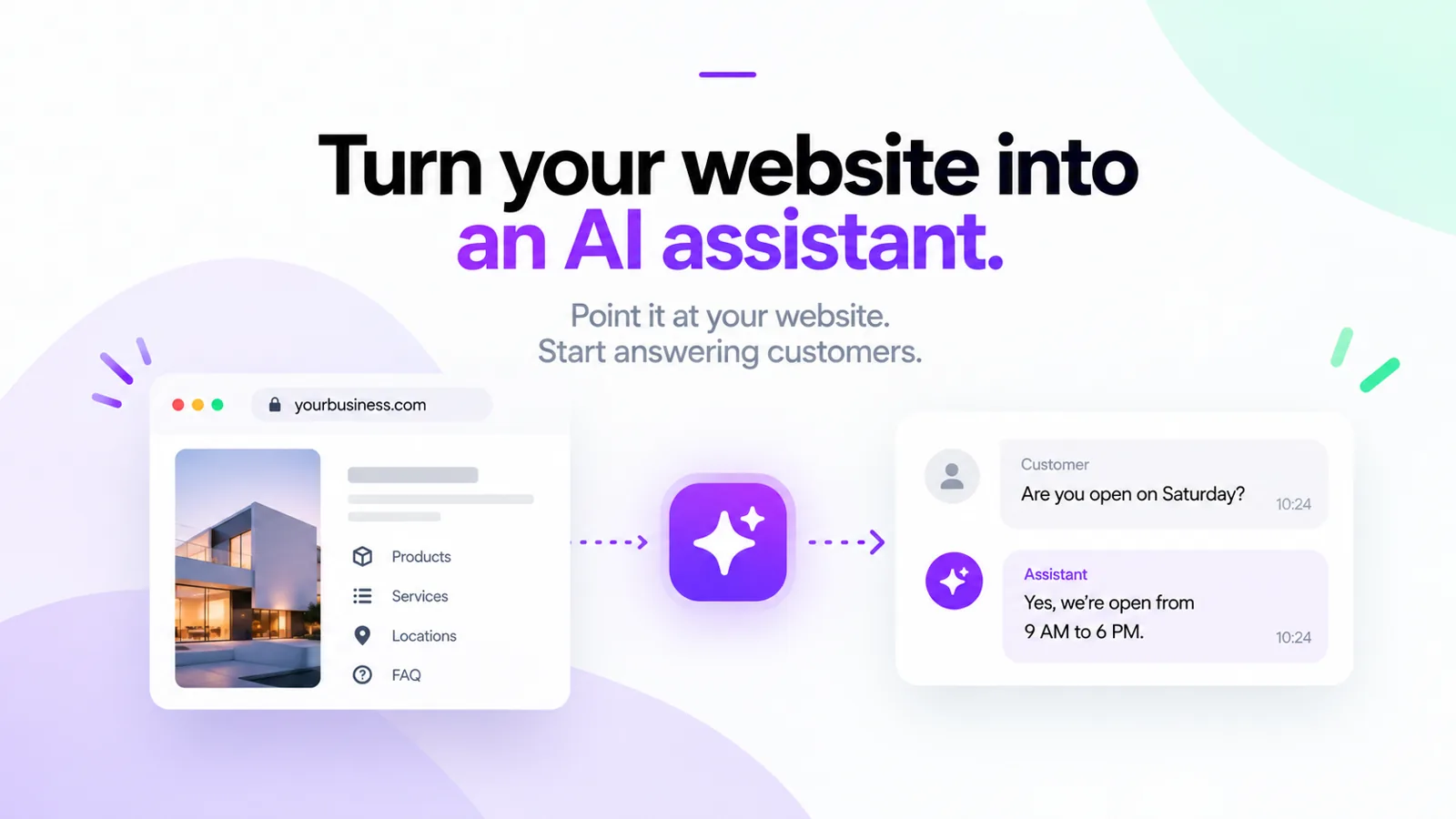 MonoChat Start turns your website into an AI assistant: a website on the left, the assistant answering a customer on the right
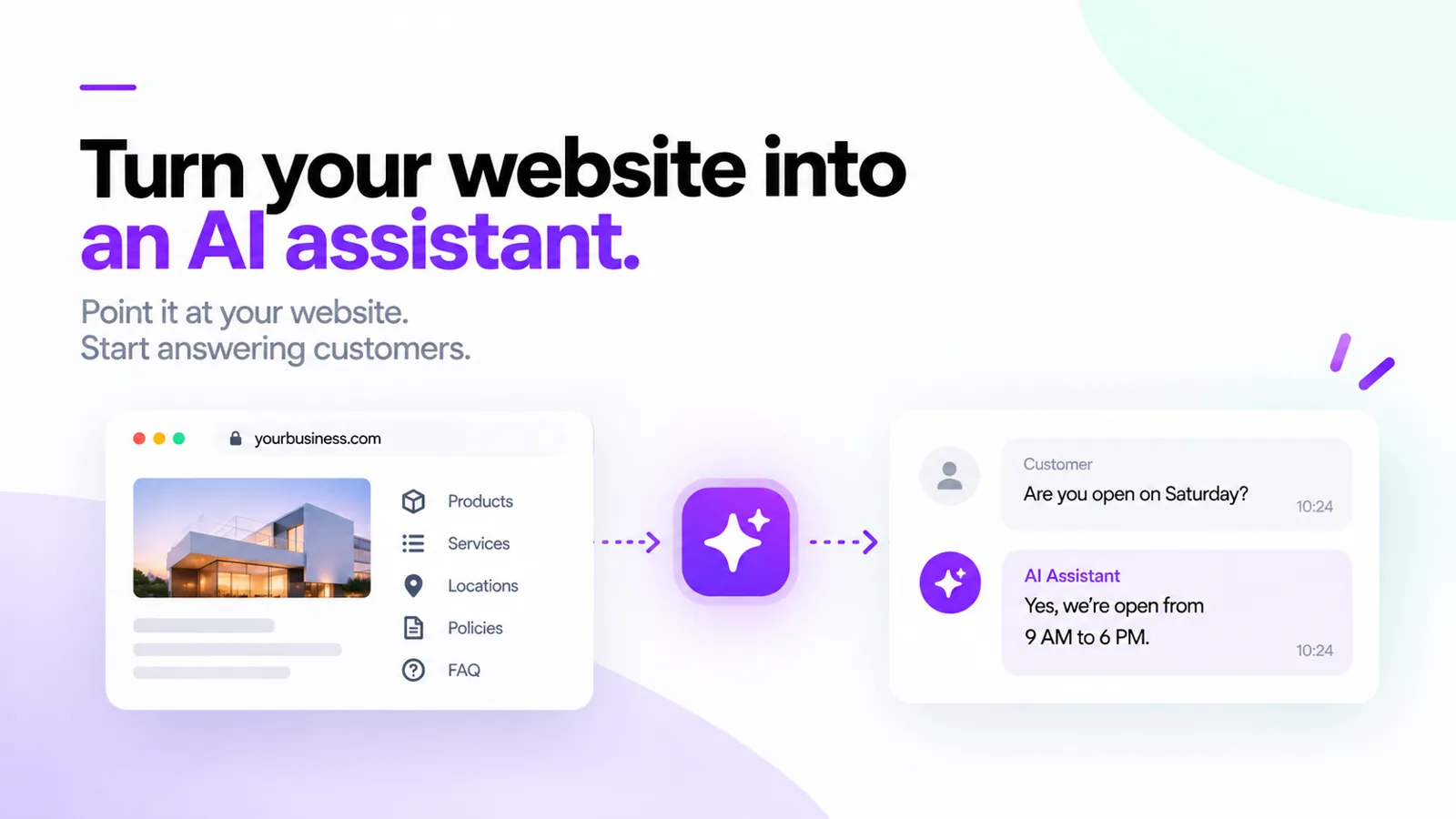 A website’s products, services, locations, policies and FAQ pages flowing into an AI assistant that answers a customer
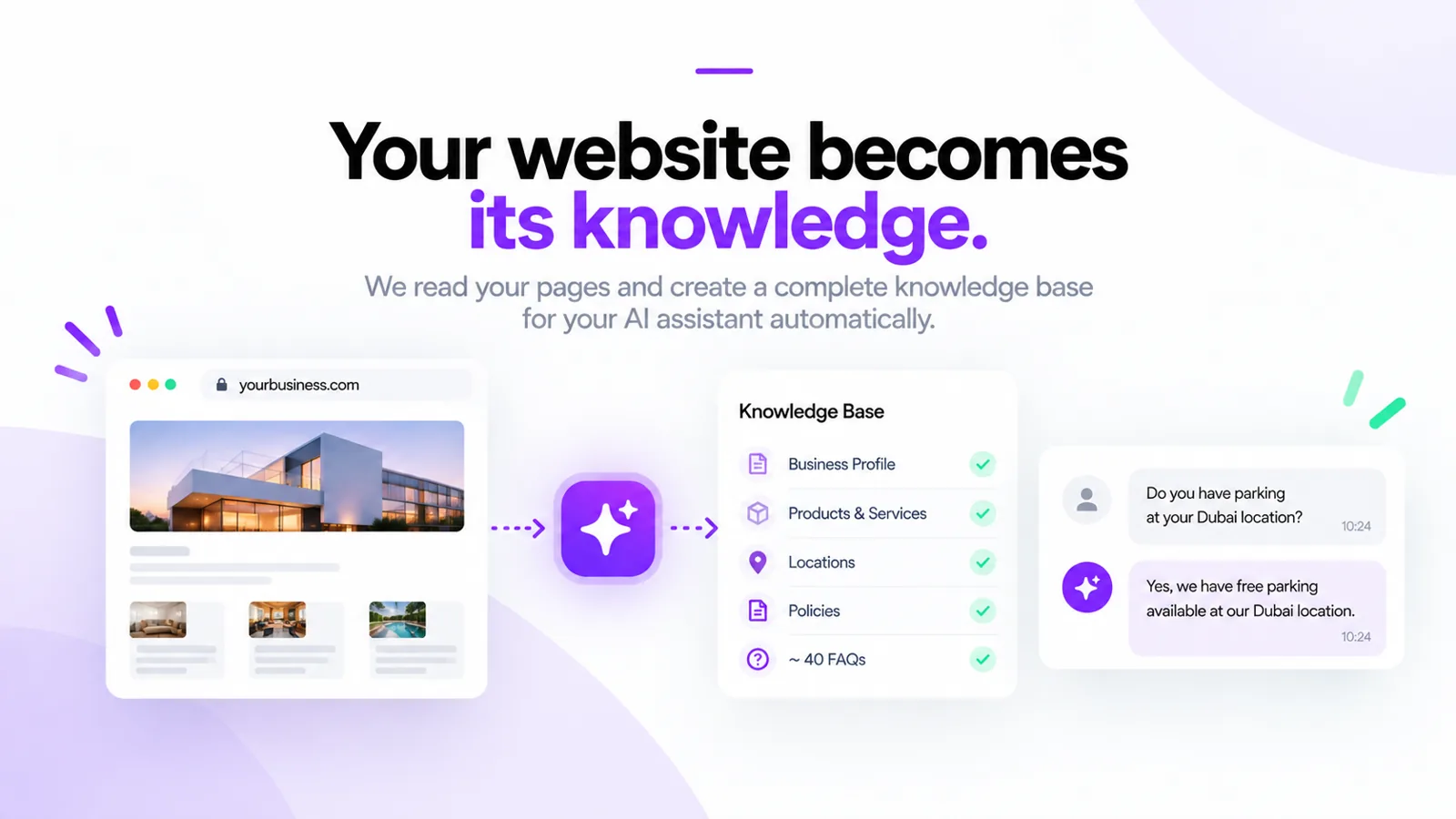 MonoChat Start builds a knowledge base from your website: business profile, products and services, locations, policies and about 40 FAQs
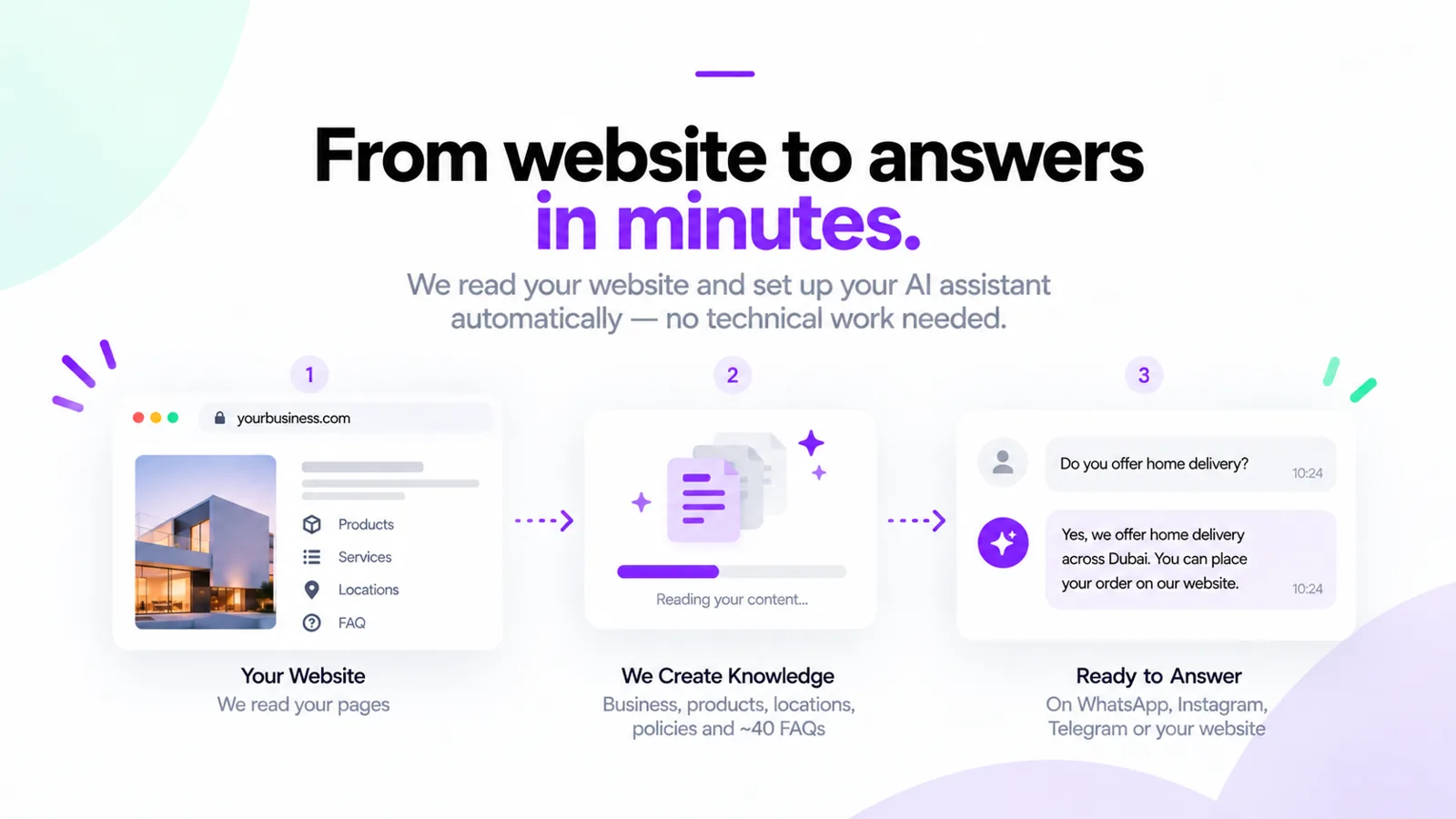 Three steps from website to answers: it reads your pages, creates the knowledge, then answers on WhatsApp, Instagram, Telegram or your website
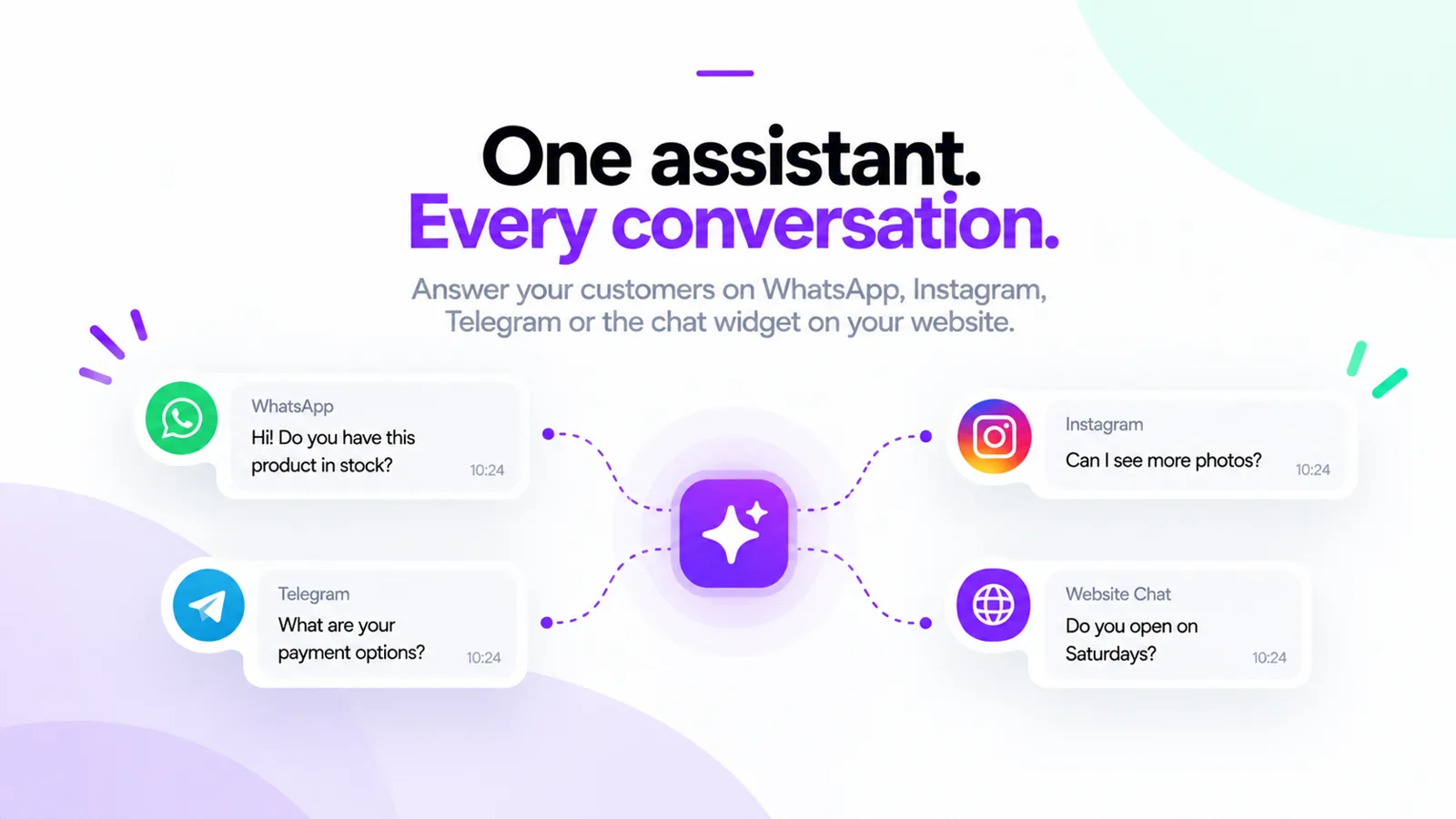 One assistant answering customers on WhatsApp, Instagram, Telegram and the website chat widget
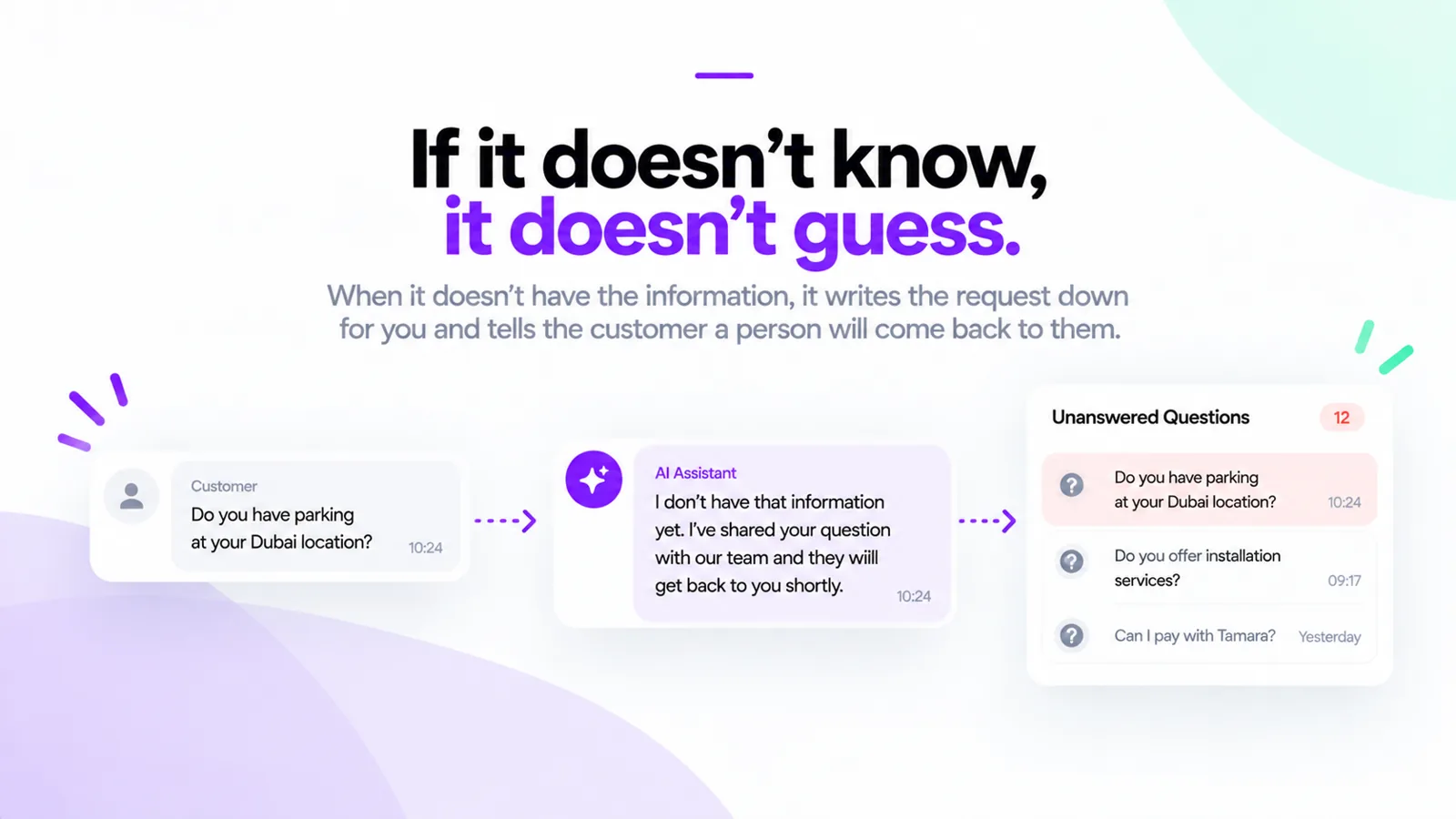 When the assistant does not know, it tells the customer a person will reply and adds the question to a list of unanswered questions
FAQ
What if I do not have a website?
Answer five questions about your business instead. MonoChat Start writes the same knowledge base from your answers: business profile, products and services, locations, policies and common questions.
Will the assistant make up prices or promises?
No. It only says what is written on its four knowledge tabs. It never states a price, a delivery time or a guarantee that is not written there, and answers it wrote from general knowledge about your sector arrive switched off with a “Check this” badge.
What happens when it cannot answer?
It does not improvise. It writes the request down for you under Messages taken and tells the customer a person will come back to them. It also hands over to your team when the customer asks for a person or is unhappy. Outside working hours it says when you are back and takes a message.
Which channels does it answer on?
WhatsApp, Instagram, Telegram and the chat widget on your website. You connect the channel in the last step of setup.
Can I change what it knows?
Yes. Every question, product, location and policy is editable, can be switched on or off and can be exported.
Does sentiment reading cost extra AI usage?
Sentiment reading is off until you switch it on, and then uses one AI call per finished conversation. Following topics is free and on from the start.