Company AI
CompanyAI is a cutting-edge platform designed to simplify the creation of AI-driven business assistants. By combining intuitive tools with powerful AI capabilities, CompanyAI enables businesses to build bots that truly understand their operations and customers. Through an easy-to-use wizard, users can upload essential documents, define the bot's role, set its tone, and establish interaction guidelines. This ensures that the bot aligns perfectly with your brand's voice and goals.
The platform supports seamless integration with popular communication channels like WhatsApp, allowing businesses to engage with customers directly. Whether answering FAQs, assisting with sales inquiries, or providing expert advice, your CompanyAI bot is always ready to deliver accurate and consistent information.
With CompanyAI, you can transform customer service, streamline operations, and provide a personalized experience without the complexities of traditional bot development. Elevate your business's efficiency and engagement with the power of AI, tailored just for you.
How to Install
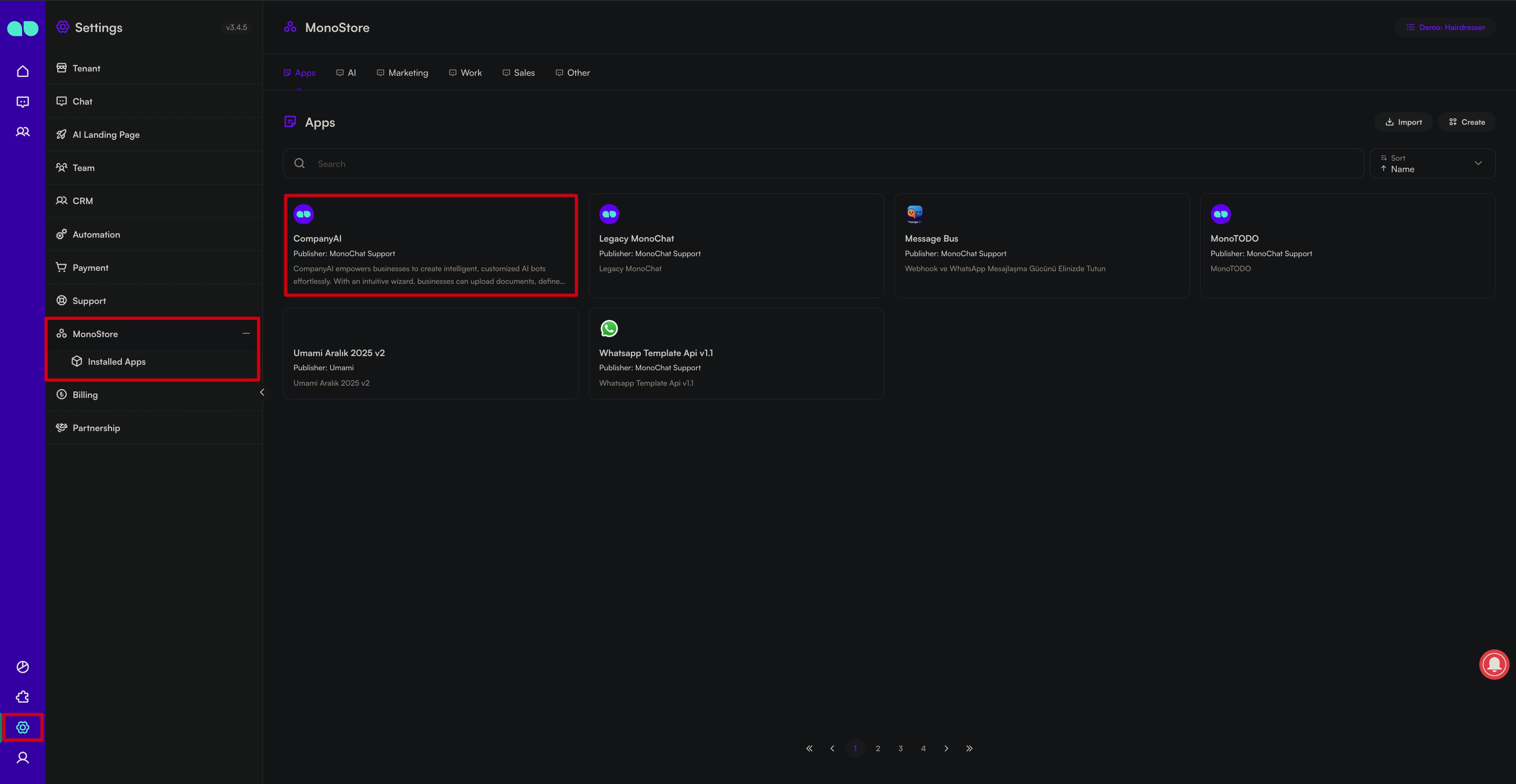
Step 1: Navigate to the Settings -> MonoStore
Go to the Settings section in your MonoChat workspace and open MonoStore to access all available apps, including Company AI.
Step 2: Install Company AI
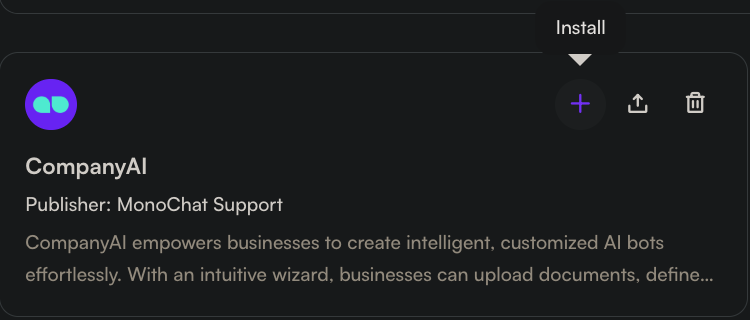
Find Company AI in the MonoStore list and click Install to add it to your workspace. The app will be ready for setup immediately.
Step 3: Manage Installed Apps
Once installed, you can view all your apps under the Installed Apps section.
From here, you can:
- Access each app’s detailed settings
- Configure or update app preferences
- Remove any app you no longer need
This allows you to keep your MonoStore workspace clean, organized, and fully customized to your business needs.
Using Company AI
Company AI is a powerful MonoStore application that enables you to create, customize, and manage an AI assistant tailored to your business needs. In this section, you will learn how to use all features of Company AI in detail.
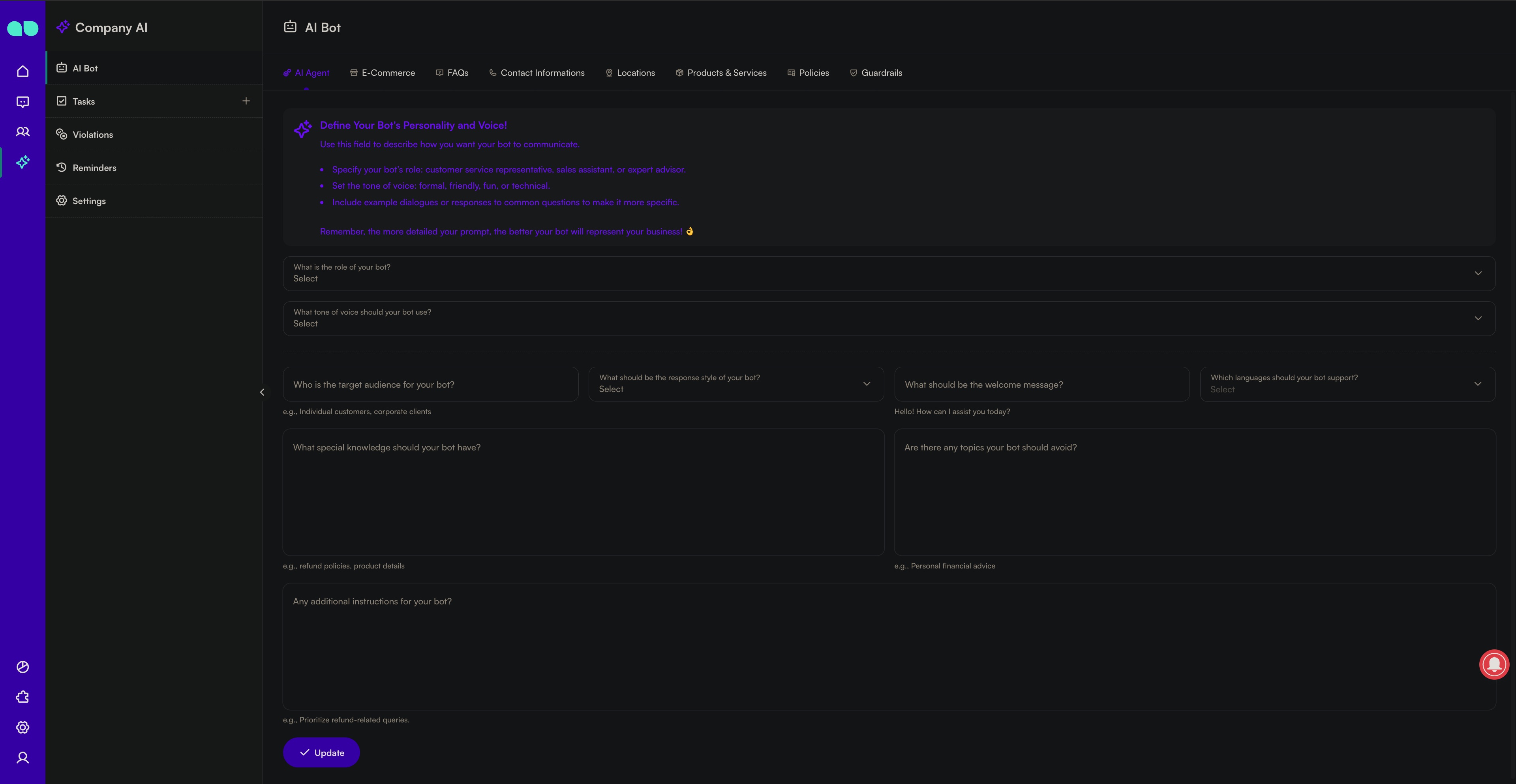
With Company AI, you can manage everything from a single panel:
- Define your AI bot’s personality, tone, and areas of expertise
- Configure e-commerce flows
- Create and manage FAQs
- Add product, service, location, policy, and contact information
- Set safety limits using Guardrails
- Manage departments and automate task assignment
- Set Violation rules to monitor and ensure response quality
The following sections will help you use Company AI effectively.
1. AI Bot: Customize Your Agent
The AI Bot page is where you define your assistant’s personality and behavioral profile.
1.1 Bot Personality & Voice
This section allows you to configure the key elements that define how your bot interacts with users:
Bot Role:
Examples: customer support agent, sales assistant, technical support specialist, e-commerce advisor.
Tone of Voice:
Formal, friendly, playful, technical, corporate, etc.
Target Audience:
B2B clients, individual customers, enterprise users.
Response Style:
Short, descriptive, step-by-step, or detailed.
Welcome Message:
Displayed when the user first interacts with your bot on WhatsApp or other channels.
Supported Languages:
Enable multilingual support for global customers.
Expertise Areas:
Examples: refunds, product knowledge, pricing, membership processes.
Topics to Avoid:
Examples: financial advice, medical guidance, legal interpretations.
Additional Instructions:
Prioritization rules, specific business guidelines, or handling of sensitive scenarios.
These configurations form the main AI “prompt” profile that shapes your bot’s behavior.
2. E-Commerce Settings
The E-Commerce section allows you to turn your bot into a sales-oriented assistant.
Here, you can configure how your bot:
- Presents products
- Manages cart and order scenarios
- Provides campaign and discount information
- Responds to stock, delivery, or payment questions
This section is ideal for online stores, retail brands, and WhatsApp Commerce users.
3. FAQs (Frequently Asked Questions)
FAQs help your bot respond quickly and consistently to common customer questions.
In this section, you can:
- Add question–answer pairs
- Create categories
- Assign priority to frequently asked topics
The AI blends these FAQ entries with your documents and other settings to deliver accurate responses.
4. Contact Information
Here you can store all contact details related to your business:
- Phone numbers
- Email addresses
- Support hours
- Social media links
The bot uses this data to provide customers with the correct contact information when requested.
5. Locations
Ideal for businesses with multiple branches, stores, or service areas.
You can add:
- Store or branch addresses
- Working hours
- Map links
- Location descriptions
The bot can optionally recommend the closest location based on user preference or shared information.
6. Products & Services
This section allows you to define the core elements of your business offering.
You can add and manage:
- Products
- Services
- Packages
- Categories
The bot uses this structured data to provide:
- Product recommendations
- Package comparisons
- Service explanations
7. Policies
Add all policy-related documents that customers may ask about, such as:
- Refund policy
- Membership terms
- Warranty rules
- Delivery and shipping policies
When customers ask policy-related questions, the AI provides accurate responses using the content saved here.
8. Guardrails
Guardrails define the behavioral limits of your AI assistant.
Examples:
- “Do not provide financial advice.”
- “Redirect suspicious inquiries to a human agent.”
- “Never request personal data from customers.”
Guardrails help you reduce risk and maintain brand standards by restricting certain behaviors.
9. Department Management (Settings → Departments)
Company AI allows you to route customer conversations to different departments.
Examples of departments you can create:
- Sales
- Technical Support
- Operations
- Finance
- Returns & Exchanges
The bot analyzes conversations and automatically assigns tasks to the appropriate department.
10. Tasks
After interacting with a customer, the bot:
- Analyzes the conversation
- Determines the correct department
- Automatically creates a task
Team members can view, manage, respond to, and close tasks directly from the MonoChat interface.
11. Violations
Violations allow you to define compliance or quality rules that the bot must follow.
Examples:
- “Flag if inappropriate language is used.”
- “Alert if incorrect pricing information is given.”
- “Report if incomplete product details are shared.”
If a violation occurs, the system automatically notifies managers.
This helps maintain response quality and brand consistency.
12. Settings
The Settings section includes options such as:
- Department configuration
- Permission and access control
- Bot configuration tools
- User management
Summary
Company AI is a comprehensive and fully customizable AI assistant for your business.
By managing all features from a single panel, you can:
- Improve customer satisfaction
- Automate operations
- Enhance sales processes
- Reduce team workload
- Deliver a consistent and intelligent customer experience
You can now proceed to create your AI assistant and deploy it across your communication channels.