Template Messages
WhatsApp Template Messages are pre-approved message formats required by WhatsApp to send outbound messages outside the 24-hour customer service window.
These templates are created via Meta Business Manager and can be used inside MonoChat for notifications, flows, bulk messaging, and AI-driven actions.
Accessing WhatsApp Template Messages
Template messages are managed through WhatsApp Manager in Meta Business Manager.
Open WhatsApp Manager
You can access WhatsApp Manager directly using this WhatsApp Manager Link.
Or follow these steps:
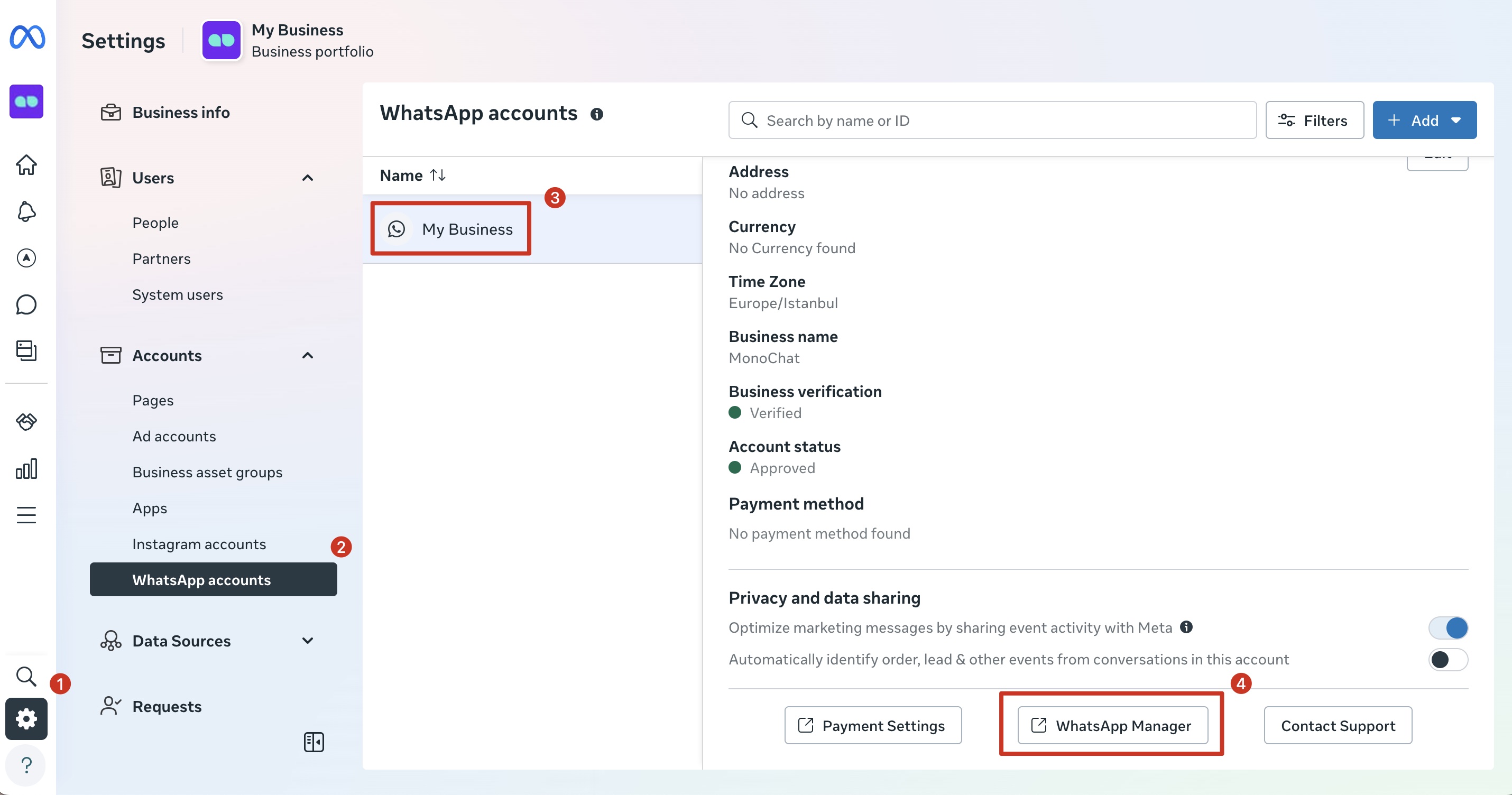
- Log in to Meta Business Manager
- Go to Business Settings
- Navigate to Accounts → WhatsApp Accounts
- Select your WhatsApp Business Account
- Click WhatsApp Manager
What Is a WhatsApp Template Message?
A WhatsApp Template Message is required for sending messages such as:
- Messages sent outside the 24-hour window
- Transactional and notification messages
- Authentication and verification messages (OTP)
- Marketing and promotional messages
All templates must be reviewed and approved by Meta before they can be used.
Prerequisites
Before creating a template, ensure that:
- You have access to Meta Business Manager
- A WhatsApp Business Account (WABA) is created and verified
- Your WhatsApp phone number is active and connected
- You have Admin or WhatsApp Manager permissions
Creating a WhatsApp Template Message
Step 1: Open Message Templates
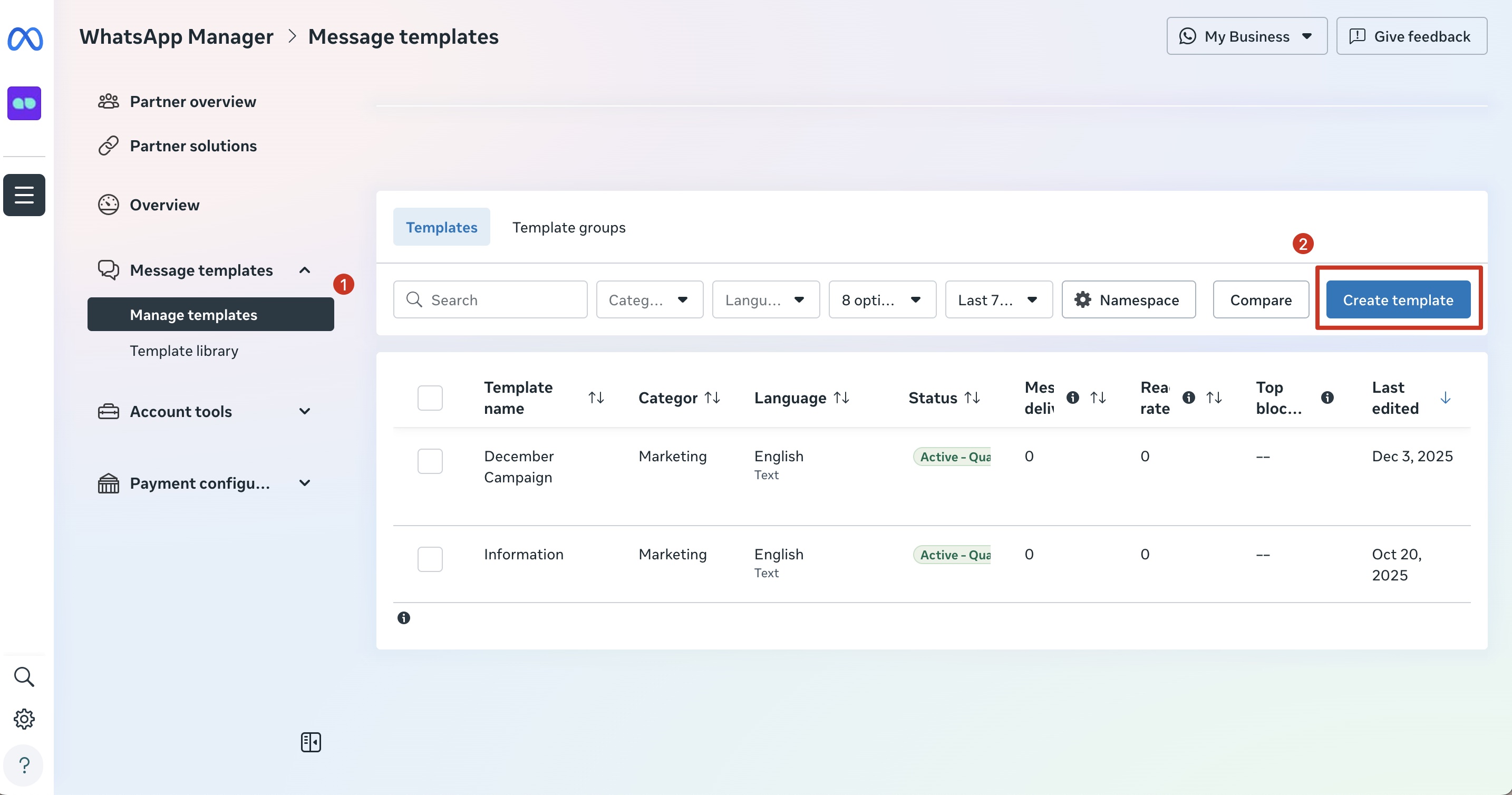
- Inside WhatsApp Manager, go to Message Templates section.
- Click Manage Templates
- Click the Create Template button
Step 2: Select Template Category
Select the category that best matches your message purpose, then click Next to continue.
| Category | Option | Description |
|---|---|---|
| Marketing | Default | Send messages with media and customized buttons to engage customers |
| Catalog | Drive sales by connecting your product catalog | |
| Flows | Send forms to capture interests, appointment requests, or run surveys | |
| Calling permissions request | Ask customers if you can call them on WhatsApp | |
| Utility | Default | Send messages about an existing order or account |
| Flows | Collect feedback, send reminders, or manage orders | |
| Calling permissions request | Ask customers if you can call them on WhatsApp | |
| Authentication | One-time passcode | Send codes to verify a transaction or login |
Selecting an incorrect category may result in template rejection.
Step 3: Define Template Name and Language
Template Name Rules
- Must be lowercase
- Use underscores instead of spaces
- Must be unique per WhatsApp Business Account
Example: payment_reminder, marketing_campaign etc.
Language
- Select the language the message will be sent in
- Additional languages can be added after approval
Step 4: Build Template Content
A WhatsApp Template Message is composed of multiple sections.
Each section controls how the message looks, behaves, and how dynamic data (variables) is injected.
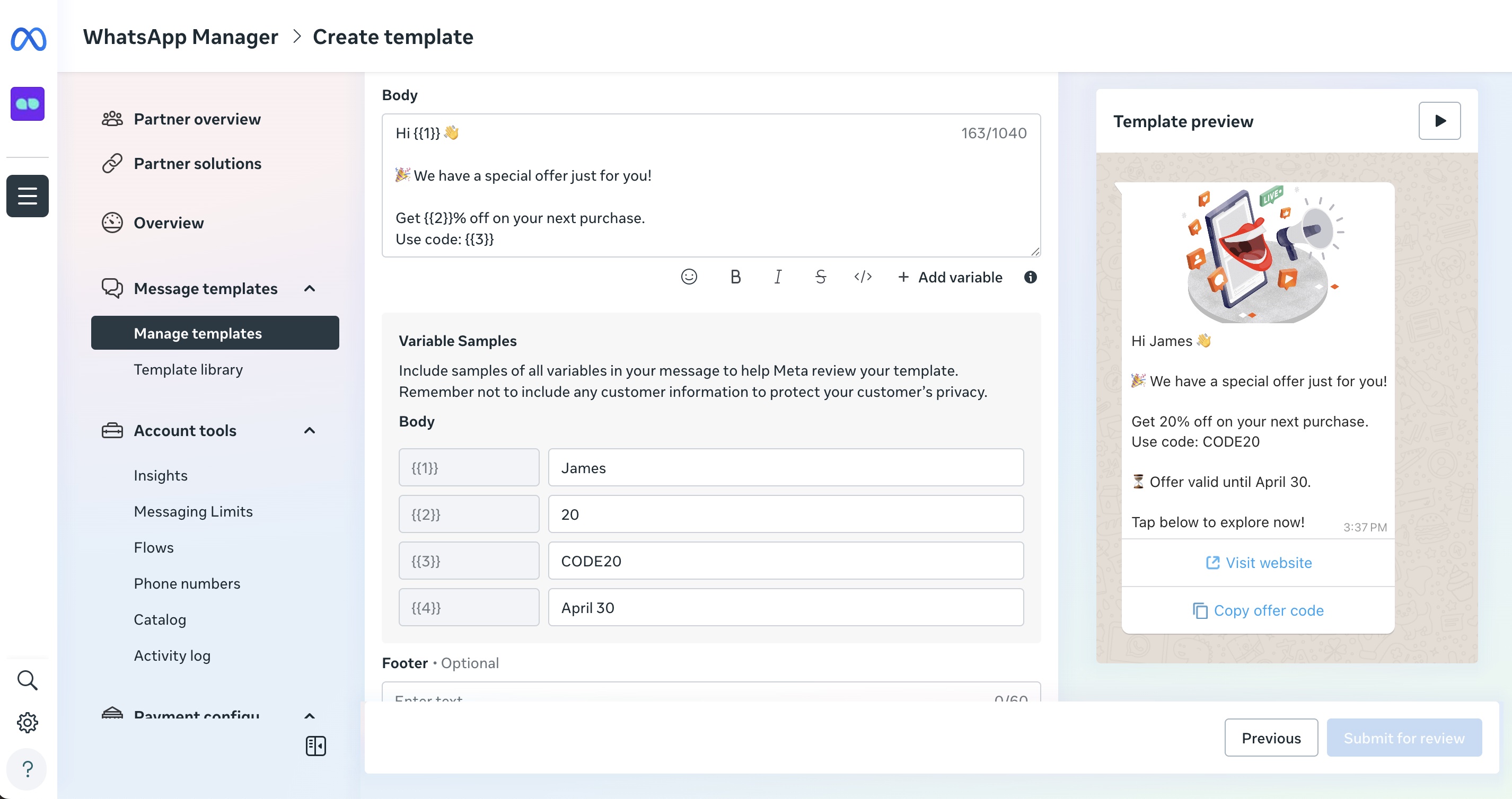
In this step:
Header (Optional)
The header appears at the top of the message and provides context or visual emphasis.
Available header types:
- Text – Short title (most commonly used)
- Image – Banner, product image, or visual context
- Video – Short explanatory or promotional videos
- Document – Files such as invoices or receipts
Example (Text Header):
Order Update
Keep headers short and descriptive. In most cases, variables are not recommended in headers.
Body (Required)
The body contains the main message content and is the only mandatory section of a WhatsApp template.
This is where you explain the message and personalize it using variables.
What are variables?
Variables are placeholders that are replaced with real values when the message is sent
(e.g. name, order number, date, amount).
This allows you to reuse the same template for different users without rewriting the message.
Variable formats
WhatsApp supports two variable formats.
The correct format depends on the template type and what Meta expects.
1. Numbered Variables (Classic)
Used in most standard templates.
Format:
{{1}}, {{2}}, {{3}}, ...
Rules:
- Must be numeric
- Must start from
{{1}}and Must be sequential - Values are mapped by position
- Must have at least one character
- Can't start or end a string alone
- Can't have too many variables relative to the message length.
Example template body:
Hello
{{1}},Your order
{{2}}has been delivered on{{3}}.
Example value mapping:
| Variable | Value |
|---|---|
{{1}} | Customer name |
{{2}} | Order ID |
{{3}} | Delivery date |
2. Named Variables (Required in some templates)
Some template types (such as Flows, Catalog, or when Meta shows a Name field for variables) require named variables.
If you see the error:
Variable parameters must be lowercase characters, underscores and numbers with two sets of curly brackets
You must use named variables.
Named variable rules:
- Must be lowercase
- Can include underscores (
_) - Can include numbers
- No spaces or special characters
- Must be wrapped in double curly brackets
- Must have at least one character
- Can't start or end a string alone
- Can't have too many variables relative to the message length.
Valid examples:
{{customer_name}}
{{order_id}}
{{delivery_date}}
{{amount_1}}
Invalid examples:
{{CustomerName}} uppercase
{{order-id}} hyphen
{{order id}} space
{{1}} numeric-only
Named variable example:
Template body:
Hello
{{customer_name}},Your order
{{order_id}}has been delivered on{{delivery_date}}.
Example value mapping:
| Variable Name | Value |
|---|---|
customer_name | John |
order_id | #45821 |
delivery_date | March 10 |
Important variable rules
- You cannot mix numbered and named variables in the same template
- Variable format cannot be changed after approval
- Changing variable names requires re-approval
- Variable usage must match the selected template type
Footer (Optional)
The footer appears at the bottom of the message and is typically used for branding or context.
Example:
MonoChat Notifications
Footers cannot contain variables or links.
Step 5: Add Buttons (Optional)
Buttons allow users to take action directly from the message without typing a response.
They improve engagement and guide users toward the intended next step.
Quick Reply (Custom / Pre-configured Response)
Quick Reply buttons send a pre-configured response back into the chat.
They are best used for confirmations or simple choices where the user stays inside the conversation.
Fields:
| Field | Description |
|---|---|
| Type | Quick Reply |
| Button Text | Text shown on the button |
| Response Type | Pre-configured response |
| Character Limit | Max 25 characters |
Rules:
- Button text is sent as a message
- No links or external actions
- Ideal for automation and flows
Examples:
- Confirm
- Yes
- No
- Reschedule
Use Quick Reply buttons when the next step depends on what the user replies, not on an external action.
Call To Action Buttons
Call To Action buttons trigger external actions or WhatsApp features.
Visit Website
Redirects the user to a web page.
Fields:
| Field | Description |
|---|---|
| Type of Action | Visit website |
| Button Text | Button label (max 25 chars) |
| URL Type | Static or Dynamic |
| Website URL | Target URL (max 2000 chars) |
Example:
- Button Text:
Track Order - URL:
https://www.example.com
Call on WhatsApp
Starts a WhatsApp voice call with the business.
Fields:
| Field | Description |
|---|---|
| Type of Action | Call on WhatsApp |
| Button Text | Button label |
| Active for | Call permission duration (e.g. 7 days) |
Calling must be enabled in WhatsApp Manager or via the Phone Number Settings API.
Call Phone Number
Opens the device phone dialer.
Fields:
| Field | Description |
|---|---|
| Type of Action | Call phone number |
| Button Text | Button label |
| Country | Country code |
| Phone Number | Valid phone number (required) |
A valid phone number is required to submit the template.
Complete Flow
Launches a WhatsApp Flow directly from the message.
Fields:
| Field | Description |
|---|---|
| Type of Action | Complete Flow |
| Button Icon | Button symbol |
| Button Text | Button label |
| Flow | Create new or select existing |
Common use cases:
- Forms
- Appointment booking
- Surveys
- Feedback collection
Copy Offer Code
Allows users to copy a promotional or discount code.
Fields:
| Field | Description |
|---|---|
| Type of Action | Copy offer code |
| Button Text | Button label |
| Offer Code | Code to be copied |
Example:
- Button Text:
Copy Code - Offer Code:
SUMMER25
Button actions must directly match the message content.
Misleading or unrelated buttons may cause template rejection.
- Maximum 10 buttons per template (depends on category)
- Button text max 25 characters
- CTA buttons must match message intent
- Misleading buttons may cause template rejection
Buttons must be relevant to the message content.
Incorrect or misleading actions may result in Meta rejection.
Final Check Before Submission
Before clicking Next, ensure that:
- Variables follow the correct format (numbered or named)
- The template category matches the content
- Buttons are relevant and clearly labeled
- The message complies with WhatsApp policies
Submitting the Template for Review
- Review all fields carefully
- Click Submit
- The template status will change to In Review
Review Statuses
- In Review – Template still in review stage
- Approved – Template can be used
- Rejected – Requires changes and resubmission
The review process usually takes from a few minutes up to 24 hours.
Common Rejection Reasons
- Promotional wording in Utility templates
- Incorrect category selection
- Unclear or misleading variables
- Grammar or spelling mistakes
- Button actions not matching message content
Using Approved Templates in MonoChat
Once a template is approved by Meta:
- It becomes available inside MonoChat
- It can be used in:
- Flows
- Bulk Messaging
- Automated Notifications
- AI-driven actions
Variables defined in Meta must be correctly mapped inside MonoChat before sending.
For more information on how to use template messages for bulk messaging, head to our Broadcast Page page.
Upcoming Feature: Template Management via MonoChat
Coming Soon
MonoChat will soon allow you to:
- Create WhatsApp templates directly from MonoChat
- Submit them for Meta approval
- Track approval status in one place
Until this feature is released, all templates must be created and approved via Meta WhatsApp Manager.
Best Practices
- Create separate templates for different scenarios
- Keep messages short and easy to understand
- Use consistent naming conventions
- Avoid unnecessary variables
- Always test templates before production use
Notes
- Template approval is fully managed by Meta
- Any content change requires re-approval
- MonoChat does not bypass WhatsApp or Meta policies