Broadcast Messages
The Broadcast Messages management screen in MonoChat allows businesses to send messages to multiple recipients simultaneously. This feature is useful for announcements, updates, and promotions. To efficiently manage and send broadcast messages, follow these steps: Setting Template Message, Setting Message List, and Sending Broadcast Messages.
Broadcast messages are currently only available via Whatsapp Business Channel!
Steps to Manage and Send Broadcast Messages
1. Setting Template Message
To send bulk messages via the WhatsApp Business API, you must use template messages. This is a WhatsApp policy requirement to ensure that businesses only initiate conversations using pre-approved, structured messages—helping to prevent spam and protect user experience.
- For WhatsApp Cloud API users, template messages must be created through Meta Business Manager. Go to the WhatsApp section, access the Message Templates page, and create your template by filling in the required fields such as name, category, language, and content with dynamic placeholders as needed.
For more information on how to create template messages, head to our Template Messages page.
- For Gupshup users, please contact MonoChat Support to set up your templates.
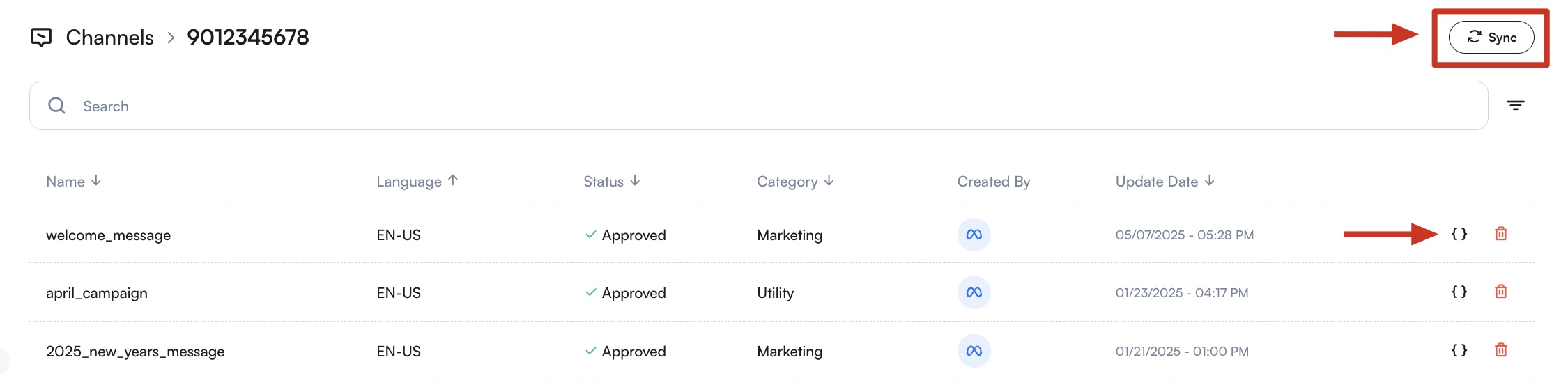
After your templates are approved, you will need to sync them with MonoChat. Head to Settings > Chat, click the three-dot menu next to your channel and choose Template Messages. Press the Sync button and your approved template will show on the template list.
Adding Variables
If your template includes media (image, video, or document) or dynamic variables, you must upload the required media and define all variable values on this page.
Templates with missing variables cannot be sent.
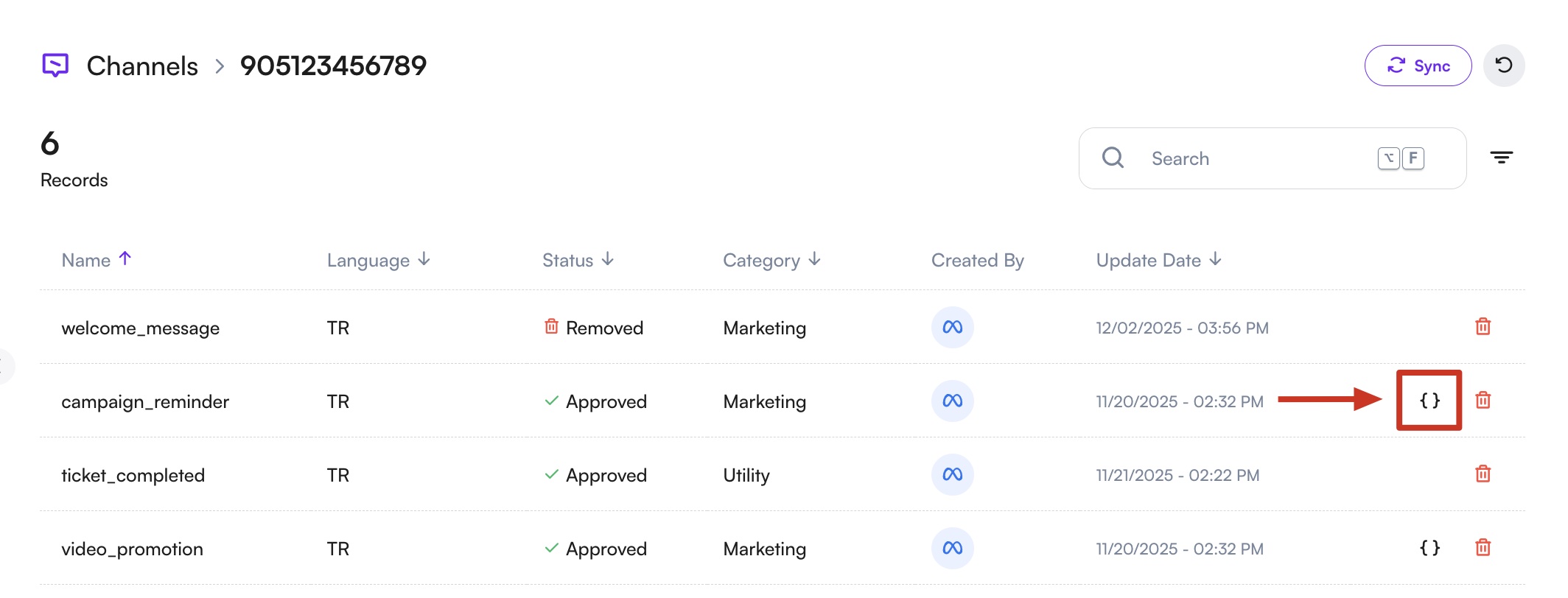
- Templates that contain variables are marked with a brackets icon.
Click this icon to view the template details and variable structure.
-
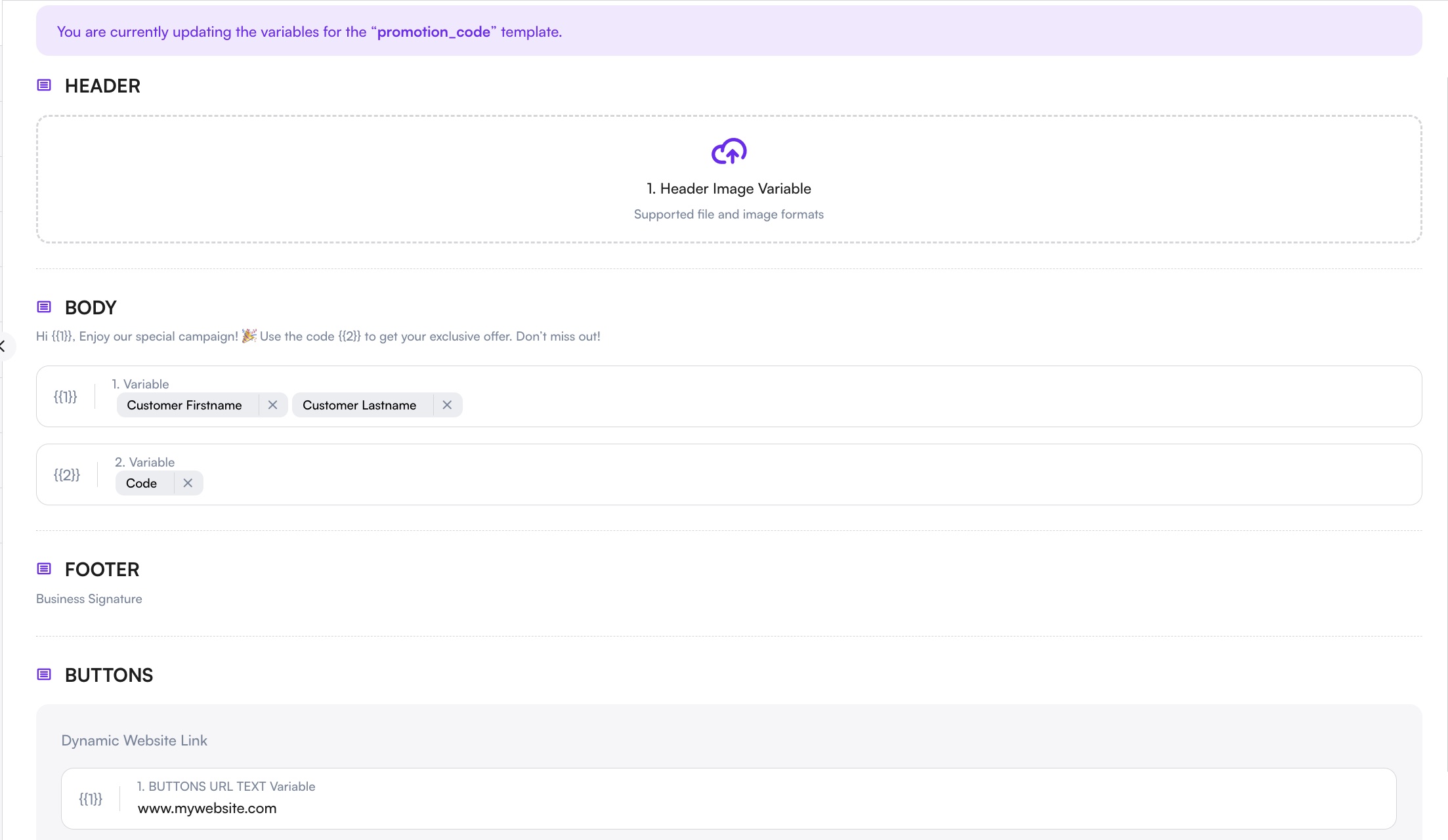
If your template includes an image, video, or document, click the header area and upload the required file.
-
The system automatically detects the variables you defined during template creation.
Locate the empty fields next to the variable numbers or names, then type@to open the available options (such as first name, last name, order number, user information, etc.).
-
If your template includes buttons with dynamic URLs, enter the required values for those links as well. These links must be completed before the template can be sent.
-
After all variables are filled in, click Save to set your variables.
2. Setting Message List
The message list is a compilation of recipients who will receive the broadcast message.
- Navigate to the CRM section.
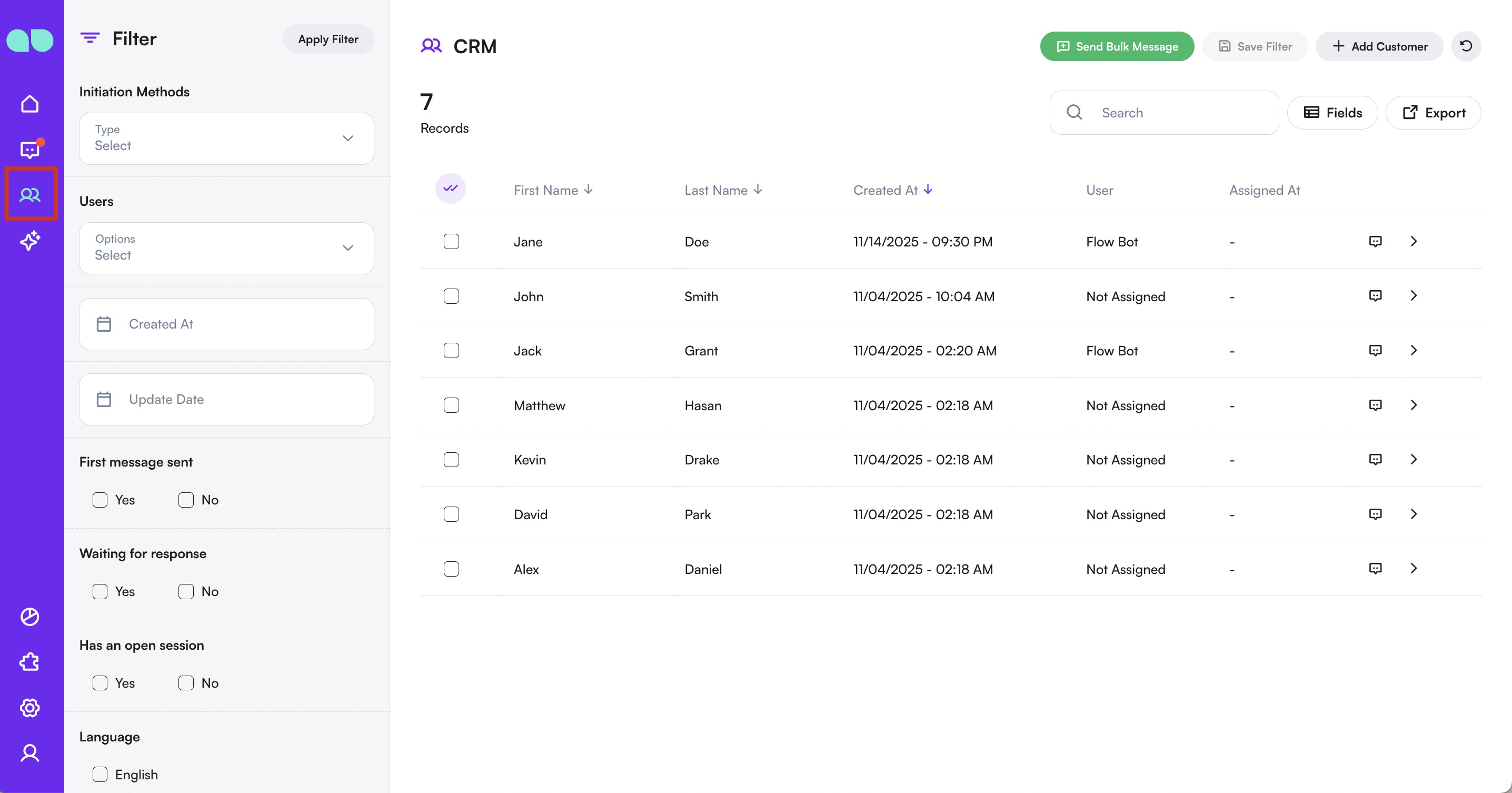
- Apply your filter to be able to access the people you want to send to.
- Enter the list name and select the recipients. You can choose from existing contacts or import a list.
Check out the documentation for more information on how to import lists.
3. Sending Broadcast Messages
Once your template and message list are ready, you can start sending broadcast messages.
Filter Your Audience (Optional)
Before selecting recipients, you can filter the contacts you want to include in the bulk message.
A wide range of filter options is available and can be seen on the left side of the CRM page, allowing you to narrow down your audience based on how conversations were initiated, who contacts are assigned to, when they were created or updated, their language preferences, and various profile fields.
While filtering, clicking a filter option once will include it, while clicking the same option twice will exclude it.
Example:
- Selecting English once → shows only profiles with English set
- Selecting English twice → shows all profiles except English
Select Recipients
Selecting recipients is optional.
If you do not make a selection, the broadcast message will select all contacts to send.
If you want to target specific contacts, you can:
- Manually select individual contacts
- Use Select All or Select Page to choose multiple recipients
- After selecting all, manually exclude specific contacts if needed
If you have a filter setup that you use frequently, you can save the filter and reuse it later.
Saved filters can be selected and applied during Step 3 (Custom Filters) when sending a broadcast message, even if no contacts were manually selected.
Start the Bulk Message Flow
- Click Send Bulk Message to Selected.
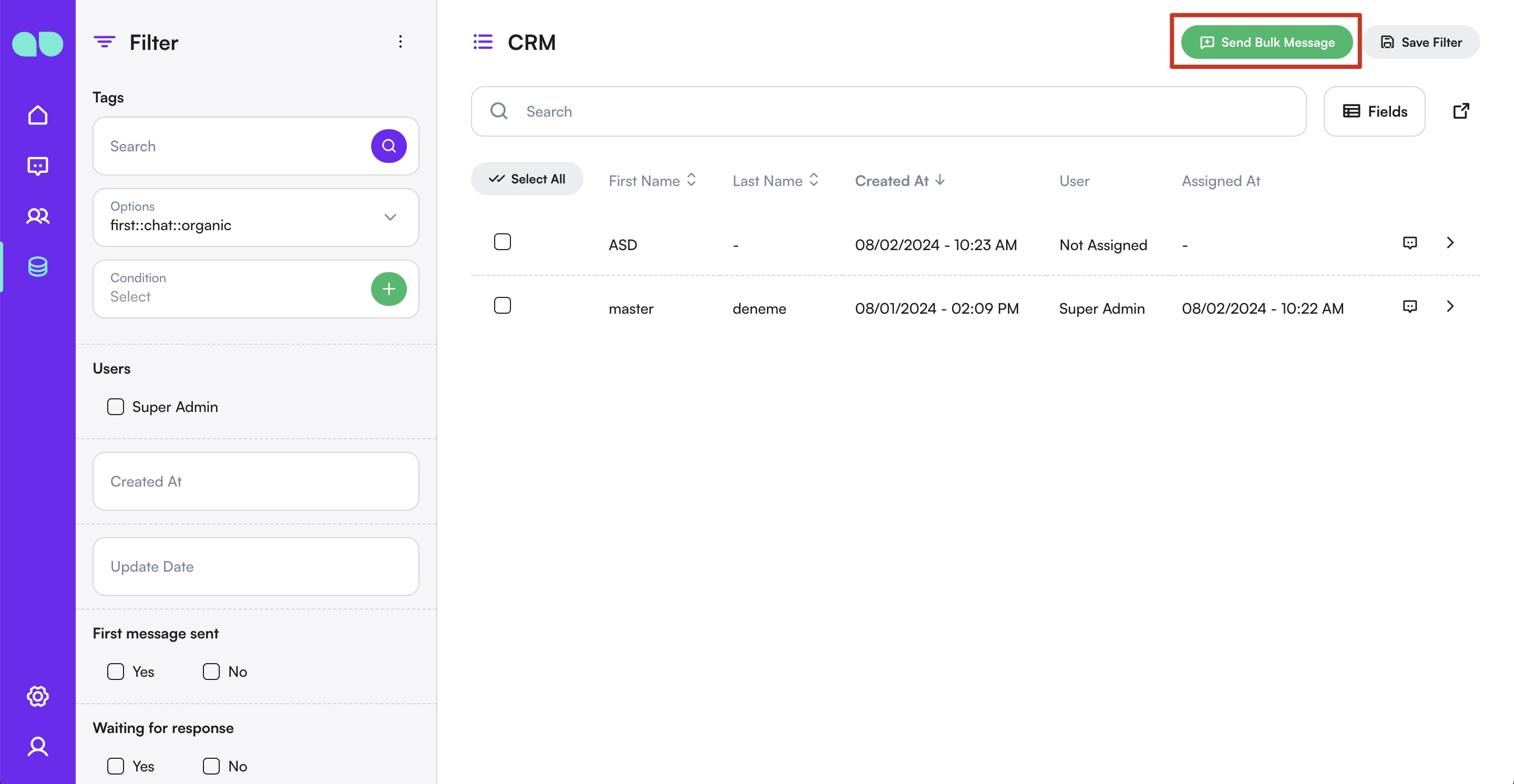
- Choose the channel you want to send messages from.
Most channels enforce a 24-hour messaging rule, meaning you cannot initiate a conversation unless the person has contacted you first.
For successful bulk messaging, it is strongly recommended to use WhatsApp with Template Messages.
Choose Bulk Operation Type
Select the message type supported by the chosen channel:
- Normal Message
- Custom Flow
- Template Message
Compose the Message
Compose or select the message content based on the chosen bulk operation type.
Send or Schedule
- From the type selection, choose Immediately to send the message right away.
- Or select Later to schedule the message for a later date and time.
- After choosing the time, click Continue to finish the sending process.
Before sending bulk messages, review your Messaging Limits from Whatsapp Manager Page.
This limit defines how many business-initiated conversations you can start within a rolling 24-hour period.
A conversation begins when the first message is delivered and automatically ends after 24 hours.
If the limit is reached, new conversations can only be started once active ones expire.
The same page also explains how to increase your messaging limits, if eligible.
Track the Sending Process
After the sending process is started, the broadcast is taken into processing as a job.
You can track the progress, status, and completion details from the System > Jobs page.
Marketing Benefits
- Wider Reach: Send messages to a large audience quickly and efficiently.
- Consistency: Ensure your messaging is consistent by using pre-defined templates.
- Personalization: Use dynamic content placeholders to personalize messages for each recipient.
- Cost-Effective: Save time and resources by automating message distribution.
Use Cases
- Promotions: Announce new products, sales, or special offers to your customer base.
- Updates: Inform customers about changes to services, policies, or business hours.
- Event Invitations: Send invitations and reminders for webinars, conferences, or other events.
- Customer Engagement: Share newsletters, tips, and educational content to keep your audience engaged.
Summary
The Broadcast Messages management feature in MonoChat allows businesses to efficiently send messages to multiple recipients. By setting up template messages, creating message lists, and sending broadcasts, you can ensure effective communication with your audience.
For any assistance with managing your broadcast messages, please refer to the help section or contact our support team.