Whatsapp Template API
WhatsApp Template API – Overview
The WhatsApp Template API is a MonoChat-integrated application designed to operate purely at the API level, without any graphical interface. It enables users who have connected their WhatsApp Business accounts to MonoChat to programmatically manage their WhatsApp Template Messages through secure REST API endpoints.
With this application installed, your systems can:
- List all WhatsApp-approved message templates associated with your WhatsApp Business numbers.
- Send a selected template message to any customer by filling in its dynamic parameters (variables).
- Upload media files used inside template messages by generating a temporary upload URL, allowing you to store images in MonoChat’s AWS S3–based media storage and reference them inside template messages.
This integration allows technical teams to send WhatsApp-approved templates directly via code, while business teams can rely on MonoChat for secure template management and operational continuity.
Note: WhatsApp Template Messages are pre-approved by WhatsApp and are typically required for initiating conversations or messaging customers outside the 24-hour window.
To use this app, ensure that:
- Your WhatsApp Business number is already integrated with MonoChat.
- Your template messages are approved and available in your WhatsApp Business account.
How to Install
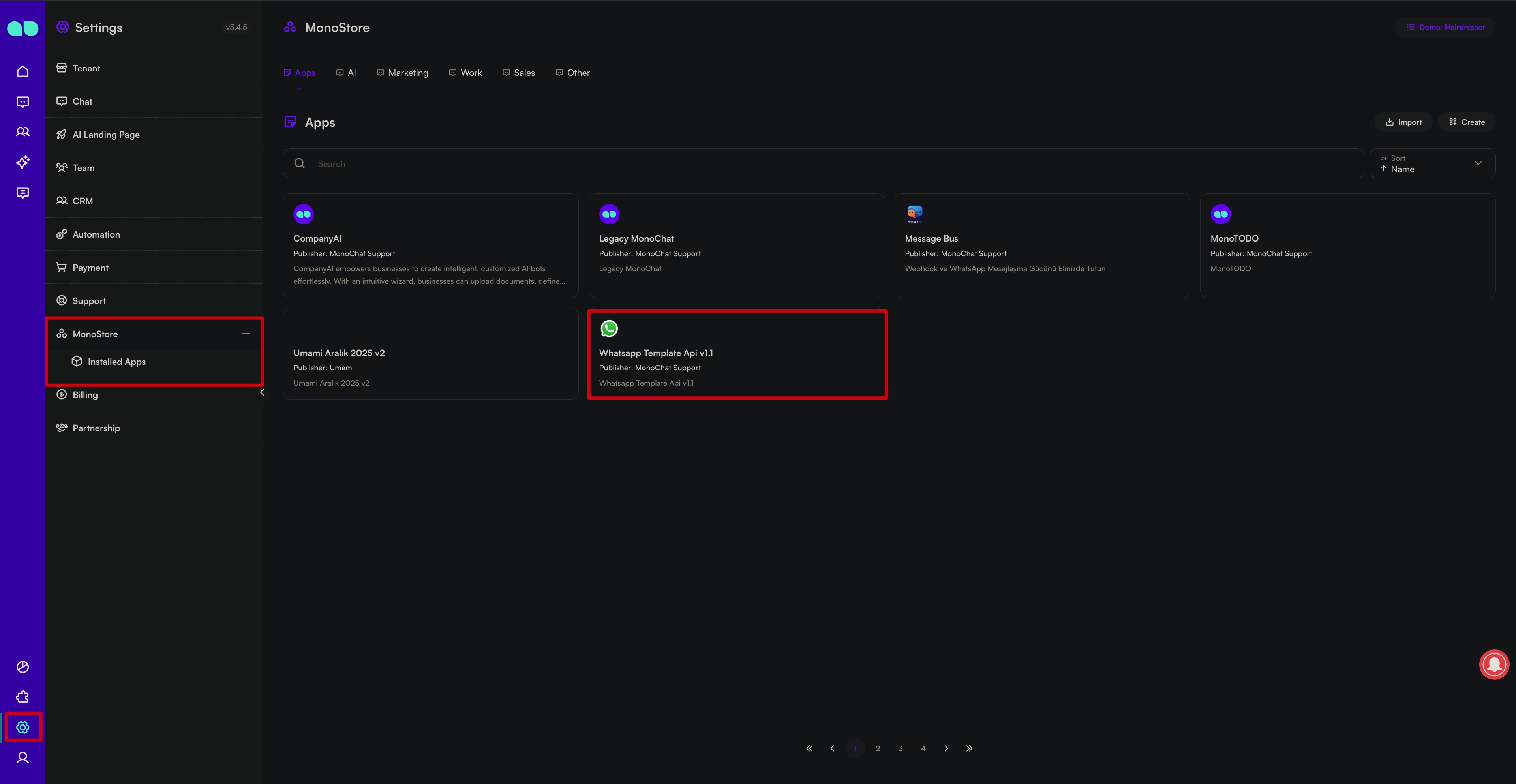
Step 1: Navigate to the Settings -> MonoStore
Go to the Settings section in your MonoChat workspace and open MonoStore to access all available apps, including Whatsapp Template API.
Step 2: Install Company AI
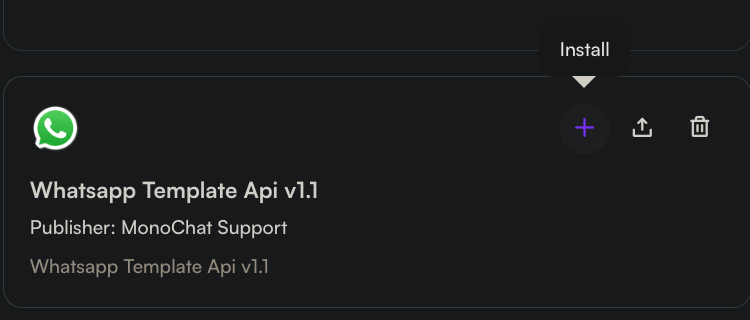
Find Whatsapp Template API in the MonoStore list and click Install to add it to your workspace. The app will be ready for setup immediately.
Step 3: Manage Installed Apps
Once installed, you can view all your apps under the Installed Apps section.
From here, you can:
- Access each app’s detailed settings
- Configure or update app preferences
- Remove any app you no longer need
This allows you to keep your MonoStore workspace clean, organized, and fully customized to your business needs.
Using Whatsapp Template API
The WhatsApp Template API allows developers to send pre-approved WhatsApp message templates directly through MonoChat without interacting with the MonoChat interface.
This document explains how to list templates, upload media, and send template messages programmatically using the RESTful endpoints provided by the Template API app.
Overview
With the Template API, you can:
- List all WhatsApp templates associated with your WhatsApp Business number
- Review template components and variables
- Upload media (image/document/video) required for template headers
- Send WhatsApp Template Messages with variable parameters
- Access message delivery results and conversation links
Each request must include:
- Your MonoChat tenant slug
- A valid Bearer API Token
- A WhatsApp Business phone number registered in MonoChat
Usage Examples
This section explains common usage scenarios of the WhatsApp Template API with step-by-step examples.
Example Scenario
Imagine you have an approved WhatsApp Business template called "Yeni Ürün Duyurusu" (which contains variables for the customer name and product name, plus an image header).
You want to send this template to a customer using the API through MonoChat.
Here are the steps you would follow:
1. Listing Templates
First, call the template/list API endpoint to retrieve all templates associated with your WhatsApp Business phone number.
This response includes:
- Template names
- Language codes
- Categories
- Components (header/body/footer)
- Variable structures
From this list, you can find the template name and variable structure of your “Yeni Ürün Duyurusu” template.
A sample record returned by the API may look like this:
{
  "name": "new_product_announcement",
  "languageCode": "tr-TR",
  "category": "MARKETING",
  "components": [
    {
      "type": "HEADER",
      "format": "IMAGE",
      "variables": [
        {
          "type": "IMAGE",
          "exampleValue": "https://.../sample-image.png"
        }
      ]
    },
    {
      "type": "BODY",
      "text": "Merhaba {{1}}, yeni ürünümüz {{2}} çıktı!",
      "sampleText": "Merhaba [Ayşe], yeni ürünümüz [XYZ Telefon] çıktı.",
      "variables": [
        { "type": "TEXT", "exampleValue": "[Ayşe]" },
        { "type": "TEXT", "exampleValue": "[XYZ Telefon]" }
      ]
    },
    {
      "type": "FOOTER",
      "text": "Teşekkürler",
      "sampleText": "Teşekkürler"
    }
  ],
  "status": "APPROVED"
}
2. Uploading Media if the Template Contains an Image
If your template uses an image header, you must upload the image in advance using the temporary upload URL provided by MonoChat.
To upload the media, request an upload token using the upload/get-token endpoint.
For example, if you want to upload a product image named urun.jpg, you would call:
POST /api/<slug>/custom-functions/template-app/api/upload/get-token.js
Content-Type: application/json

{
  "key": "chat-assets",
  "fileName": "urun.jpg"
}
This request returns a temporary upload URL (often a pre-signed AWS S3 URL) that allows you to upload files directly to S3.
A typical response might look like:
{
  "result": {
    "uploadUrl": "https://bucket.s3.amazonaws.com/....?X-Amz-Algorithm=AWS4-HMAC-SHA256&X-Amz-Credential=....",
    "fileUrl": "https://cdn.monochat.ai/....<slug>/chat-assets/urun.jpg"
  }
}
-
uploadUrl → The temporary URL you will use to upload the actual image file.
-
fileUrl → The URL where the uploaded file will be publicly accessible.
To complete the upload:
Make an HTTP PUT request to the uploadUrl
- Put the binary content of your image (e.g., urun.jpg) in the request body
- After a successful upload, the file becomes available at the fileUrl
- This fileUrl will later be passed into the WhatsApp template API as the header image.
Note: Actual response structure may vary. The key step is successfully uploading the file and obtaining a usable URL for the template.
3. Sending the Template Message
Now that the template and media are ready, you can send the actual message using the template/send API endpoint.
In this request, you must provide:
- The template name
- The language code
- The recipient's phone number
- The values for each variable in the template (header/body/buttons/footer, if any)
From our earlier example:
{{1}}→ customer name{{2}}→ product name- Header → image URL
A sample request body would look like this:
{
  "phoneNumber": "905XXXXXXXX",
  "templateMessageName": "new_product_announcement",
  "languageCode": "tr-TR",
  "customerPhoneNumber": "905XXXXXXXX",
  "variables": [
    {
      "type": "HEADER",
      "parameters": ["<dosya_URL>"]
    },
    {
      "type": "BODY",
      "parameters": ["Ayşe", "XYZ Telefon"]
    }
  ]
}
Explanation of variables
-
HEADER → parameters Since the template includes an image header, the previously uploaded file URL is passed here. WhatsApp retrieves the image from this URL when delivering the message.
-
BODY → parameters The values replace the template variables:
{{1}}→ "Ayşe"{{2}}→ "XYZ Telefon"
If the template also included buttons or footer variables, you would add them similarly under a corresponding type (e.g., "BUTTONS"), supplying the required parameters.
Successful Response Example
If the message is successfully processed, the API typically returns a 200 OK status with a response like:
{
  "status": "OK",
  "result": {
    "messageId": "gupshup_or_whatsapp_message_id",
    "conversationUrl": "https://app.monochat.ai/tenants/<slug>?tab=messages&sessionId=<...>"
  }
}
- messageId → The WhatsApp or provider-specific message ID
- conversationUrl → A direct link to the conversation inside the MonoChat interface
Endpoint Explanations
MonoChat üzerinde WhatsApp Template API uygulaması kurulduktan sonra, aşağıdaki RESTful endpoint’ler üzerinden işlem yapılabilir.
Tüm endpoint URL’lerinde <slug> değerini kendi MonoChat tenant/sunum adınızla değiştirmeniz gerekir.
Ayrıca tüm isteklerde kimlik doğrulaması için:
Authorization: Bearer <API_TOKEN>
header'ı kullanılmalıdır.
Aşağıda her bir endpoint, açıklaması ve örnek istek/yanıt formatlarıyla birlikte sunulmuştur.
1. List Templates
URL:
POST /api/<slug>/custom-functions/template-app/api/template/list.js
Purpose:
Belirtilen WhatsApp Business telefon numarasına bağlı tüm şablon mesajlarını listeler.
Dönen listede:
- Şablon adı
- Dil kodu
- Kategori
- İçerik bileşenleri (header/body/footer/buttons)
- Değişken tipleri
- Onay durumu
gibi bilgiler bulunur.
Request Body
{
  "phoneNumber": "905334445566"
}
Açıklamalar:
- phoneNumber → WhatsApp Business numaranız (Ülke kodu ile, + işareti kullanılmadan)
Sample Request:
POST /api/<slug>/custom-functions/template-app/api/template/list.js
Content-Type: application/json
Authorization: Bearer <API_TOKEN>


{
  "phoneNumber": "905334445566"
}
Successful Response (Shortened):
{
  "result": {
    "templateMessages": [
      {
        "name": "new_product_announcement",
        "languageCode": "tr-TR",
        "category": "MARKETING",
        "components": [
          {
            "type": "HEADER",
            "format": "IMAGE",
            "variables": [
              {
                "type": "IMAGE",
                "value": null,
                "exampleValue": "https://.../sample-image.png"
              }
            ]
          },
          {
            "type": "BODY",
            "text": "Merhaba {{1}}, yeni ürünümüz {{2}} çıktı!",
            "sampleText": "Merhaba [Ayşe], yeni ürünümüz [XYZ Telefon] çıktı.",
            "variables": [
              { "type": "TEXT", "value": null, "exampleValue": "[Ayşe]" },
              { "type": "TEXT", "value": null, "exampleValue": "[XYZ Telefon]" }
            ]
          },
          {
            "type": "FOOTER",
            "text": "Teşekkürler",
            "sampleText": "Teşekkürler"
          }
        ],
        "status": "APPROVED"
      }
    ],
    "options": {
      "pagination": {
        "totalCount": 12,
        "currentPage": 1,
        "pageItems": 12,
        "totalPages": 1
      }
    }
  }
}
How to Read This Response
- name → Mesaj göndermek için kullanılacak sistem adı
- languageCode → Gönderimde kullanılacak dil
- category → WhatsApp kategori türü (MARKETING, TRANSACTIONAL vb.)
- components → Şablonu oluşturan tüm bölümler
Template Components Overview
| Component | İçerik | Açıklama |
|---|---|---|
| HEADER | IMAGE, DOCUMENT vb. | Medya varsa format belirtilir, değişken varsa variables içinde görünür. |
| BODY | Text + variables | Mesaj gövdesi, {{1}}, {{2}} gibi placeholder’lar içerir. |
| FOOTER | Text | Genellikle değişken içermez. |
| BUTTONS | URL, Quick Reply | Buton metinleri ve varsa değişkenleri içerir. |
Example Interpretation
Yukarıdaki örnek şablon için:
- HEADER → 1 adet IMAGE değişkeni (görsel URL’si)
- BODY → 2 adet TEXT değişkeni (müşteri adı, ürün adı)
- FOOTER → sabit metin ("Teşekkürler")
- BUTTONS → yok (bu nedenle listelenmemiş)
2. Sending a Template Message
To send a WhatsApp template message to a specific recipient, you can use the following endpoint:
URL: /api/<slug>/custom-functions/template-app/api/template/send.js
Method: POST
Description:
This endpoint triggers the sending of a WhatsApp template message through the WhatsApp Business API (or the integrated provider).
You must specify the template name, language, recipient phone number, and any required variables.
Request Body
Send the following fields in JSON format:
| Field | Description |
|---|---|
| phoneNumber | The WhatsApp Business number associated with the template. Must include the country code, as a string, without the + sign. This must be a number already integrated with MonoChat. |
| templateMessageName | The name of the template to be sent. Must match the name value from the template list API (e.g., "new_product_announcement"). |
| languageCode | Template language code (e.g., "tr-TR"). The template must be approved by WhatsApp in this language. |
| customerPhoneNumber | The customer’s WhatsApp number, with country code, without the + sign (e.g., "905306667788"). |
| variables | An array containing variable groups for each template component. |
Variables Structure
Each item in the variables array has the following structure:
| Field | Description |
|---|---|
| type | Template section type. Possible values: "HEADER", "BODY", "FOOTER", "BUTTONS". |
| parameters | The list of variable values for that section. If the section contains only one variable, this array will contain a single value. |
Note:
FOOTERrarely contains variables unless the template explicitly uses placeholders.BUTTONSis used only if the template includes dynamic button values.
Example Request
POST `/api/<slug>/custom-functions/template-app/api/template/send.js`
Headers:
`Content-Type: application/json`
`Authorization: Bearer <API_TOKEN>`


{
  "phoneNumber": "905334445566",
  "templateMessageName": "new_product_announcement",
  "languageCode": "tr-TR",
  "customerPhoneNumber": "905306667788",
  "variables": [
    {
      "type": "HEADER",
      "parameters": [
        "https://.../product.jpg"
      ]
    },
    {
      "type": "BODY",
      "parameters": [
        "Ayşe",
        "XYZ Phone"
      ]
    }
  ]
}
In this example:
- The HEADER contains an image URL.
- The BODY includes two text variables. These values correspond to the template structure previously created and approved.
Successful Response A successful request may return:
{
  "status": "OK",
  "result": {
    "messageId": "ABEGkMmZFer...,",
    "conversationUrl": "https://app.monochat.ai/tenants/<slug>?tab=messages&sessionId=<...>"
  }
}
- messageId — WhatsApp (or provider) message ID.
- conversationUrl — A MonoChat interface URL that opens the conversation where the message was sent.
A 200 OK indicates that the message was successfully processed for sending.
Special Considerations
- If your template contains media (images, documents, videos), WhatsApp will fetch the media using the URL you provide.
- Therefore, ensure that:
- The URL is valid and publicly accessible.
- If you uploaded media using upload/get-token, you use the correct fileUrl returned after the upload.
- An invalid or inaccessible media URL will cause the message to fail because WhatsApp cannot retrieve the file.
If you want, I can continue formatting the next parts in the same style—just send them one by one.
3. Obtaining a Temporary Upload URL (Upload Token)
To upload media (image, video, document) that will be used inside a WhatsApp template, you must first obtain a temporary upload URL. This URL allows you to upload the file to MonoChat’s storage and later use the generated media link inside your template message.
URL: /api/<slug>/custom-functions/template-app/api/upload/get-token.js
Method: POST
Description:
Returns a temporary upload authorization or a pre-signed URL for uploading a file. After uploading the file, you will receive a permanent URL that can be used inside your WhatsApp template (usually in the template HEADER).
Request Body
Send a JSON object with the following fields:
| Field | Description |
|---|---|
| key | Defines the folder or category where the file will be stored (e.g., "chat-assets"). |
| fileName | The name of the file you want to upload, including its extension (e.g., "product.jpg", "promo.pdf"). |
Example Request
POST /api/<slug>/custom-functions/template-app/api/upload/get-token.js
Content-Type: application/json
Authorization: Bearer <API_TOKEN>

{
  "key": "chat-assets",
  "fileName": "product.jpg"
}
Successful Response
The endpoint returns the necessary information to upload your file. The response structure may vary depending on implementation, but it typically includes:
| Field | Description |
|---|---|
| uploadUrl | A temporary, single-use, pre-signed URL for uploading the file using an HTTP PUT request. This URL expires after a short time. |
| fileUrl | The publicly accessible URL where the file will be available after the upload. This is the URL you will use inside your WhatsApp template message. |
{
  "result": {
    "uploadUrl": "https://bucket.s3.amazonaws.com/monochat/<slug>/chat-assets/product.jpg?X-Amz-Algorithm=AWS4-HMAC-SHA256&X-Amz-Credential=...",
    "fileUrl": "https://cdn.monochat.ai/monochat/<slug>/chat-assets/product.jpg"
  }
}
- Send an HTTP PUT request to uploadUrl with the raw file contents.
- After a successful upload, the file will be accessible through fileUrl.
- Use fileUrl inside your template HEADER (or wherever media is required).
Important Notes:
- uploadUrl expires quickly — upload the file immediately after obtaining the URL.
- Large or unsupported file formats may result in upload errors.
- WhatsApp only supports specific media types (images, videos, PDFs, etc.).
- fileUrl is usually publicly accessible because WhatsApp servers must be able to download the file.
- You may also use fileUrl inside your own application if needed, but long-term availability may vary.
Error Cases and Error Handling
When using the WhatsApp Template API endpoints, you may occasionally encounter errors even if you provide correct data and follow all required rules. Below are the most common error scenarios and their possible causes.
401 Unauthorized
Occurs when the Bearer Token in your request is missing or invalid.
Possible causes:
- Missing
Authorization: Bearer <API_TOKEN>header - Expired or incorrect API token
- Incorrect
<slug>value (each MonoChat account has a unique slug)
Solution:
Use a valid, up-to-date API token from your MonoChat account and ensure the slug is correct.
400 Bad Request
Returned when the request body is incomplete or incorrectly formatted.
Common reasons:
- Missing required fields in
template/list(e.g.,phoneNumber) - Missing required fields in
template/send:phoneNumbertemplateMessageNamelanguageCodecustomerPhoneNumber
variablesarray does not match the template structure
(e.g., template expects 2 variables but you send only 1)
API usually returns a descriptive message, e.g.:
"Missing parameter: customerPhoneNumber"
404 Not Found
Returned when the endpoint or requested data cannot be found.
Possible causes:
- Incorrect endpoint URL
(Ensure the full path/api/<slug>/custom-functions/...is correct) phoneNumberdoes not belong to your MonoChat accounttemplateMessageNamedoes not exist or is misspelled- Template is not available for the specified number
Example error message:
"Template not found"
500 Internal Server Error
Occurs due to an unexpected issue within MonoChat or the WhatsApp provider.
Possible causes:
- Temporary service outages
- Upstream provider errors (Gupshup, 360dialog, Meta API failures)
- WhatsApp-side issues:
- Recipient not registered on WhatsApp
- Recipient blocked your business
- Template not allowed for that user
- Message quota or rate limit reached
- Unexpected exceptions inside MonoChat
Solution:
Retry after some time or contact MonoChat support if the issue persists.
Other Possible Error Codes
403 Forbidden
You tried to access a resource or perform an action without sufficient permissions.
Common cases:
- Wrong tenant slug
- No access rights to the Template App
413 Payload Too Large
Occurs when uploading a file that exceeds allowed size limits via the upload token flow.
Solution:
Upload a smaller file.
415 Unsupported Media Type
The file format you attempted to upload is not supported.
Rare but can occur with non-standard file types.
Error Messages
The API typically returns descriptive fields such as:
{
  "error": "Variable X is missing"
}
These messages help with debugging. It is recommended that your application logs these errors and shows meaningful output to the user when necessary.