Message Bus
Message Bus is a powerful integration application that elevates your MonoChat experience by giving you full control over inbound and outbound message flows. With its advanced webhook and messaging capabilities, Message Bus makes it easier than ever to synchronize your systems, automate communication, and build real-time integrations.
Key Features
Webhook Support
Message Bus allows you to add custom webhooks tailored to your needs. Once configured, all incoming messages within the system are automatically forwarded to your webhook, enabling seamless data exchange with external platforms.
Message Sending API
The application introduces a dedicated API endpoint within MonoChat. Through this endpoint, you can send text, media, buttons, and other message types via any WhatsApp channel connected to your workspace, directly to the phone numbers you specify.
What Can You Achieve?
Effortless integration with CRM, ERP, support systems, and other external applications
Automated message-response workflows
Direct delivery of campaigns, announcements, and notifications to customers
Real-time data flow for advanced reporting and analytics
Who Should Use It?
Technical teams and developers
Marketing and customer relations teams
Businesses seeking to integrate their internal systems with MonoChat
How to Install
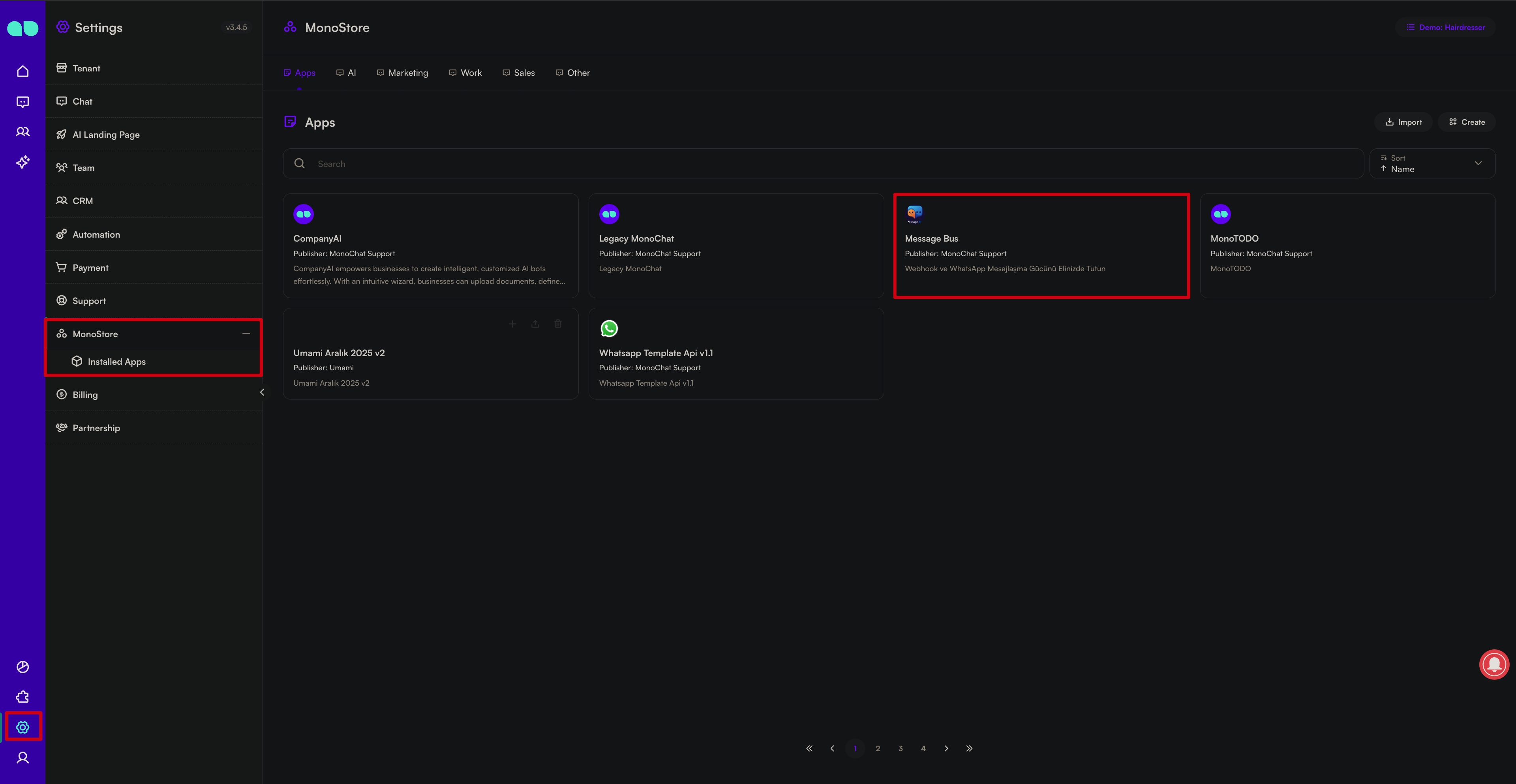
Step 1: Navigate to the Settings -> MonoStore
Go to the Settings section in your MonoChat workspace and open MonoStore to access all available apps, including Message Bus.
Step 2: Install Company AI
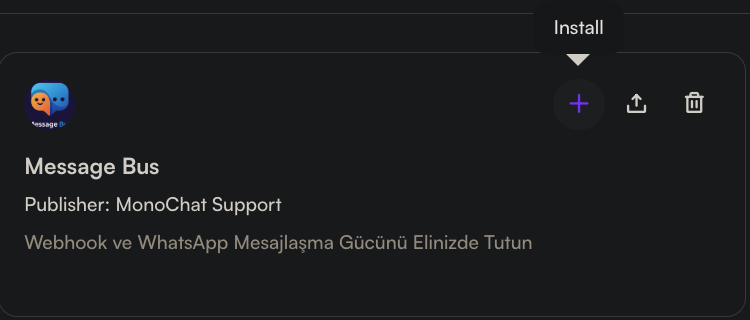
Find Message Bus in the MonoStore list and click Install to add it to your workspace. The app will be ready for setup immediately.
Step 3: Manage Installed Apps
Once installed, you can view all your apps under the Installed Apps section.
From here, you can:
- Access each app’s detailed settings
- Configure or update app preferences
- Remove any app you no longer need
This allows you to keep your MonoStore workspace clean, organized, and fully customized to your business needs.
After installing the app, you can navigate to the Message Bus screen from the left menu.
This dedicated section provides all documentation, configuration options, and technical details you need.
Within this panel, you can:
- Manage and configure your webhooks
- Review and use the available API endpoints
- Customize how Message Bus interacts with your internal systems
- Access setup instructions, usage guides, and integration examples
All essential resources are centralized in one place, making it easy to implement, manage, and optimize your Message Bus integration.