Partnership
If you would like to learn more about the MonoChat Partnership Program, you can visit the Partnership page within the platform.
To view partner screens and become a MonoChat Partner, you must first sign the Partnership Agreement.
When accessing the Partnership area for the first time, you will see a warning banner. Click on “Partnership Agreement” within the warning message to:
- Review the agreement
- Approve and accept the terms
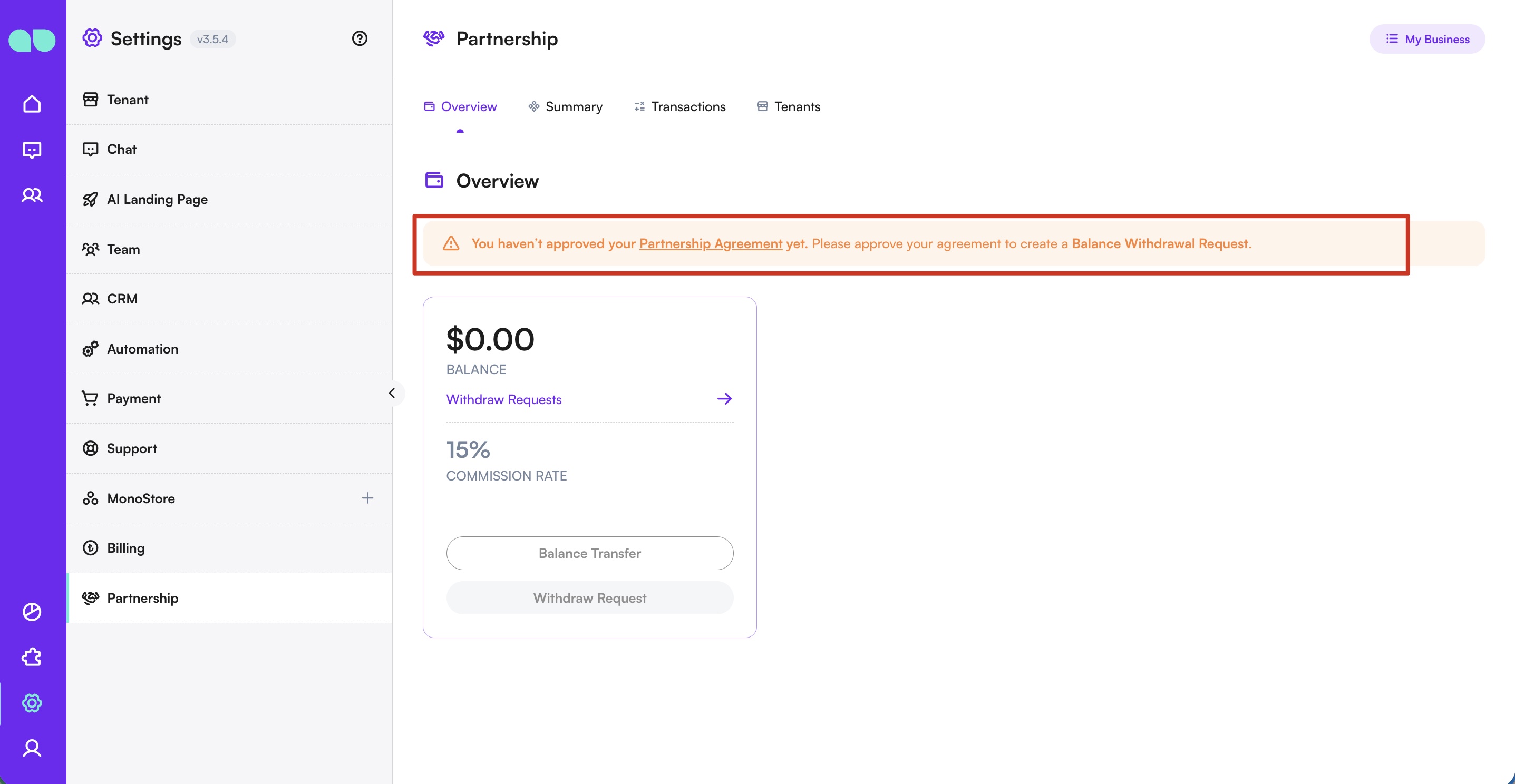
Only after accepting the agreement will you gain full access to all partnership features.
Overview
The Overview page provides a complete summary of your partnership account.
From this section, you can:
- View your total earned commission
- View your commission rate
- Perform balance transfers
- Submit and track withdraw requests
Balance Transfer
You can add funds to your MonoChat Partner organizations using the Balance Transfer button.
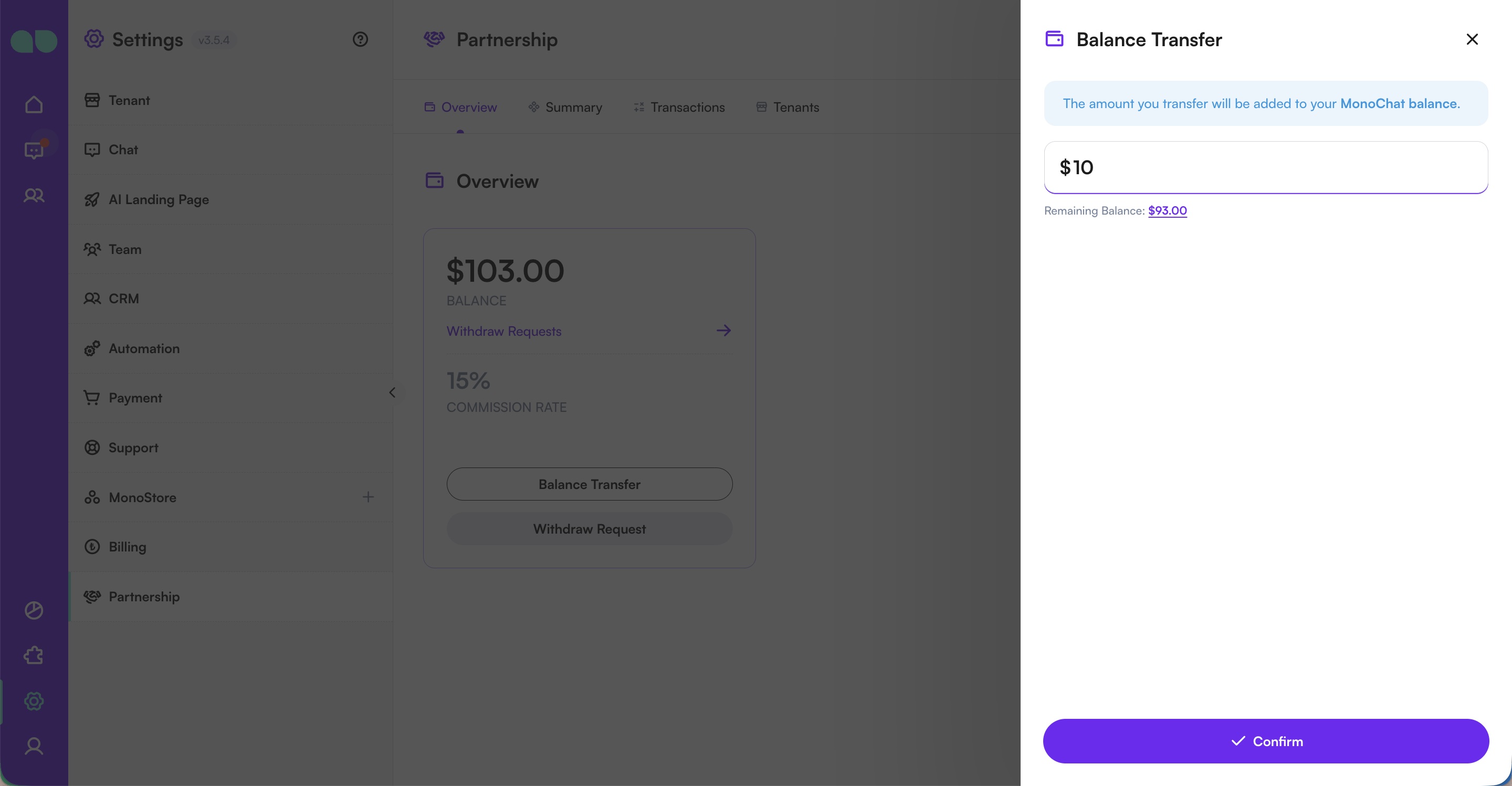
- Click Balance Transfer
- Enter the amount you want to deposit
- Click Confirm
- You will be redirected to the online payment screen
- Once the payment is completed, the amount will be reflected instantly in your partner balance
Withdraw
You can withdraw the desired amount from your partner balance and transfer it to your bank account.
To create a withdrawal request:
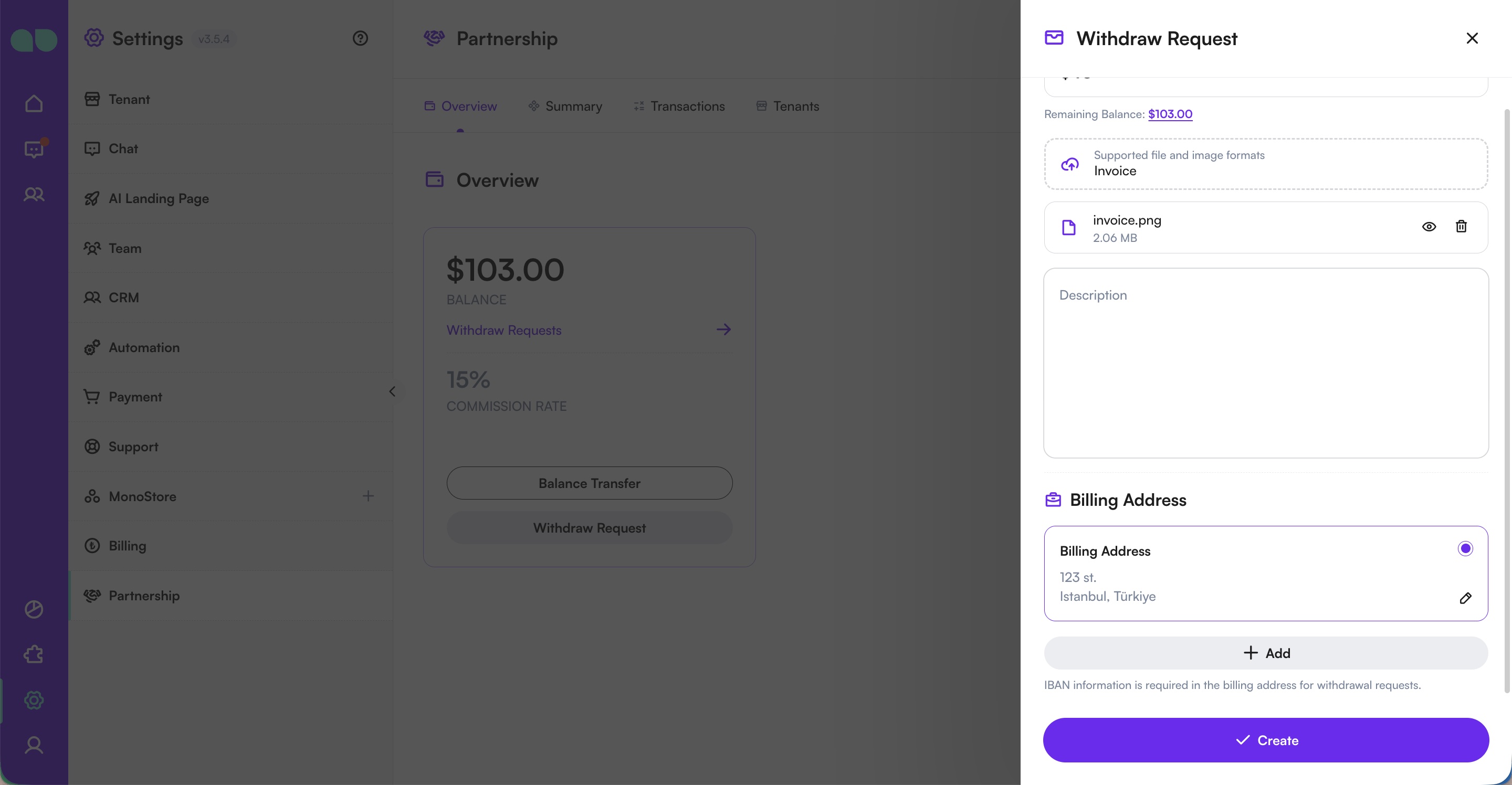
- Click Withdraw Request
- Enter the amount you want to withdraw
- Upload your invoice document
An invoice address that includes a valid IBAN must be registered in the system for approval.
- Select or add your billing addresss. To add a new addrees:
- Click Add
- Create a new invoice address with IBAN information
After completing the form:
- Click Create
- Your withdraw request will be submitted for review
Once approved:
- The amount will be deducted from your MonoChat balance
- The funds will be transferred to your bank account
To track all your withdrawal requests, click Withdraw Requests under your balance.
You can view all submitted requests from the drawer panel that opens.
Summary
On the Summary page, you can view:
- The total earnings generated from all your partner tenants
- Overall commission performance
This page provides a high-level financial overview of your entire partner network.
Transactions
The Transactions page lists all commission earnings in detail.
Here you can see:
- Earnings generated from each partner tenant
- Detailed transaction records per business
- Commission breakdown for each usage and operation
This page provides full transparency for all partner-related financial activities.
Tenants
On the Tenants page, you can view:
- All your partner tenants
- Their sub-tenants (if applicable)
Deposit to a Tenant Account
As a partner, you can deposit balance into a tenant’s MonoChat account.
To deposit funds:
- Click Deposit next to the tenant’s name
- Enter the amount you want to load
- Select a registered invoice address that includes IBAN information
- Click Proceed to Payment
- Complete the online payment process
Once the payment is completed successfully, the balance will be reflected instantly in the tenant’s MonoChat account.