Store Assistant
An AI store desk for shops and chains that shows products and stock per store, takes click & collect reservations, tracks orders, runs a loyalty club with points and coupons, and sends campaign messages.
Overview
Store Assistant is the WhatsApp, Instagram and web chat desk of a shop or a small chain of stores. It works around the clock and answers customers in their own language, including voice messages.
Customers ask for a product, a size or a colour and get product cards with photo, price and Reserve and Details buttons. Returns, exchanges, delivery and your own questions are answered only from the text you approve.
Whenever a person is needed, it hands the conversation over to your team or takes a message.
Highlights
- Click & collect, right in the chat. The customer reserves an item and picks the store. They get a reservation code and pay at the till. The item is held for the time you set, with a reminder before the hold ends.
- Stock in every store. The assistant says whether an item is in stock, only a few left or out of stock at each store, and never shows numbers unless you allow it. Reservations hold stock so the same item is not promised twice.
- A loyalty club that runs itself. Points for every purchase, tiers by spend and rewards that turn points into coupons. Customers join and ask for their points in the chat, and get a birthday gift.
Install and set up
- Install Store Assistant from Settings › MonoStore › Apps, or open the install link app.monochat.ai/apps/fYutQH29eYcNbnDq3. Without a MonoChat account, the link lets you sign up first and installs the app for you.
- Open the Get started tab on your MonoChat home page and choose Set up your shop, then Set up the shop. The form asks What do you sell? (Fashion, Electronics, Home, Beauty, Sports or Other; this sets the usual categories and a few example products), the Name of the shop, phone, the Address of your first store (it becomes your first store), website, currency, the Language of automatic messages, time zone and the opening hours for each day (your stores start with these, and outside them the assistant takes a message). Leave Also load sample data so I can see it full on if you want every screen filled with example records. Click Save and continue.
- Open the Store desk in the left menu. Check your stores under Stores, add your products with photos and prices under Products, and put in your stock under Stock (by hand or with Import CSV). Then go through the settings tabs: Pickup and stock, Loyalty rules, Policies and FAQ, Automatic messages, How it talks and Handover.
- Click the green power button (Turn on) in the desk header. The Turn the assistant on drawer lists what is still missing (name and kind of shop, at least one active store, at least one active product, and your policies or questions and answers as a recommendation) and what will start; switch Assistant answers customers on and confirm. The badge next to the title changes from Off to On. Only someone who can manage automations in the workspace sees the power button.
- Choose Try it on your own phone on the Get started tab and message your own number the way a customer would.
- Nobody who said stop is ever messaged, and quiet hours are respected.
- The come-back message for customers who have not bought for a while is off until you turn it on.
Screen by screen
Store Assistant lives in the Store desk (the storefront icon in the left menu), with its report under Reports. The screenshots below show the sample data: Mira Store, a fashion and shoe shop with three stores in Istanbul.
Get started and the setup form
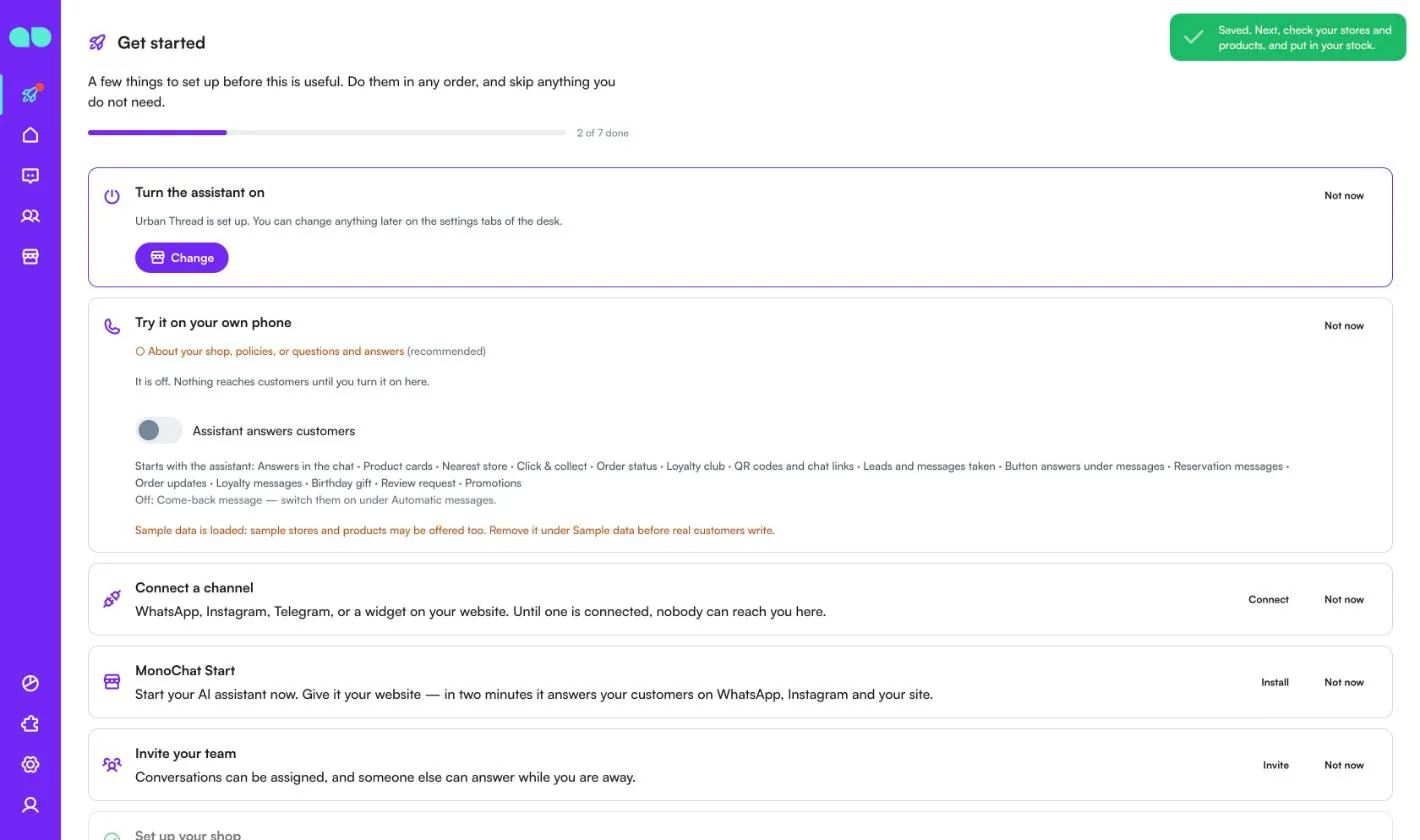
The Get started tab on your home page walks you through the first steps. The app adds three cards: Set up your shop, Turn the assistant on and Try it on your own phone. A progress bar at the top shows how many steps are done, and Not now hides a card you do not need yet.
Set up the shop opens the Set up your shop form. Pick what you sell first; the form does not continue until you choose one.
| Field | What it does |
|---|---|
| What do you sell? | Fashion, Electronics, Home, Beauty, Sports or Other. Sets the usual categories and a few example products. You can change each later. |
| Name of the shop and Phone | What the assistant tells customers about your shop. The name is required. |
| Address of your first store | Becomes your first store. Add more stores later under Stores. |
| Website | Your shop's website. |
| Currency (e.g. EUR, TRY, AED) | A three-letter code. Every price is in this currency. |
| Language of automatic messages | The language of the WhatsApp templates and automatic messages. Empty means the same as the workspace. |
| Time zone | Used for opening hours, quiet hours and reminders. Empty means the same as the workspace. |
| Opening hours | A switch and Opens / Closes for each day. Your stores start with these, and the team answers messages then. At least one day must be open. |
| Also load sample data so I can see it full | Loads the sample shop so every screen has records to try. |
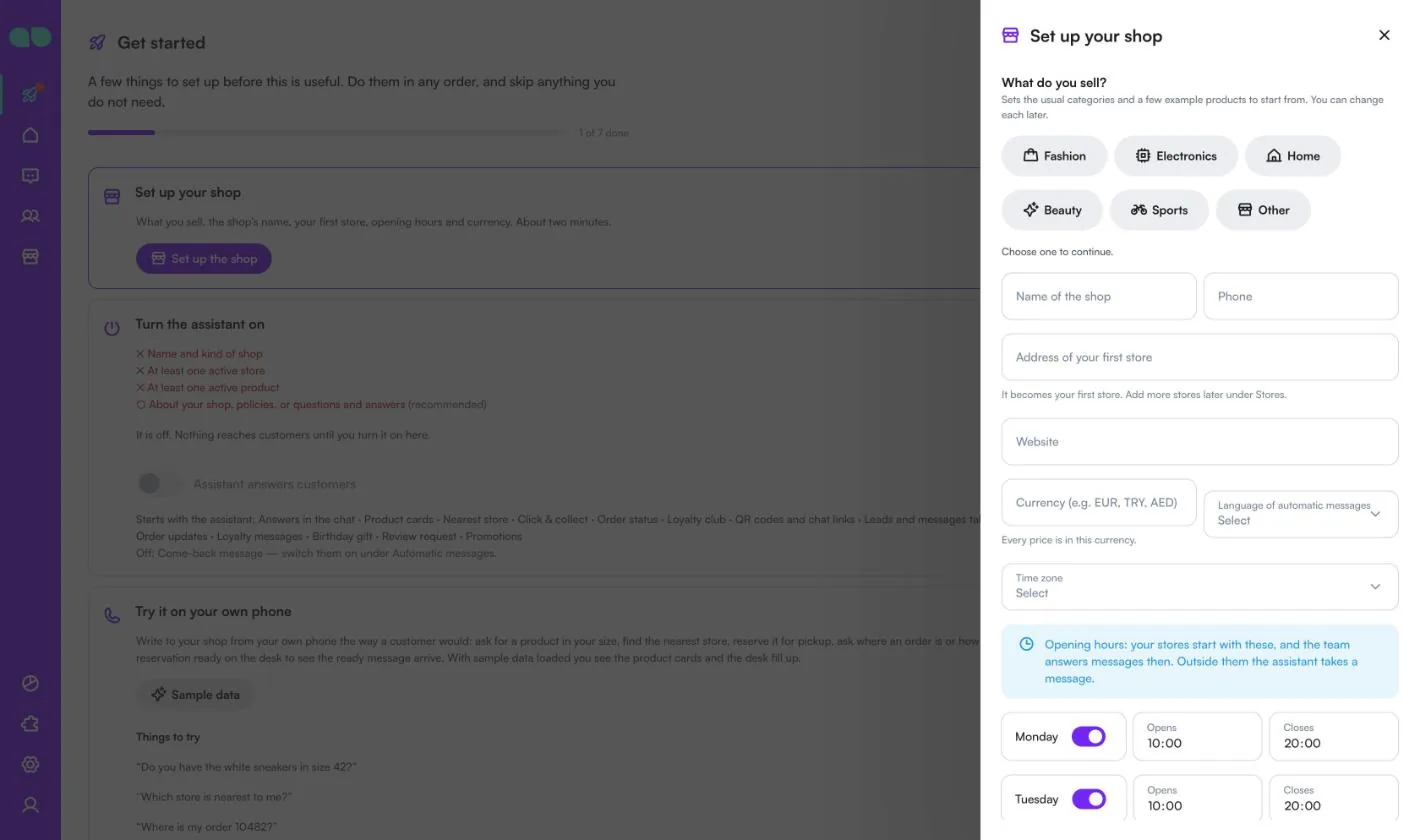
After Save and continue, the setup card says your shop is set up and offers Change to open the form again. The Turn the assistant on card lists what is still missing and has the Assistant answers customers switch, and Try it on your own phone gives example questions to send ("Do you have the white sneakers in size 42?", "Which store is nearest to me?", "Where is my order 10482?").
Today
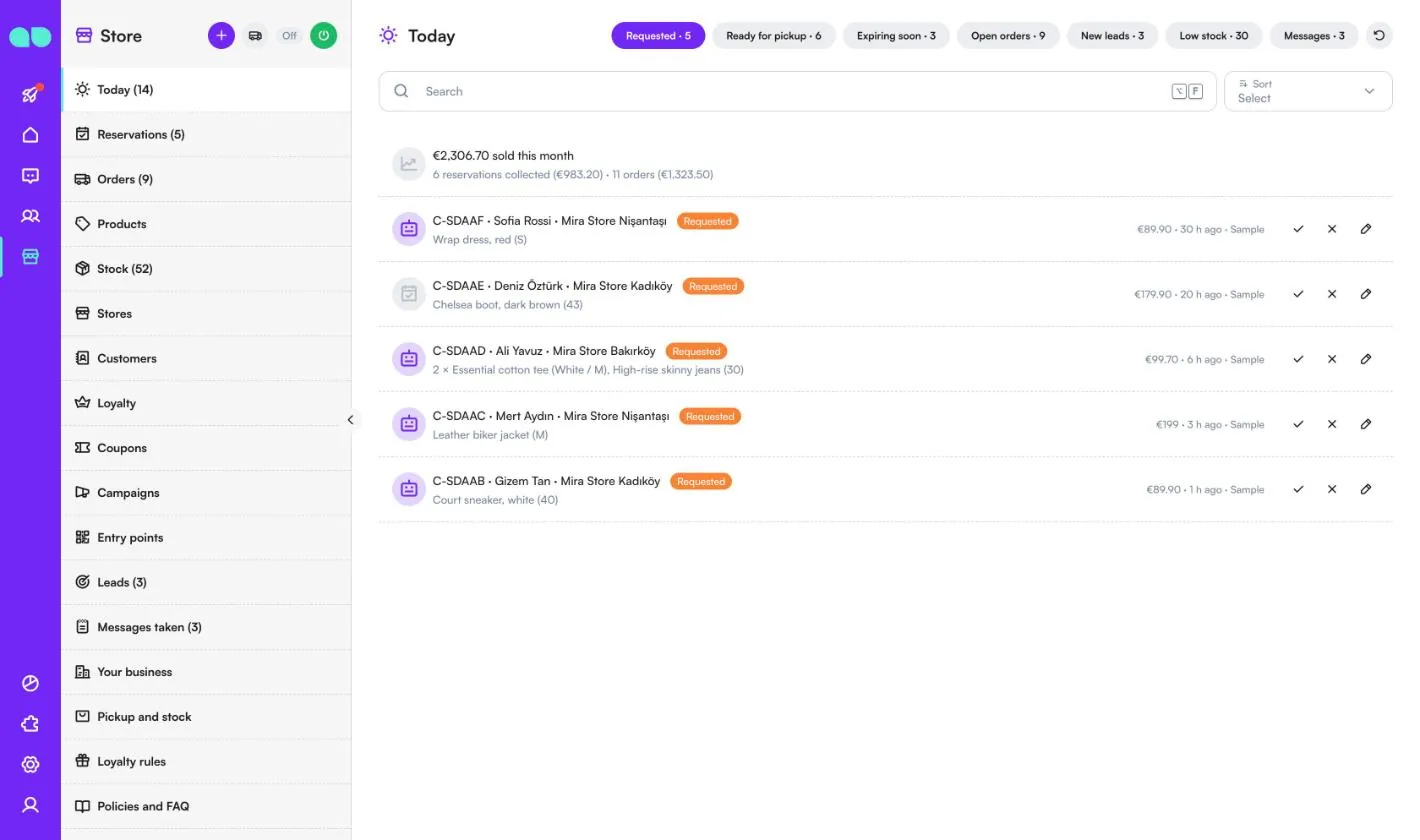
Store › Today is the list of what needs doing now. The menu counter adds up reservations to confirm, holds that end soon, new leads and open messages taken. A line at the top shows how much was sold this month, split into collected reservations and orders.
The tabs at the top each show a count:
- Requested: reservations waiting for the store to confirm, oldest first. Use the tick (Mark ready) once the items are put aside, the cross (Cancel) to cancel it (the items go back to stock), or the pencil to open it.
- Ready for pickup: reservations waiting to be collected, the hold ending first. Collected takes the items off the stock and gives members their points; Extend adds time to the hold.
- Expiring soon: ready reservations whose hold ends within the reminder time (at least 12 hours).
- Open orders: web orders that are not delivered yet, with the expected date.
- New leads: leads the assistant wrote down. Mark contacted moves a lead on.
- Low stock: products at or under your Few left at or under level in each store, marked Few left or Out of stock.
- Messages: messages taken and callbacks. Done closes one; you can also open the related reservation or order.
Reservations
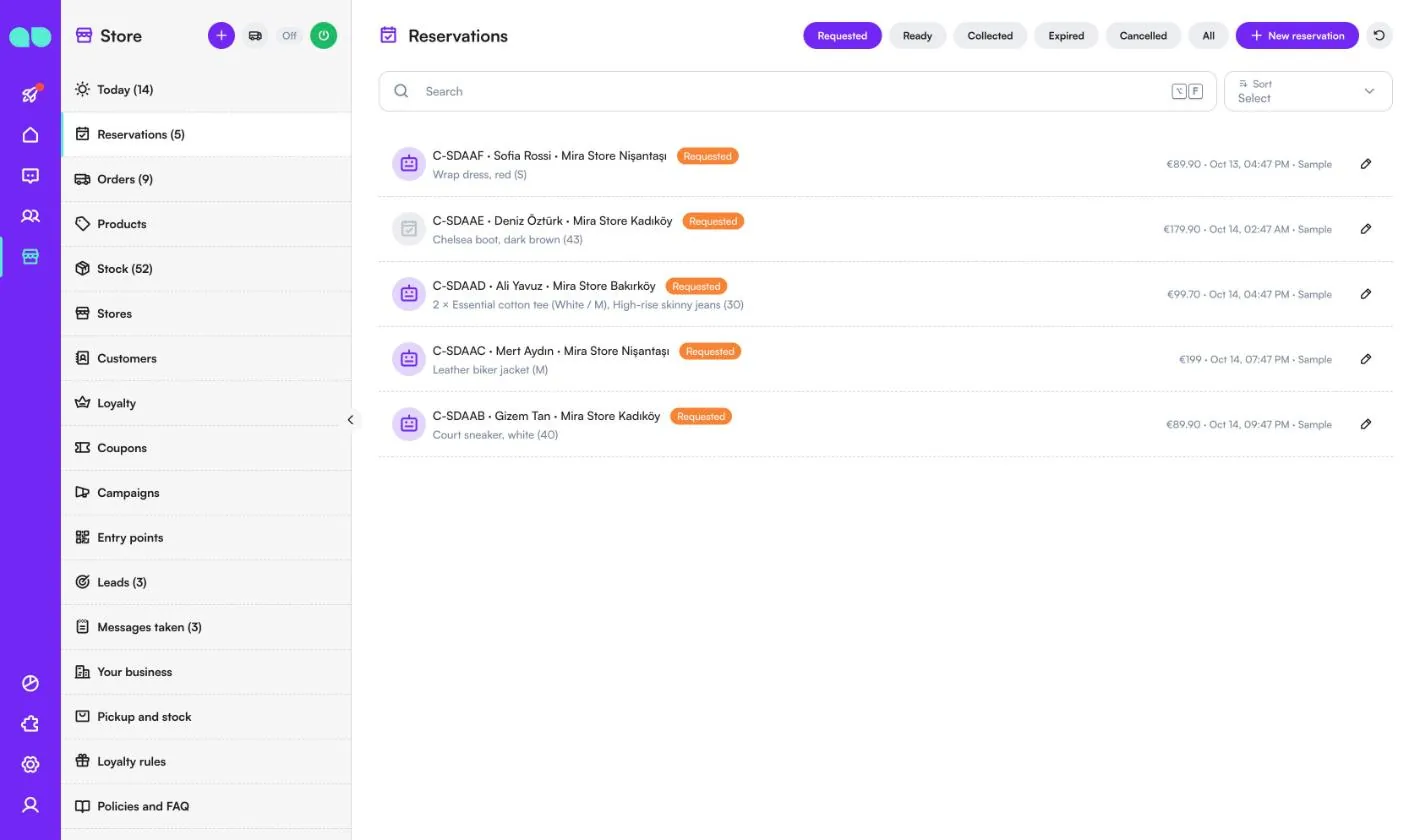
Store › Reservations lists every click & collect reservation, filtered by Requested, Ready, Collected, Expired, Cancelled or All. Each row shows the reservation code, the customer, the pickup store, the items, the total and when it was made. A robot icon means the assistant took it in the chat.
New reservation lets your team add one by hand, for example for a customer who called. Choose a customer (or write a name and phone for a new one), the pickup store and the items; the form shows what is in stock at that store and stops you from reserving more than is there.
Orders
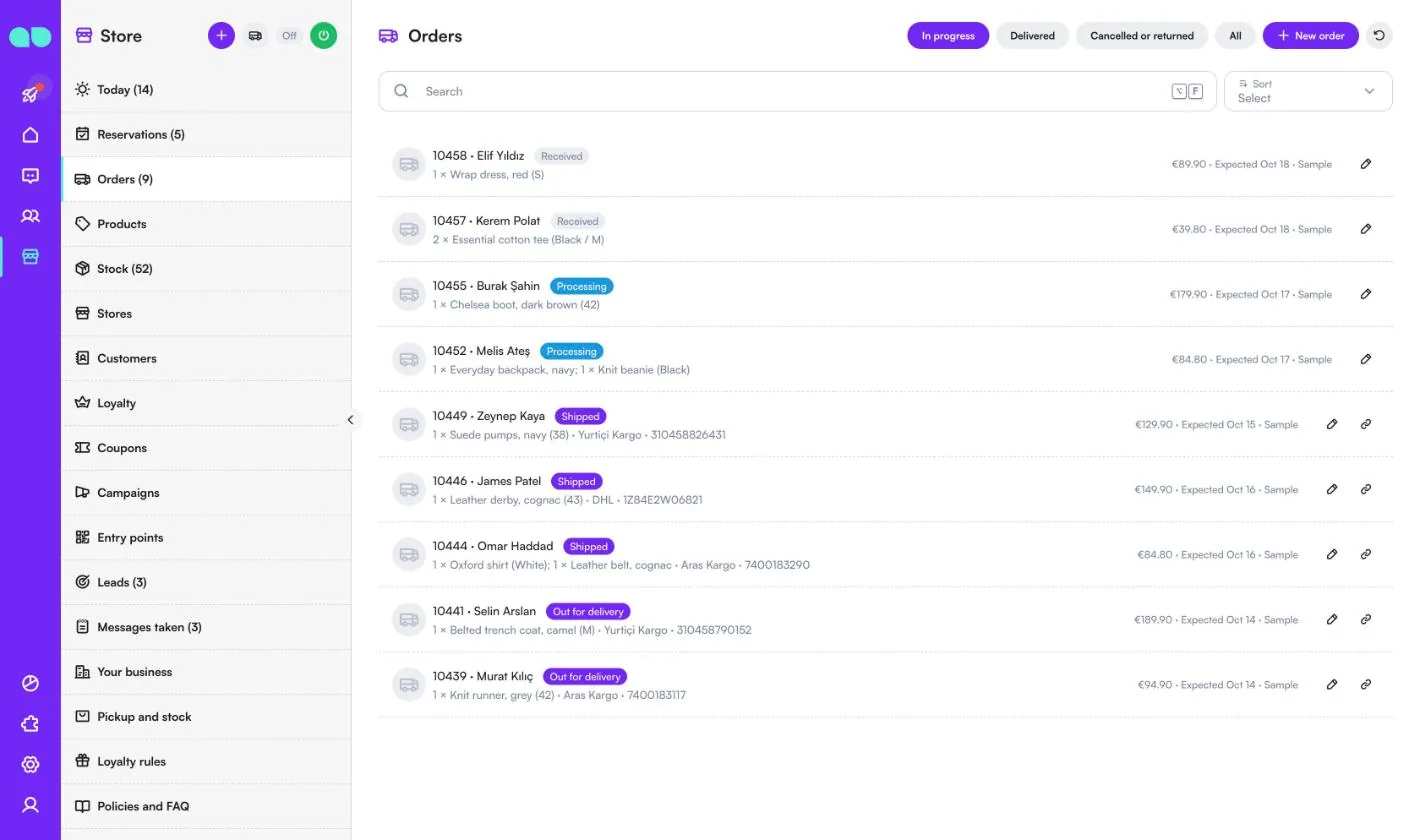
Store › Orders shows web orders so the assistant can answer "Where is my order?". The tabs are In progress, Delivered, Cancelled or returned and All. Each row has the order number, customer, status (Received, Processing, Shipped, Out for delivery), items, carrier and tracking number, total and expected date. Shipped orders have a Tracking link button.
Orders come from New order (also the truck icon in the desk header) or from your own systems through the API (see Integrations). When you change an order's status, the customer is told about shipped, out for delivery, delivered and cancelled with the automatic messages, if Order updates is on.
Products
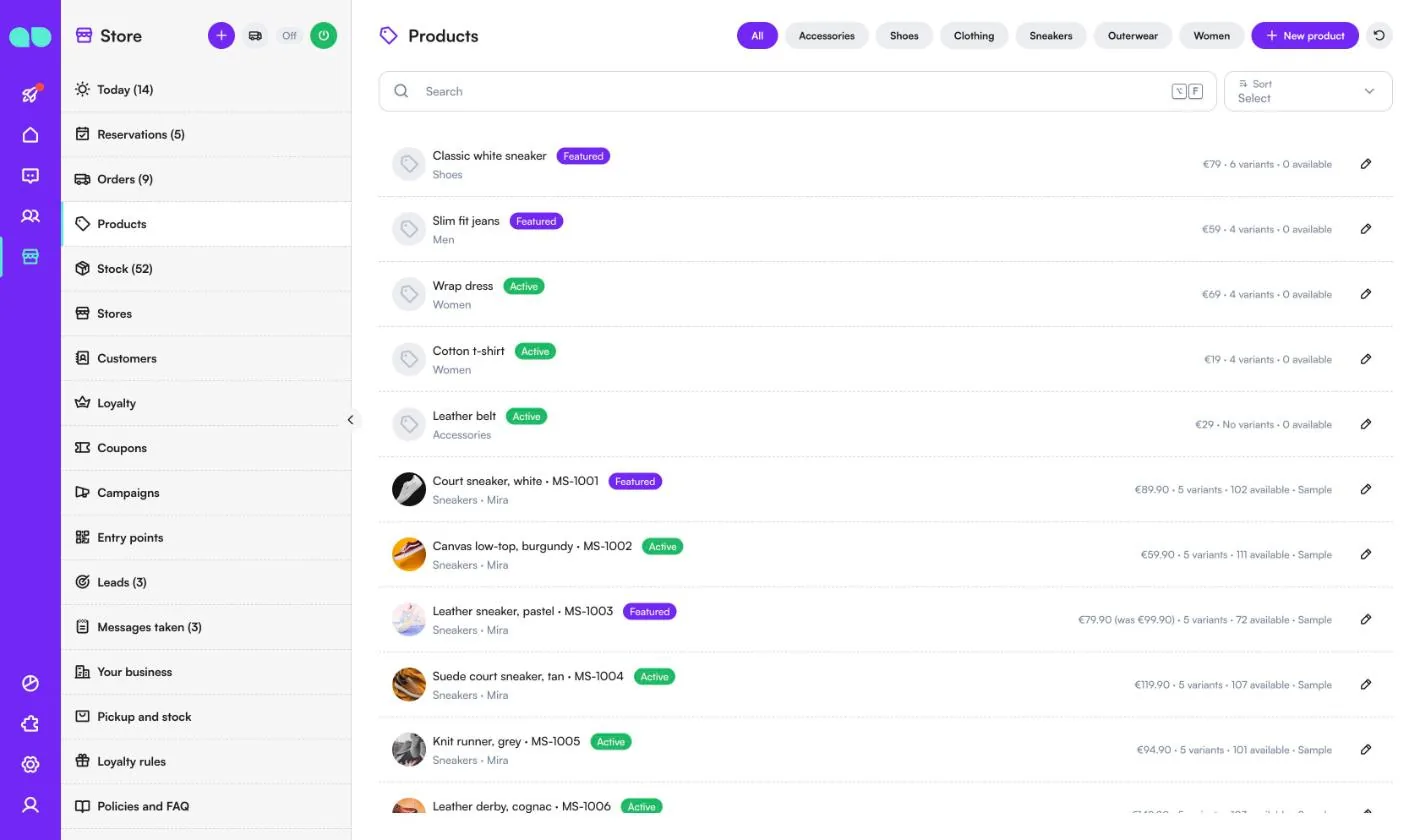
Store › Products is what the assistant sells: it offers only what is here. Filter by category, or click New product. Each row shows the name and SKU, category and brand, a Featured, Active or Off badge, the price (with the old price when on sale), the number of variants and how many are available across stores.
The product drawer is described under Product drawer.
Stock
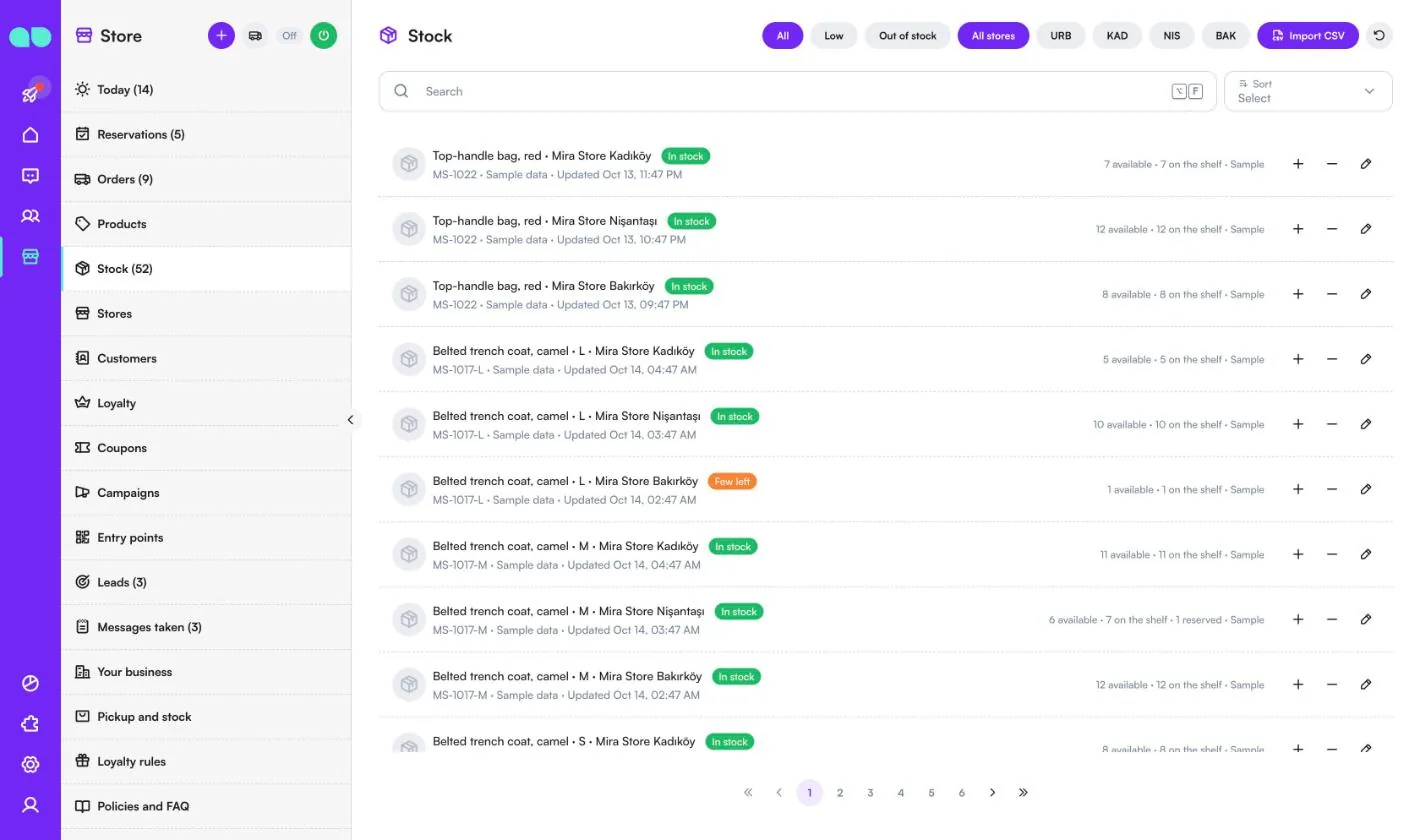
Store › Stock has one row per product (or variant) and store. Filter by All, Low or Out of stock, and by store code. Each row shows In stock, Few left or Out of stock, how many are available, how many are on the shelf and how many are reserved for click & collect, and where the number came from (set by the team, CSV import, API or sample data).
Use + and − to add or take off one item, or the pencil to set the number. Import CSV reads a file with the columns sku, store and quantity, one row per SKU and store.
Stores
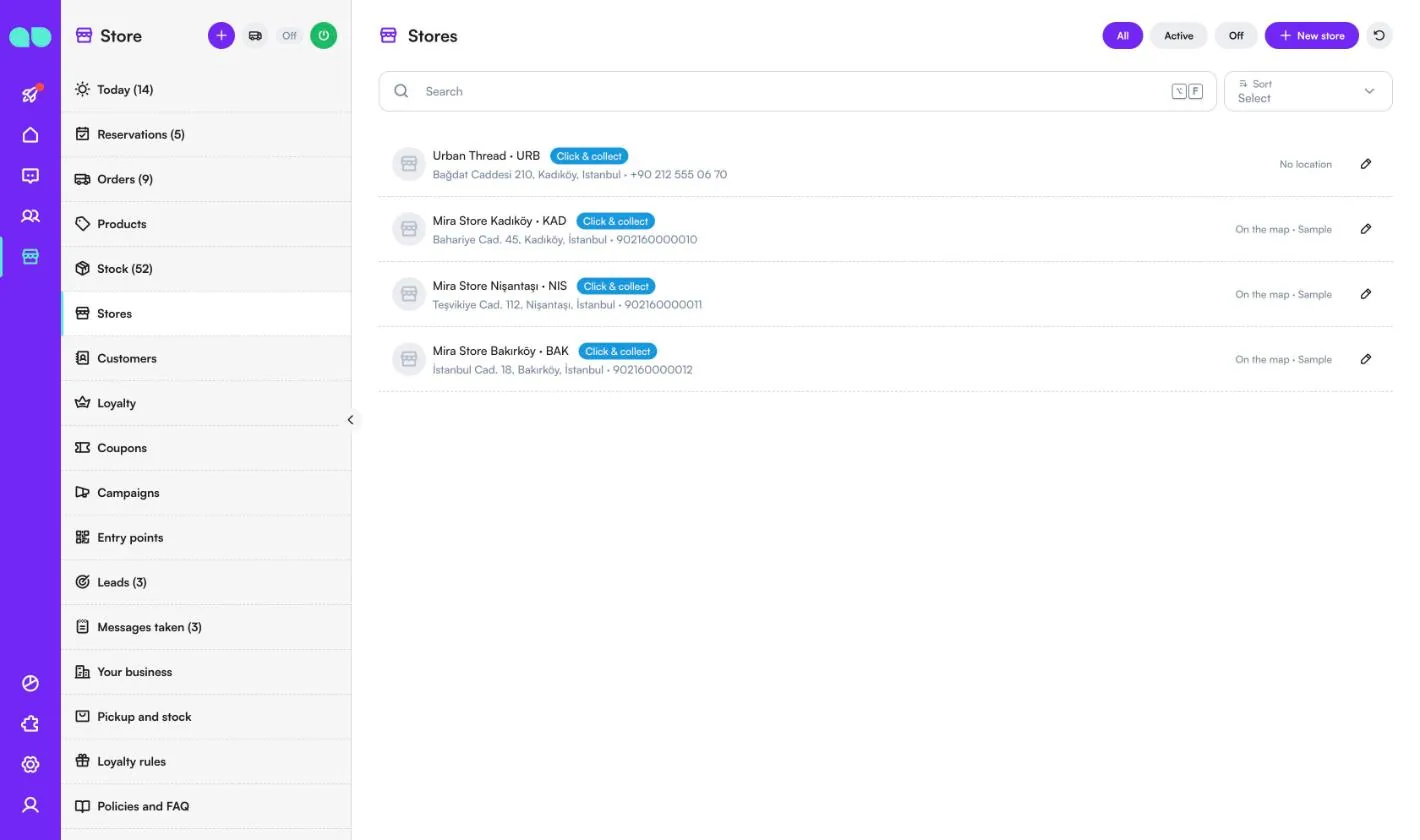
Store › Stores lists your stores, filtered by All, Active or Off. The assistant tells customers their hours and address and takes click & collect for them. A Click & collect badge means customers can reserve there; On the map means the store has a location, so it can be found as the nearest store.
New store asks for the Name, a short upper-case Code (used in QR codes and the stock import, e.g. KAD), the address, phone, a Map link, Latitude and Longitude, the services, the opening hours of that store, and switches for Active and Click & collect.
Customers
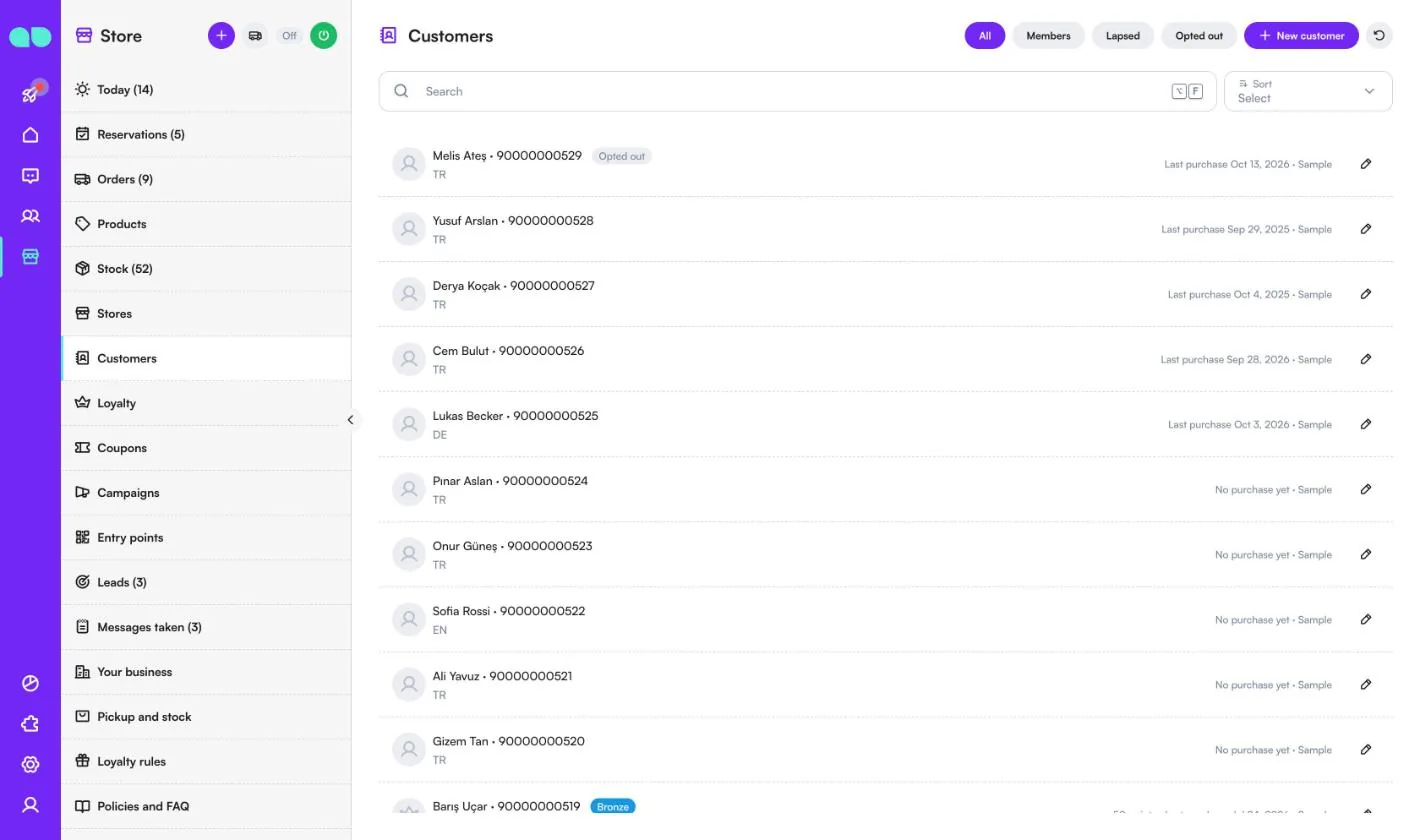
Store › Customers lists everyone who wrote on WhatsApp, Instagram or your website chat, plus the customers you add. Filter by All, Members, Lapsed (no purchase for the come-back time) or Opted out. Each row shows the phone, language, tier badge for members and the last purchase.
The customer drawer has the name, phone, email, birthday, language, favourite store, tags and notes, and shows their loyalty card, reservations, last orders, coupons and leads.
Loyalty
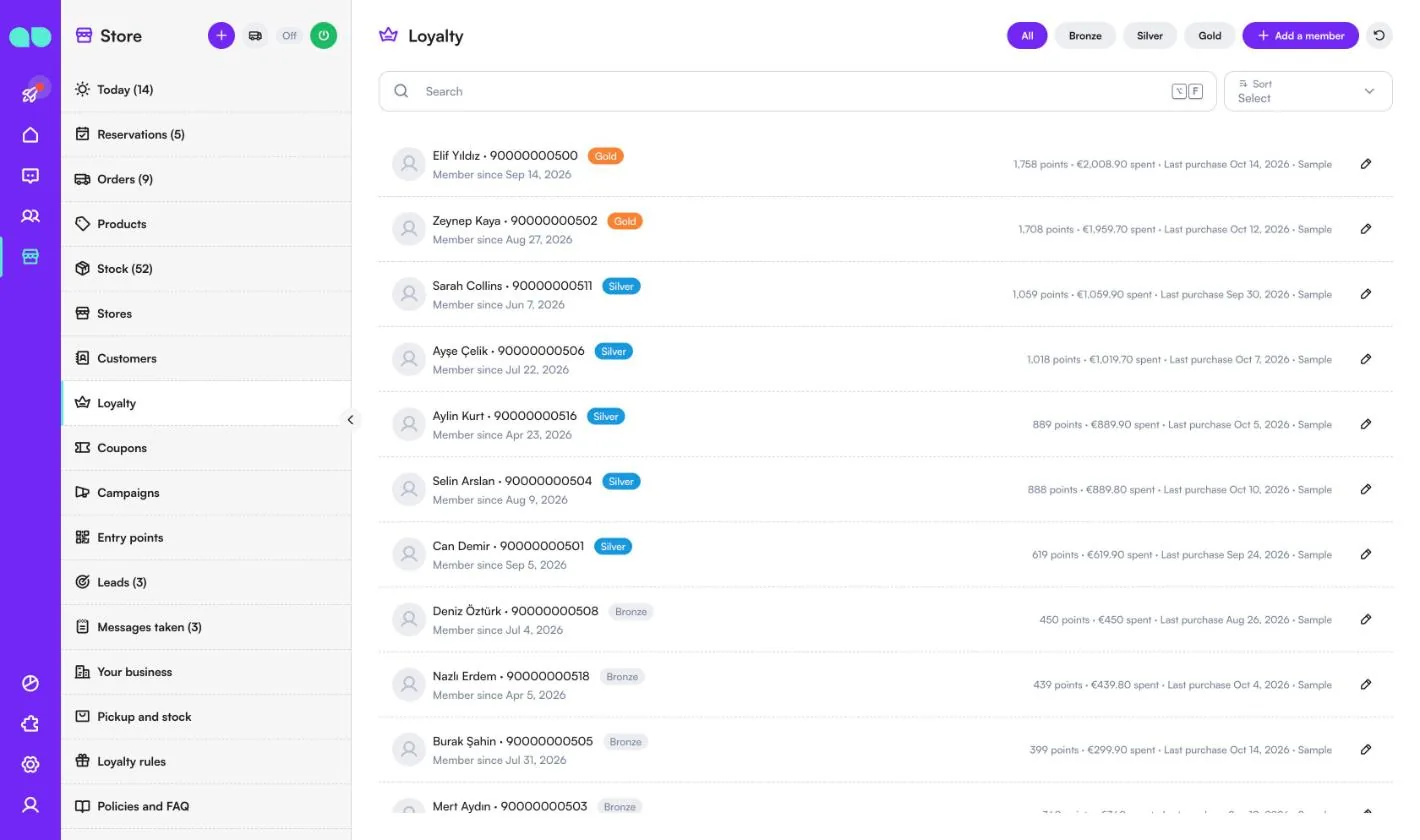
Store › Loyalty lists the members of the loyalty club, filtered by tier (Bronze, Silver, Gold in the sample data). Each row shows the tier, the date they joined, the points, the total spent and the last purchase. This tab is hidden when the loyalty club is off.
Add a member signs up a customer at the till. In a member's card you can Add purchase (points and tier follow), Adjust points with a reason for the history, Redeem a reward for a coupon, and Use a coupon.
Coupons
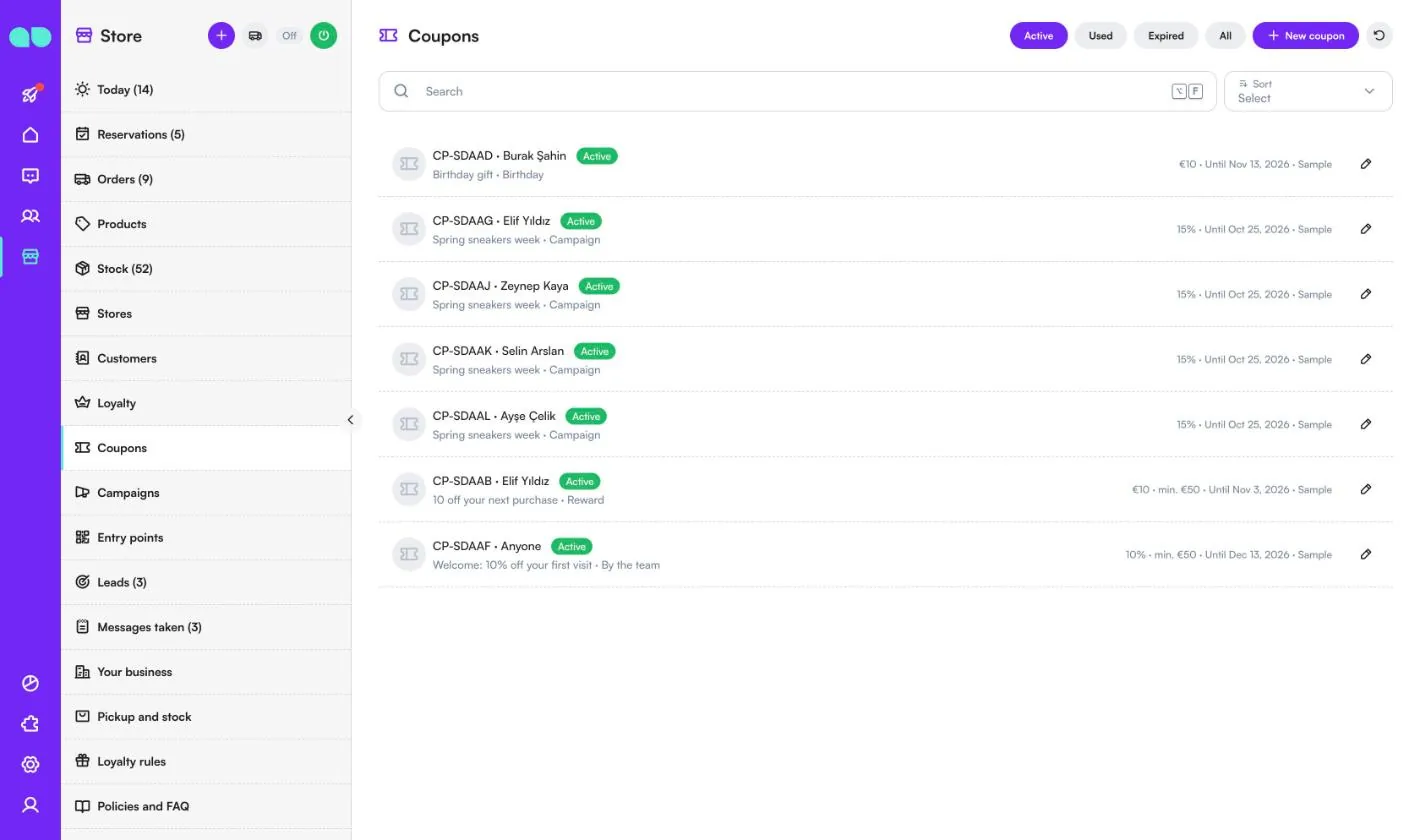
Store › Coupons lists every coupon code, filtered by Active, Used, Expired or All. Each row shows the code, who it is for (one customer or Anyone), where it came from (Reward, Birthday, Campaign or By the team), the value, any minimum spend and the end date.
New coupon makes a code for one customer or for anyone with the code. A coupon for one customer shows in their loyalty card and the assistant tells them about it. Open a coupon to Mark used at the till or Cancel coupon.
Campaigns
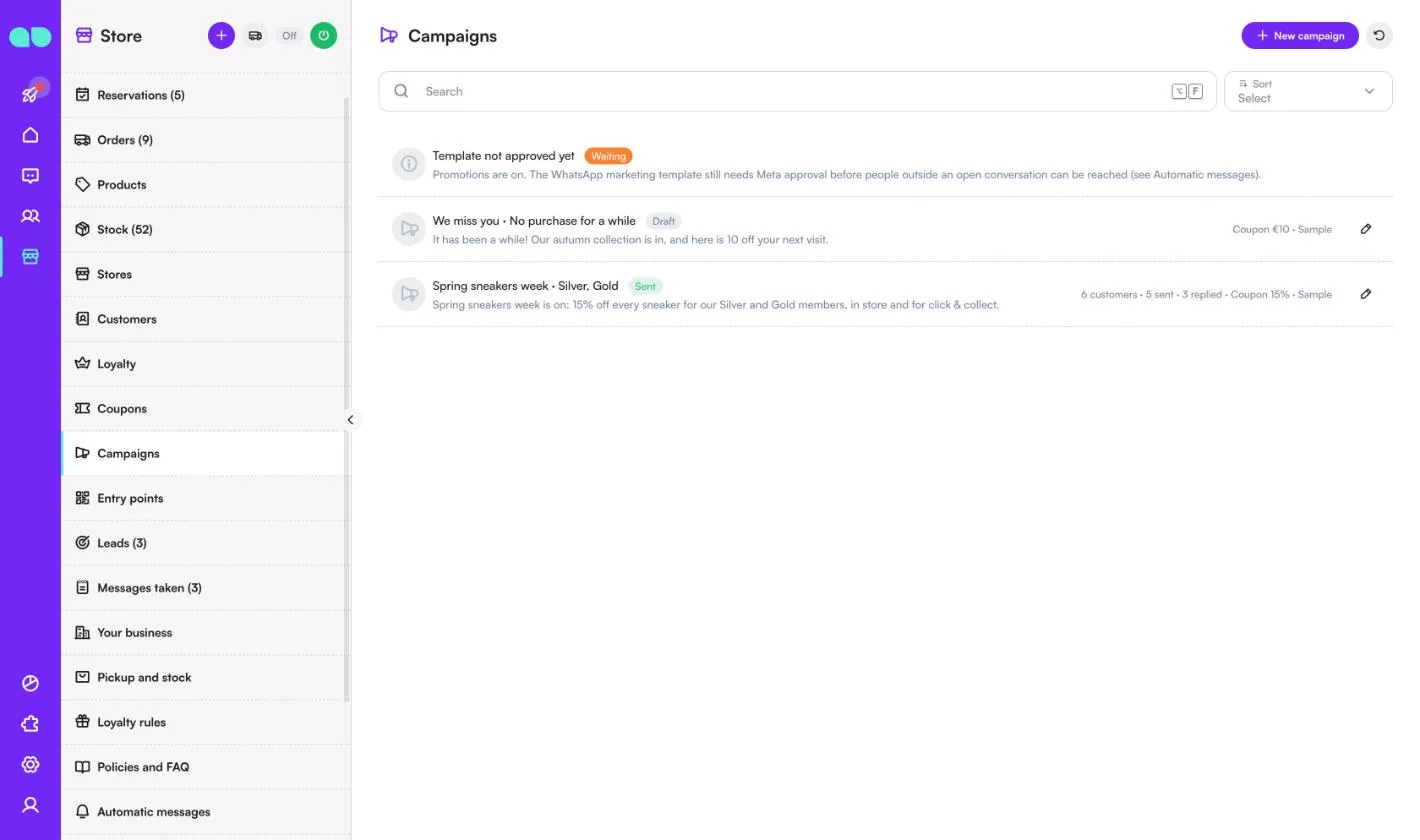
Store › Campaigns sends a message to a chosen group. New campaign asks for a name, the message (up to 280 characters), an optional picture, who gets it (All customers, Loyalty members, Members of some tiers, Customers of some stores, Bought from some categories or No purchase for a while) and an optional personal coupon. Show me counts the customers who match.
Campaigns go out as a WhatsApp marketing template, a few dozen at a time outside quiet hours, and only while Promotions is on. Customers who opted out are never included, and anyone reached by another campaign in the last 14 days is left out. A sent campaign shows how many were sent and replied. A line at the top warns you when Promotions is off or the marketing template is still waiting for Meta.
Entry points
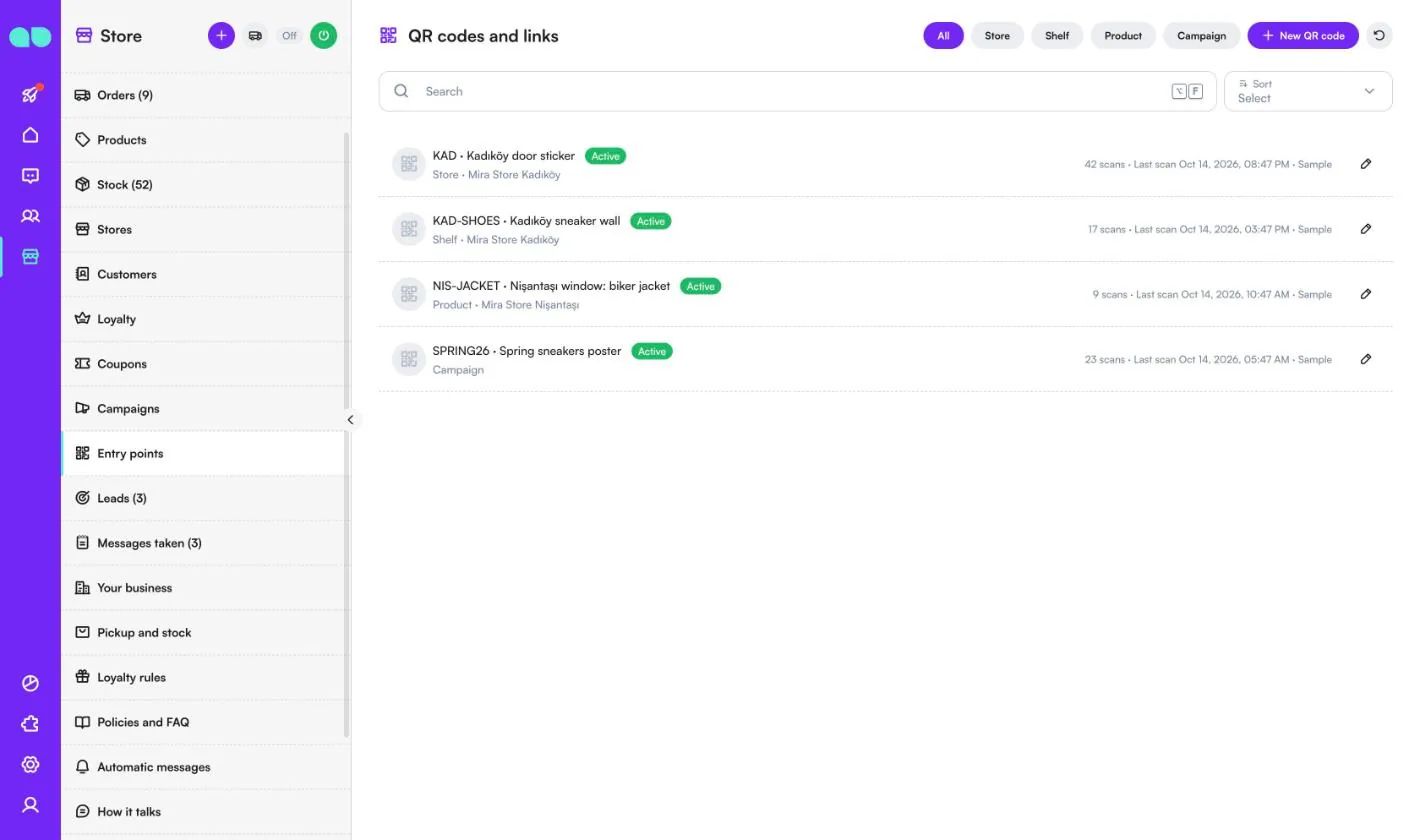
Store › Entry points (the screen is called QR codes and links) makes a QR code or chat link for a store door, a shelf, a product tag or a campaign poster. When a customer scans it, the assistant knows where they are: it offers that store first, starts with the products on that shelf, or opens with your greeting. Filter by Store, Shelf, Product or Campaign; each row shows the code, the number of scans and the last scan.
New QR code asks where it hangs, a title for the team, an upper-case code (e.g. KAD-SHOES), the store, optional products, the text the QR code sends and what the assistant says first. After saving you can copy the link or open the QR code full size to print it. You need a connected WhatsApp number for the link.
Leads
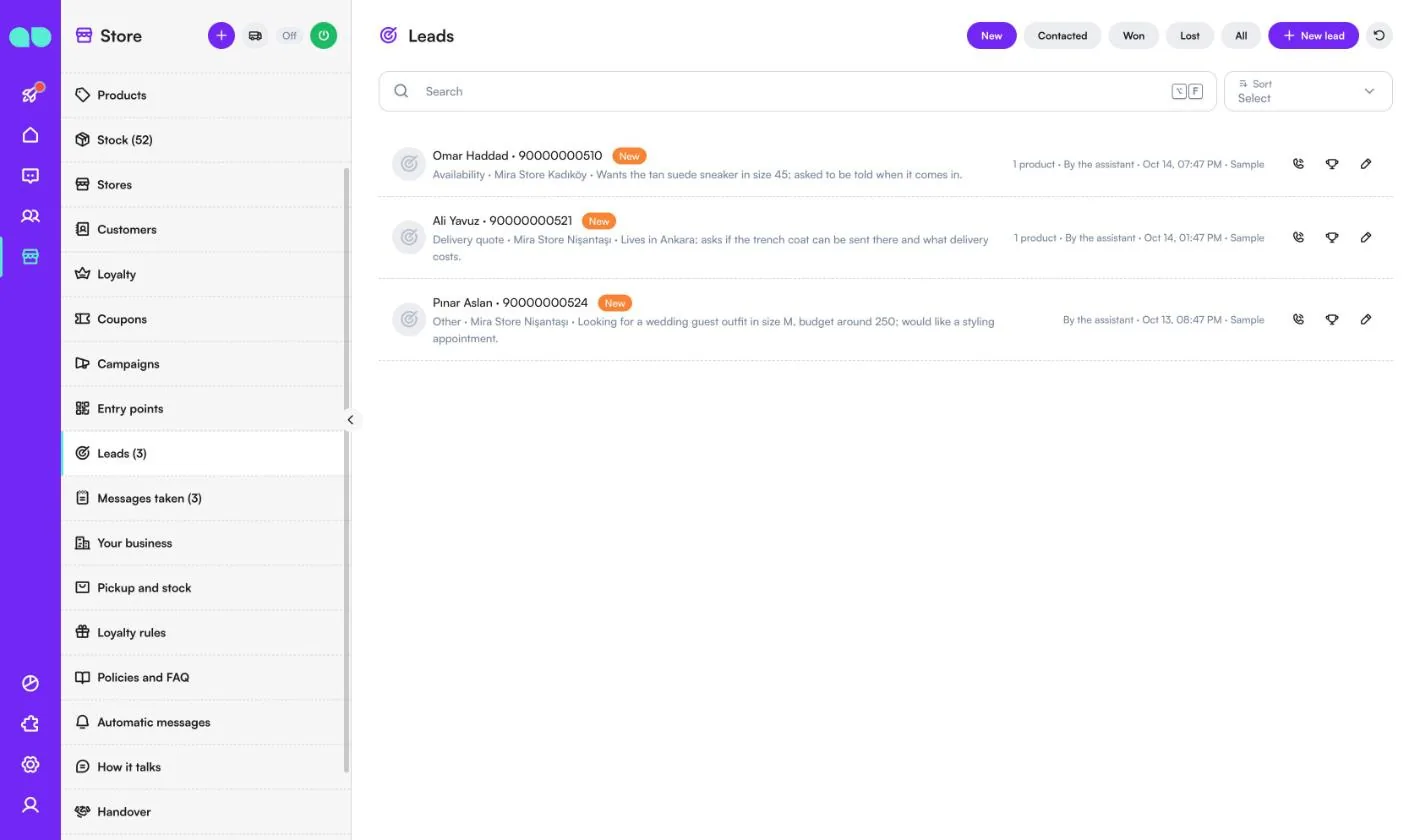
Store › Leads collects what the assistant wrote down when someone asked for a delivery quote, a large item, availability of something not in stock, or anything not on your list. Filter by New, Contacted, Won, Lost or All. Each row shows what they want, the store, the note, the products and who wrote it down.
Use the phone icon to mark it contacted, the trophy to mark it won, or the pencil to open it and change the stage.
Messages taken
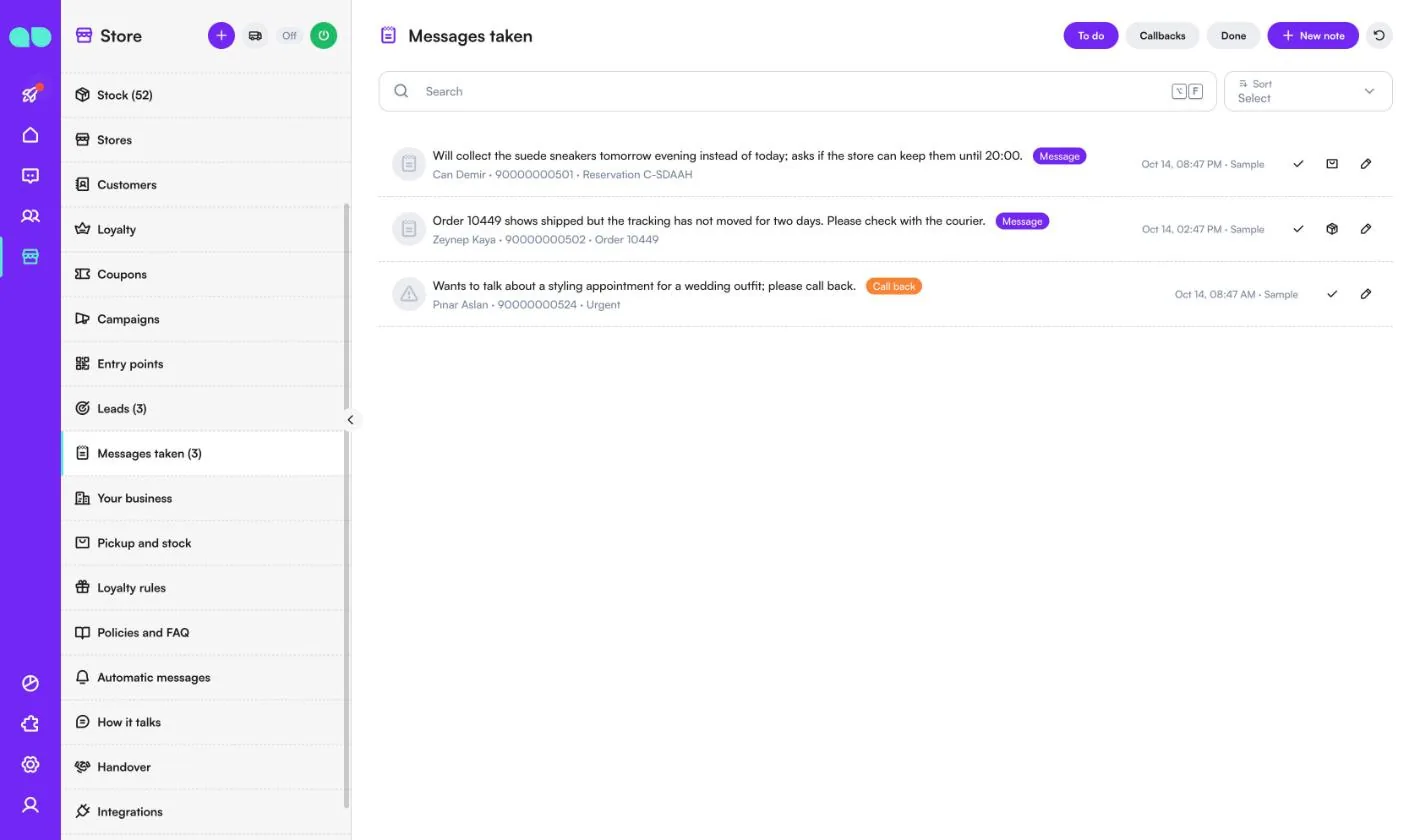
Store › Messages taken lists what the assistant wrote down when it could not help or someone wants a call back. Filter by To do, Callbacks or Done. Each row shows the message, the customer and the related reservation or order, with an Urgent mark when needed.
Use the tick to mark it done, the reservation or order icon to open what it is about, or New note to add one yourself.
Your business
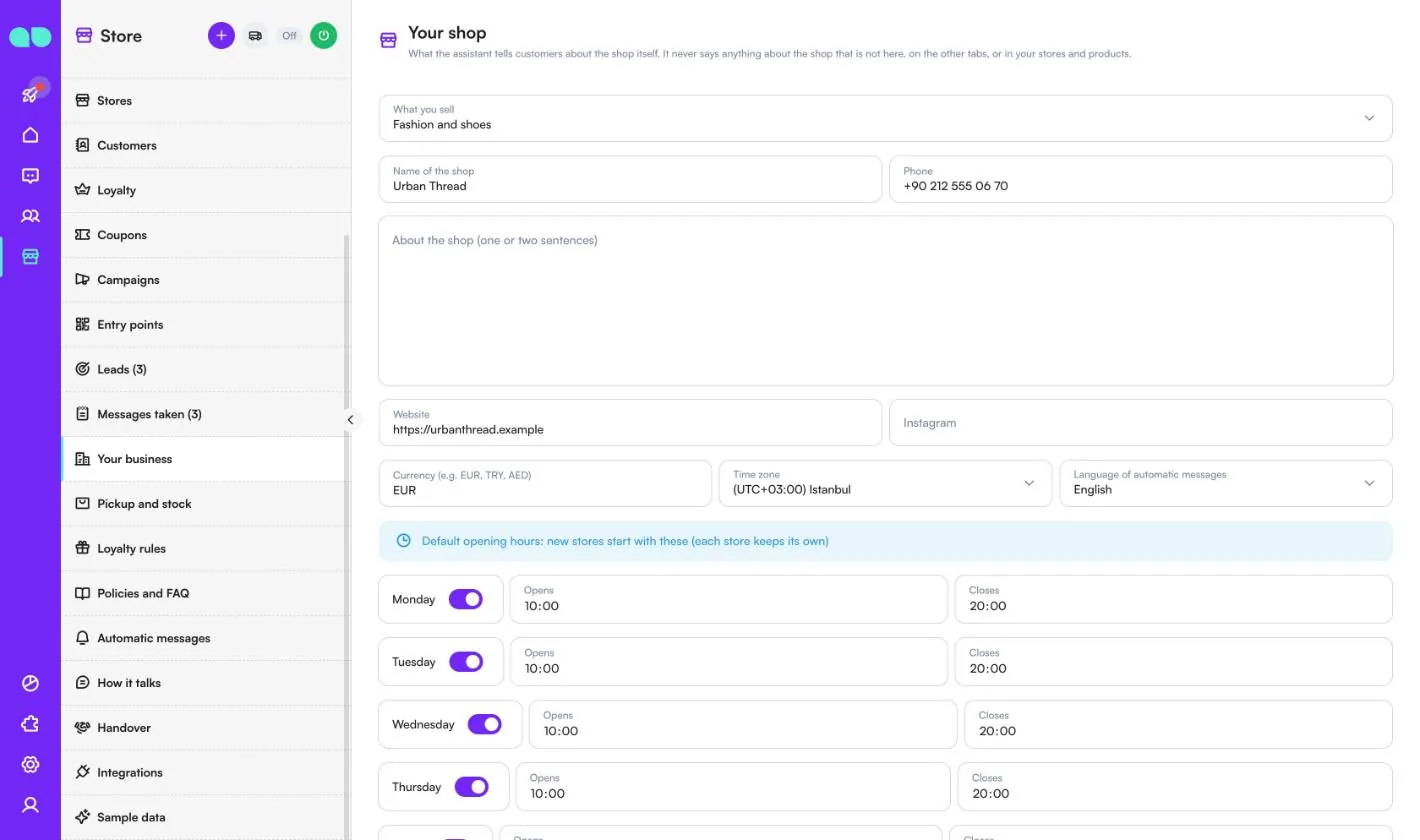
Store › Your business (the screen is called Your shop) holds what the assistant tells customers about the shop itself. It never says anything about the shop that is not here, on the other tabs, or in your stores and products.
| Field | What it does |
|---|---|
| What you sell | Fashion and shoes, Electronics, Home and living, Beauty and cosmetics, Sports and outdoor, or Other. |
| Name of the shop, Phone | Shown to customers. |
| About the shop (one or two sentences) | A short description the assistant can use. |
| Website, Instagram | Your links. |
| Currency (e.g. EUR, TRY, AED), Time zone, Language of automatic messages | As in the setup form. |
| Default opening hours | New stores start with these; each store keeps its own. |
| Closed on (holidays) | One date per line (YYYY-MM-DD). All stores are closed on these days. |
Pickup and stock
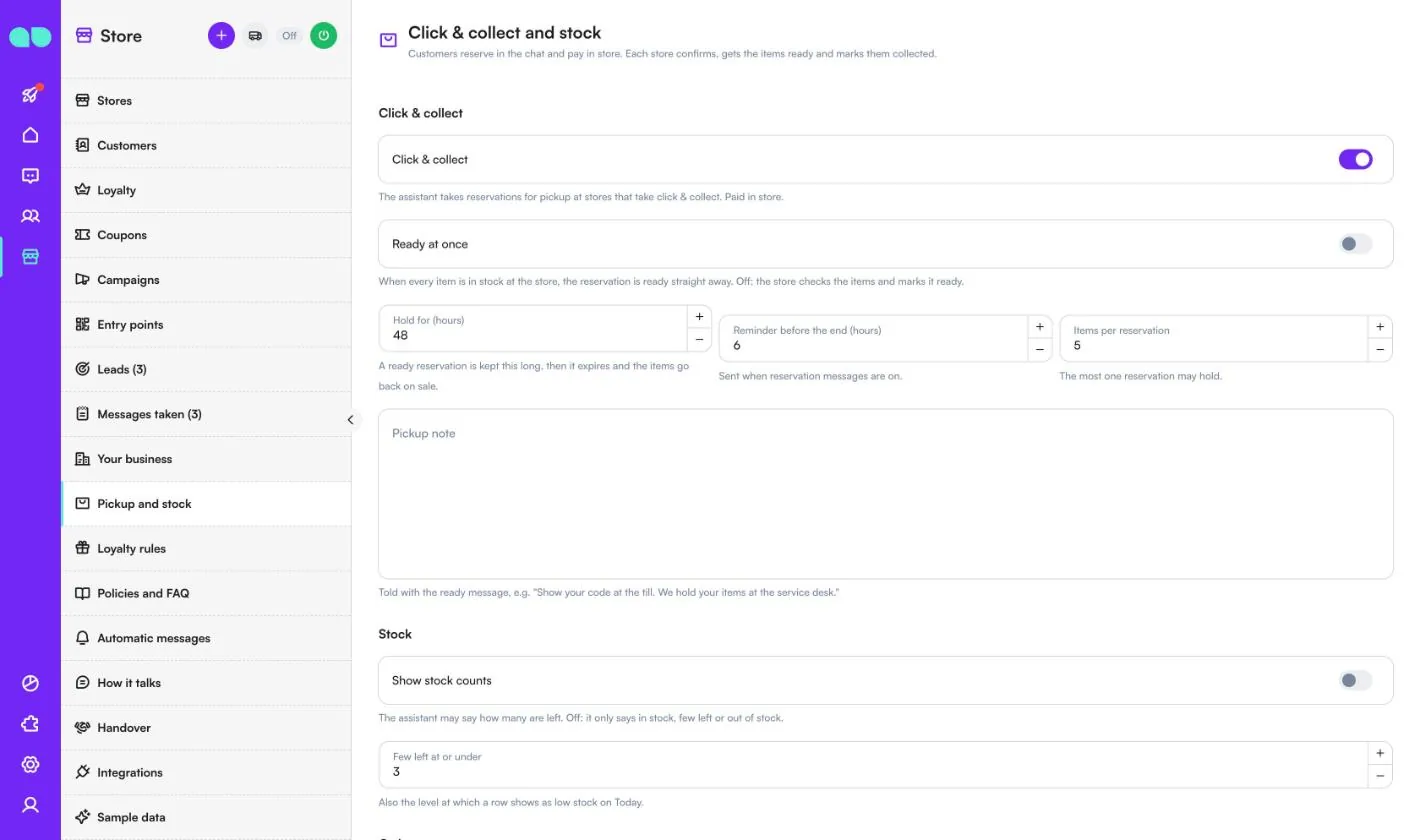
Store › Pickup and stock (the screen is called Click & collect and stock) sets how reservations and stock answers work.
| Field | What it does |
|---|---|
| Click & collect | The assistant takes reservations for pickup at stores that take click & collect. Paid in store. |
| Ready at once | When every item is in stock at the store, the reservation is ready straight away. Off: the store checks the items and marks it ready. |
| Hold for (hours) | A ready reservation is kept this long, then it expires and the items go back on sale. |
| Reminder before the end (hours) | When the reminder goes out, if reservation messages are on. It must come before the hold ends. |
| Items per reservation | The most one reservation may hold. |
| Pickup note | Told with the ready message, e.g. "Show your code at the till." |
| Show stock counts | The assistant may say how many are left. Off: it only says in stock, few left or out of stock. |
| Few left at or under | Also the level at which a row shows as low stock on Today. |
| Order questions | The assistant tells customers where their web order is, by order number or by their phone. |
| Delivery note | Told with order updates, e.g. "Deliveries arrive between 9:00 and 18:00." |
Loyalty rules
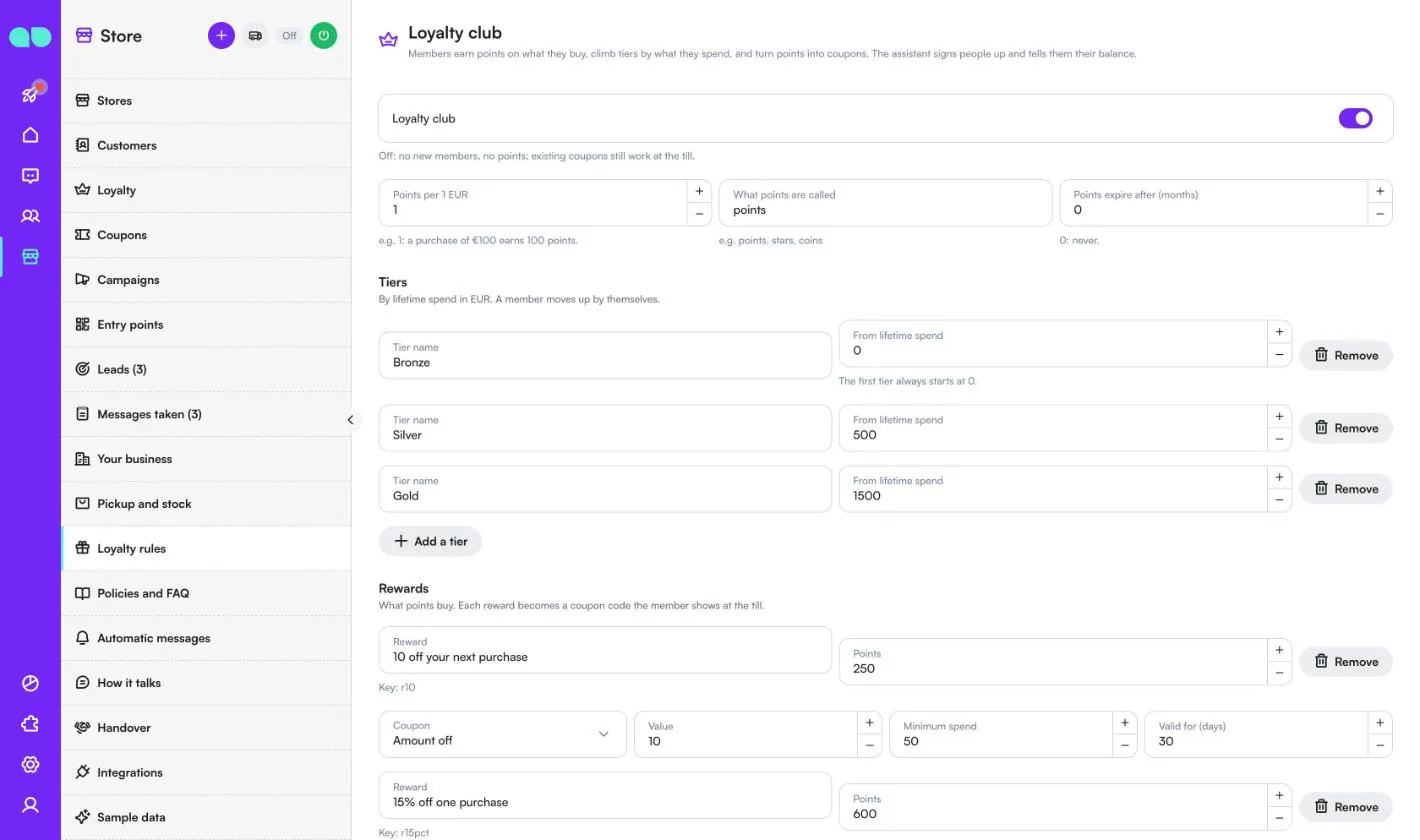
Store › Loyalty rules (the screen is called Loyalty club) sets how members earn and spend points. The assistant signs people up and tells them their balance.
| Field | What it does |
|---|---|
| Loyalty club | Off: no new members and no points; existing coupons still work at the till. |
| Points per 1 (your currency) | E.g. 1: a purchase of 100 earns 100 points. |
| What points are called | E.g. points, stars, coins. |
| Points expire after (months) | 0: never. |
| Tiers | A Tier name and From lifetime spend for each. A member moves up by themselves. The first tier always starts at 0. |
| Rewards | What points buy: a Reward name, the Points it costs, and the Coupon it becomes (Amount off or Percent off, Value, Minimum spend, Valid for (days)). |
| Birthday | Bonus points and a Birthday coupon (amount) sent on the member's birthday when birthday messages are on. 0: none. |
Policies and FAQ
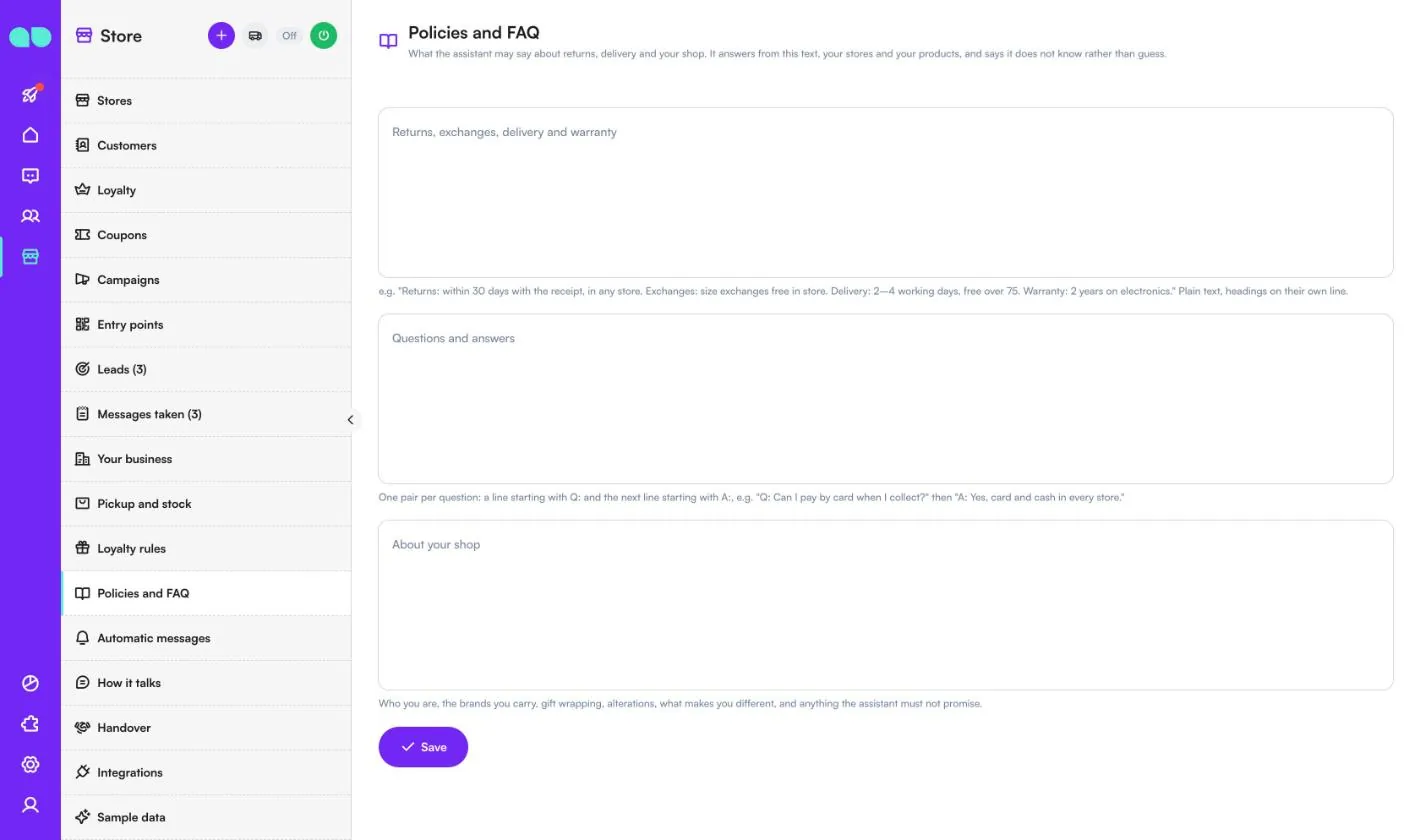
Store › Policies and FAQ is what the assistant may say about returns, delivery and your shop. It answers from this text, your stores and your products, and says it does not know rather than guess.
- Returns, exchanges, delivery and warranty: plain text, headings on their own line.
- Questions and answers: one pair per question, a line starting with
Q:and the next line starting withA:. - About your shop: who you are, the brands you carry, gift wrapping, alterations, what makes you different, and anything the assistant must not promise.
Automatic messages
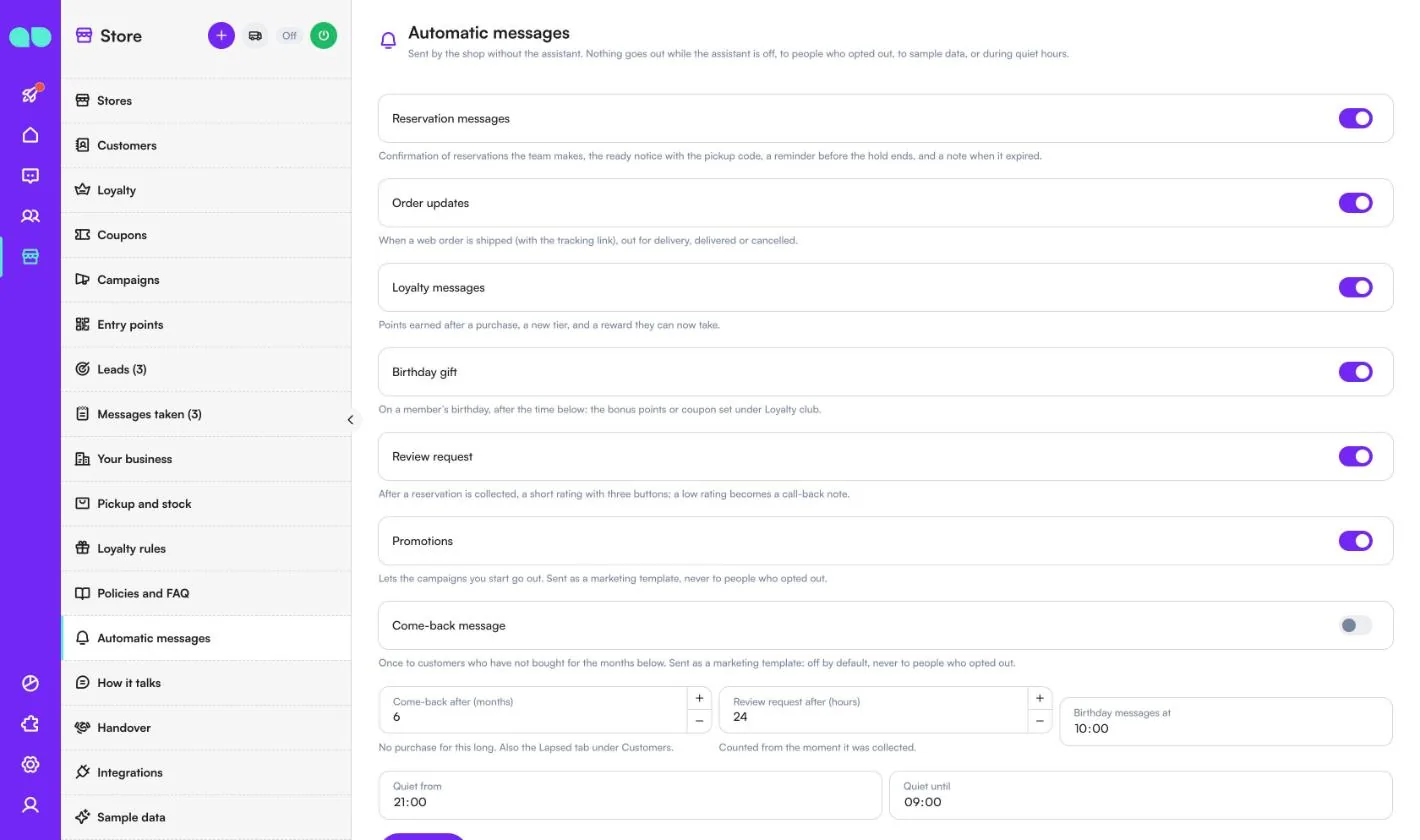
Store › Automatic messages are sent by the shop without the assistant. Nothing goes out while the assistant is off, to people who opted out, to sample data, or during quiet hours. Each has its own switch:
| Message | When it goes out |
|---|---|
| Reservation messages | Confirmation of reservations the team makes, the ready notice with the pickup code, a reminder before the hold ends, and a note when it expired. |
| Order updates | When a web order is shipped (with the tracking link), out for delivery, delivered or cancelled. |
| Loyalty messages | Points earned after a purchase, a new tier, and a reward they can now take. |
| Birthday gift | On a member's birthday, after Birthday messages at: the bonus points or coupon set under Loyalty club. |
| Review request | After a reservation is collected (after Review request after (hours)), a short rating with three buttons; a low rating becomes a call-back note. |
| Promotions | Lets the campaigns you start go out, as a marketing template. |
| Come-back message | Once to customers who have not bought for Come-back after (months). Off by default. |
Quiet from and Quiet until set the quiet hours. Below them, the WhatsApp templates list shows the status of each template (approved, waiting for Meta, rejected). The app writes and submits the templates on your number in the language of automatic messages; Submit missing templates sends any that are not submitted yet.
How it talks
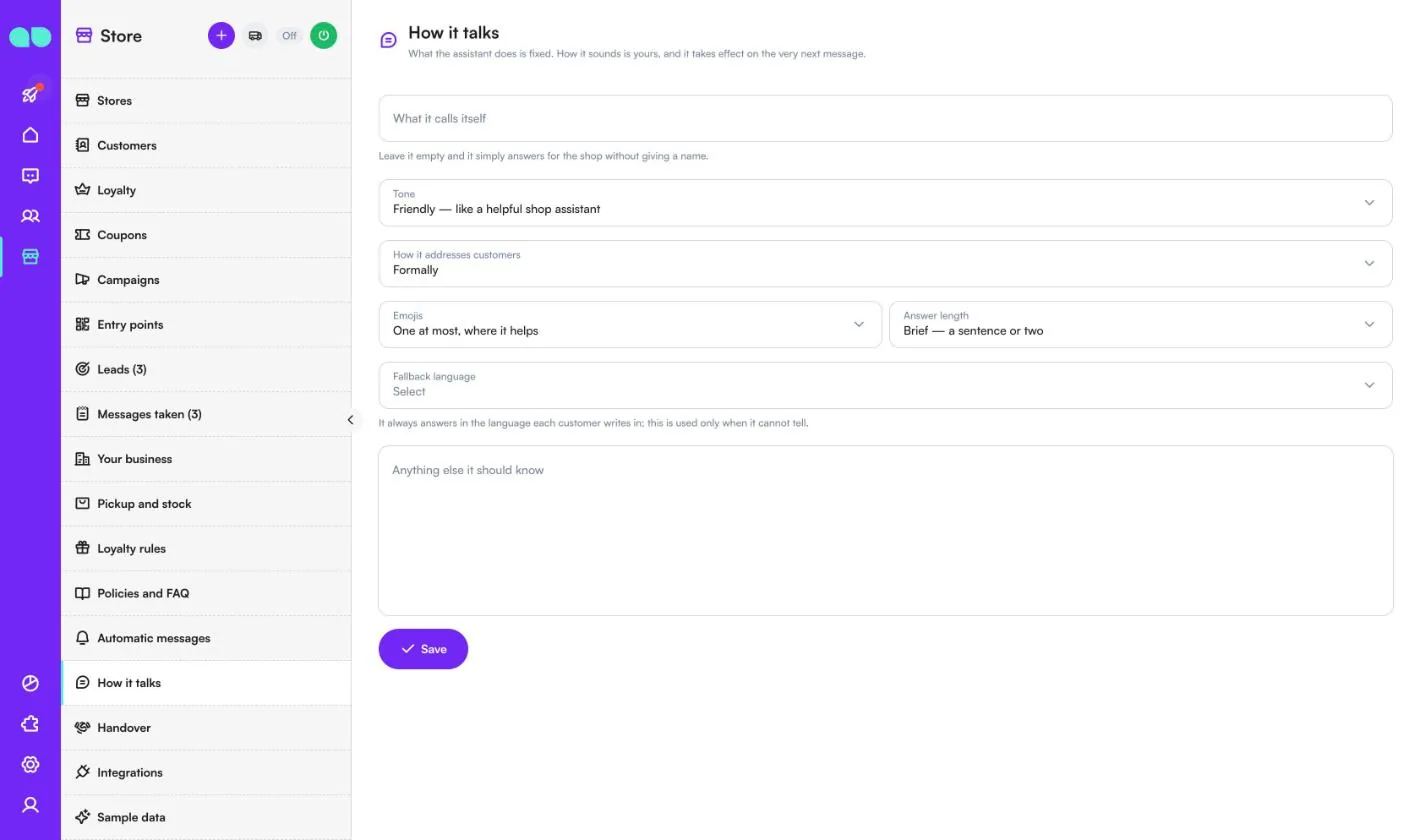
Store › How it talks changes how the assistant sounds; what it does stays fixed. Changes take effect on the very next message.
| Field | What it does |
|---|---|
| What it calls itself | Leave it empty and it answers for the shop without giving a name. |
| Tone | Friendly, Warm, Professional or Direct. |
| How it addresses customers | Formally, or casually by first name. |
| Emojis | None, one at most where it helps, or freely. |
| Answer length | Brief, Balanced or Detailed. |
| Fallback language | It always answers in the language each customer writes in; this is used only when it cannot tell. |
| Anything else it should know | Your own rules and things never to promise. It cannot override the rule that it does not invent prices, stock or facts. |
Handover
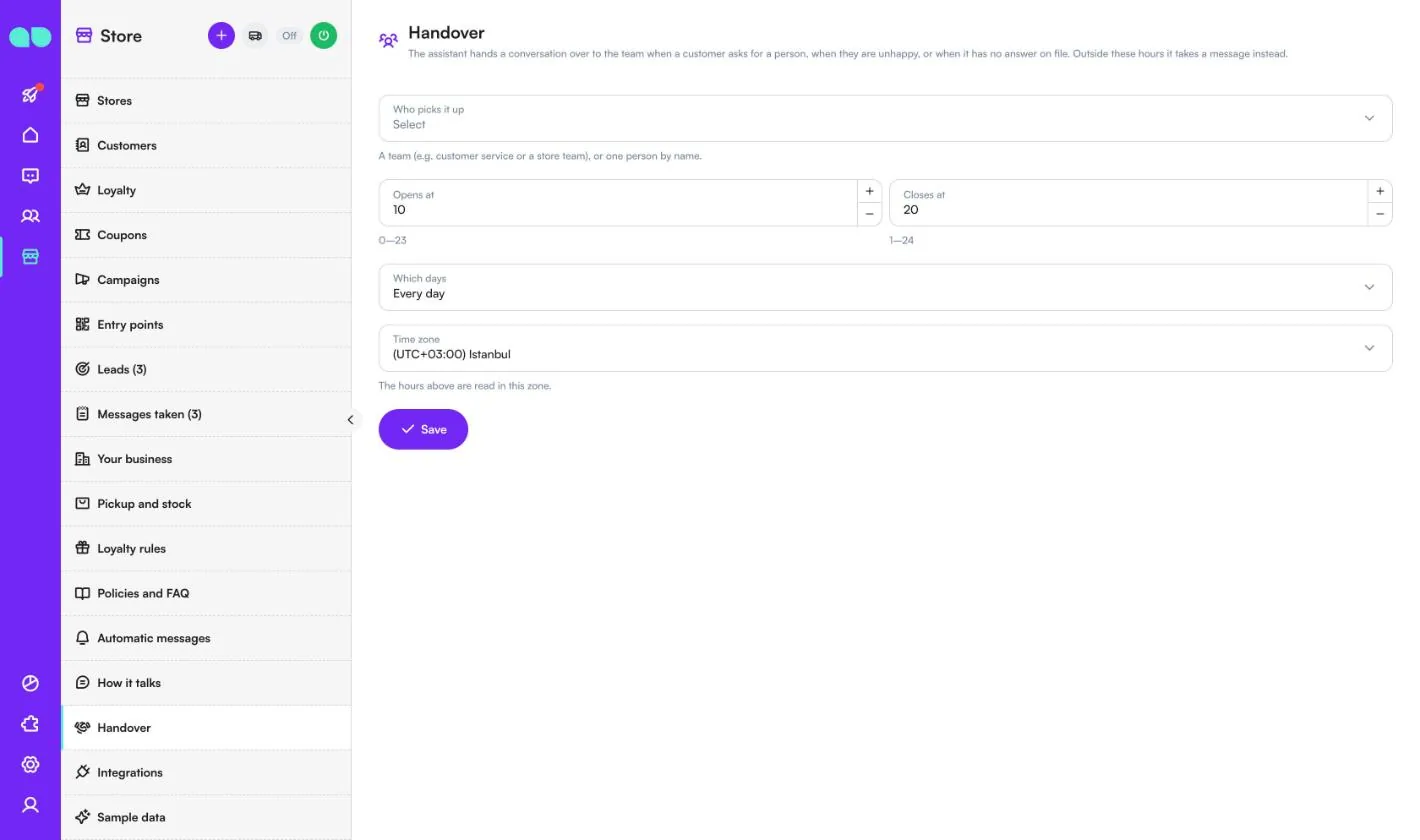
Store › Handover decides who takes a conversation when a customer asks for a person, is unhappy, or asks something with no answer on file.
- Who picks it up: a team (e.g. customer service or a store team), one person by name, or nobody (the assistant never transfers).
- Opens at / Closes at (hours 0–24), Which days (every day or weekdays only) and Time zone. Outside these hours the assistant takes a message instead.
Integrations
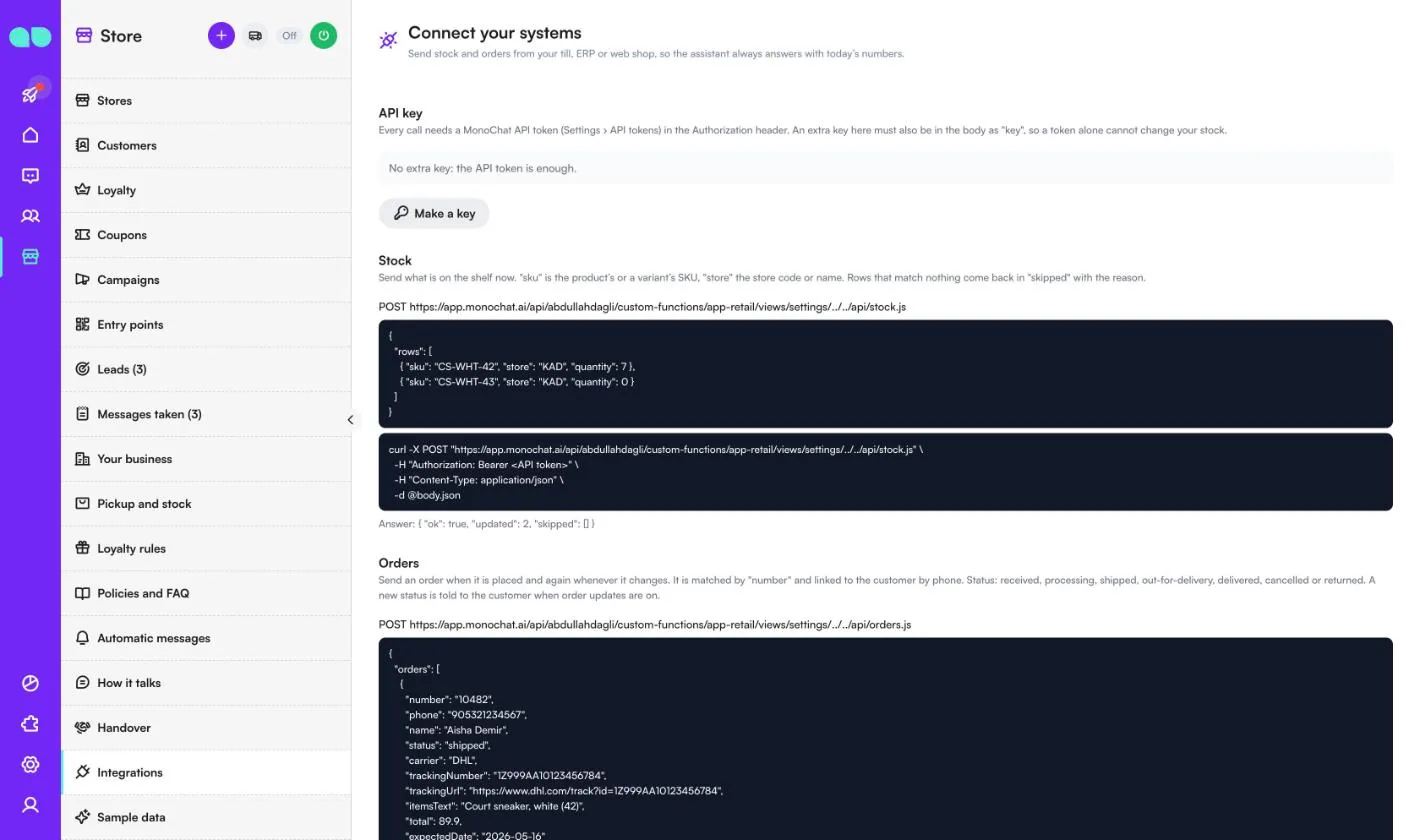
Store › Integrations (the screen is called Connect your systems) lets your till, ERP or web shop send stock and orders, so the assistant always answers with today's numbers.
- API key: every call needs a MonoChat API token (Settings › API tokens) in the Authorization header. Make a key adds an extra key that must also be in the body as
key, so a token alone cannot change your stock. - Stock: send what is on the shelf now, with
sku(the product's or a variant's SKU),store(the store code or name) andquantity. Rows that match nothing come back inskippedwith the reason. - Orders: send an order when it is placed and again whenever it changes. It is matched by
numberand linked to the customer by phone. A new status is told to the customer when order updates are on.
The screen shows the address to call, an example body and a curl command for each. No system to connect? Keep stock up to date with Import CSV on the Stock screen, and add orders by hand under Orders.
Sample data
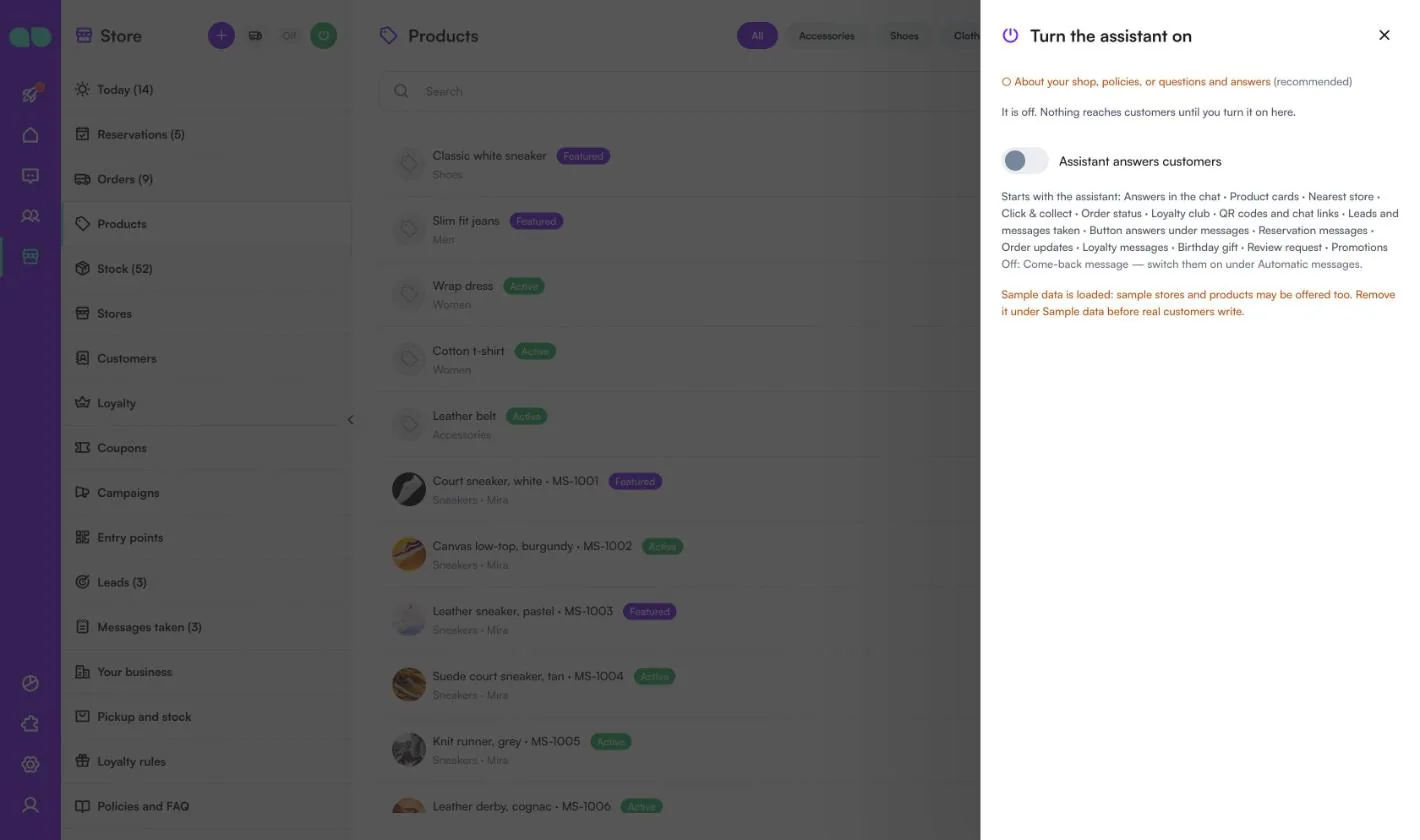
Store › Sample data fills the desk with Mira Store: three stores, products in sizes and colours, stock (some low, some sold out), customers and loyalty members, reservations in every state, web orders, coupons, QR codes, leads, campaigns and messages taken. Sample customers are never messaged, and you can try the assistant on your own number against the sample stores and products.
Load again reloads it; Remove sample data removes every sample row and leaves your real records untouched. Remove it before real customers write.
Reservation drawer
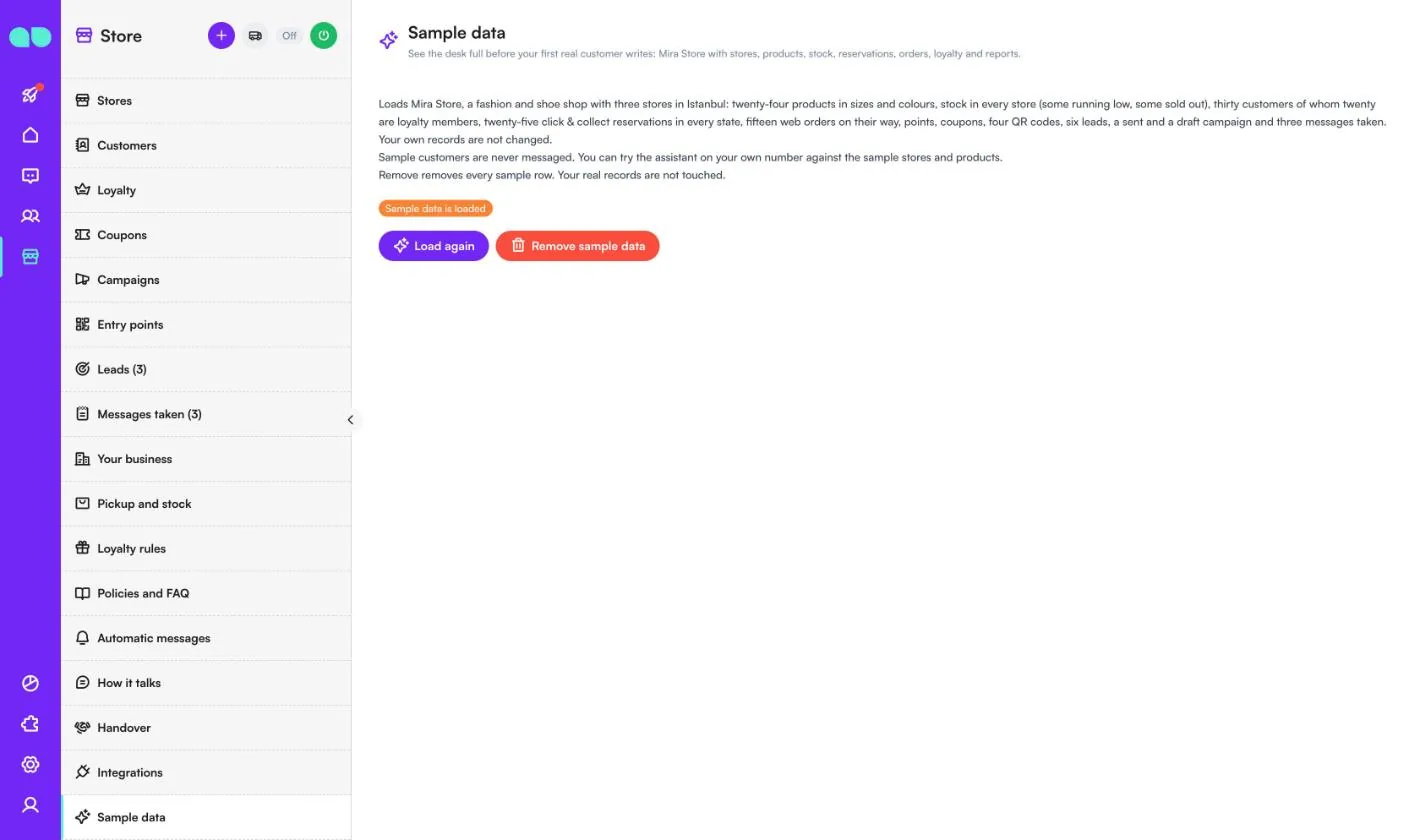
Click a reservation to open it. The top shows the code, customer, status, pickup store, items, total ("Paid in store at pickup") and who created it.
- Mark ready: put the items aside first. The customer is told and the hold starts.
- Collected: the items leave the stock, members get their points and a review is asked for later.
- Extend (on a ready reservation): extends the hold, and the customer gets a new reminder before it ends.
- Cancel reservation: the items go back to stock; the customer is not told automatically.
Add a Note for the history (optional) with any change. History lists every step with the time and who did it.
Product drawer
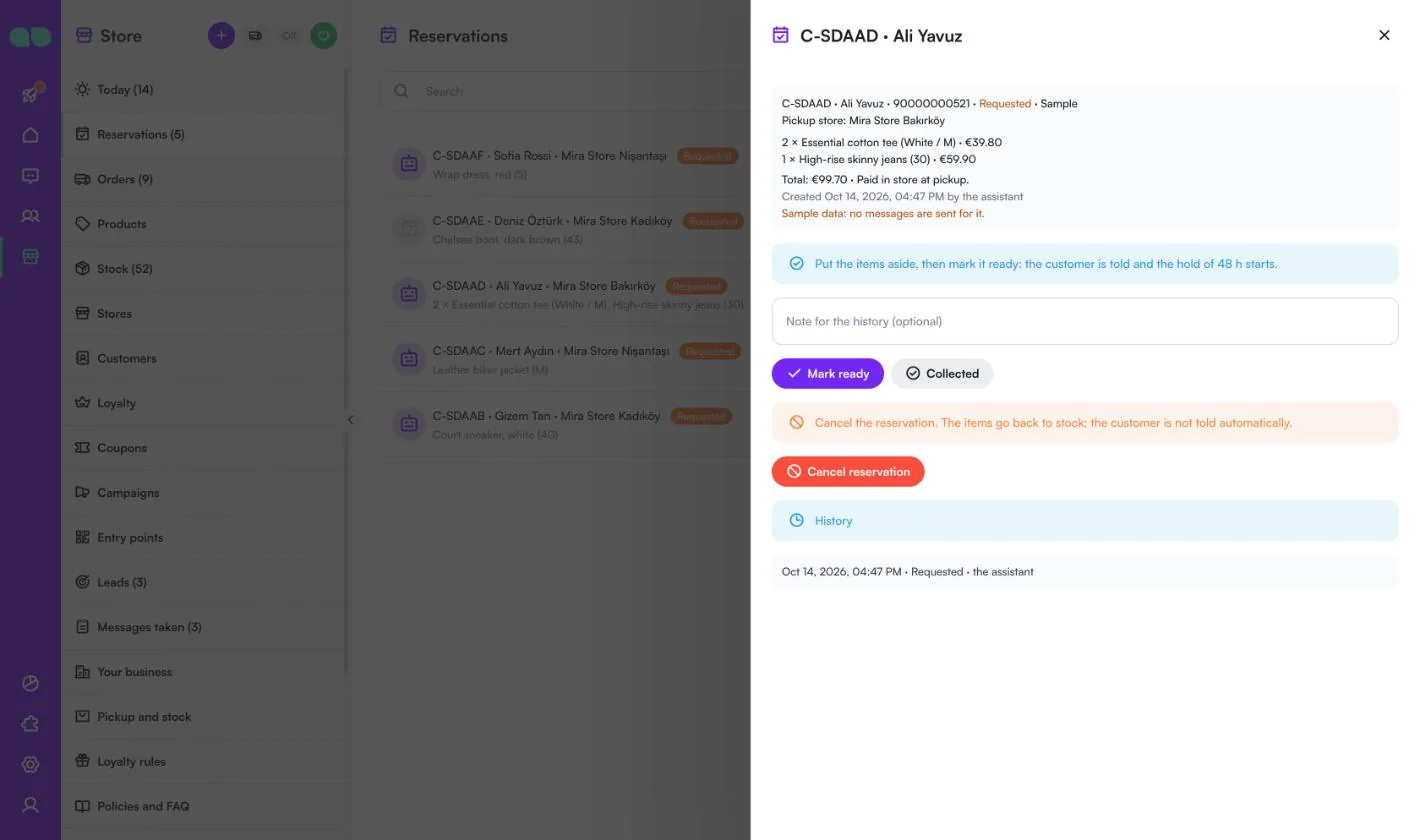
The product drawer holds everything the assistant may say about a product.
| Field | What it does |
|---|---|
| Name, SKU | The SKU is your stock code, used by the CSV import and the API. |
| Category, Brand | Pick a category or add a new one. |
| Description | What it is, fit, material, care. The assistant answers from this. |
| Price, Sale price | Sale price empty: not on sale. It must be lower than the price. |
| Photo links, one per line (up to 4) | Upload them in System › File Box and paste the links. The first photo is shown on the product card. |
| Attributes, Search words | E.g. colour and material, and other words people use for it (trainers, sneakers). |
| Variants | Sizes or colours, each with its own SKU, optional price and stock. No variants: the product is one item. |
| Active, Featured, Order | Off: the assistant does not offer it. Featured products are shown first and in campaign replies. Smaller numbers come first. |
| Stock | How many each store has on the shelf, with reserved items shown. Click Save stock. |
Turn the assistant on
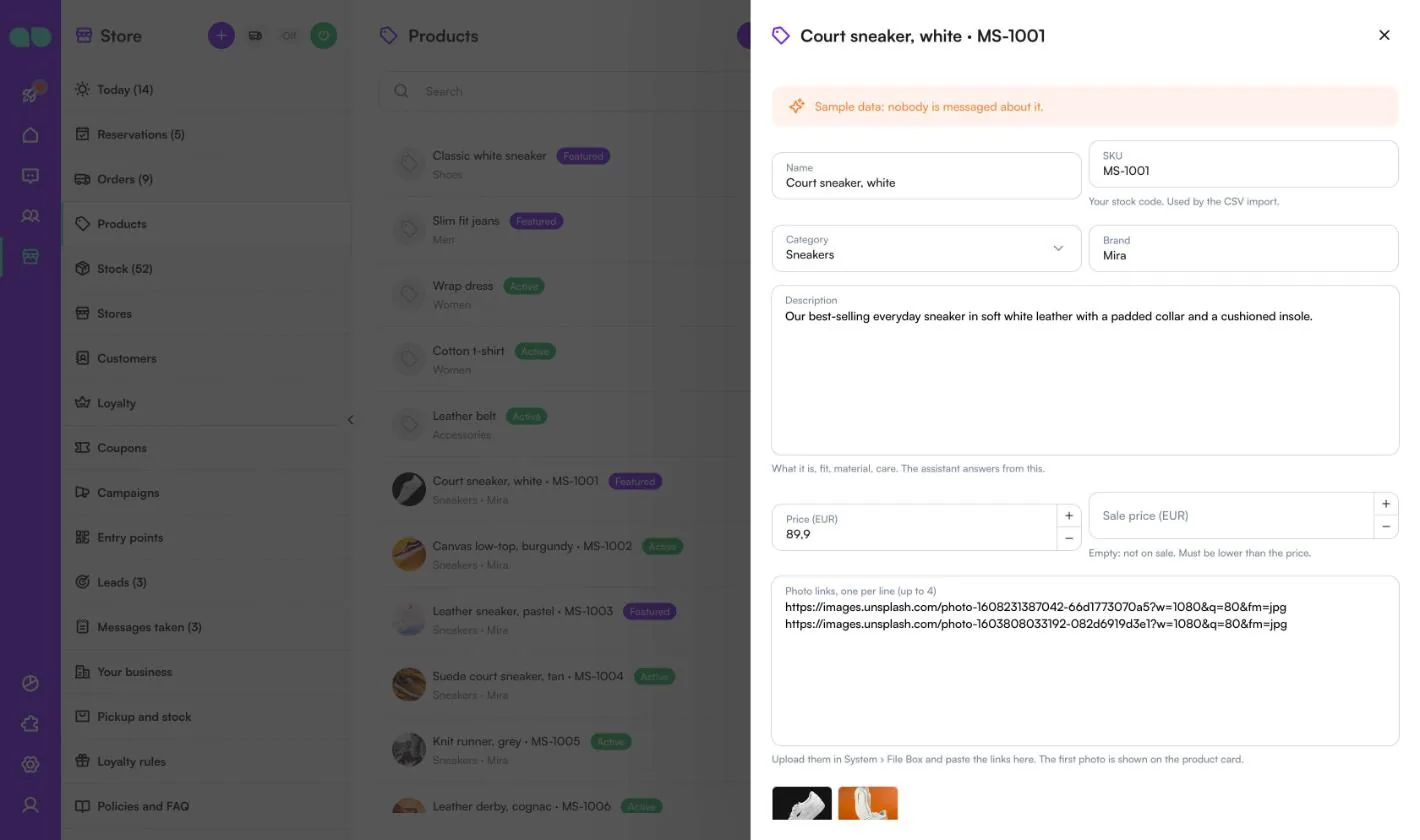
The power button in the desk header opens the Turn the assistant on drawer. It shows what is still missing, the Assistant answers customers switch, the list of what Starts with the assistant (answers in the chat, product cards, nearest store, click & collect, order status, loyalty club, QR codes and chat links, leads and messages taken, and the automatic messages that are on), and which messages are off. If sample data is loaded, it reminds you to remove it before real customers write.
Sales and stores report
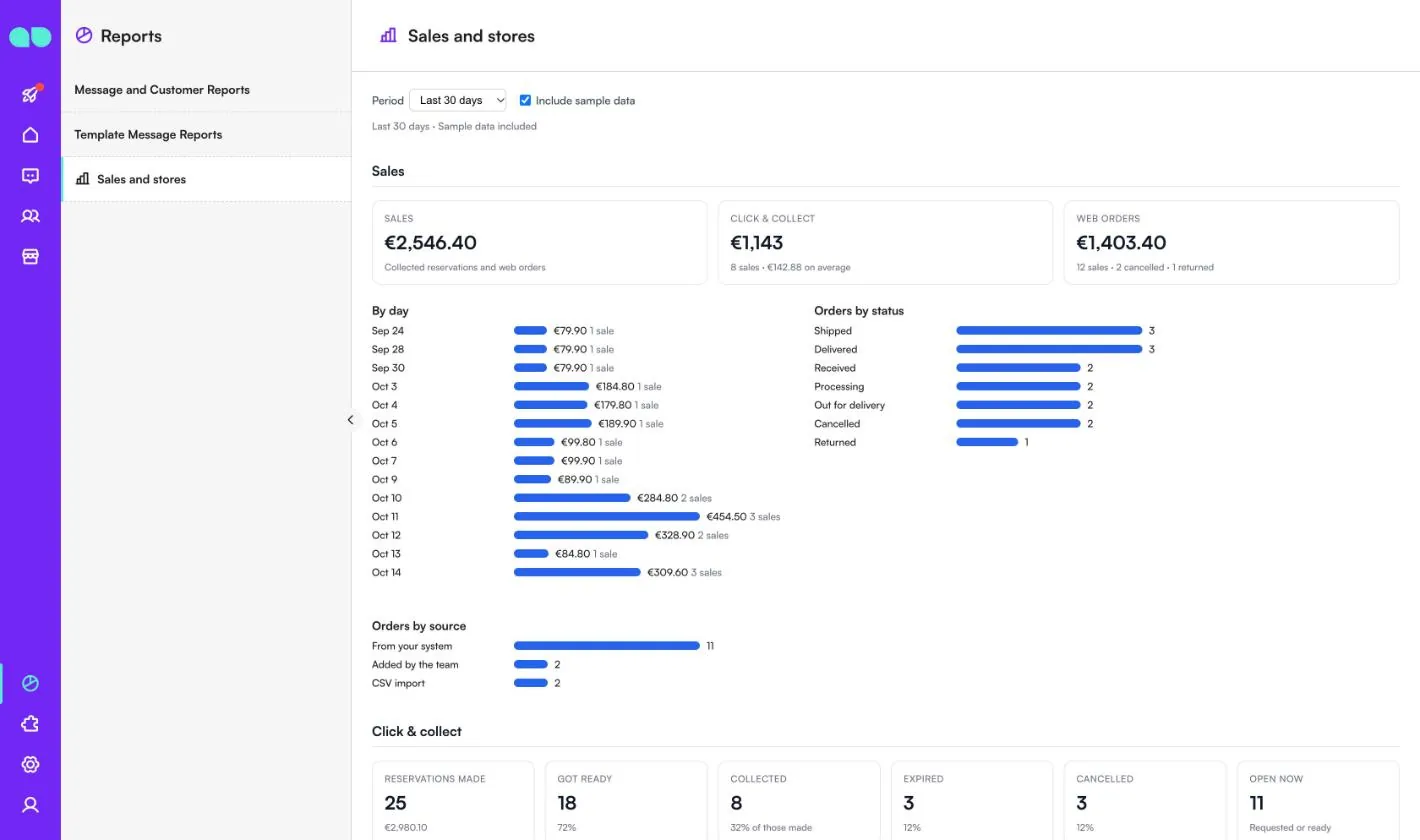
Reports › Sales and stores shows how the shop is doing. Choose the Period (last 7, 30, 90 or 365 days) and tick Include sample data to count the sample records.
- Sales: total sales, click & collect and web orders, sales By day, Orders by status and Orders by source (from your system, added by the team, CSV import).
- Click & collect: reservations made, got ready, collected, expired, cancelled and open now.
- Products (most reserved and sold) and Stores (reservations, collected, expired, click & collect sales and web orders per store).
- Loyalty club: members, points earned, redeemed and not yet used, coupons used, members by tier and coupons by source.
- Campaigns, Leads, and The assistant: reservations it took and how many were collected, leads written down, messages taken and QR and link scans.
Features
Nearest store
Customers share their location and get the closest stores with today’s opening hours and a map link.
“Where is my order?”
The assistant finds the order by its number or the customer’s phone and gives its status and tracking link. Customers hear when an order is shipped, out for delivery, delivered or cancelled.
Reservation reminders
A reminder before the hold ends, with On my way, I need more time and Cancel it buttons. The reservation ends by itself when the time is up and the stock is released.
QR codes and campaigns
A QR code or link for each store, window or event, so the chat starts with the right store. Campaign messages go to a chosen group with an optional personal coupon.
Stock and orders from your systems
Keep stock in the panel, import it from a CSV file, or send stock and orders from your web shop, ERP or till through the HTTP API.
The store desk
Today’s reservations to prepare, ones about to expire, open orders, new leads, low stock and messages taken. Reports show sales, reservations, top products and stores.
Screenshots
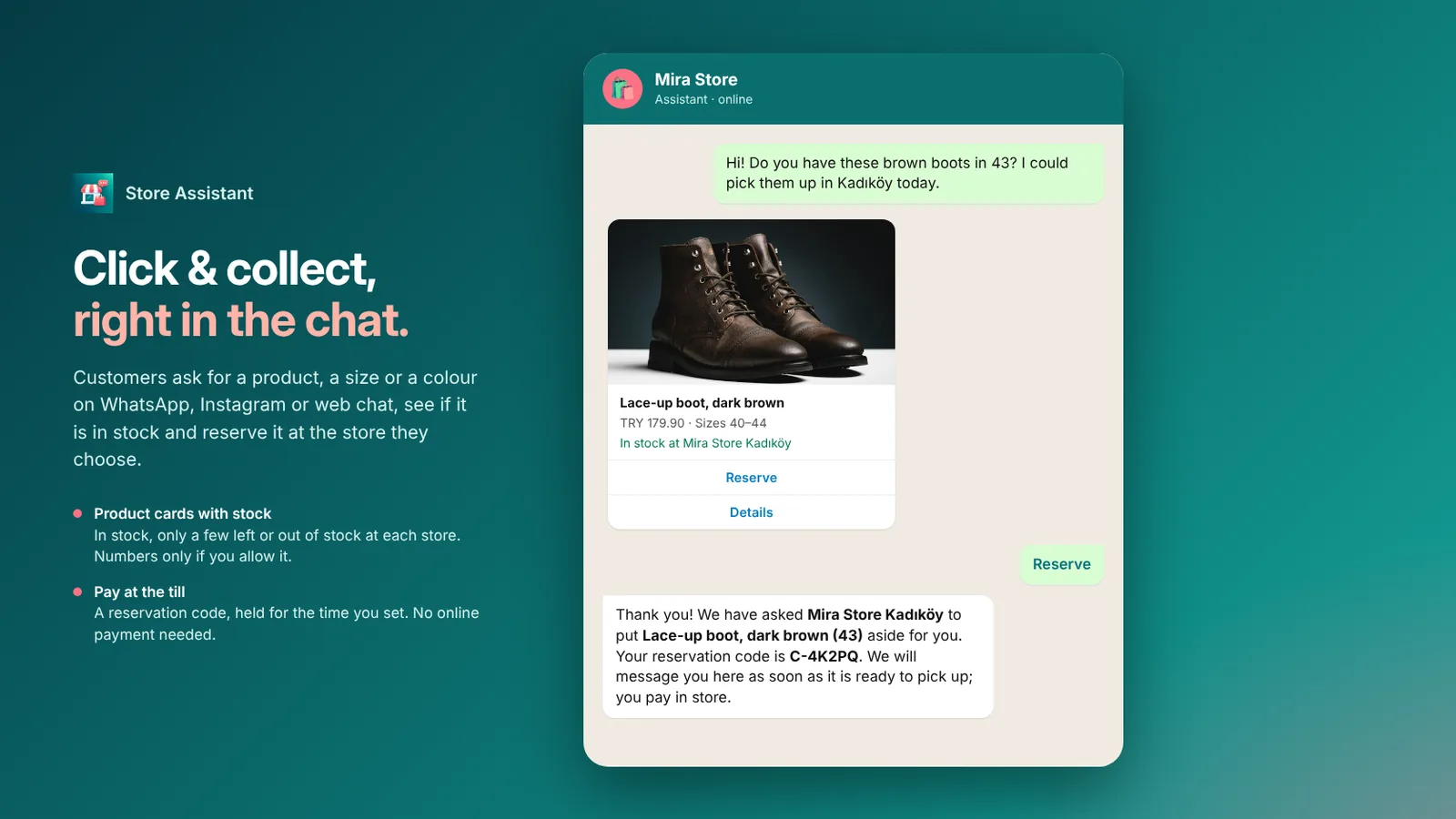 Store Assistant reserving a pair of boots for click & collect in WhatsApp with a reservation code
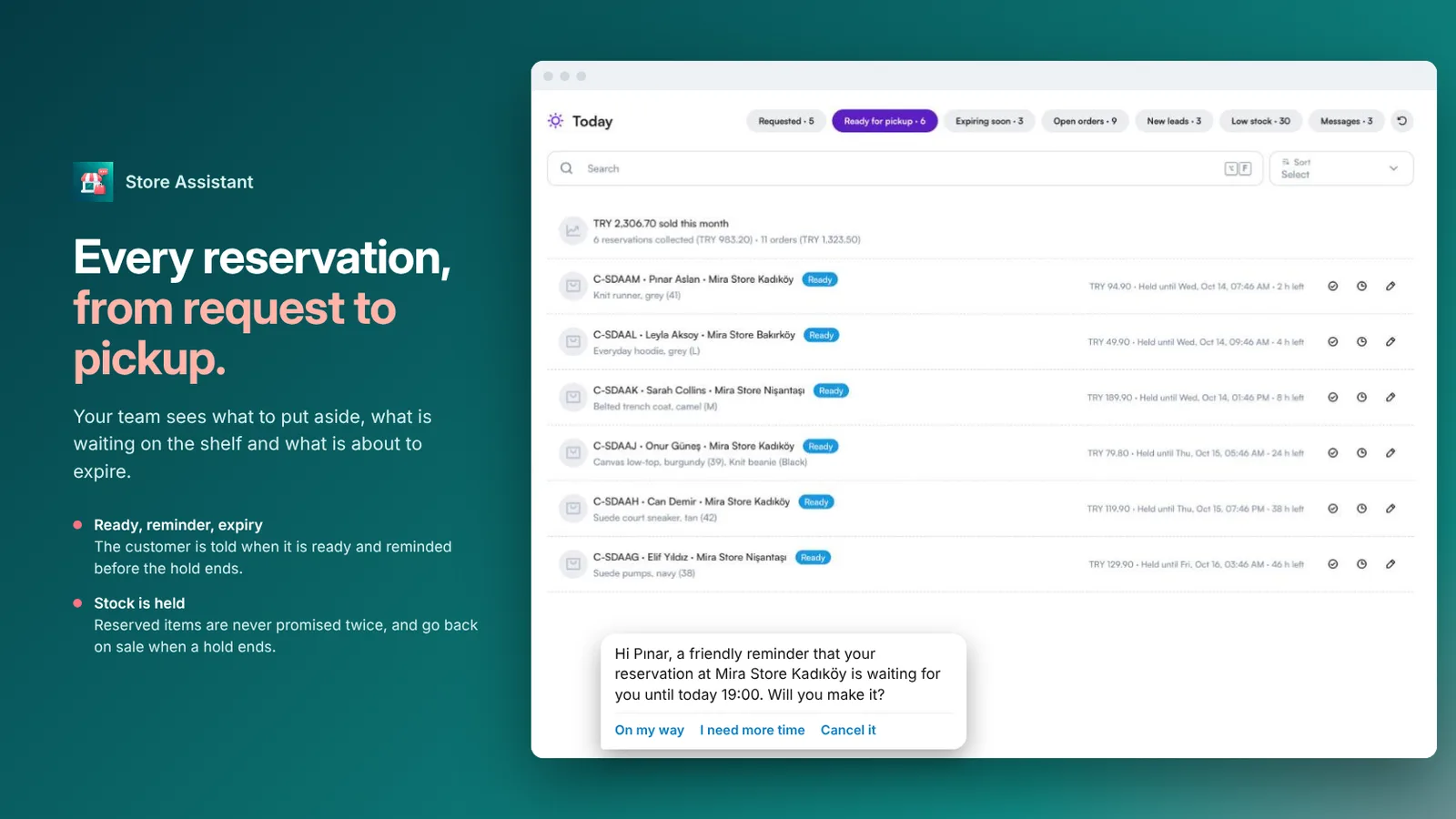 Today’s reservations ready for pickup, with a reminder before the hold ends
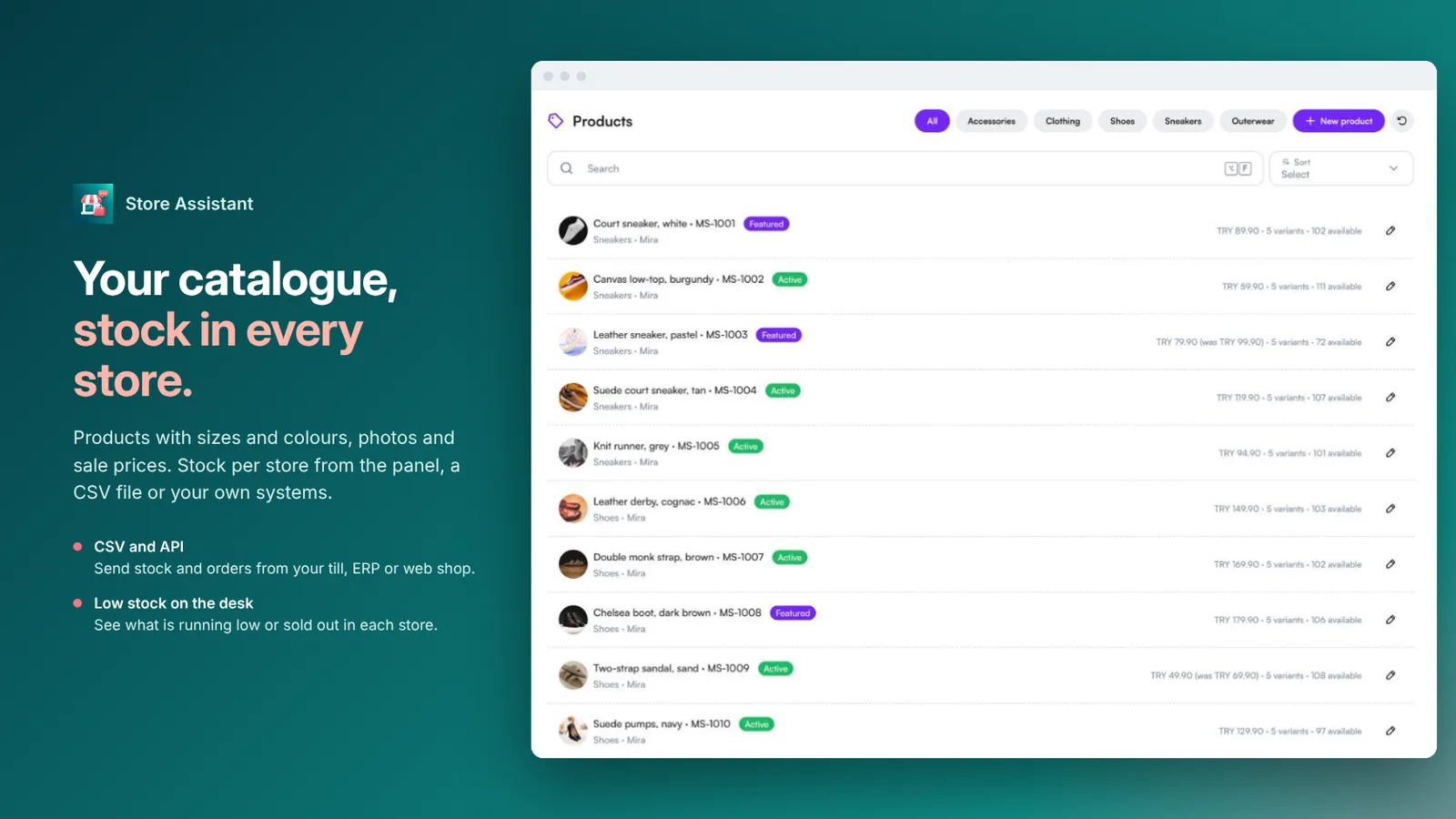 Products list with prices and stock across stores
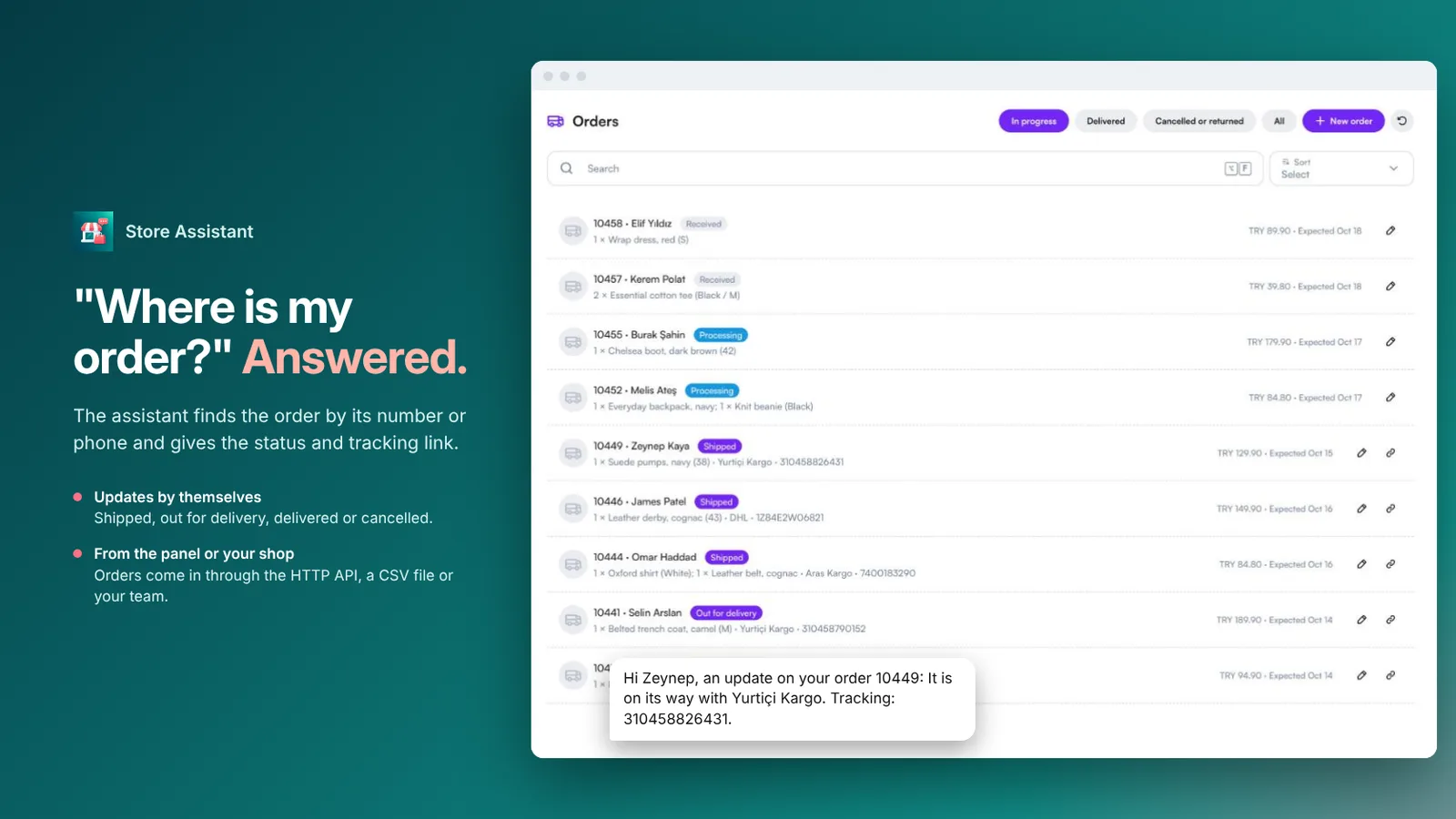 Orders list with status and a shipping update sent to the customer
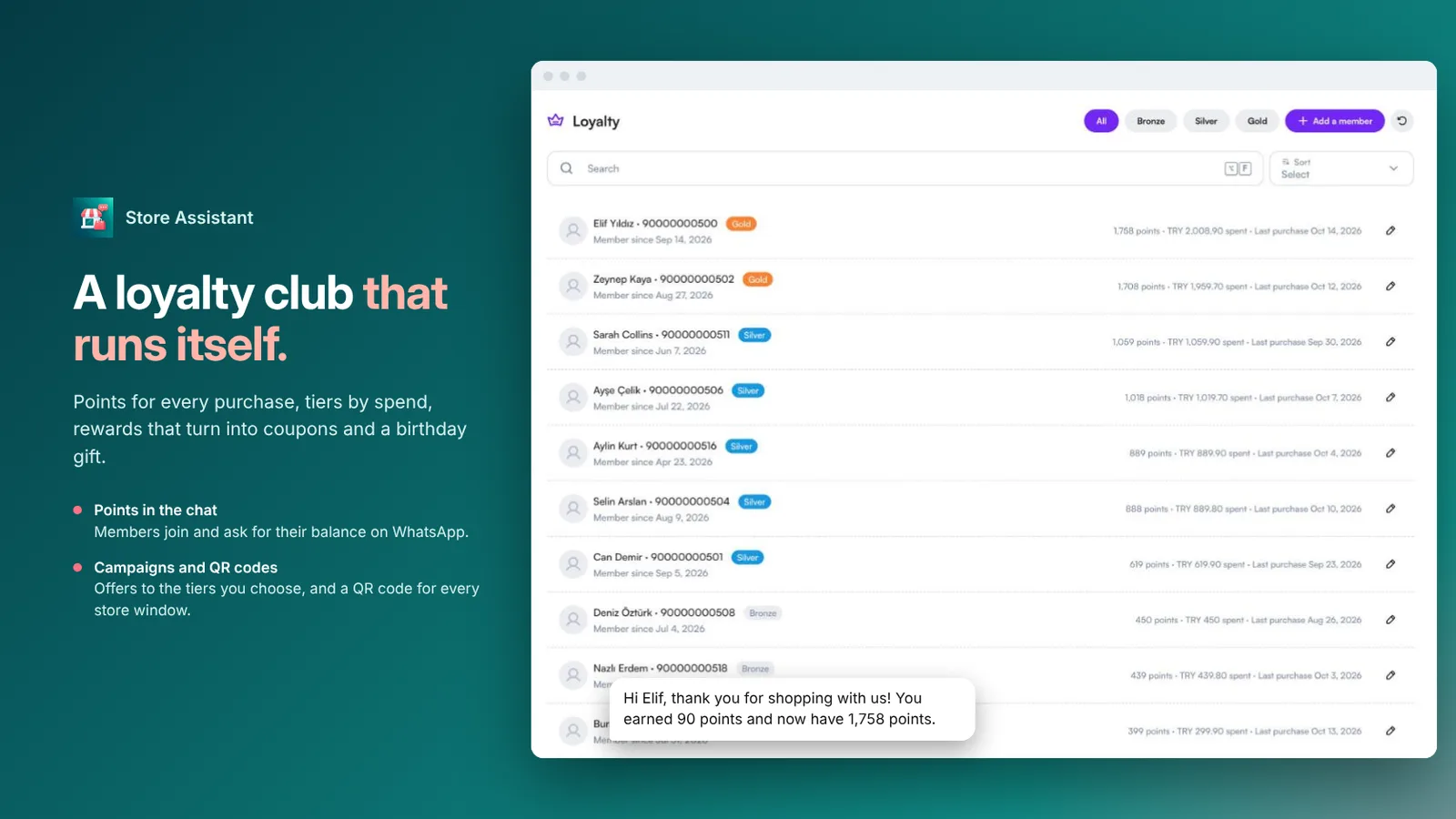 Loyalty members by tier with points, and a points message in the chat
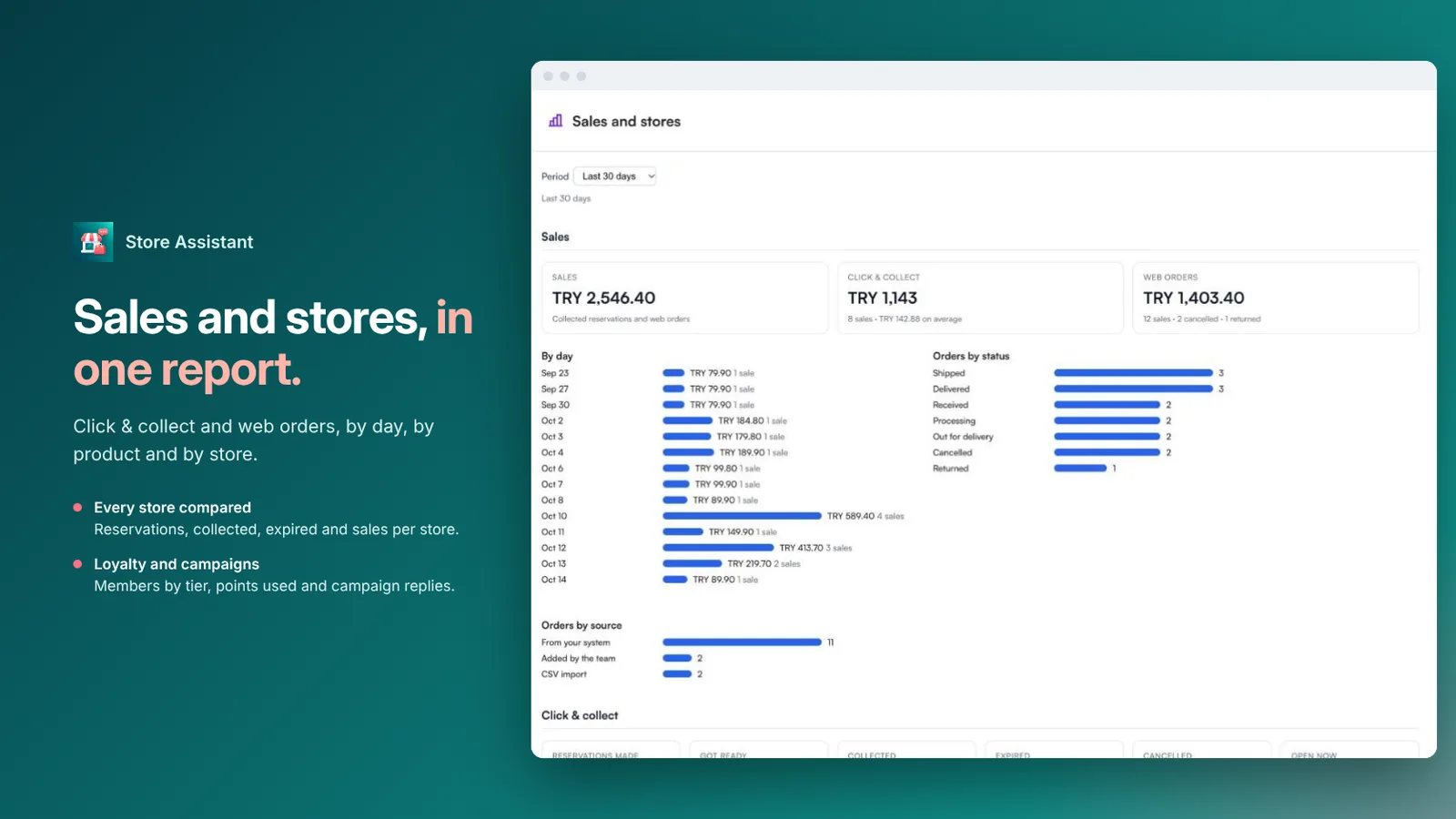 Sales and stores report with click & collect and web orders
FAQ
Which businesses is it for?
Shops and small chains of stores that want to answer customers on WhatsApp, Instagram and web chat.
How does click & collect work?
The customer reserves an item in the chat, picks the store, gets a reservation code and pays at the till. They are told when it is ready, reminded before the hold ends, and the stock is released when the time is up.
Does it show exact stock numbers?
No, unless you allow it. It says whether an item is in stock, only a few left or out of stock at each store.
Can it answer “Where is my order?”
Yes. It finds the order by its number or the customer’s phone and gives its status and tracking link. Orders come from the panel or from your web shop, ERP or till through the HTTP API.
How does the loyalty club work?
Points for every purchase, tiers by spend and rewards that turn points into coupons. Customers ask for their points in the chat, your team adds points and uses coupons on the desk, and there is a birthday gift.
Can I try it before adding my products?
Yes. Sample data (a fashion store with three stores) lets you try everything first.