Shop Assistant
An AI shop desk for online stores that shows products with a checkout link, tracks orders, recovers abandoned carts, handles return requests and sends campaign messages, connected to Shopify or your own platform.
Overview
Shop Assistant is the WhatsApp, Instagram and web chat desk of an online shop. It works around the clock and answers customers in their own language, including voice messages.
Shipping, returns and your own questions are answered only from the policies and questions you approve. It never invents prices, codes or delivery dates.
Whenever a person is needed, it hands the conversation over to your team or takes a message.
Highlights
- From question to checkout, in one chat. Customers ask for a product, a size or a colour and get product cards with photo, price and Buy and Details buttons. Buy sends a link that opens your shop’s own checkout with the items already in the cart, and the order is placed in your shop as usual.
- Abandoned carts, brought back. Up to three reminders after a checkout is left, at the times you choose, with a Complete my order button that opens the same checkout. Add your discount code to the last reminder if you like.
- “Where is my order?” answered. The assistant finds the order by its number or the customer’s phone and gives its status, the tracking link and the order status page.
Install and set up
- Install Shop Assistant from Settings › MonoStore › Apps, or open the install link app.monochat.ai/apps/jQgbhPxgTzCQoYAxT. Without a MonoChat account, the link lets you sign up first and installs the app for you.
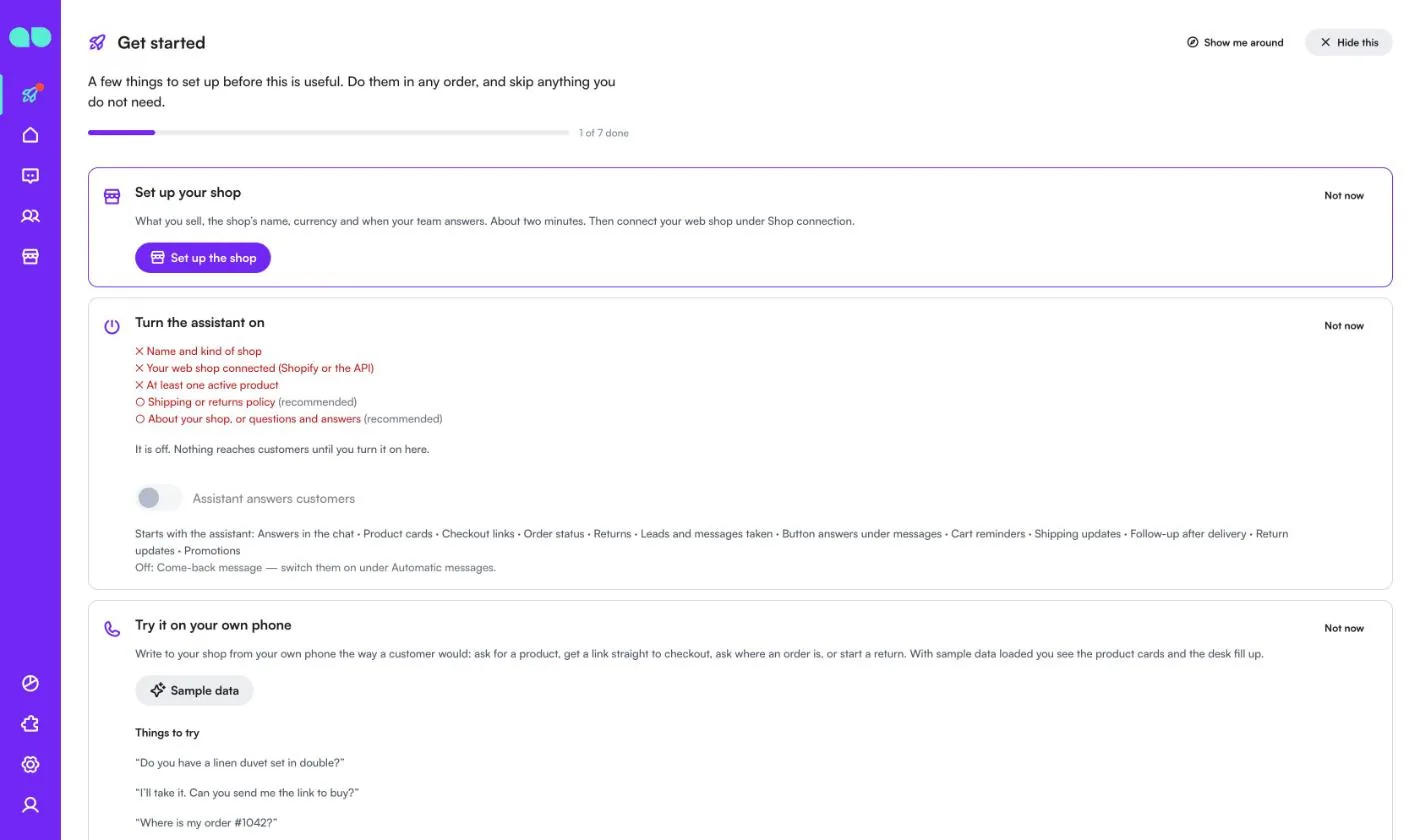
- Open the Get started tab on your MonoChat home page and choose Set up your shop, then Set up the shop. The form asks What do you sell? (Fashion, Beauty, Home, Electronics, Food and drink or Other; this suggests the usual categories), the Name of the shop, website, phone, email, currency, the Language of automatic messages, time zone and when your team answers (From (hour), Until (hour), Which days and Hours in words). Leave Also load sample data so I can see it full on if you want every screen filled with example records. Click Save and continue.
- Open the Shop desk in the left menu and go to Shop connection. Choose Shopify and connect with an Admin API access token or with the Client ID and secret of an app made in the Shopify Dev Dashboard, or choose Other platform through the API and send products, orders and carts from your own system (see API methods). Without a connection you can still add products by hand or import a CSV file on the Products screen.
- Go through the settings tabs: Shipping and returns, Cart reminders, FAQ and offers, Automatic messages, How it talks and Handover.
- Click the green power button (Turn on) in the desk header. The Turn the assistant on drawer lists what is still missing (name and kind of shop, your web shop connected, at least one active product, and as recommendations a shipping or returns policy and your shop description or questions and answers) and what will start; switch Assistant answers customers on and confirm. The badge next to the title changes from Off to On. Only someone who can manage automations in the workspace sees the power button.
- Choose Try it on your own phone on the Get started tab and message your own number the way a customer would.
- Nobody who said stop is ever messaged, and quiet hours are respected.
- A low score on the after-delivery question creates a callback for your team. The come-back message is off until you turn it on.
Screen by screen
Shop Assistant lives in the Shop desk (the storefront icon in the left menu), with its report under Reports. The screenshots below show the sample data: Olive & Oak, an online home and lifestyle shop.
Get started
The Get started tab on your home page walks you through the first steps. The app adds three cards:
- Set up your shop: opens the setup form. Afterwards it says your shop is set up and offers Change, and reminds you to connect your web shop under Shop connection.
- Turn the assistant on: what is still missing (a cross for required items, a circle for recommended ones), the Assistant answers customers switch, and what starts with the assistant: answers in the chat, product cards, checkout links, order status, returns, leads and messages taken, cart reminders, shipping updates, follow-up after delivery, return updates and promotions. The come-back message stays off until you switch it on.
- Try it on your own phone: example messages to send ("Do you have a linen duvet set in double?", "I’ll take it. Can you send me the link to buy?", "Where is my order #1042?", "I want to return something from my last order."). To see a cart reminder, leave a real checkout in your shop with your WhatsApp number; sample carts are never messaged.
A progress bar at the top shows how many steps are done, and Not now hides a card you do not need yet.
The setup form
Set up the shop opens the Set up your shop form. Pick what you sell first; the form does not continue until you choose one.
| Field | What it does |
|---|---|
| What do you sell? | Fashion, Beauty, Home, Electronics, Food and drink or Other. Suggests the usual categories; your products themselves come from your web shop. |
| Name of the shop, Website | The name is required. |
| Phone, Email | Contact details the assistant can give. |
| Currency (e.g. EUR, TRY, AED) | A three-letter code. Every price is in this currency. Filled in from Shopify when you connect it. |
| Language of automatic messages | The language of the WhatsApp templates and automatic messages. Empty means the same as the workspace. |
| Time zone | Used for team hours, quiet hours and reminders. Empty means the same as the workspace. |
| From (hour), Until (hour), Which days | When your team answers. The assistant hands conversations over then, and takes a message at other times. |
| Hours in words (optional) | What customers are told, e.g. "Mon–Fri 9:00–18:00". |
| Also load sample data so I can see it full | Loads the sample shop so every screen has records to try. |
Today
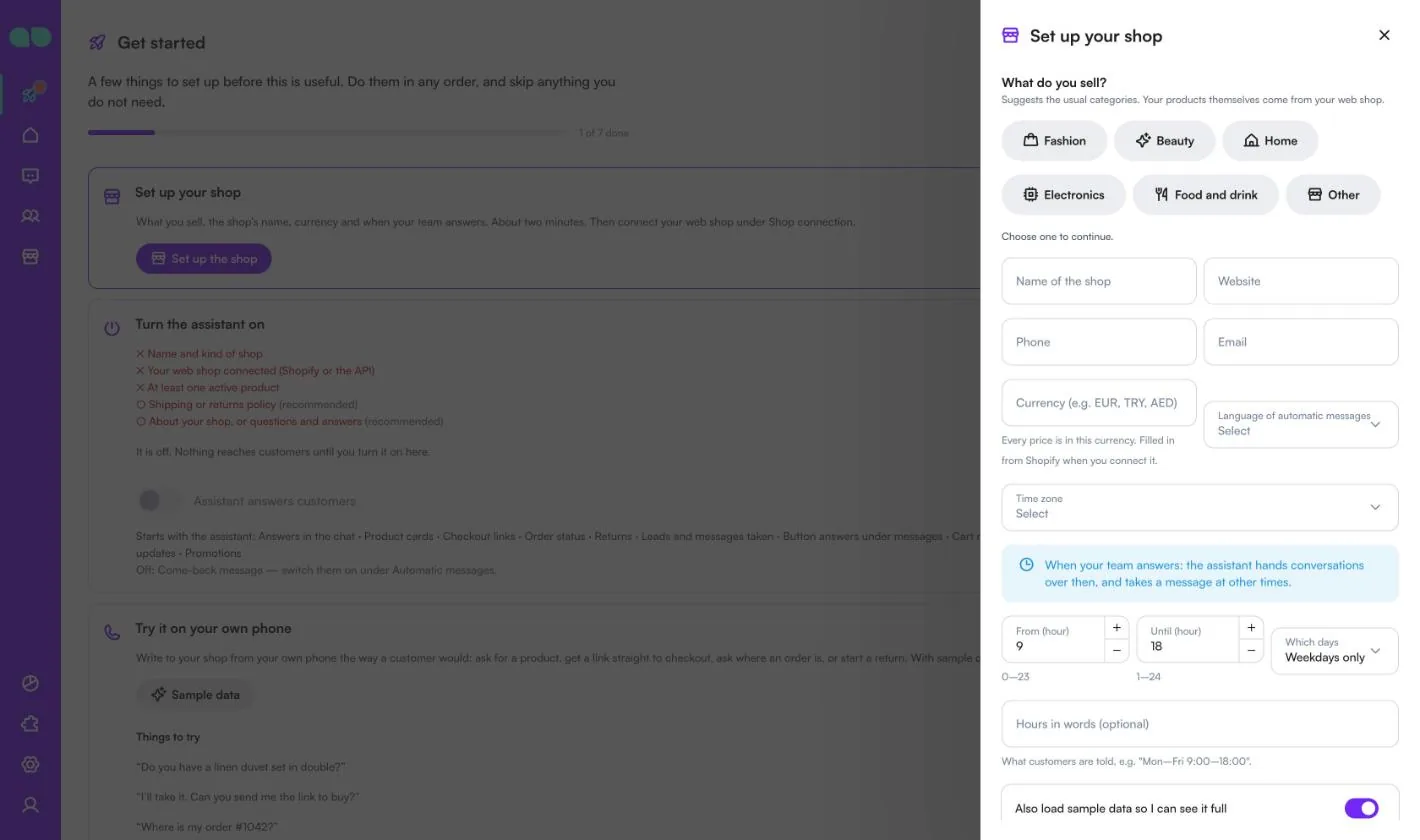
Shop › Today is the list of what needs doing now. The menu counter adds up everything waiting. A line at the top shows how much was sold this month, the number of orders and the carts recovered. If the shop sync fails, a row tells you and links to Shop connection.
The tabs at the top each show a count:
- Returns to review: return requests waiting for your team, with the reason, item, the customer's words and whether they want a refund, an exchange or store credit. The pencil (Review) opens the return.
- Carts: open abandoned carts, with the reminder step and when the next one goes out.
- Orders needing attention: orders still received or processing more than 3 days after they were placed.
- New leads: leads the assistant wrote down. Mark contacted moves a lead on.
- Messages: messages taken and callbacks. Done closes one; you can also open the related order or return.
Orders
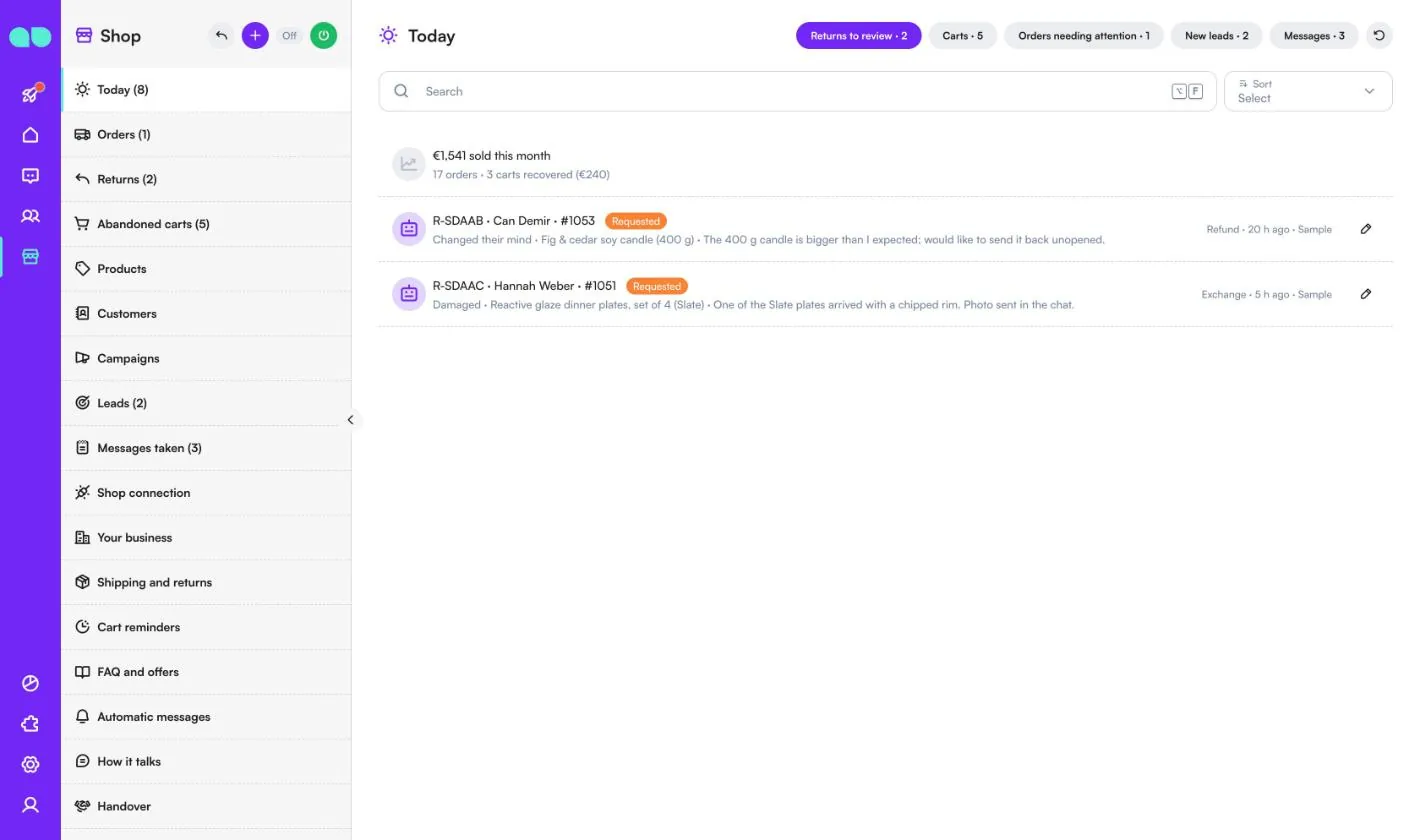
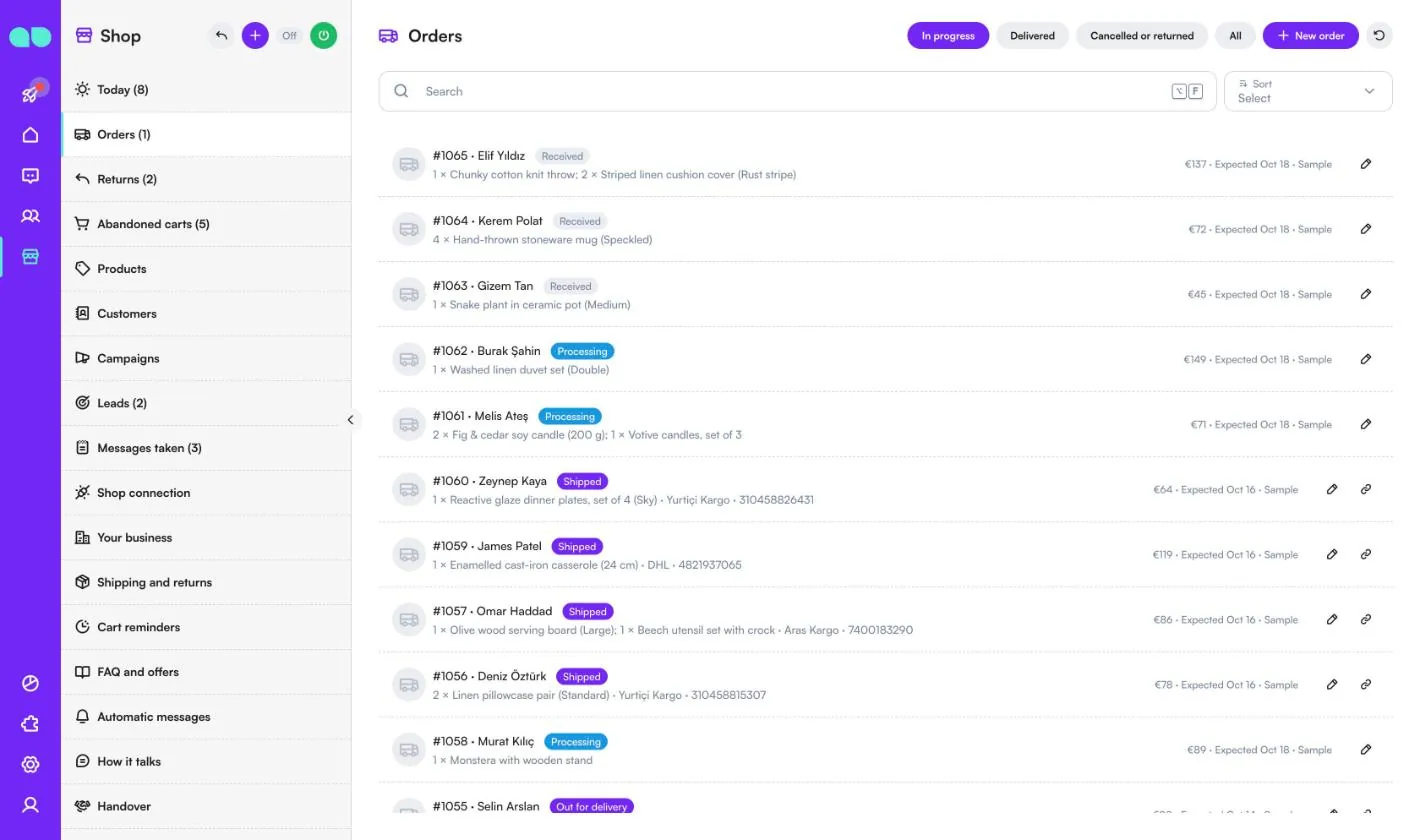
Shop › Orders shows your web shop's orders so the assistant can answer "Where is my order?". The tabs are In progress, Delivered, Cancelled or returned and All. Each row has the order number, customer, status (Received, Processing, Shipped, Out for delivery), items, carrier and tracking number, total and expected date. Shipped orders have a Tracking link button.
With Shopify, orders come in with each sync. For other shops they come through the API, or you add one with New order (also the + in the desk header, hidden when you use Shopify). A new status is told to the customer when Shipping updates is on.
Returns
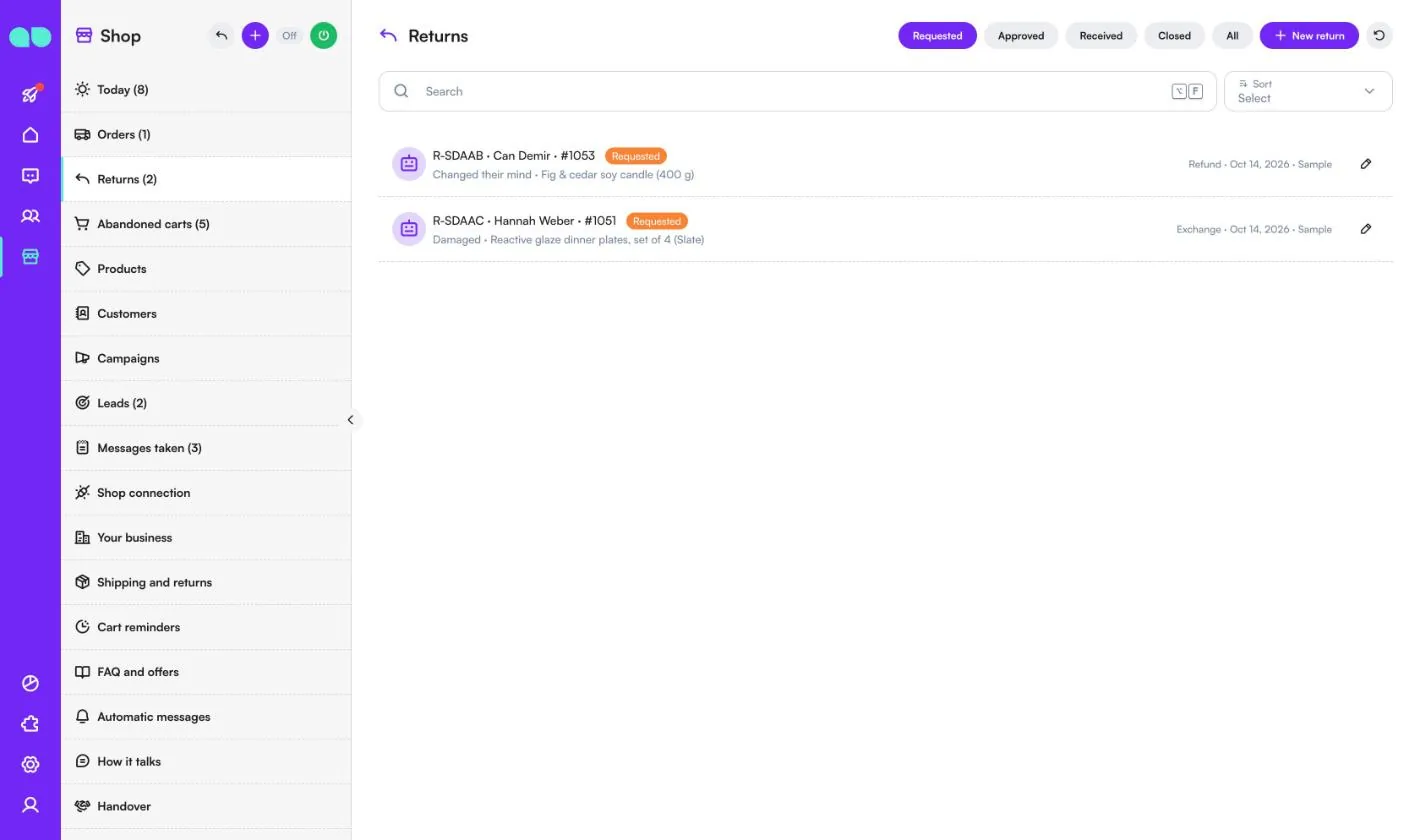
Shop › Returns lists return requests made in the chat or by the team, filtered by Requested, Approved, Received, Closed or All. Each row shows the return code, customer, order number, reason (e.g. Changed their mind, Damaged, Wrong item, Size, Not as described), the item and what the customer wants (Refund, Exchange or Store credit). A robot icon means the assistant took it in the chat.
New return (also the arrow icon in the desk header) lets your team start one: choose the customer's shipped or delivered order and the items to return.
Abandoned carts
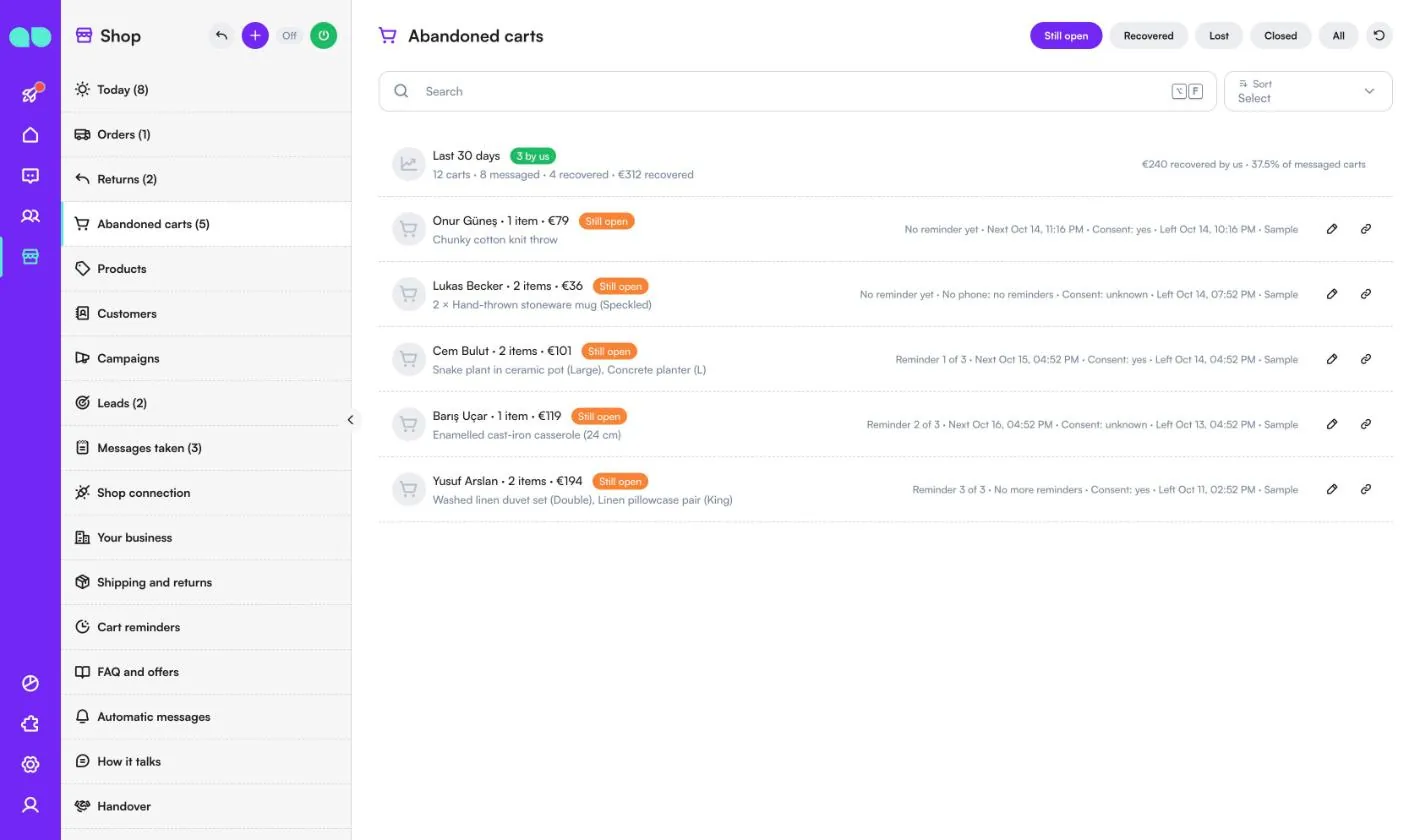
Shop › Abandoned carts lists the checkouts customers left in your shop, filtered by Still open, Recovered, Lost, Closed or All. The top row sums up the last 30 days: carts left, carts messaged, carts recovered, and how many orders and how much came after your reminders (recovered by us).
Each cart shows the customer, items and total, the reminder step (e.g. Reminder 2 of 3), when the next reminder goes out, the customer's marketing consent (yes, no or unknown) and when it was left. A cart without a phone gets no reminders. The link icon opens the checkout link; the pencil opens the cart, where you can copy the checkout link or Close it so no more reminders go out.
Products
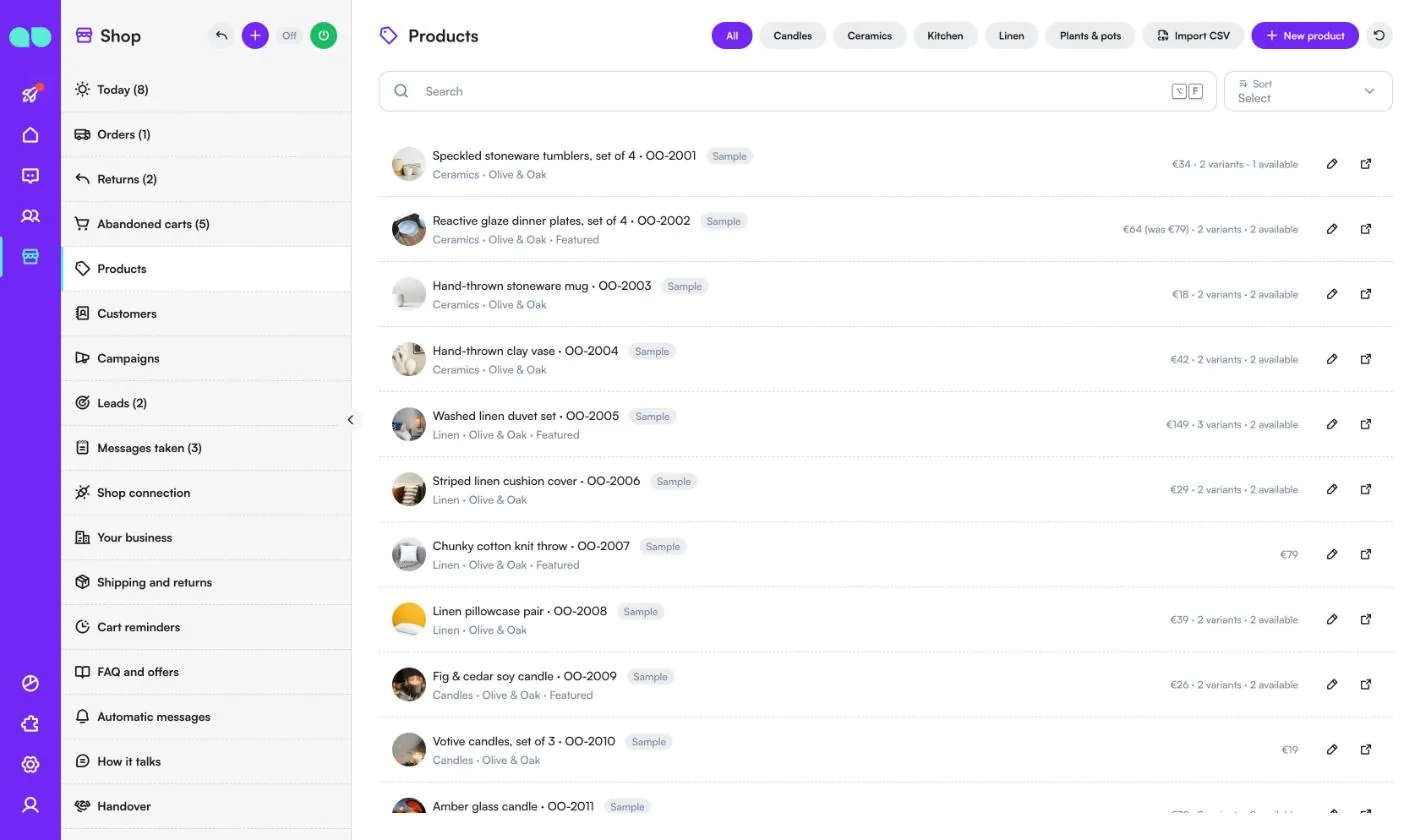
Shop › Products is what the assistant sells: it offers only what is here. Filter by category, use Import CSV, or click New product. With Shopify, products come in with each sync instead: those two buttons give way to Sync now, which brings them at once. Each row shows the name and SKU, category, brand, Featured, the price (with the compare-at price when on sale), variants and how many are available. The arrow icon opens the product page in your shop.
The product drawer has the name, SKU, category, brand, description, price and Compare-at price, the product page link, photo links (upload them in System › File Box), tags, variants with their own SKU, price and Available switch, and the Active, Featured and Order settings. For a Shopify product, change the name, photos, description, price and variants in Shopify; Featured, Order and Active are kept here.
Customers
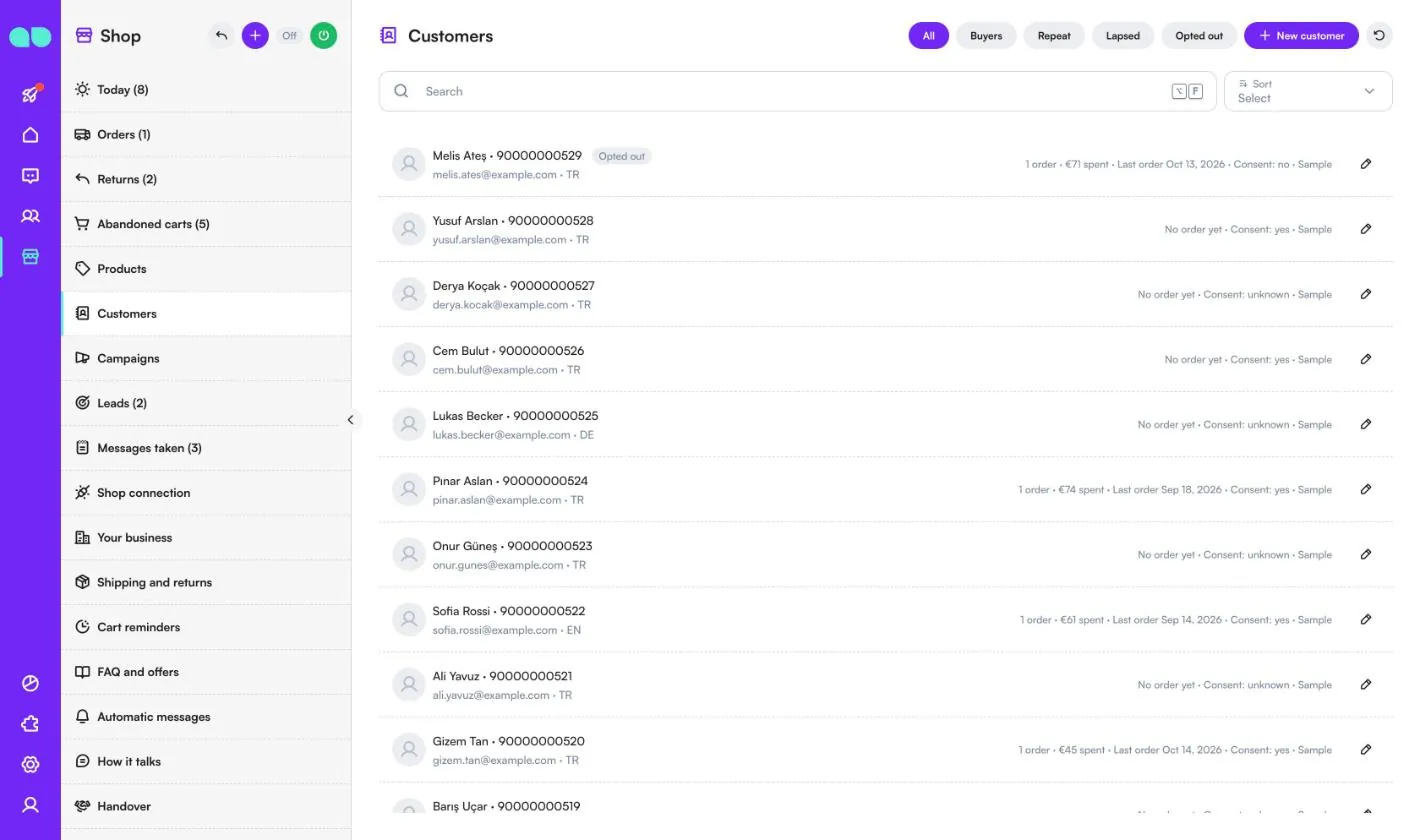
Shop › Customers lists everyone who wrote on WhatsApp, Instagram or your website chat, and buyers from your web shop. Filter by All, Buyers, Repeat, Lapsed (no order for the come-back time) or Opted out. Each row shows the phone, email, language, number of orders, amount spent, last order and marketing consent.
Consent matters for cart reminders and campaigns: with Only with consent on, only customers who agreed to marketing messages, or who wrote to you recently, are reminded.
Campaigns
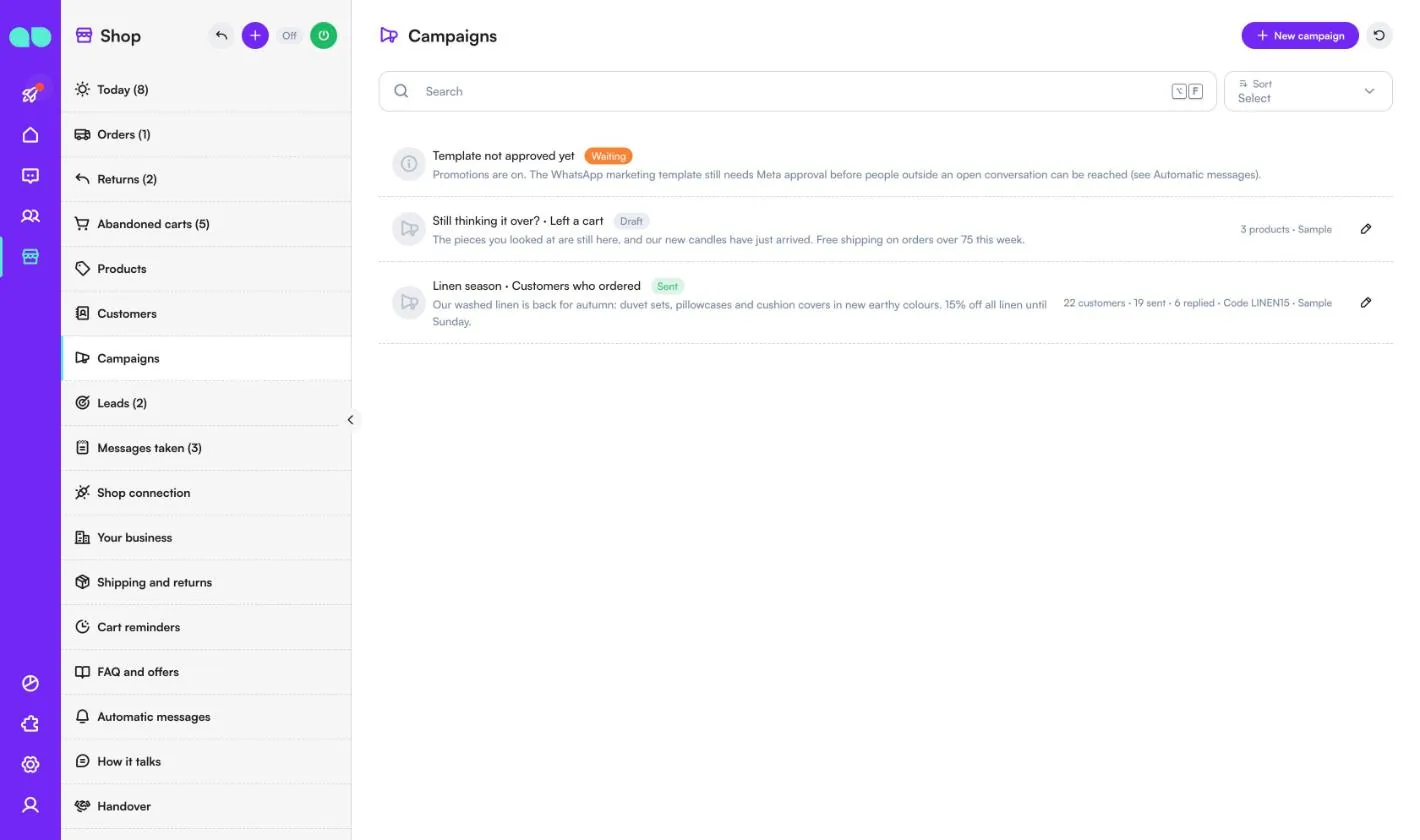
Shop › Campaigns sends a message to a chosen group. New campaign asks for a name, the message (up to 280 characters), an optional picture, who gets it (All customers, Customers who ordered, Repeat customers (two orders or more), Best customers (spent at least…), Bought from some categories, Left a cart they did not buy or No order for a while), an optional Discount code that already exists in your shop, and up to 6 products shown when a customer taps Show me. The form counts the customers who match.
Campaigns go out as a WhatsApp marketing template, a few dozen at a time outside quiet hours, and only while Promotions is on. Customers who opted out or said no to marketing are never included, and the weekly limit of marketing messages applies. A sent campaign shows how many were sent and replied. A line at the top warns you when Promotions is off or the marketing template is still waiting for Meta.
Leads
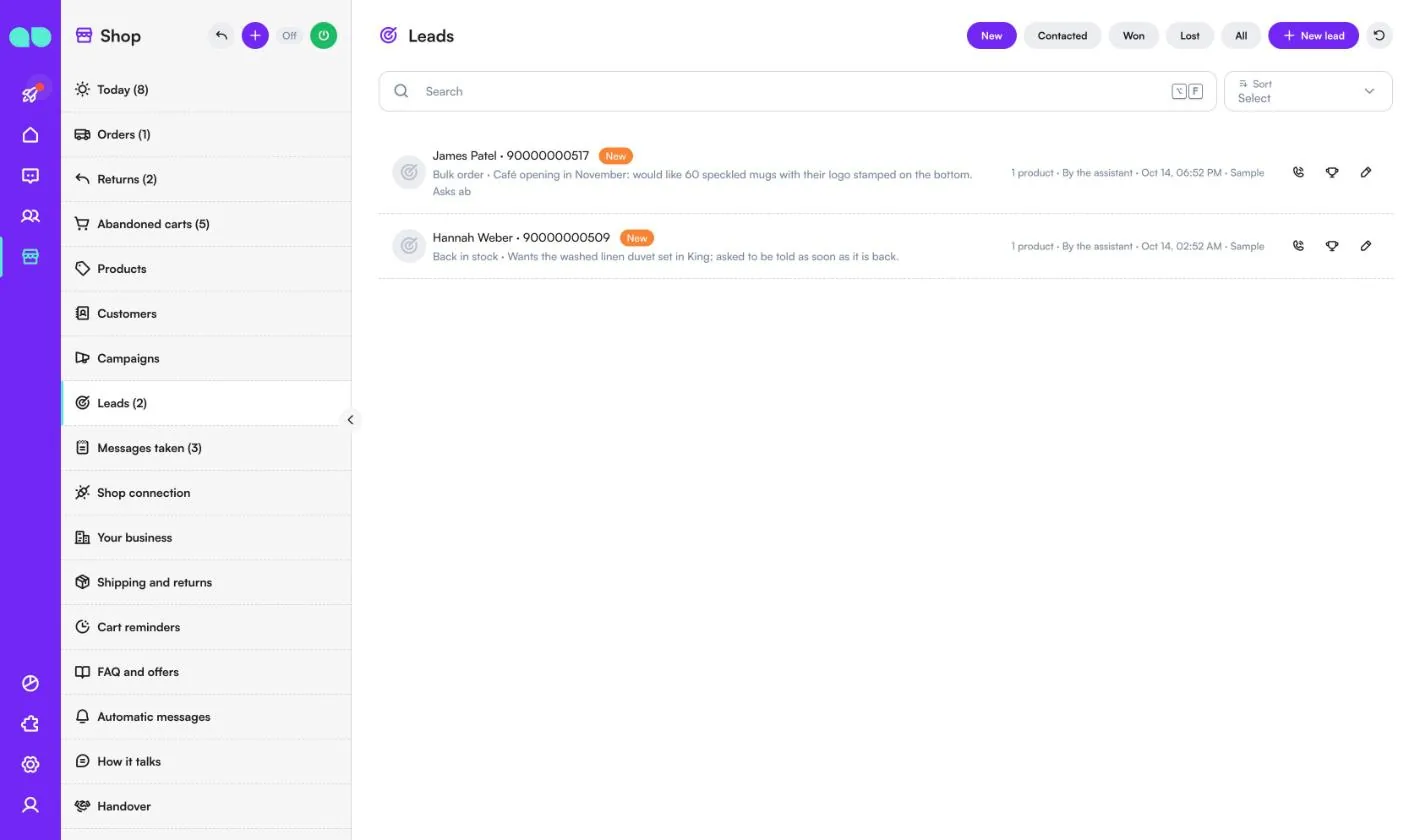
Shop › Leads collects what the assistant wrote down when someone asked for a bulk order, a custom order, a product that is back in stock, or anything it could not sell in the chat. Filter by New, Contacted, Won, Lost or All. Each row shows what they want, the note, the products and who wrote it down.
Use the phone icon to mark it contacted, the trophy to mark it won, or the pencil to open it and change the stage.
Messages taken
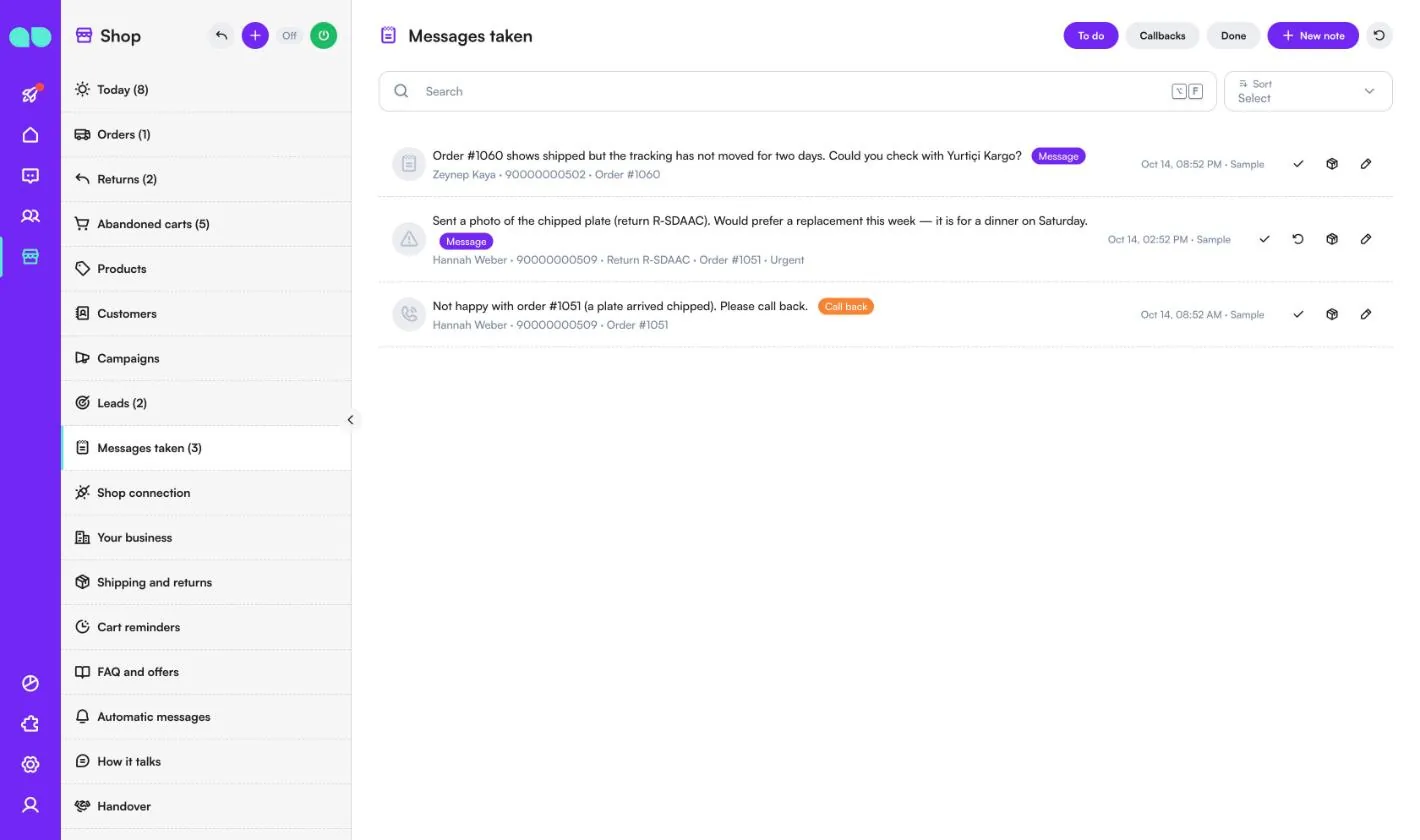
Shop › Messages taken lists what the assistant wrote down when it could not help or someone wants a call back. Filter by To do, Callbacks or Done. Each row shows the message, the customer and the related order or return, with an Urgent mark when needed. A low rating after delivery also lands here as a call back.
Use the tick to mark it done, the box icon to open the order, the arrow icon to open the return, or New note to add one yourself.
Shop connection
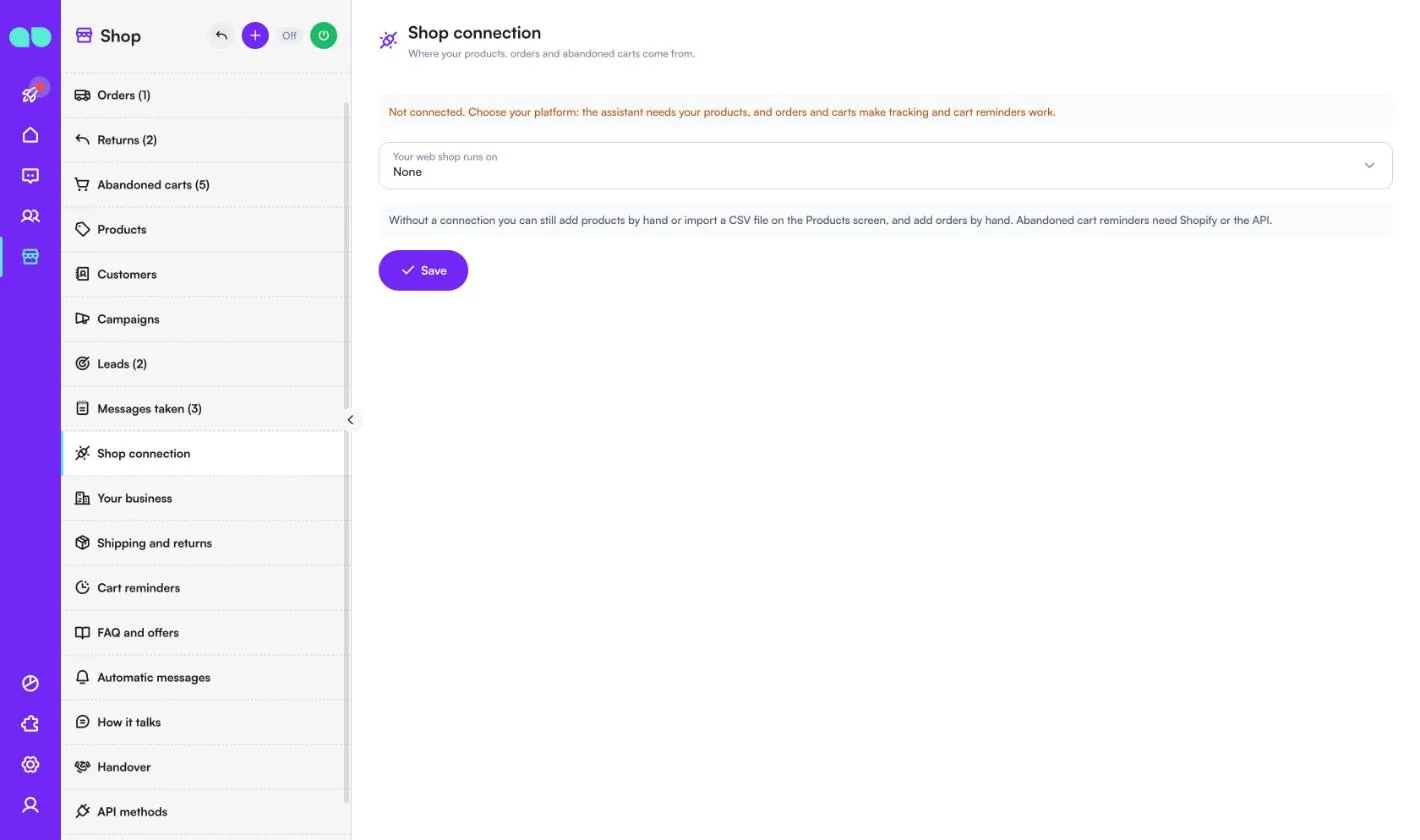
Shop › Shop connection is where your products, orders and abandoned carts come from. Choose under Your web shop runs on:
- Shopify: write the Store address (the one ending in .myshopify.com), choose How we sign in (an Admin API access token from a custom app made in the Shopify admin, or the Client ID and Client secret of an app made in the Shopify Dev Dashboard), and follow How to connect Shopify on the screen: the app needs the scopes read_products, read_orders and read_customers, plus access to the customer's name, email and phone, so orders and carts can be matched to a chat. Then Test connection. Sync every (minutes) is 30 by default (10 to 1440), and Sync now runs it at once. The app only reads; nothing in your shop is changed.
- Other platform through the API: your system sends products, orders and carts through the API methods.
- None: add products by hand or import a CSV file on the Products screen, and add orders by hand. Abandoned cart reminders need Shopify or the API.
Your business
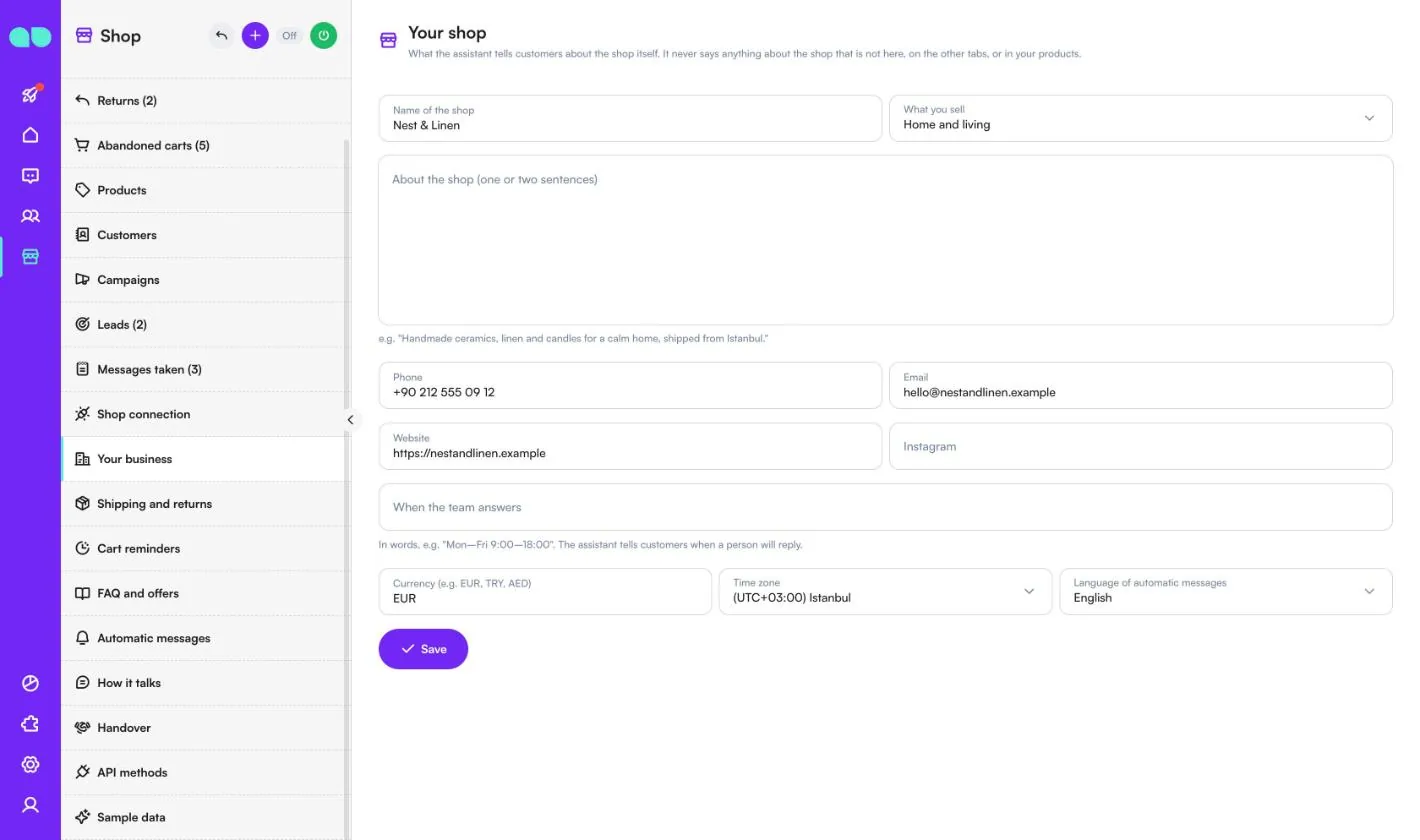
Shop › Your business (the screen is called Your shop) holds what the assistant tells customers about the shop itself. It never says anything about the shop that is not here, on the other tabs, or in your products.
| Field | What it does |
|---|---|
| Name of the shop, What you sell | Your shop's name and kind. |
| About the shop (one or two sentences) | A short description the assistant can use. |
| Phone, Email, Website, Instagram | Contact details and links. |
| When the team answers | In words, e.g. "Mon–Fri 9:00–18:00". The assistant tells customers when a person will reply. |
| Currency (e.g. EUR, TRY, AED), Time zone, Language of automatic messages | As in the setup form. |
Shipping and returns
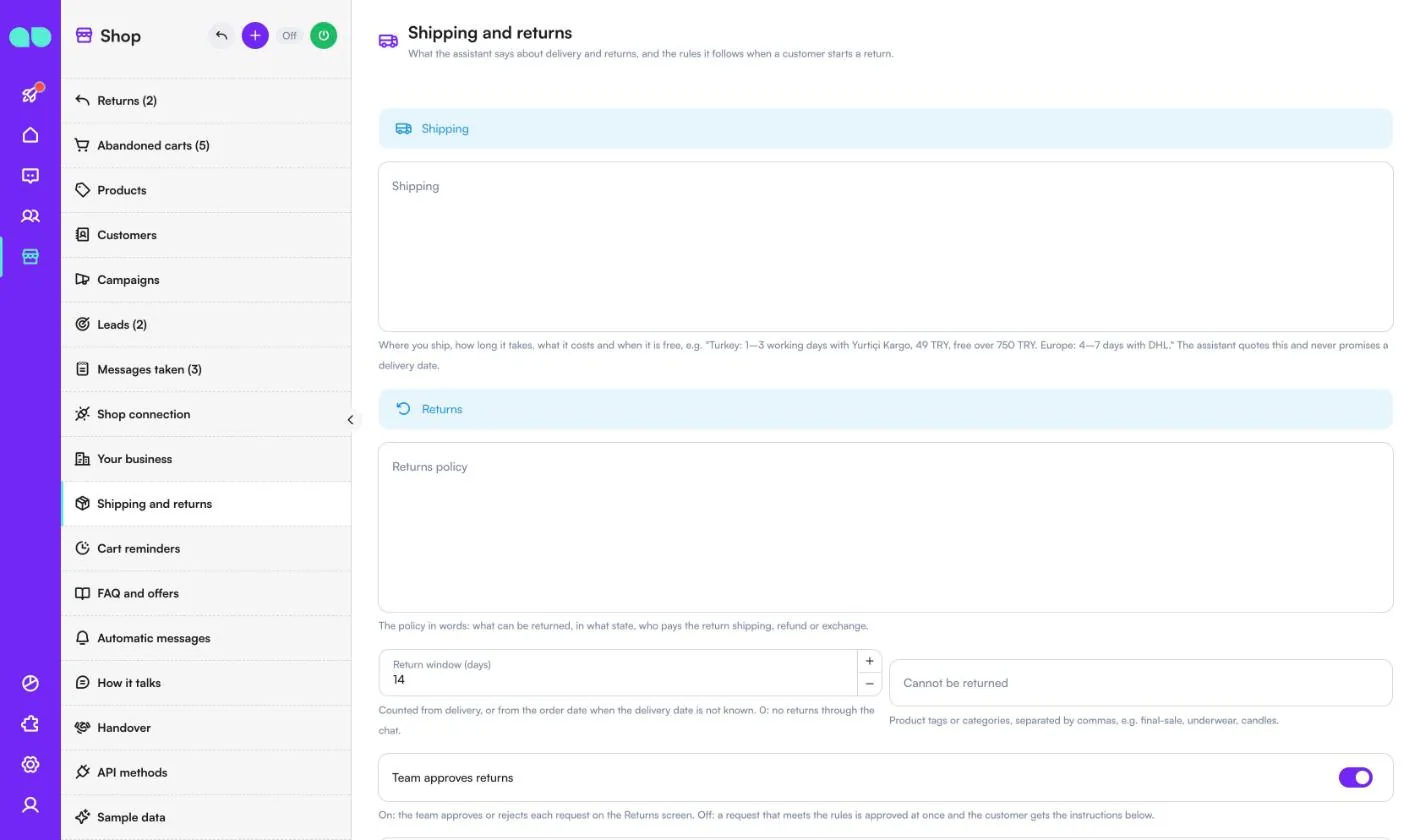
Shop › Shipping and returns is what the assistant says about delivery and returns, and the rules it follows when a customer starts a return.
| Field | What it does |
|---|---|
| Shipping | Where you ship, how long it takes, what it costs and when it is free. The assistant quotes this and never promises a delivery date. |
| Returns policy | What can be returned, in what state, who pays the return shipping, refund or exchange. |
| Return window (days) | Counted from delivery, or from the order date when the delivery date is not known. 0: no returns through the chat. |
| Cannot be returned | Product tags or categories, separated by commas, e.g. final-sale, underwear, candles. |
| Team approves returns | On: the team approves or rejects each request on the Returns screen. Off: a request that meets the rules is approved at once and the customer gets the instructions. |
| How to send it back | Told to the customer when the return is approved. |
| When a customer wants to buy, the assistant sends | A cart link (straight to checkout with the item in the cart, Shopify only) or the product page. |
| Discount code on chat links (optional) | An existing discount code from your shop, added to every cart link the assistant sends. |
Cart reminders
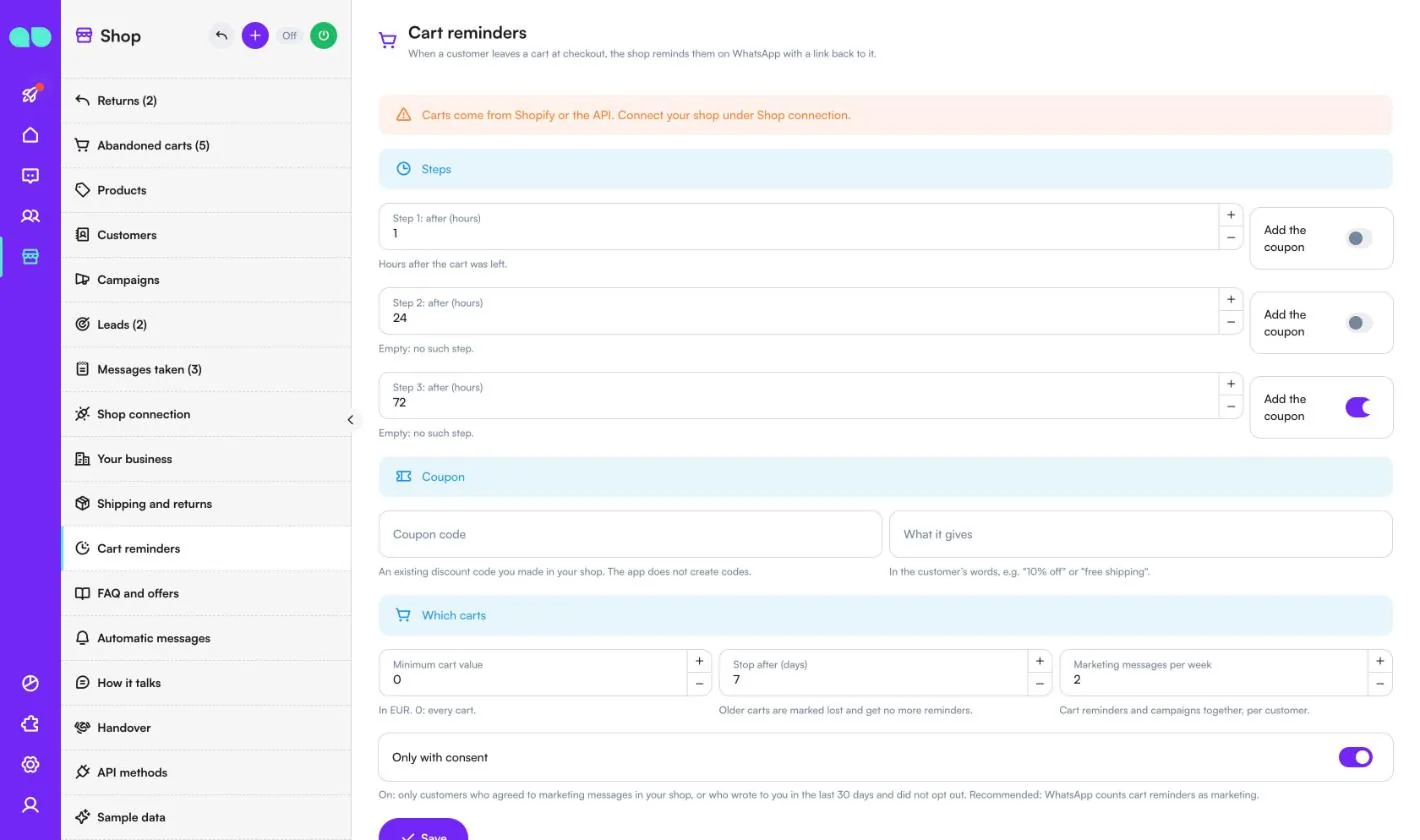
Shop › Cart reminders sets how the shop reminds customers on WhatsApp when they leave a cart at checkout, with a link back to it. Carts come from Shopify or the API.
| Field | What it does |
|---|---|
| Step 1–3: after (hours) | Hours after the cart was left. Empty: no such step. Each step has an Add the coupon switch. |
| Coupon code, What it gives | An existing discount code you made in your shop (the app does not create codes), and what it gives in the customer's words, e.g. "10% off". |
| Minimum cart value | 0: every cart. |
| Stop after (days) | Older carts are marked lost and get no more reminders. |
| Marketing messages per week | Cart reminders and campaigns together, per customer. |
| Only with consent | On: only customers who agreed to marketing messages in your shop, or who wrote to you in the last 30 days and did not opt out. Recommended, because WhatsApp counts cart reminders as marketing. |
Below the form you see each reminder as the customer will get it.
FAQ and offers
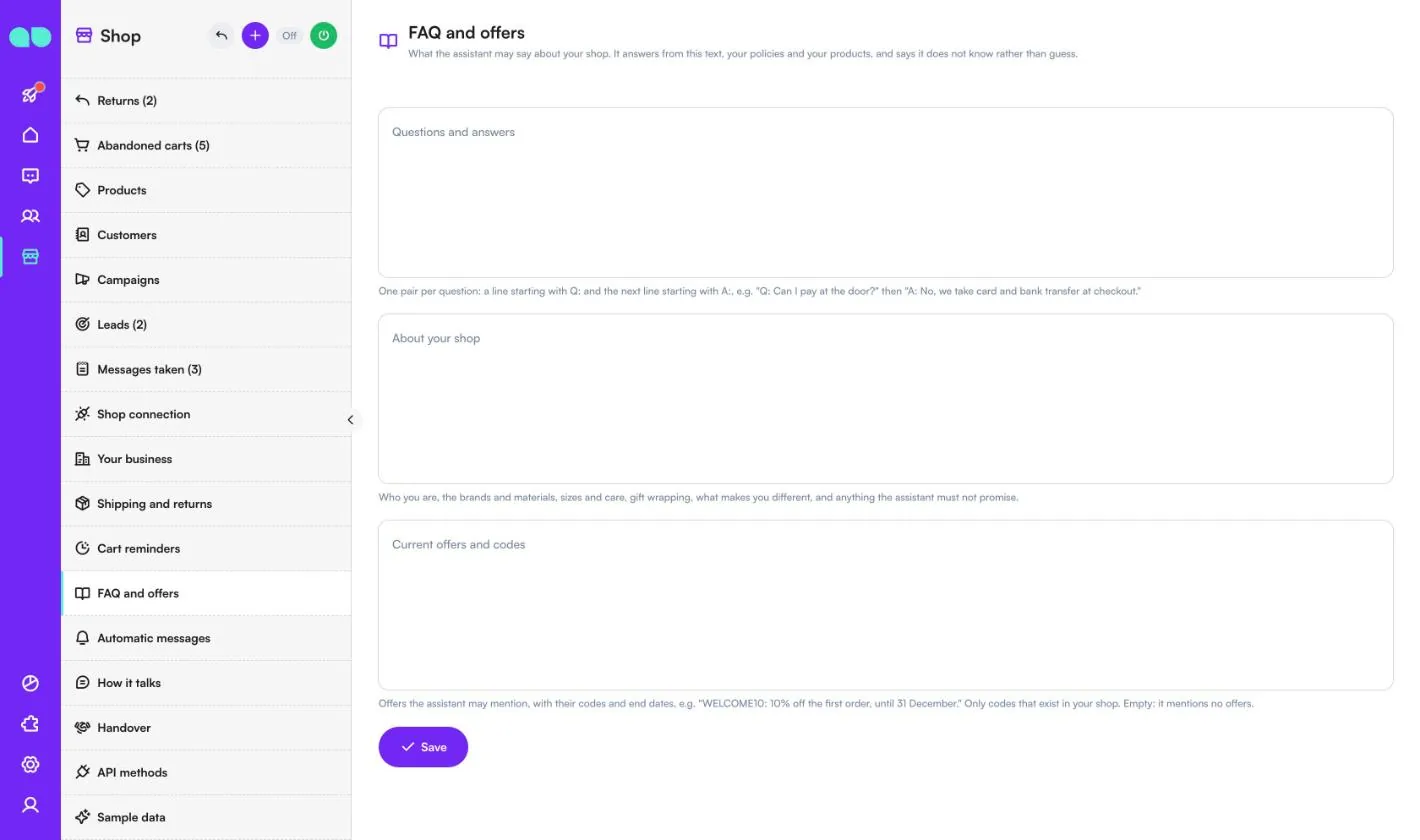
Shop › FAQ and offers is what the assistant may say about your shop. It answers from this text, your policies and your products, and says it does not know rather than guess.
- Questions and answers: one pair per question, a line starting with
Q:and the next line starting withA:. - About your shop: who you are, brands and materials, sizes and care, gift wrapping, what makes you different, and anything the assistant must not promise.
- Current offers and codes: offers the assistant may mention, with their codes and end dates. Only codes that exist in your shop. Empty: it mentions no offers.
Automatic messages
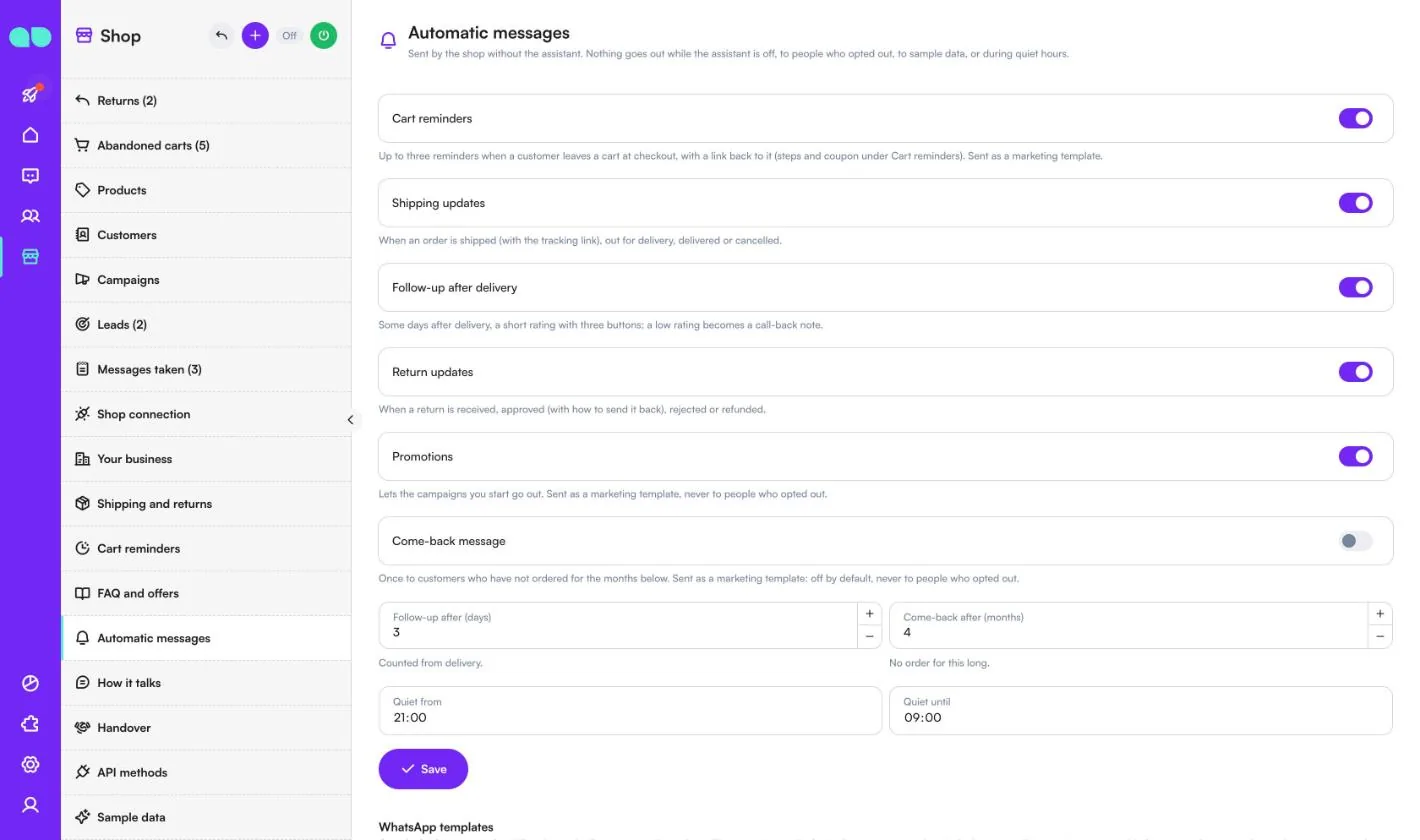
Shop › Automatic messages are sent by the shop without the assistant. Nothing goes out while the assistant is off, to people who opted out, to sample data, or during quiet hours. Each has its own switch:
| Message | When it goes out |
|---|---|
| Cart reminders | Up to three reminders when a customer leaves a cart at checkout, with a link back to it (steps and coupon under Cart reminders). Sent as a marketing template. |
| Shipping updates | When an order is shipped (with the tracking link), out for delivery, delivered or cancelled. |
| Follow-up after delivery | Follow-up after (days) after delivery, a short rating with three buttons; a low rating becomes a call-back note. |
| Return updates | When a return is received, approved (with how to send it back), rejected or refunded. |
| Promotions | Lets the campaigns you start go out, as a marketing template. |
| Come-back message | Once to customers who have not ordered for Come-back after (months). Off by default. |
Quiet from and Quiet until set the quiet hours. Below them, the WhatsApp templates list shows the status of each template. The app writes and submits the templates on your number in the language of automatic messages; Submit missing templates sends any that are not submitted yet.
How it talks
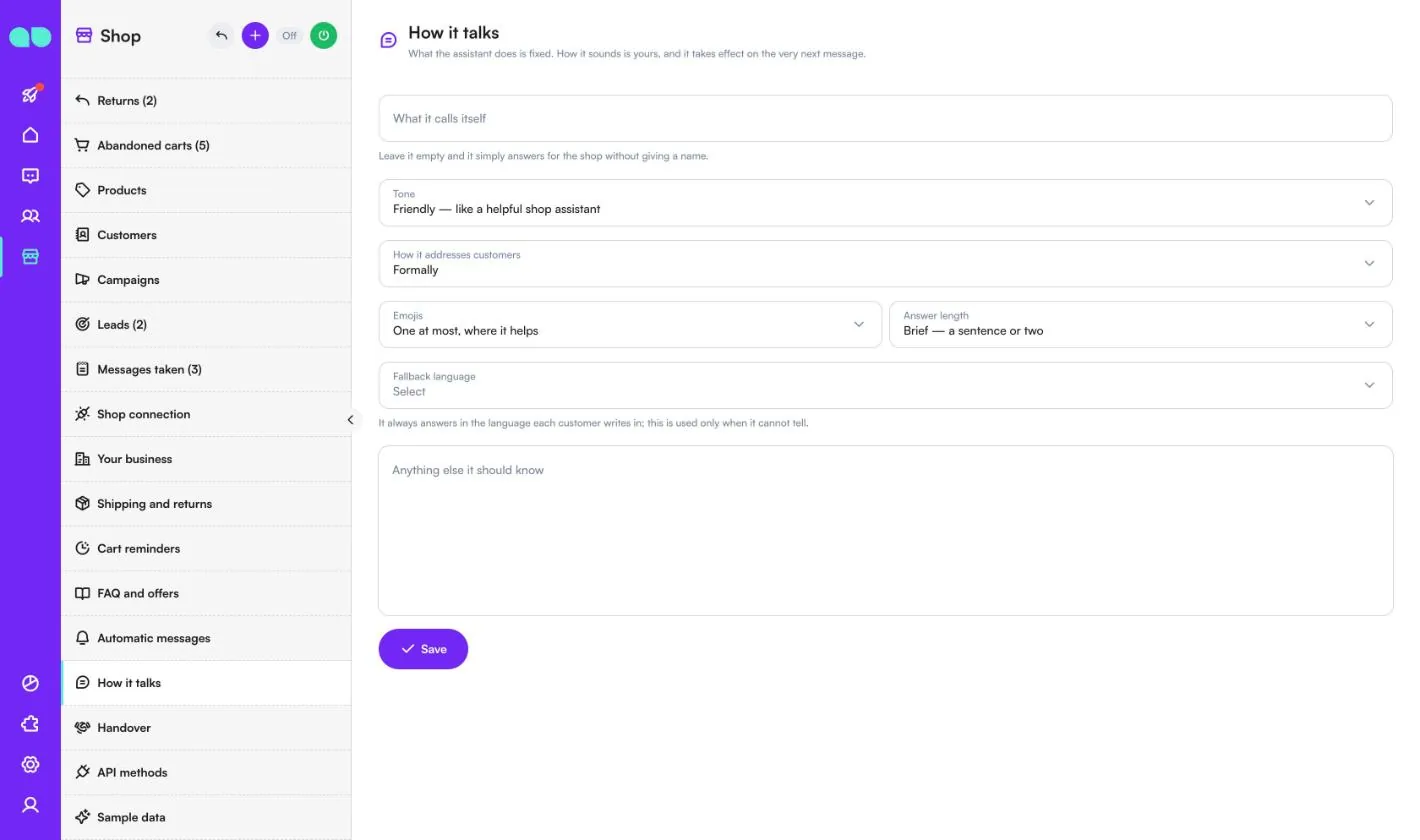
Shop › How it talks changes how the assistant sounds; what it does stays fixed. Changes take effect on the very next message.
| Field | What it does |
|---|---|
| What it calls itself | Leave it empty and it answers for the shop without giving a name. |
| Tone | Friendly, Warm, Professional or Direct. |
| How it addresses customers | Formally, or casually by first name. |
| Emojis | None, one at most where it helps, or freely. |
| Answer length | Brief, Balanced or Detailed. |
| Fallback language | It always answers in the language each customer writes in; this is used only when it cannot tell. |
| Anything else it should know | Your own rules and things never to promise. It cannot override the rule that it does not invent prices, stock, discount codes or delivery dates. |
Handover
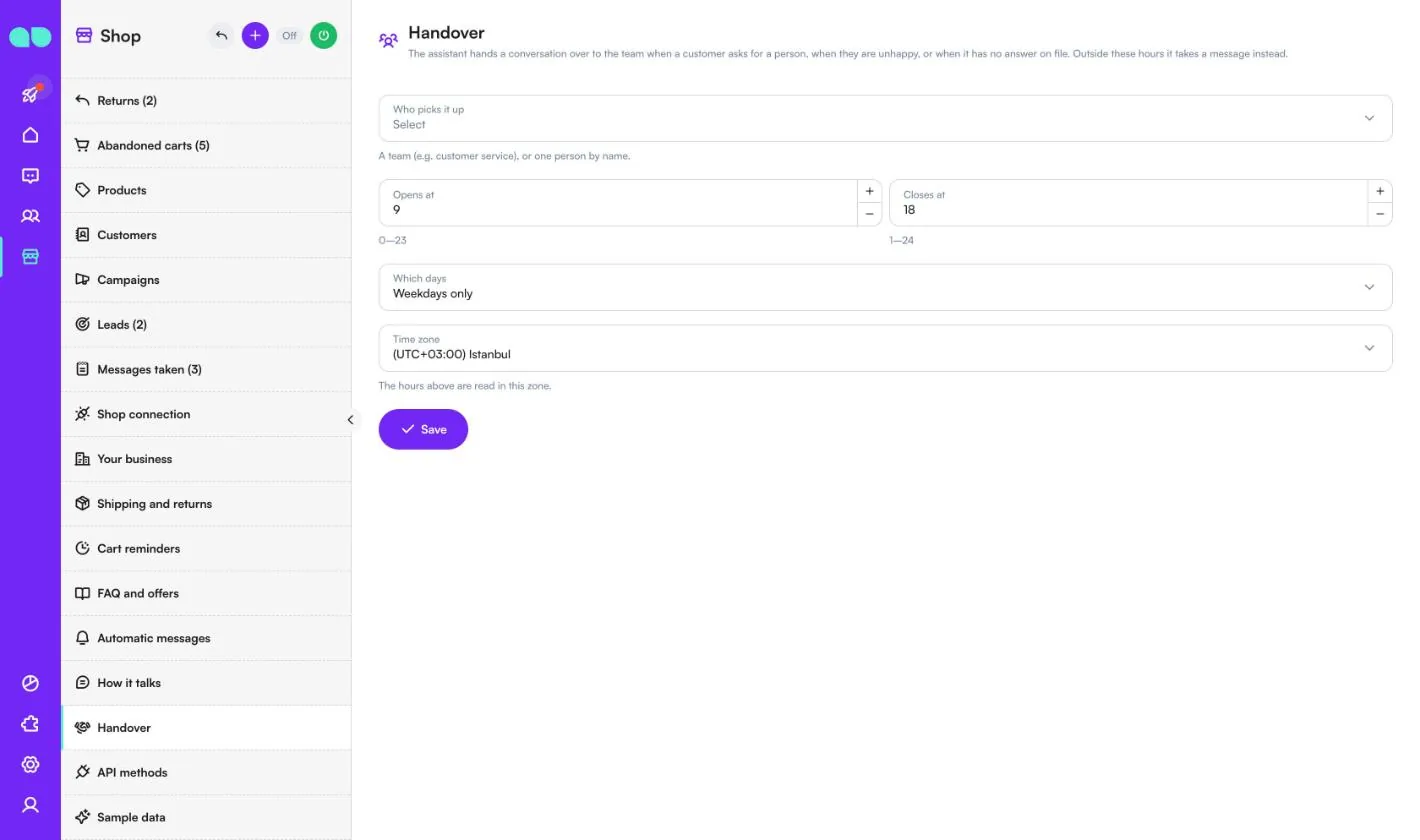
Shop › Handover decides who takes a conversation when a customer asks for a person, is unhappy, or asks something with no answer on file.
- Who picks it up: a team (e.g. customer service), one person by name, or nobody (the assistant never transfers).
- Opens at / Closes at (hours 0–24), Which days (every day or weekdays only) and Time zone. Outside these hours the assistant takes a message instead.
API methods
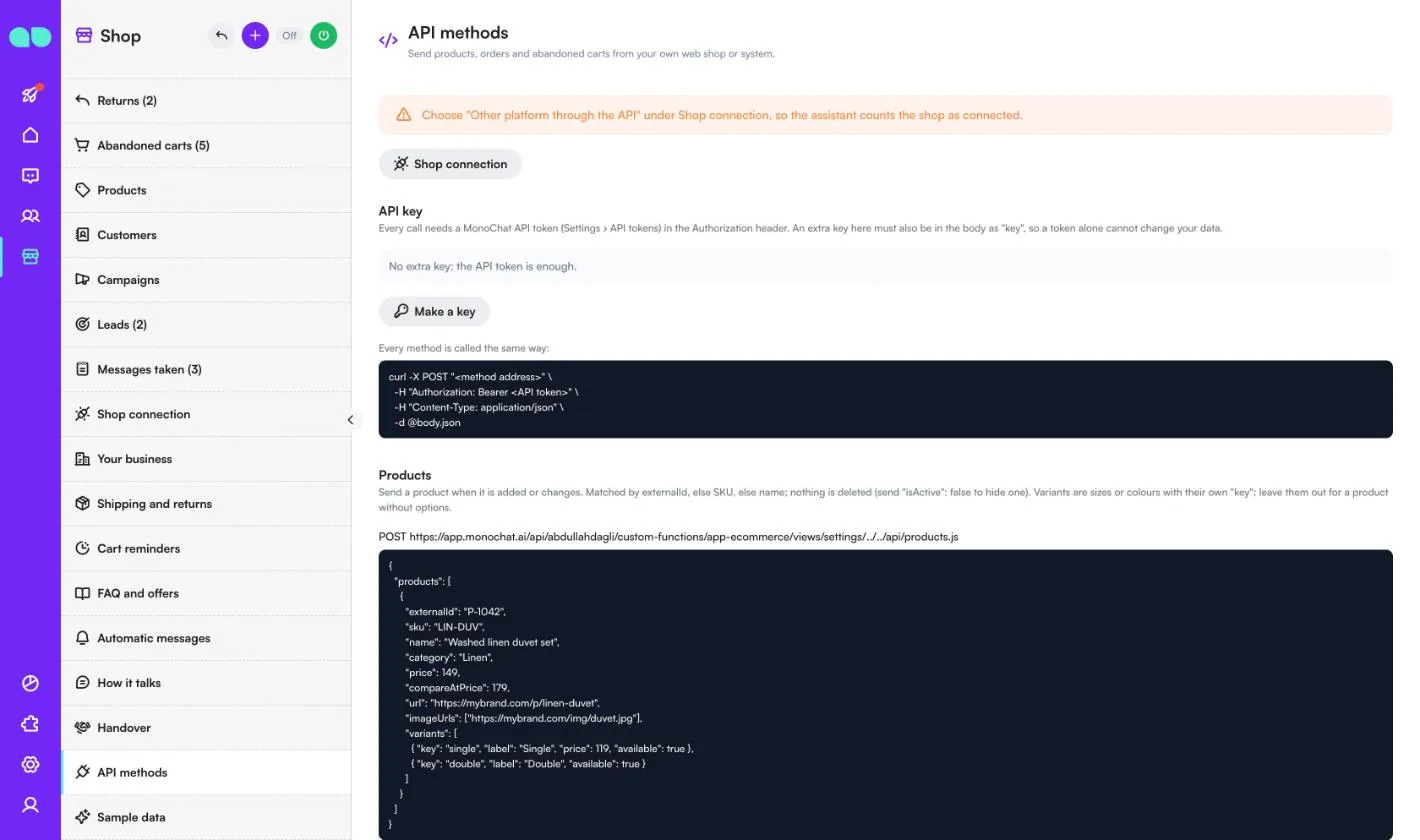
Shop › API methods is for shops that are not on Shopify: your web shop or system sends products, orders and abandoned carts. Choose Other platform through the API under Shop connection first, so the assistant counts the shop as connected.
- API key: every call needs a MonoChat API token (Settings › API tokens) in the Authorization header. Make a key adds an extra key that must also be in the body as
key, so a token alone cannot change your data. - Products: send a product when it is added or changes. It is matched by
externalId, else SKU, else name; nothing is deleted (send"isActive": falseto hide one). - Orders: send an order when it is placed and again whenever it changes. It is matched by
numberand linked to the customer by phone. - Abandoned carts: send a cart when the customer leaves it at checkout, with
checkoutUrlleading back to it, and again withcompletedAtwhen it is bought. Only carts with a phone get reminders.
The screen shows the address, an example body and the answer for each method, and the columns for the products CSV import.
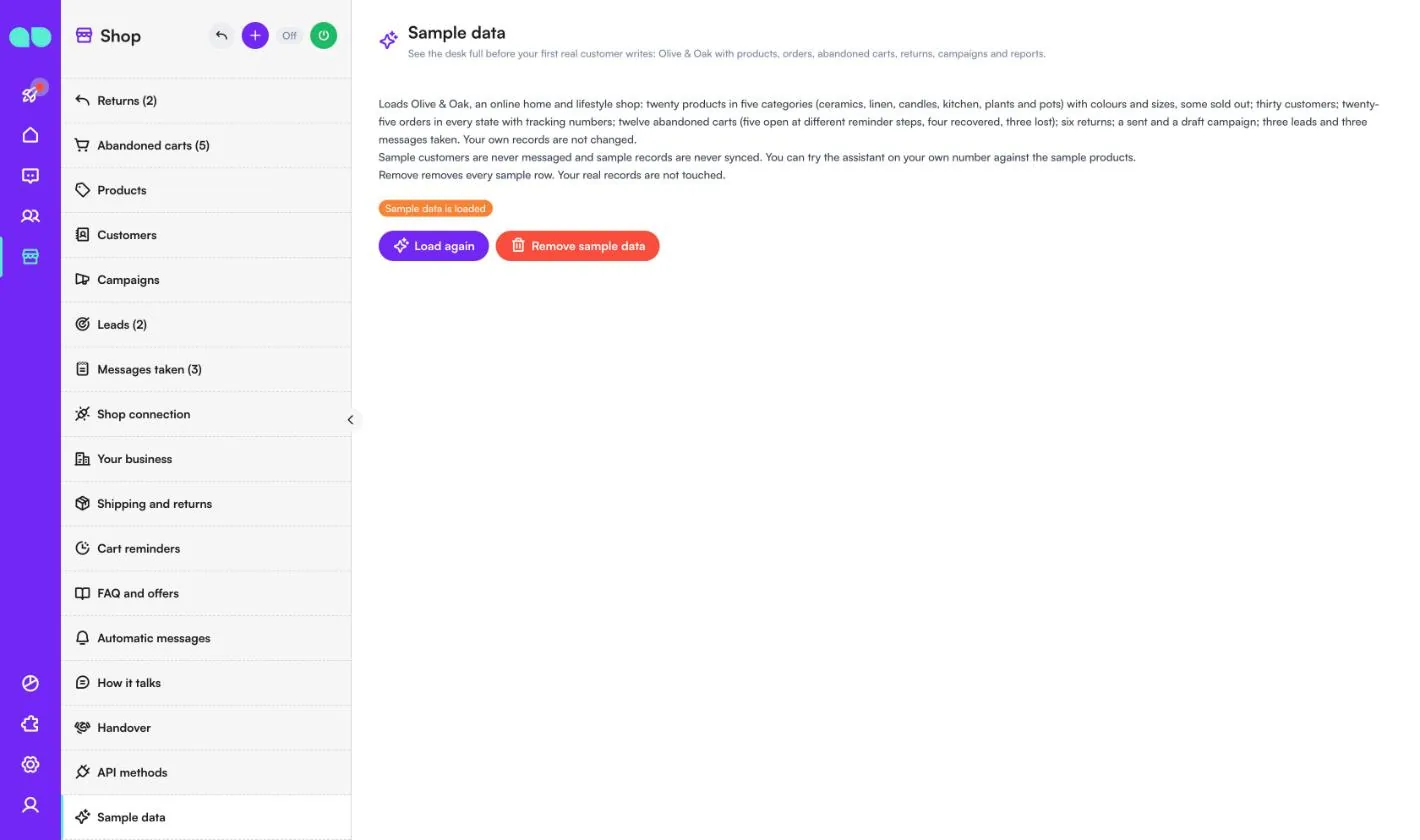
Sample data
Shop › Sample data fills the desk with Olive & Oak: products in five categories with colours and sizes (some sold out), customers, orders in every state with tracking numbers, abandoned carts at different reminder steps, returns, campaigns, leads and messages taken. Sample customers are never messaged and sample records are never synced. You can try the assistant on your own number against the sample products.
Load again reloads it; Remove sample data removes every sample row and leaves your real records untouched. Remove it before real customers write.
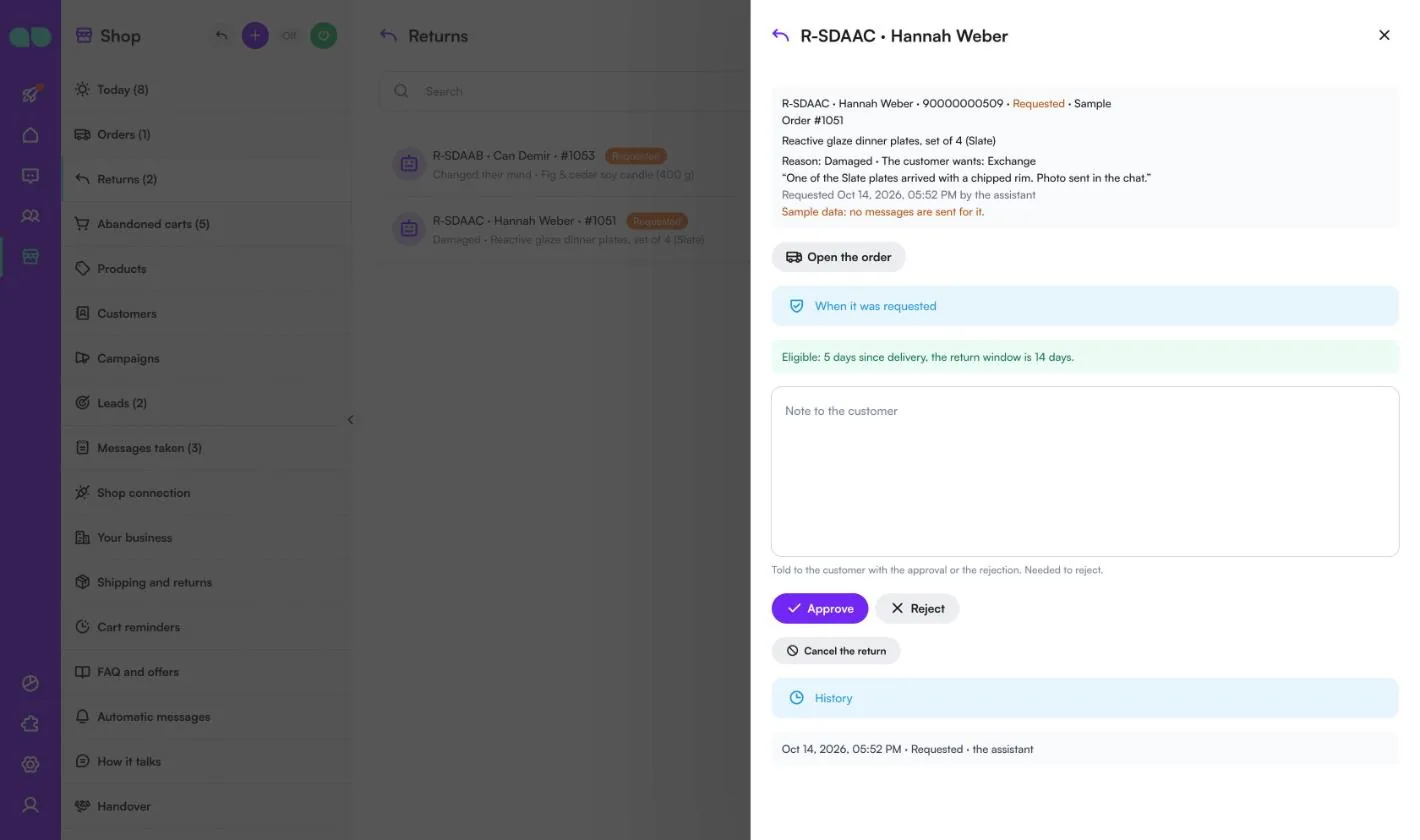
Return drawer
Click a return to open it. The top shows the code, customer, status, order, items, the reason, what the customer wants and their own words. Open the order jumps to the order. Under When it was requested, the drawer shows whether the return was eligible, e.g. "Eligible: 5 days since delivery, the return window is 14 days."
- Note to the customer: told with the approval or the rejection. Needed to reject.
- Approve / Reject: the customer is told with the return updates; an approval includes how to send it back.
- Mark received: when the parcel arrives.
- Mark refunded: write the Refund amount. Make the refund in your shop first; this only records it.
- Cancel the return: closes it without telling the customer.
History lists every step with the time and who did it.
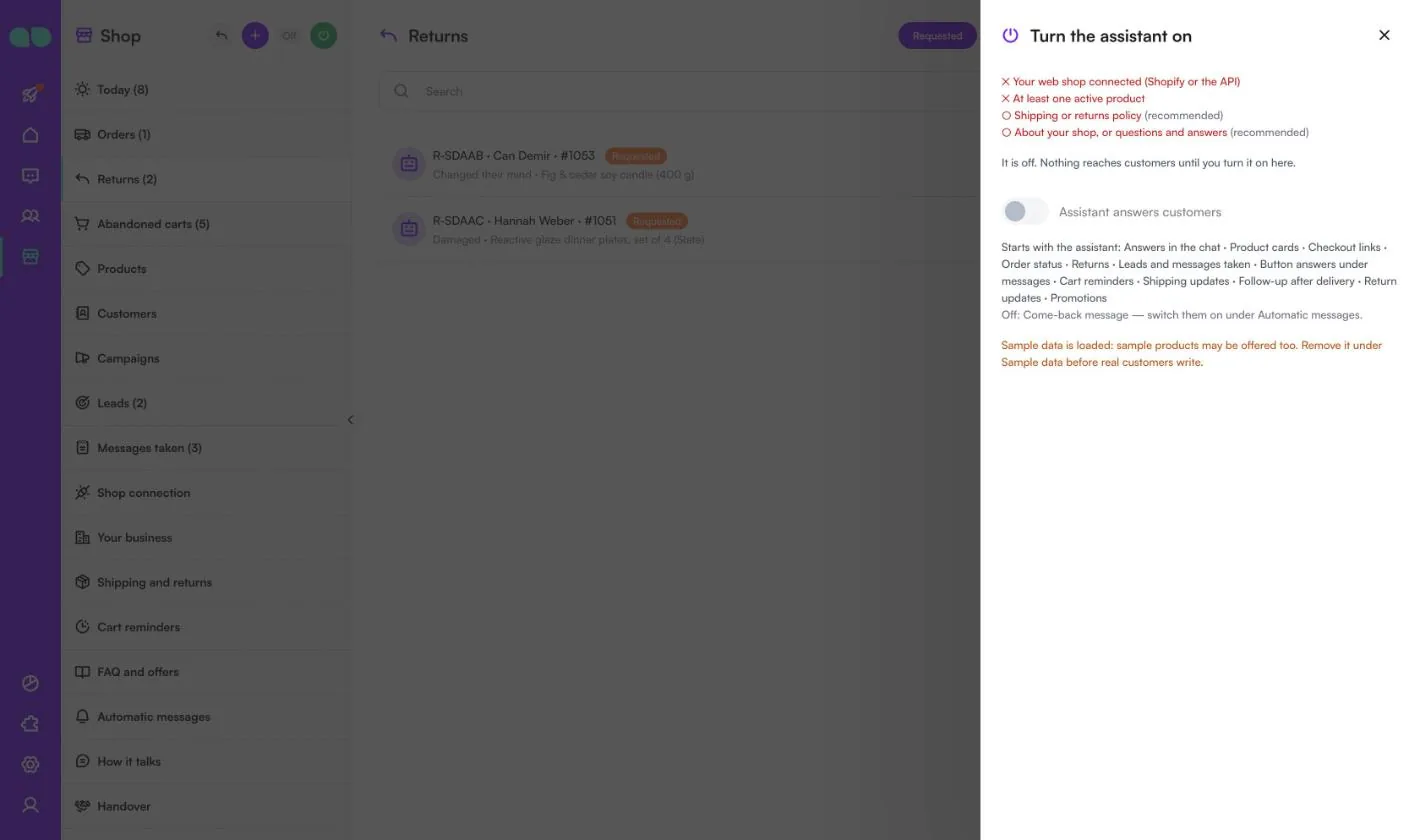
Turn the assistant on
The power button in the desk header opens the Turn the assistant on drawer. It shows what is still missing, the Assistant answers customers switch, the list of what Starts with the assistant, and which messages are off. If sample data is loaded, it reminds you to remove it before real customers write.
Sales and recovery report
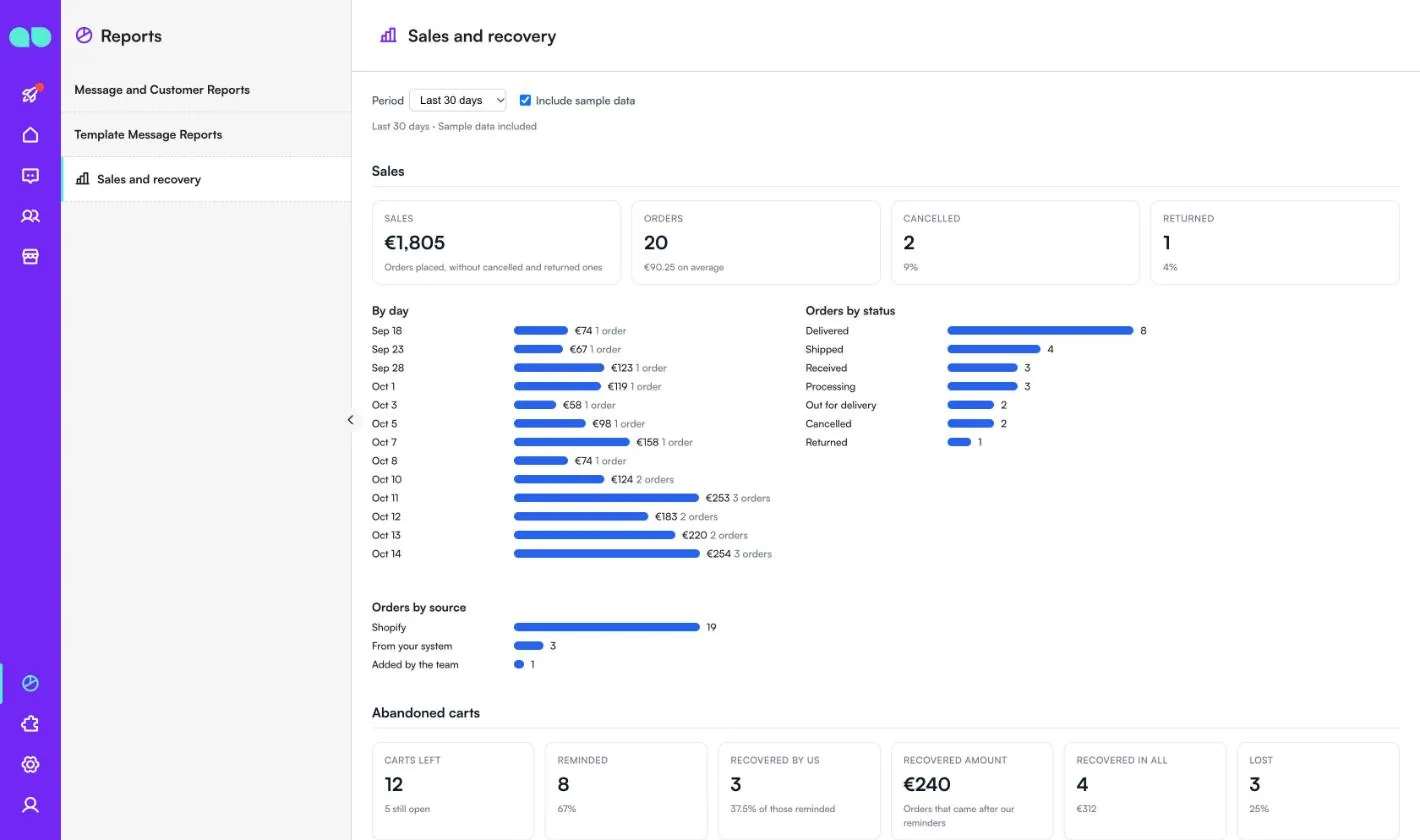
Reports › Sales and recovery shows how the shop is doing. Choose the Period (last 7, 30, 90 or 365 days) and tick Include sample data to count the sample records.
- Sales: sales (orders placed, without cancelled and returned ones), orders and average, cancelled and returned, sales By day, Orders by status and Orders by source (Shopify, from your system, added by the team, CSV import).
- Abandoned carts: carts left, reminded, recovered by us, recovered amount, recovered in all and lost, with the funnel and recoveries by reminder step.
- Returns: returns, still open and refunded, by reason, status and resolution.
- Top products, Campaigns, Leads, and The assistant: customers who wrote, conversations handed over to the team, returns started, leads written down and messages taken.
Features
Connect Shopify
Products, orders and abandoned checkouts come in by themselves every 30 minutes. Connect with an Admin API access token or with the Client ID and secret of an app made in the Shopify Dev Dashboard.
Any other platform
Send products, orders and carts through the HTTP API, or import products from a CSV file.
Polite cart reminders
Only customers who agreed to marketing messages, or who wrote to you recently, are reminded, and a weekly limit keeps it polite. You see every cart, each reminder sent, and the orders and amount recovered.
Returns
Customers start a return in the chat and the assistant checks the return window and the products that cannot be returned. Your team approves or rejects it on the desk, marks it received and refunded, and the customer is told at each step.
Order updates and campaigns
Shipped, out for delivery, delivered and cancelled notices, a short question a few days after delivery, and campaign messages to a chosen group (buyers, repeat customers, top spenders, buyers of a category, cart abandoners) with your products and a code.
The shop desk
Returns to review, open carts, orders that have not shipped, new leads and messages taken. Next to each conversation you see the customer’s orders, open carts and returns. Reports show sales, recovery, returns and top products.
Screenshots
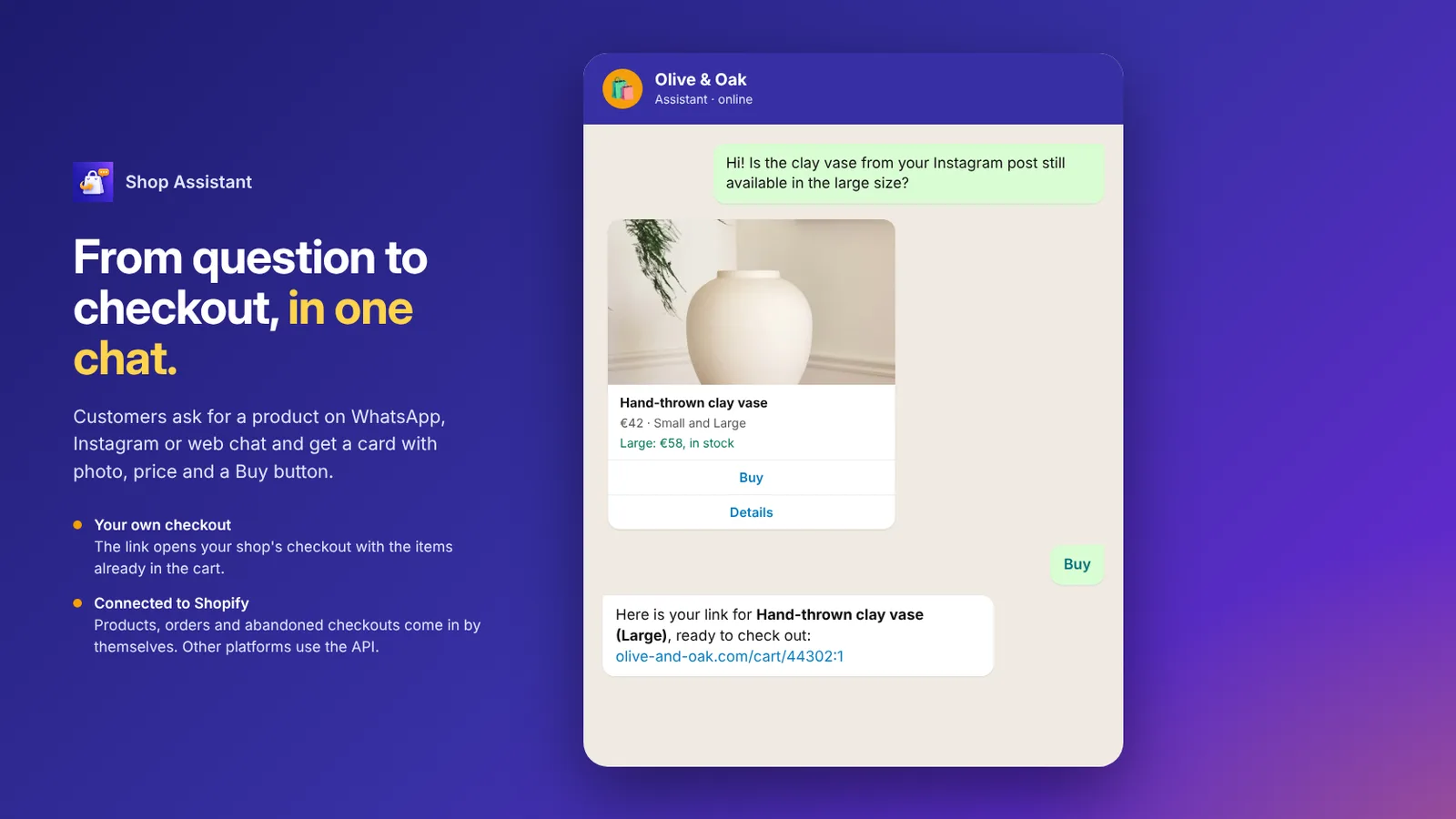 Shop Assistant showing a product card in WhatsApp and sending a checkout link with the item in the cart
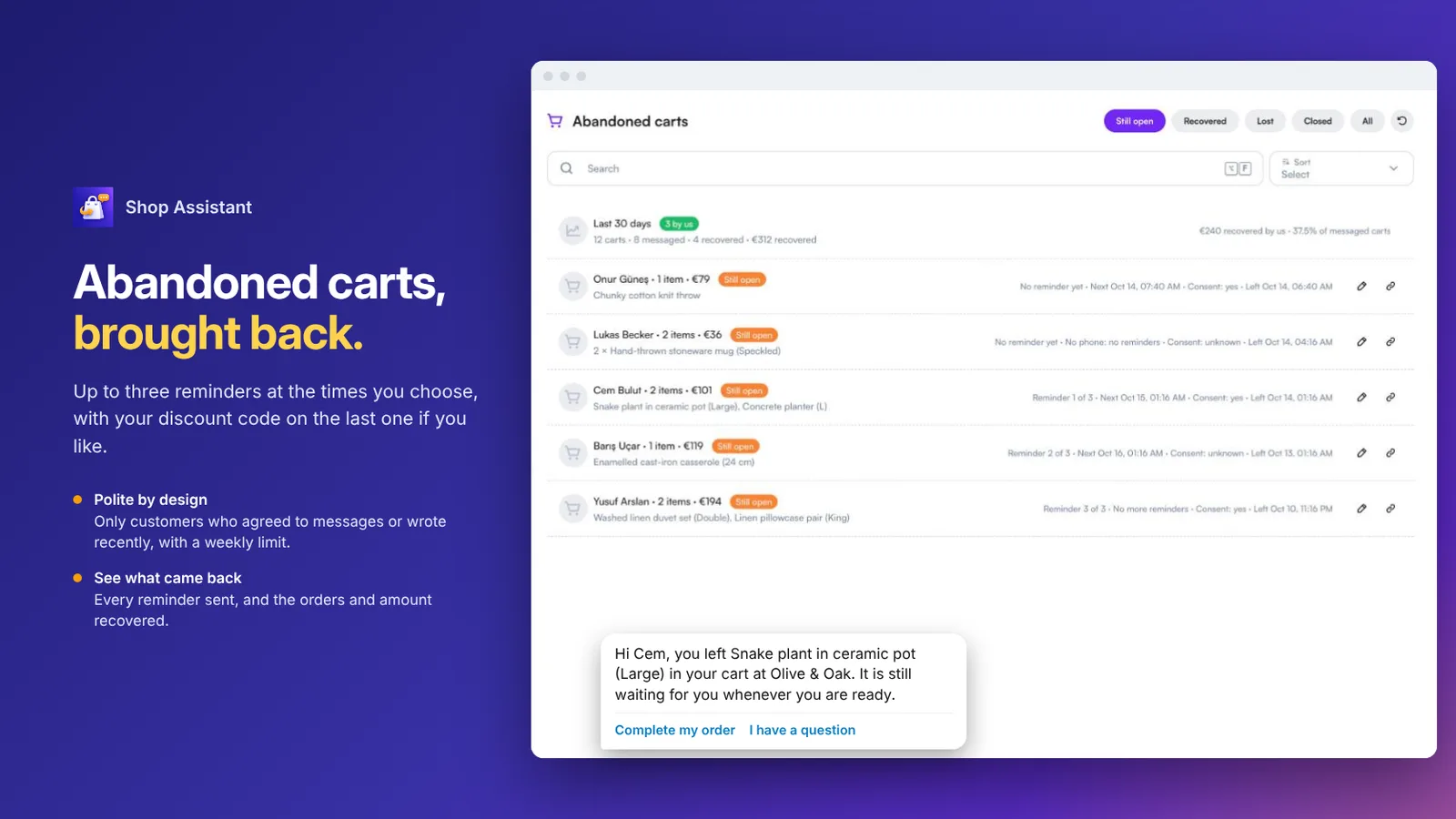 Abandoned carts with reminders sent and a cart reminder with a Complete my order button
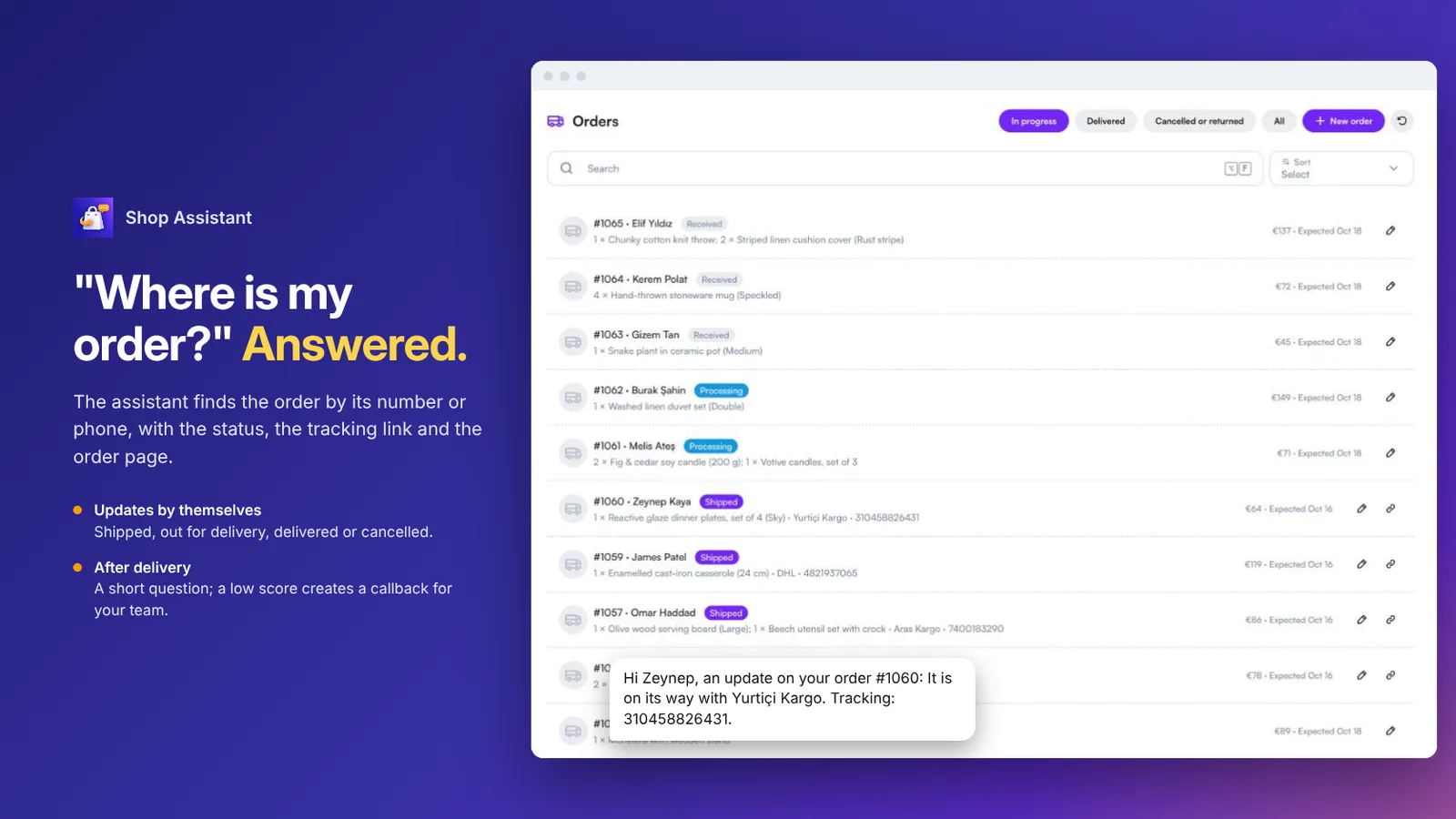 Orders list with status and a shipping update sent to the customer
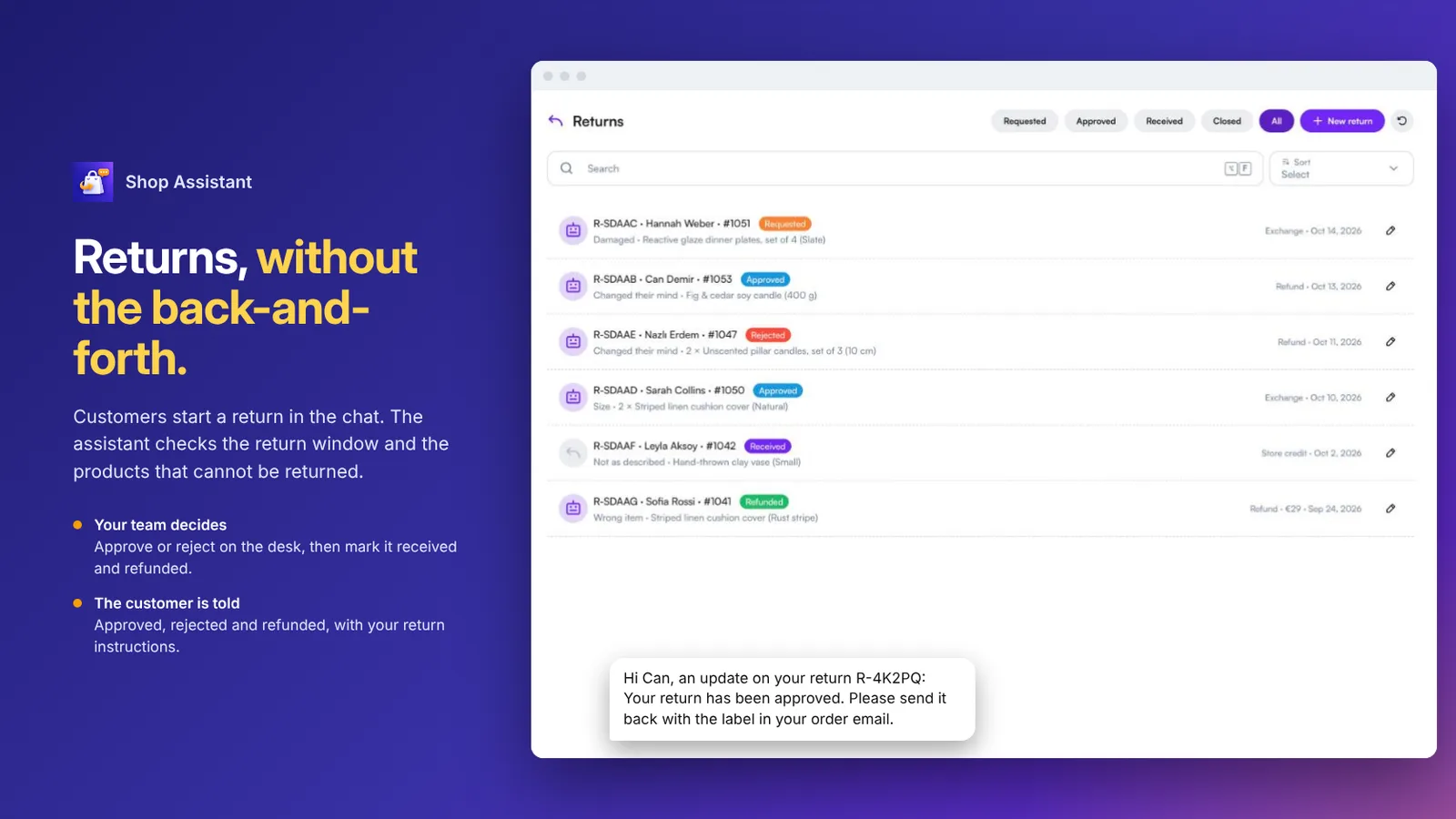 Return requests with reasons and status, and an approval message to the customer
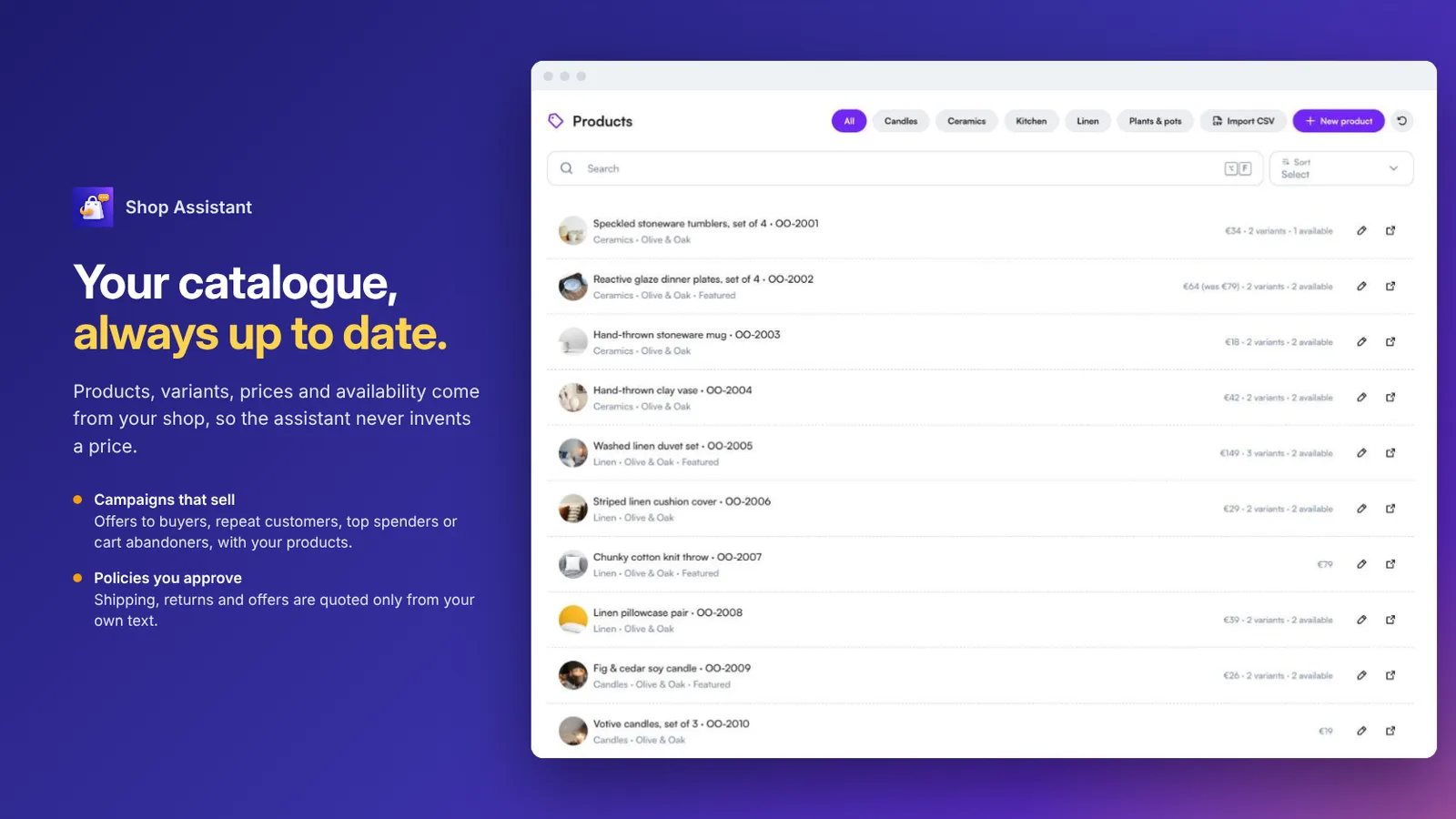 Products list with variants, prices and availability
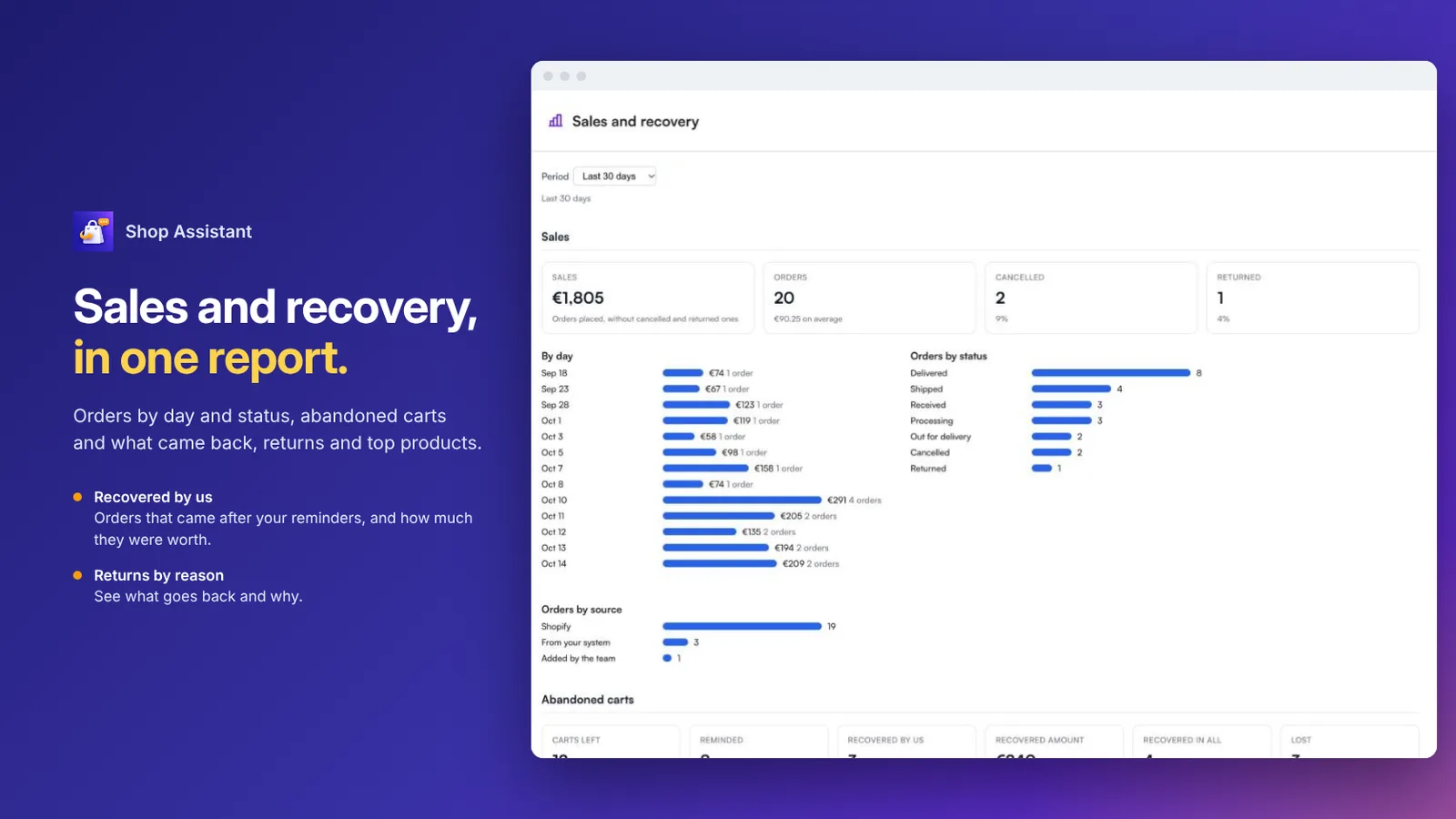 Sales and recovery report by day, order status and abandoned carts
FAQ
Which shops is it for?
Online shops that want to answer customers on WhatsApp, Instagram and web chat, connected to Shopify or to their own platform.
How does checkout work?
The assistant sends a link that opens your shop’s own checkout with the items already in the cart. The order is placed in your shop as usual.
How does it connect to Shopify?
With an Admin API access token or with the Client ID and secret of an app made in the Shopify Dev Dashboard. Products, orders and abandoned checkouts come in by themselves every 30 minutes.
Who gets abandoned cart reminders?
Only customers who agreed to marketing messages, or who wrote to you recently. Up to three reminders go out at the times you choose, and a weekly limit keeps it polite.
How are returns handled?
Customers start a return in the chat and the assistant checks the return window and the products that cannot be returned. Your team approves or rejects it, marks it received and refunded, and the customer is told at each step.
Can I try it before connecting my shop?
Yes. Sample data (an online home and lifestyle shop) lets you try everything first.