Lead Ads Follow-up
Sends WhatsApp template messages to people who fill your Facebook and Instagram Lead Ads forms, after the delay you choose, from the channel and template you pick, and stops when someone on your team or the customer has already taken over.
Overview
Lead Ads Follow-up sends WhatsApp messages to the people who fill your Facebook and Instagram Lead Ads forms, at the time you choose, so a new lead hears from you while they still remember the ad.
You set a rule for each page, form or ad: the WhatsApp number to send from, the approved template for each message, and when not to send.
A desk shows the leads waiting, what was sent and when, who replied, and why a message did not go.
Highlights
- Your channel, your template. Choose the WhatsApp number to send from and the approved template for each message. Fill the template’s variables from the form’s answers (name, the service they chose, any question), the form or ad name, or your own text.
- Up to three steps. For example a welcome a few minutes after the form, a reminder the next day and a last message after three days. When the person replies, the remaining steps stop.
- Try it with whispers. Turn on Whisper only on a rule and nothing goes to the customer: each step is written as an internal note in their WhatsApp conversation at the moment it would go, with the filled template.
Before you start
Lead Ads Follow-up needs three things in your workspace. The app checks each of them for you on the Get started tab.
- Lead forms switched on for a Facebook page. Connect the Facebook page that runs your ads under Settings › Channels, open it and turn on Lead forms. Every form a person fills on Facebook or Instagram then reaches MonoChat (Instagram ad leads come through the linked Facebook page).
- A verified WhatsApp channel to send from, connected under Settings › Channels.
- An approved WhatsApp template on that channel. Create it under the WhatsApp channel’s templates and wait for Meta’s approval. Only approved templates can be chosen in a rule.
The app reads new leads every minute. The first time it runs, it starts from that moment: leads filled before the app was switched on are not messaged.
Install and set up
- Install Lead Ads Follow-up from Settings › MonoStore › Apps, or open the install link app.monochat.ai/apps/9fFNrvBC2kMiNneHS. Without a MonoChat account, the link lets you sign up first and installs the app for you.
- Open the Lead follow-up desk (the lightning icon in the left menu). Under Settings, check the Default country code (added to numbers people typed without it), add Your phone for tests, and leave the time zone as the workspace’s or pick another.
- On Rules, click New rule. Choose which leads it takes (pages, forms, form or ad name), the WhatsApp channel, one to three steps with their delay and template, what not to send and what to do afterwards. Click Save.
- Turn on Whisper only on the rule first if you want to see what would go on real leads without sending anything, or use Send a test to get any step on your own phone.
- Click the green power button (Turn on) in the desk header. The Turn lead follow-up on drawer lists what is still missing and, if leads came in while the app was off, asks whether they get their messages too. The badge next to the title changes from Off to On. Only someone who can manage automations in the workspace sees the power button.
- Leads that came in before the app was switched on are not messaged.
- Messages outside your send hours wait for the next opening instead of going at night.
Screen by screen
Lead Ads Follow-up lives in the Lead follow-up desk (the lightning icon in the left menu), with its report under Reports. The screenshots below show the sample data: a sample rule, “Free consultation form”, and forty leads from two forms, “Free consultation” and “Price list”.
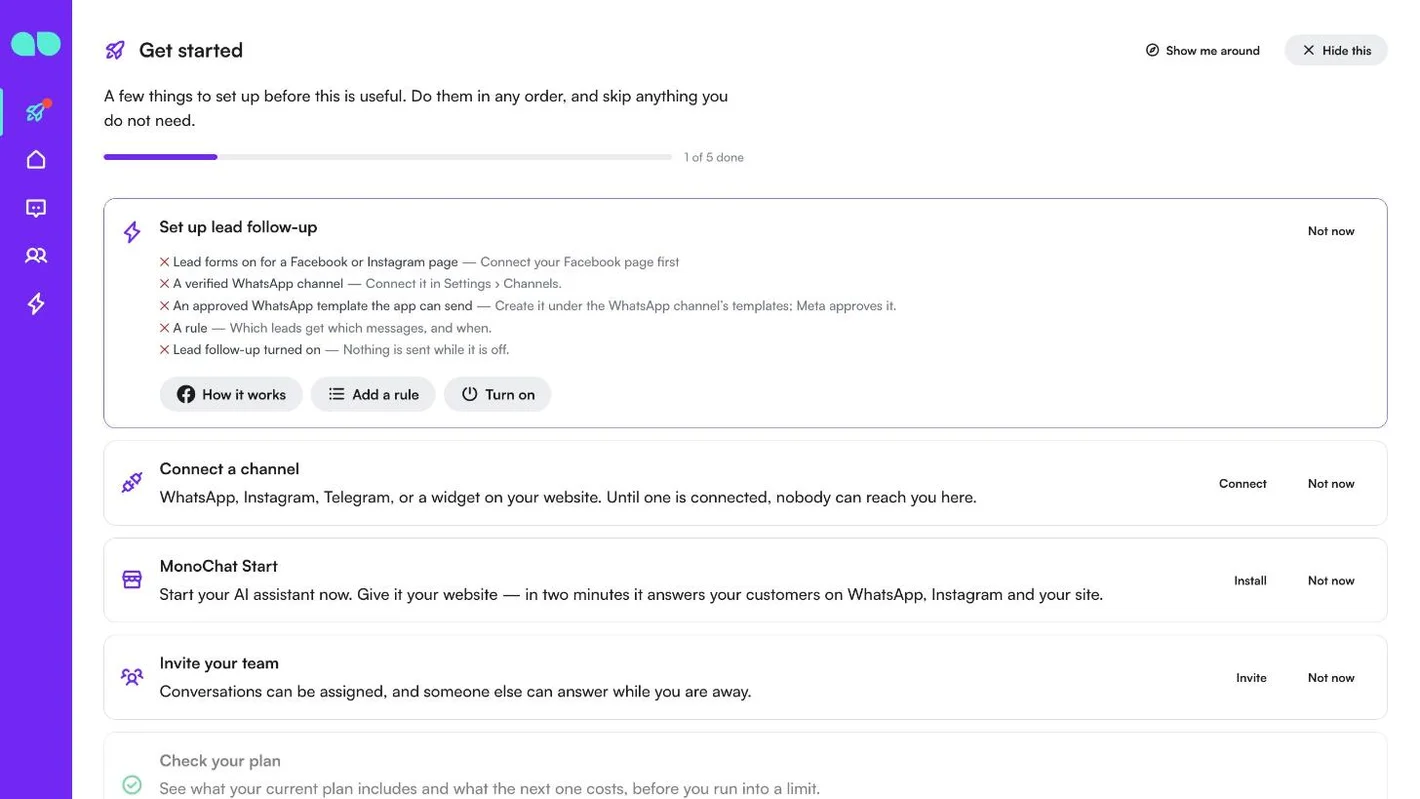
Get started
The Get started tab on your home page adds a Set up lead follow-up card. It lists what is ready (a tick) and what is still missing (a cross), each with a hint:
- Lead forms on for a Facebook or Instagram page: Settings › Channels › the page › Lead forms.
- A verified WhatsApp channel: connect it in Settings › Channels.
- An approved WhatsApp template the app can send: create it under the WhatsApp channel’s templates; Meta approves it.
- A rule: which leads get which messages, and when.
- Lead follow-up turned on: nothing is sent while it is off.
The buttons under the list open the screen that fixes each item: How it works, Add a rule and Turn on. When everything is ready, the card says new leads get their messages.
The desk header
The desk header shows On or Off next to the title. The + button opens New rule, and the power button opens Turn lead follow-up on (or off). The menu counters show how many leads are due now or failed (Today) and how many are waiting (Leads).
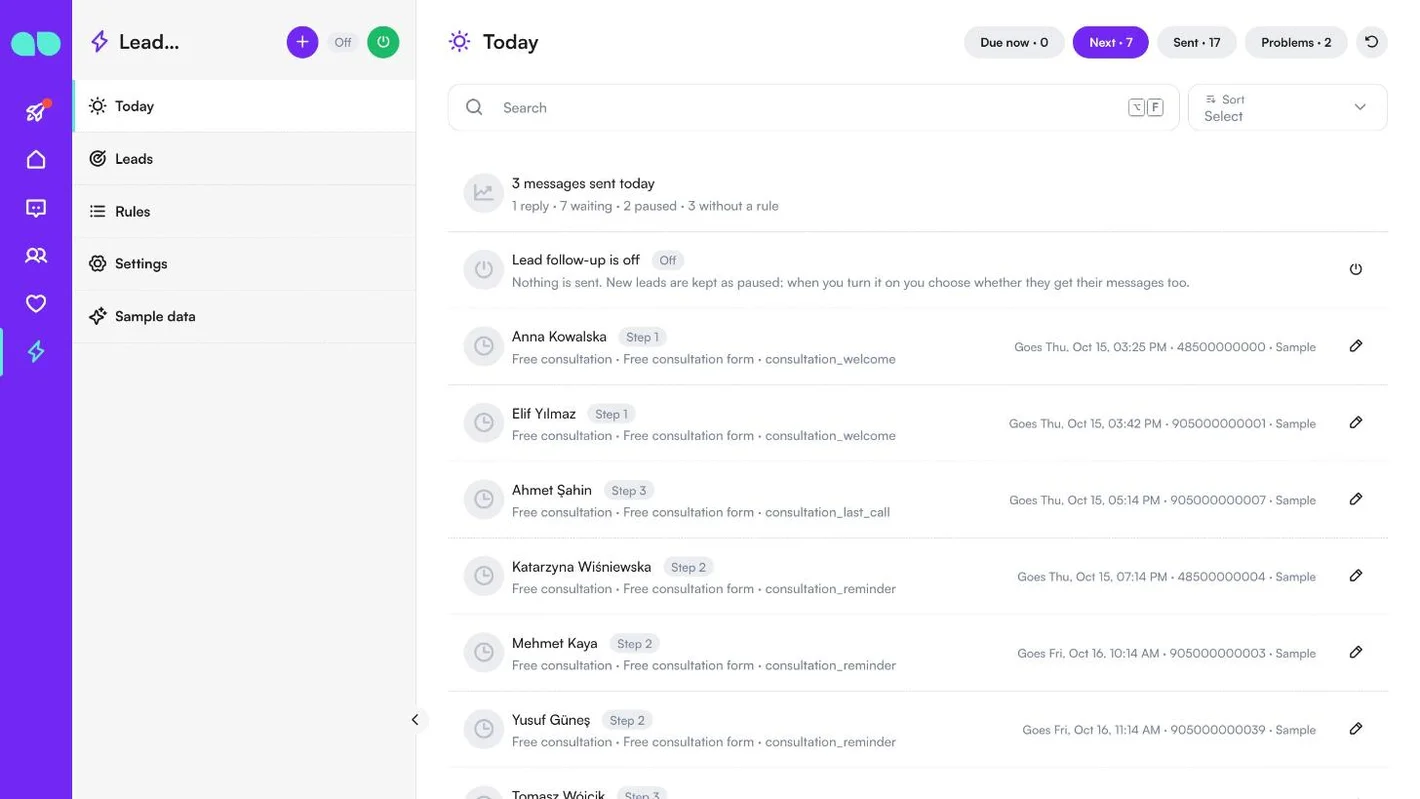
Today
Lead follow-up › Today is the list of what needs doing now. The first row counts the messages sent today, with the replies and how many leads are waiting, paused or without a rule. While the app is off, a second row says so: nothing is sent, and new leads are kept as paused.
The tabs at the top each show a count:
- Due now: steps whose time has come and that go out on the next run.
- Next: the next step of every waiting lead, with the step number, the form, the template and when it goes (Goes …).
- Sent: steps sent or whispered today.
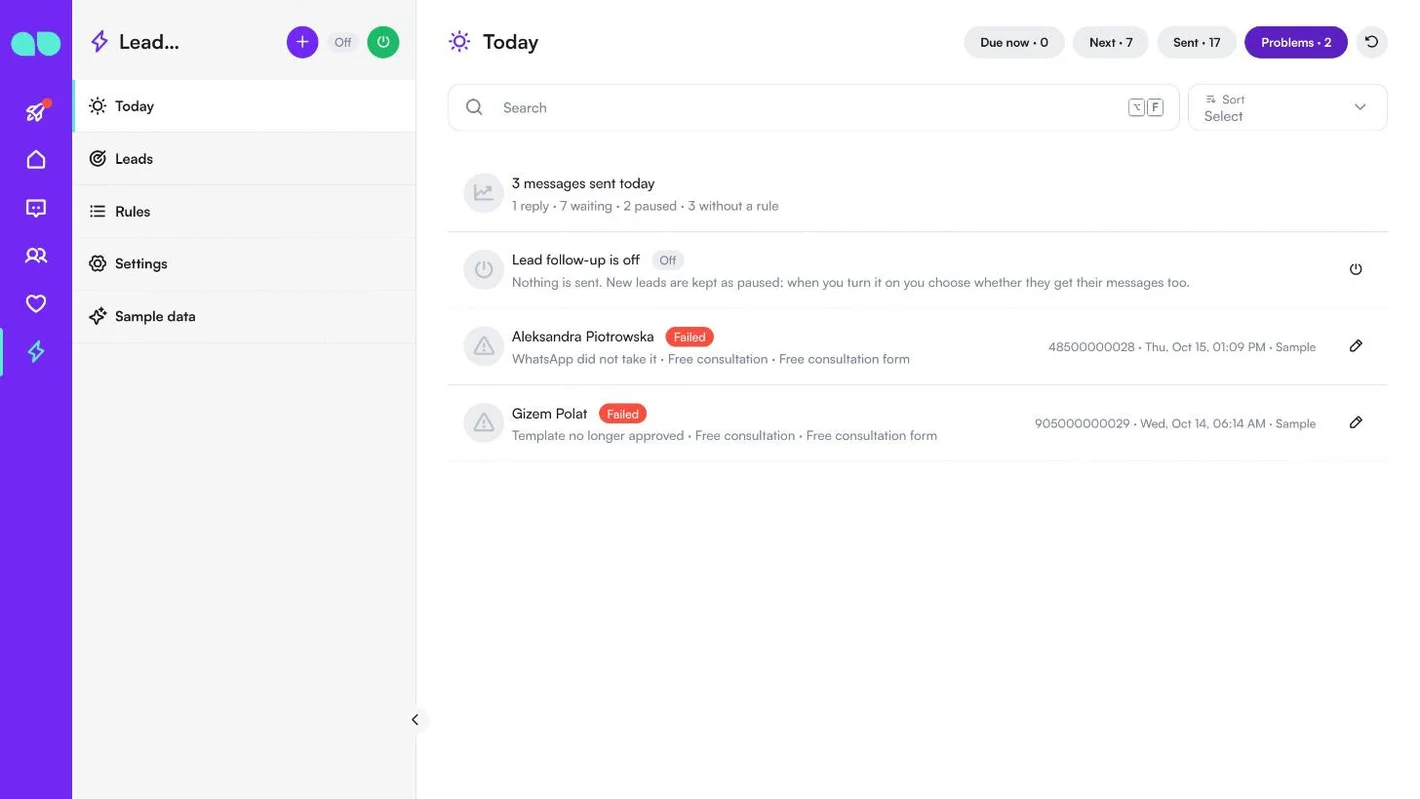
- Problems: steps that failed, with the reason (e.g. WhatsApp did not take it or Template no longer approved).
The pencil opens the lead. For a waiting step you can Send now (the rule’s conditions are still checked; only the delay and the send window are skipped) or Cancel; a failed step has Retry.
Leads
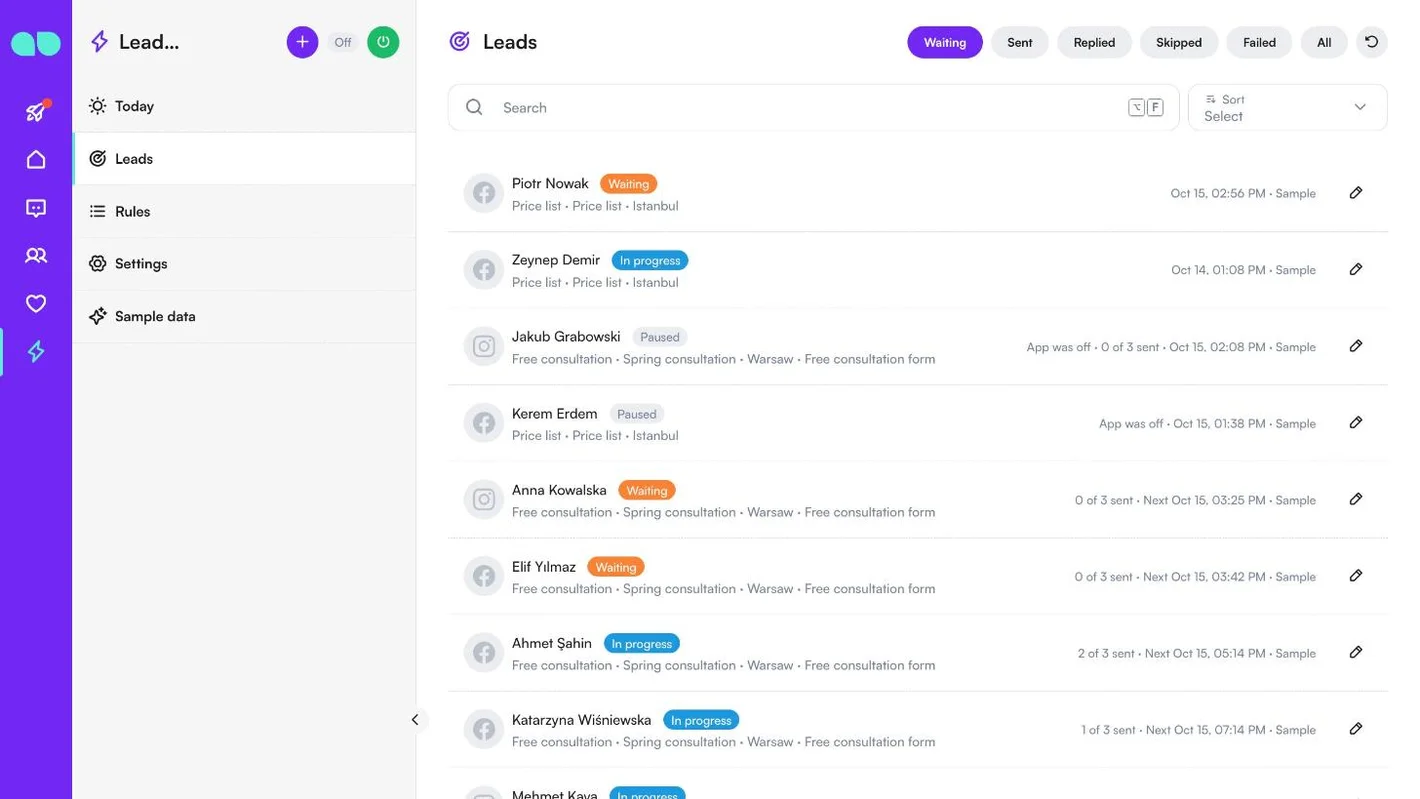
Lead follow-up › Leads lists every lead form that reached MonoChat, within a minute of being filled. Filter by Waiting (also in progress and paused), Sent (got all its messages), Replied, Skipped, Failed or All, or search by name or phone.
Each row shows the person, the status (Waiting, In progress, Paused, Replied, Skipped, Failed …), the form, the ad and the rule, how many steps were sent (e.g. 2 of 3 sent) and when the next one goes. The icon shows whether the lead came from Facebook or Instagram. A paused lead came in while the app was off (App was off); a skipped one shows why, for example Someone on the team has it, They wrote first, Already messaged recently, Has a skip tag or No phone number.
A lead
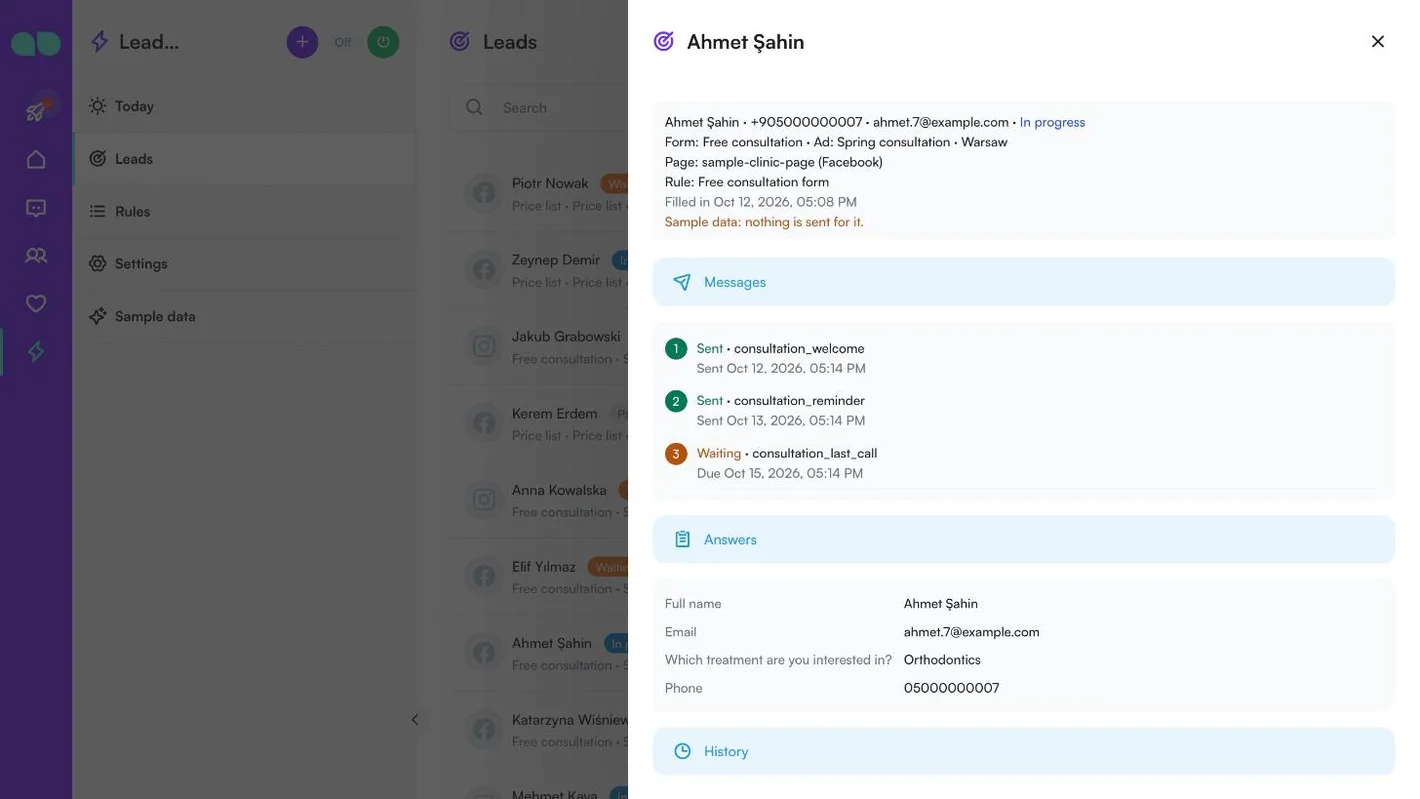
The pencil opens the lead. The top shows the person, phone, email and status, the form, ad, page and rule, and when the form was filled. Below:
- Messages: every step of the rule with its template and status: Sent or Whispered with the time, Waiting with the time it is due, or the reason it did not go.
- Answers: every answer from the form (full name, email, phone and your own questions).
- History: what happened and when: filled in, sent, replied, assigned, flow started.
Buttons under the steps let you Send now, Retry a failed step, Stop following up the lead (no more messages go to them from this app) or Open the conversation. Sample leads have no buttons, and Send now appears only while the app is on.
Rules
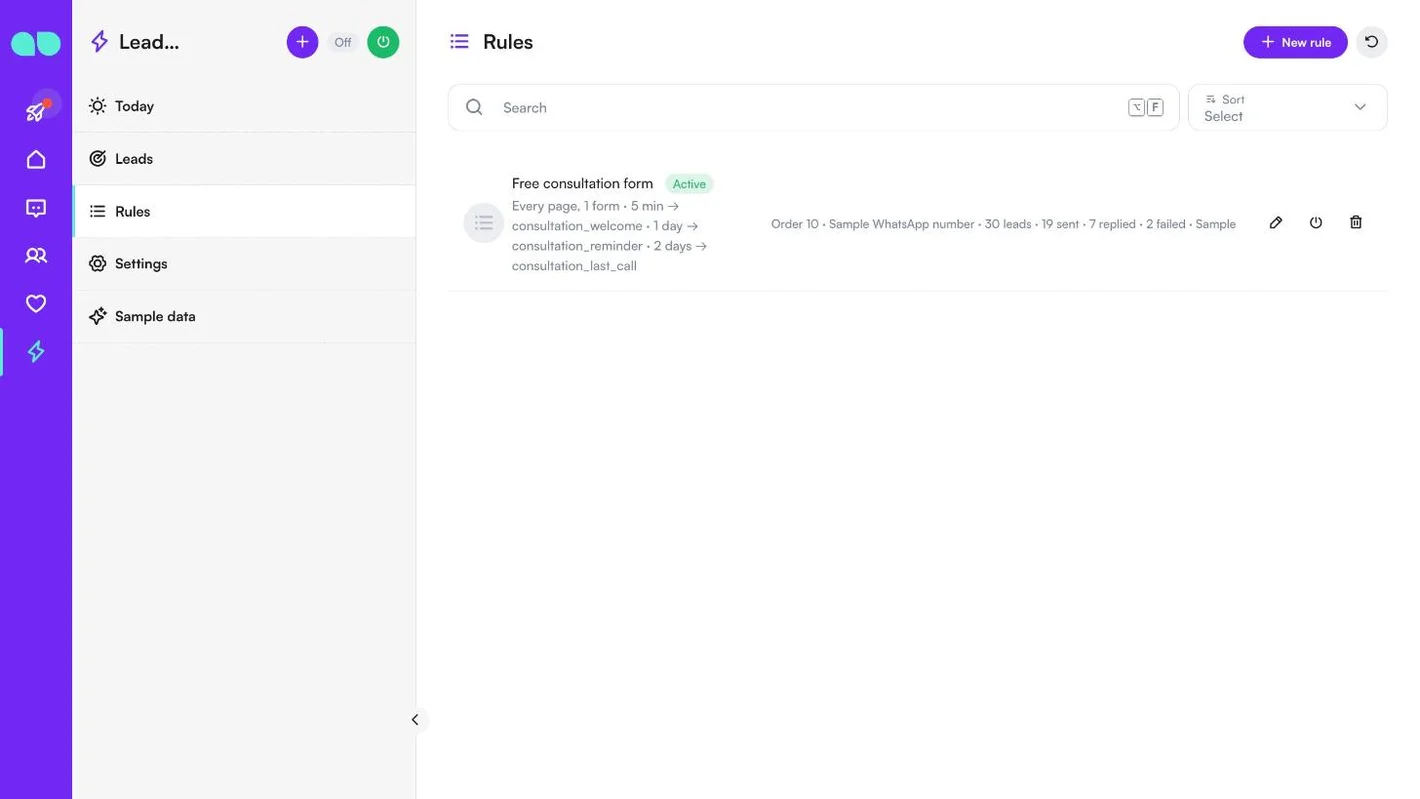
Lead follow-up › Rules decides which leads get which messages, and when. Each new lead is taken by the first active rule that matches it, in the order of the list. Each row shows the rule’s name and status (Active, Off or Whisper only), which pages and forms it takes, the steps with their delays and templates, the order, the WhatsApp channel, and how many leads it took, sent, replied and failed.
Use the pencil to edit a rule, the power icon to turn it on or off, or the bin to delete it (leads it already took keep their history; their waiting messages are not sent). New rule adds one.
The rule form
The rule form starts with what is true for this rule right now (for example that the app is off) and how many leads it took, sent, replied, skipped and failed.
| Field | What it does |
|---|---|
| Rule name | For you, e.g. Free consultation form. |
| Order | Lower comes first. Empty: last. |
| Active | Off: it takes no new leads. |
| Whisper only | Nothing goes to the customer: each step is written as a whisper in their WhatsApp conversation, so your team sees what would go and when. A reply still stops the steps; the profile, tags, assignment and flow are only written down. |
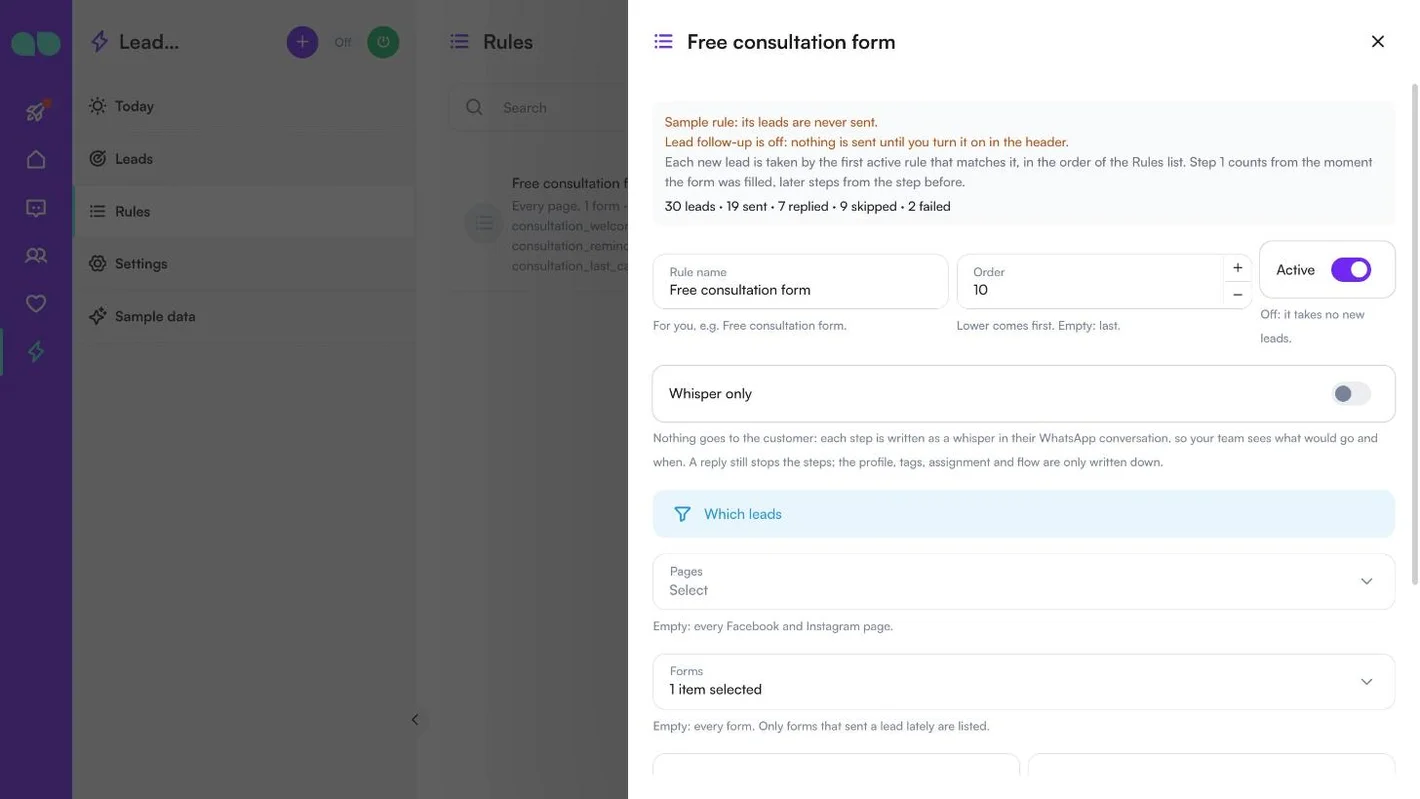
Which leads narrows the rule. Empty fields mean every lead:
- Pages: empty means every Facebook and Instagram page. If lead forms are off on a page you choose, the form warns you.
- Forms: empty means every form. Only forms that sent a lead lately are listed.
- Form name contains and Ad name contains: optional, e.g. consultation or spring.
Sent from is the WhatsApp channel the messages go from.
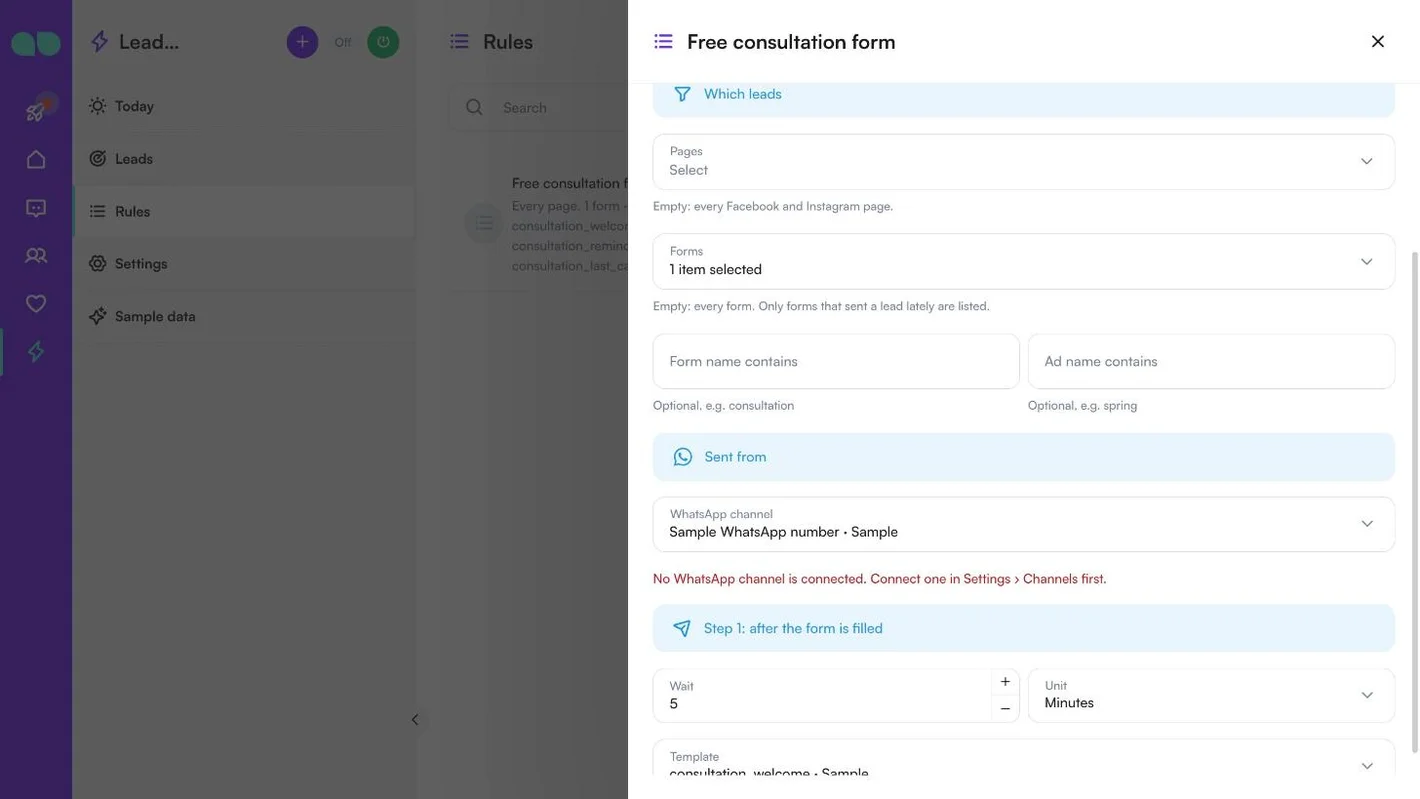
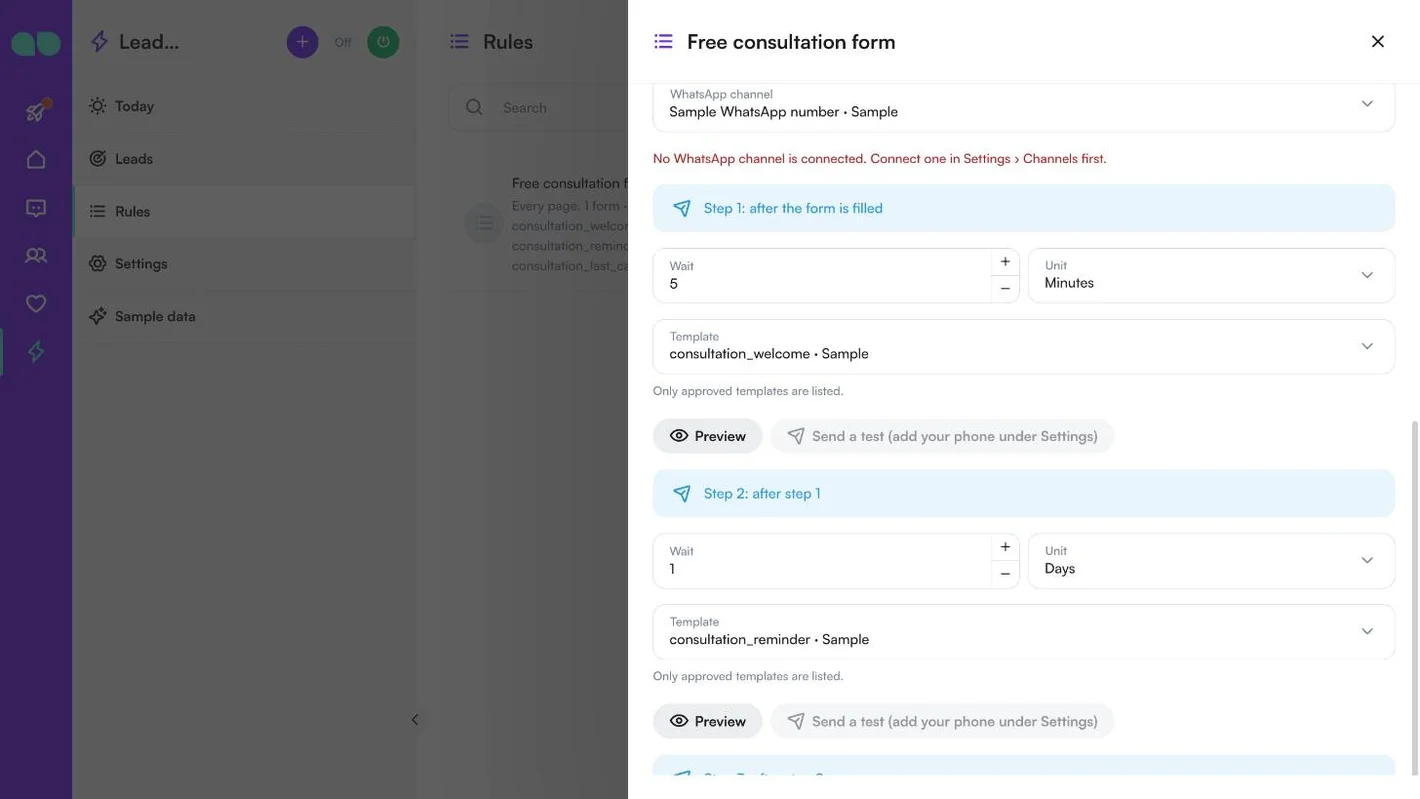
Steps: one to three. Step 1 counts from the moment the form was filled, later steps from the step before. For each step:
- Wait and Unit (Minutes, Hours or Days).
- Template: only approved templates on the channel are listed.
- The template’s variables: fill each one from a Form answer, the First name or Full name, the Form name, Ad name or Page name, or Fixed text, with a text to use If empty. A header photo, video or PDF can be uploaded or pasted as a link; empty uses the template’s own example.
- Preview shows the message filled with sample answers, and Send a test sends the step to Your phone for tests under Settings.
Add a step adds the next one; Remove step takes one away.
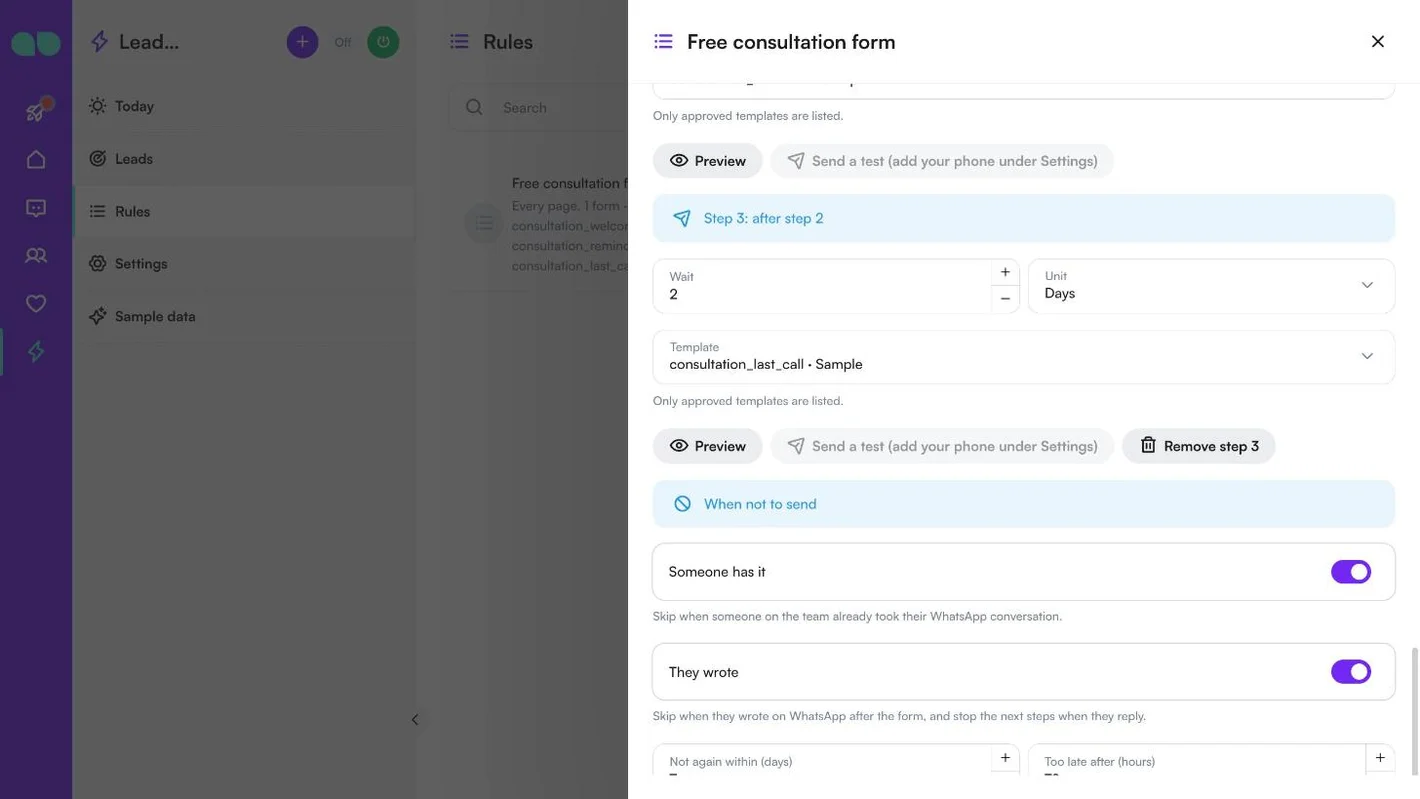
When not to send has a switch or a field for each case:
| Field | What it does |
|---|---|
| Someone has it | Skip when someone on the team already took their WhatsApp conversation. |
| They wrote | Skip when they wrote on WhatsApp after the form, and stop the next steps when they reply. |
| Not again within (days) | The same phone already got a message from this app. 0: off. |
| Too late after (hours) | A step that could not go this long after its time is skipped. |
| Skip customers tagged | Comma separated, e.g. customer, do-not-contact. |
| Only customers tagged | Empty: everyone. |
| Send window | Send only on these days and hours (Days, From, To); outside them a step waits for the next opening. In the time zone under Settings. |
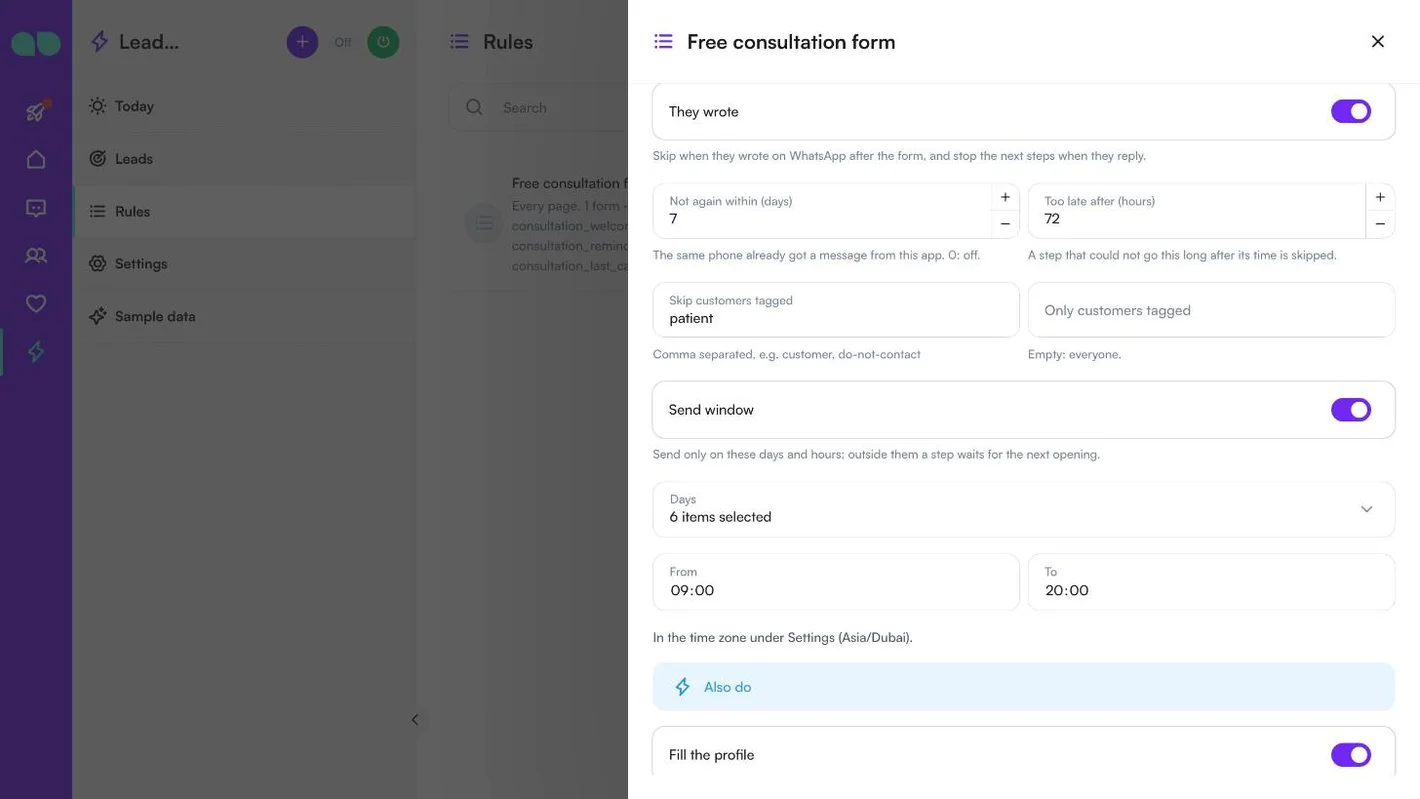
Also do runs alongside the messages:
| Field | What it does |
|---|---|
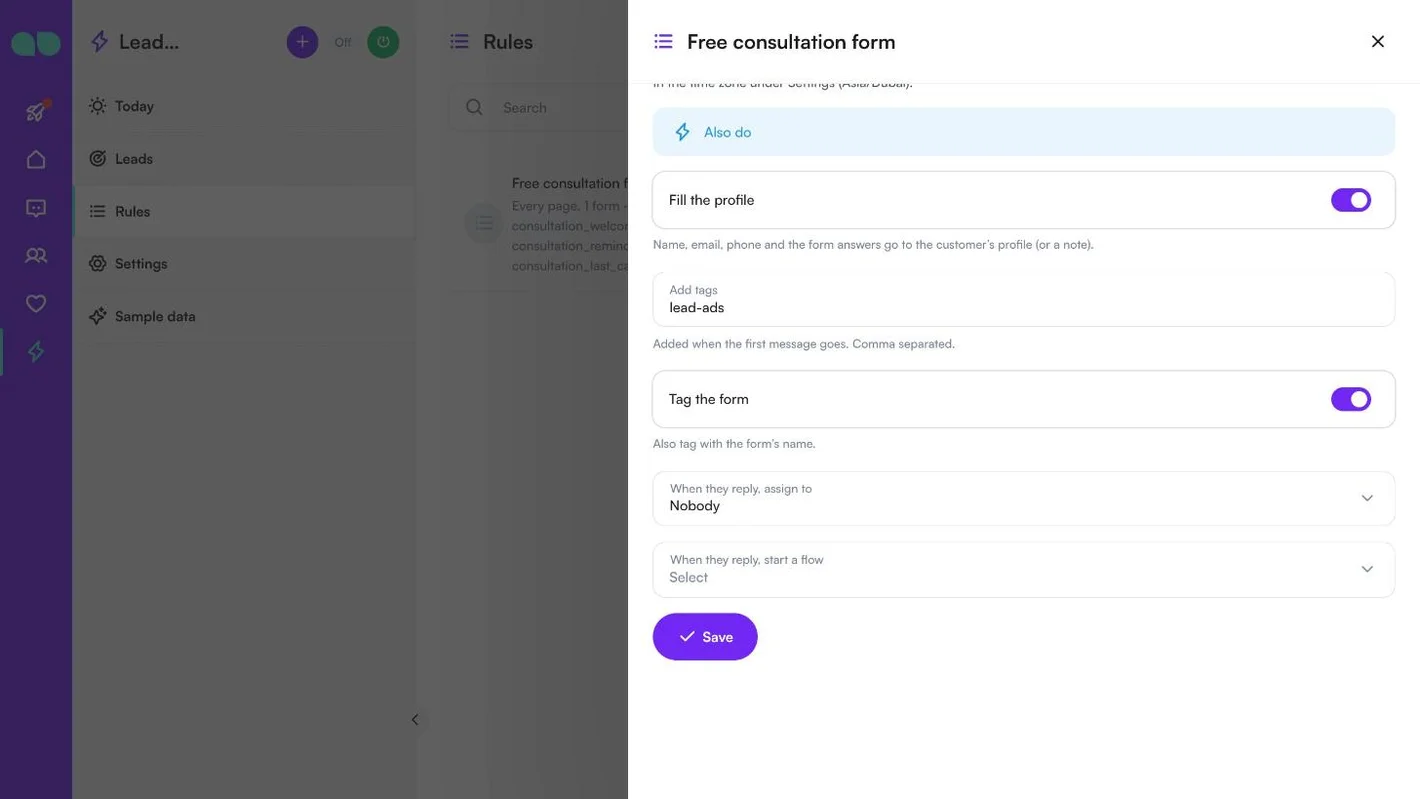
| Fill the profile | Name, email, phone and the form answers go to the customer’s profile (or a note). |
| Add tags | Added when the first message goes. Comma separated. |
| Tag the form | Also tag with the form’s name. |
| When they reply, assign to | Nobody, A team or A person. |
| When they reply, start a flow | For example your AI assistant. |
Click Save. The rule takes new leads from then on.
Settings
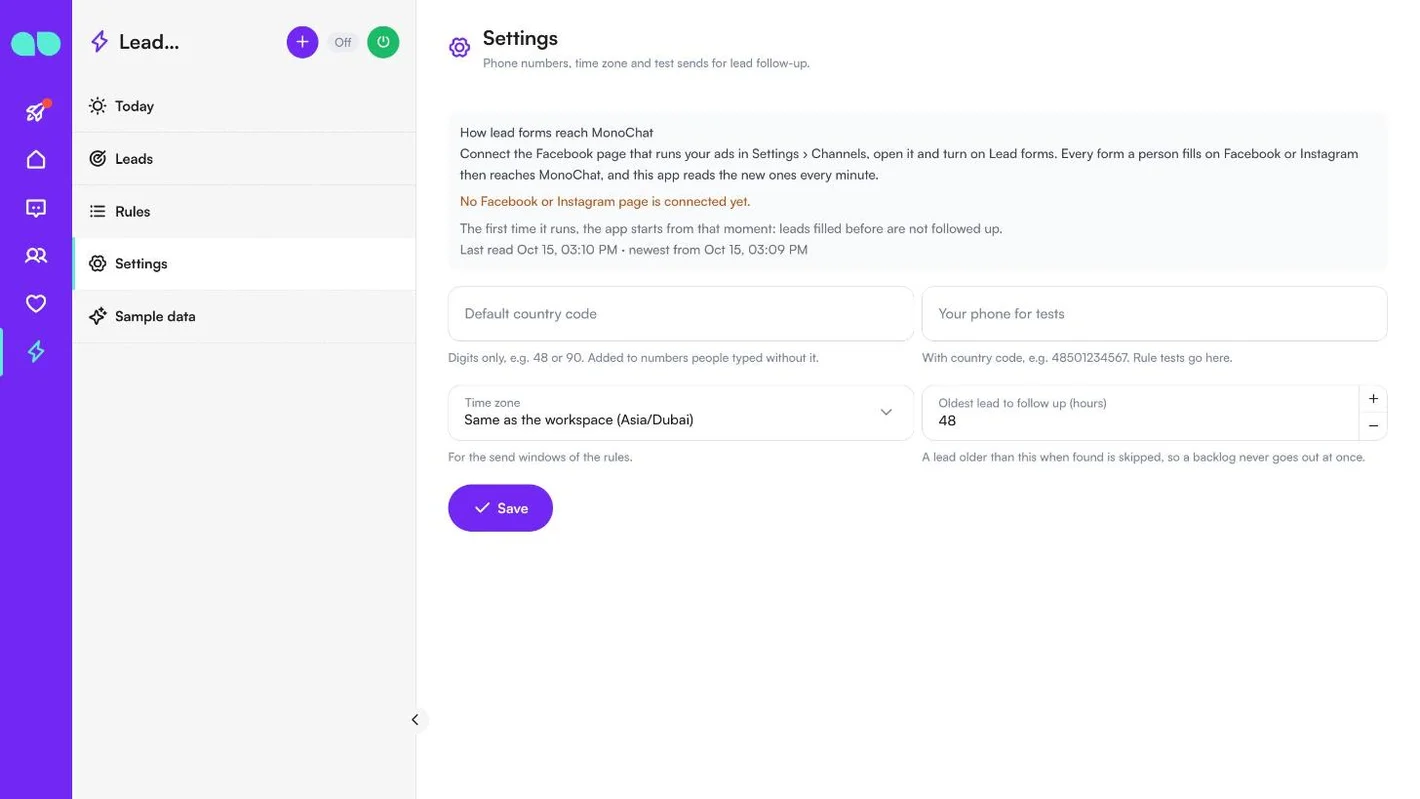
Lead follow-up › Settings starts with How lead forms reach MonoChat: connect the Facebook page that runs your ads in Settings › Channels, open it and turn on Lead forms. It warns you when no page is connected or lead forms are off, and shows when leads were last read and how many were found.
| Field | What it does |
|---|---|
| Default country code | Digits only, e.g. 48 or 90. Added to numbers people typed without it. |
| Your phone for tests | With country code, e.g. 48501234567. Rule tests go here. |
| Time zone | For the send windows of the rules. Same as the workspace by default. |
| Oldest lead to follow up (hours) | A lead older than this when found is skipped, so a backlog never goes out at once. |
Sample data
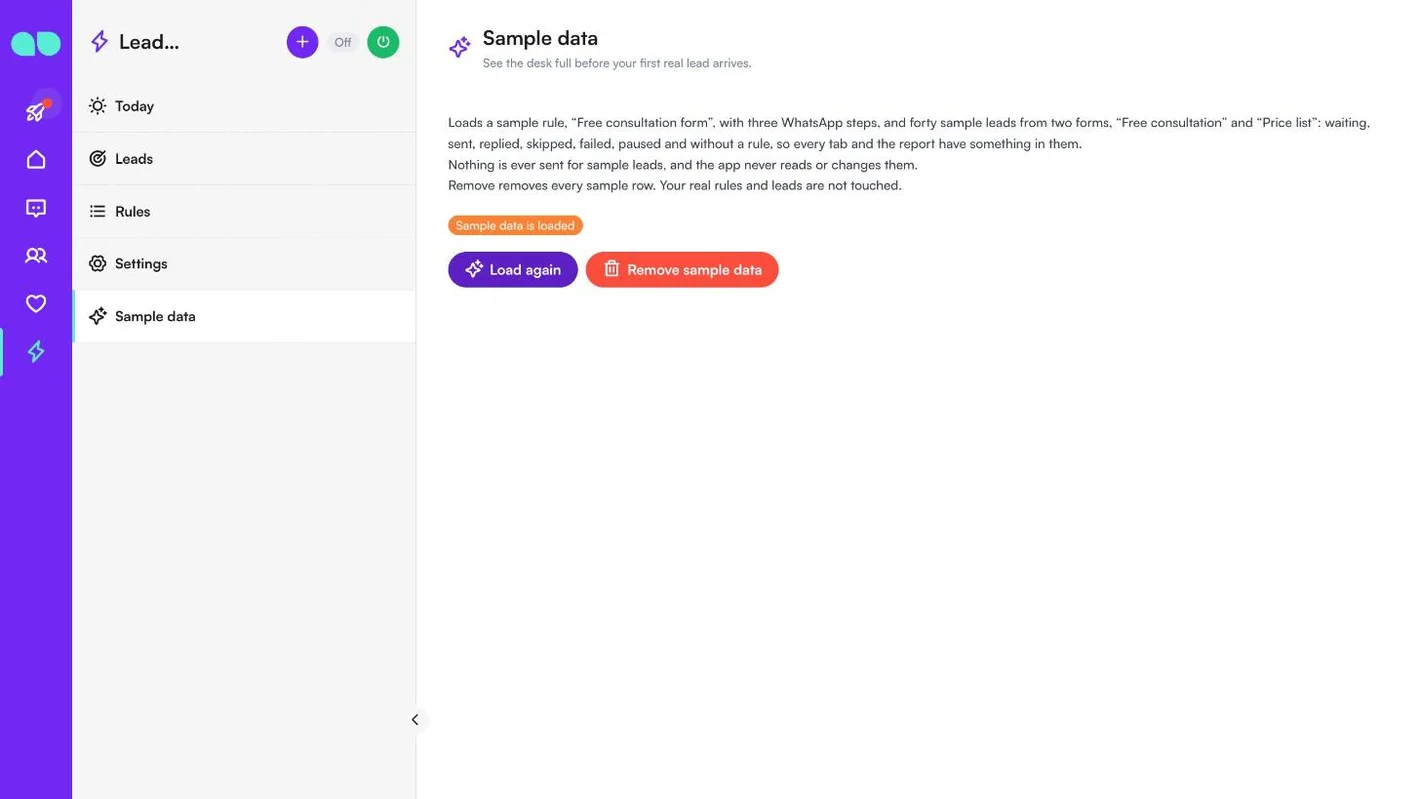
Lead follow-up › Sample data fills the desk before your first real lead arrives: a sample rule, “Free consultation form”, with three WhatsApp steps, and forty sample leads from two forms: waiting, sent, replied, skipped, failed, paused and without a rule, so every tab and the report have something in them. Nothing is ever sent for sample leads. Remove sample data removes every sample row; your real rules and leads are not touched.
Turn lead follow-up on
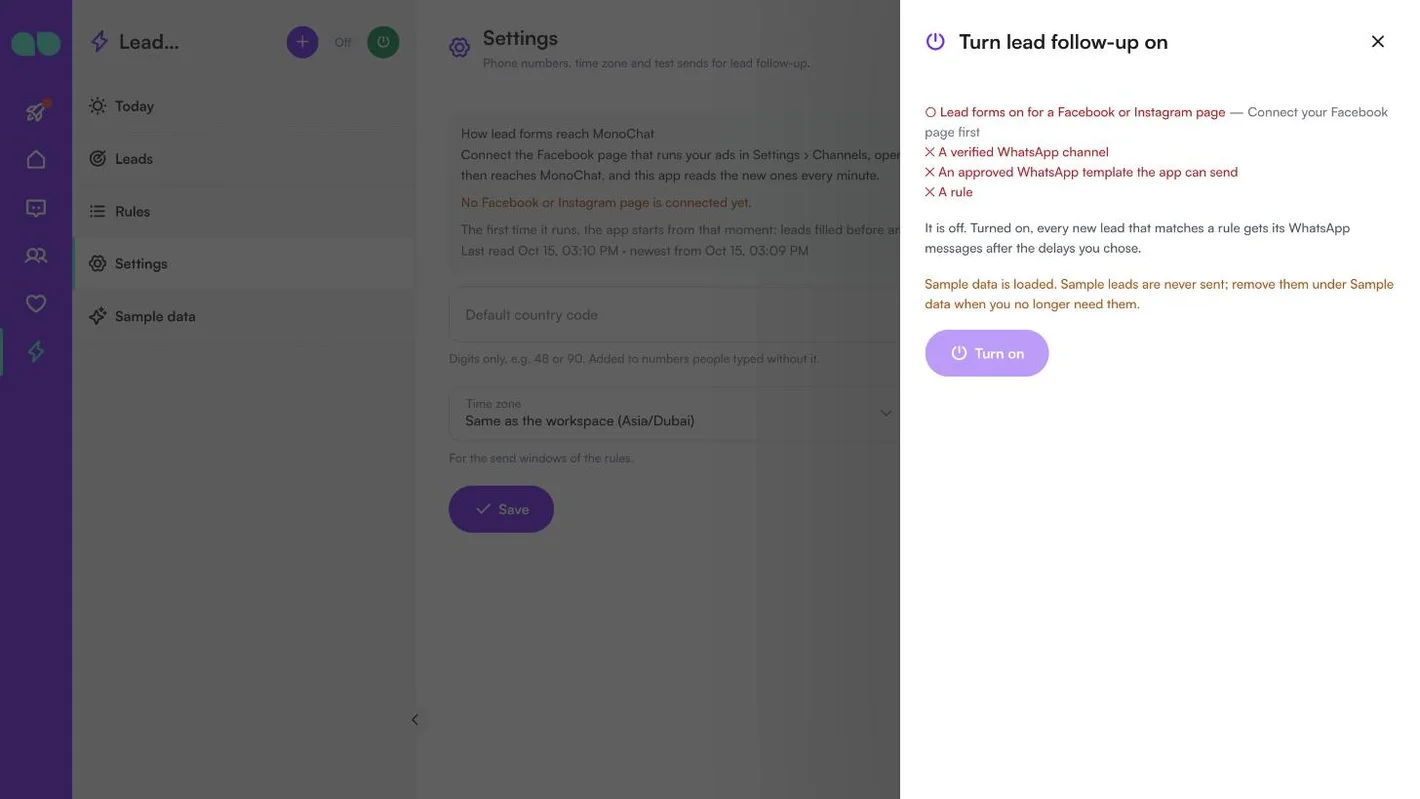
The green power button in the desk header opens Turn lead follow-up on. It lists what is still missing, says what happens when it is on, and reminds you when sample data is loaded. If leads came in while the app was off, it asks what to do with them: From now on (they are skipped) or Also the waiting ones (they get step 1 now, or at its time if that is still ahead, within the rule’s conditions). Turning it off stops all messages; new leads are still kept, as paused, so nothing is lost.
Lead follow-up report
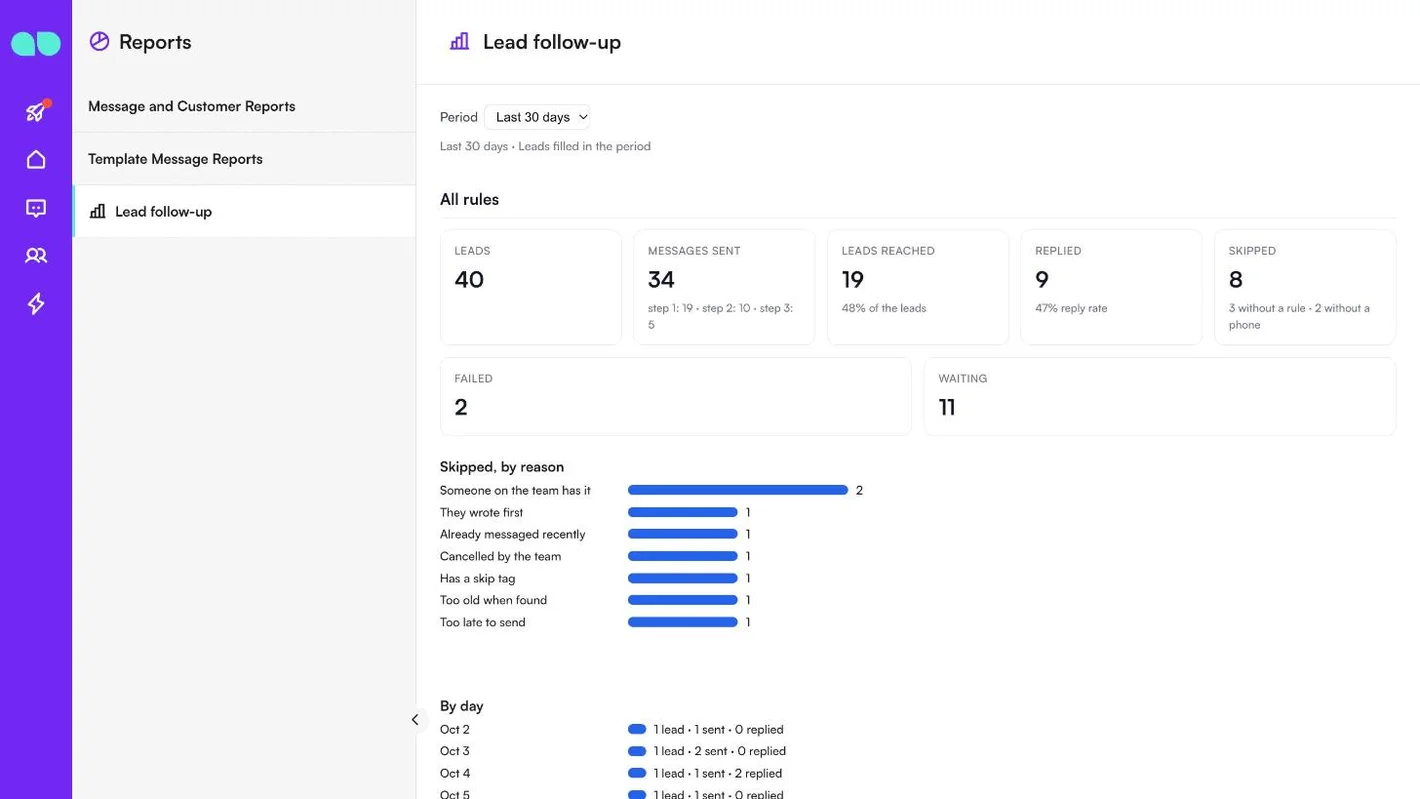
Reports › Lead follow-up shows how your follow-ups are doing. Choose the Period (the last 7, 30 or 90 days of filled leads).
- All rules: leads, messages sent (per step), leads reached, replied with the reply rate, skipped (and how many had no rule or no phone), failed and waiting.
- Skipped, by reason and By day (leads, sent and replied).
- Per rule and Per form: leads, each step, replies and reply rate.
Features
Rules per form
A different follow-up for each page, form or ad. Header images, videos, documents and link buttons in templates are supported.
When it does not send
Each is a switch on every rule: someone on your team is already handling the conversation, the person has already written to you, the same number got a message in the last days, the person has (or does not have) certain tags, or it is outside your send hours.
After the message
Fill the customer’s profile and a note from the form’s answers and add tags. When the person replies, assign the conversation to a team or a person, or start one of your flows, for example your AI assistant.
The desk
Leads waiting, what was sent and when, who replied, and why a message did not go. Send a step now, stop a lead, or retry a failed message.
Send a test
A test button sends any step to your own number before you switch a rule on.
Reports
Leads, messages and replies per rule and per form.
Screenshots
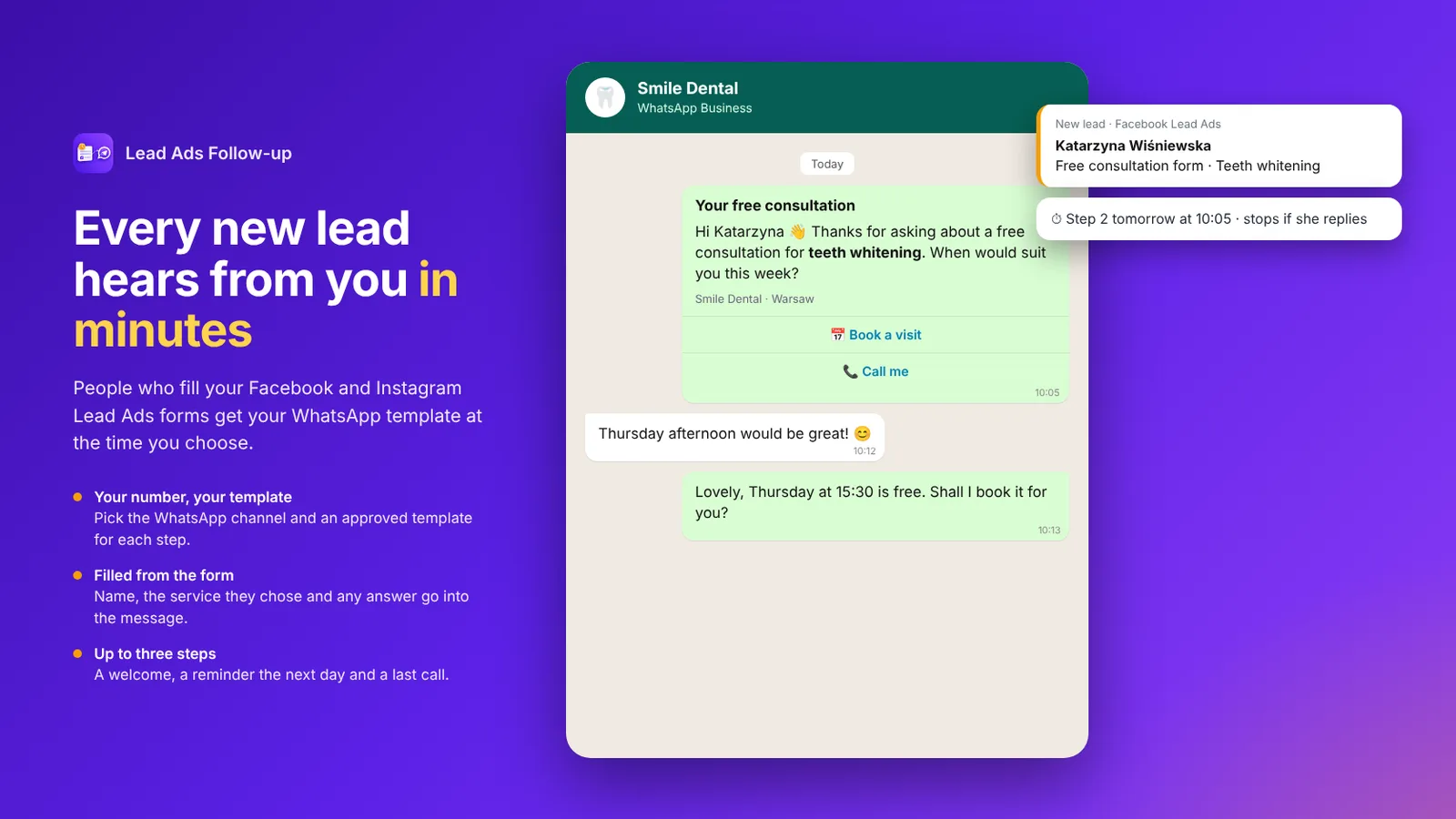 A WhatsApp follow-up sent minutes after a Facebook Lead Ads form, with the next step scheduled
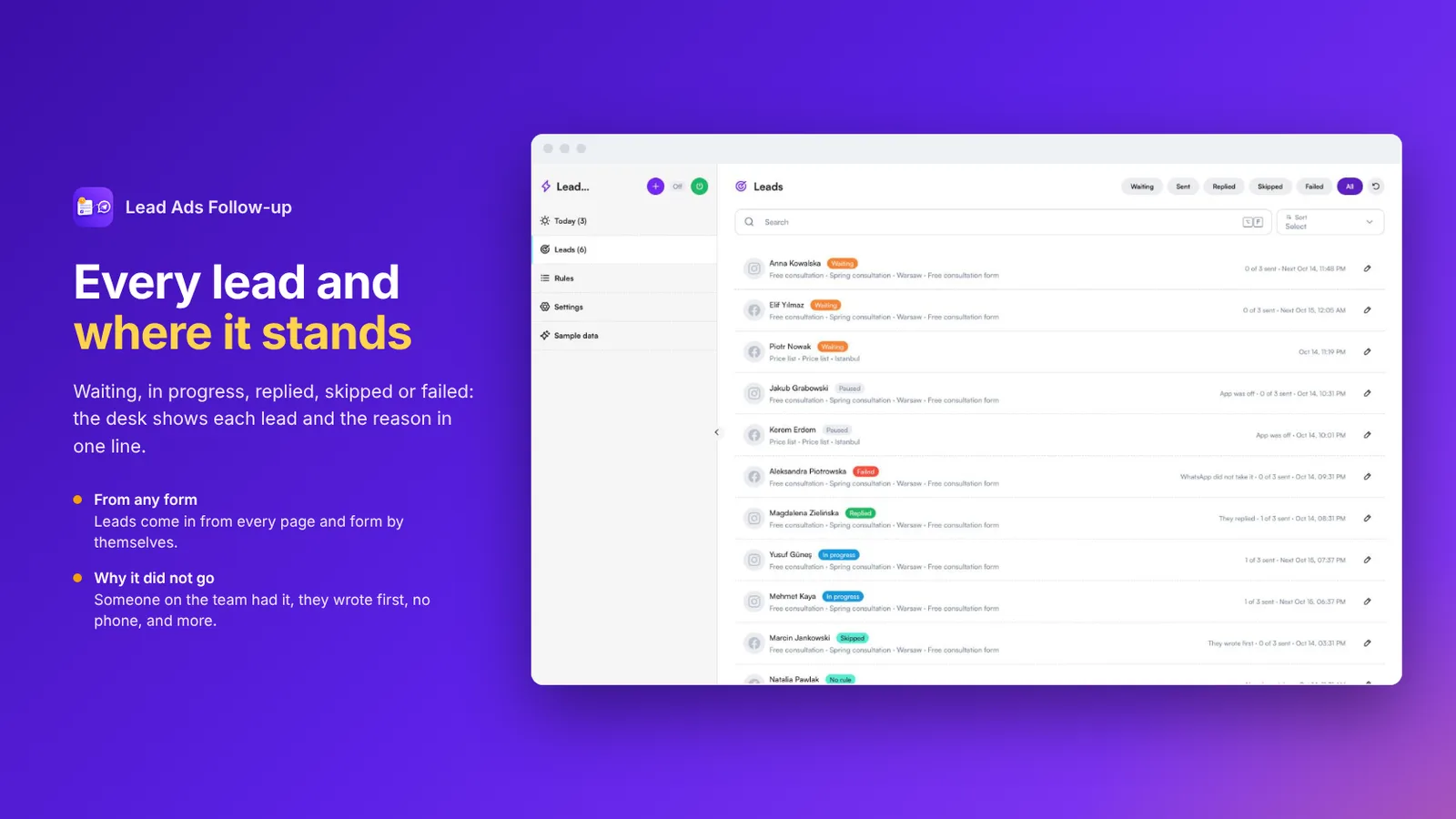 Leads list with waiting, in progress, replied, skipped and failed leads
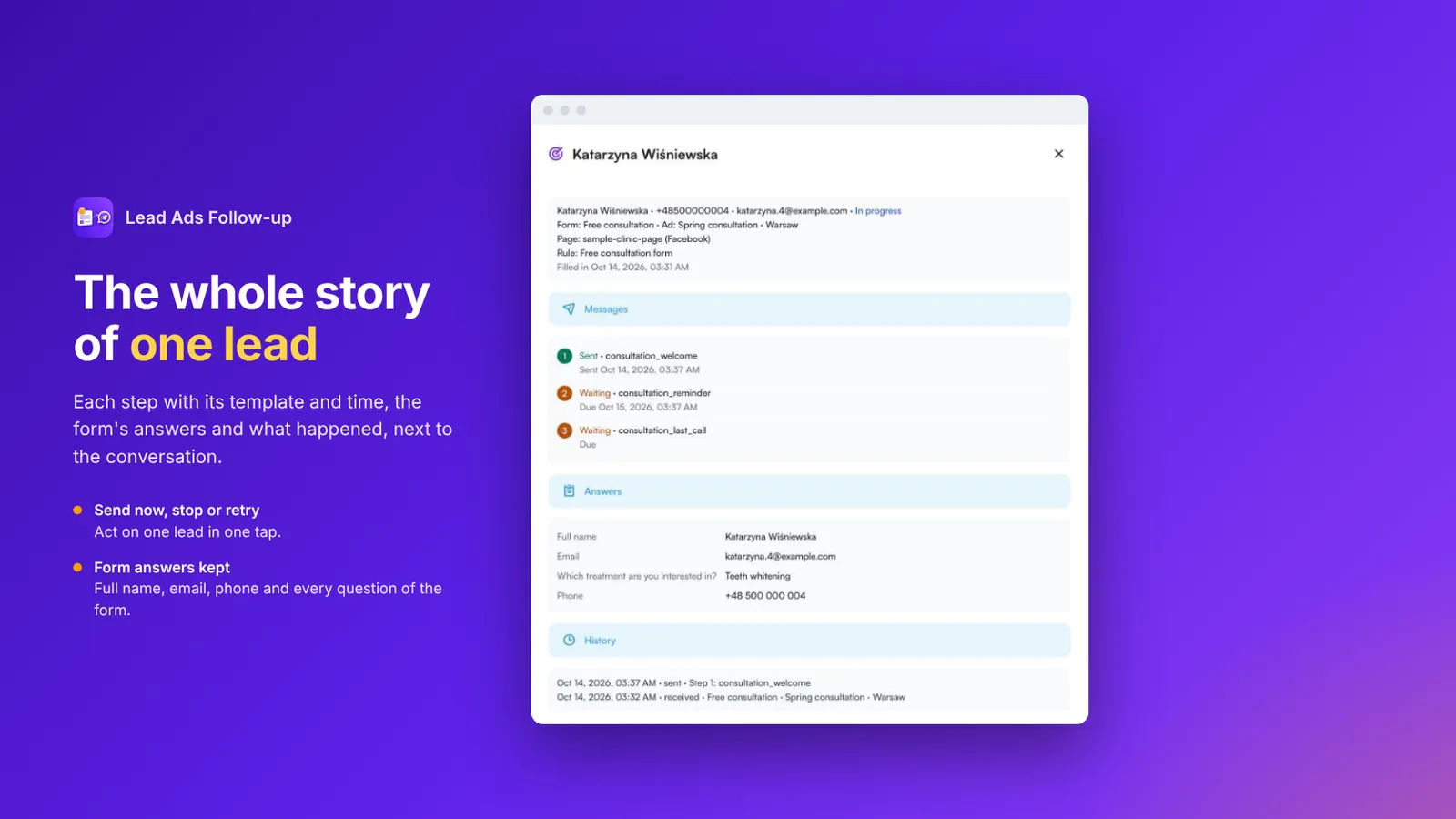 One lead with its steps, the form’s answers and history
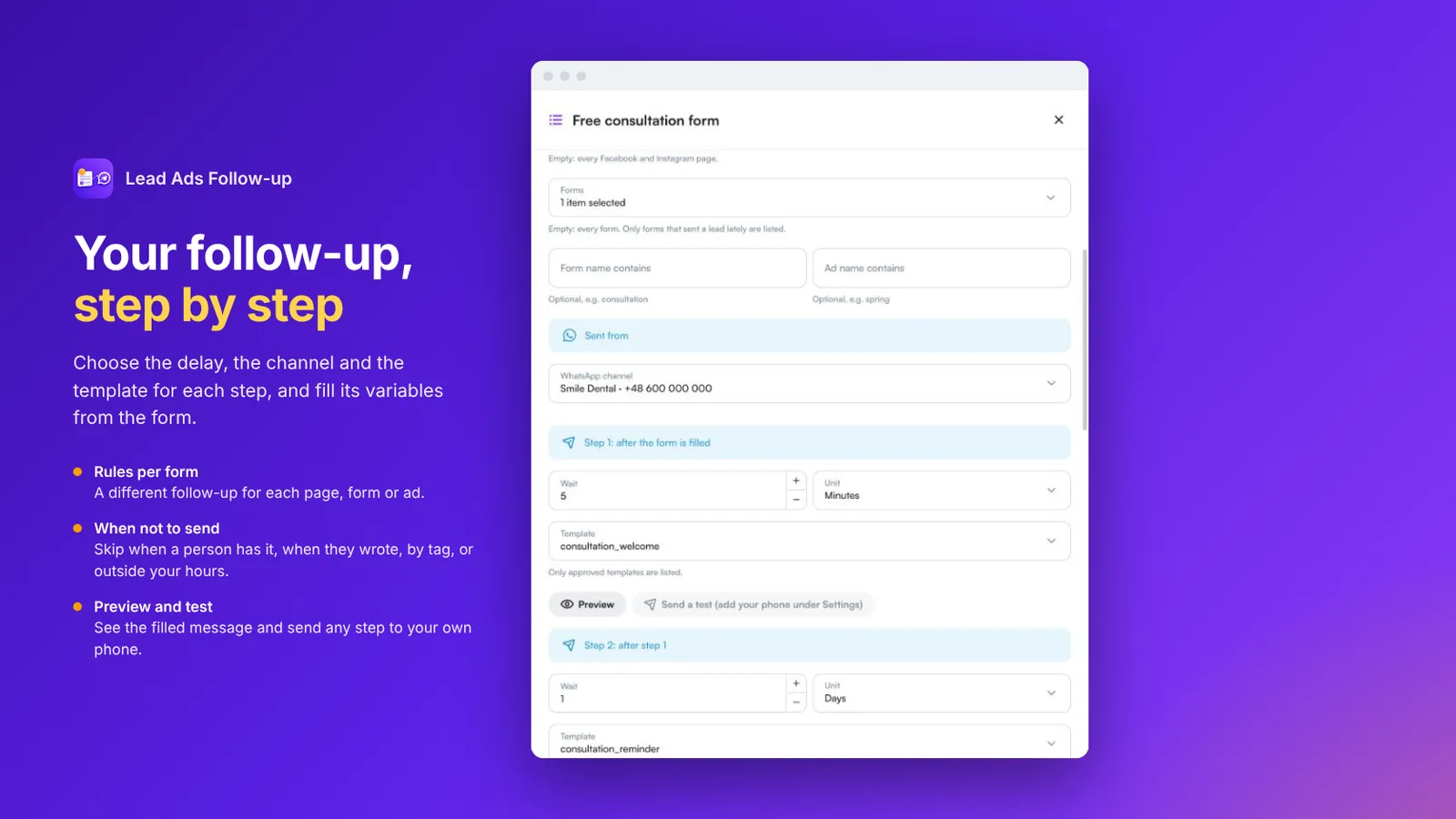 A follow-up rule with the WhatsApp channel, delay and template for each step
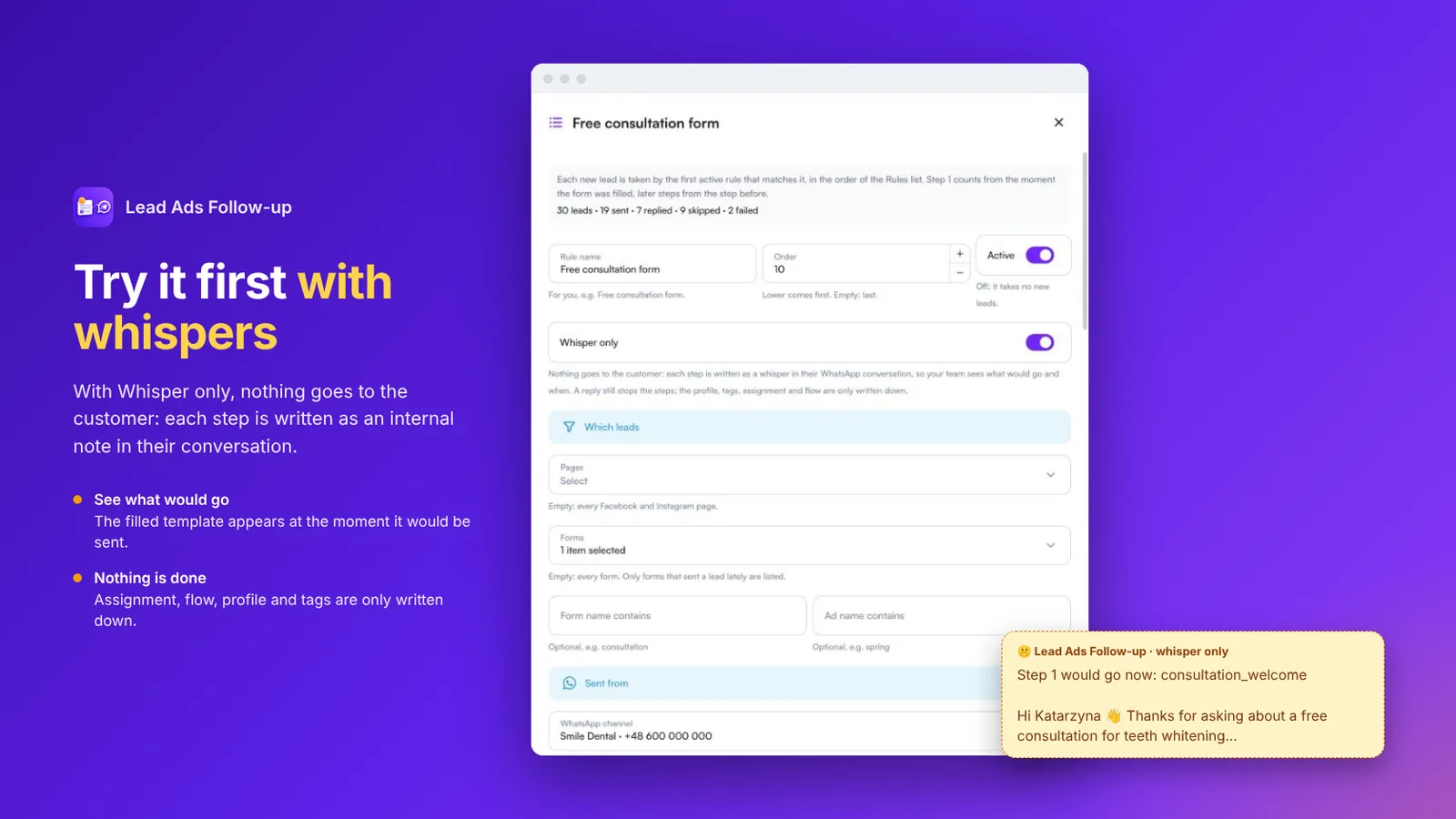 A rule in Whisper only mode and the internal note it writes in the conversation
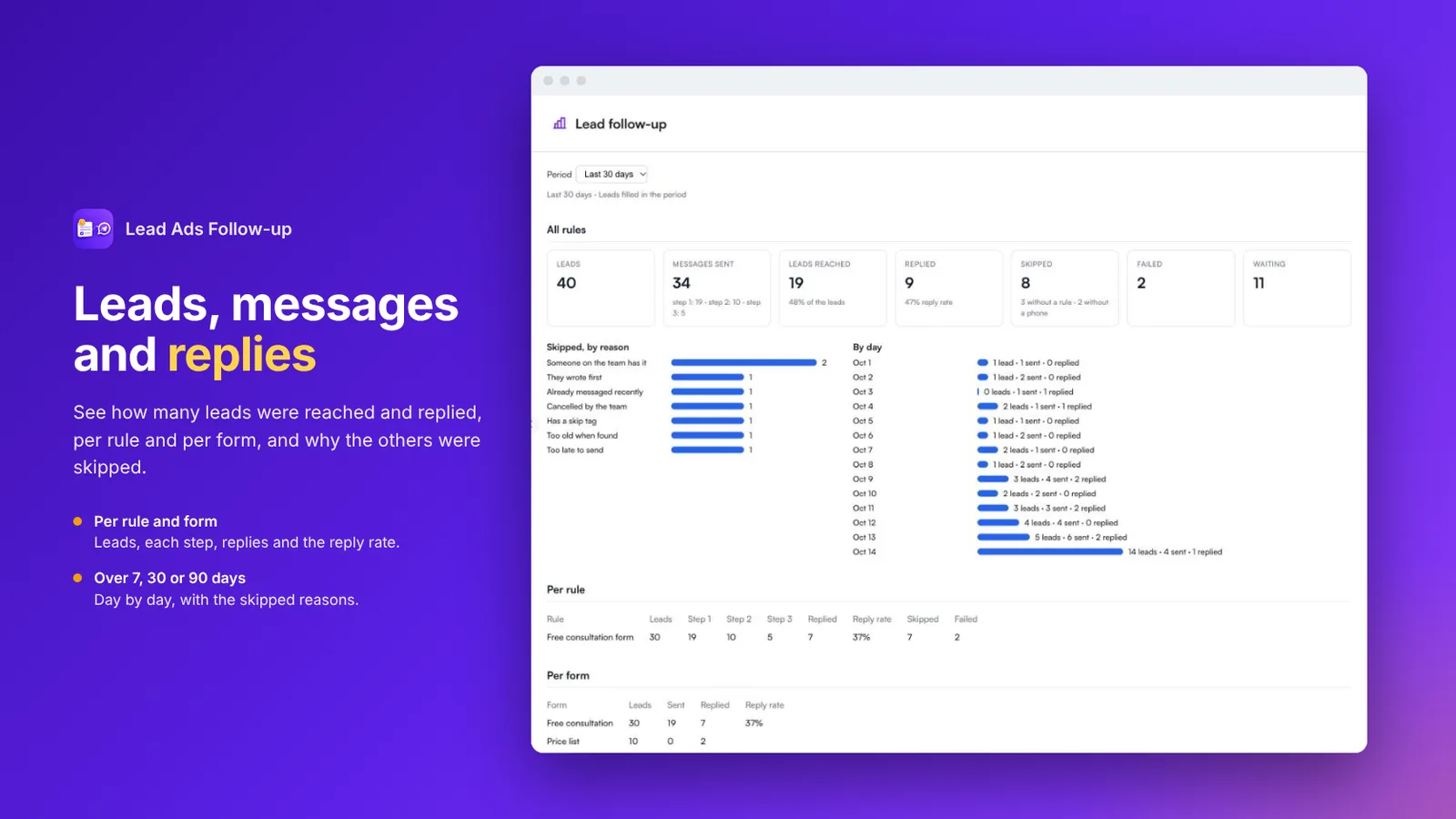 Report of leads, messages, replies and skipped reasons per rule and per form
FAQ
What does it need to work?
Lead forms switched on for your Facebook page in MonoChat (Channels › your page › Lead forms) and approved WhatsApp templates on your number. The app checks both for you.
Does it work with Instagram lead forms?
Yes. It follows up people who fill your Facebook and Instagram Lead Ads forms.
How many messages can it send to one lead?
Up to three steps per rule, for example a welcome a few minutes after the form, a reminder the next day and a last message after three days. The remaining steps stop when the person replies.
When does it not send?
Each of these is a switch on every rule: someone on your team is already handling the conversation, the person has already written to you, the same number got a message in the last days, tags, and your send hours.
Can I try it without messaging real leads?
Yes. With Whisper only, each step is written as an internal note in the customer’s WhatsApp conversation instead of being sent. A test button also sends any step to your own number.
Are older leads messaged?
No. Leads that came in before the app was switched on are not messaged.