Hotel & Travel Assistant

An AI front desk for hotels, resorts and travel agencies that quotes your real room rates and sends rooms as WhatsApp cards, books stays, tours, restaurant tables and airport transfers, sends deposit payment links, and takes guests’ requests during their stay.
Overview
Hotel & Travel Assistant is the front desk of a hotel, boutique hotel, resort or travel agency on WhatsApp, Instagram and web chat. It works around the clock and answers in the guest’s own language, including voice messages.
It books four things, and you switch each on or off: rooms, tours and day trips, restaurant tables, and airport and city transfers.
During the stay, guests ask for towels, a repair or room service in the chat, and the request goes to the right department. Whenever a person is needed, it hands over to your team.
Highlights
- Real prices, never invented. The quote is worked out from each room type’s base rate, your seasons (higher or lower rates, minimum nights, stop-sell), extra adults, children, the meal plan and city tax.
- The last room is never promised twice. Rooms held by requests and confirmed stays are counted night by night. A booking can be a request your reception confirms, or confirmed at once while rooms are free.
- Guest requests reach the right team. Requests are filed with housekeeping, maintenance, room service, spa, reception or concierge. Guests can send a photo of what is broken, and they hear when the team starts and when it is done.
Install and set up
- Install Hotel & Travel Assistant from Settings › MonoStore › Apps, or open the install link app.monochat.ai/apps/mr7QNnHY8X4gDd3ZL. Without a MonoChat account, the link lets you sign up first and installs the app for you.
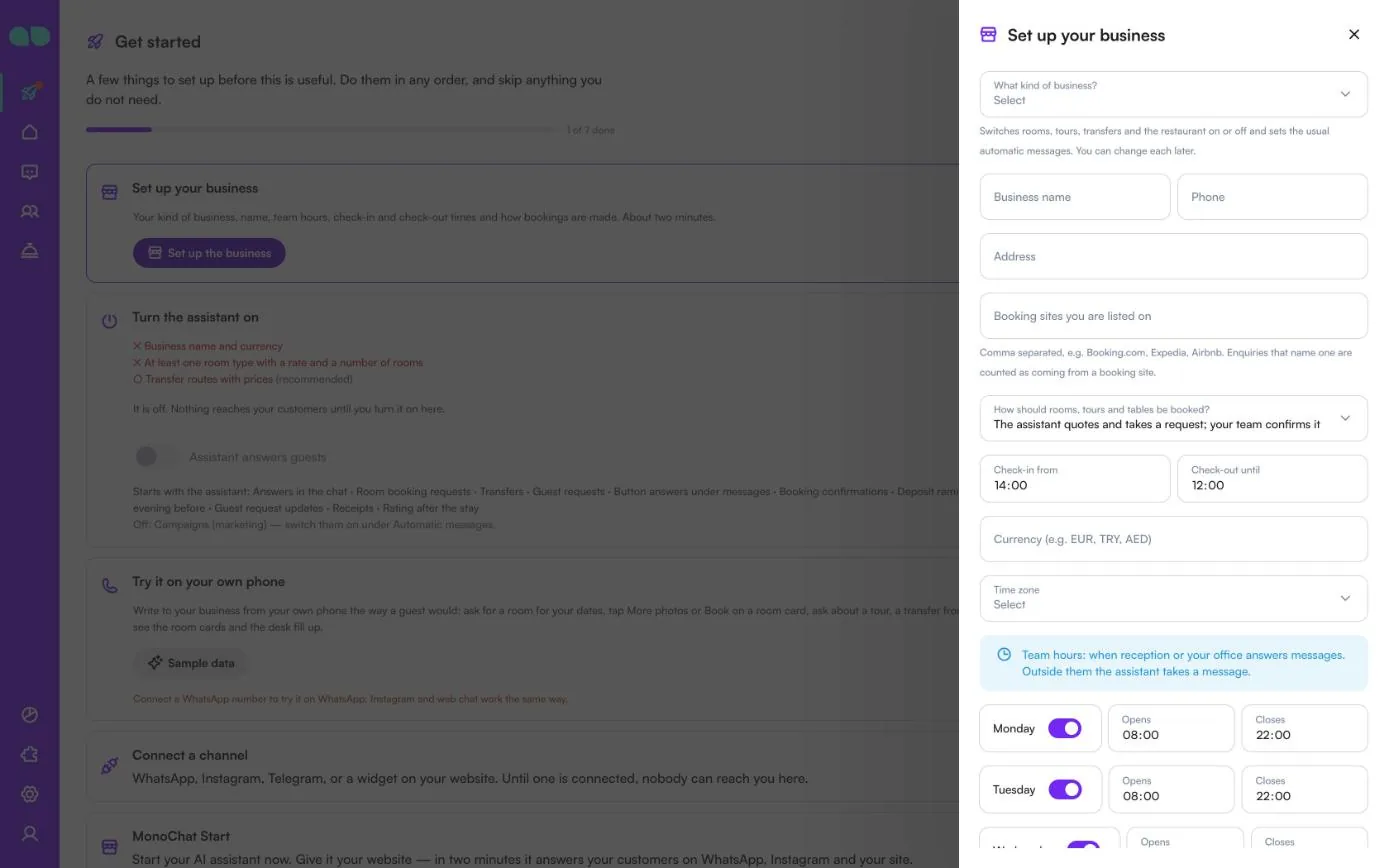
- Open the Get started tab on your MonoChat home page and choose Set up your business, then Set up the business. The form asks for What kind of business? (hotel, boutique hotel, B&B or guest house, resort, or travel agency or tour operator; this switches rooms, tours, transfers and the restaurant on or off and sets the usual automatic messages), the Business name, phone, address, Booking sites you are listed on, How should rooms, tours and tables be booked? (the assistant quotes and takes a request your team confirms, or confirms at once while there is room), check-in and check-out times, currency, time zone and your team hours for each day. Tick Also load sample data so I can see it full if you want every screen filled with example records. Click Save and continue.
- Open Hotel › Rooms and rates and add your room types with their base rate, how many rooms you have and photos, then your seasons. Add Extras guests can buy, and your tours, transfer routes and restaurant settings if you use them. Check the Stays and payments, Departments, Automatic messages, How it talks and Handover tabs too.
- Open Hotel desk in the left menu and click the green power button (Turn on) in the header. The Turn the assistant on drawer lists what is still missing and what will start; switch Assistant answers guests on and confirm. The badge next to the title changes from Off to On. Only someone who can manage automations in the workspace sees the power button and can turn the assistant on or off.
- Choose Try it on your own phone on the Get started tab and message your own number the way a guest would: ask for a room for your dates, tap More photos or Book on a room card, ask about a tour, a transfer or a table.
- Each automatic message has its own switch, and WhatsApp templates are written and submitted on your number for you. Nothing goes out in quiet hours or to anyone who said stop.
- Campaigns go out a little at a time as approved WhatsApp marketing messages, are off by default and leave out people reached in the last 14 days.
Screen by screen
Hotel & Travel Assistant lives under Hotel desk in the left menu (the bell icon); its list of screens is headed Hotel. The screenshots below show the app with its sample data loaded (Aurora Bay Hotel).
The header of the list has two shortcut buttons: + opens a new reservation and the bell opens a new guest request. Next to them are the On / Off badge and the power button. Which tabs you see depends on what you switched on: Reservations, Occupancy, Rooms and rates and Extras appear when rooms are on, Tour bookings and Tours when tours are on, Tables when the restaurant is on and Transfers when transfers are on.
Get started card
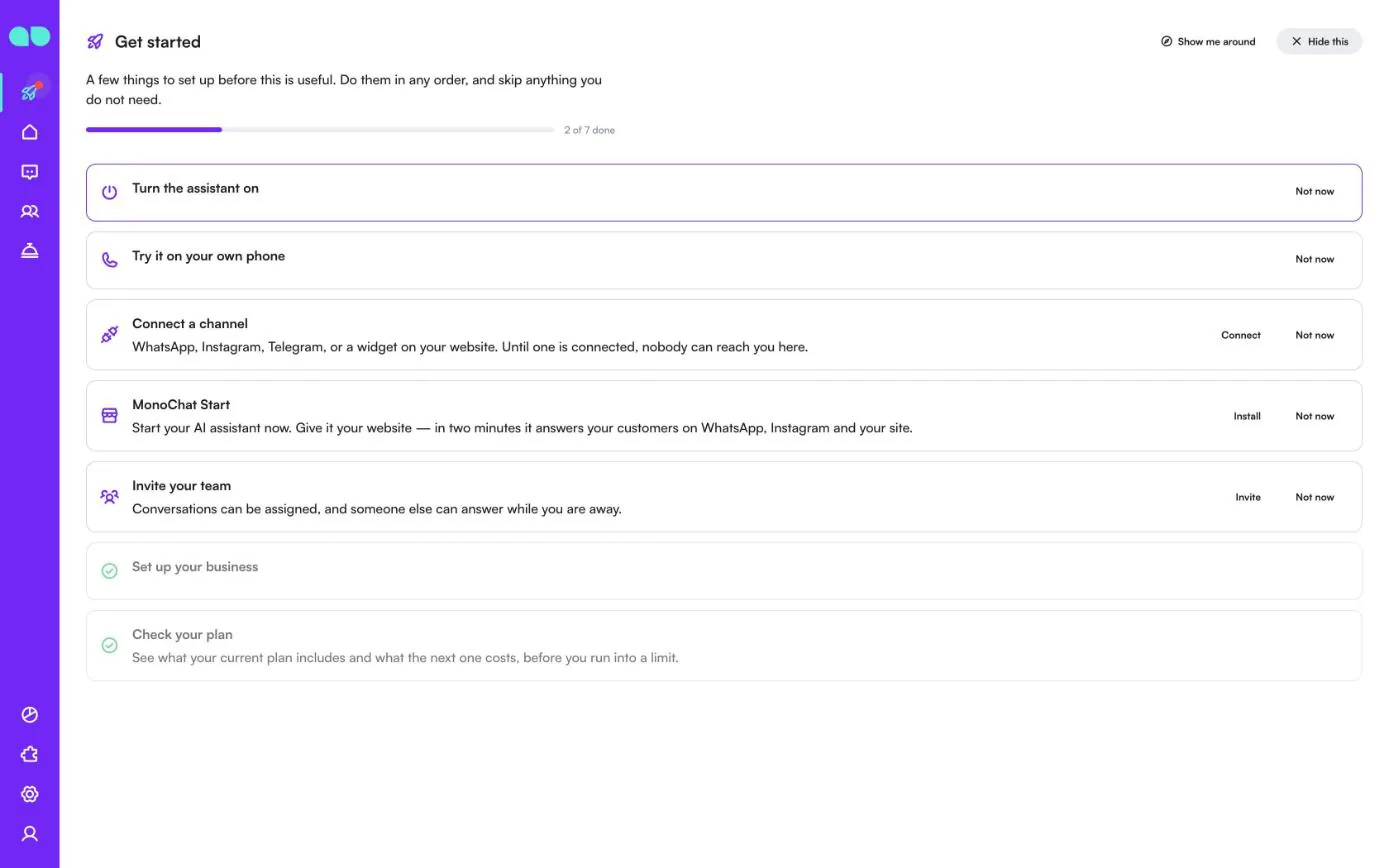
After installing, the Get started tab on your MonoChat home page gets the app’s steps: Set up your business, Turn the assistant on and Try it on your own phone, next to the general steps such as Connect a channel and Invite your team. Each step is ticked when it is done, and Not now hides a step you want to skip. The Turn the assistant on step shows what is still missing (for example Business name and currency or At least one room type with a rate and a number of rooms) and which automatic messages start with the assistant.
Set up your business
Set up the business opens this form. It is everything the assistant needs before it can answer anyone, and each part can be changed later on its own tab.
| Field | What it does |
|---|---|
| What kind of business? | Hotel, boutique hotel, B&B or guest house, resort, or travel agency or tour operator. Switches rooms, tours, transfers and the restaurant on or off and sets the usual automatic messages. A travel agency starts with rooms off and tours on. |
| Business name, Phone, Address | What the assistant tells guests about you. The business name is required. |
| Booking sites you are listed on | Comma separated, for example Booking.com, Expedia, Airbnb. Enquiries that name one are counted as coming from a booking site. |
| How should rooms, tours and tables be booked? | The assistant quotes and takes a request; your team confirms it, or The assistant confirms at once while there is room. |
| Check-in from, Check-out until | The times guests are told. |
| Currency (e.g. EUR, TRY, AED) | A three-letter code, used for every price. Required. |
| Time zone | Empty uses the workspace’s time zone. |
| Days of the week | Team hours: when reception or your office answers messages. Outside them the assistant takes a message. Switch each day on or off and set Opens and Closes. |
| Also load sample data so I can see it full | Fills every screen with example rooms, guests and bookings. |
Click Save and continue. The next step is shown in a message: add your room types and rates, or, for a travel agency, your tours.
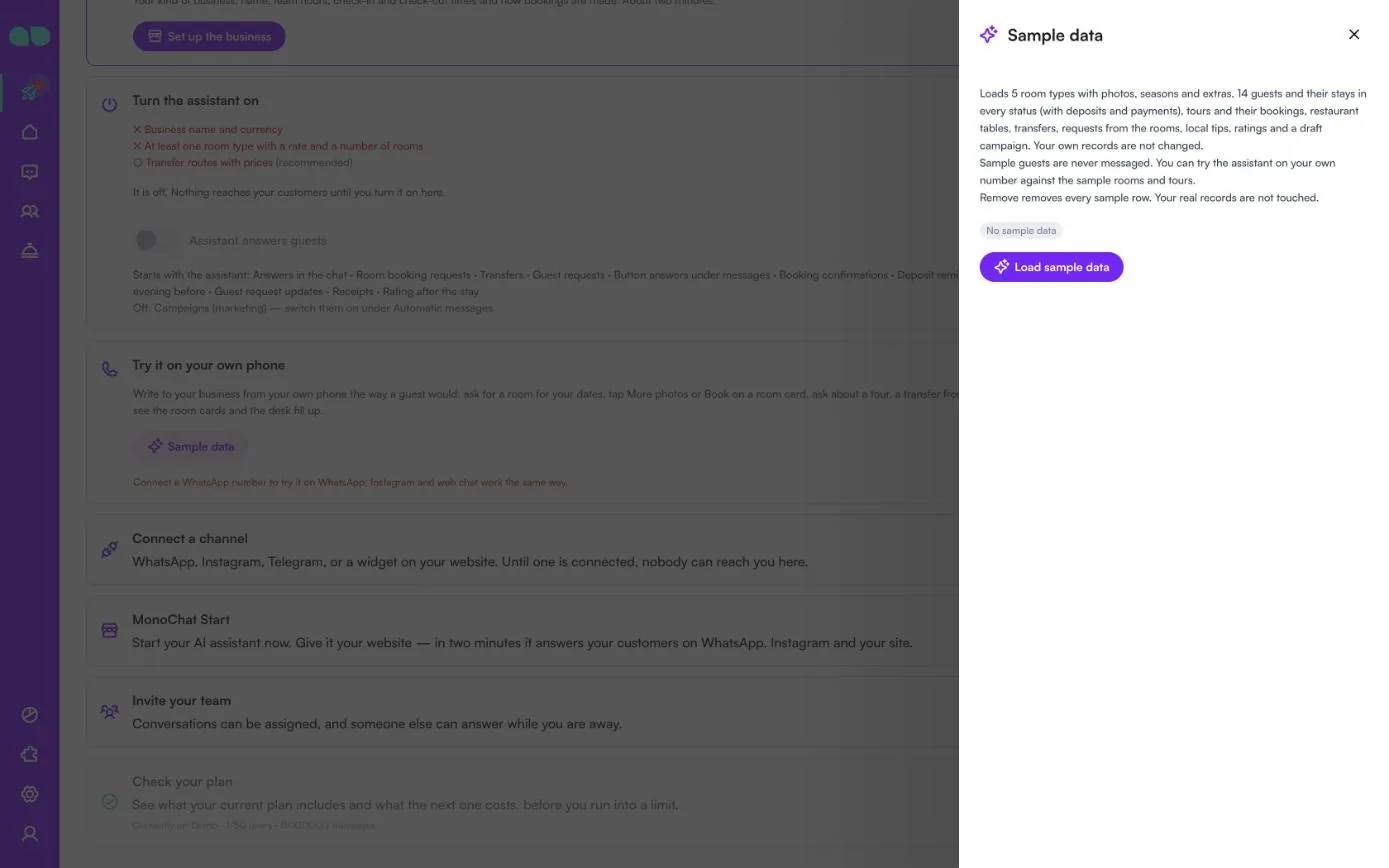
The Sample data button on the Try it on your own phone step opens the same sample data panel as the Sample data tab: it lists what is loaded and has Load sample data.
Today
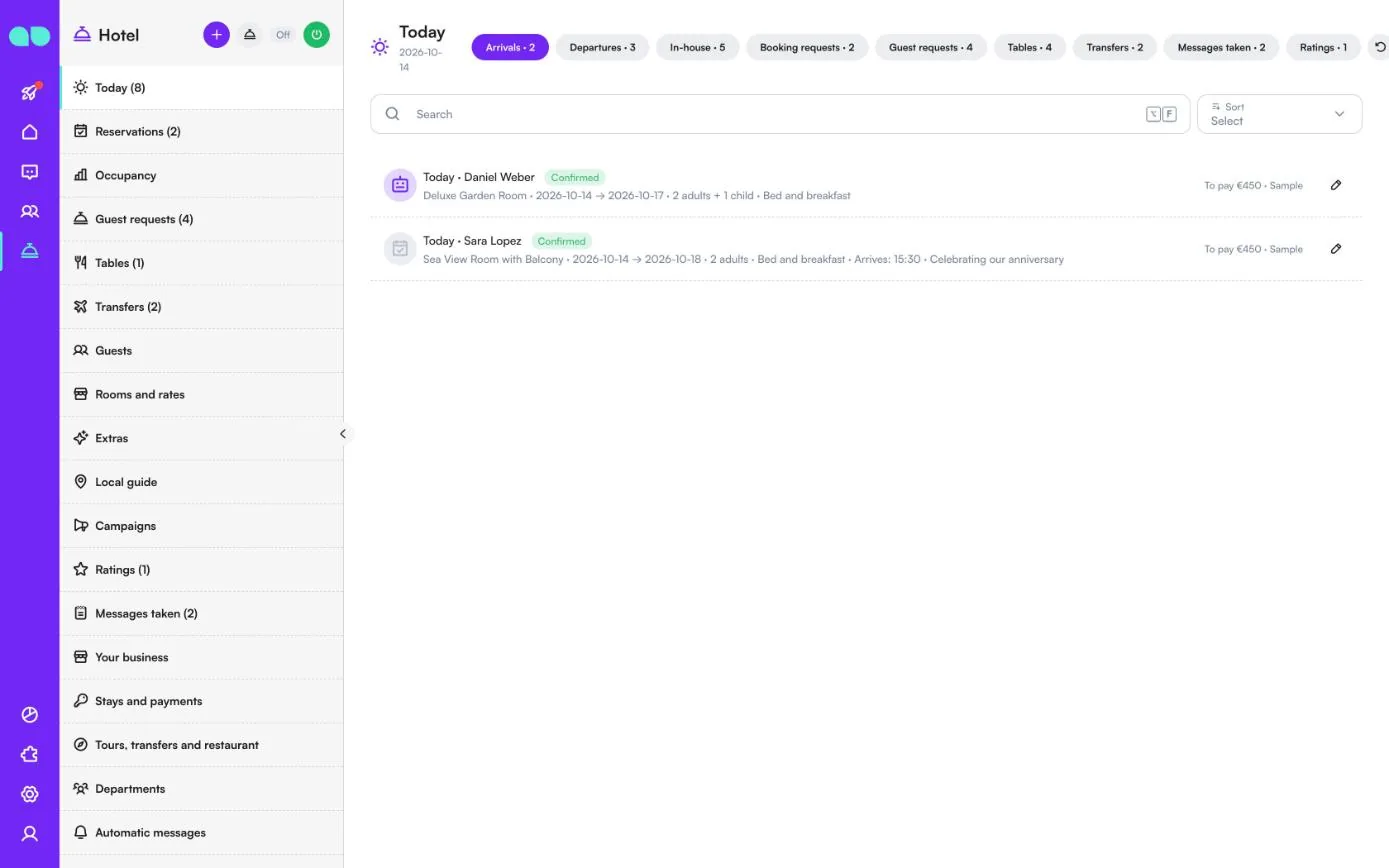
Everything that needs attention today, on one screen. The date is under the title, and the tabs across the top show how many items each has: Arrivals, Departures, In-house, Booking requests, Guest requests, Tables, Transfers, Messages taken and Ratings (plus Tours when tours are on). The count next to Today in the menu adds up arrivals, departures and open guest requests.
Each row shows the guest, the status, the room type, the dates, the number of guests, the meal plan, the arrival time and any special request, with the amount still To pay on the right. A robot icon means the assistant booked it; a warning icon means a request is late. Use the pencil to open the record, or the buttons on the row to confirm a request, check a guest out or open the conversation.
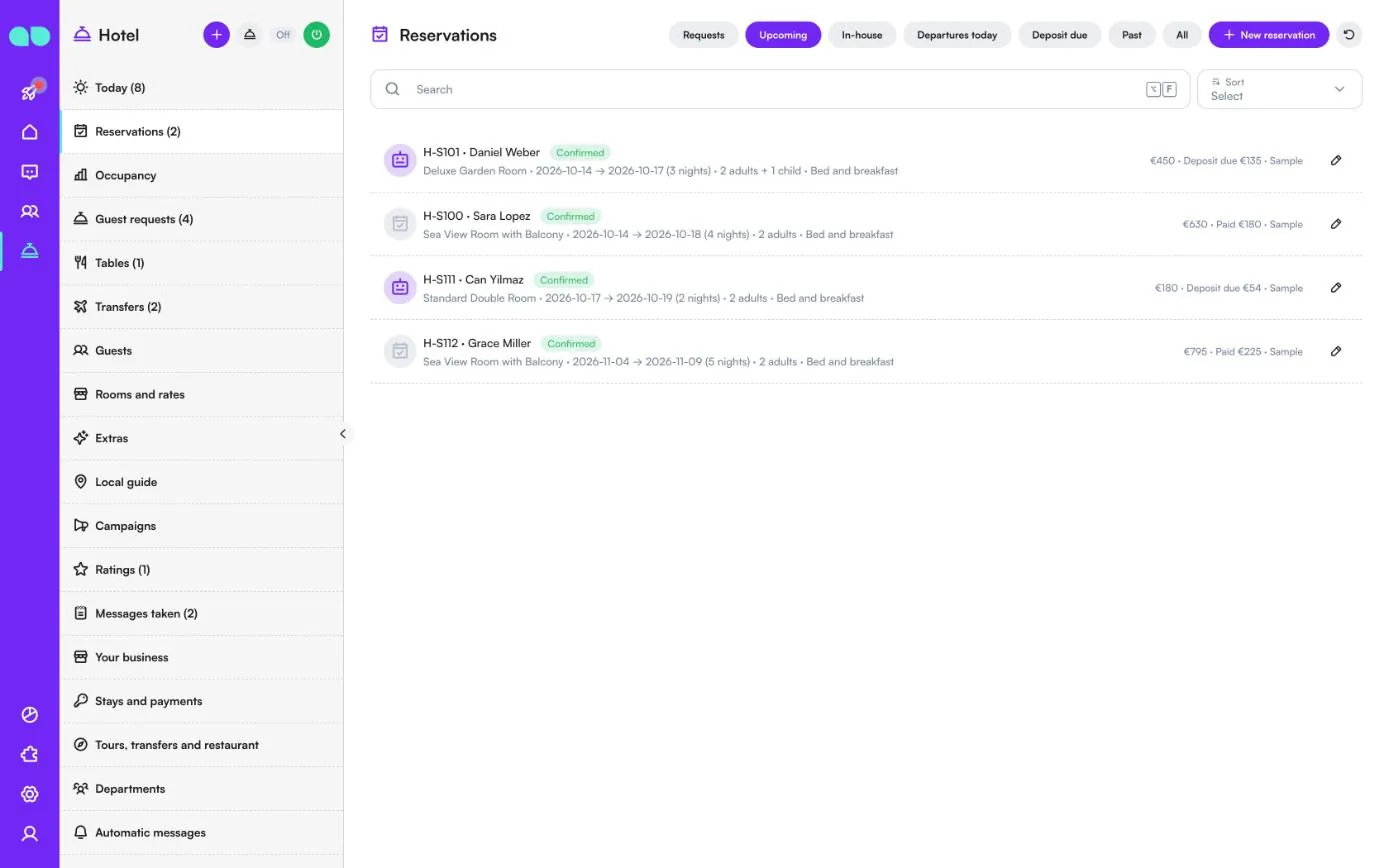
Reservations
Every stay, from the first request to check-out. Filter with Requests, Upcoming, In-house, Departures today, Deposit due, Past and All, search by name or code, and sort the list. New reservation adds a stay you took by phone or at the desk.
A row shows the booking code and guest, the status (Request, Confirmed, In-house, Departed, Cancelled, Declined, No-show or Expired), the room type, the dates and nights, the guests and the meal plan. On the right you see the total and what is paid or the deposit still due. A request has a check button to confirm it: the guest then gets the confirmation and the deposit request. Requests older than Answer requests within (hours) are marked late. The count next to Reservations in the menu is the number of requests waiting.
Occupancy
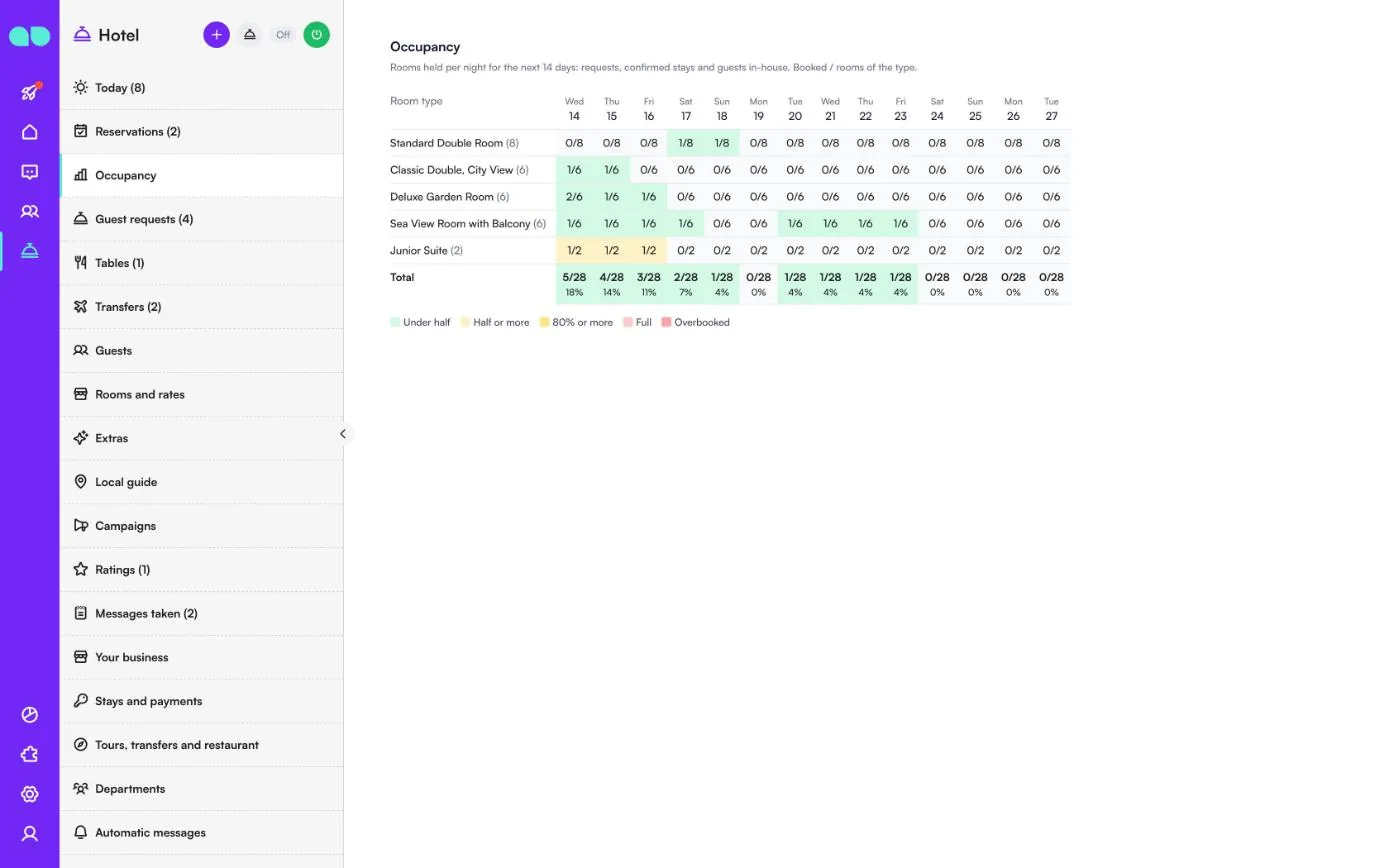
How full you are over the next 14 days. Each row is a room type with its number of rooms, and each column a night. A cell shows rooms held that night out of the rooms of that type: requests, confirmed stays and guests in-house all count. The Total row adds every room type and gives the percentage.
Colours show how full a night is: Under half, Half or more, 80% or more, Full and Overbooked. The assistant uses the same night-by-night count, so it never offers a room that is not free.
Guest requests
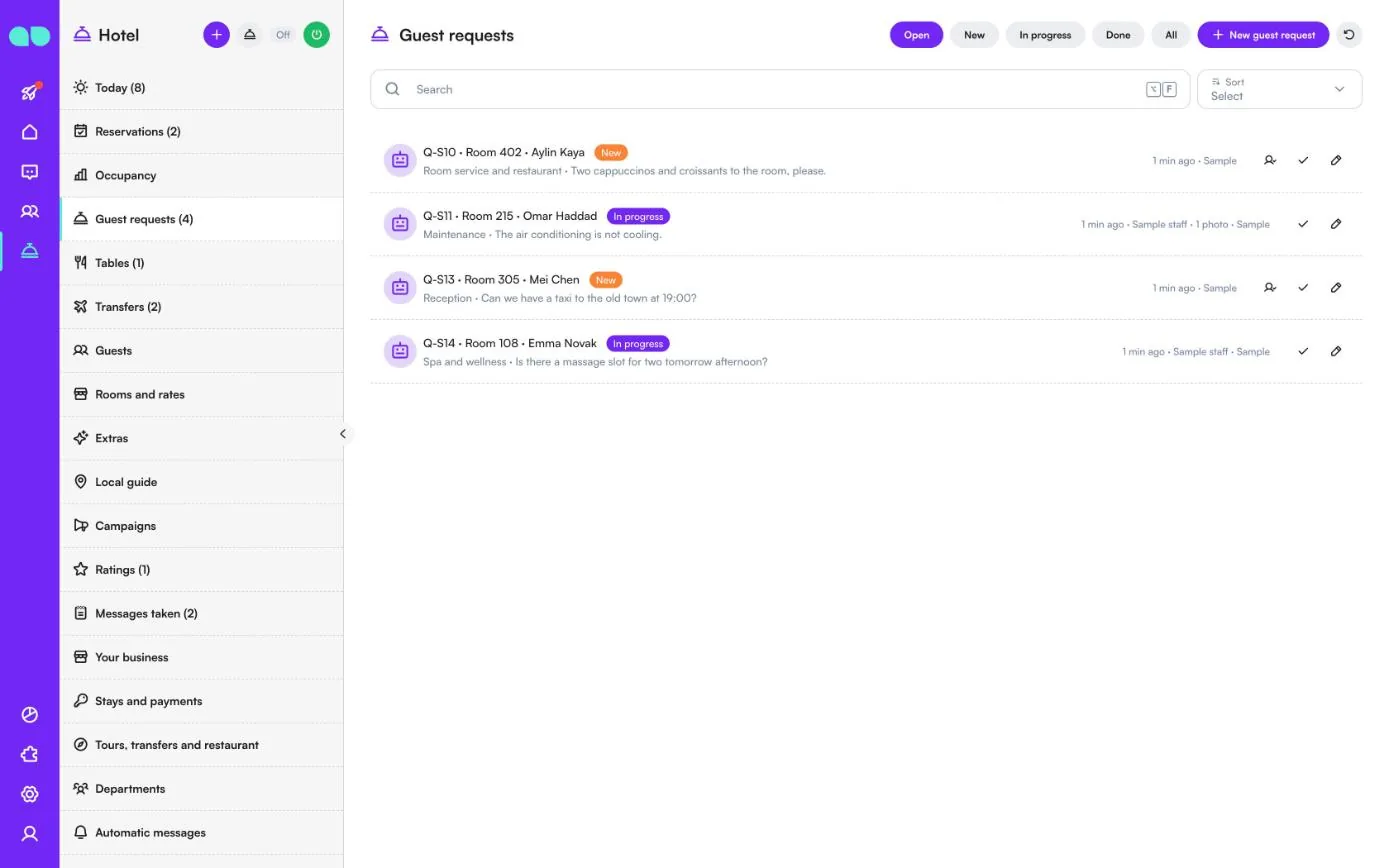
What guests in the house ask for in the chat: towels, a repair, room service, a massage, a taxi. The assistant files each request with one of your departments (see Departments). Filter with Open, New, In progress, Done and All, and add one yourself with New guest request.
A row shows the request code, the room, the guest, the status, the department and what was asked, how long ago it came in, who is handling it and any photos the guest sent. Use On it (the person icon) to take a new request, the check to mark it Done, and the pencil to open it. When Tell the guest when the team starts and when it is done is on, the guest hears about both steps.
Tables
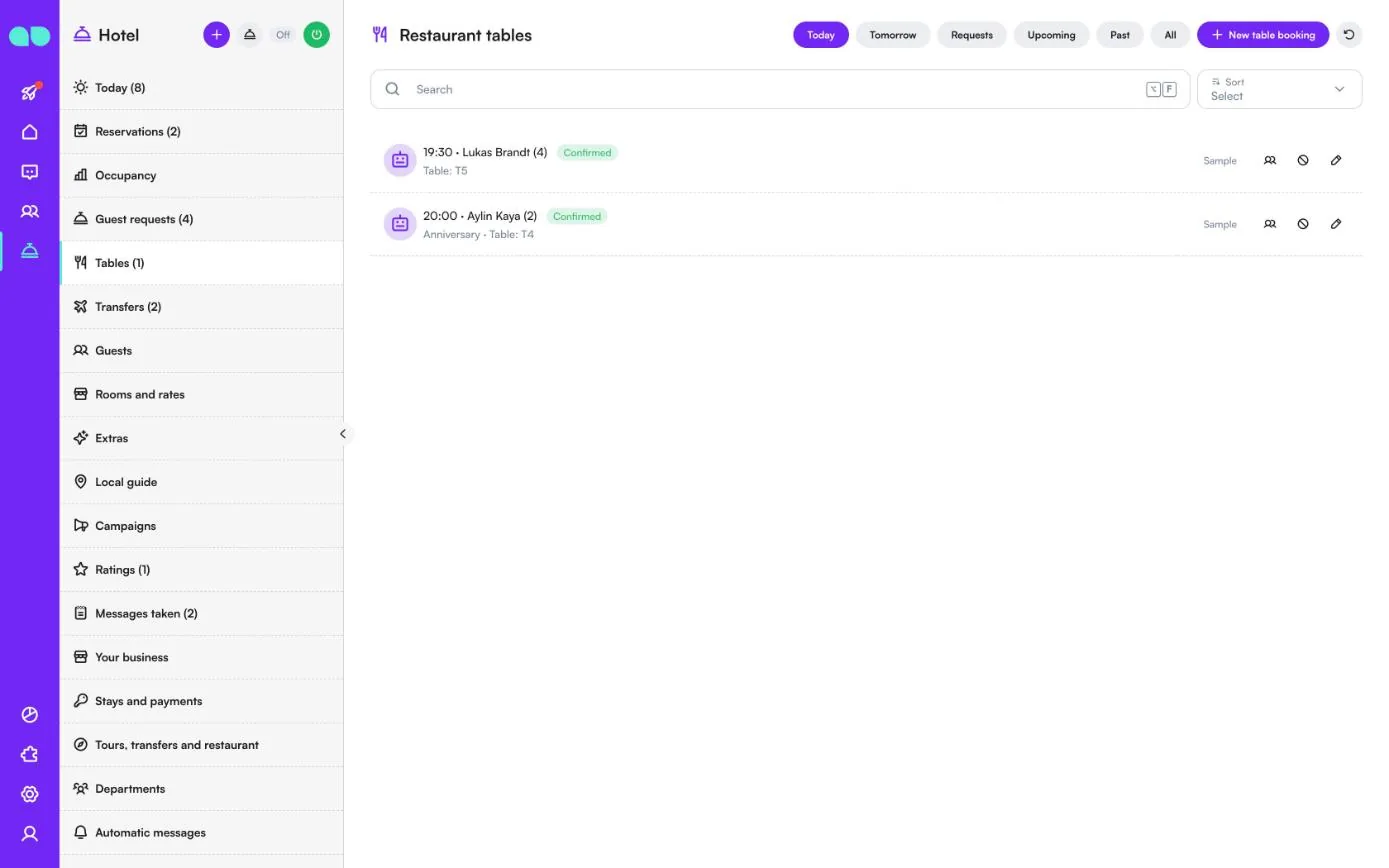
Restaurant tables booked in the chat or by your team. Filter with Today, Tomorrow, Requests, Upcoming, Past and All, and add one with New table booking.
A row shows the time, the guest and party size, the status, any occasion and the table. The buttons on the row follow the booking: confirm a request, mark the party Seated on the day, mark it Done, or mark a No-show once the time has passed. Booking times, guests per time and the largest party are set on Tours, transfers and restaurant.
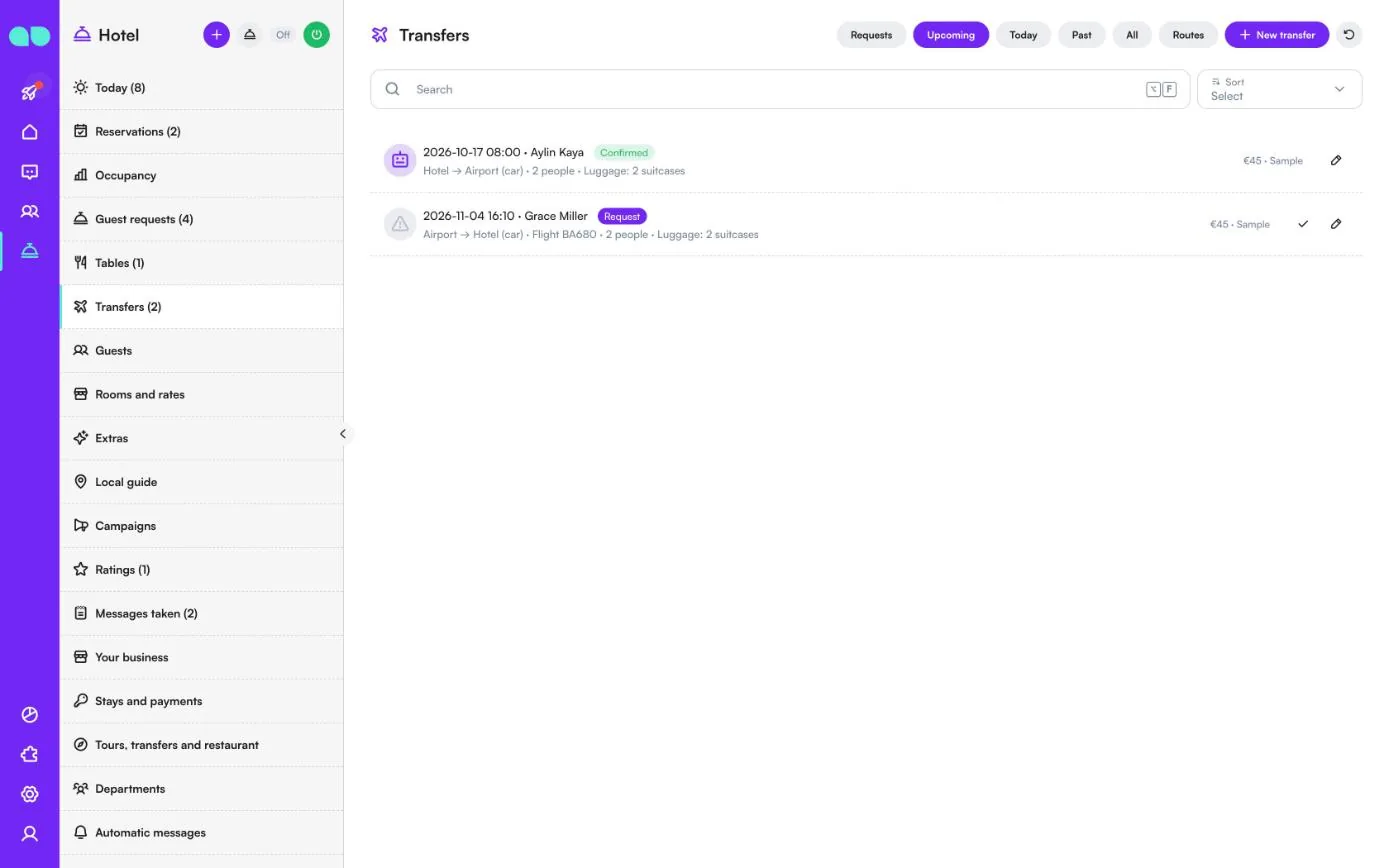
Transfers
Airport, station and city transfers. Filter with Requests, Upcoming, Today, Past and All, and add one with New transfer. The Routes tab lists the routes you drive with their price per vehicle and how many people fit; Add a route adds one, and a route can be switched off without removing it.
A row shows the date and time, the guest, the status, the route and vehicle, the flight number, how many people and their luggage, and the price. Transfers are always confirmed by your team, who also add the driver; a warning icon means a request is late or still has no driver. When you add the driver, the guest gets the name, car and phone.
Guests
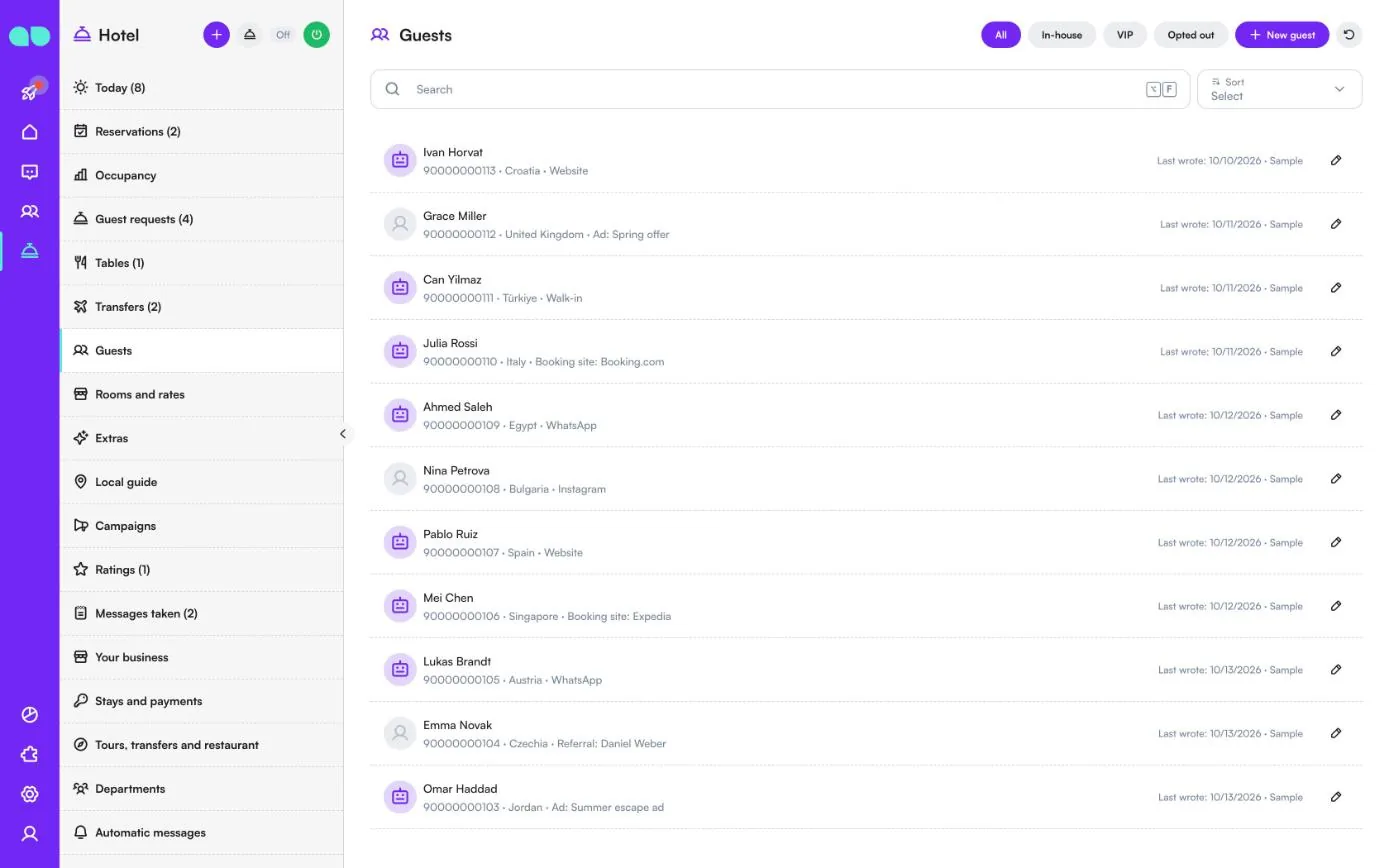
Everyone who writes to you on WhatsApp, Instagram or your website chat. Filter with All, In-house, VIP and Opted out, and add a guest with New guest.
A row shows the name, phone, country and where the guest came from (Website, Booking site, Ad, Referral, Walk-in, WhatsApp or Instagram), with the date they last wrote. Open a guest to edit their details or start the conversation.
Rooms and rates
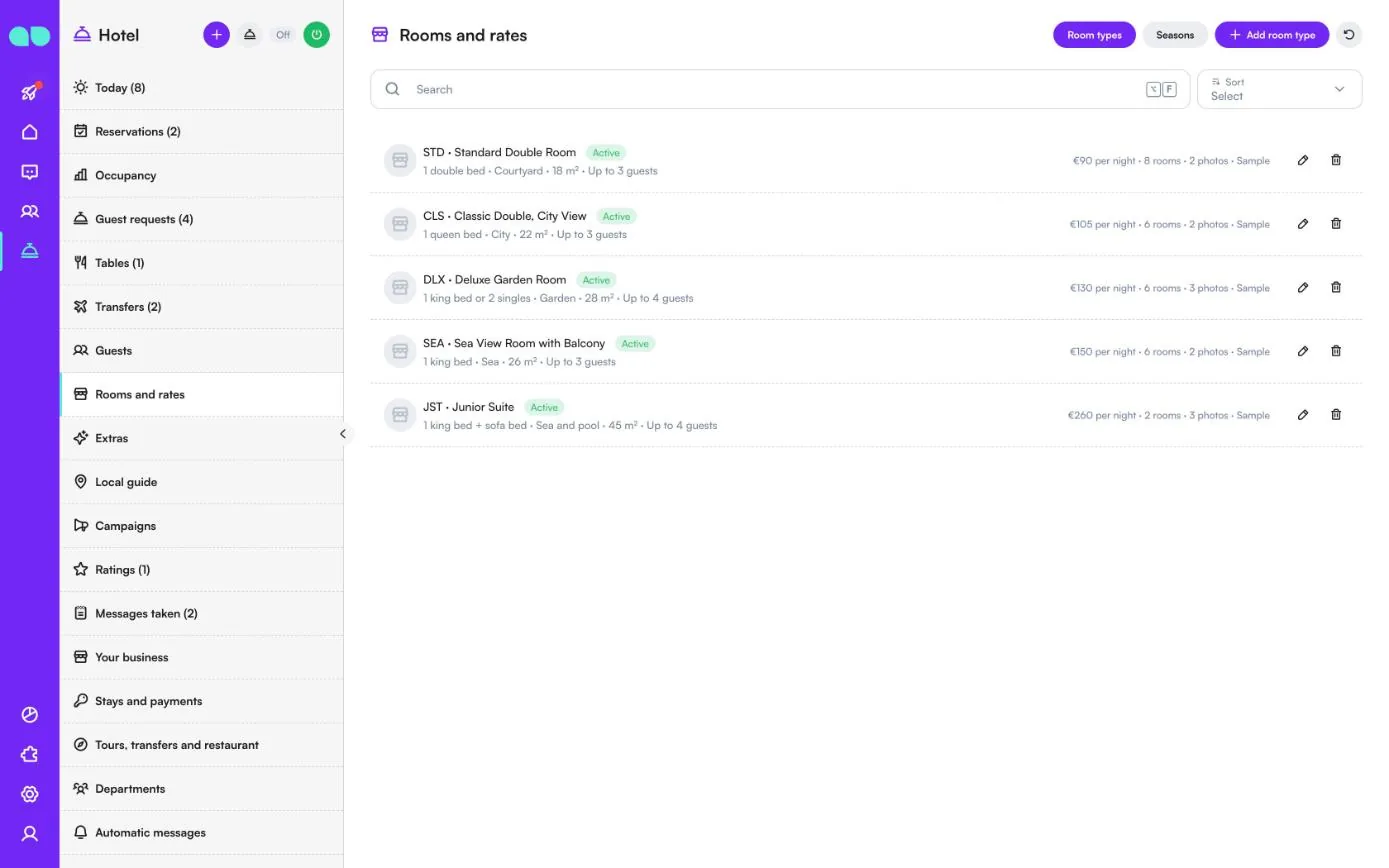
The room types you sell. The Room types tab lists each one with its short code, beds, view, size and how many guests fit, and on the right the base rate per night, how many rooms you have and the number of photos. Use Add room type, the pencil to edit, and the bin to remove one (reservations keep its name; you can also set it to hidden).
The Seasons tab raises or lowers the rate for some dates (Higher rate, Lower rate or Same rate), sets a minimum stay or closes a room type (Stop-sell), for one room type or all of them. The assistant uses all of this to work out the price it quotes.
Extras
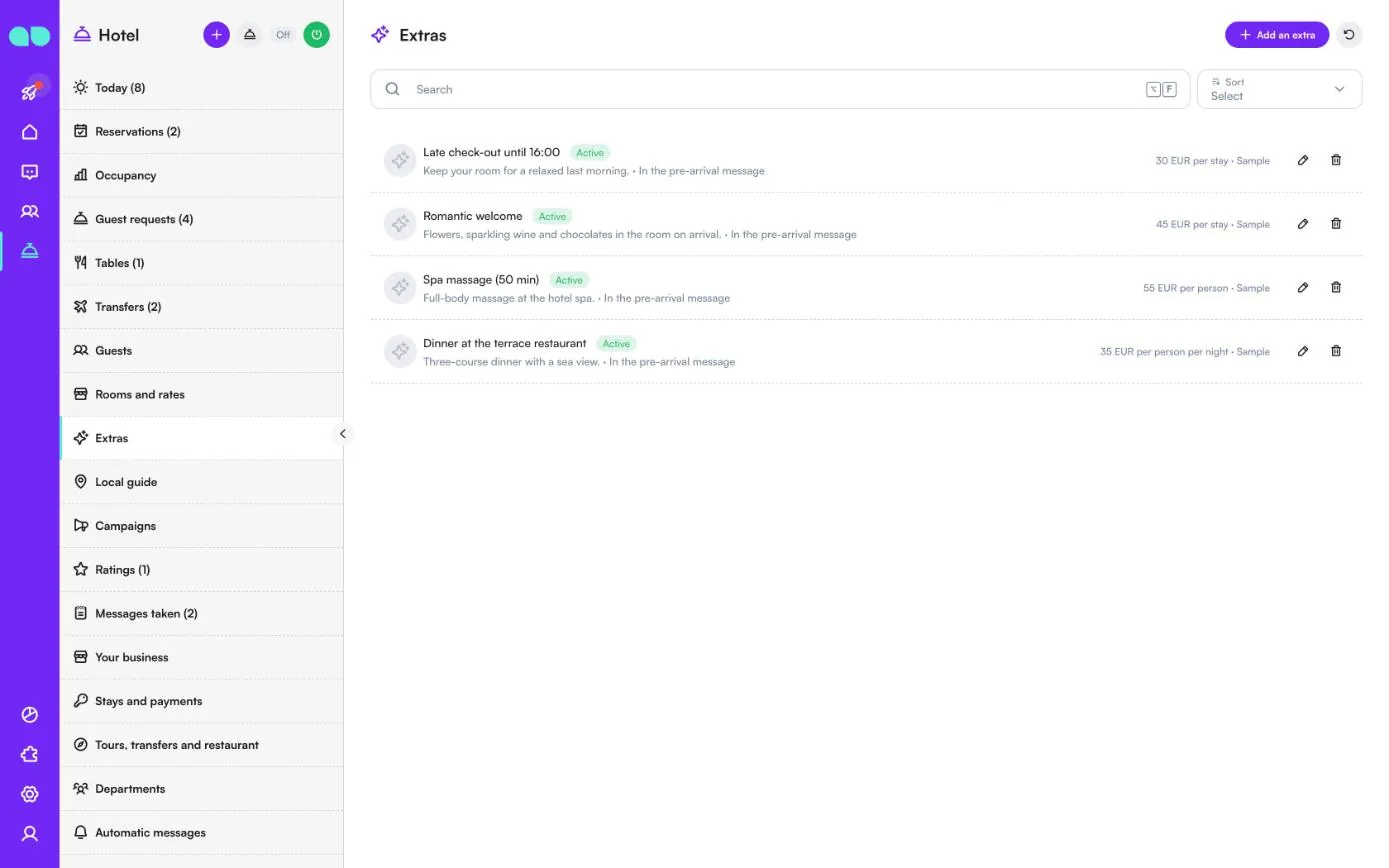
Things guests can add to a stay: late check-out, a romantic welcome, a spa massage, dinner. Each extra has a price per stay, per night, per person or per person per night, and can be offered In the pre-arrival message. Use Add an extra, edit with the pencil or remove with the bin. Set an extra to hidden to stop offering it; stays that already have it keep it on the bill.
Local guide
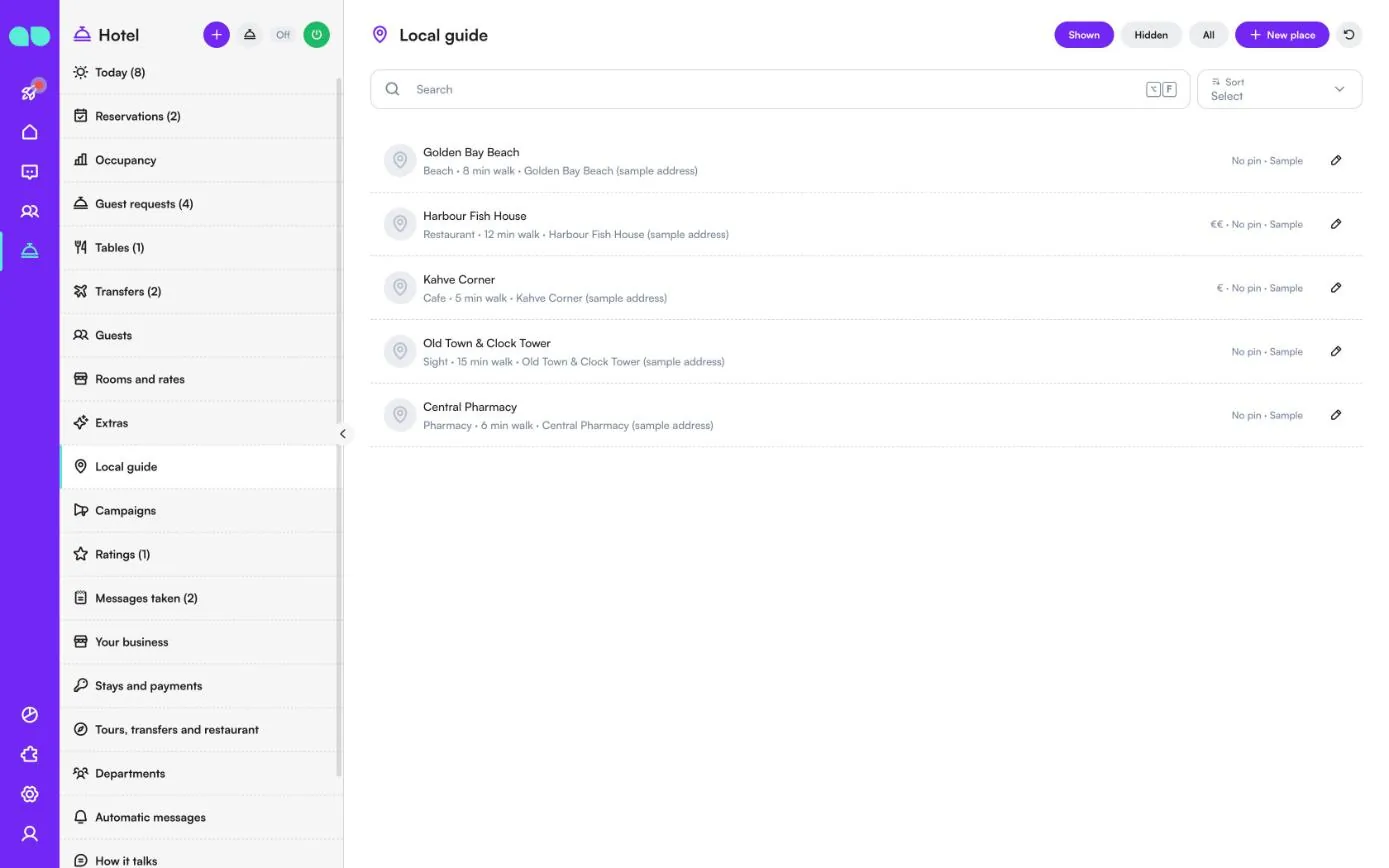
The restaurants, beaches, sights, cafes and pharmacies you like to recommend. When a guest asks what to do or where to eat, the assistant answers from this list. Filter with Shown, Hidden and All, and add a place with New place. A row shows the kind of place, how far it is, the address, the price level and whether a map pin is set.
Campaigns
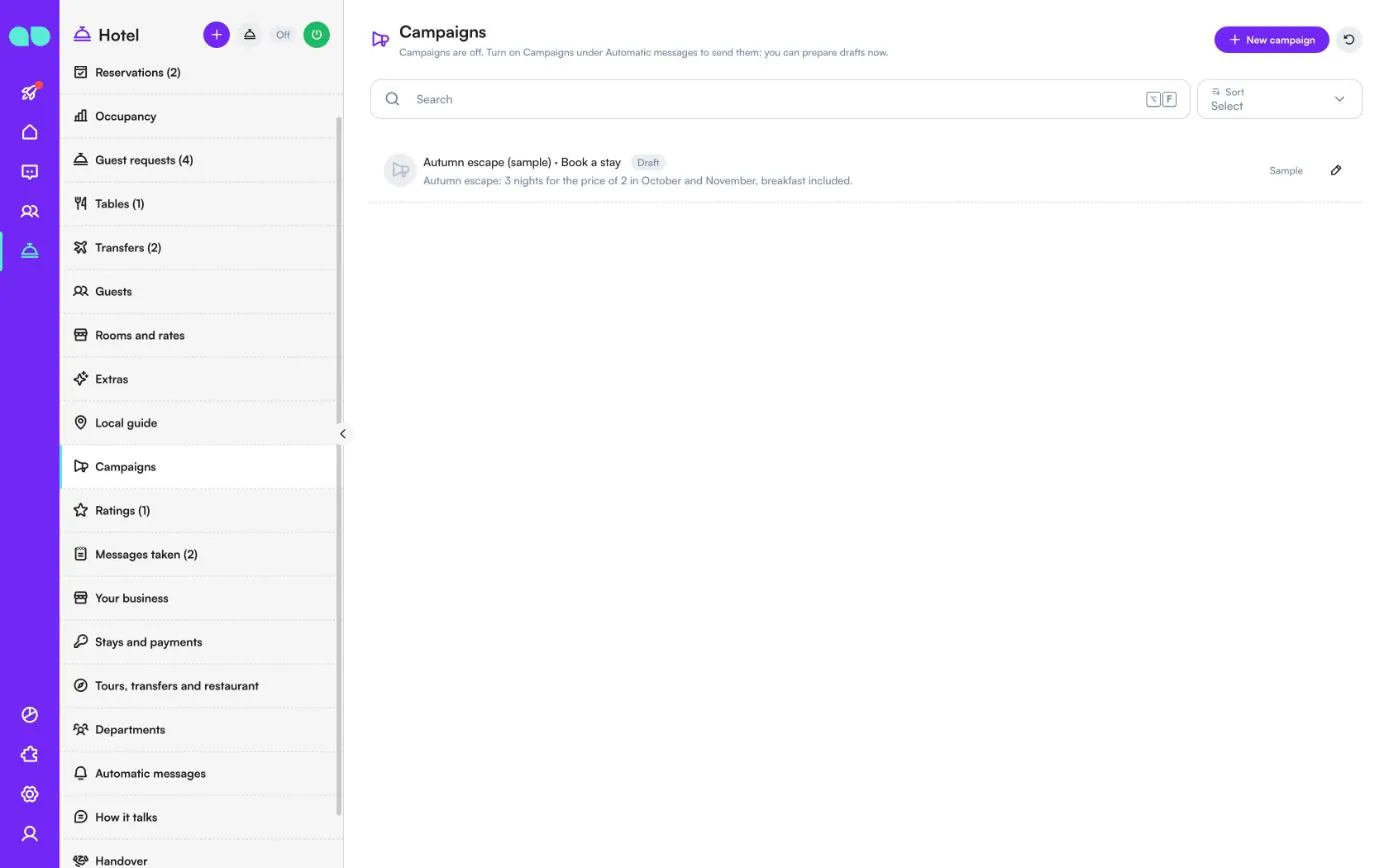
Offers to past guests, tour guests or people who asked but did not book. New campaign prepares one; a row shows its name, what it asks people to do (Book a stay, Book a tour or Book a table), the status and how many were sent and replied. While Campaigns (marketing) is off under Automatic messages, the screen says so and you can only prepare drafts. A sample campaign cannot be sent.
Ratings
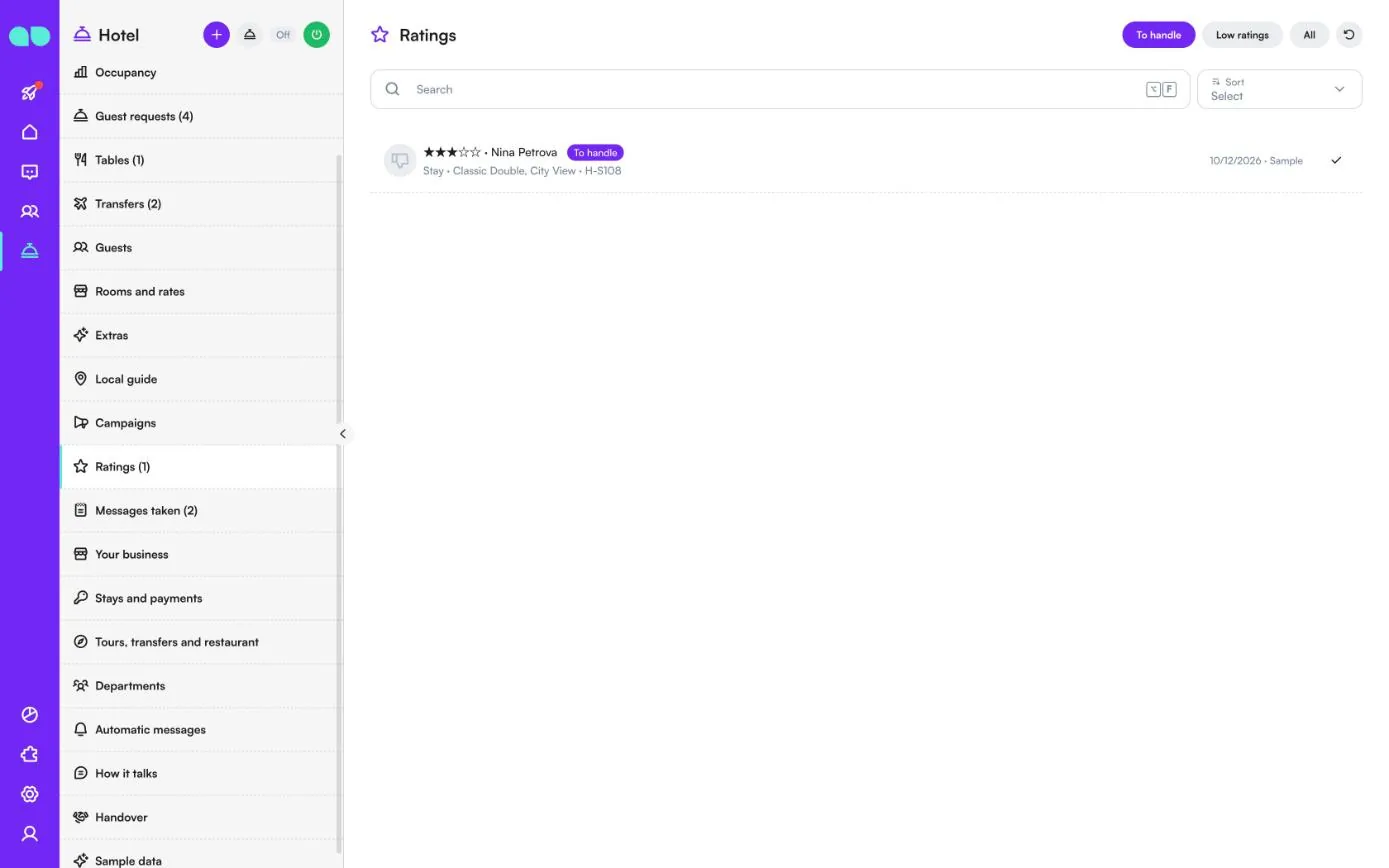
Ratings guests give after a stay or a tour. Filter with To handle, Low ratings and All. A row shows the stars, the guest, whether it was a stay or a tour, the room type and the booking code. Five stars get your review link; lower ratings land here so your team can follow up. Click the check (Mark handled) once you have dealt with it.
Messages taken
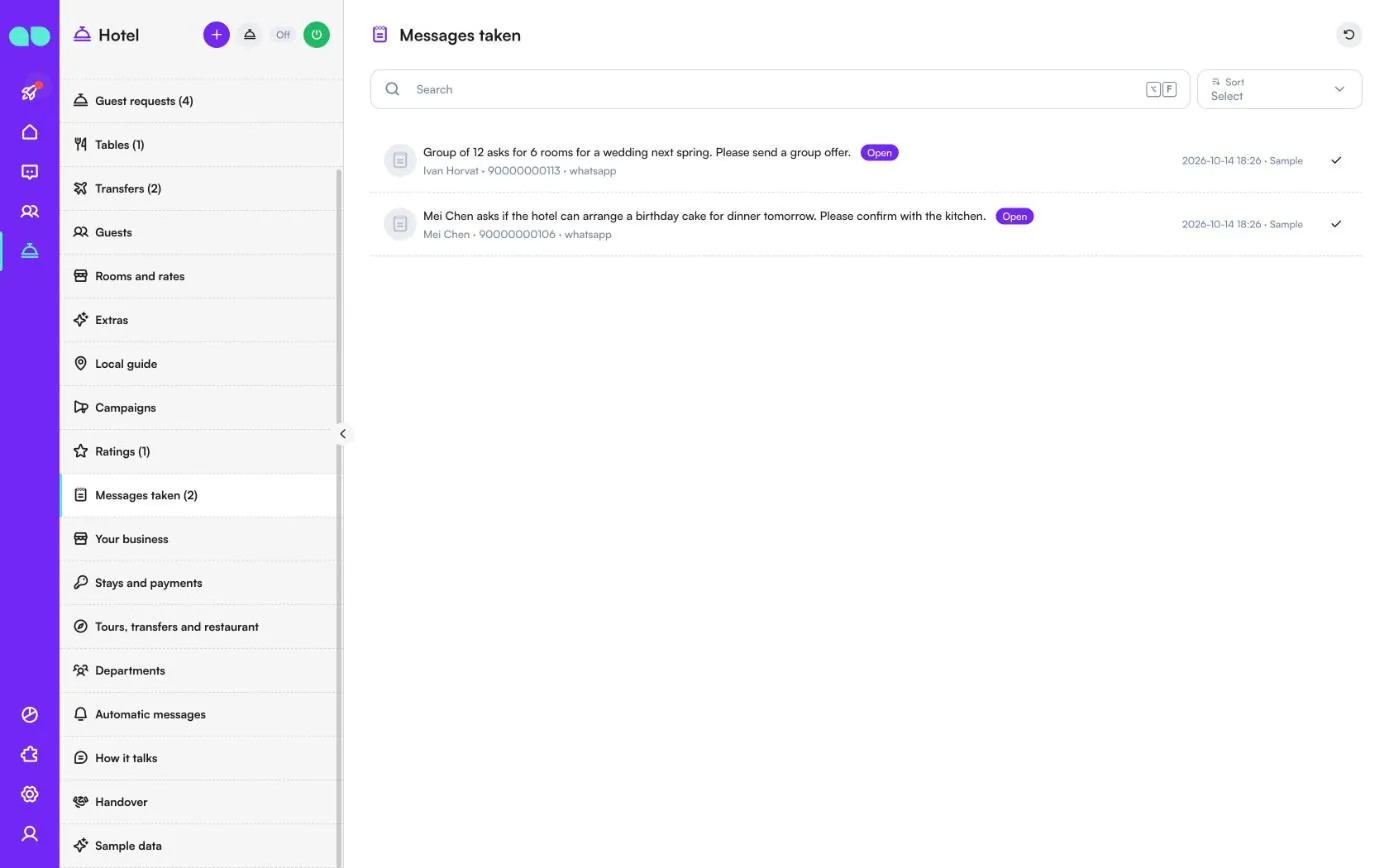
When the assistant cannot help a guest, for example with a group offer or a special request for the kitchen, it writes the request down here with the guest’s name, phone and channel. Each note is Open until you click the check to mark it done. Urgent notes have a warning icon.
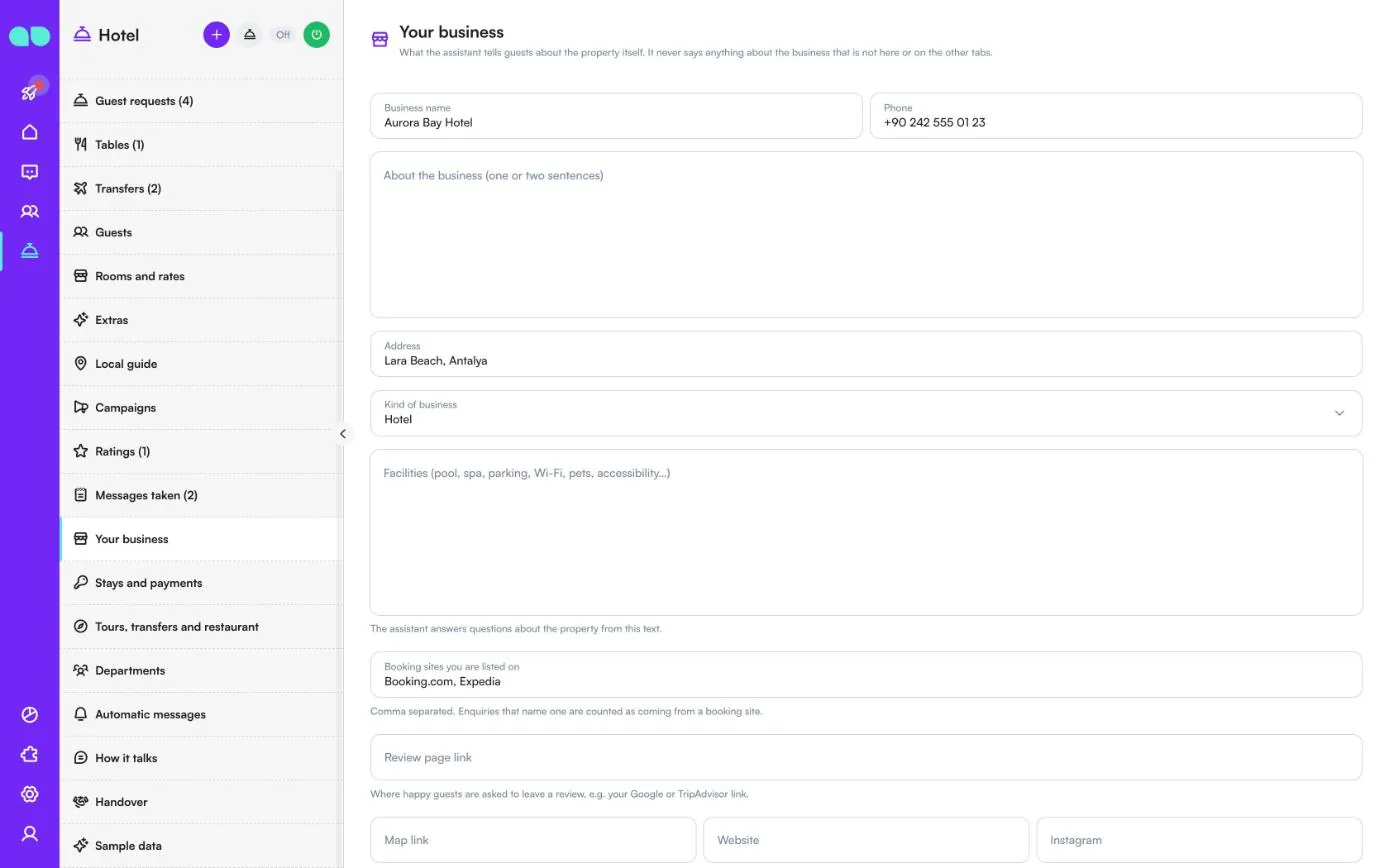
Your business
What the assistant tells guests about the property itself. It never says anything about the business that is not here or on the other tabs.
| Field | What it does |
|---|---|
| Business name, Phone, Address | Your contact details. |
| About the business (one or two sentences) | A short description the assistant can use. |
| Kind of business | Hotel, boutique hotel, B&B or guest house, resort, or travel agency or tour operator. |
| Facilities (pool, spa, parking, Wi-Fi, pets, accessibility…) | The assistant answers questions about the property from this text. |
| Booking sites you are listed on | Enquiries that name one are counted as coming from a booking site. |
| Review page link | Where happy guests are asked to leave a review, for example your Google or TripAdvisor link. |
| Map link, Website, Instagram | Links the assistant can share. |
| Currency, Time zone, Language of automatic messages | Used for prices, times and the automatic messages. |
| Emergency number | A number the assistant can give. |
| Team hours, Closed on (holidays) | When reception or your office answers messages; holidays one date per line (YYYY-MM-DD). |
| House rules and policies | Children, pets, smoking, ID at check-in, visitors. |
| Other questions and answers | One pair per line: Q: … / A: … |
Stays and payments
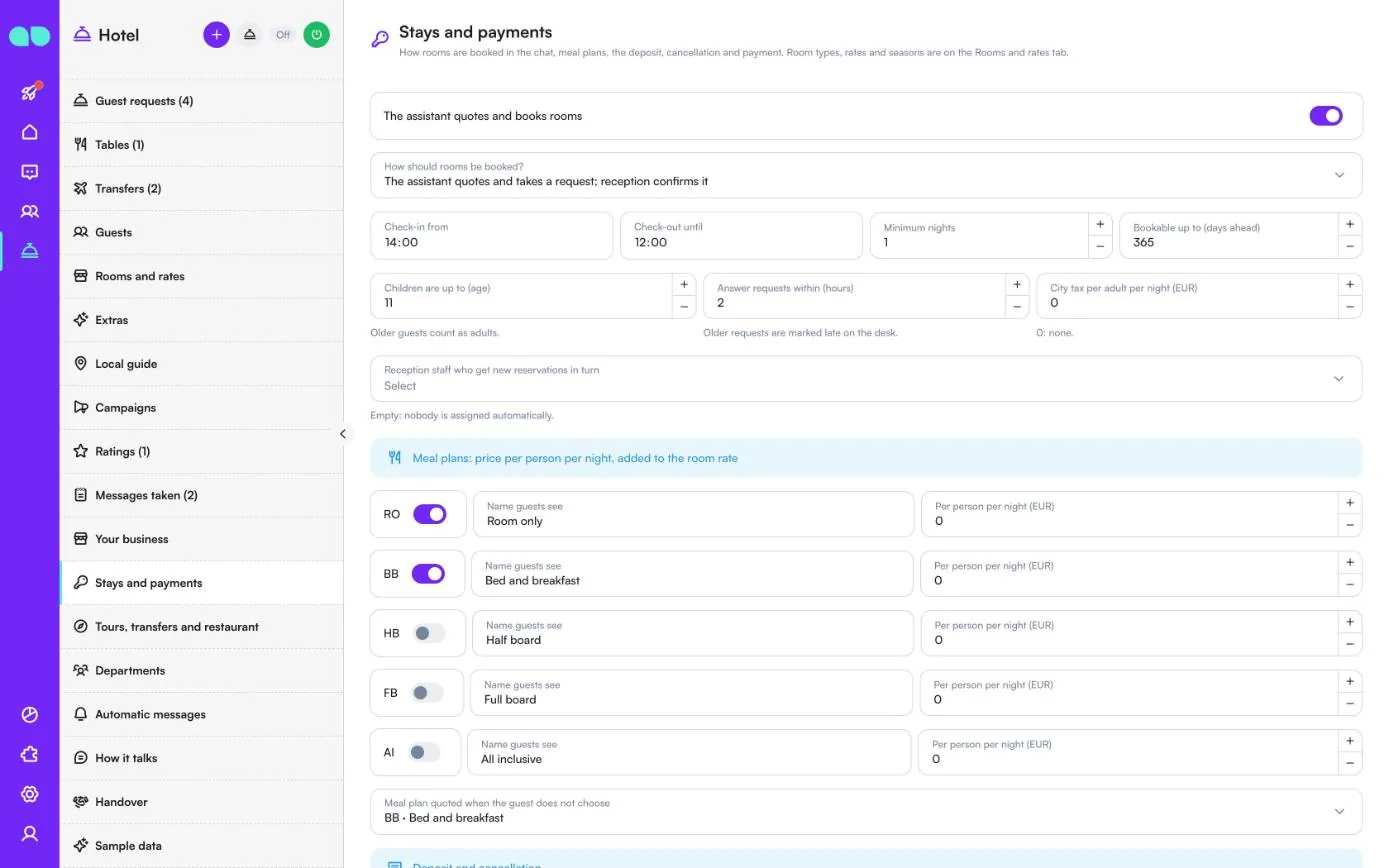
How rooms are booked in the chat, meal plans, the deposit, cancellation and payment. Room types, rates and seasons are on Rooms and rates.
| Field | What it does |
|---|---|
| The assistant quotes and books rooms | Switches room booking on or off. |
| How should rooms be booked? | The assistant quotes and takes a request; reception confirms it, or The assistant confirms at once while rooms are free. |
| Check-in from, Check-out until | The times guests are told. |
| Minimum nights, Bookable up to (days ahead) | The shortest stay and how far ahead guests can book. |
| Children are up to (age) | Older guests count as adults. |
| Answer requests within (hours) | Older requests are marked late on the desk. |
| City tax per adult per night | Added to the quote. 0: none. |
| Reception staff who get new reservations in turn | New reservations are assigned to them one after the other. Empty: nobody is assigned automatically. |
| Meal plans | RO, BB, HB, FB and AI, each with a switch, the Name guests see and a price Per person per night added to the room rate. Meal plan quoted when the guest does not choose picks the default. Keep at least one on. |
| Deposit (% of the stay) | 0: no deposit. 100: full prepayment. |
| Deposit due within (days) | After confirmation; never later than arrival. |
| Free cancellation until (days before arrival), Cancellation terms guests should know | What the assistant tells guests about cancelling. |
| Send a payment link when the guest taps Pay now | With a payment integration, deposit requests carry a payment link and payments are recorded by themselves. Without one, guests get How to pay (without a link) instead. |
Tours, transfers and restaurant
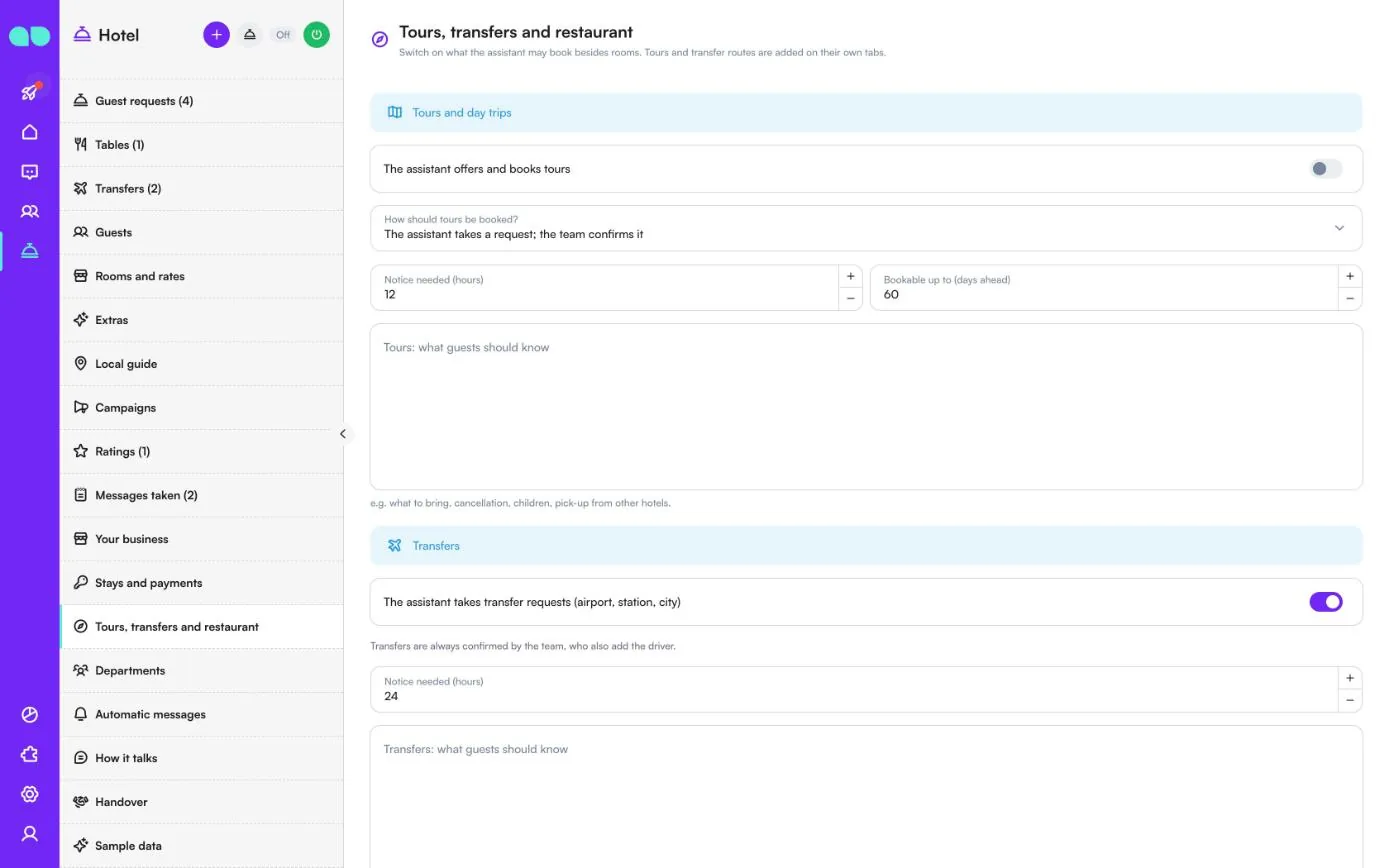
What the assistant may book besides rooms. Tours and transfer routes themselves are added on their own tabs.
| Field | What it does |
|---|---|
| The assistant offers and books tours | Switches tours and day trips on. How should tours be booked? chooses a request the team confirms or instant booking while places are free. |
| Notice needed (hours), Bookable up to (days ahead) | How late and how far ahead a tour, transfer or table can be booked. |
| Tours: what guests should know | What to bring, cancellation, children, pick-up from other hotels. |
| The assistant takes transfer requests (airport, station, city) | Switches transfers on. Transfers are always confirmed by the team, who also add the driver. |
| Transfers: what guests should know | Where the driver waits, waiting time for delayed flights, child seats. |
| The assistant books tables at the restaurant | Switches the restaurant on, with How should tables be booked? and the Restaurant name. |
| Booking times every (minutes), Guests per booking time, Largest party in the chat | How tables are offered. |
| Dinner service hours | Opens and Closes per day. The last booking time is 45 minutes before closing. |
| Restaurant: what guests should know | Menu style, dress code, breakfast hours, room service hours. |
Departments
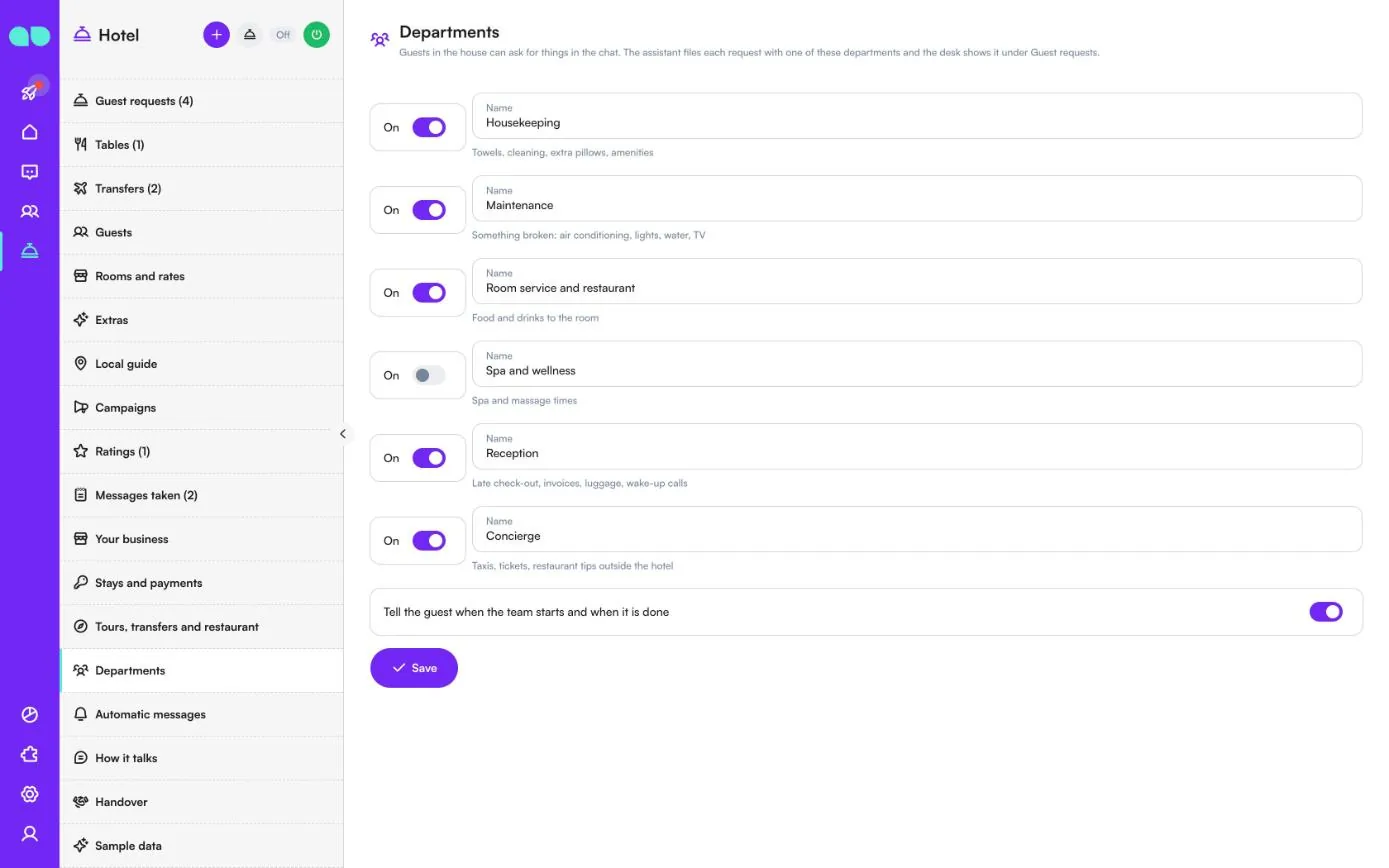
Guests in the house can ask for things in the chat. The assistant files each request with one of these departments, and the desk shows it under Guest requests. There are six: Housekeeping, Maintenance, Room service and restaurant, Spa and wellness, Reception and Concierge. Switch each one on or off and change the Name guests see. Tell the guest when the team starts and when it is done sends the guest an update at both steps. Click Save.
Automatic messages
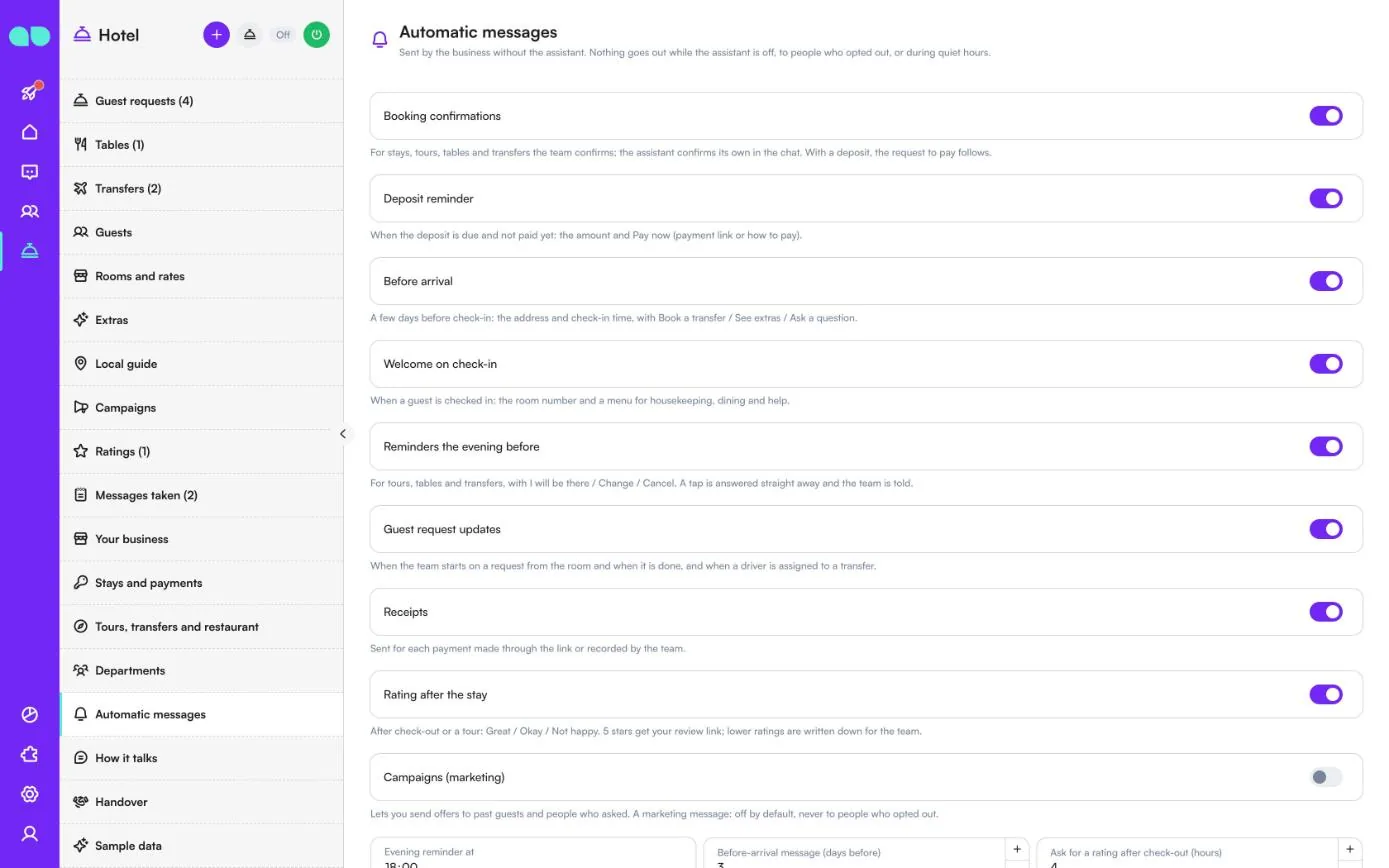
Messages sent by the business without the assistant. Nothing goes out while the assistant is off, to people who opted out, or during quiet hours.
| Message | When it goes out |
|---|---|
| Booking confirmations | For stays, tours, tables and transfers the team confirms; the assistant confirms its own in the chat. With a deposit, the request to pay follows. |
| Deposit reminder | When the deposit is due and not paid yet: the amount and Pay now (payment link or how to pay). |
| Before arrival | A few days before check-in: the address and check-in time, with Book a transfer, See extras and Ask a question. |
| Welcome on check-in | When a guest is checked in: the room number and a menu for housekeeping, dining and help. |
| Reminders the evening before | For tours, tables and transfers, with I will be there, Change and Cancel. A tap is answered straight away and the team is told. |
| Guest request updates | When the team starts on a request from the room and when it is done, and when a driver is assigned to a transfer. |
| Receipts | For each payment made through the link or recorded by the team. |
| Rating after the stay | After check-out or a tour: Great, Okay or Not happy. 5 stars get your review link; lower ratings are written down for the team. |
| Campaigns (marketing) | Lets you send offers to past guests and people who asked. Off by default, never to people who opted out. |
Below the switches you set Evening reminder at, Before-arrival message (days before), Ask for a rating after check-out (hours), and Quiet from and Quiet until. The WhatsApp templates section shows the status of each template on your number (for example Approved or Waiting for Meta); Submit missing templates writes and submits the ones still missing, in the language of automatic messages.
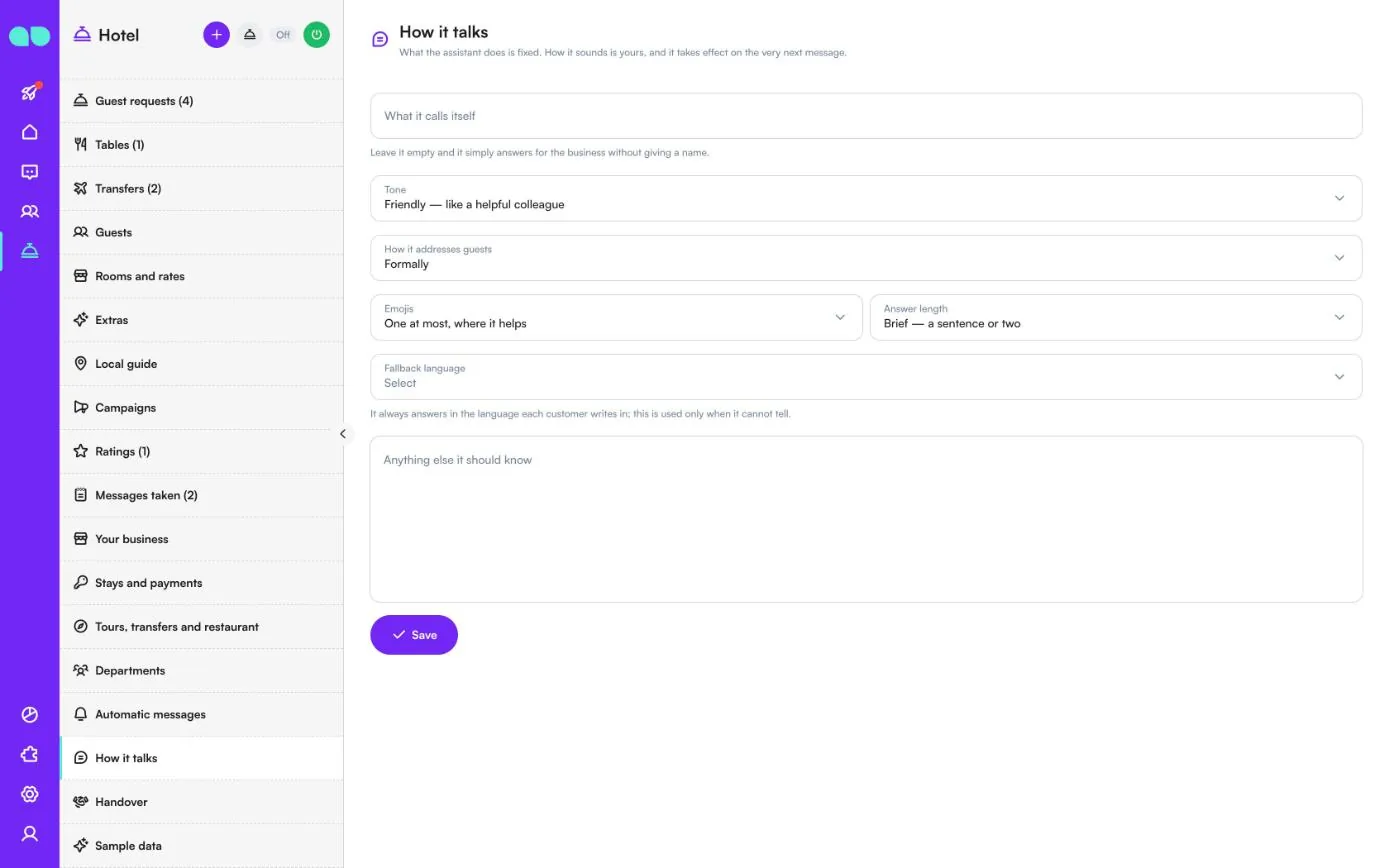
How it talks
What the assistant does is fixed; how it sounds is yours, and a change takes effect on the very next message.
| Field | What it does |
|---|---|
| What it calls itself | A name for the assistant. Leave it empty and it simply answers for the business without giving a name. |
| Tone | Professional, Friendly, Warm or Direct. |
| How it addresses guests | Formally or Casually, by first name. |
| Emojis | None, one at most where it helps, or freely. |
| Answer length | Brief, balanced or detailed. |
| Fallback language | It always answers in the language each guest writes in; this is used only when it cannot tell. |
| Anything else it should know | Added to its instructions as written: house rules, things never to promise. It cannot override the rule that it does not invent facts. |
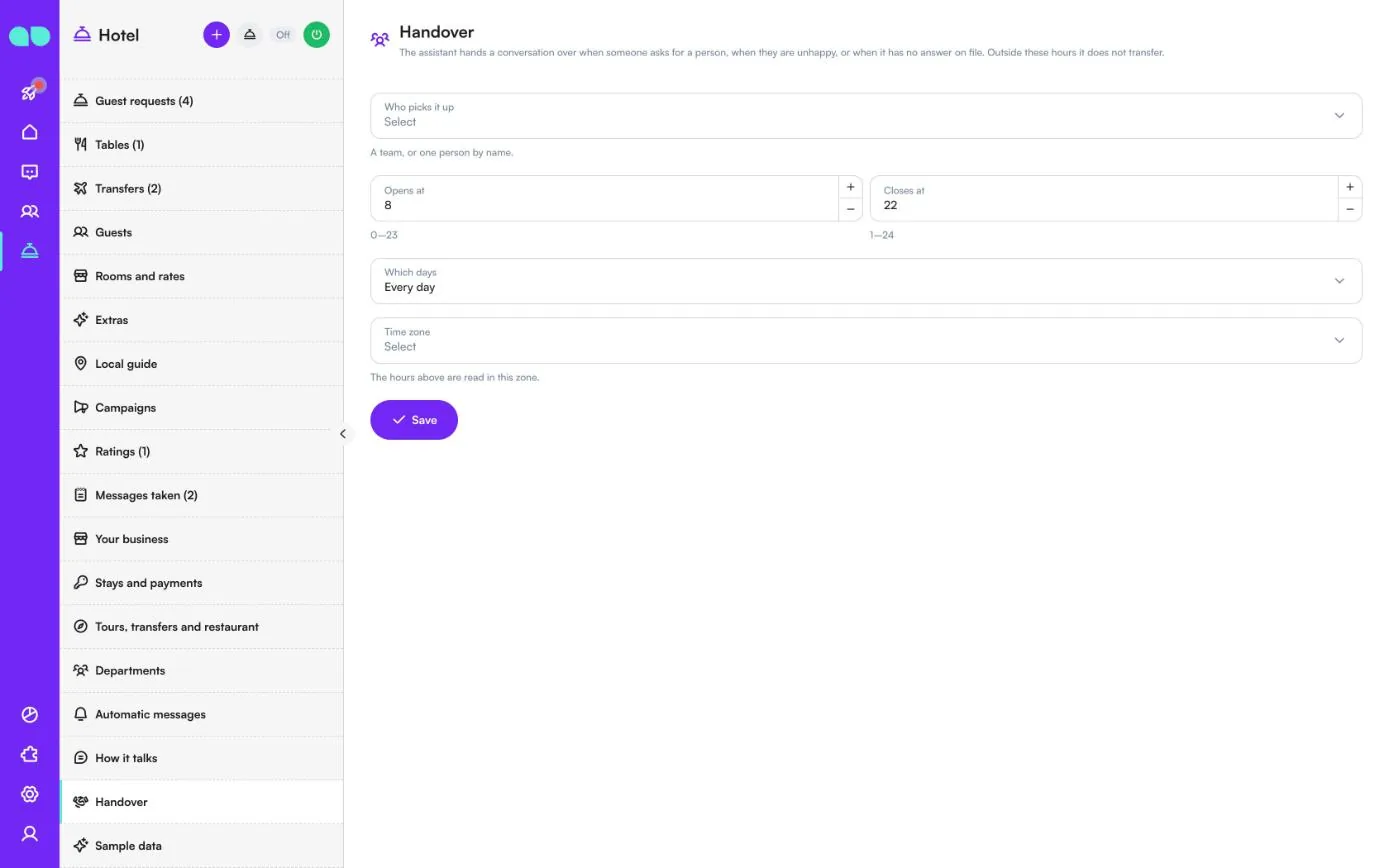
Handover
When a guest asks for a person, is unhappy, or asks something the assistant has no answer for, it hands the conversation over. Choose Who picks it up (a team, or one person by name, or nobody), the hours with Opens at (0–23) and Closes at (1–24), Which days (every day or weekdays only) and the Time zone the hours are read in. Outside these hours it does not transfer. Click Save.
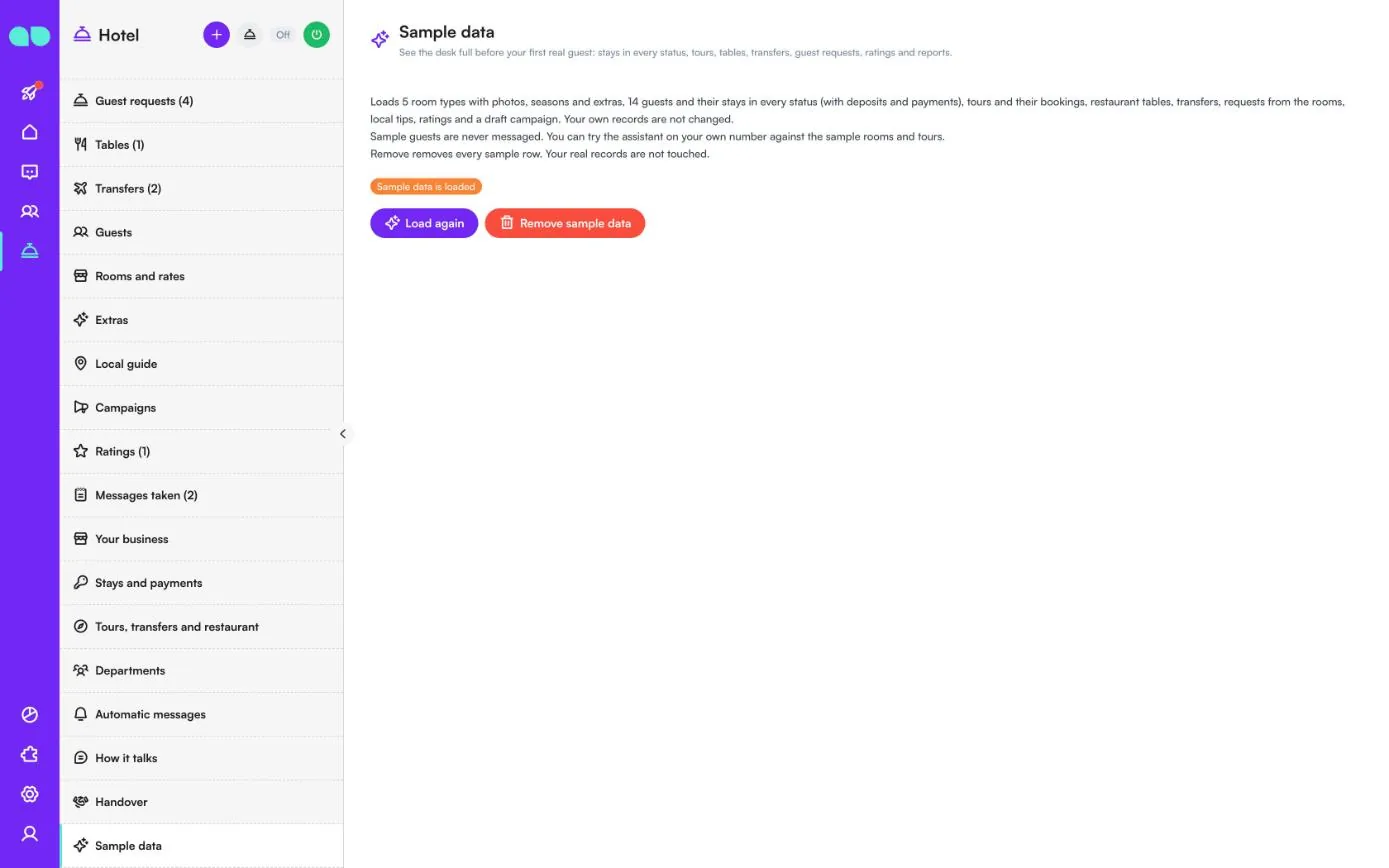
Sample data
Shows whether sample data is loaded. It loads 5 room types with photos, seasons and extras, 14 guests and their stays in every status (with deposits and payments), tours and their bookings, restaurant tables, transfers, requests from the rooms, local tips, ratings and a draft campaign. Your own records are not changed. Sample guests are never messaged, but you can try the assistant on your own number against the sample rooms and tours. Load again reloads it, and Remove sample data removes every sample row; your real records are not touched. Remove it before real guests write.
Reservation drawer
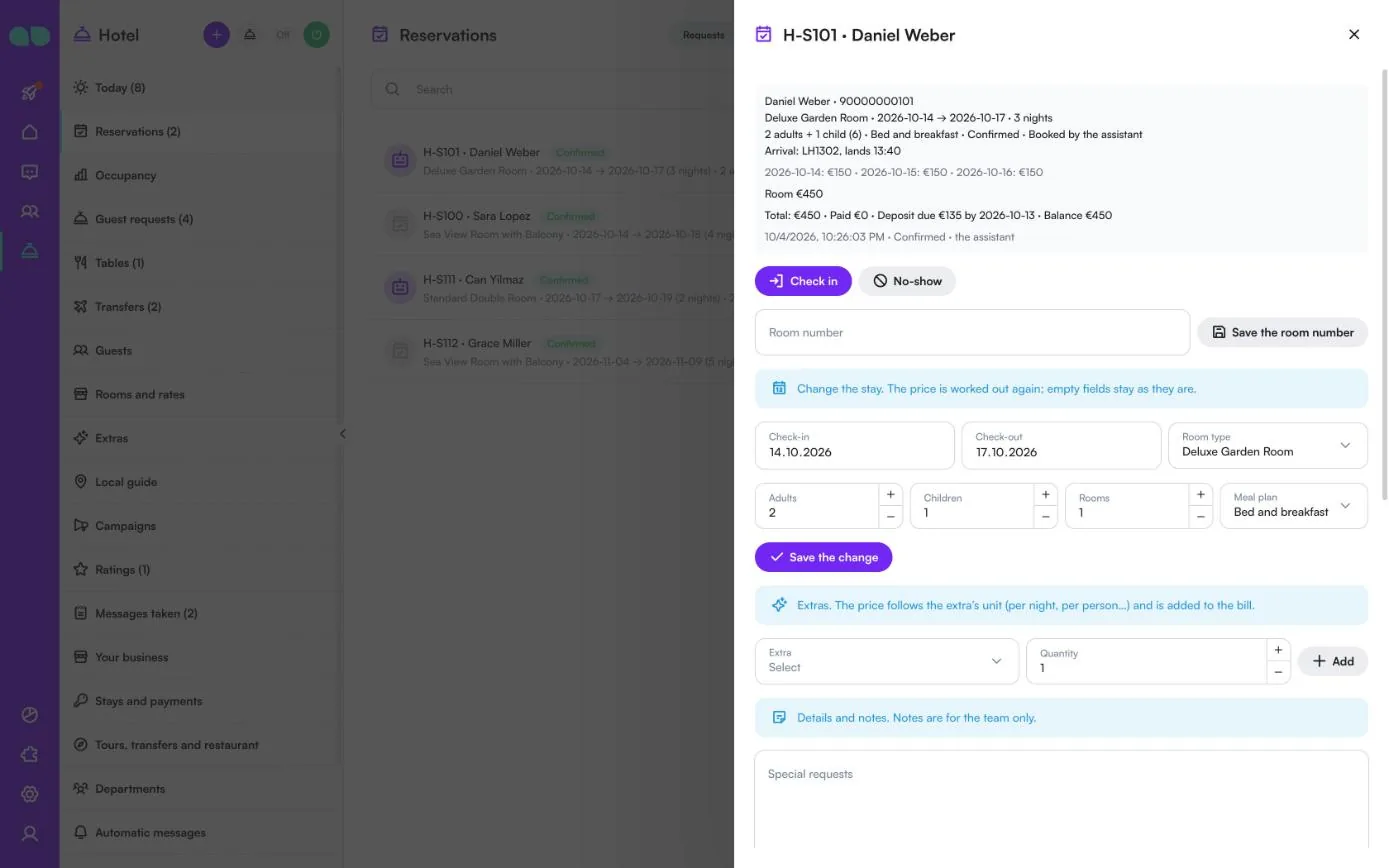
Click a reservation to open it. The top shows the guest and phone, the room type, dates and nights, the guests, the meal plan, the status and who booked it, the arrival flight, the price of each night, the total, what is paid, the deposit due and its date, and the balance.
- Check in (after you write the Room number), No-show and later Check out move the stay along; a request has Confirm and Decline instead. Save the room number stores the room.
- Change the stay: new Check-in, Check-out, Room type, Adults, Children, Rooms or Meal plan. The price is worked out again; empty fields stay as they are. Click Save the change.
- Extras: choose an Extra and a Quantity and click Add. The price follows the extra’s unit and is added to the bill.
- Details and notes: Special requests, Arrival time, Flight, Child ages and Notes (for the team), which guests never see.
- Payments: Send the payment request, Copy the payment link, Check the payment, or Record a payment taken at the desk or by bank transfer. The deposit is asked for first, then the balance, and each payment gets a receipt.
- Cancel the reservation frees the room; the guest gets a short message that it was cancelled.
Room type drawer
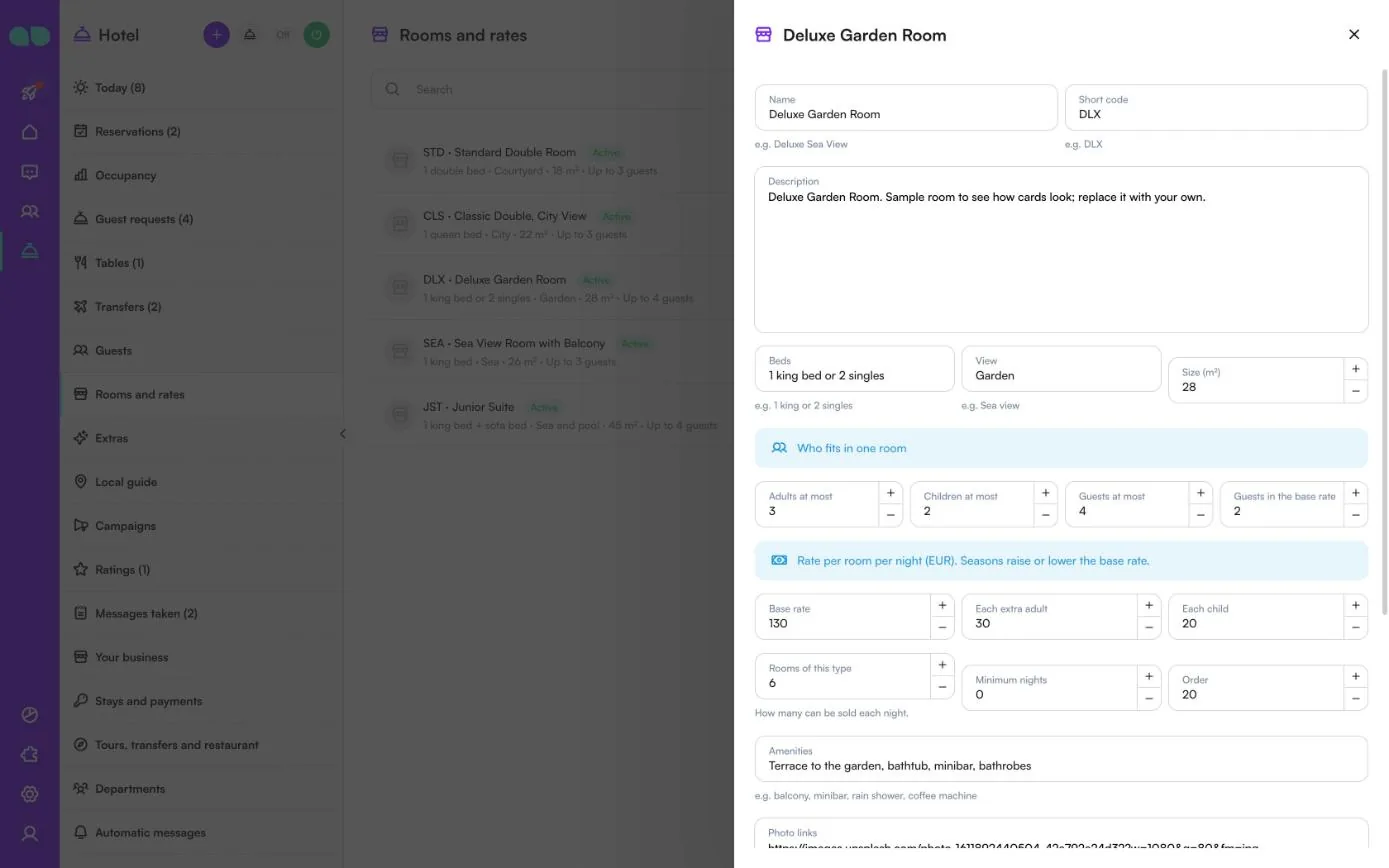
Open a room type on Rooms and rates to edit it: Name, Short code, Description, Beds, View and Size (m²); who fits in one room (Adults at most, Children at most, Guests at most, Guests in the base rate); the rate per room per night (Base rate, Each extra adult, Each child); Rooms of this type (how many can be sold each night), Minimum nights and Order; Amenities; Photo links (one https link per line, up to 15, the first is the card photo); a Video link and Active (the assistant offers it). Seasons raise or lower the base rate.
Turn the assistant on
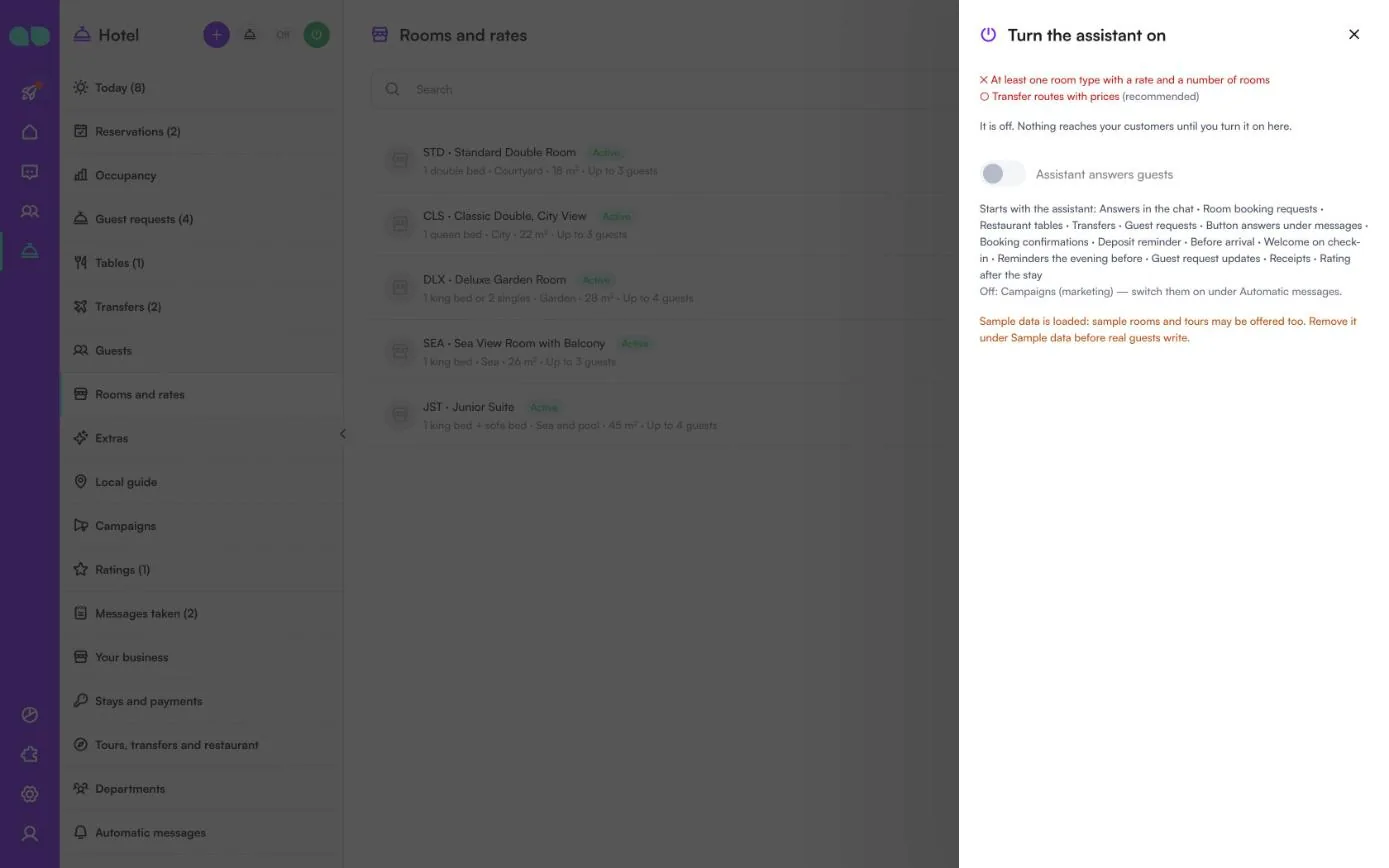
The power button in the header opens this drawer. At the top it lists what is still missing: Business name and currency, Team hours, at least one of rooms, tours, transfers or tables switched on, At least one room type with a rate and a number of rooms when rooms are on, At least one tour when tours are on, and Transfer routes with prices (recommended).
Switch Assistant answers guests on and confirm. Below the switch you see what starts with the assistant (answers in the chat, room booking requests, tables, transfers, guest requests, button answers and each automatic message that is on) and what stays off, such as Campaigns (marketing). A warning reminds you when sample data is still loaded, and another when a different bot is also on in the workspace.
Report
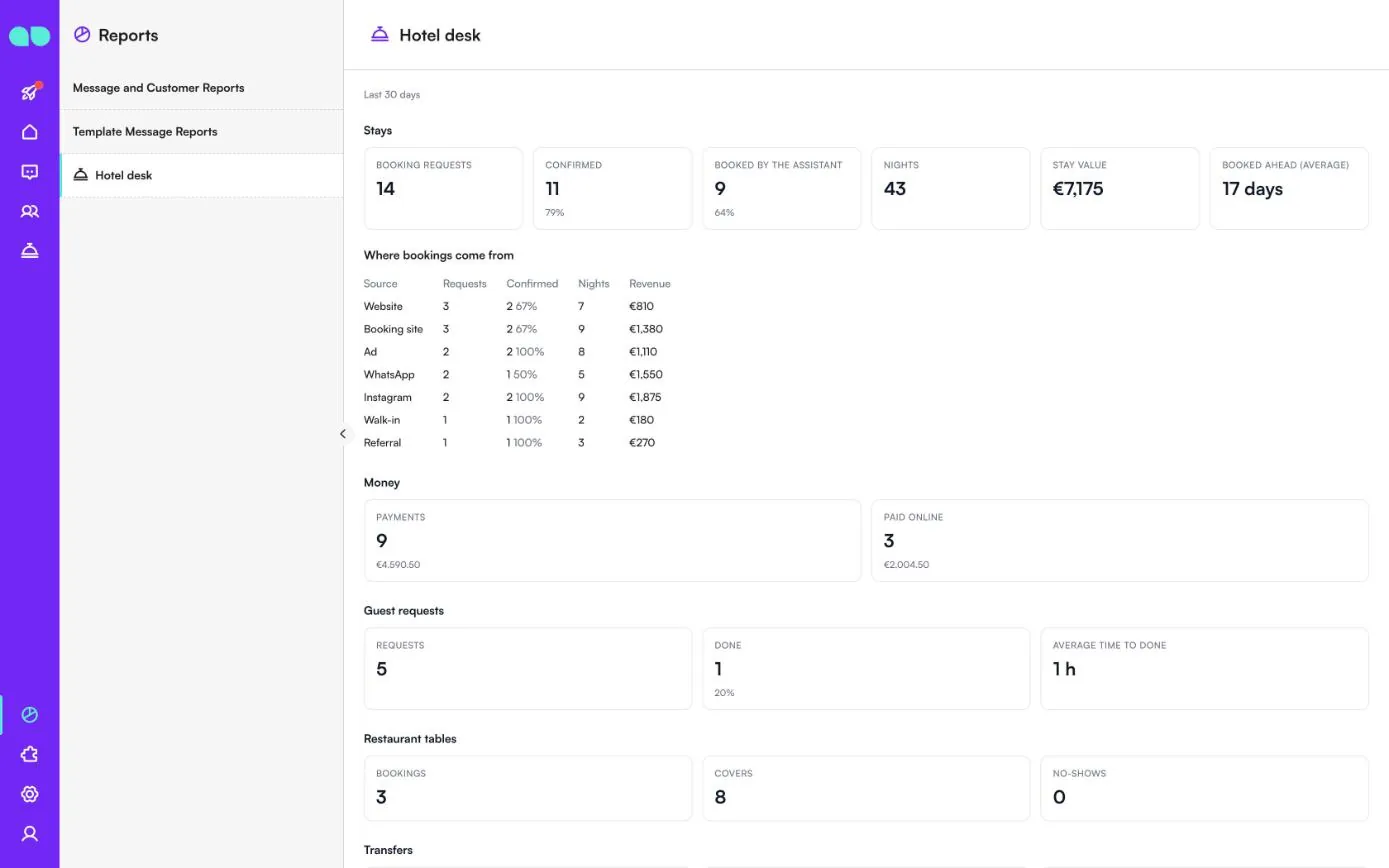
Reports › Hotel desk sums up the last 30 days:
- Stays: Booking requests, Confirmed, Booked by the assistant, Nights, Stay value and Booked ahead (average).
- Where bookings come from: requests, confirmed, nights and revenue per source (website, booking site, ad, WhatsApp, Instagram, walk-in, referral).
- Money: Payments and Paid online.
- Guest requests: requests, done and Average time to done, and requests by department.
- Restaurant tables, Tours and Transfers: bookings, covers or guests, no-shows and value.
- Ratings, stays by status, room types booked and Campaigns with sent and replied.
Features
Room cards
A photo, the total for the stay, size, beds and view, with More photos and Book this room buttons. On WhatsApp, several rooms arrive as a swipeable carousel.
Deposits and payment
After confirmation the guest gets the deposit request with Pay now. With a payment integration it sends a payment link and the payment is recorded by itself; without one, your payment instructions are sent.
Extras and occupancy
Airport pick-up, late check-out, a spa package or a romantic dinner can be added per stay, per night or per person. A 14-day view shows rooms sold per room type and night.
Before arrival and welcome
A few days before check-in, the address and check-in time with Book a transfer, See extras and Ask a question. At check-in, the room number and a small menu: Housekeeping, Dining and I need help.
Tours and tables
Tour departures with places, adult and child prices, meeting point and season. Restaurant tables within your dinner hours, guests per time and the largest party.
Transfers
Routes with prices per vehicle and how many people fit. When you add the driver, the guest gets the name, car and phone. Reminders the evening before come with I will be there, Change and Cancel.
Ratings and campaigns
A rating after the stay leads happy guests to your review link. Campaigns to past guests, tour guests or people who asked but did not book are off by default.
Reports
Over 30 days: booking requests by source, confirmations, nights and stay value, how far ahead guests book, payments, guest requests by department, tours, tables, transfers, ratings and campaign replies.
Screenshots
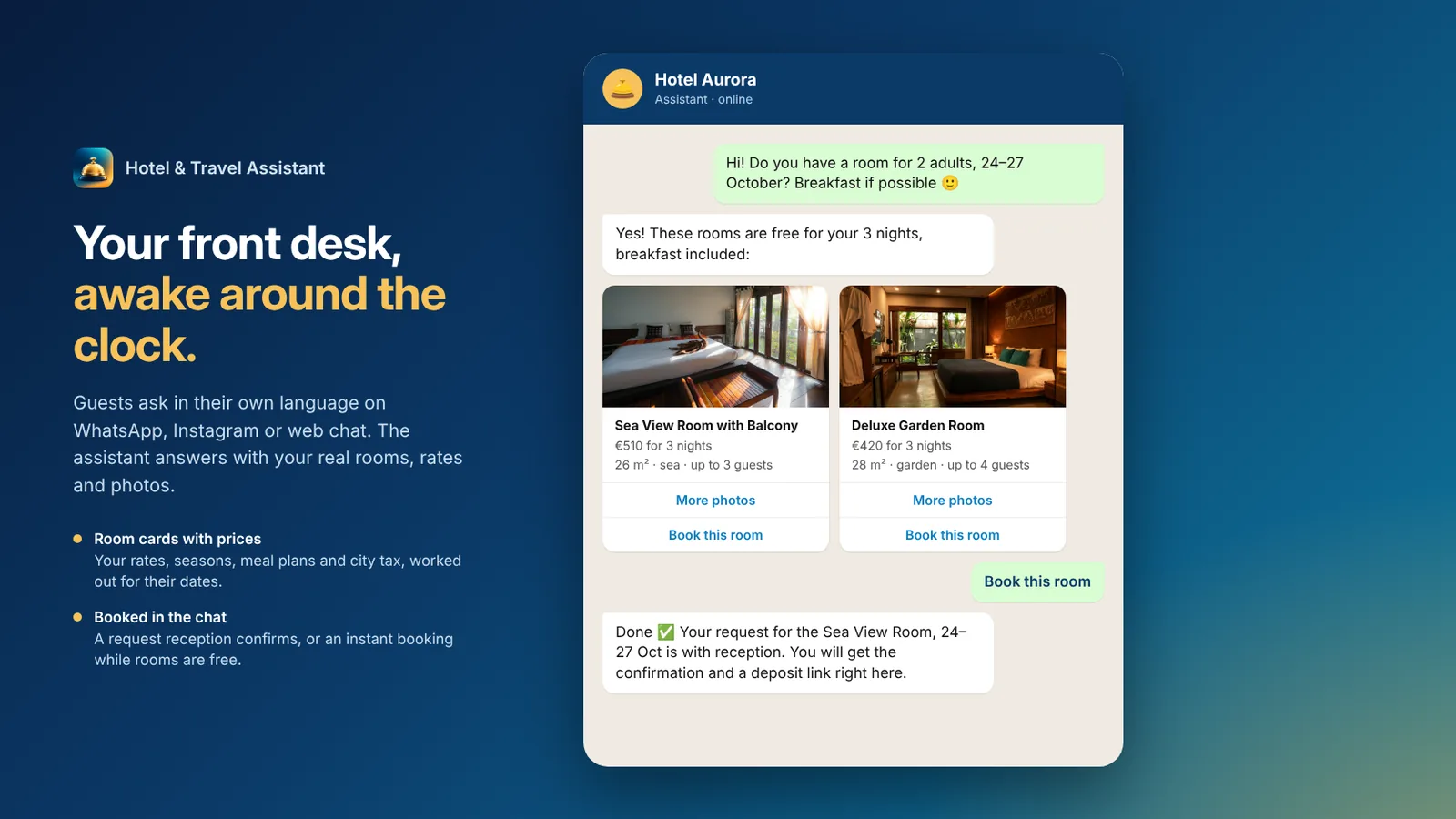 Hotel & Travel Assistant sending free rooms as cards with prices for the guest’s dates
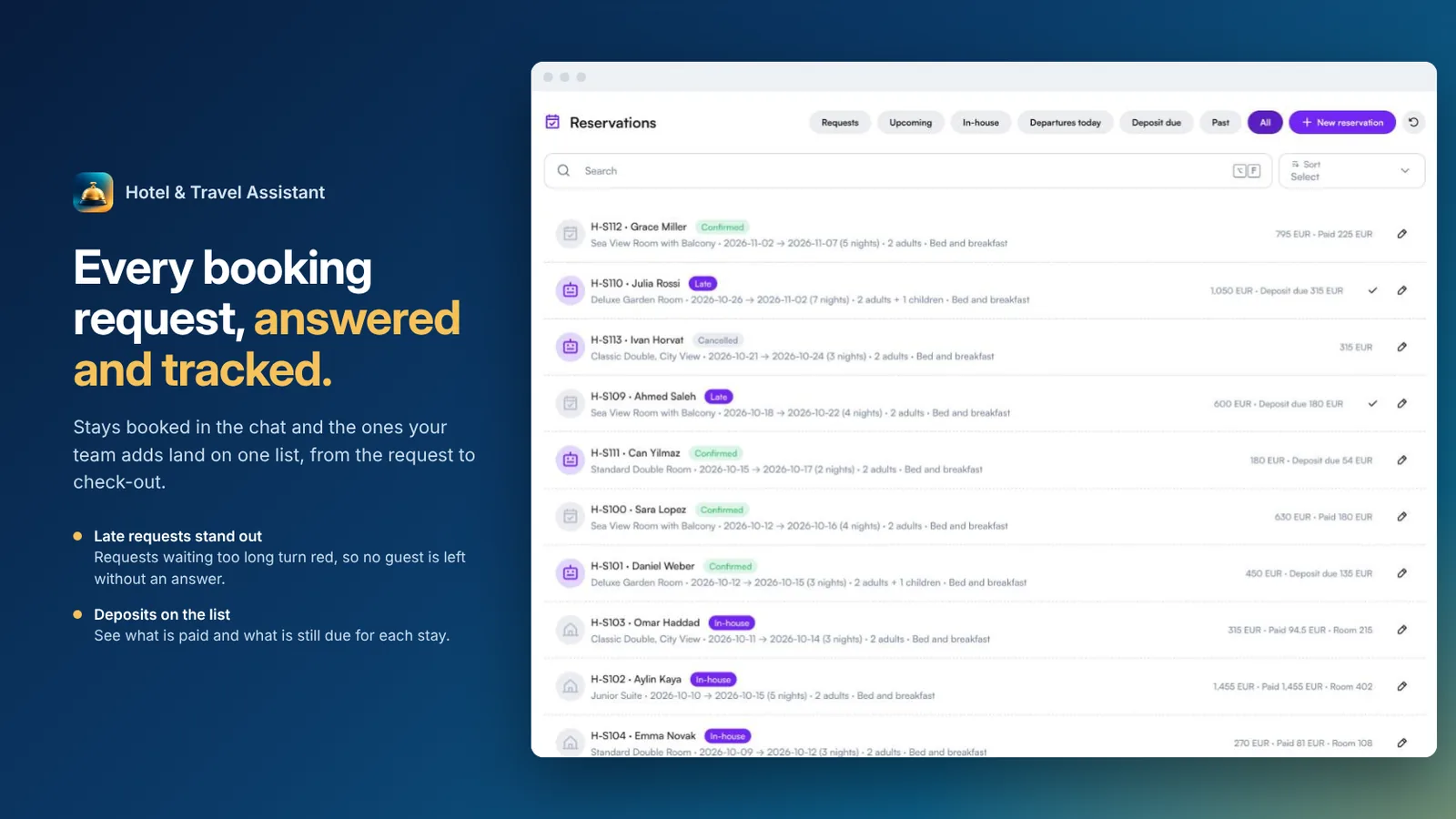 Reservations list with requests, confirmed stays and deposits due
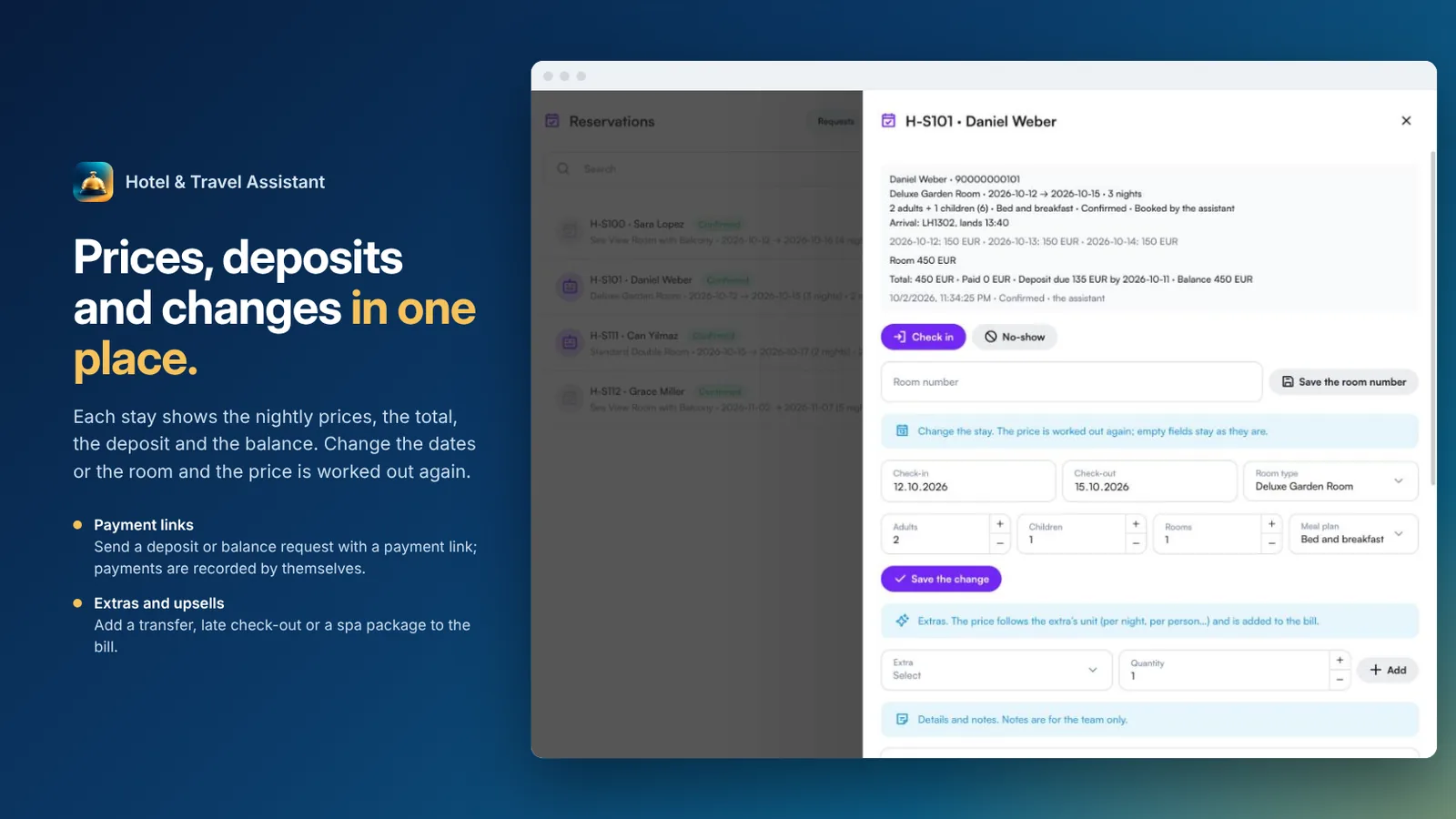 A stay with nightly prices, deposit, balance, extras and changes
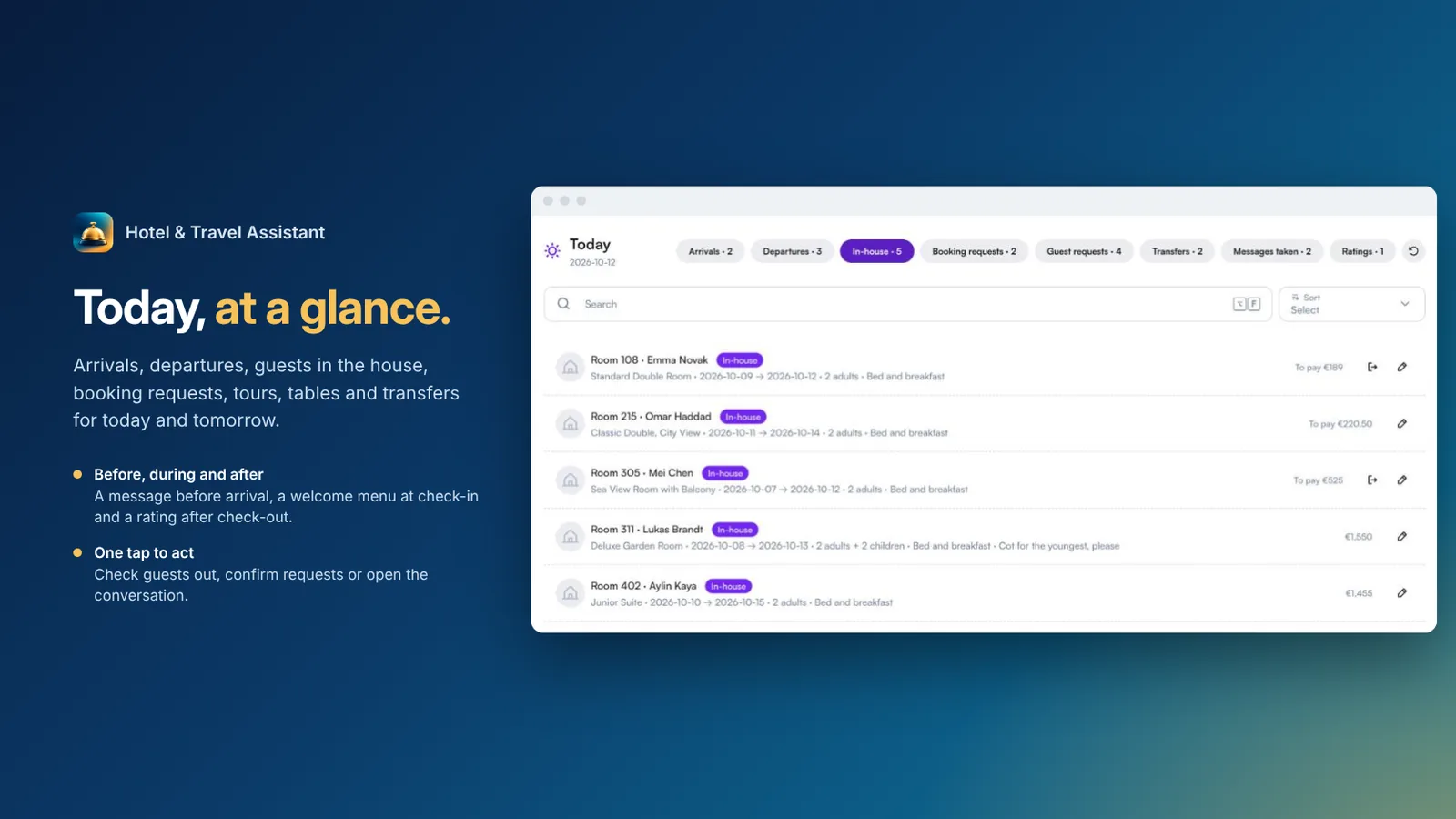 Today view with arrivals, departures and guests in the house
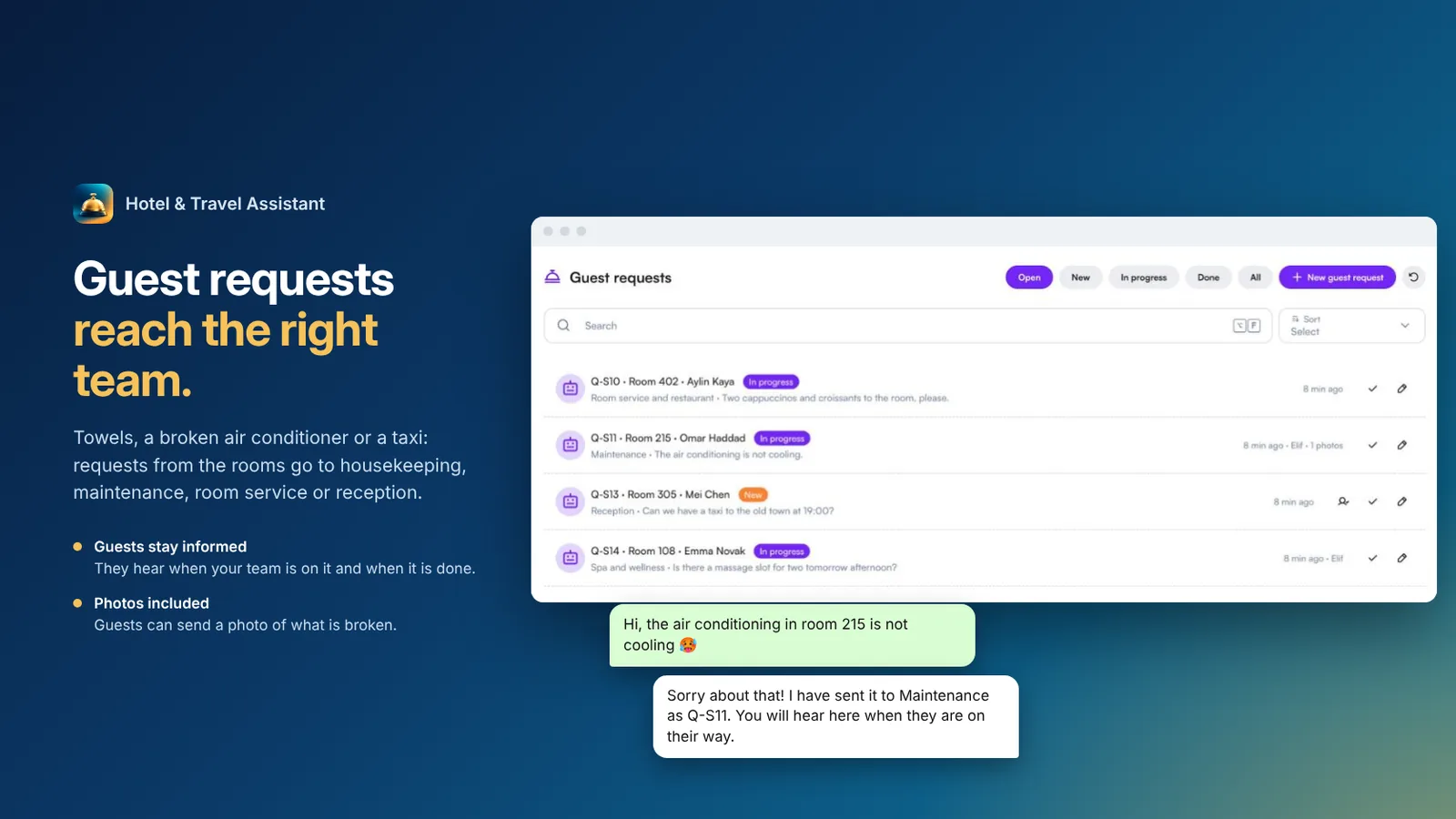 Guest requests sent to the right department, with the guest kept informed
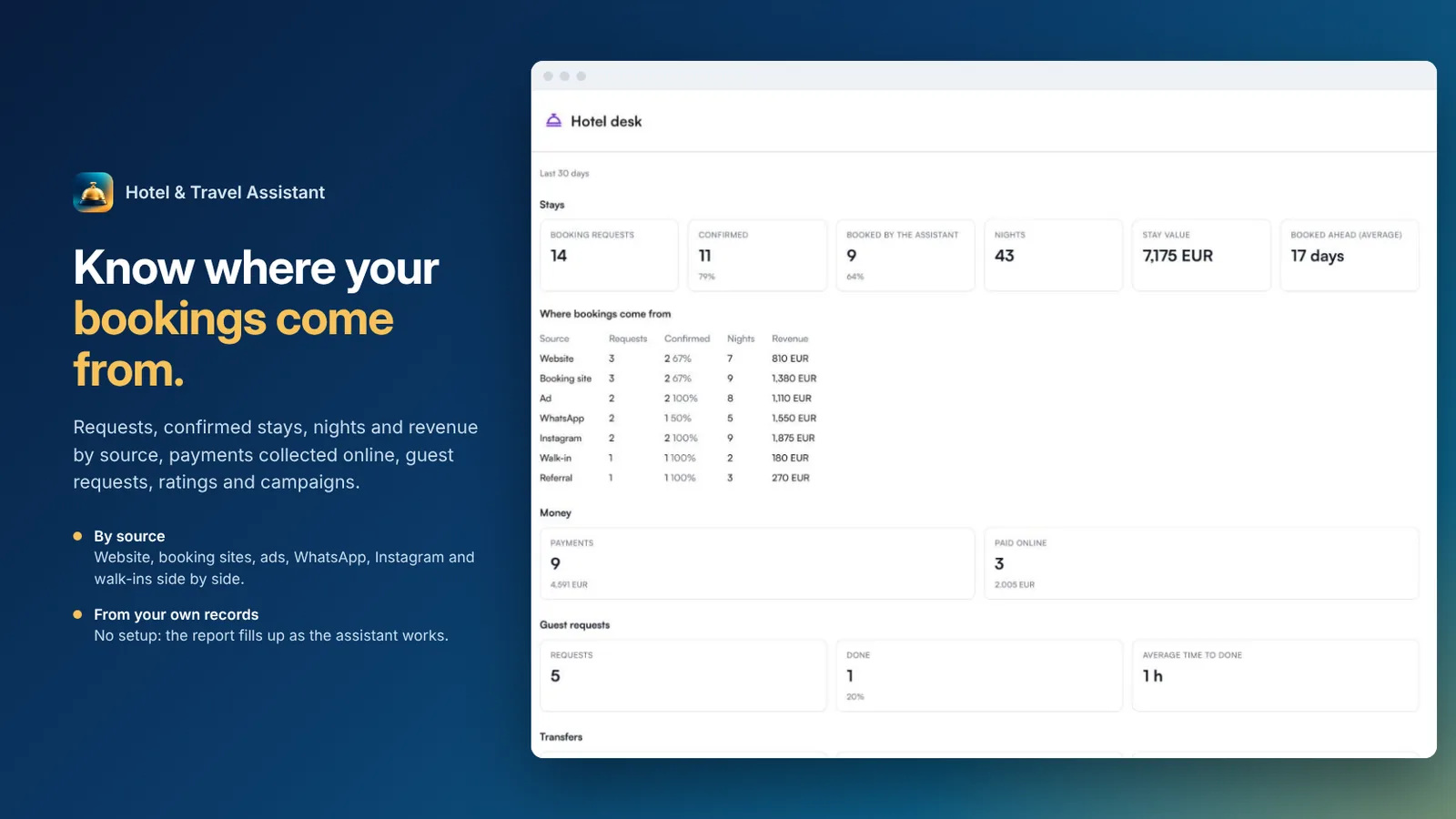 Hotel desk report with bookings by source, nights, stay value and payments
FAQ
Which businesses is it for?
Hotels, boutique hotels, resorts and travel agencies. It books rooms, tours and day trips, restaurant tables and transfers, and you switch each on or off.
How does it work out room prices?
From each room type’s base rate, your seasons (higher or lower rates, minimum nights, stop-sell), extra adults, children, the meal plan and city tax. It never invents a price.
Can it confirm bookings by itself?
You choose. A booking can be a request your reception confirms, or confirmed at once while rooms are free. Rooms are counted night by night, so the last room is never promised twice.
Can guests pay a deposit in the chat?
Yes. After confirmation the guest gets the deposit request with Pay now. With a payment integration it sends a payment link and records the payment; without one, your payment instructions are sent.
What happens during the stay?
Guests ask for towels, a repair or room service in the chat. The request goes to the right department, guests can send a photo, and they hear when the team starts and when it is done.
Which channels and languages does it support?
WhatsApp, Instagram and web chat, around the clock, in the guest’s own language, including voice messages.