Google Review Requests

Asks your customers for a Google review after their visit, on WhatsApp and your other channels, in their own language, with your review link for each branch. Your CRM, POS or a file sends the customers; MonoChat sends the request at the right time, fairly.
Overview
Google Review Requests asks your customers to leave a Google review after their visit, on WhatsApp and on the other channels you use in MonoChat. Your CRM, POS or booking system sends the customers of the day; MonoChat sends each of them a short, friendly message with your Google review link at the right time, in their own language. Built for restaurants, clinics, salons, shops and any business with one or more branches.
You add each branch as a location with its own review link and languages, decide when requests go (General), and send customers in four ways: the API, a CSV file or a pasted list (Send), MonoChat Triggers, or your team from a conversation. Today, Requests, Reports and Activity show what was sent, read and answered.
Highlights
- One link per branch, in every language. A Place ID opens Google’s “write a review” window with the stars; a pasted review link (g.page/r/…/review) works too. Each location picks its languages from all 35 languages of MonoChat, with ready texts you can change.
- WhatsApp done right. While the customer’s 24-hour window is open the cheaper free-form message goes; outside it, an approved template in the customer’s language. One template can serve every branch: its link button ends with the branch’s Place ID.
- Fair asking. Every customer gets the review link. “Had a problem?” sits next to the link, never instead of it. There is no reward or coupon field, and the app never asks for five stars or for staff names.
- Respectful by default. A delay after the visit, quiet hours, one request per customer in 90 days, an optional daily limit and one optional reminder. “Stop” and the stop word of every language opt the customer out for good.
Before you start
You need:
- Your branch’s Google Place ID or review link. Google’s Place ID Finder shows the Place ID: search your business on the map and copy the ID under its name.
- A channel to send from. For WhatsApp: a WhatsApp number connected under Settings › Channels and an approved template (the app suggests one in every language). Review requests are almost always approved as Marketing, and Meta’s marketing prices apply. Other channels (Instagram, Messenger, web chat, Telegram) get the free-form message while they allow one; SMS works from your SMS number.
- Optional: a Google Places API key, to find a Place ID by name and follow each branch’s rating.
This app is not made or endorsed by Google. Google is a trademark of Google LLC.
Install and set up
- Install Google Review Requests from Settings › MonoStore › Apps, or open the install link app.monochat.ai/apps/TN5QsrchsFJyCgbJx. Without a MonoChat account, the link lets you sign up first and installs the app for you.
- Open the Reviews desk (the star icon in the left menu). Under Locations, click New location: the name, the Place ID or review link (Test the link), the languages and messages, and the WhatsApp or SMS number to send from. Click Save.
- For WhatsApp, click Suggest a template, copy the template into WhatsApp Manager or send it for approval, and choose it in the location once Meta approves it.
- Under General, check the delay, the quiet hours and the opt-out settings. Turn on Test mode if you want to try everything first.
- Send customers: connect your CRM or POS under API, upload a file under Send, or add a Trigger.
- Click the green power button in the desk header and Turn on. The badge next to the title changes from Off to On.
Load Sample data (“Al Noor Grill”, two Dubai branches, sixty requests over two weeks) to see every screen filled before your first request. Nothing is ever sent for sample data, and Remove sample data takes it away without touching your real locations, triggers and requests.
Screen by screen
The app lives in the Reviews desk: Today, Requests, Send, Locations, Reports and Activity, then the settings: General, Triggers, API, Google and Sample data. The screenshots below show the sample data.
Get started
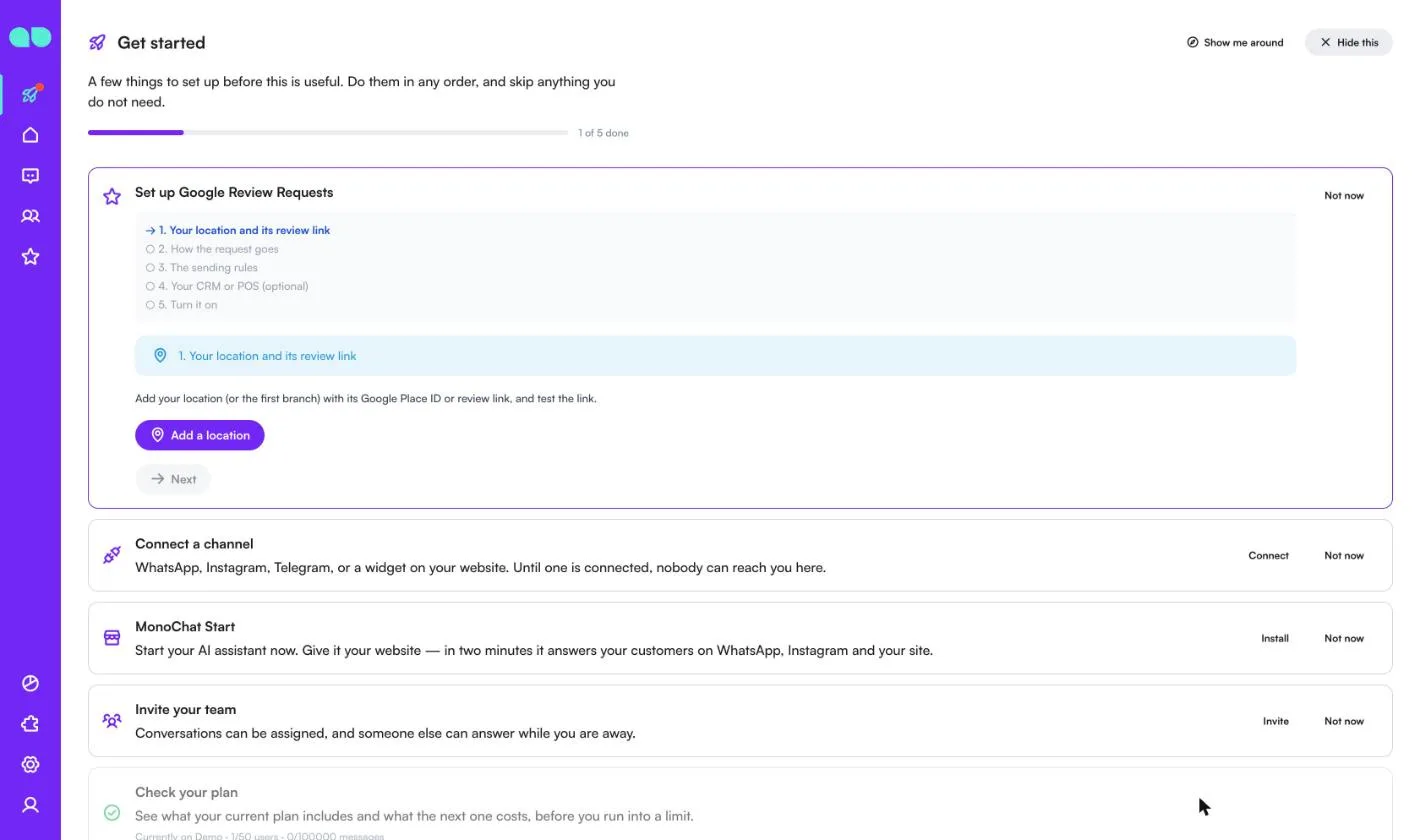
The Get started tab on your home page adds a Set up Google Review Requests card with five steps: 1. Your location and its review link, 2. How the request goes, 3. The sending rules, 4. Your CRM or POS (optional) and 5. Turn it on. Each step has a button that opens the screen to do it, and Next moves to the next step.
The desk header
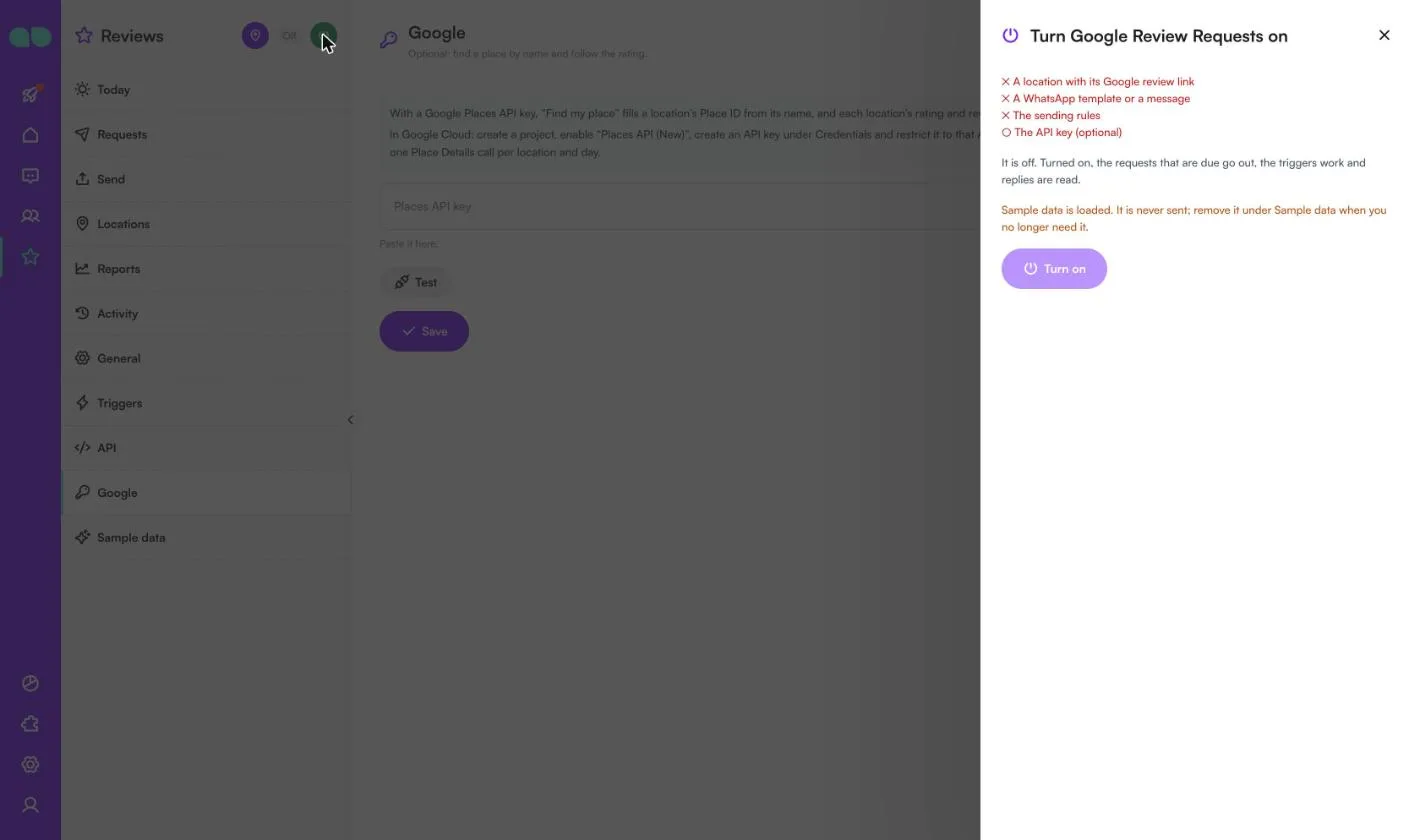
The header shows On or Off next to the title. The location pin opens New location, and the power button opens Turn Google Review Requests on: it lists what is ready and what is missing (A location with its Google review link, A WhatsApp template or a message, The sending rules, The API key (optional)). Turned on, the requests that are due go out, the triggers work and replies are read. While it is off, requests that come in are kept and wait.
Today
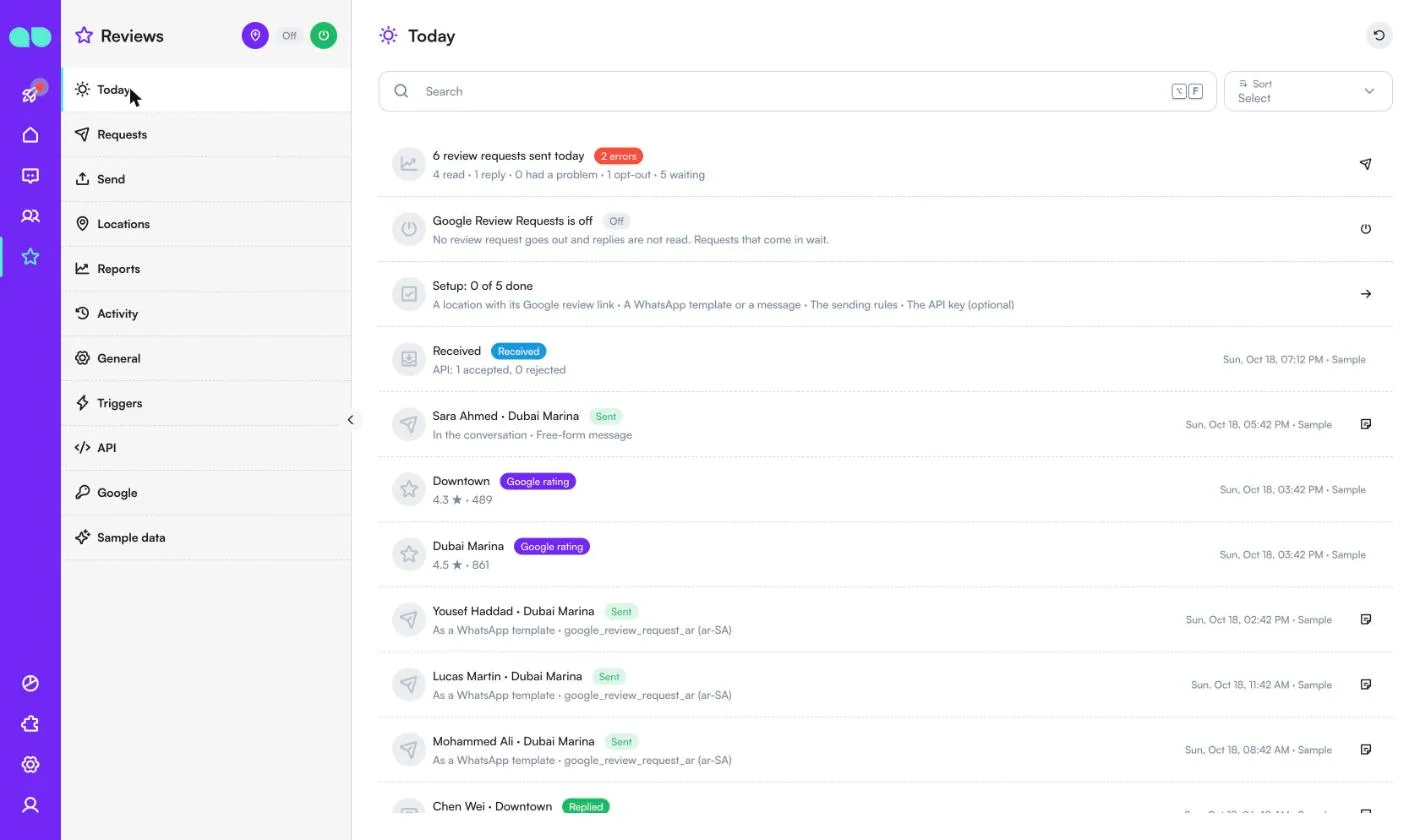
Reviews › Today opens with a summary: review requests sent today, read, replies, “had a problem” and opt-outs, how many are waiting and any errors. Below it, the app’s state, the setup steps still open, and the latest events: requests Received from the API or a file, Sent (in the conversation as a free-form message, or as a WhatsApp template with its language), Replied with the customer’s answer, Had a problem, Opted out, Skipped with the reason (for example Already asked recently), and each location’s Google rating when the Places API key is set.
Requests
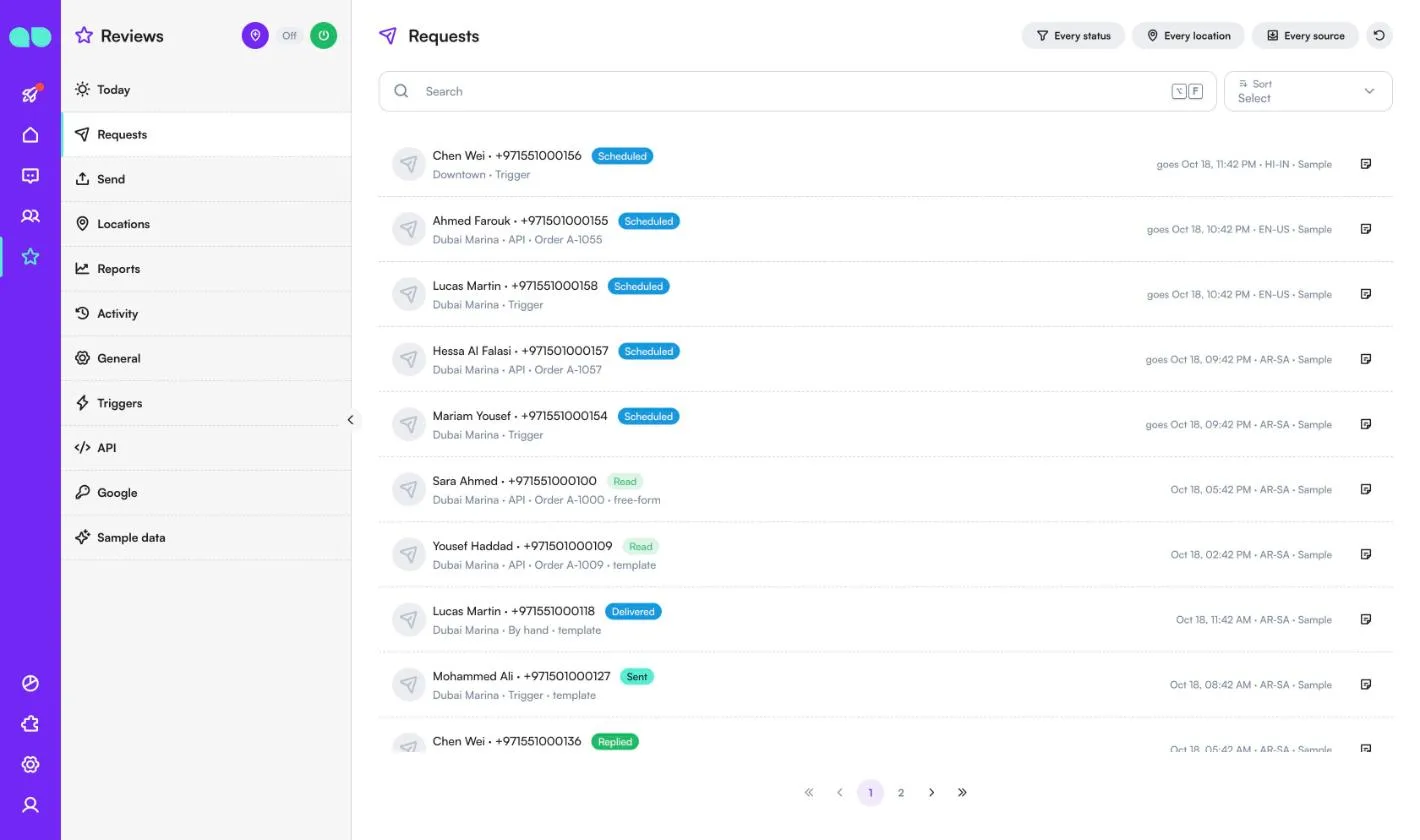
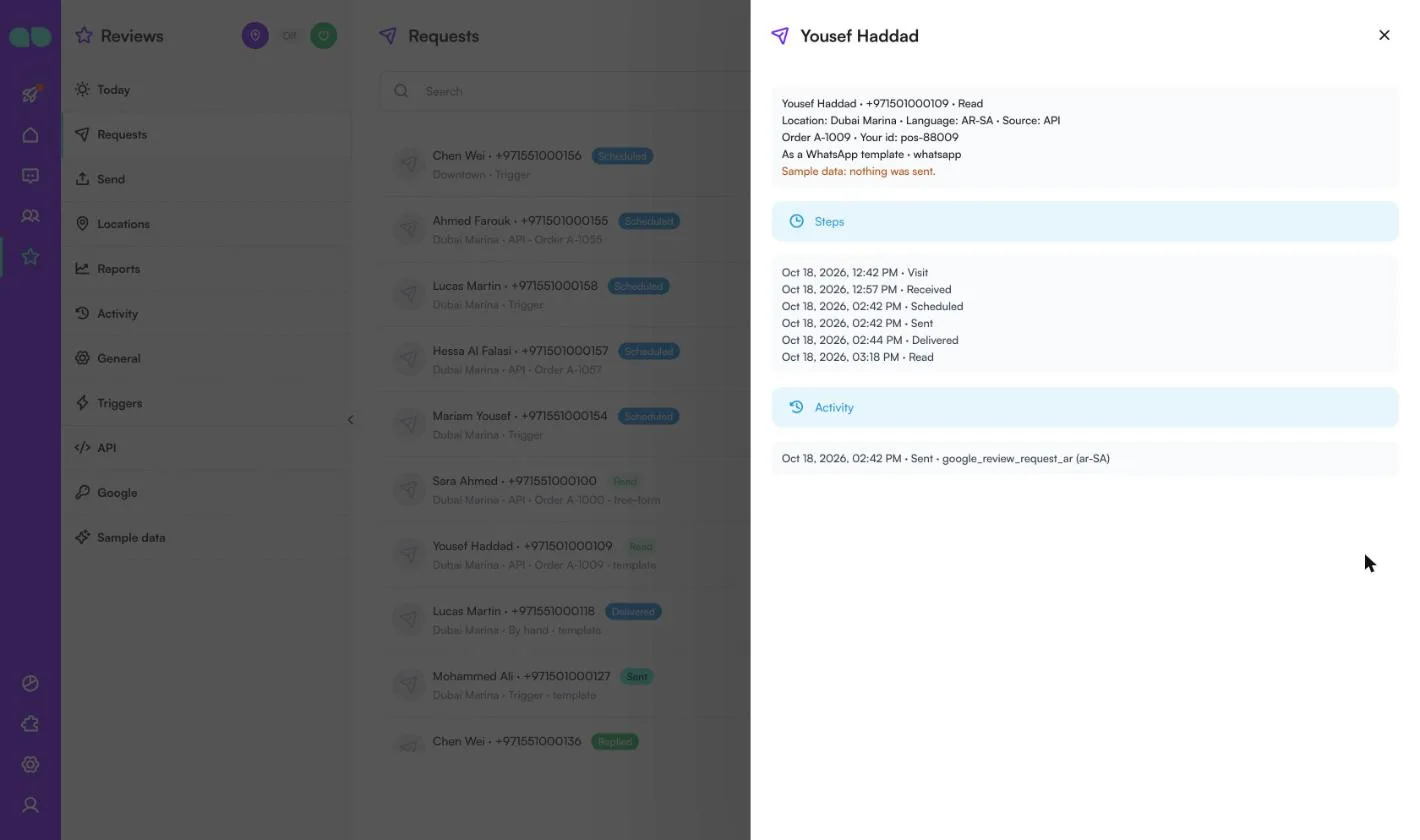
Reviews › Requests lists every request. Filter by status (Every status), location (Every location) or source (Every source), or search. Each row shows the customer and phone, the status (Scheduled, Sent, Delivered, Read, Replied, Had a problem, Opted out, Skipped, Failed, Cancelled), the location, where it came from (API, File, Trigger or By hand), the order number, and when it goes or went, with the language.
The icon at the end of a row opens the request: the location, language and source, your order number and your own id, how it goes (free-form or WhatsApp template), its Steps (visit, received, scheduled, sent, delivered, read, replied) and its Activity. Your team can open the conversation, send the request again when it failed or was skipped, or cancel it while it waits. A skipped request shows why, for example Already asked recently, The customer opted out, The channel’s 24-hour window is closed, No template or message for this language, No phone number or The location has no review link.
Send
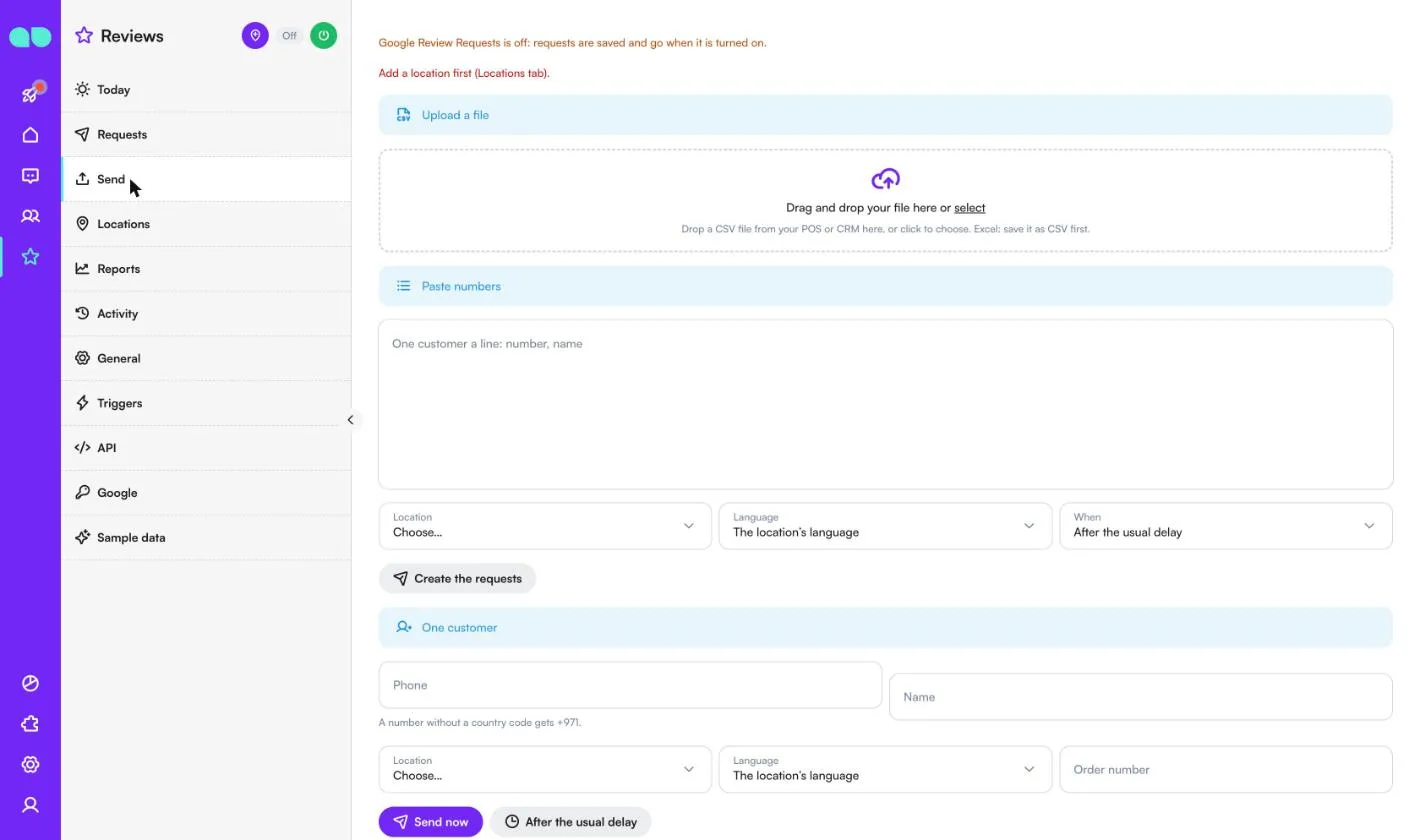
Reviews › Send creates requests by hand:
- Upload a file: drop a CSV file from your POS or CRM (Excel: save it as CSV first). Match the columns, see the first rows, and send now or spread the requests over a few hours.
- Paste numbers: one customer a line (number, name), with the Location, the Language and When (After the usual delay, Now (outside the quiet hours), or spread over 2, 4 or 8 hours). Create the requests adds them.
- One customer: phone, name, location, language and order number, then Send now or After the usual delay.
Recent files and lists shows each upload with how many were sent, are waiting, were skipped or failed. A number without a country code gets the country code set under General.
Locations
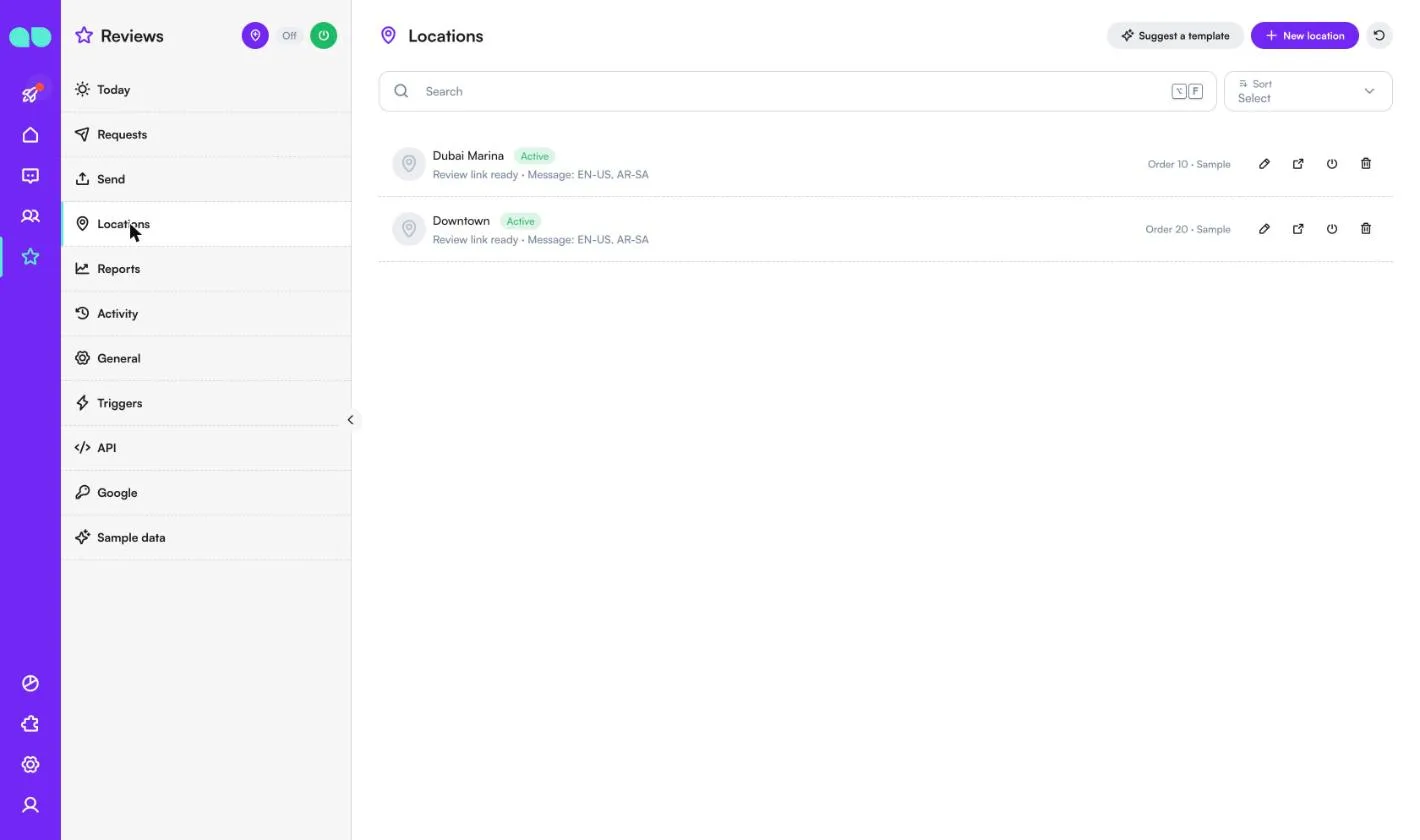
Reviews › Locations lists your branches with their state, whether the review link is ready and the languages of their messages. Use the pencil to edit a location, the arrow to open its review link, the power icon to turn it on or off, or the bin to delete it. New location adds one, and Suggest a template shows a ready WhatsApp template.
In the location form:
- Name (as customers know it; it fills
{location}in the messages), Sort order and Active. - Google review link: Place ID or review link. A Place ID opens Google’s “write a review” window with the stars; a pasted review link is kept as it is. The full link is shown, and Test the link opens it. With a Places API key, Find my place searches the name and fills the Place ID.
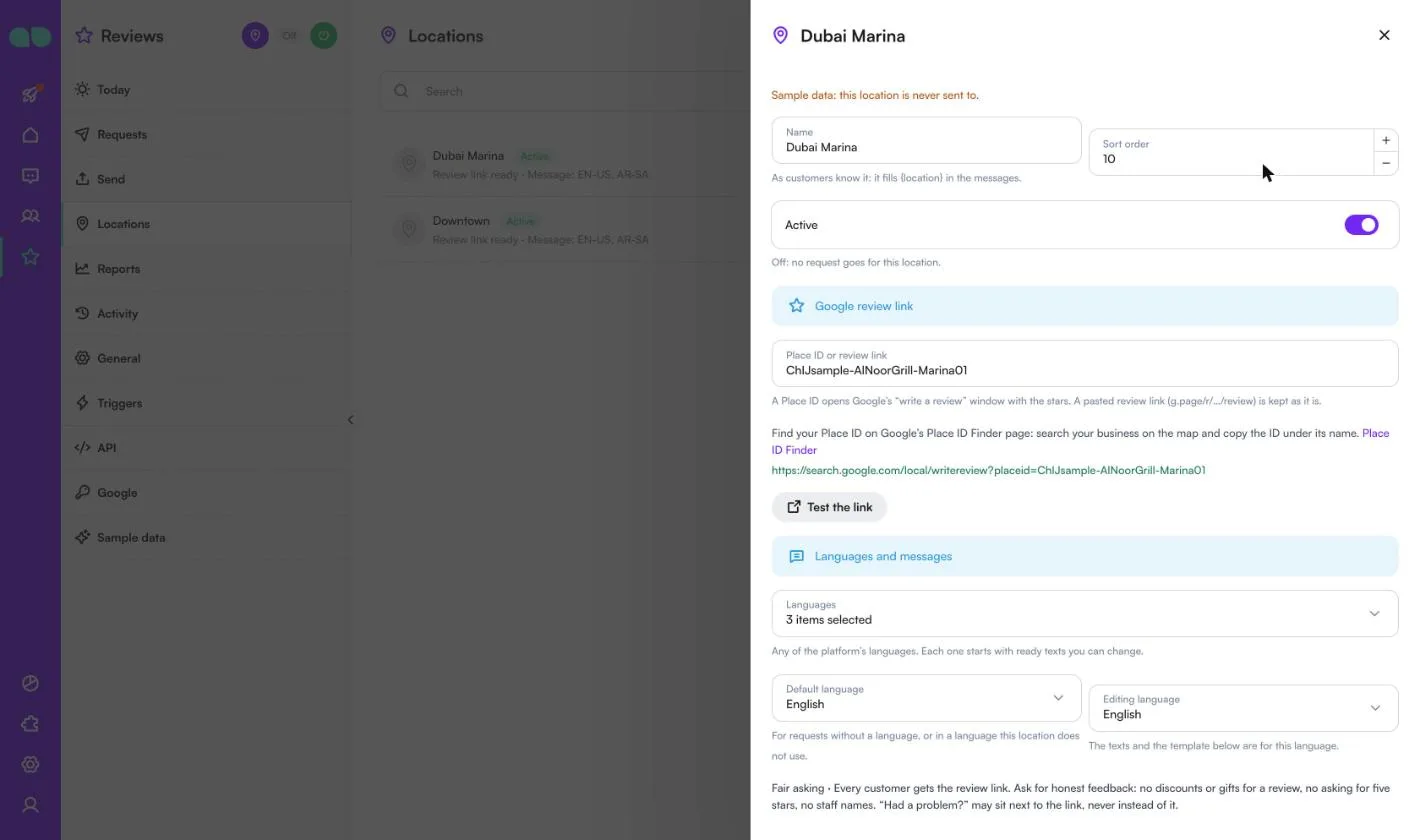
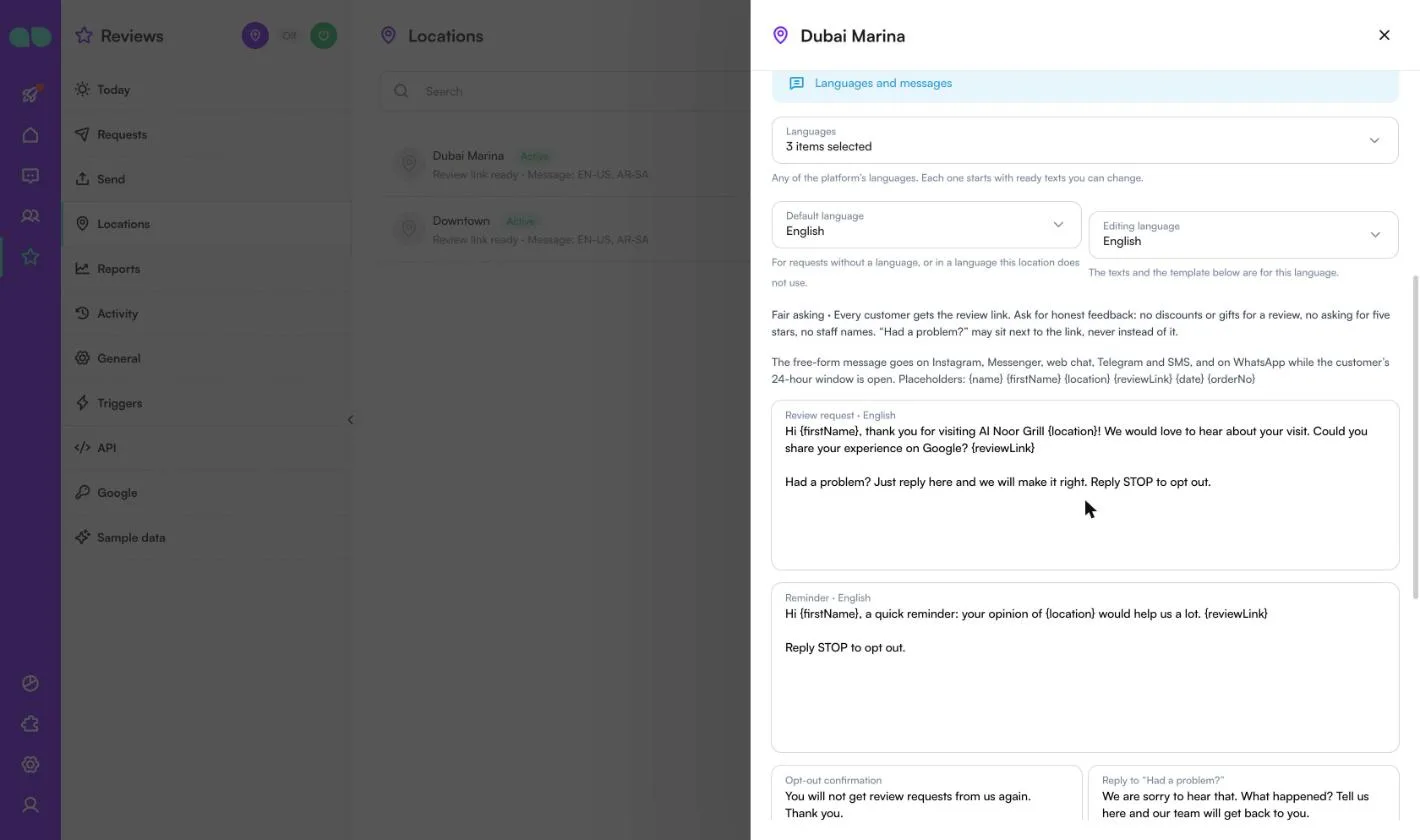
- Languages and messages: the Languages this location uses, the Default language (for requests without a language, or in a language this location does not use) and the Editing language. For each language: Review request, Reminder, Opt-out confirmation and Reply to “Had a problem?”, with placeholders
{name}{firstName}{location}{reviewLink}{date}{orderNo}. Every language starts with ready texts; Restore the ready texts brings them back. - WhatsApp: the WhatsApp number to send from and the approved template per language, with its link button mapped to the Place ID.
- SMS: the SMS number, for requests the API sends with channel
sms, and for phone numbers when there is no WhatsApp number.
Suggest a template
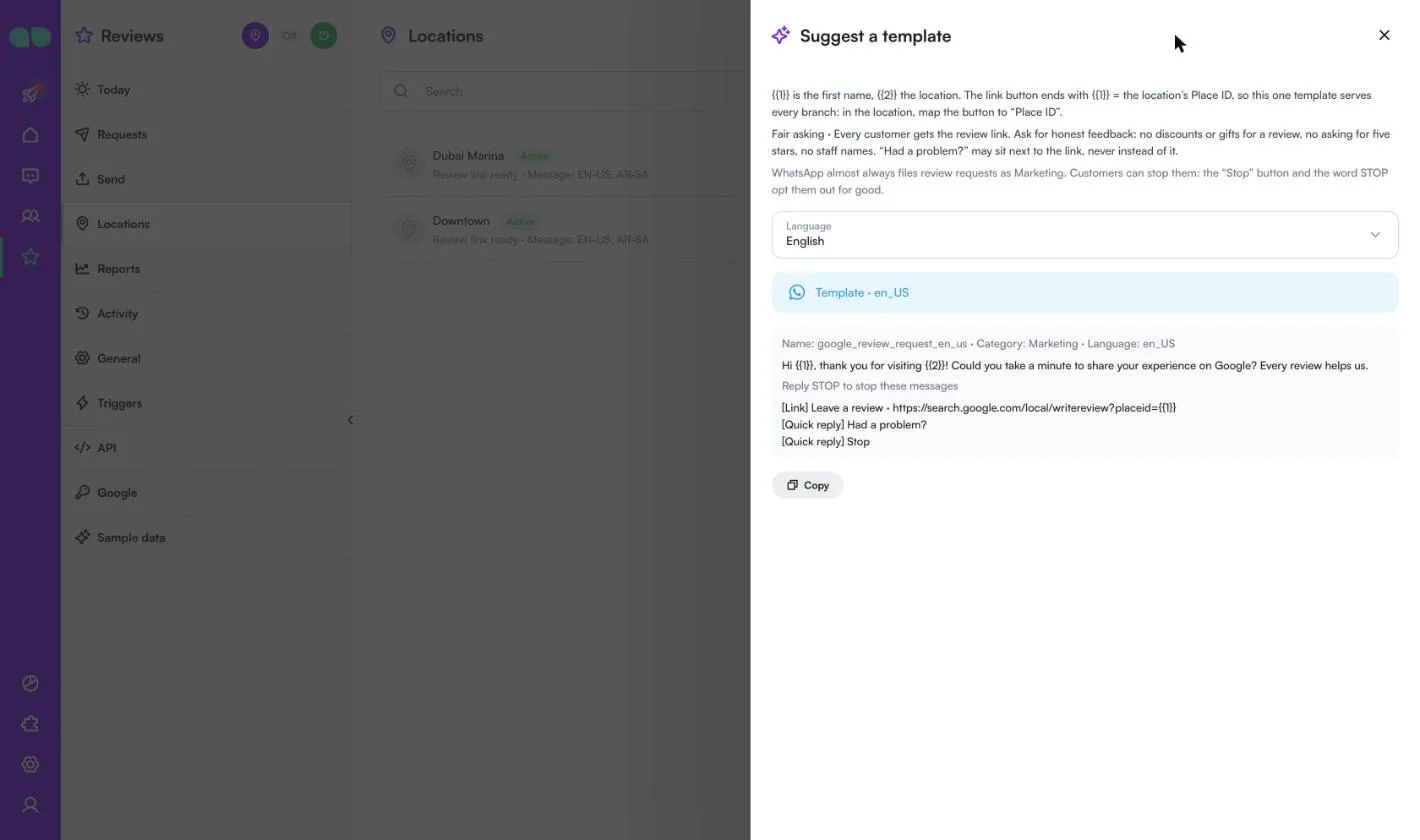
Suggest a template shows a ready WhatsApp template in the language you choose: its name (for example google_review_request_en_us), the Marketing category, the text with {{1}} for the first name and {{2}} for the location, a Leave a review link button that ends with the Place ID, and the quick replies Had a problem? and Stop. Because the button ends with the Place ID, one template serves every branch. Copy it into WhatsApp Manager, or send it for approval from the app when a WhatsApp number is connected.
Reports
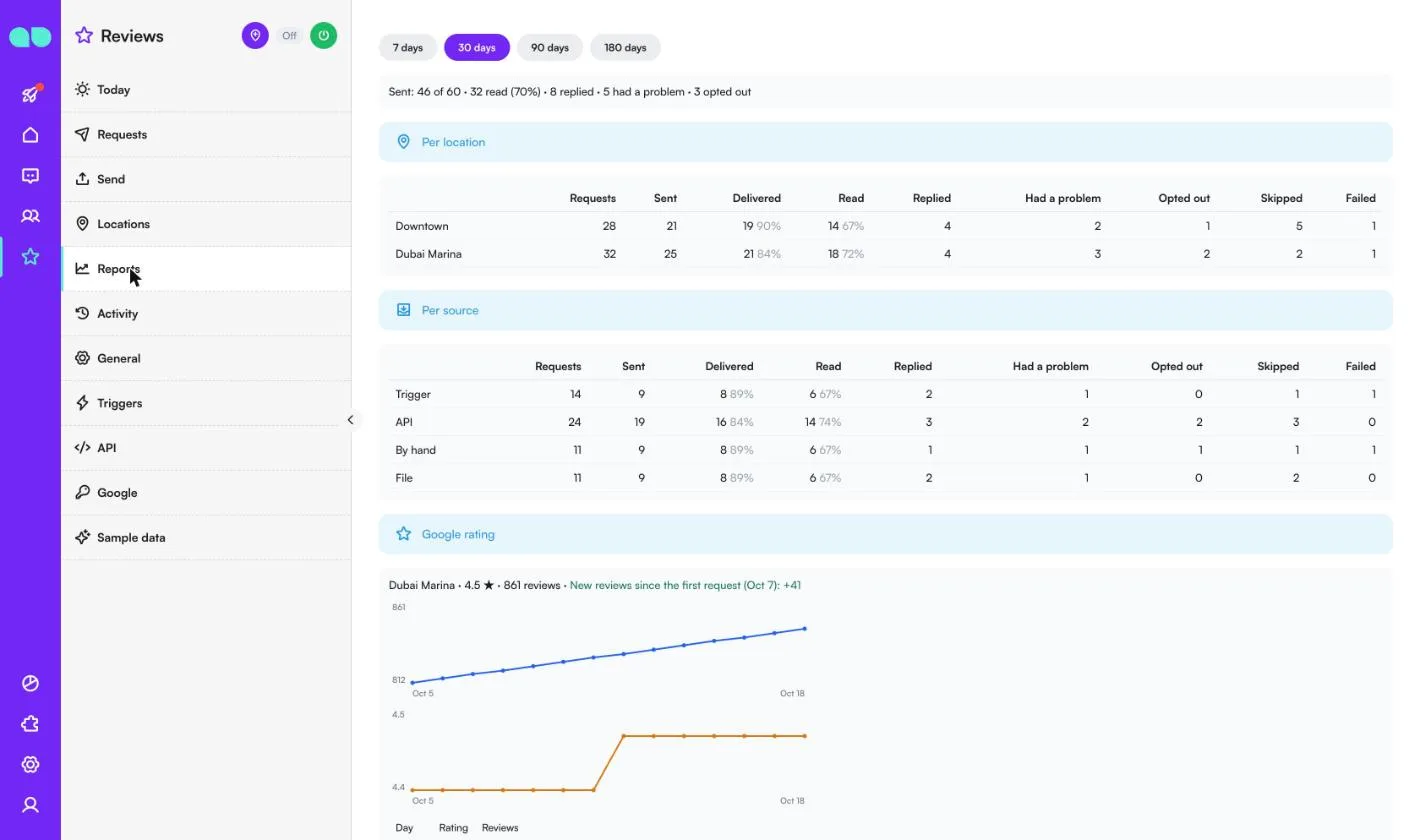
Reviews › Reports covers the last 7, 30, 90 or 180 days: requests sent, read, replied, had a problem and opted out, Per location and Per source (Trigger, API, By hand, File), with delivered and read rates, skipped and failed. With a Places API key, Google rating shows each location’s rating and review count day by day and the new reviews since the first request.
Activity
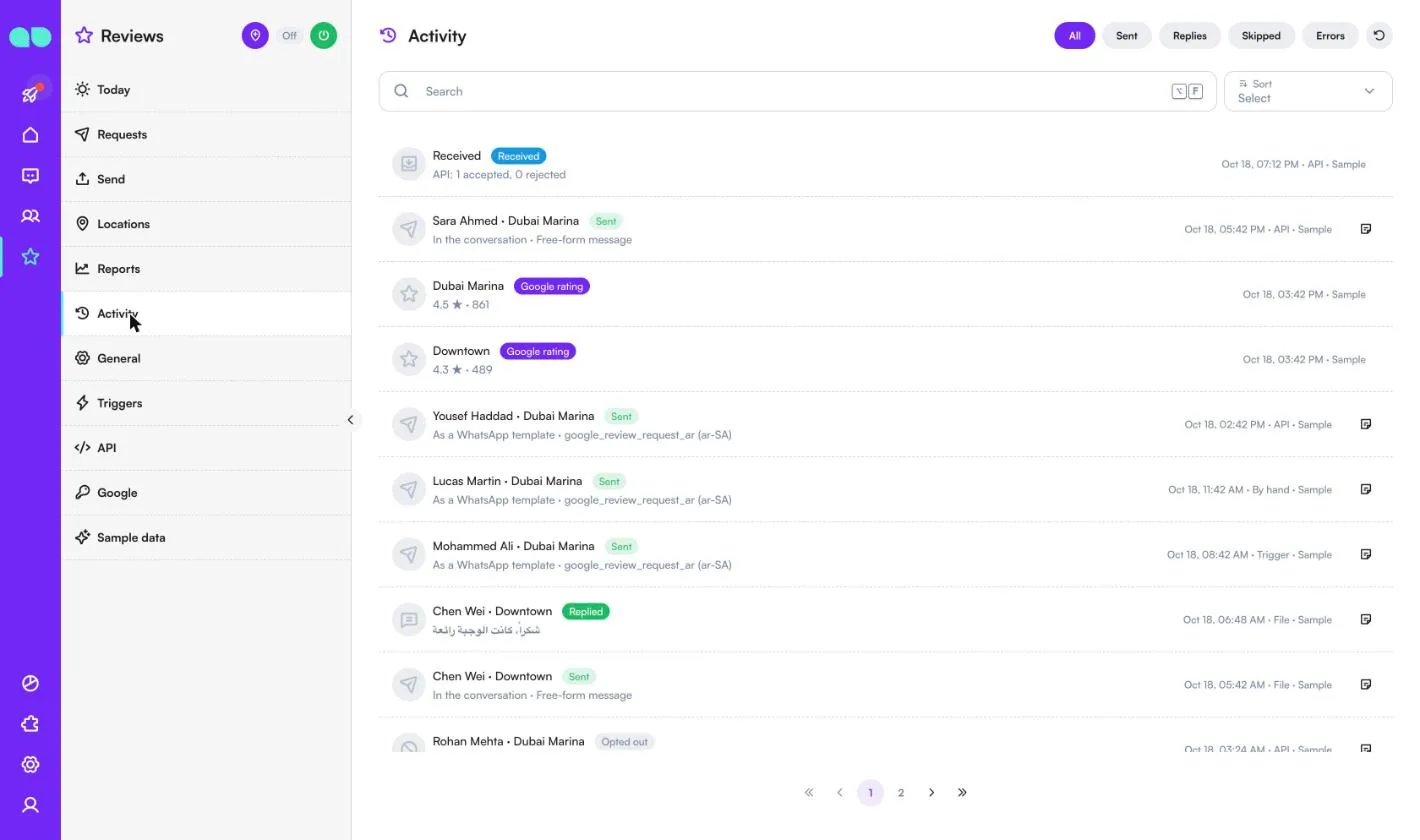
Reviews › Activity lists everything the app did: All, Sent, Replies, Skipped or Errors, with the customer, the location, what happened and the source.
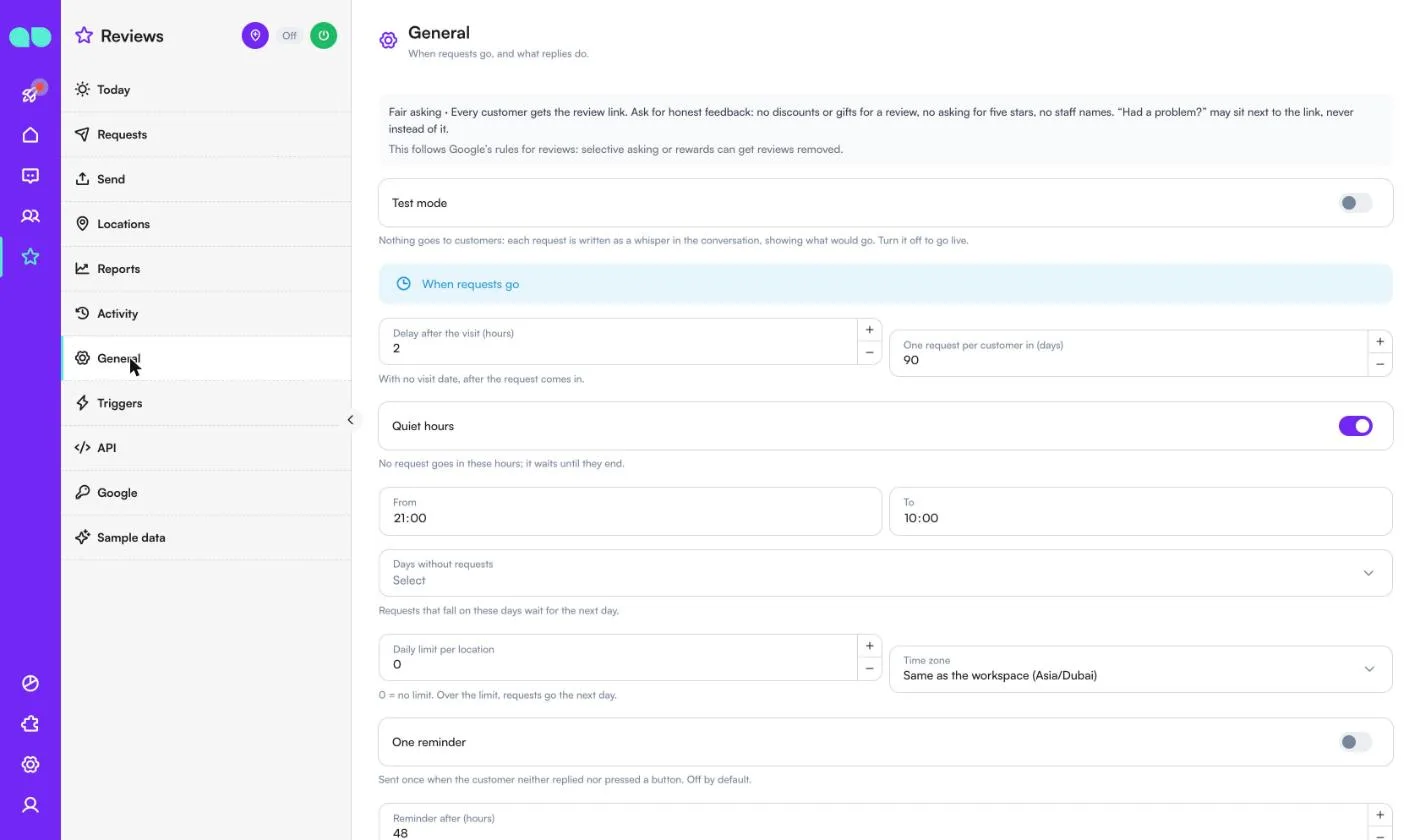
General
Reviews › General sets when requests go and what replies do:
| Setting | What it does |
|---|---|
| Test mode | Nothing goes to customers: each request is written as a whisper in the conversation, showing what would go. Turn it off to go live. |
| Delay after the visit (hours) | 2 by default. With no visit date, the delay counts from when the request comes in. |
| One request per customer in (days) | 90 by default. |
| Quiet hours, From, To | 21:00–10:00 by default. No request goes in these hours; it waits until they end. |
| Days without requests | Requests that fall on these days wait for the next day. |
| Daily limit per location | 0 means no limit. Over the limit, requests go the next day. |
| Time zone | The workspace’s by default. |
| One reminder, Reminder after (hours) | Sent once when the customer neither replied nor pressed a button. Off by default. |
| Free-form message inside the 24-hour window | On WhatsApp, when the customer wrote in the last 24 hours, the location’s free-form message goes instead of the template (cheaper). |
| Country code for local numbers | 050 123 4567 becomes +971 50 123 4567, for example. |
| Language of the team notes | The language of the whispers the app writes. |
| Opt-out tag, Stop words | Customers with the tag never get a request. A reply that is only one of the stop words opts the customer out; the “Stop” button and its word in every language always do. |
| “Had a problem?”: Extra words, Tag, Give the conversation to | “Had a problem?” in every language always counts; add your own button texts. The customer gets the tag, the team a note, and the conversation can go to a team or a person. Your flows can react with the custom event review.feedback. |
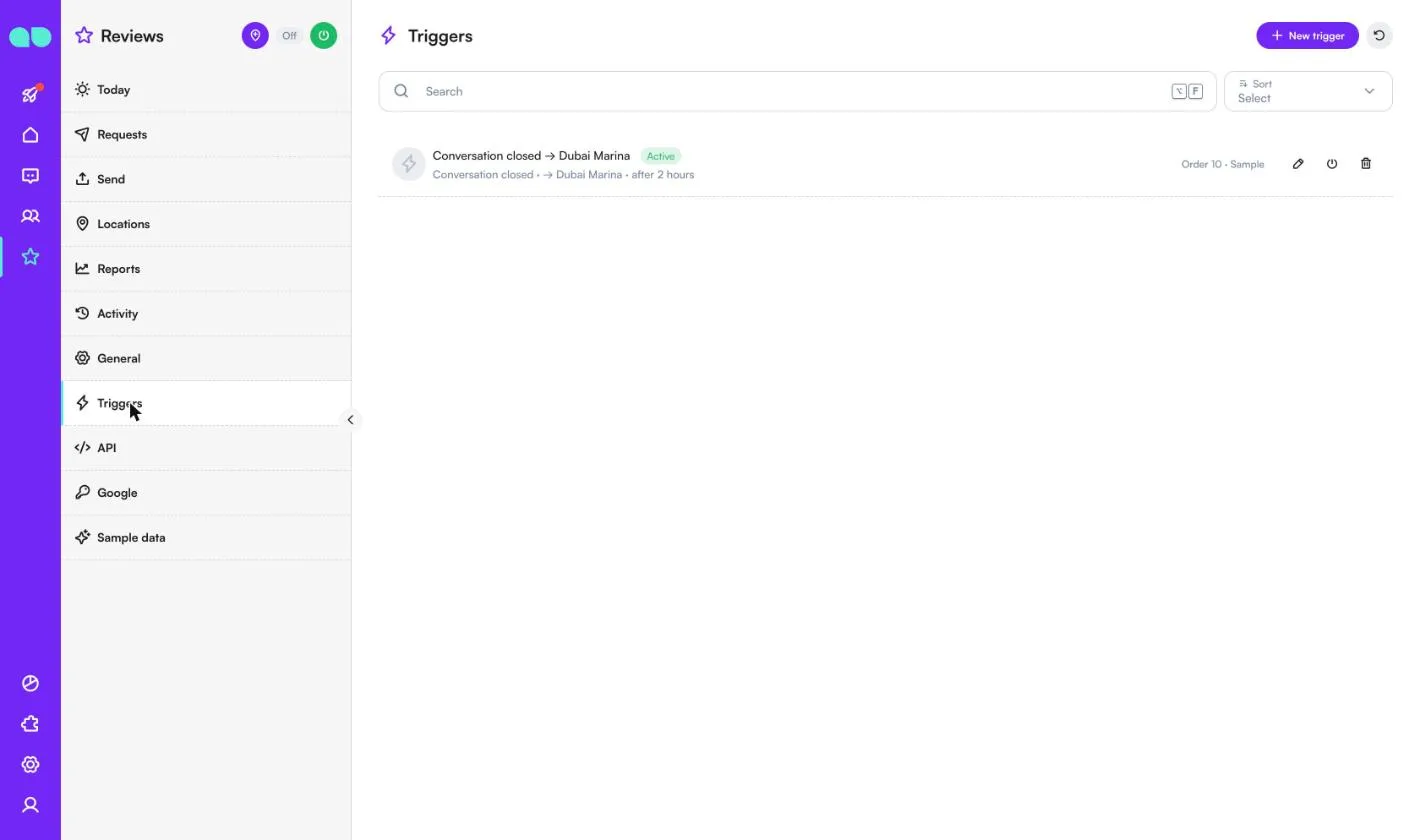
Triggers
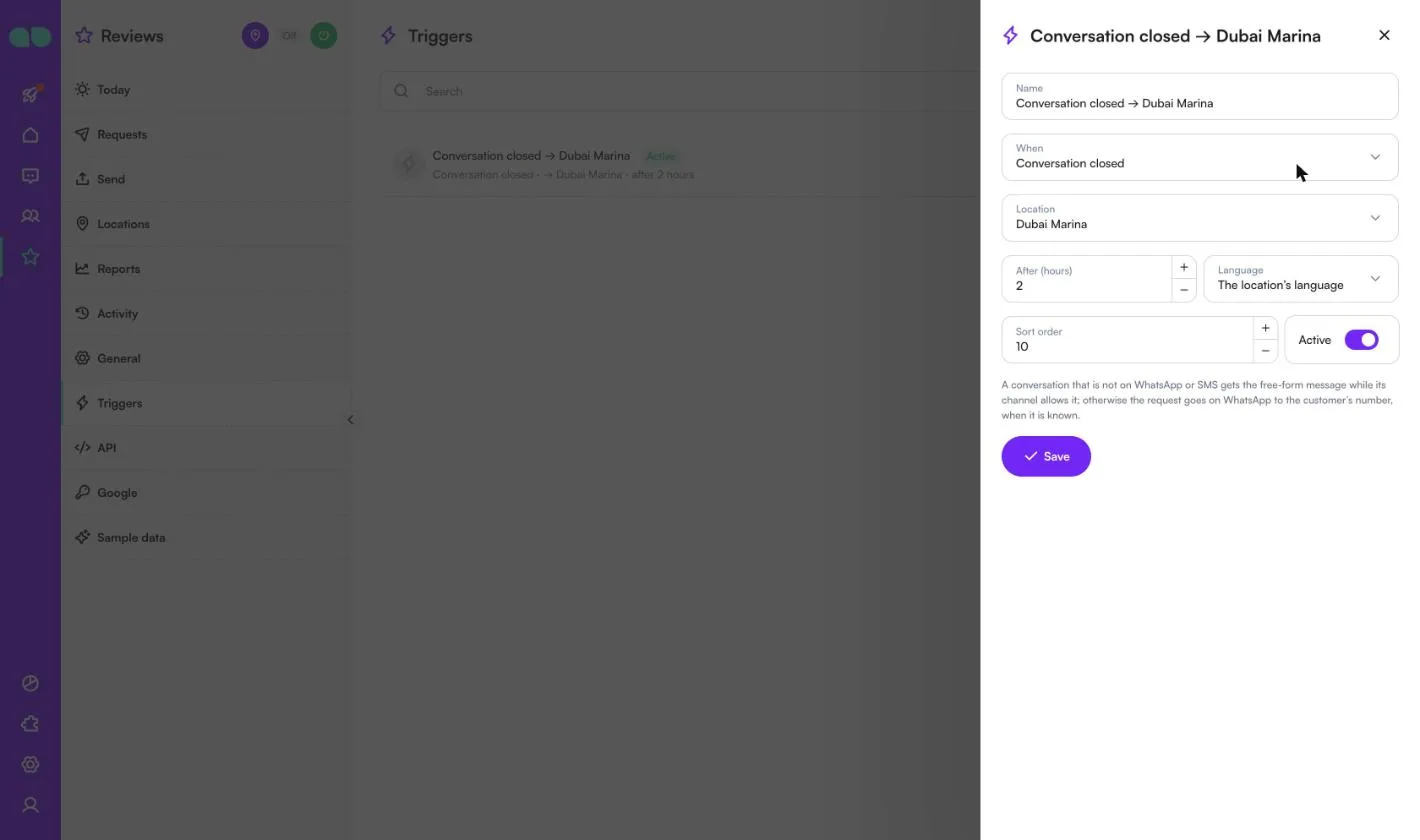
Reviews › Triggers sends requests from MonoChat events. Each trigger has a Name, When (Conversation closed, Payment received or Tag added), the Location, After (hours), the Language (the location’s, or a fixed one), Sort order and Active. A conversation that is not on WhatsApp or SMS gets the free-form message while its channel allows it; otherwise the request goes on WhatsApp to the customer’s number, when it is known.
API
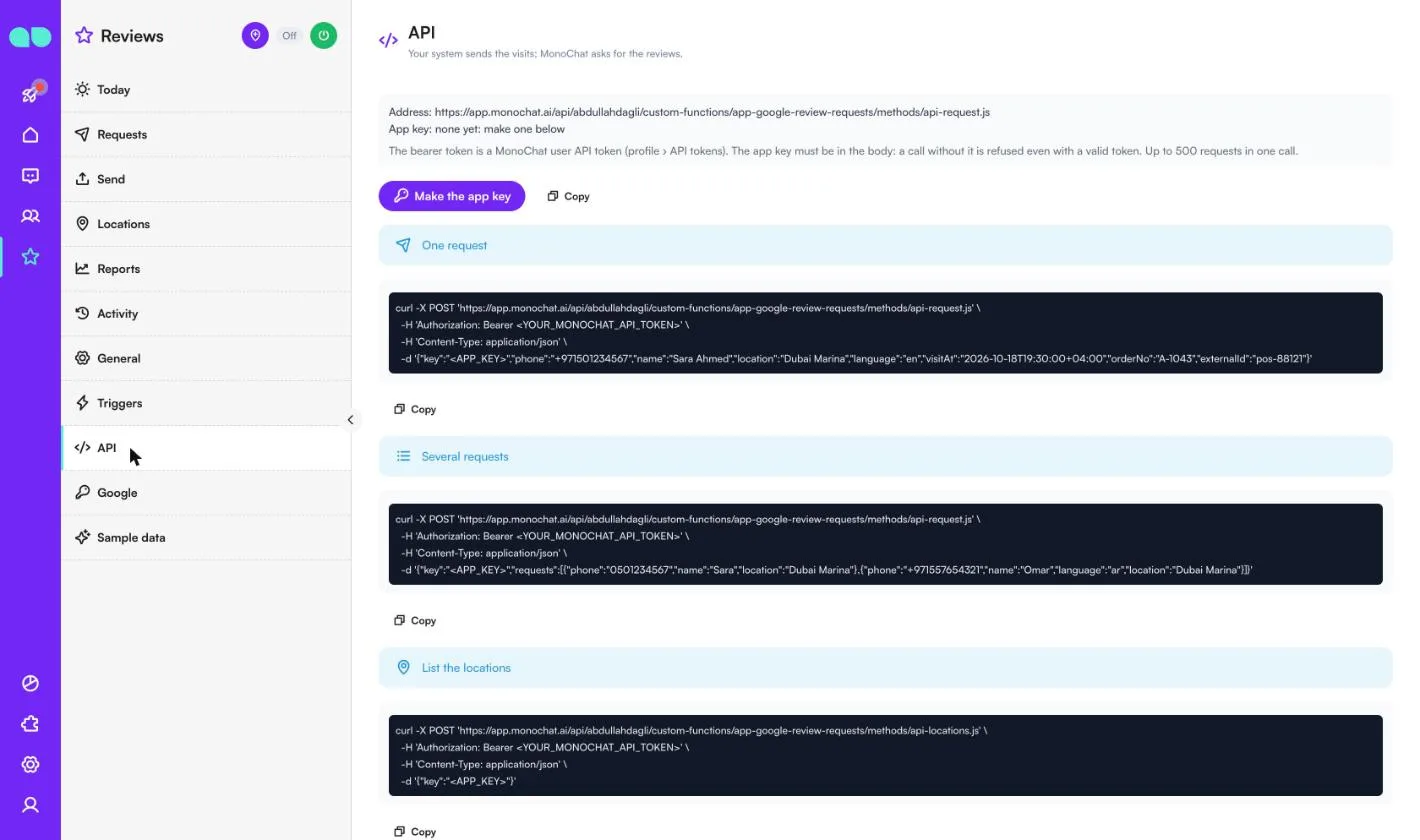
Reviews › API shows the address, the App key (Make the app key) and ready curl examples for One request, Several requests (up to 500 in one call) and List the locations. The bearer token is a MonoChat user API token (profile › API tokens); the app key must be in the body, and a call without it is refused even with a valid token.
curl -X POST 'https://app.monochat.ai/api/<workspace>/custom-functions/app-google-review-requests/methods/api-request.js' \
  -H 'Authorization: Bearer <YOUR_MONOCHAT_API_TOKEN>' \
  -H 'Content-Type: application/json' \
  -d '{"key":"<APP_KEY>","phone":"+971501234567","name":"Sara Ahmed","location":"Dubai Marina","language":"en","visitAt":"2026-10-18T19:30:00+04:00","orderNo":"A-1043","externalId":"pos-88121"}'
| Field | What it is |
|---|---|
phone | The customer’s number; local numbers get the country code from General. |
name | Optional; fills {name} and {firstName}. |
location | The location’s name or id; can be left out when you have one location. |
language | Optional: a language code or name (ar, ar-SA, ar_AE, Arabic, العربية …); otherwise the location’s default. |
visitAt | Optional: when the customer visited (ISO date); the request waits the delay after it. |
orderNo | Optional; fills {orderNo}. |
externalId | Optional: your own id; the same id is accepted once. |
channel | Optional: sms to send by SMS. |
The answer lists each request as accepted (with when it goes) or rejected with a reason: invalid-phone, location-unknown, no-location, duplicate, already-scheduled, recently-asked, invalid-date, too-old. The whole call is refused with bad-key or app-off.
Google
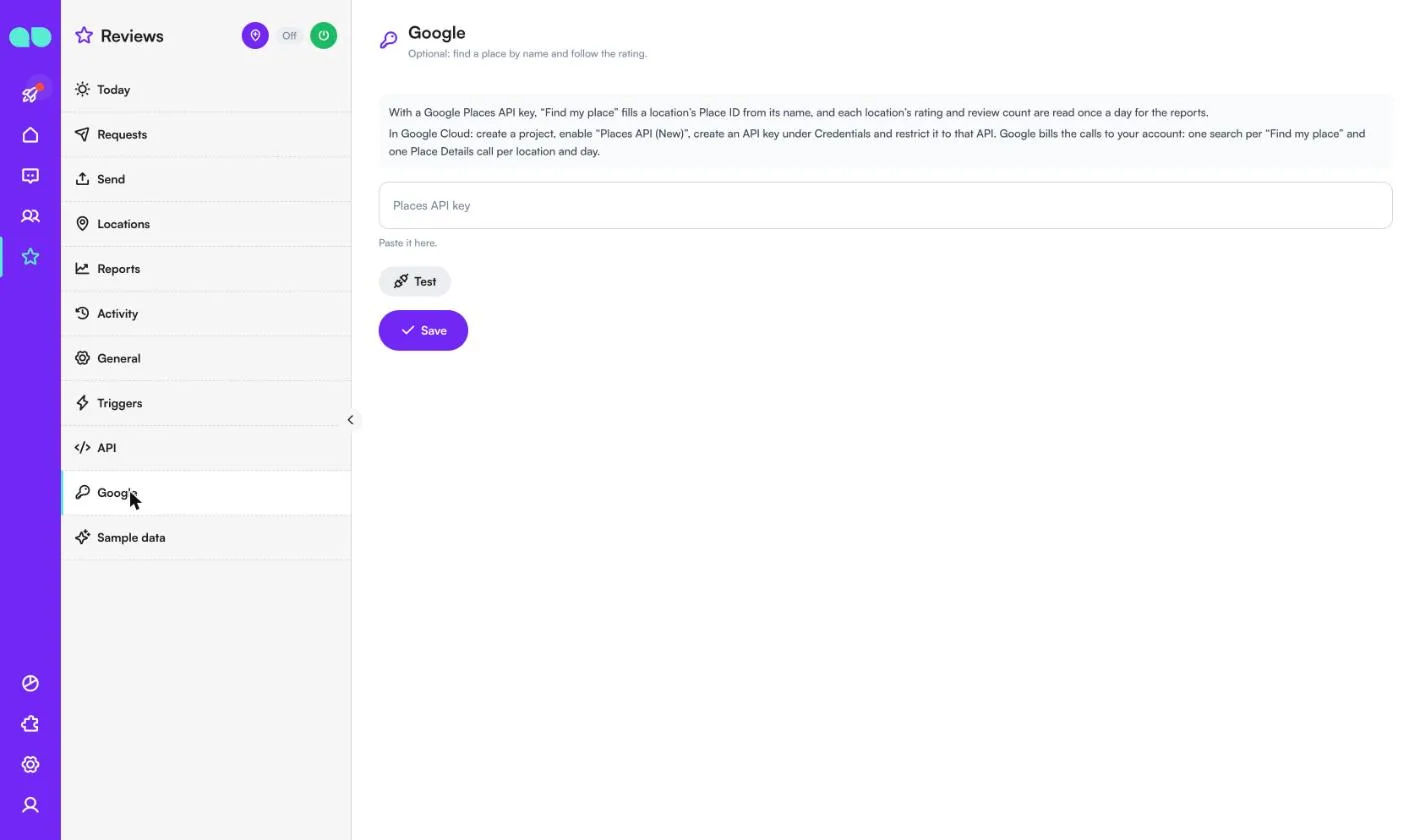
Reviews › Google is optional. With a Google Places API key, Find my place fills a location’s Place ID from its name, and each location’s rating and review count are read once a day for the reports. In Google Cloud: create a project, enable “Places API (New)”, create an API key under Credentials and restrict it to that API. Google bills the calls to your account: one search per Find my place and one Place Details call per location and day. Paste the key, click Test and Save.
Beside a conversation
In the inbox, the Google review card beside a conversation shows this customer’s review requests with their status, and Send review request sends one now for the location your team chooses: the customer gets the location’s review link with “Had a problem?” next to it. When the customer opted out, the card says so.
FAQ
Is it allowed to ask customers for Google reviews? Yes, asking every customer is allowed. Google removes reviews that were asked for unfairly: with rewards, by asking only happy customers, or by asking for specific ratings or words. The app sends the link to everyone, has no reward field and never asks for five stars.
What happens when a customer presses “Had a problem?”
The customer gets a short reply in their language asking what happened. Your team gets a tag and a note, the conversation can go to a team or a person, and your flows can start with the custom event review.feedback.
Which template category should I choose on WhatsApp? Review requests are almost always approved as Marketing, and Meta’s marketing prices apply. While the customer’s 24-hour window is open, the app sends the free-form message instead, which is cheaper.
Can the same customer be asked twice?
Not within the days you set in One request per customer in (days) (90 by default), and the same externalId from your system is accepted only once.
Can I try it without sending anything? Yes. Turn on Test mode under General: each request is written as a whisper in the conversation, showing exactly what would go.