Donor Assistant

An AI donor desk for charities and foundations that shares your campaigns, takes donations in the chat with a code and the way to pay, sends receipts and field photos and video to donors, and registers volunteers.
Overview
Donor Assistant is the donor and volunteer desk of a charity, foundation or association on WhatsApp, Instagram and web chat. It works around the clock and answers people in their own language, including voice messages.
You choose the kind of organisation once (relief, education, health, religious giving or other), and the donation types and wording follow it.
Religious giving (kurban, zakat, sadaqah, fitre) is explained only from the text you approve. The assistant never calculates zakat or gives rulings; it hands over to your team, as it does whenever a person is needed.
Highlights
- Giving, right in the chat. The donor picks a campaign and a donation type (a food parcel, a kurban share, a well share, or any amount), how many and on whose behalf. They get a donation code and the way to pay.
- Every gift, from pledge to receipt. When a donation is paid, by the payment system or marked by your team, the donor gets a thank-you with a receipt number. Donors can ask whether their donation arrived and see their pledges, gifts and receipts.
- Field photos straight to each donor. Upload the photos or video of a kurban group, a finished well or a distribution once. Each matched donor, by donation code, field batch or campaign, sees their own with one tap.
Install and set up
- Install Donor Assistant from Settings › MonoStore › Apps, or open the install link app.monochat.ai/apps/BWEH8rkPAxuMtpCGR. Without a MonoChat account, the link lets you sign up first and installs the app for you.
- Open the Get started tab on your MonoChat home page and choose Set up your organisation, then Set up the organisation. The form asks What are you setting up? (Relief, Education, Health, Religious giving or Other; this sets the usual donation types and a first campaign), the Name of the organisation, phone, address, website, currency, language of automatic messages, time zone, your opening hours for each day and, optionally, your bank details for transfers. Tick Also load sample data so I can see it full if you want every screen filled with example records. Click Save and continue.
- Open Giving in the left menu. Check your Donation types, write your first campaign’s story under Campaigns and set it active, and choose how donors pay under Giving and payments. Fill in About you and look through Automatic messages, How it talks and Handover too.
- Click the green power button (Turn on) in the Giving header. The Turn the assistant on drawer lists what is still missing and what will start; switch Assistant answers donors on and confirm. The badge next to the title changes from Off to On. Only someone who can manage automations in the workspace sees the power button and can turn the assistant on or off.
- Choose Try it on your own phone on the Get started tab and message your own number the way a donor would: ask which campaigns are open, give a few food parcels or offer to volunteer. Mark the donation paid on the desk to see the thank-you and receipt arrive.
- Nothing goes out in quiet hours or to anyone who said stop.
- The assistant never writes card or bank details itself, and nothing is charged automatically.
Screen by screen
The app lives under Giving in the left menu (the heart icon). The screenshots below show the sample data of Hope Bridge Foundation, a relief organisation with food parcel, kurban and water well campaigns.
Get started and the setup form
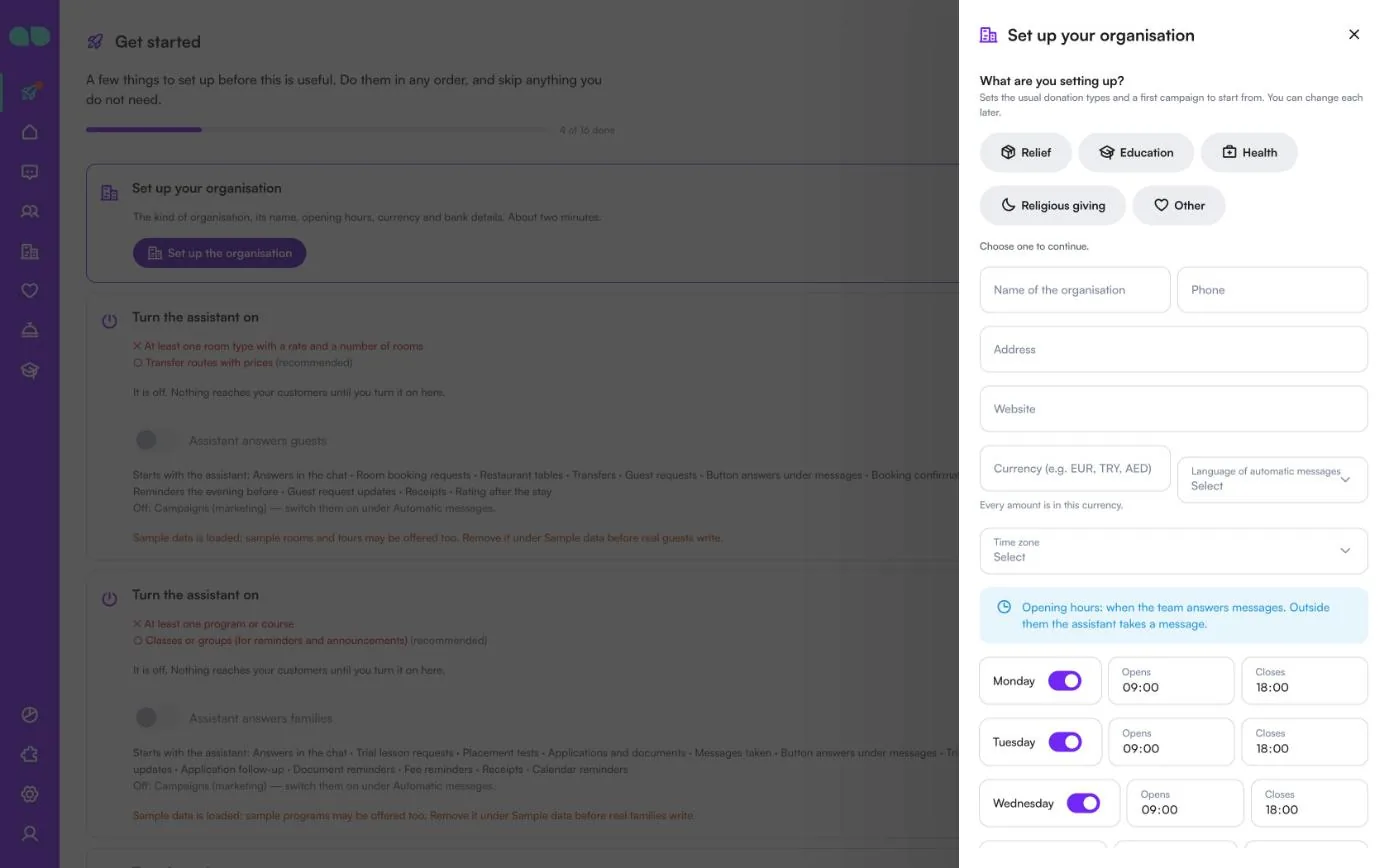
The Set up your organisation card on the Get started tab opens the setup form. Choose the kind of organisation to continue:
- Relief: food parcels, hot meals and emergency aid.
- Education: school kits, scholarships and general support for education.
- Health: medical care, clean water and general support for health work.
- Religious giving: kurban shares, zakat, sadaqah and fitre, with names on whose behalf and field photos for kurban.
- Other: one general donation type to start from.
| Field | What it does |
|---|---|
| Name of the organisation, Phone, Address, Website | What the assistant tells donors about you. The name is required. |
| Currency (e.g. EUR, TRY, AED) | Every amount is in this currency. |
| Language of automatic messages | The language of the WhatsApp templates and automatic messages. |
| Time zone | The zone your hours are read in. |
| Opening hours per day | A switch and Opens/Closes for each day: when the team answers messages. Outside them the assistant takes a message. |
| Bank transfer (optional) | Bank name, Account holder and IBAN. Donors can then pay by bank transfer with their donation code as the reference. |
| Also load sample data so I can see it full | Fills every screen with example records. |
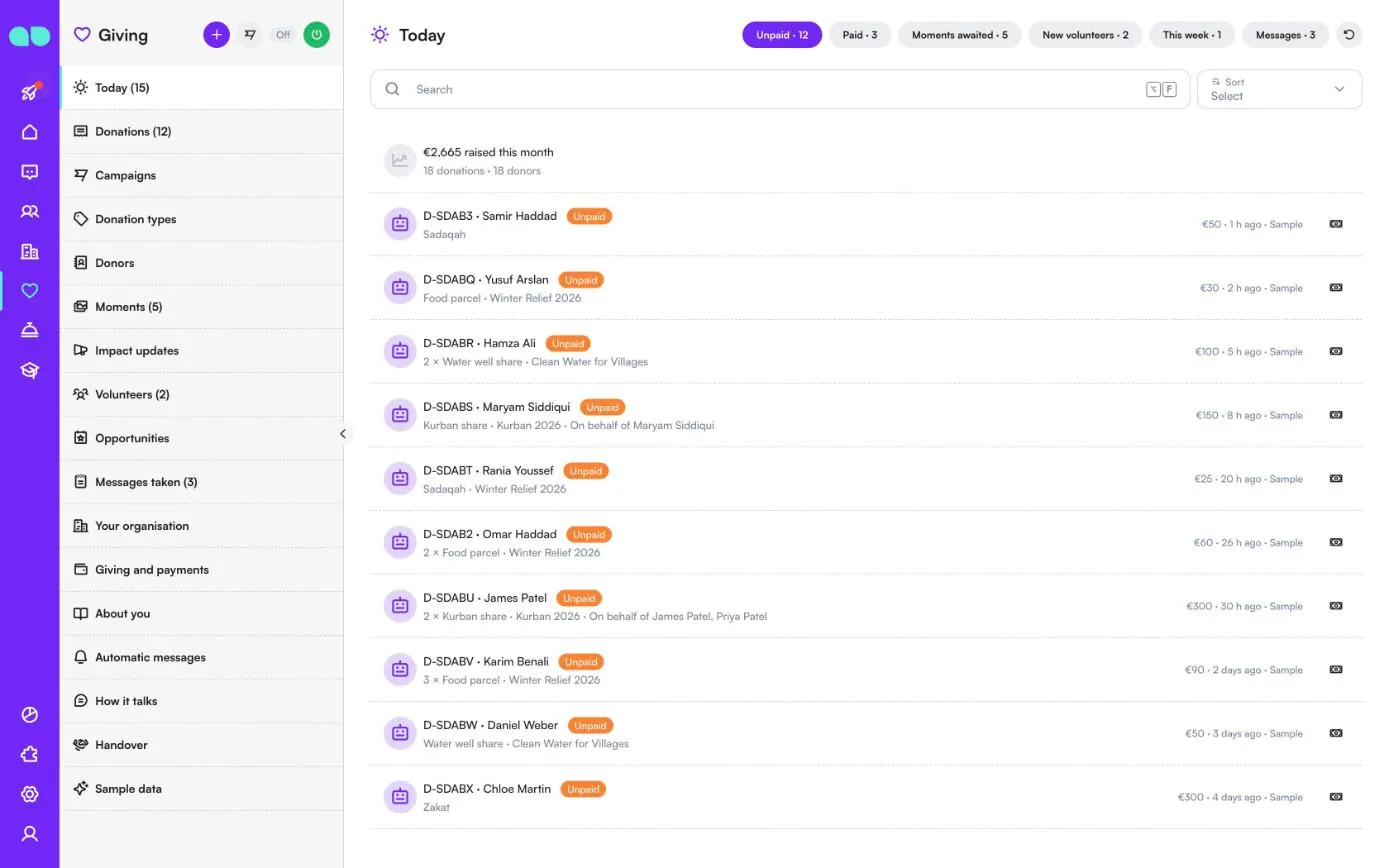
Today
Today collects what needs attention now. The first row shows the money raised this month with the number of donations and donors. The chips switch between Unpaid, Paid, Moments awaited, New volunteers, This week (opportunities) and Messages, each with its count. A donation row shows the code, the donor, the status, the donation type, quantity, campaign and on whose behalf, and on the right the amount and when it came in. The button at the end of an unpaid row marks it paid; new volunteers can be approved or declined from here.
The header has a + button for a new donation, a button for a new campaign, the Off/On badge and the power button.
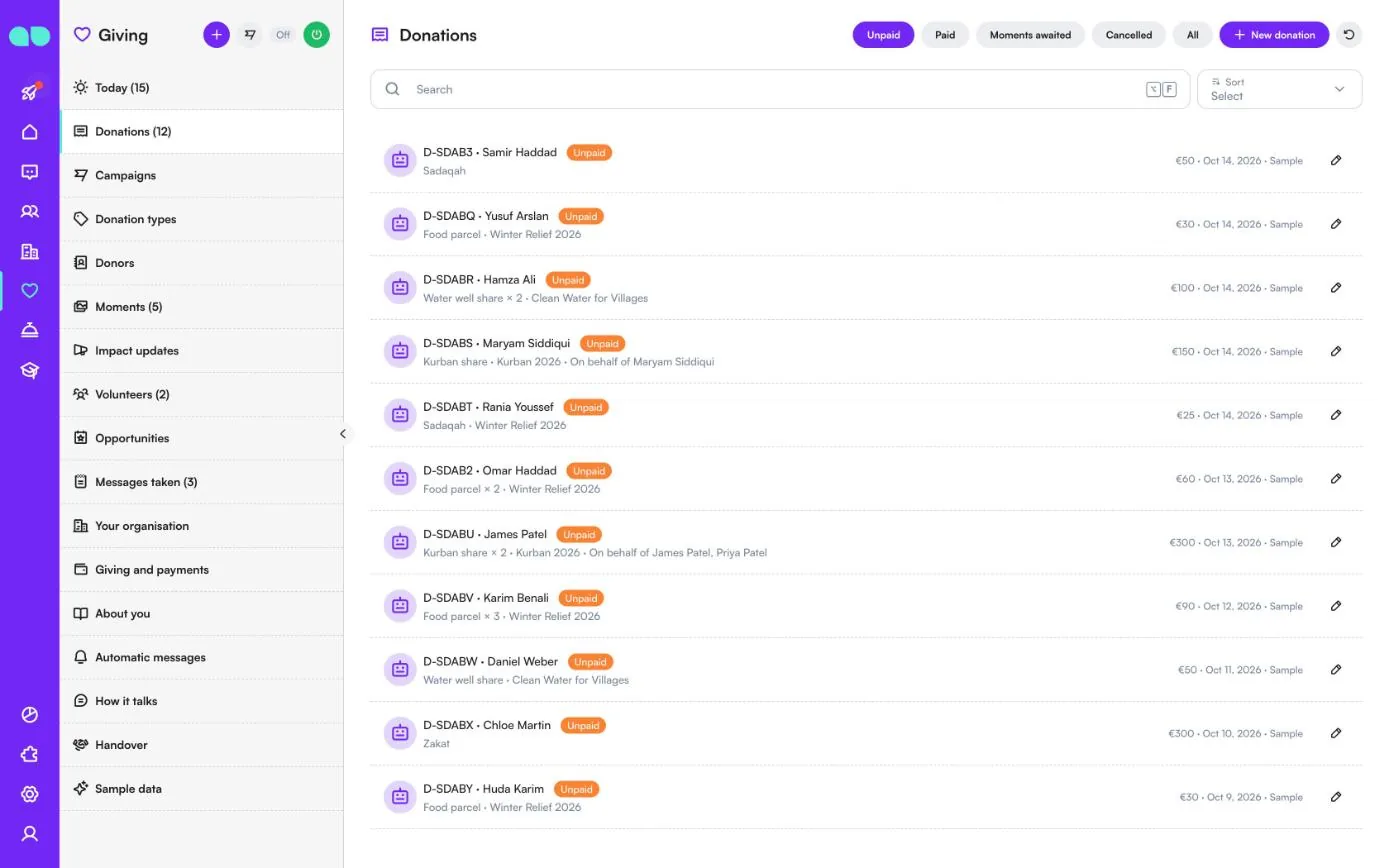
Donations
Every donation, from the assistant or added by your team with New donation. Filter by Unpaid, Paid, Moments awaited (paid donations still waiting for field photos or video), Cancelled and All, or search. A row shows the donation code, the donor, the status, the donation type with quantity, the campaign and on whose behalf, and on the right the amount and date. Click a row to open the donation drawer.
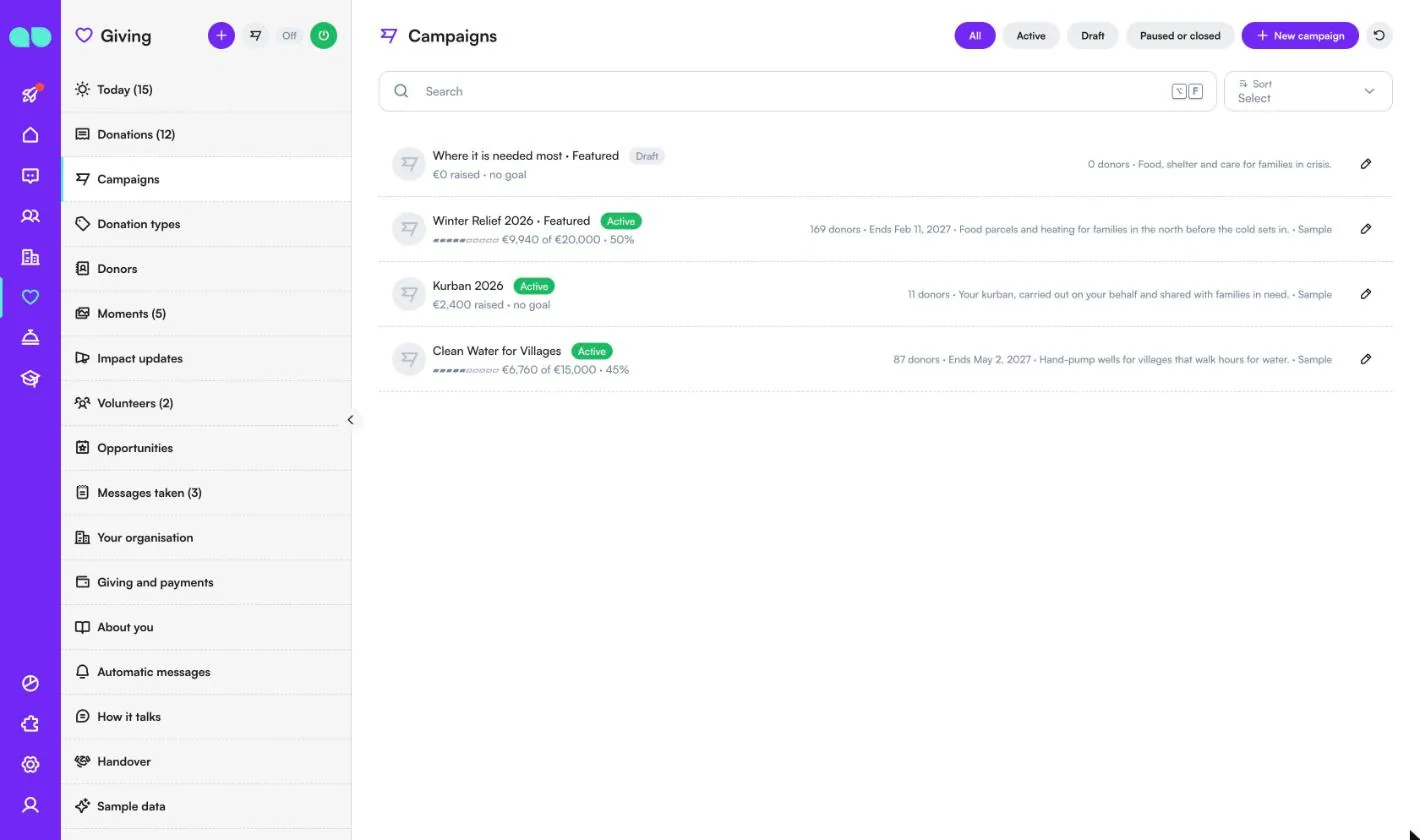
Campaigns
Your campaigns, which the assistant sends as cards with Donate and The story buttons. Filter by All, Active, Draft and Paused or closed; New campaign adds one. A row shows the title, Featured when it is shown first, the status, the progress bar with raised against goal, the number of donors, the end date and the summary.
In the campaign you set the Title, Summary (one line for the cards), Story (what the campaign is for and where the money goes; the assistant tells donors from this), Status, Featured, the goal, Start date and End date, Donation types (empty: every active type), a Photo link, a Video link and a Donation page link. Only active campaigns are offered in the chat. Recount recalculates the totals from the paid donations.
Donation types
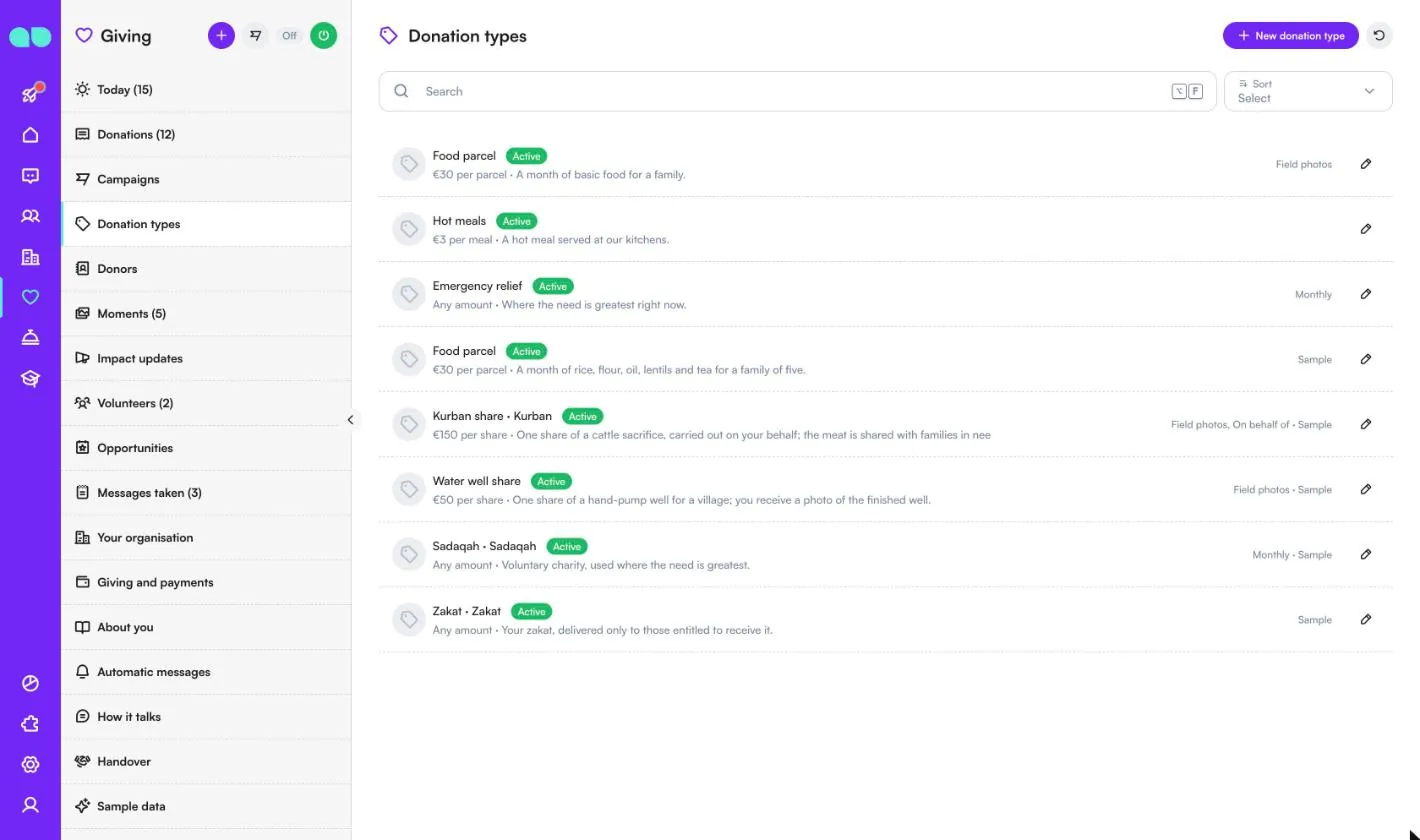
What donors can give. A row shows the name, the price (per unit, or any amount) and the description, and on the right whether it has field photos, can be monthly or asks on whose behalf. New donation type adds one.
| Field | What it does |
|---|---|
| Name and Description | What it is and where it goes. The assistant tells donors from this. |
| Amount kind | Fixed amount (one price, e.g. an aqiqah), Per unit (a price per unit; the donor chooses how many, with a Unit name such as share or food parcel) or Any amount (e.g. a general donation or zakat). |
| Quick amount 1–3 | Shown as buttons. Empty: the donor writes the amount. |
| Religious kind | Kurban, Zakat, Sadaqah, Fitre or Aqiqah. The assistant explains it only from your guide and never rules on it. |
| On behalf of | The assistant asks for the names, e.g. for kurban. |
| Field photos later | Photos or video from the field are sent to the donor. |
| Can be monthly | Donors can give it with a monthly reminder. |
| Donation page link | Your own donation page for this type. |
| Active | Off: not offered any more. |
Donors
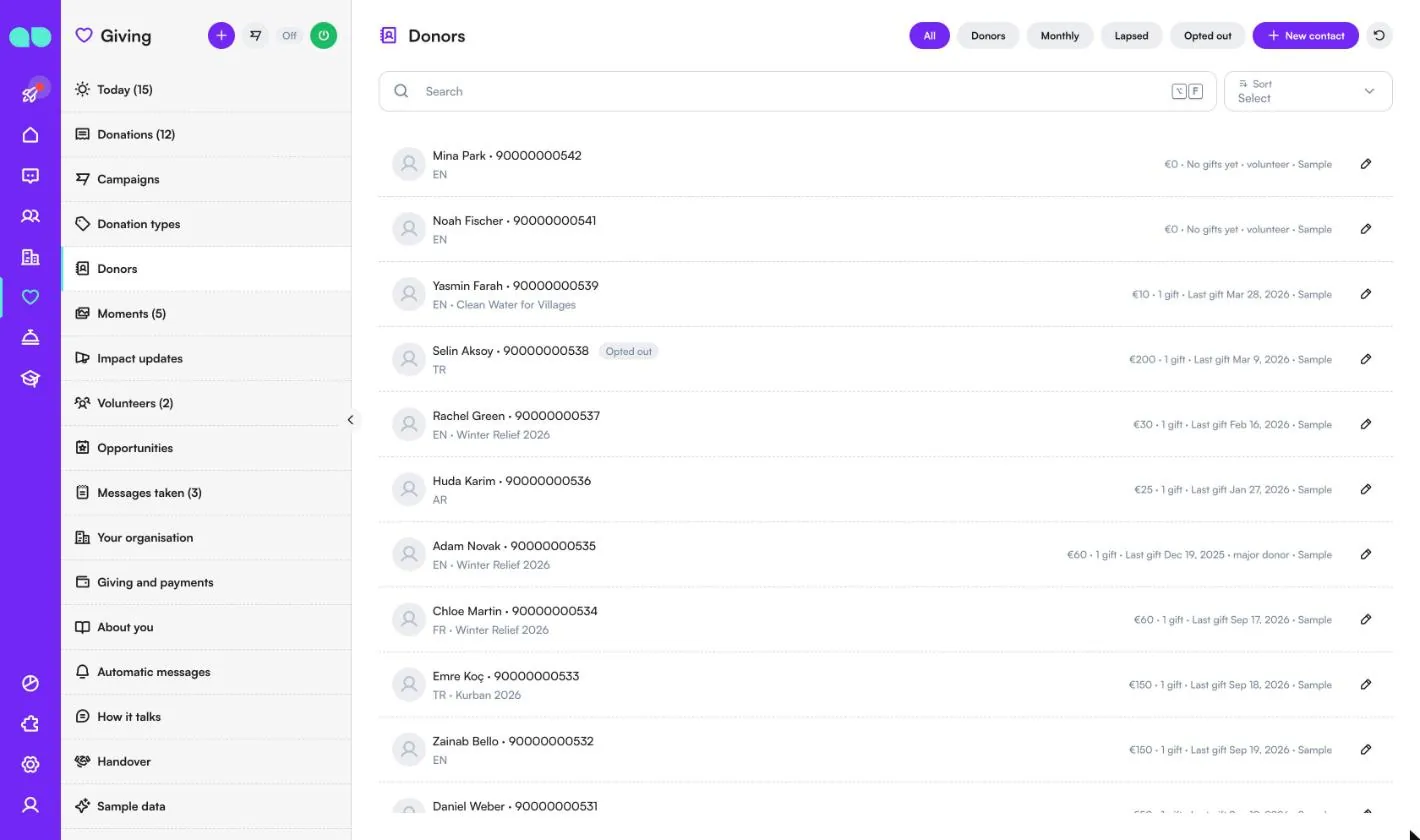
Donors and volunteers who write on WhatsApp, Instagram or your website chat, plus people you add with New contact. Filter by All, Donors, Monthly, Lapsed and Opted out. A row shows the name, phone, language and last campaign, and on the right the total given, the number of gifts, the last gift date and tags.
The contact card holds the name, phone, email, language, tags and notes, the giving summary (total given, first and last gift, last campaign), their donations, the monthly reminder (with Stop monthly reminder) and their volunteer card.
Moments
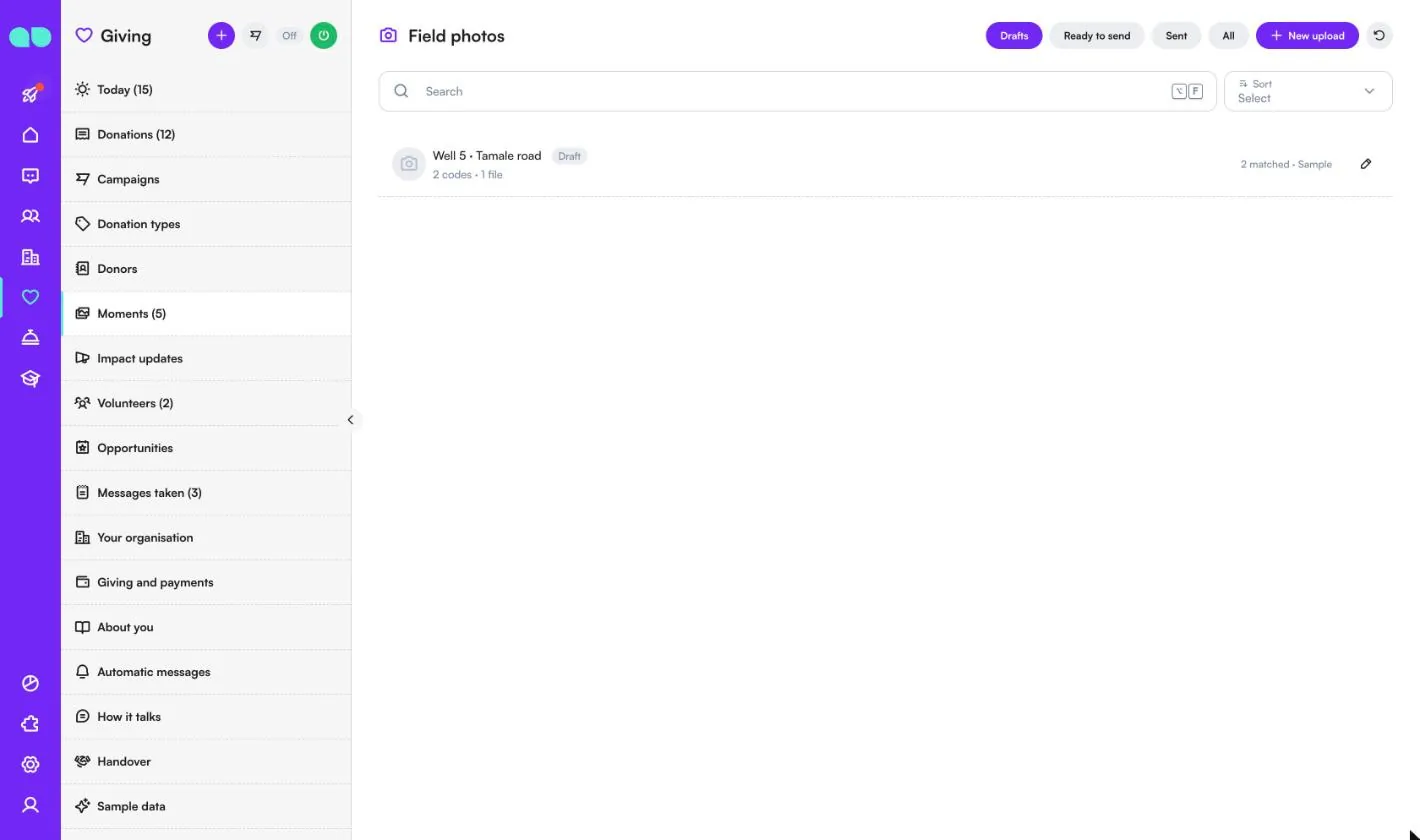
Moments opens the Field photos list: uploads of photos or video from the field and which donations they are for. Filter by Drafts, Ready to send, Sent and All; New upload adds one. A row shows the title, how many codes and files it has, and how many donations it matched. The number next to Moments in the menu counts paid donations still waiting for their photos.
In the upload you paste up to ten photo and video links (upload them in System › File Box first), write a Caption, and choose Who is it for: Donation codes, A batch (written exactly as on the donations, e.g. Kurban 2026 · Group 12) or A whole campaign. Only paid donations whose type has field photos are matched, and a donation that already got its photos is left out. Send to donors tells each matched donor; outside the 24-hour window with a template and a Show me button.
Impact updates
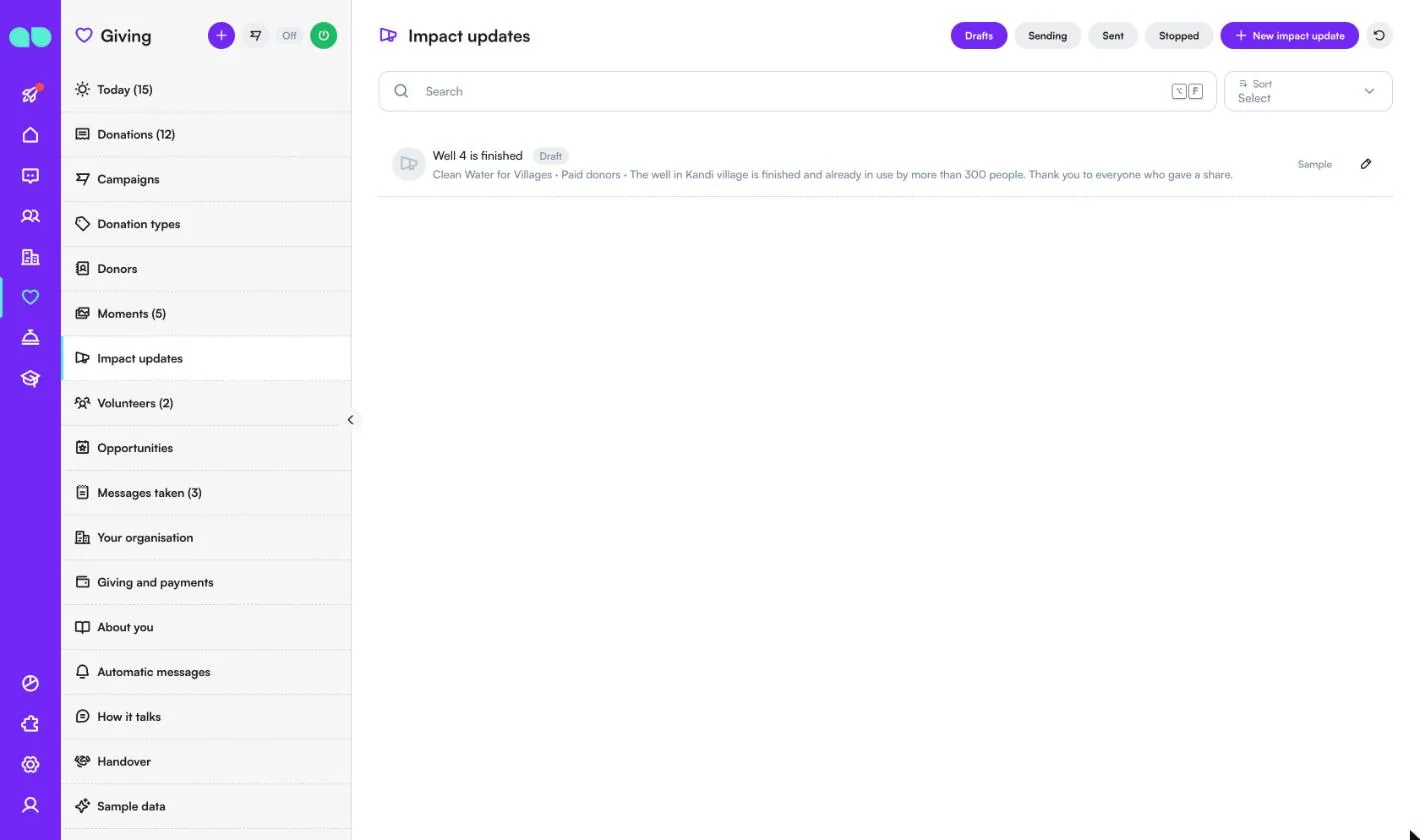
Tell donors what their gifts did. Filter by Drafts, Sending, Sent and Stopped; New impact update starts a draft. A row shows the title, the campaign, who gets it and the message.
In the update you write a title for the team and the WhatsApp text, add an optional photo link, and choose the campaign (or every campaign) and Who gets it: Paid donors or Everyone who donated or pledged. The form counts how many donors will get it. Start sending fixes the list and sends a few dozen at a time, outside quiet hours; outside the 24-hour window the text goes with the impact WhatsApp template. Stop halts the rest, and Who got it shows the delivery for each donor.
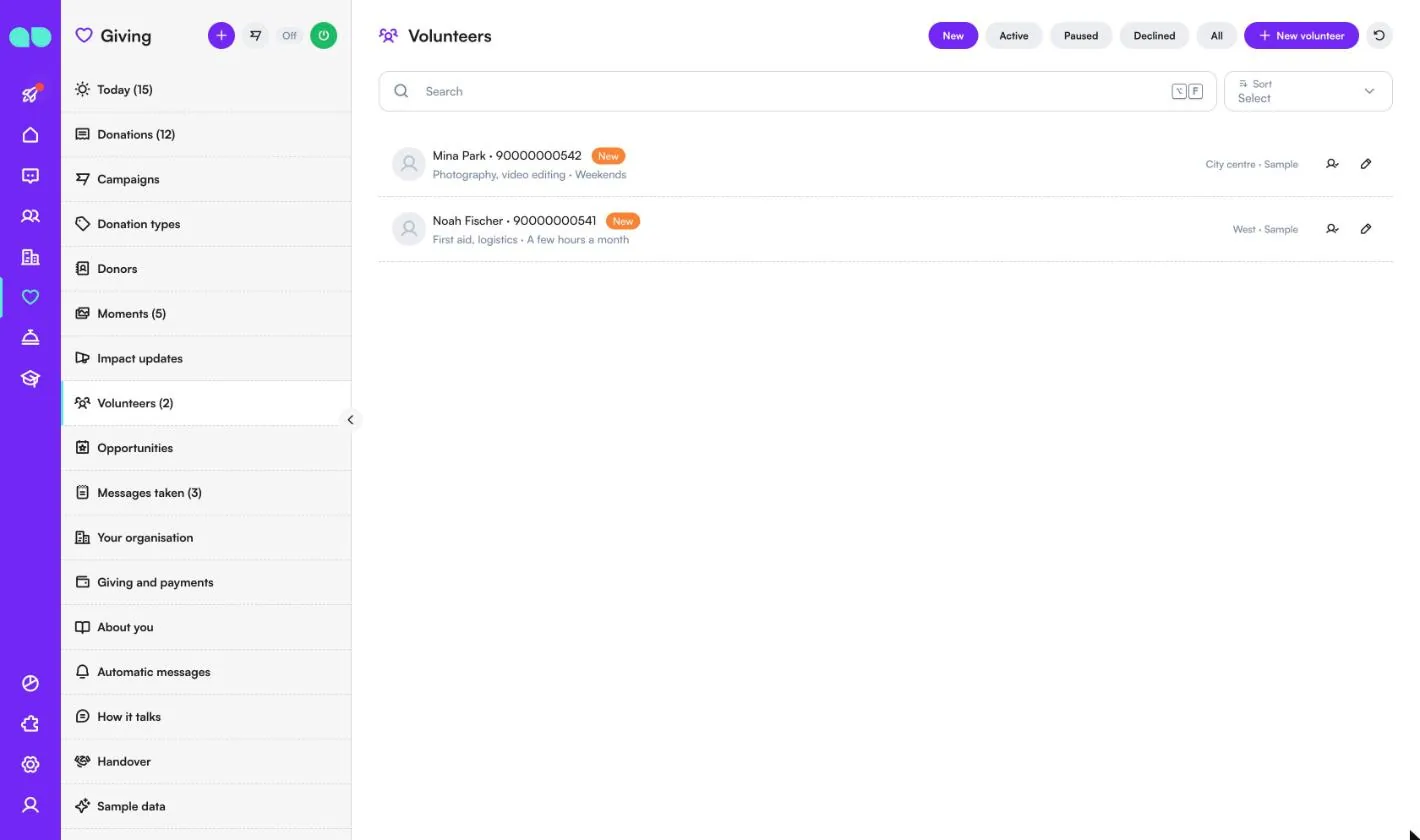
Volunteers
People who offer to help in the chat, for you to approve. Filter by New, Active, Paused, Declined and All; New volunteer adds one. A row shows the name, phone, status, skills and availability, and on the right the area. The button next to the pencil approves the volunteer.
The volunteer card holds the name, phone, email, Skills, Availability, Area, a note for the team, the status (Approve, Pause, Decline) and their upcoming sign-ups. Declined volunteers cannot sign up for opportunities. To approve new volunteers automatically, use Giving and payments.
Opportunities
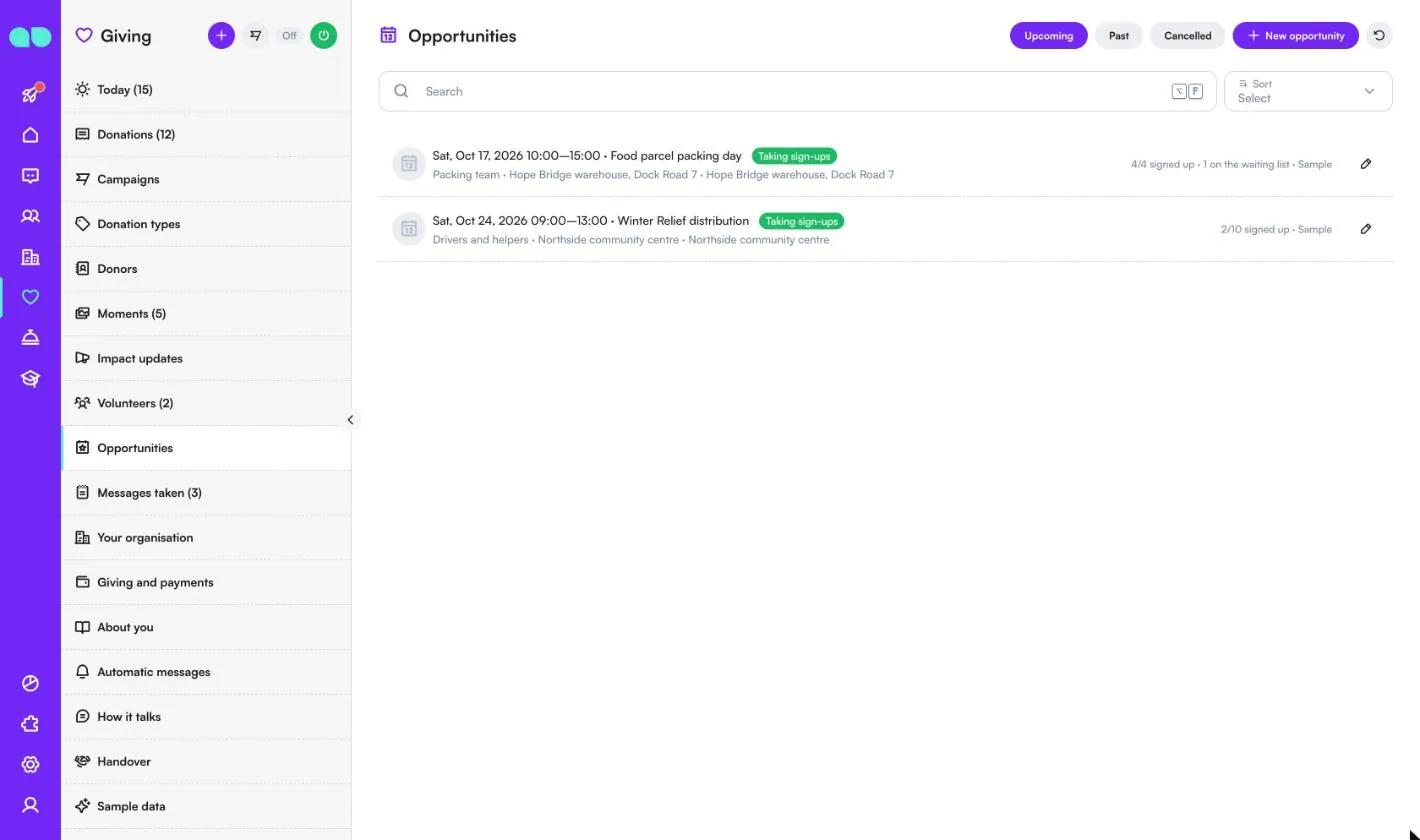
Packing days, distributions or stands the assistant offers to volunteers. Filter by Upcoming, Past and Cancelled; New opportunity adds one. A row shows the date and time, the title, the status (Taking sign-ups), the role and place, and on the right how many signed up against the places and how many are on the waiting list.
In the opportunity you set the Title, Description, Role, Date, Time and End time, Place, Address, Map link, Places (0 for no limit) and a Reminder. The sign-ups list shows who signed up or is waiting; Add a volunteer adds someone who called, Move up gives a waiting volunteer a place, and you can mark attended or no-show. Cancelling tells everyone signed up or waiting.
Messages taken
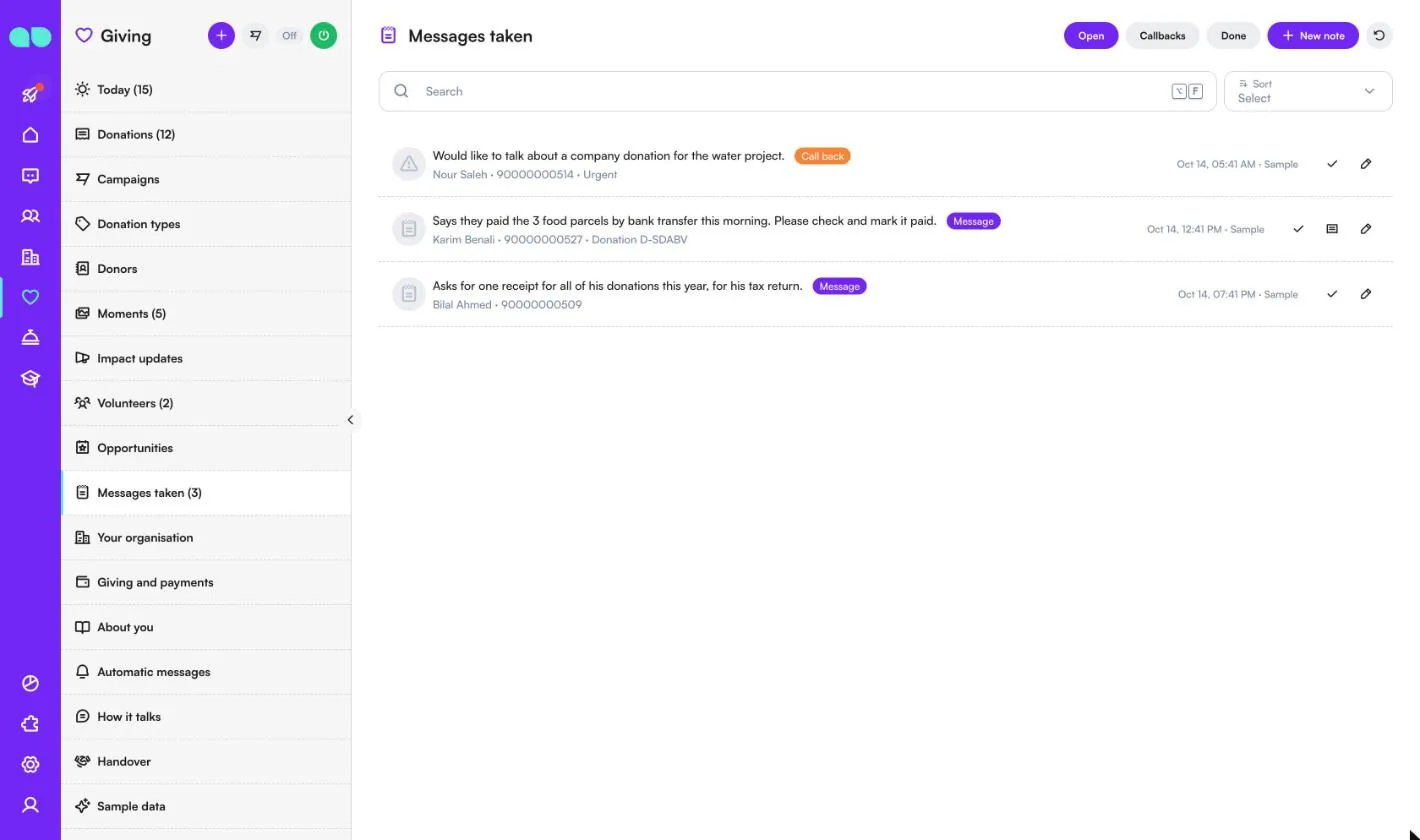
When the assistant cannot help a donor, someone wants a call back or says they have paid, it is written down here. Filter by Open, Callbacks and Done; New note adds one yourself. Each row has a badge (Call back or Message), the person, the donation code when there is one and whether it is urgent. Mark it done with the tick or open the donation.
Your organisation
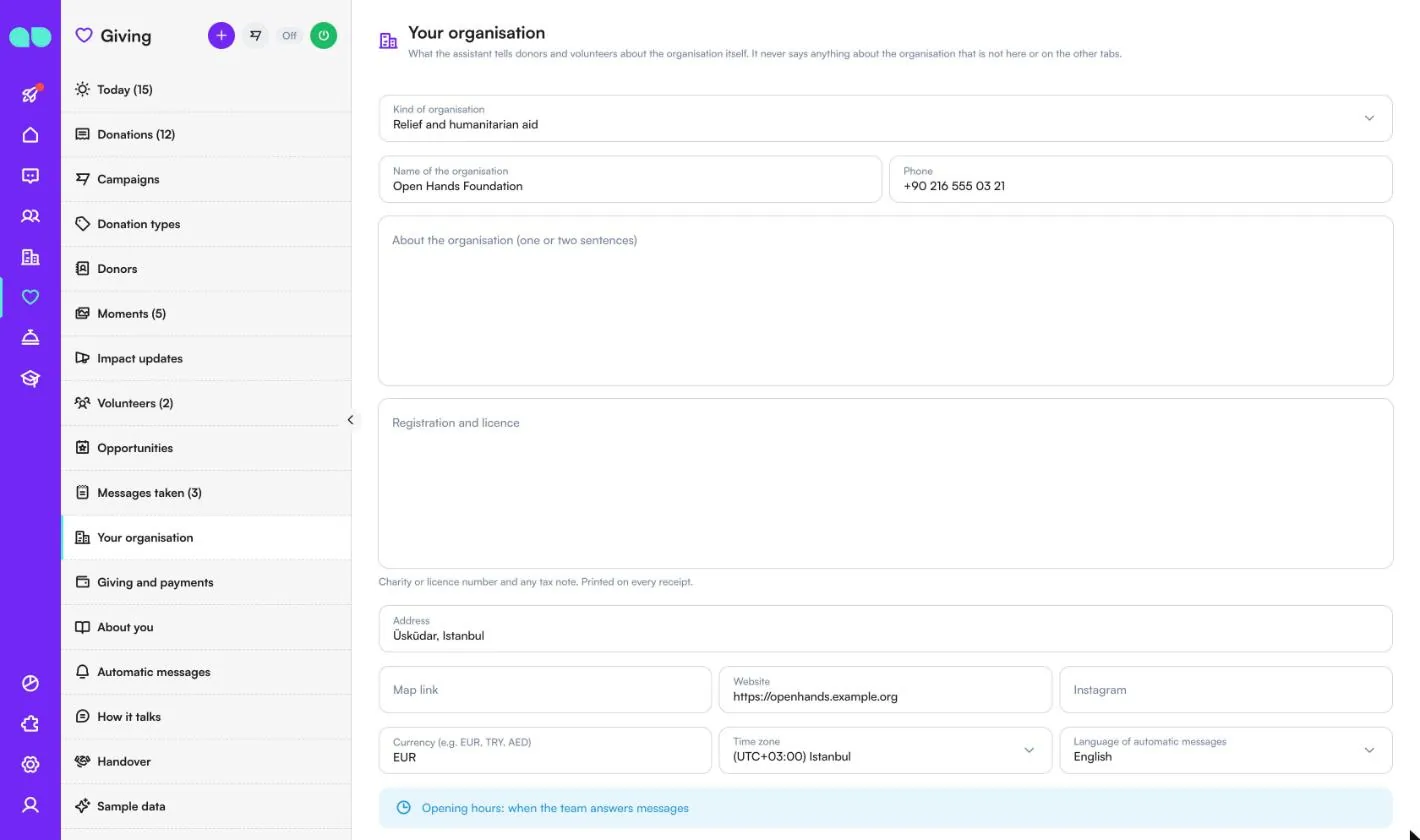
What the assistant tells donors and volunteers about the organisation itself; it never says anything that is not here or on the other tabs. The fields are Kind of organisation, Name of the organisation, Phone, About the organisation (one or two sentences), Registration and licence (charity or licence number and any tax note, printed on every receipt), Address, Map link, Website, Instagram, Currency, Time zone, Language of automatic messages, the opening hours per day and Closed on (holidays).
Giving and payments
How donors pay, what their receipts say and how long a pledge waits. The assistant offers only the ways to pay that are on, tried in this order for each donation:
| Field | What it does |
|---|---|
| Donation page links | Your own donation page, set on a donation type or a campaign. The donation code is shown next to it so the team can match the payment. |
| Payment links | A link for the exact amount from the payment system connected in Settings › Payments. The donation is marked paid by itself when the payment arrives. Without a payment system, a warning says so. |
| Bank transfer | The bank details below, with the donation code as the reference. Offered only when an IBAN is filled in. |
| Bank details | Bank name, Account holder, IBAN, SWIFT / BIC and a Transfer note told with the bank details. |
Further down, Donations and receipts holds the Minimum amount, Receipt prefix, Receipt note, Ask on whose behalf, Pledge reminder after (hours), Unpaid pledges cancelled after (days) and Lapsed after (months). Volunteers switches volunteer sign-ups on or off and has Approve automatically.
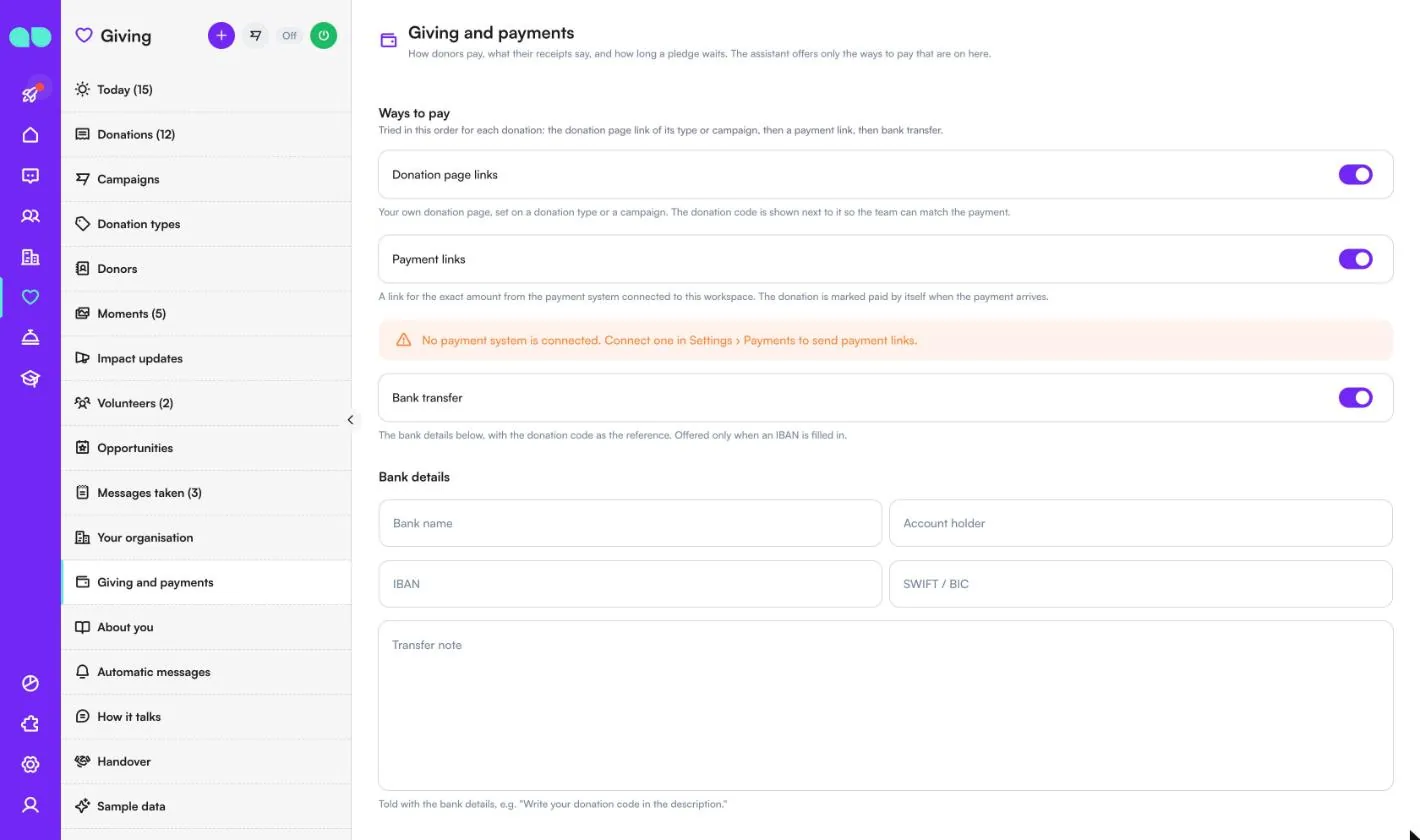
About you
What the assistant may say about your organisation. It answers from this text and your campaigns and donation types, and says it does not know rather than guess.
- About your organisation: who you are, where you work, where the money goes, registration and licence numbers, tax deductibility, and the religious giving rules the assistant may quote.
- Questions and answers: pairs, a line starting with
Q:and the next line starting withA:. - Policies: privacy, refunds, how donations are used when a campaign is over-funded, what the assistant must not promise.
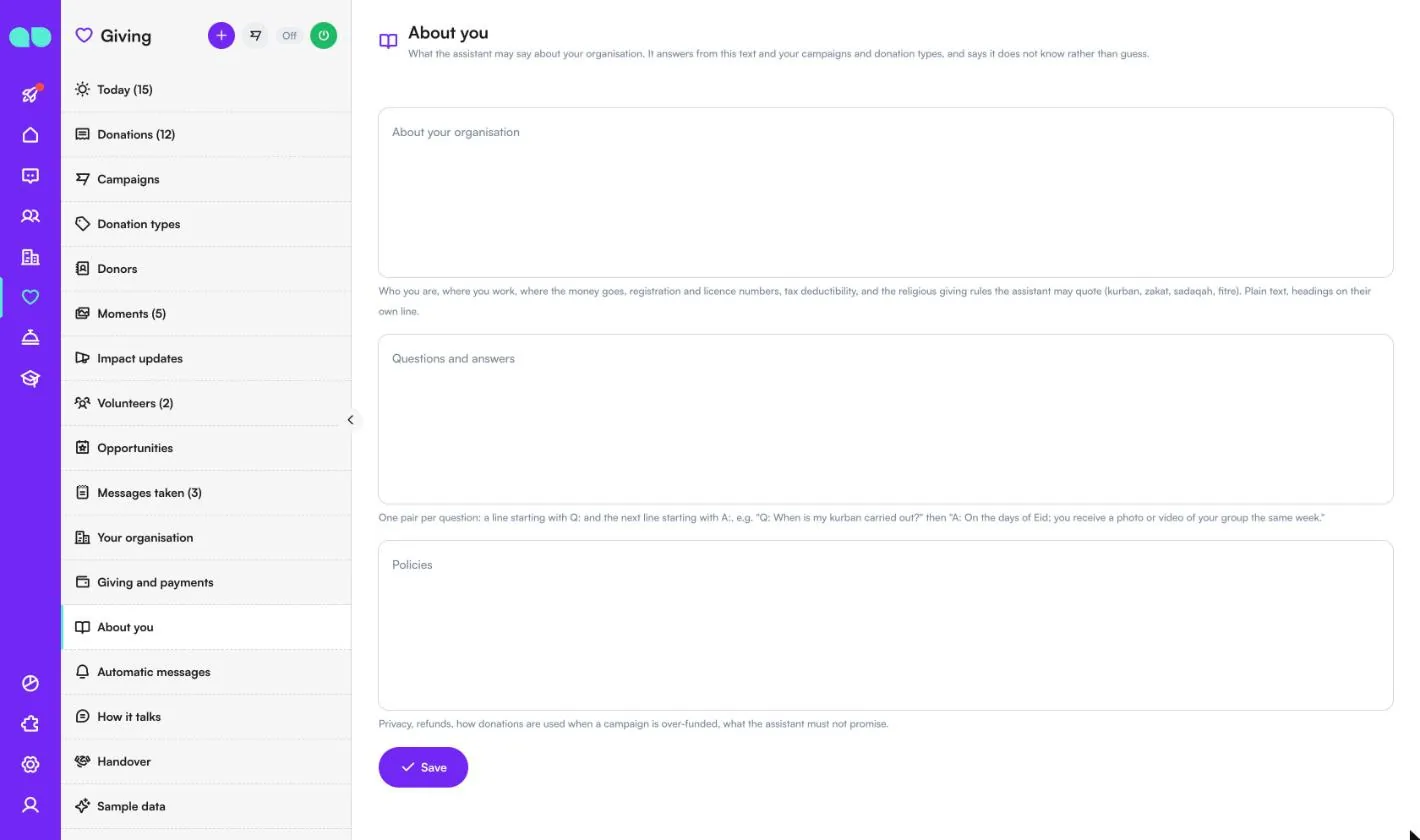
Automatic messages
Messages sent by the organisation without the assistant. Nothing goes out while the assistant is off, to people who opted out, to sample data, or during quiet hours. Each has its own switch:
| Message | What it does |
|---|---|
| Thank-you and receipt | When a donation is paid: a thank-you with the receipt number, the amount and what it was for. |
| Pledge reminder | Once, when a pledge is still unpaid after the hours set below, with I have paid / Change / Cancel. |
| Field photos and video | When the photos or video of a donation are ready, the donor is told and gets them on tap. |
| Impact updates | Lets the impact updates you start go out to the donors of a campaign. |
| Monthly reminder | On the donor’s chosen day, a reminder of their monthly gift with Give now / Skip this month. Off by default. |
| Come-back message | Once to donors who have not given for the months set under Giving and payments. Sent as a marketing template: off by default, never to people who opted out. |
| Volunteer messages | Sign-up confirmations, places freed from the waiting list, cancelled opportunities and a reminder before each one. |
Below the switches are Reminders at (monthly and volunteer reminders go out from this time), Pledge reminder after (hours), Quiet from and Quiet until. Further down, the WhatsApp templates list shows each template’s state; Submit missing templates writes and submits them on your number.
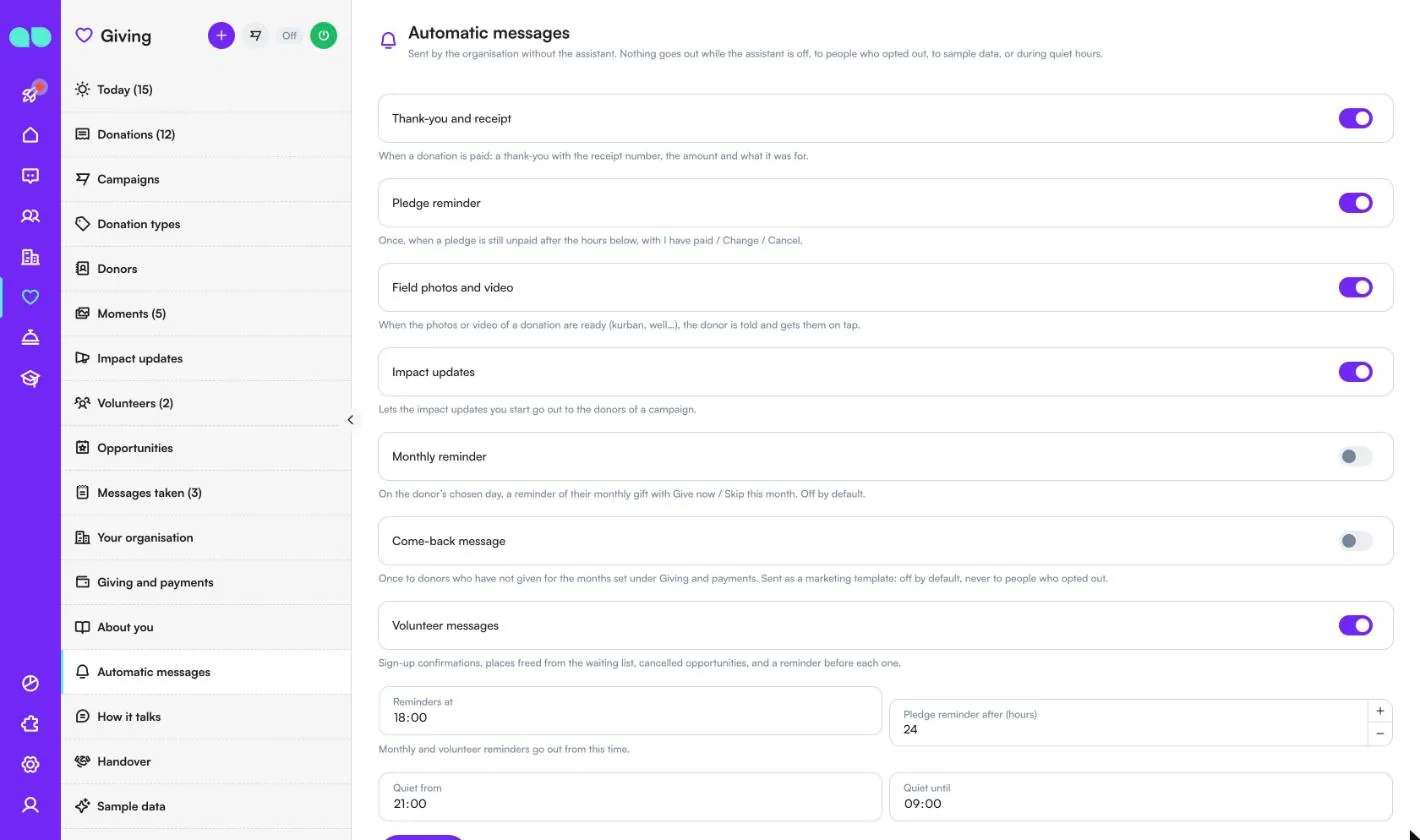
How it talks
What the assistant does is fixed; how it sounds is yours, and it takes effect on the very next message. Set What it calls itself (empty: it answers for the organisation without a name), Tone, How it addresses donors and volunteers, Emojis, Answer length, Fallback language (used only when it cannot tell the language) and Anything else it should know. It cannot be told to invent facts, compute zakat or rule on religious questions.
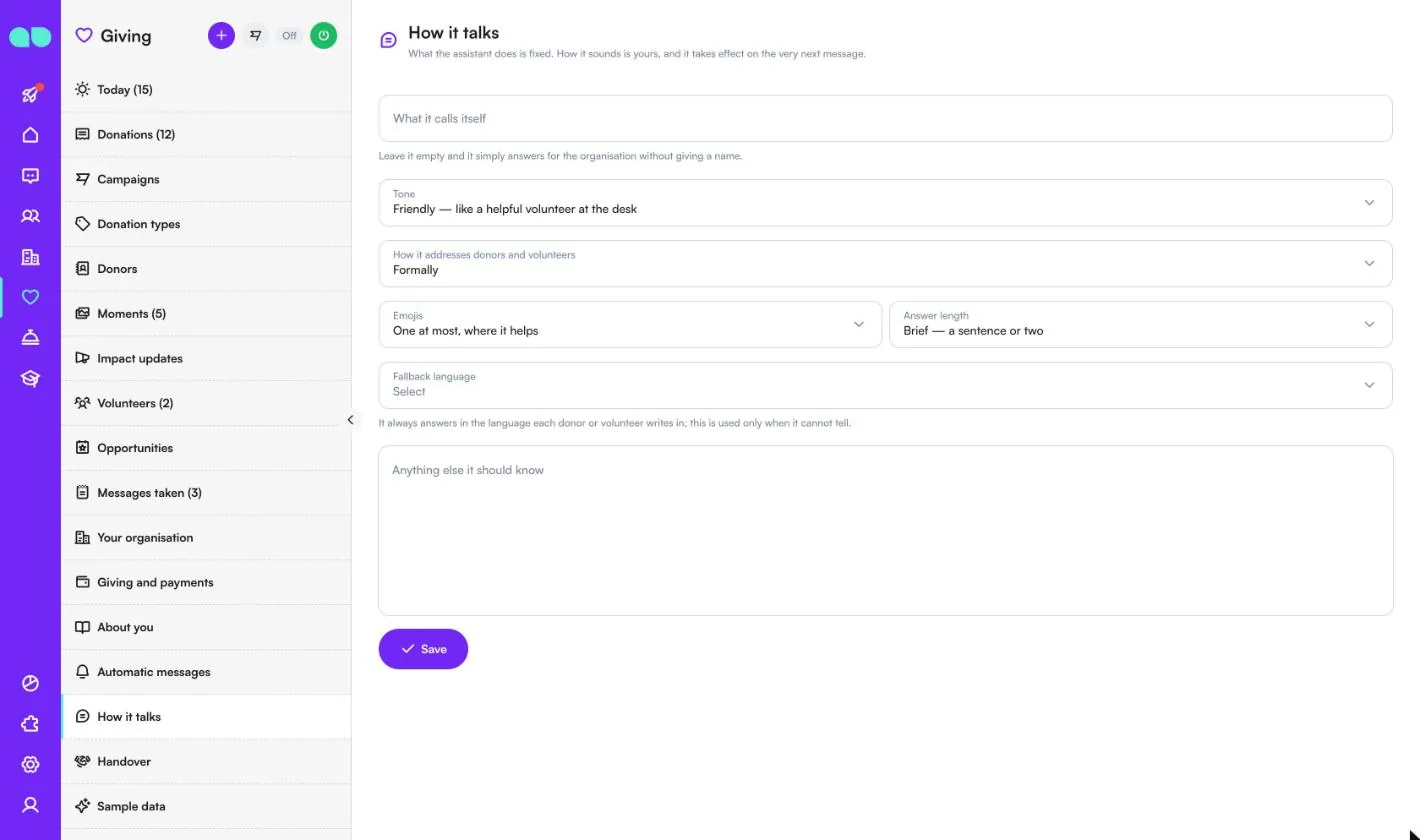
Handover
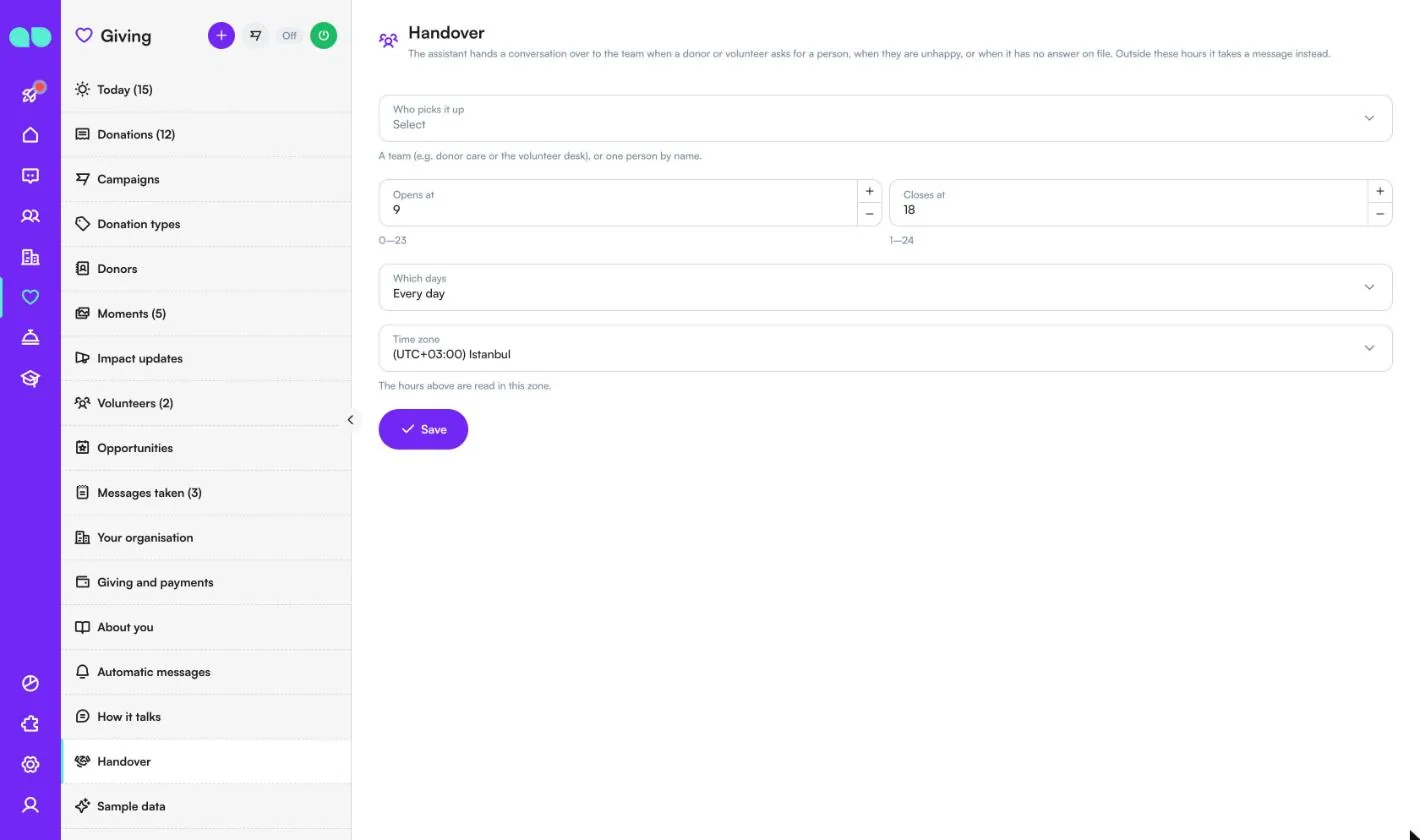
The assistant hands a conversation over to the team when a donor or volunteer asks for a person, when they are unhappy, or when it has no answer on file. Choose Who picks it up (a team such as donor care, or one person), Opens at and Closes at, Which days and the Time zone. Outside these hours it takes a message instead.
Sample data
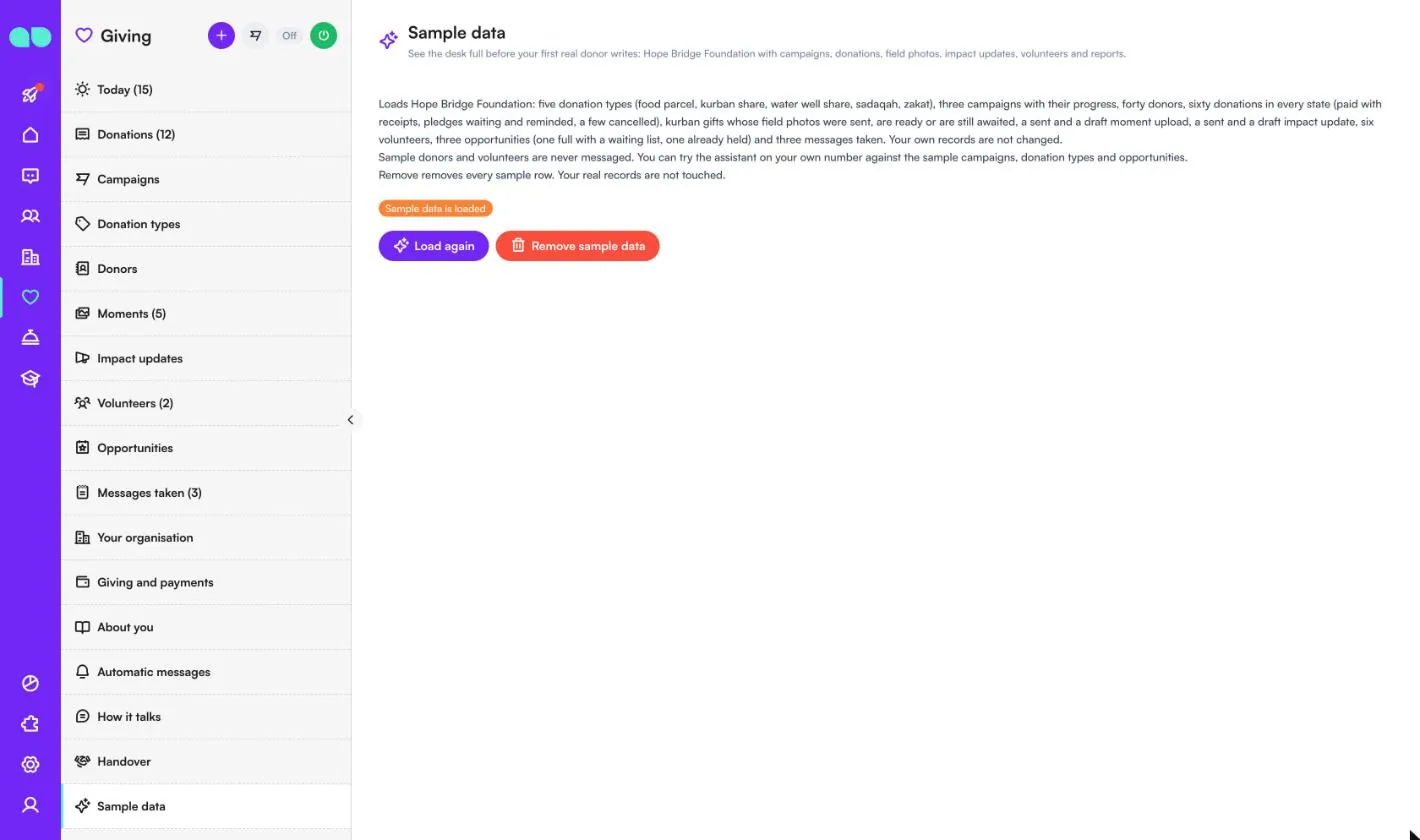
Fills the desk with Hope Bridge Foundation: five donation types, three campaigns with their progress, forty donors, sixty donations in every state, kurban gifts whose field photos were sent, are ready or are still awaited, moment uploads, impact updates, six volunteers, three opportunities and three messages taken. Sample donors and volunteers are never messaged, and you can try the assistant on your own number against the sample campaigns, donation types and opportunities. Load again reloads it; Remove sample data removes every sample row and leaves your real records alone.
The donation drawer
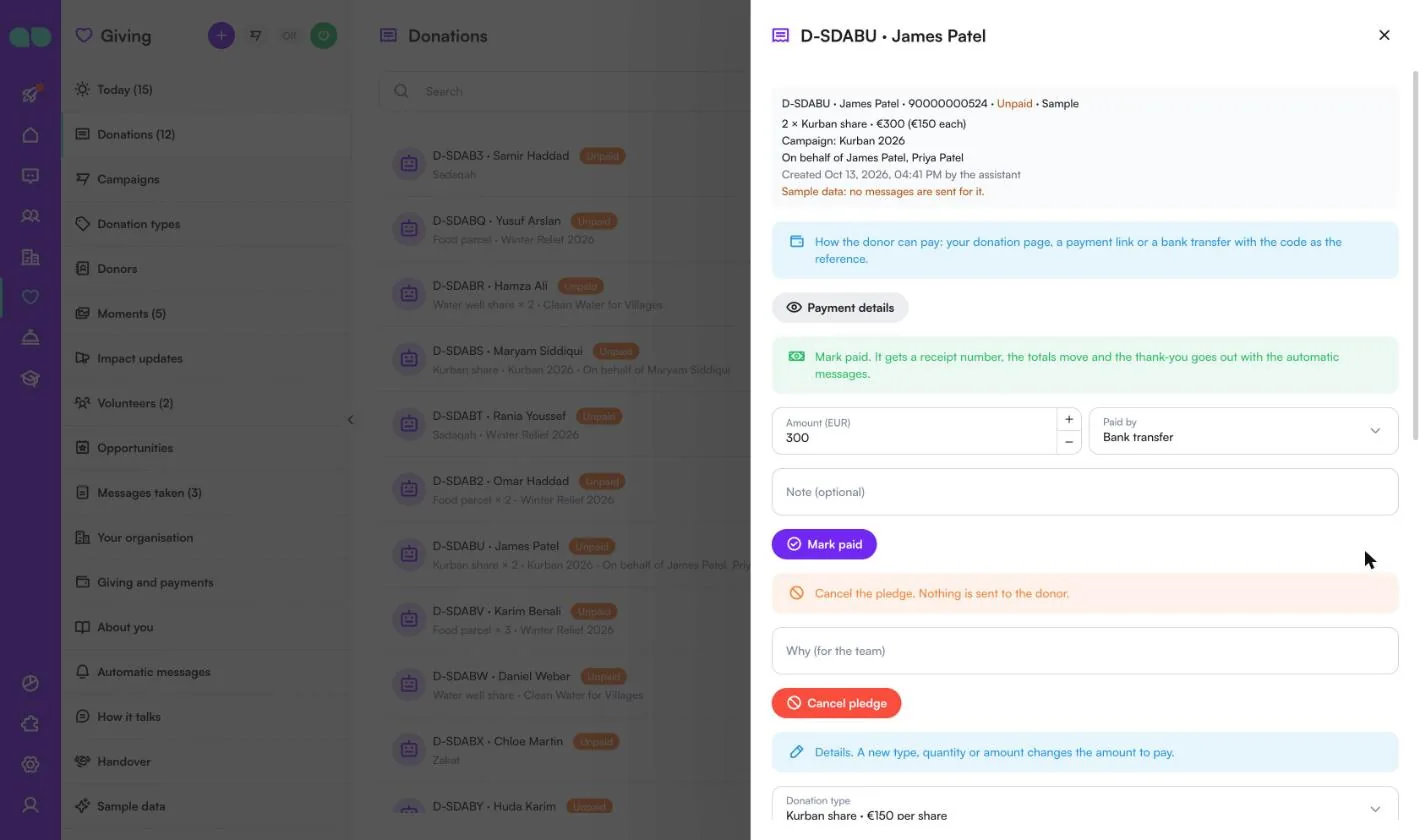
Click a donation to open it. The top shows the code, donor, phone and status, the donation type with quantity and amount, the campaign, on whose behalf, and when and by whom it was created.
- Payment details shows how the donor can pay: your donation page, a payment link or a bank transfer with the code as the reference.
- Mark paid: the Amount, Paid by (for example bank transfer or cash) and an optional note. The donation gets a receipt number, the totals move and the thank-you goes out with the automatic messages.
- Cancel pledge with a reason for the team. Nothing is sent to the donor. A paid donation has Undo payment instead.
- Details: donation type, quantity or amount, on whose behalf, note and the field Batch. A new type, quantity or amount changes the amount to pay.
- Once paid, you can attach photo and video links with a caption for this donor, and see the history.
Turn the assistant on
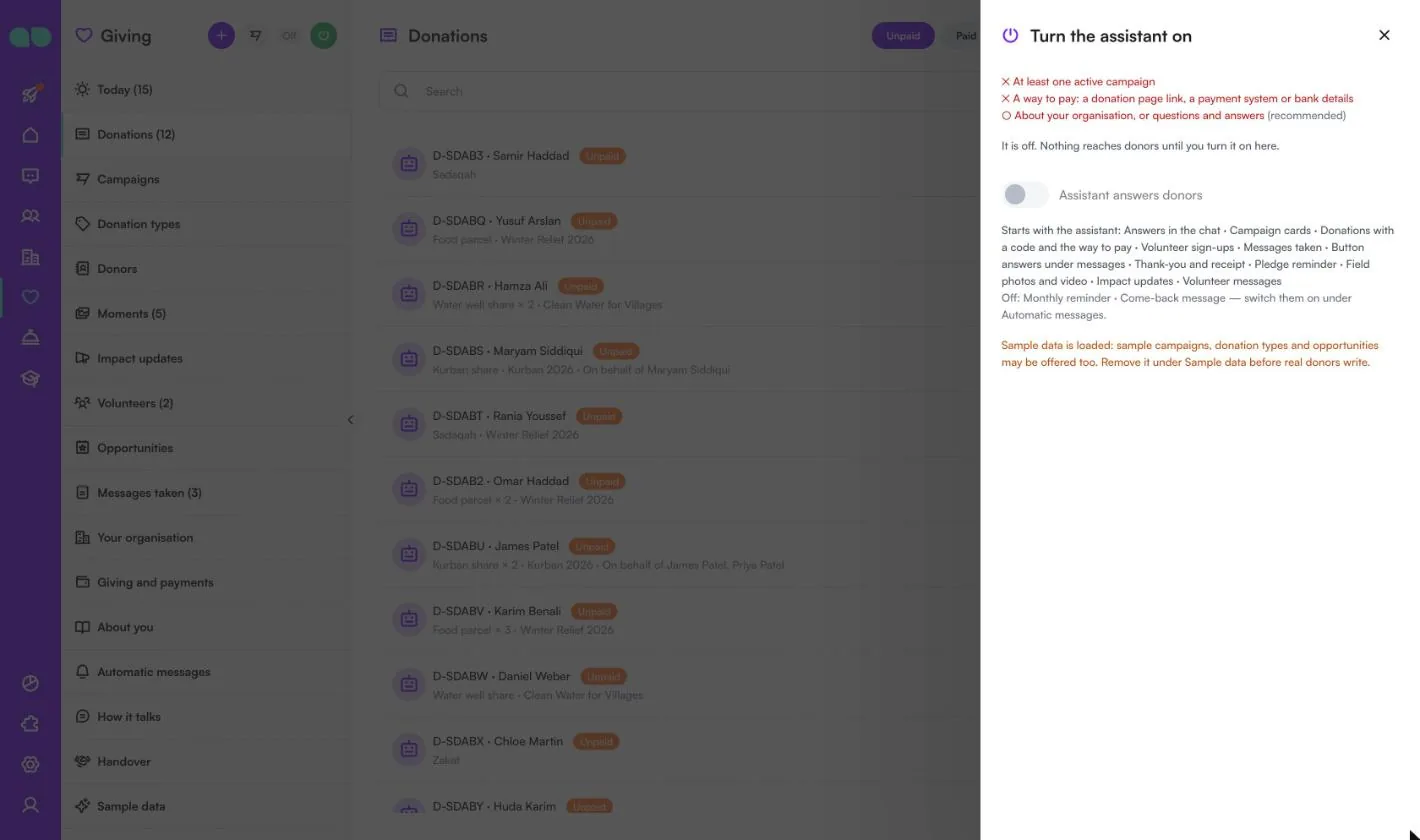
The power button in the header opens this drawer. It lists what is still missing: the name and kind of organisation, opening hours, at least one donation type, at least one active campaign, a way to pay (a donation page link, a payment system or bank details), and about your organisation or questions and answers (recommended). Sample records do not count, so in the screenshot the active campaign and the way to pay are still missing. Below is the Assistant answers donors switch and what starts with it; the monthly reminder and come-back message are named as off. While sample data is loaded, a warning reminds you to remove it before real donors write.
Report
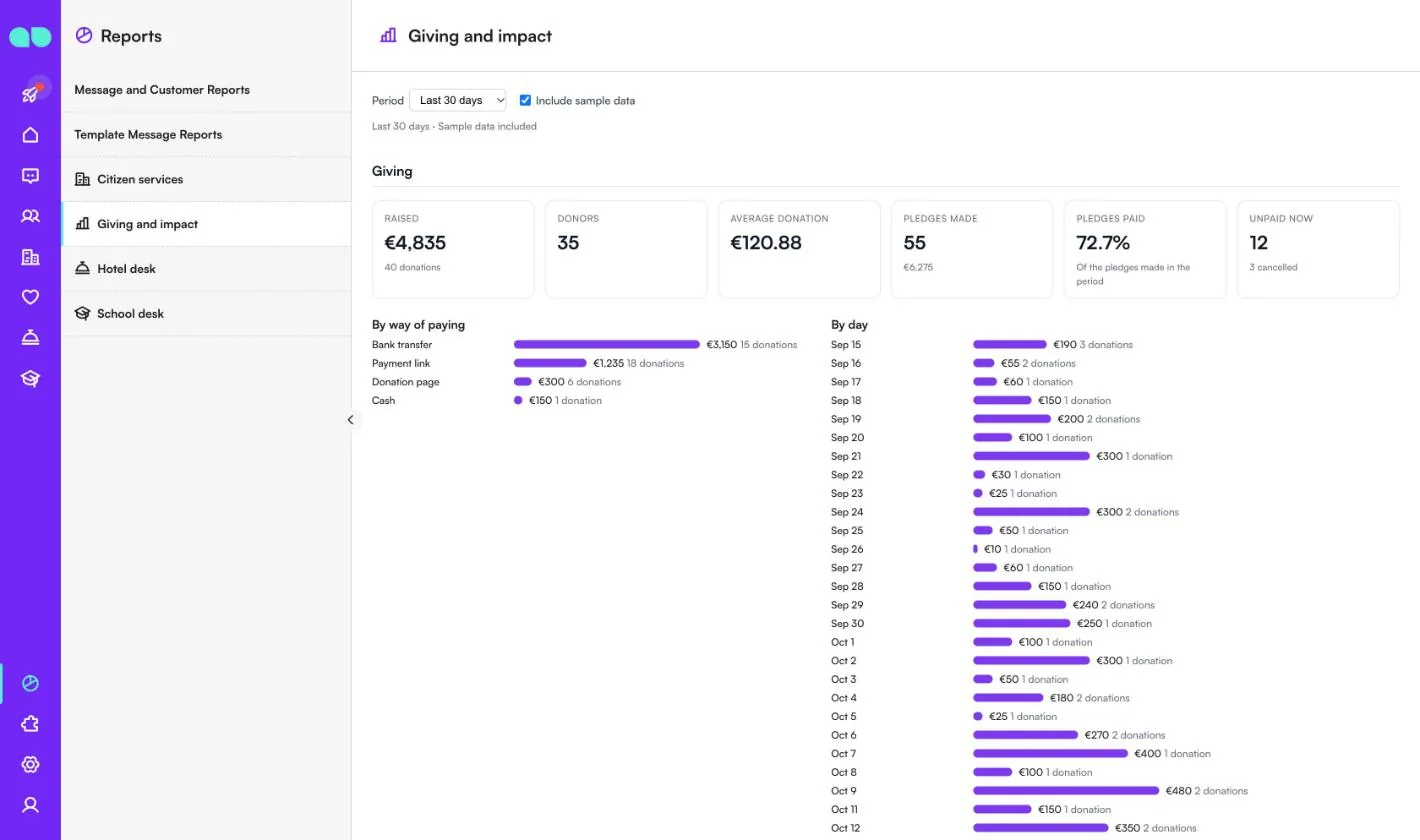
Reports › Giving and impact sums up the last 7, 30, 90 or 365 days; tick Include sample data to count the sample records. Giving shows money raised, donors, the average donation, pledges made, the share of pledges paid and unpaid now, with bars By way of paying and By day. Further down are campaigns against their goals, giving by donation type, first-time, monthly and lapsed donors with the top donors, field photos and video delivered, volunteers and attendance, impact updates, and what the assistant and the team handled.
Features
Campaigns
Your campaigns with their story, goal and progress, sent as cards with Donate and The story buttons.
Ways to pay
Your own donation page, a payment link from your payment system for the exact amount, or bank transfer with the code as the reference. The assistant never writes card or bank details itself.
“Did my donation arrive?”
Donors see their pledges, gifts and receipts, can get the payment details again, say they have paid or cancel an unpaid pledge.
Impact updates and monthly giving
Impact updates go to a campaign’s donors a little at a time, with delivery counts. Donors can ask for a monthly reminder with a Give now button; nothing is charged automatically. A come-back message for lapsed donors is off until you turn it on.
Volunteers
People register in the chat with their skills, when they can help and where, and you approve them. Opportunities such as a packing day go out as cards with places and a waiting list, with reminders before the day and a notice if it is cancelled.
Reports
Over 7, 30, 90 or 365 days: money raised, donors, the average gift and pledges paid, each campaign against its goal, first-time, monthly and lapsed donors, moments delivered, volunteers and attendance, and what the assistant and the team handled.
Screenshots
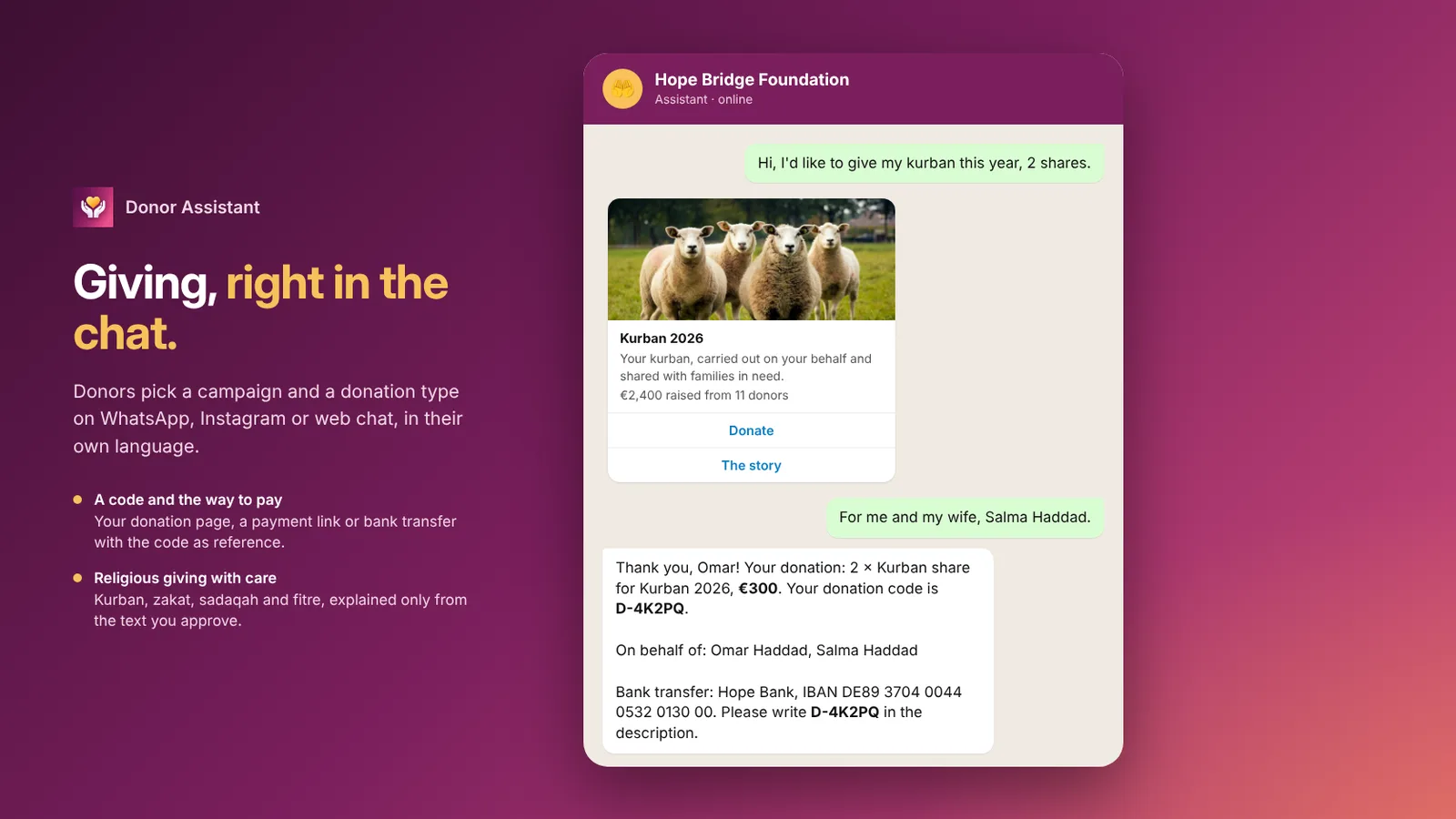 Donor Assistant taking a kurban donation in WhatsApp with a donation code and bank transfer details
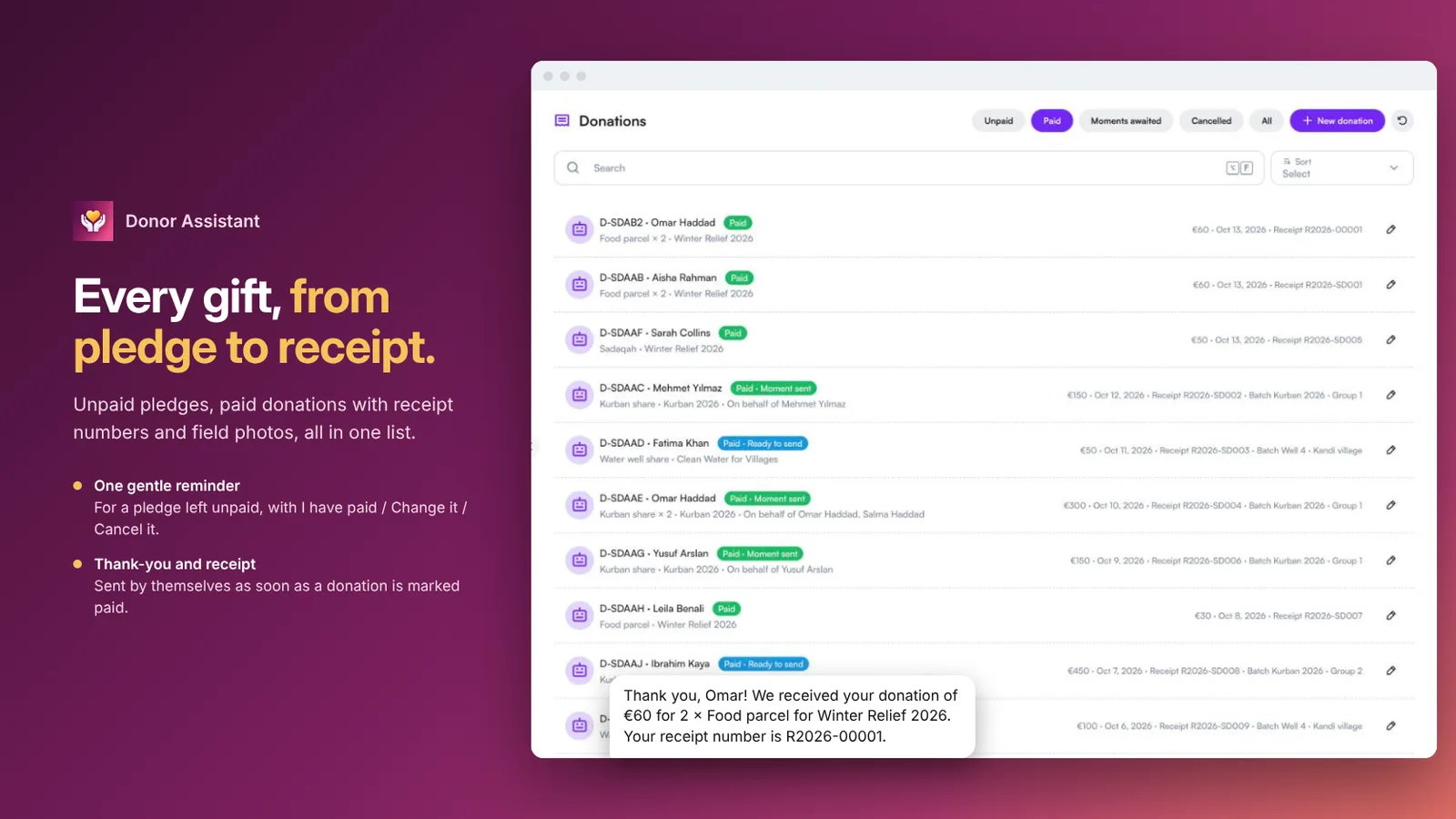 Donations list with unpaid pledges, paid gifts, receipt numbers and field photos awaited
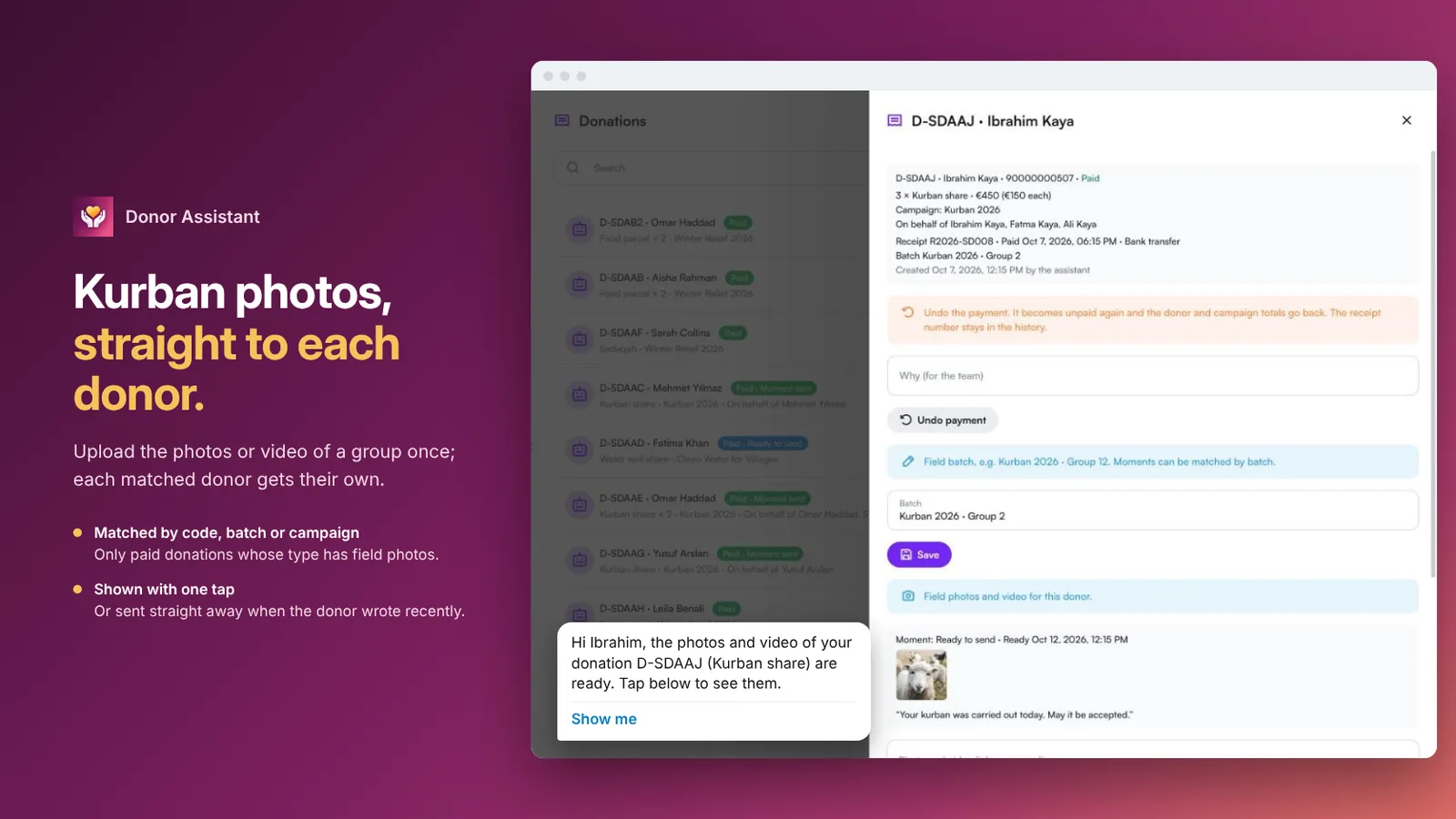 A donation with its field batch and the kurban photos sent to the donor
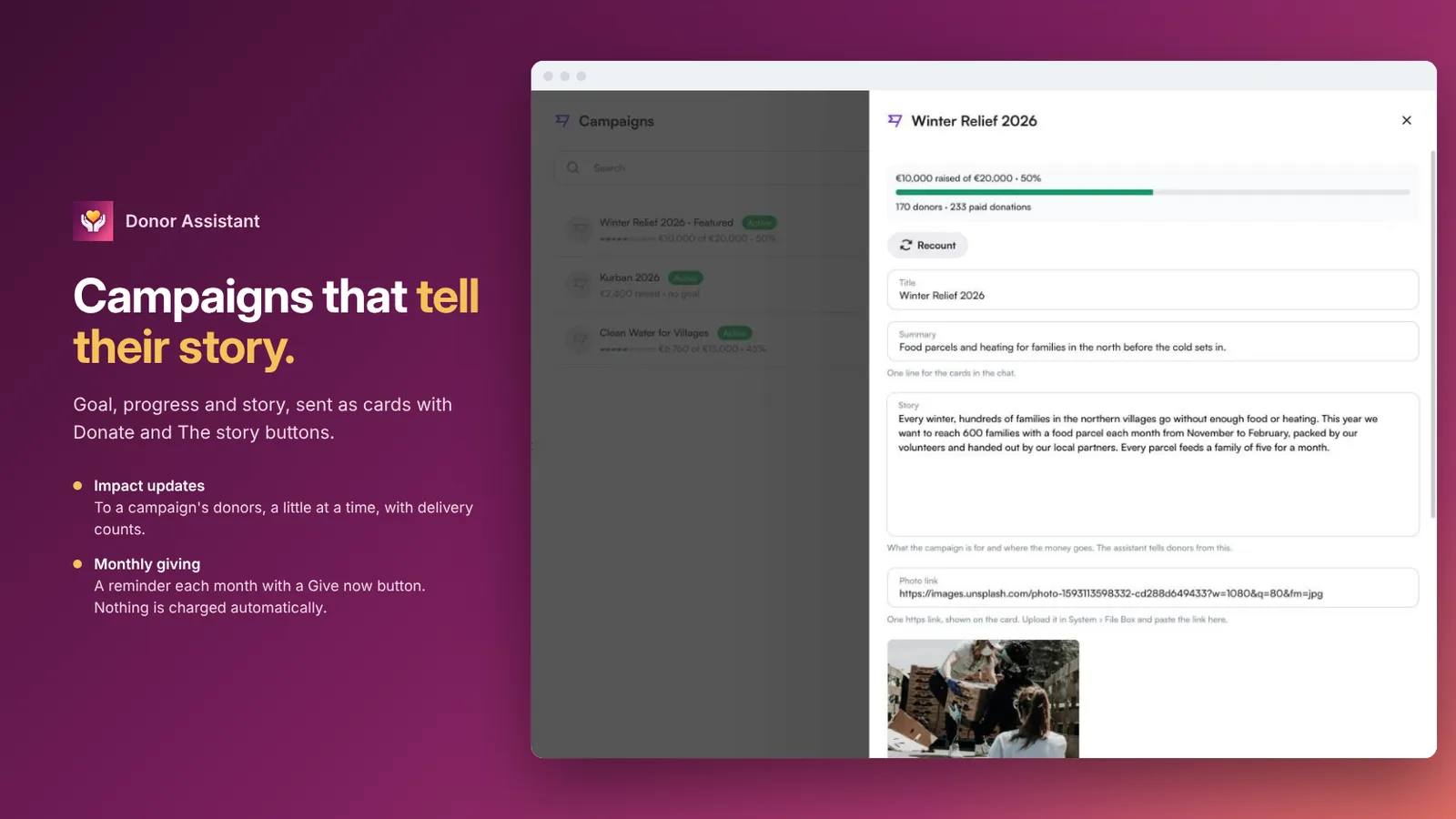 A campaign with its goal, progress and story
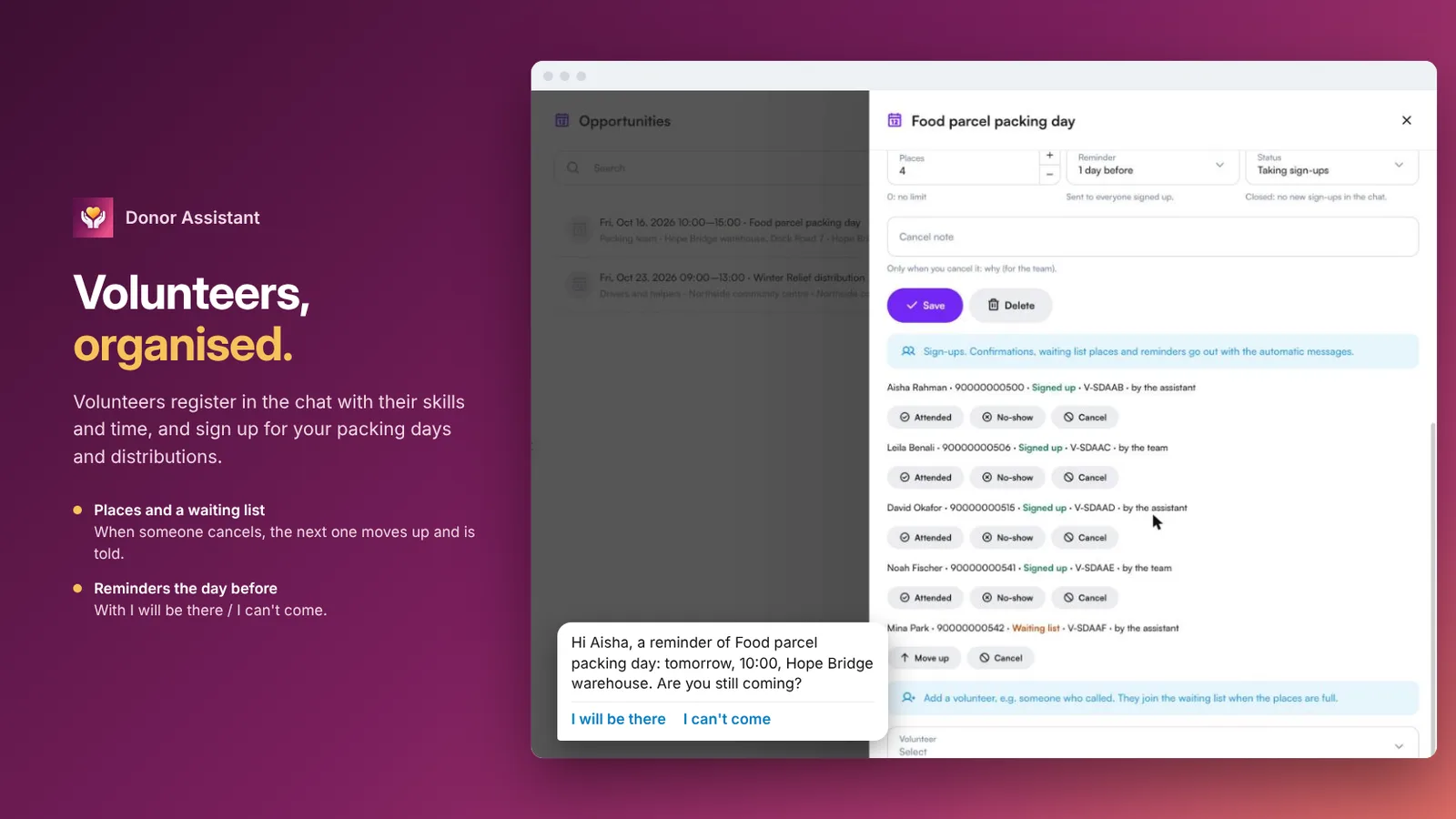 A volunteer opportunity with places, sign-ups and a reminder the day before
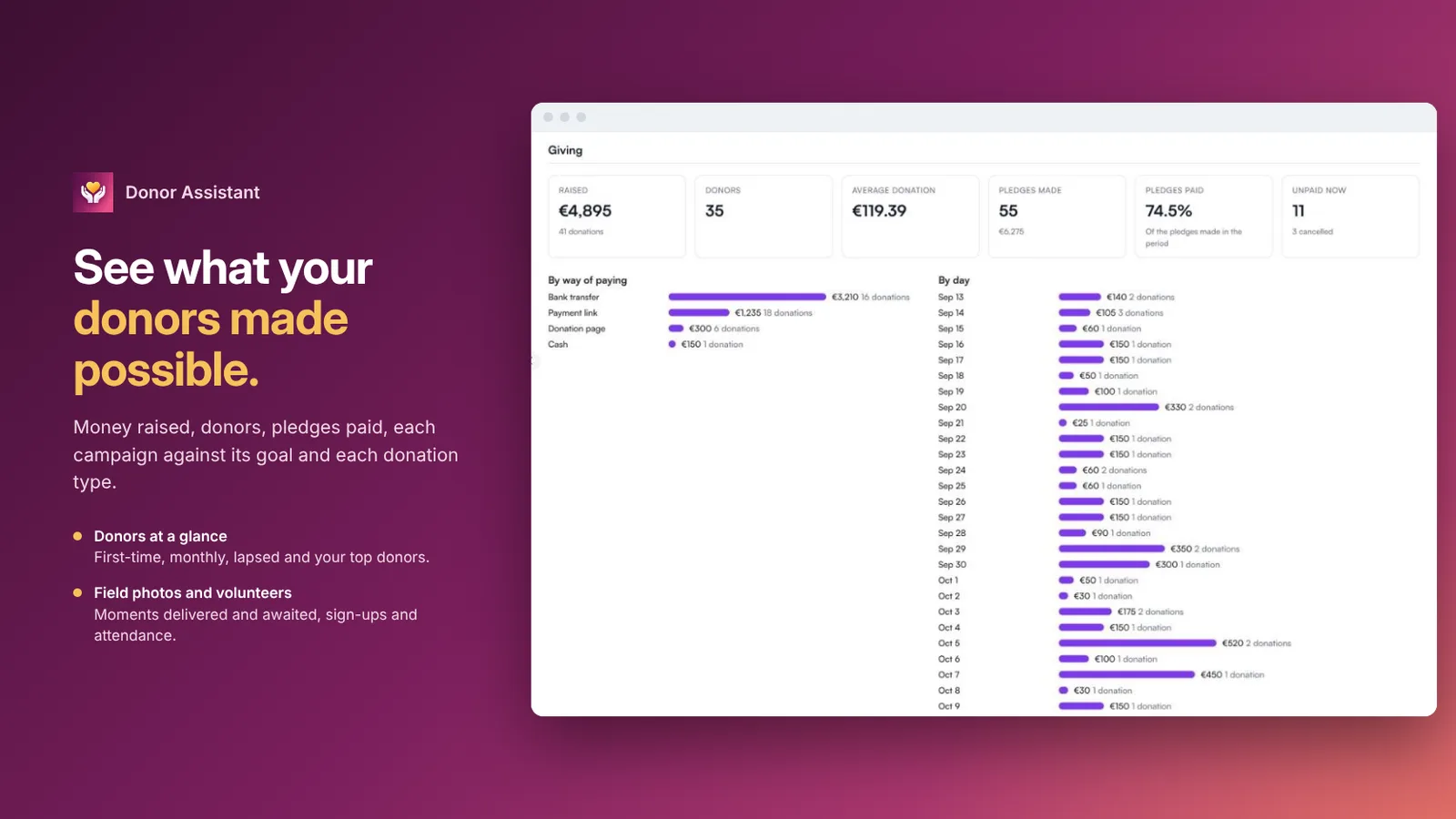 Giving report with money raised, donors, average gift and pledges paid
FAQ
Which organisations is it for?
Charities, foundations and associations. You choose the kind of organisation once (relief, education, health, religious giving or other), and the donation types and wording follow it.
How do donors pay?
Through your own donation page, a payment link from your payment system for the exact amount, or bank transfer with the donation code as the reference. The assistant never writes card or bank details itself.
Do donors get a receipt?
Yes. When a donation is paid, by the payment system or marked by your team, the donor gets a thank-you with a receipt number.
How are field photos and videos sent?
Upload them once and choose who they are for: a list of donation codes, a field batch or a whole campaign. Each matched donor is told their photos are ready and sees them with one tap.
Does it calculate zakat?
No. Religious giving is explained only from the text you approve. The assistant never calculates zakat or gives rulings; it hands over to your team.
Which channels and languages does it support?
WhatsApp, Instagram and web chat, around the clock, in the person’s own language, including voice messages.