ClickUp Lead Sync

Turns leads and orders from your MonoChat conversations into ClickUp tasks, and brings what your team changes in ClickUp back to MonoChat: a message to the customer, a note, a tag, an event for your flows, profile fields and comments.
Overview
ClickUp Lead Sync connects your MonoChat conversations to your ClickUp. Leads and orders from your chats become ClickUp tasks, filled the way your team works, and what your team changes in ClickUp comes back to MonoChat: a message to the customer, a note for the team, a tag, an event for your own flows, profile fields and comments.
You decide which conversations become leads (Lead rules), where orders go and how the app learns they are paid (Order flow), and what MonoChat does when something changes in ClickUp (Reactions). The Today and Activity screens show everything the app did, and a ClickUp card beside every conversation shows the customer’s tasks.
Highlights
- Chats become ClickUp leads. A new conversation, a new customer’s first message, a tag, a profile field, a Lead Ads form or your AI assistant creates a task in the list you choose. When the same customer already has an open task from the rule, the app adds a comment to it instead of a new task.
- ClickUp moves, MonoChat answers. When a task’s status becomes the one you choose, a field condition is met or an order is paid, MonoChat can message the customer, write a note for the team, add or remove tags, assign or close the conversation, or start your flows with a custom event.
- Fields and comments both ways. A mapped name, phone, e-mail or CRM profile field can be set to Both ways, so a change on either side updates the other. A new ClickUp comment becomes a note in the conversation, and a note your team adds to the customer becomes a comment on the open task.
- Try it safely. Test mode (and Whisper only on a single rule or reaction) writes nothing to ClickUp and sends nothing to customers: every step is written as a whisper in the conversation.
Before you start
You need:
- A ClickUp personal API token. In ClickUp: your avatar › Settings › Apps › API Token › Generate (or Copy). It starts with
pk_. The app acts as that person: tasks and comments appear under their name. - A ClickUp list for your leads, and one for your orders if you want the order flow.
- A connected channel in MonoChat (WhatsApp, Instagram, Messenger, web chat …). To message customers after the 24-hour window, an approved WhatsApp template on that channel.
ClickUp cannot call MonoChat, so the app reads the changes of the lists it uses every 1, 5 or 15 minutes (General › Read ClickUp every). Each read uses one ClickUp request per list. When ClickUp asks the app to slow down, the work waits and continues by itself.
On the ClickUp Free plan, custom fields can only be used a limited number of times. When the limit is reached, the app still creates the task, writes the field values into its description and tells you on the Today screen.
Install and set up
- Install ClickUp Lead Sync from Settings › MonoStore › Apps, or open the install link app.monochat.ai/apps/v3SaNfhuHhuXb4Hrx. Without a MonoChat account, the link lets you sign up first and installs the app for you.
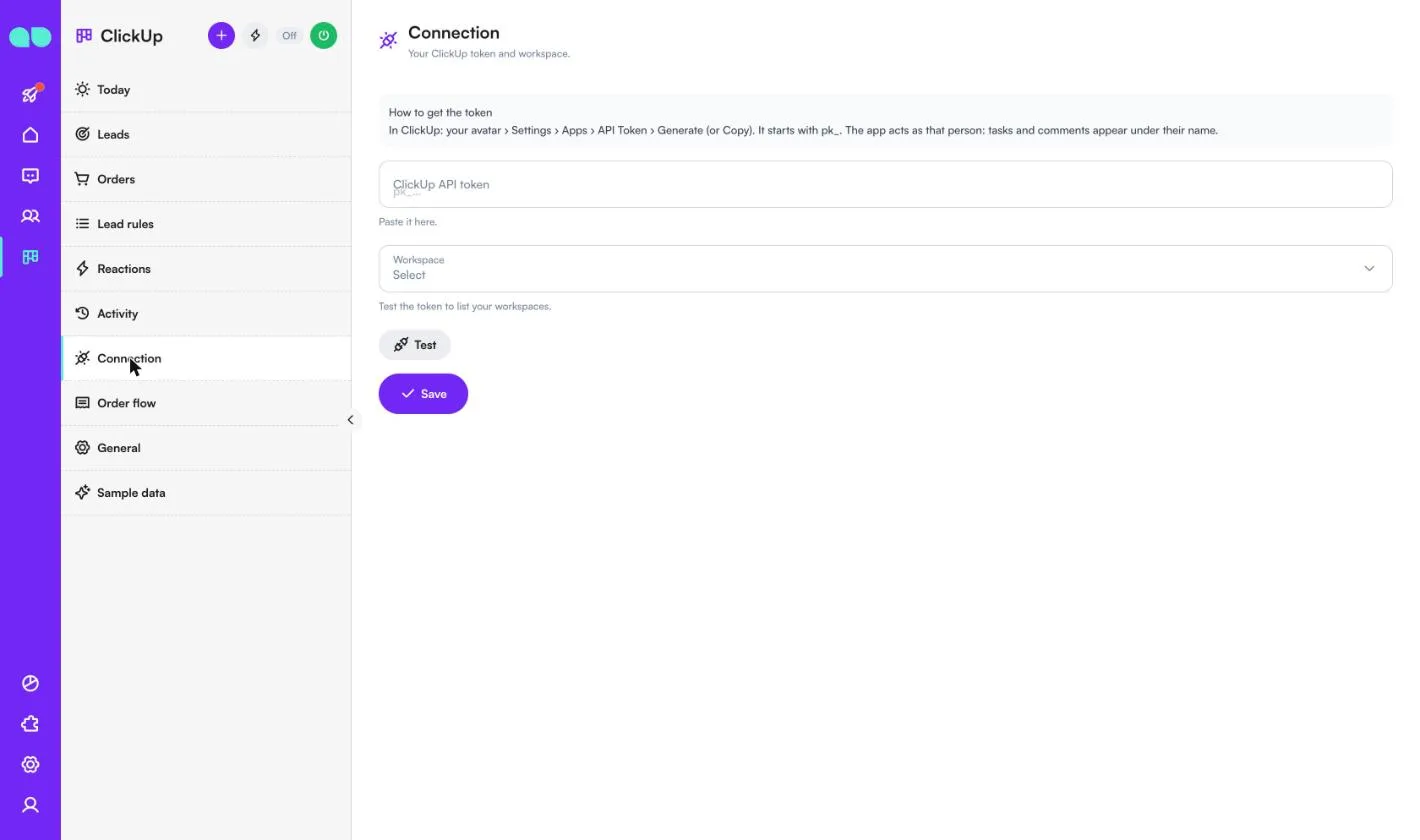
- Open the ClickUp desk (the ClickUp icon in the left menu). Under Connection, paste your ClickUp API token, click Test and choose the Workspace with your lists. Click Save.
- Under Lead rules, click New lead rule: choose the trigger, the filters and the ClickUp list, and how the task is filled. Click Save.
- Optional: under Order flow, choose the order list and how the app learns an order is paid.
- Optional: under Reactions, click New reaction to decide what MonoChat does when a task changes in ClickUp.
- Turn on Test mode under General if you want to try everything on real conversations first. Then click the green power button in the desk header and Turn on. The badge next to the title changes from Off to On.
Load Sample data to see every screen filled before your first lead. Sample data is never written to ClickUp and never sends anything; Remove sample data takes every sample row away and leaves your real rules, reactions and tasks.
Screen by screen
The app lives in the ClickUp desk in the left menu: Today, Leads, Orders, Lead rules, Reactions and Activity, then the settings: Connection, Order flow, General and Sample data. The screenshots below show the sample data.
Get started
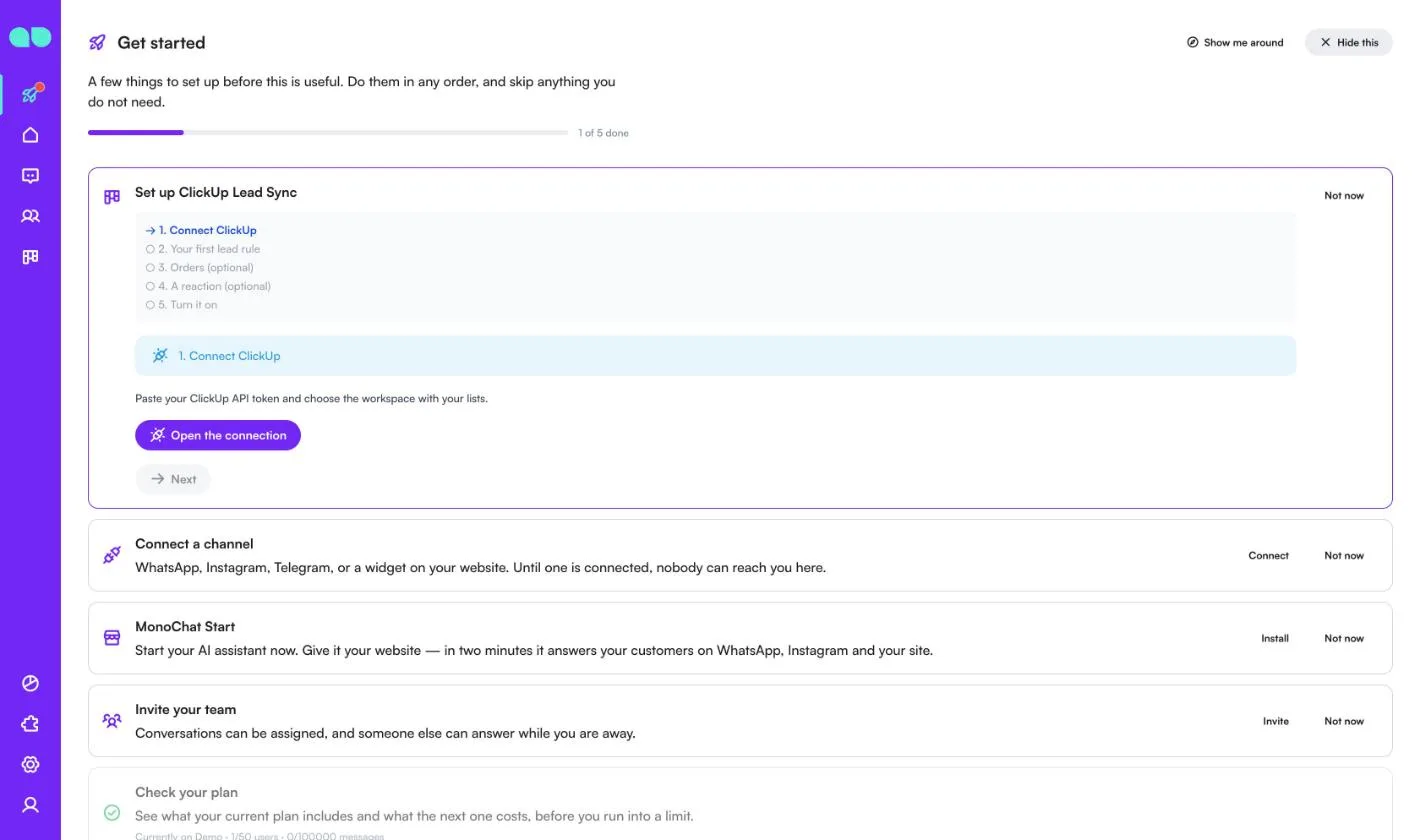
The Get started tab on your home page adds a Set up ClickUp Lead Sync card with five steps: 1. Connect ClickUp, 2. Your first lead rule, 3. Orders (optional), 4. A reaction (optional) and 5. Turn it on. Each step has a button that opens the screen to do it, and Next moves to the next step.
The desk header
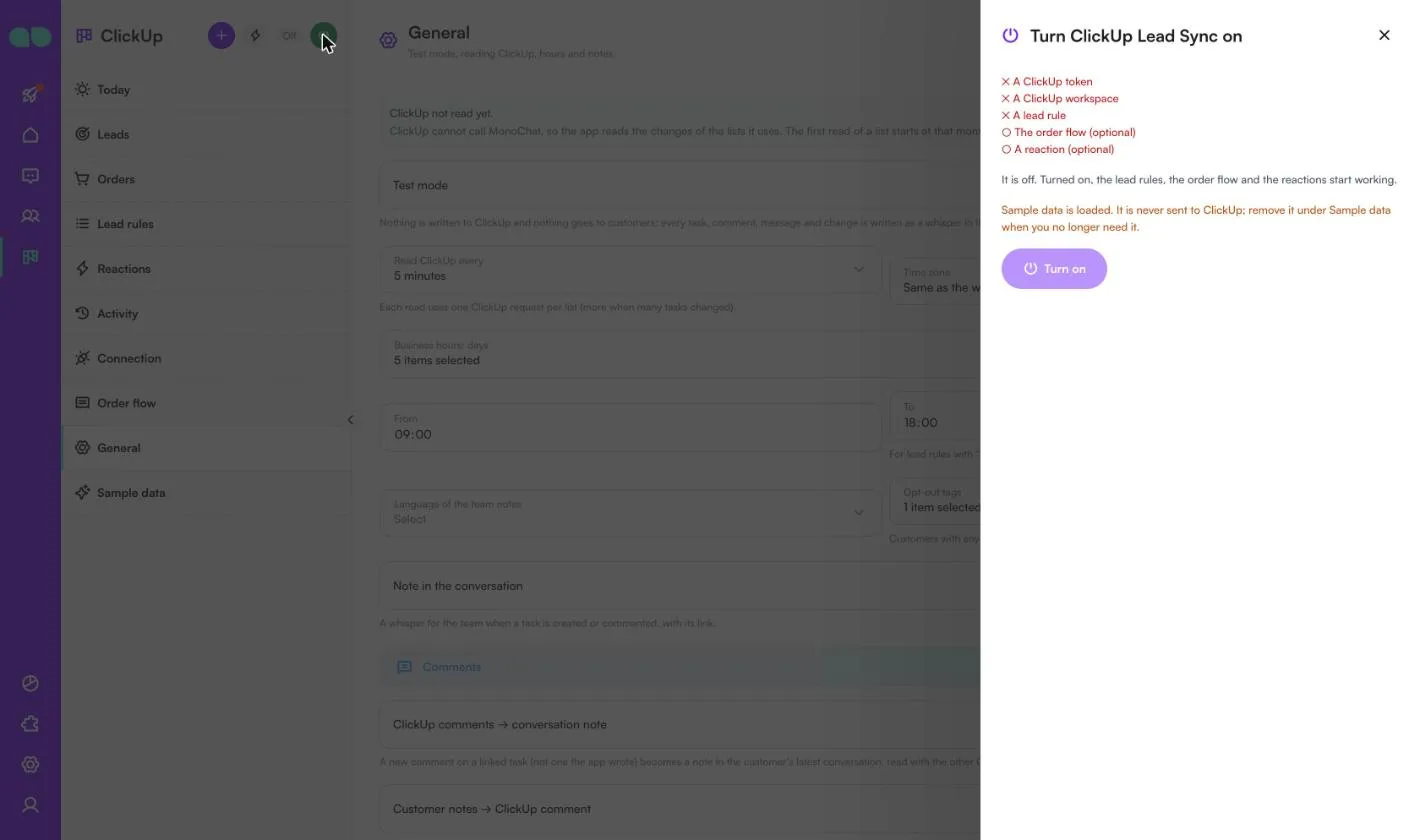
The header shows On or Off next to the title. The power button opens Turn ClickUp Lead Sync on: it lists what is ready and what is missing (A ClickUp token, A ClickUp workspace, A lead rule, The order flow (optional), A reaction (optional)) and turns the app on. Turned on, the lead rules, the order flow and the reactions start working.
Today
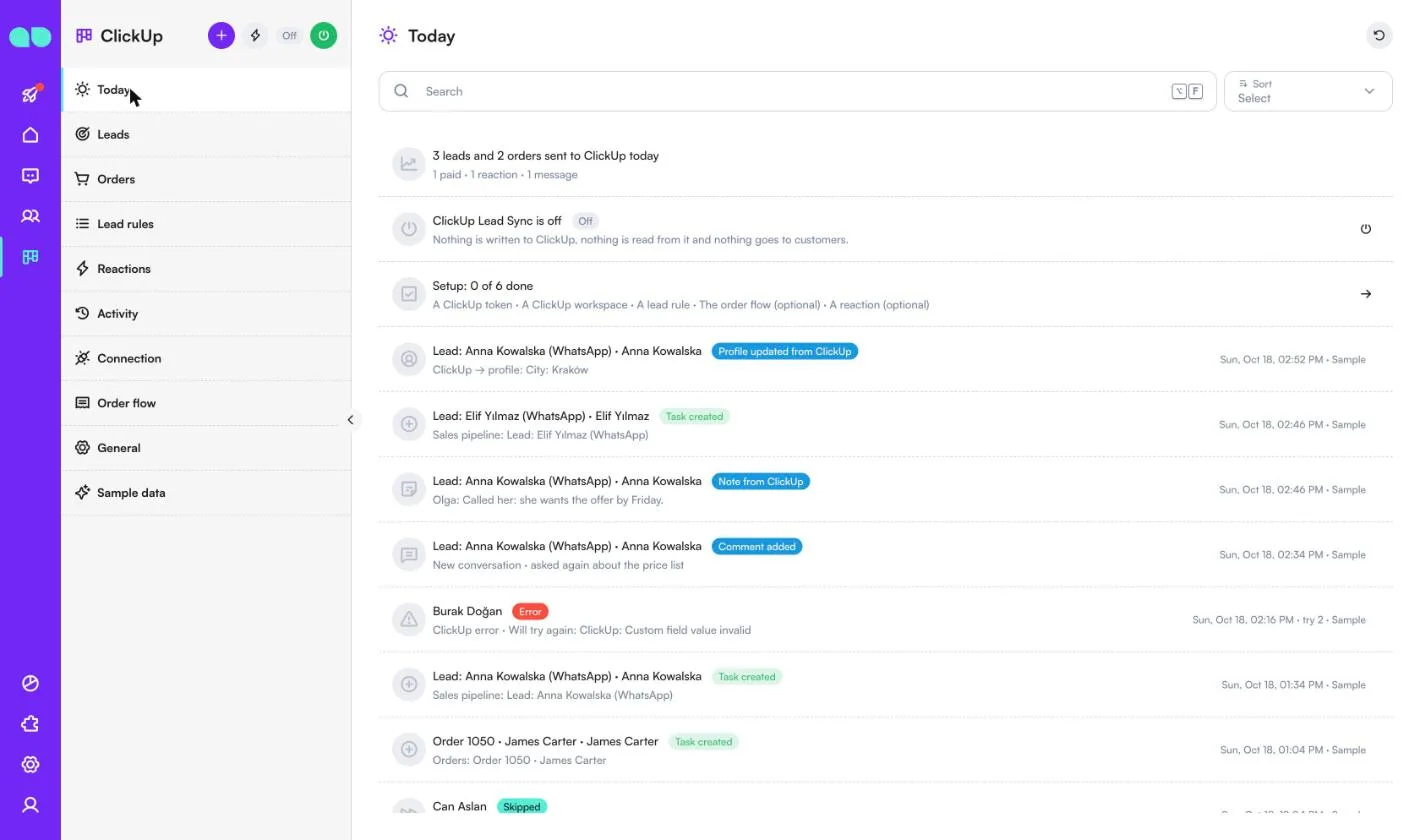
ClickUp › Today opens with a summary: how many leads and orders were sent to ClickUp today, how many orders were paid, and how many reactions fired and messages went out. Below it, the app’s state (on or off), the setup steps still open, and the latest events with a label for each:
- Task created, Task linked, Comment added: what the app did in ClickUp.
- Order paid, Reaction, Message sent: what happened when ClickUp or a payment changed.
- Note from ClickUp, Profile updated from ClickUp: comments and fields that came back.
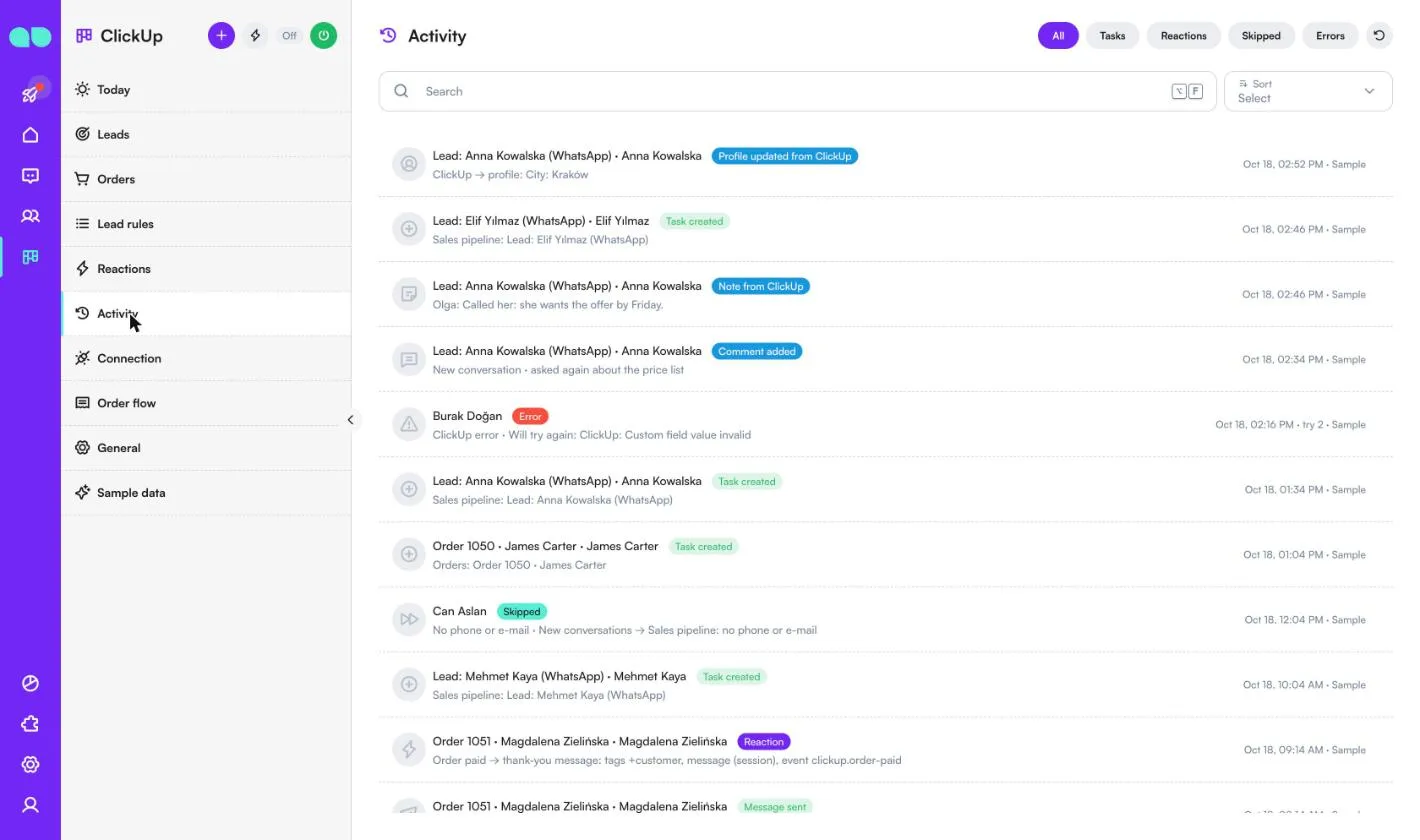
- Skipped with the reason (for example No phone or e-mail, or 24-hour window closed and no template) and Error with what ClickUp said and whether the app Will try again or Gave up.
Leads
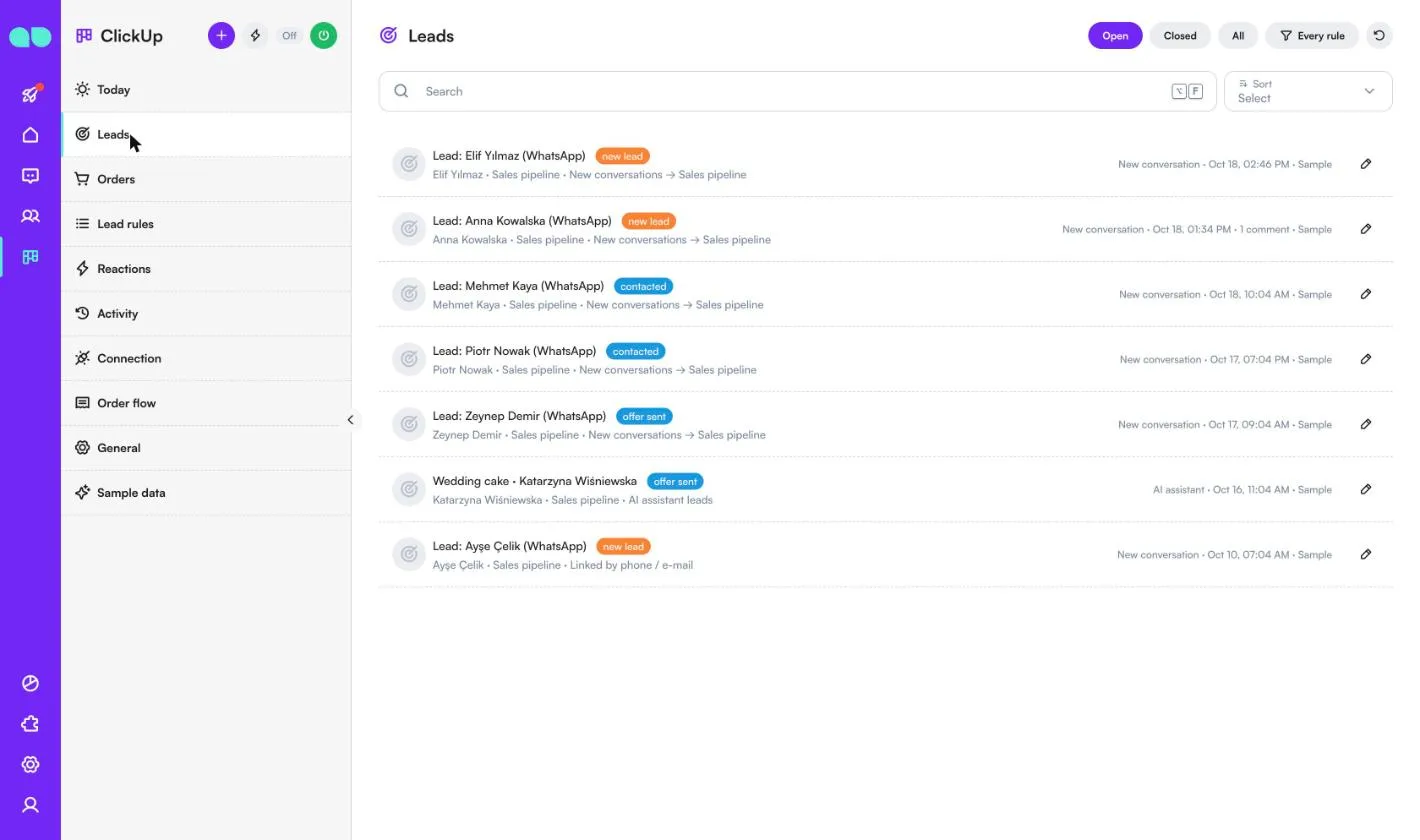
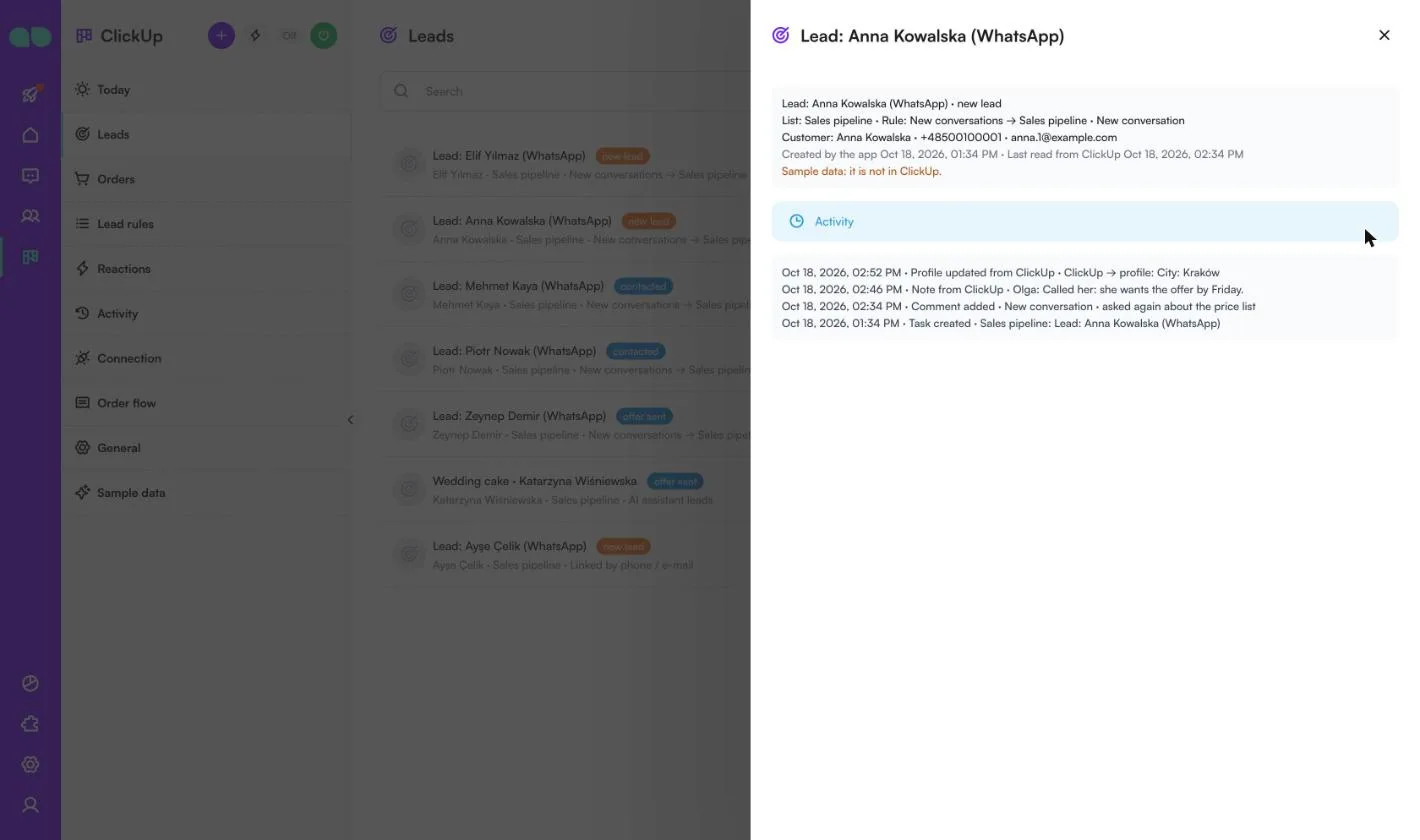
ClickUp › Leads lists the lead tasks the app knows: the ones it created and the ones it linked by phone or e-mail. Filter by Open, Closed or All, or by rule (Every rule). Each row shows the task name, its ClickUp status, the customer, the list, the rule, what started it (for example New conversation or AI assistant) and how many comments the app added.
The pencil opens the lead: the list, rule and customer (phone and e-mail), when the app created it and last read it from ClickUp, and its Activity: task created, comments added, notes from ClickUp and profile fields updated from ClickUp.
Orders
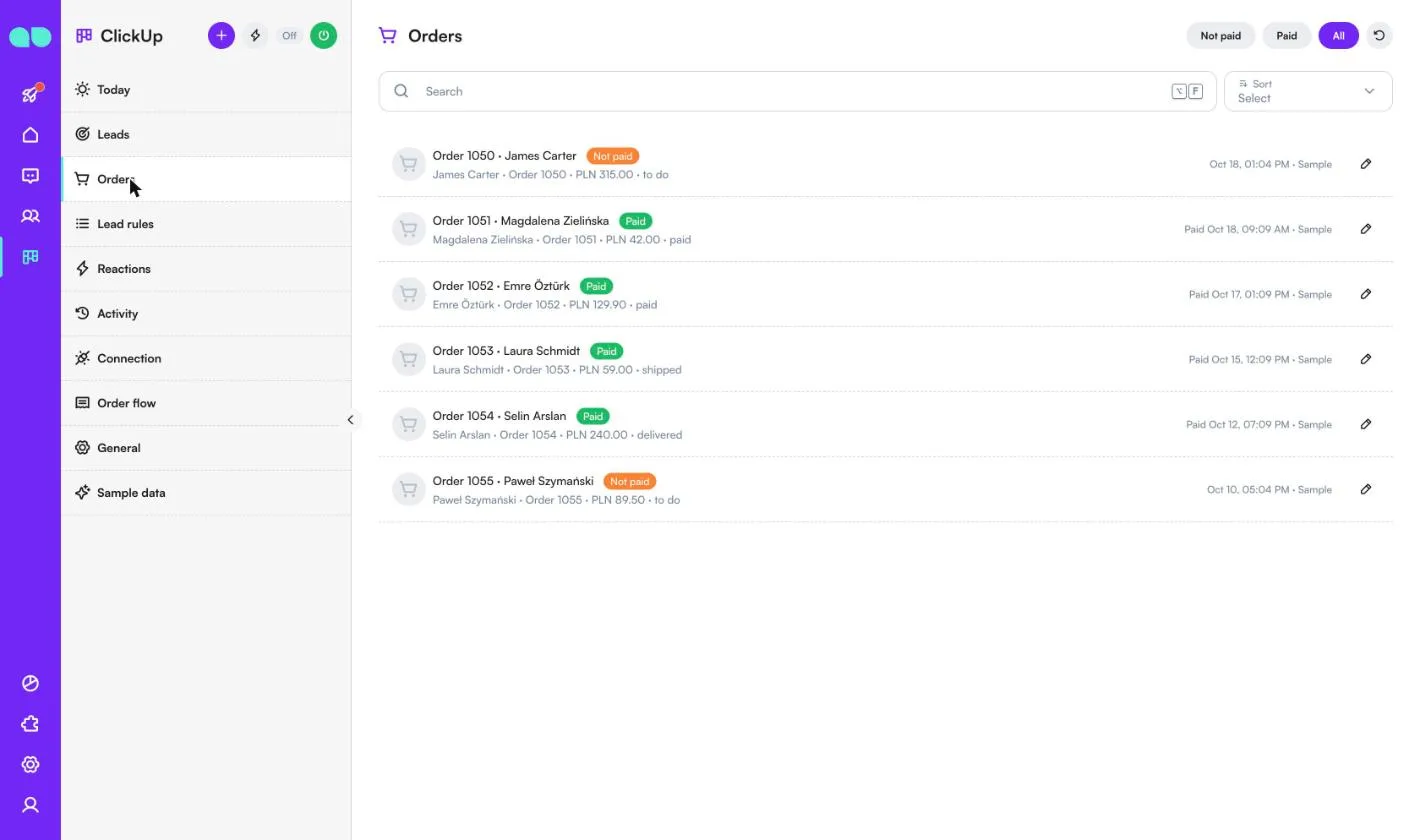
ClickUp › Orders lists the order tasks: Not paid, Paid or All. Each row shows the order number, the customer, the amount and the task’s ClickUp status, and when it was paid.
Lead rules
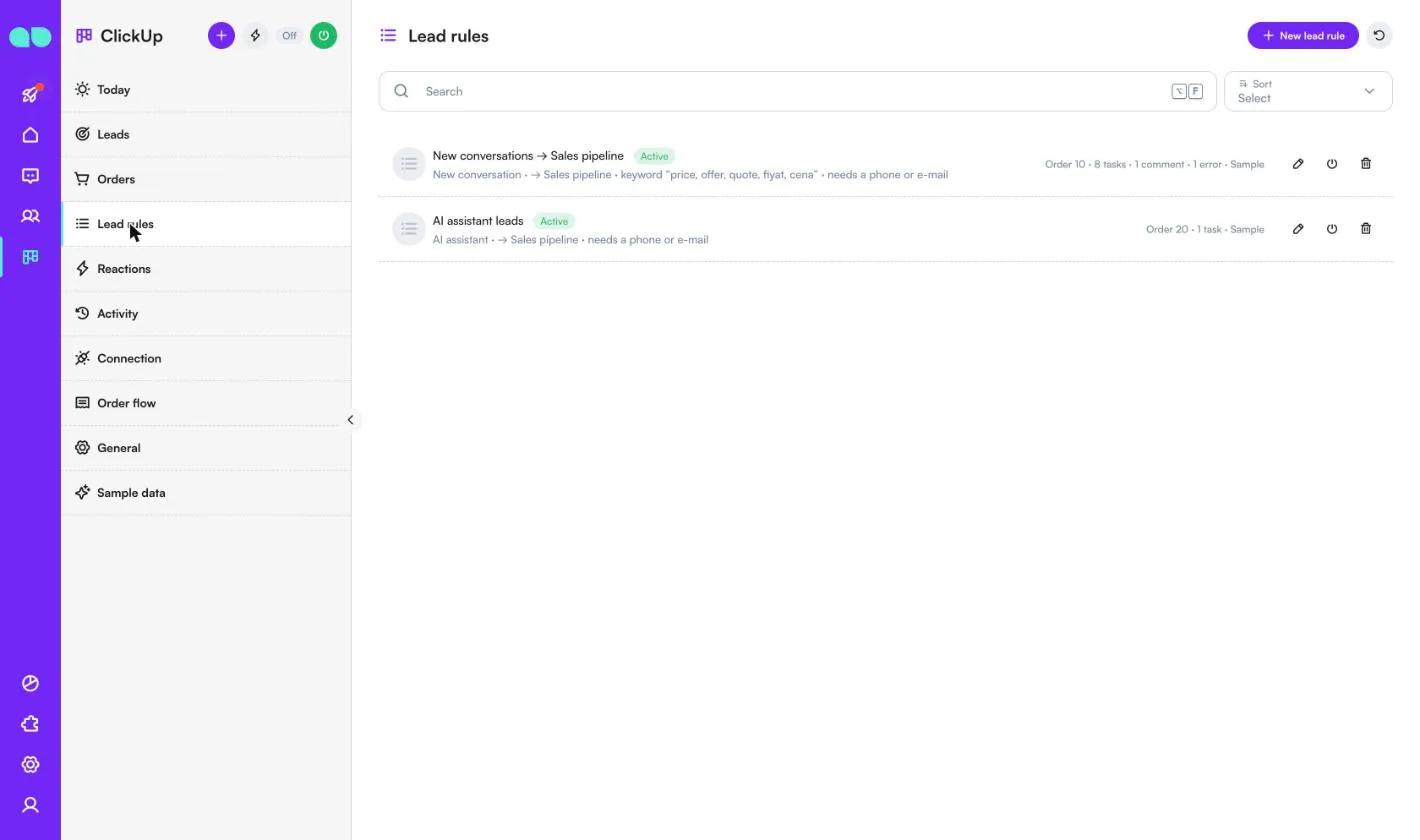
ClickUp › Lead rules decides which conversations become ClickUp tasks. Every active rule whose trigger and filters match a conversation creates its own task. Each row shows the trigger, the list, the filters and how many tasks, comments and errors the rule made. Use the pencil to edit a rule, the power icon to turn it on or off, or the bin to delete it. New lead rule adds one.
The lead rule form
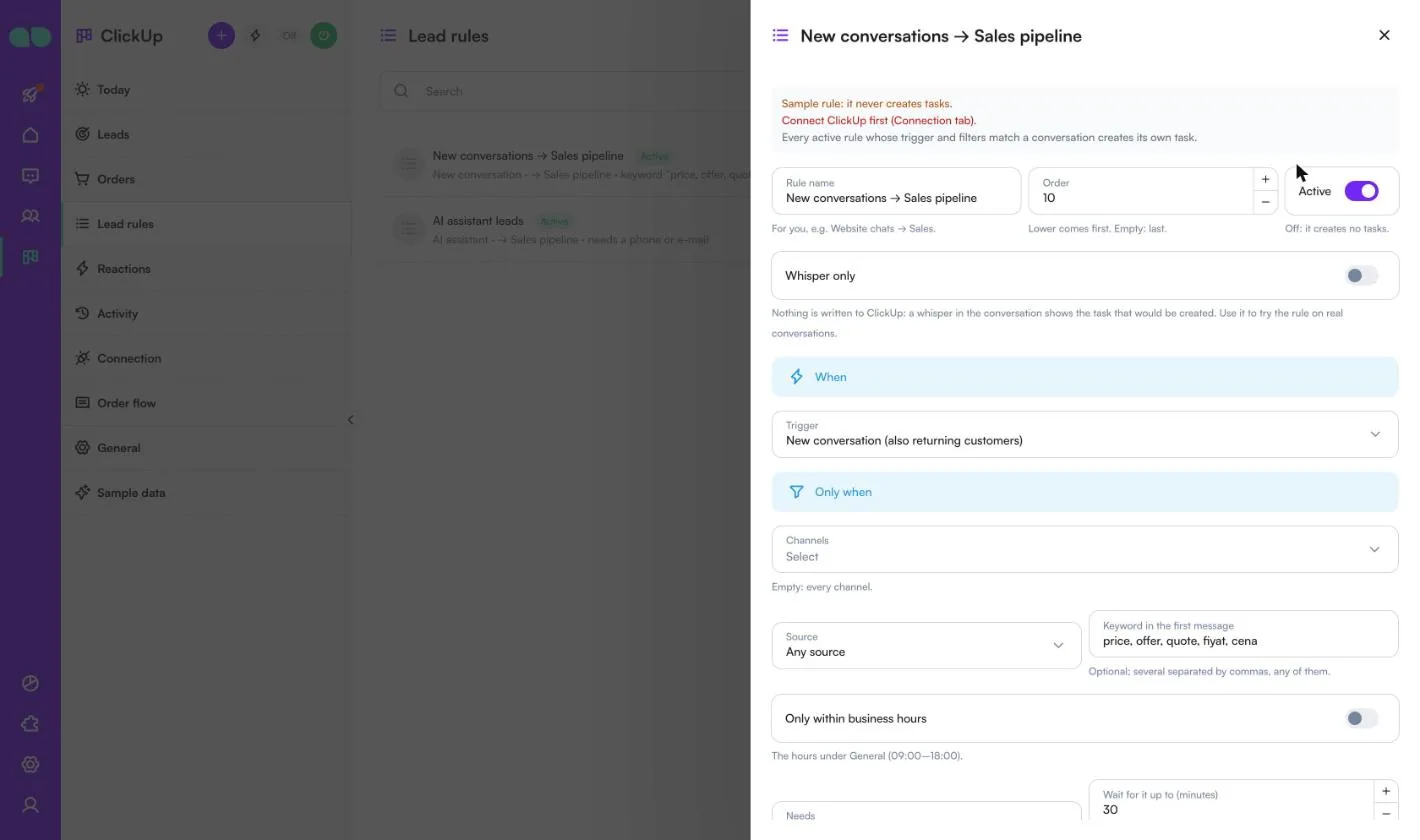
The top of the form names the rule and sets its Order (lower comes first), Active and Whisper only (nothing is written to ClickUp: a whisper in the conversation shows the task that would be created).
When is the trigger:
| Trigger | When a task is created |
|---|---|
| New conversation (also returning customers) | A conversation opens. |
| New customer’s first message | Someone writes to you for the first time. |
| Tag added | A tag you choose is added to the customer. |
| Profile field filled or equal to a value | A profile field is filled, or gets the value you choose. |
| The AI assistant calls “Send to ClickUp” | Your AI assistant hands the lead over with the Send the lead to the team (ClickUp) tool, with a summary, the interest and the contact details it collected. |
| Lead Ads form submitted | Someone fills a Facebook or Instagram Lead Ads form. |
| Only by hand (from the conversation) | Your team clicks Send as lead on the ClickUp card. |
Only when narrows it down:
- Channels: empty means every channel.
- Source: Any source, Ad click (referral), Organic (no ad) or Lead Ads form.
- Keyword in the first message: several separated by commas, any of them.
- Only within business hours: the hours under General.
- Needs: Nothing, A phone number, An e-mail address or A phone number or an e-mail, with Wait for it up to (minutes). The app watches the messages and the profile meanwhile; 0 skips at once.
- Comment instead of a new task within (days): when this customer has an open task from this rule made in the last days, a comment is added to it. 0 always makes a new task.
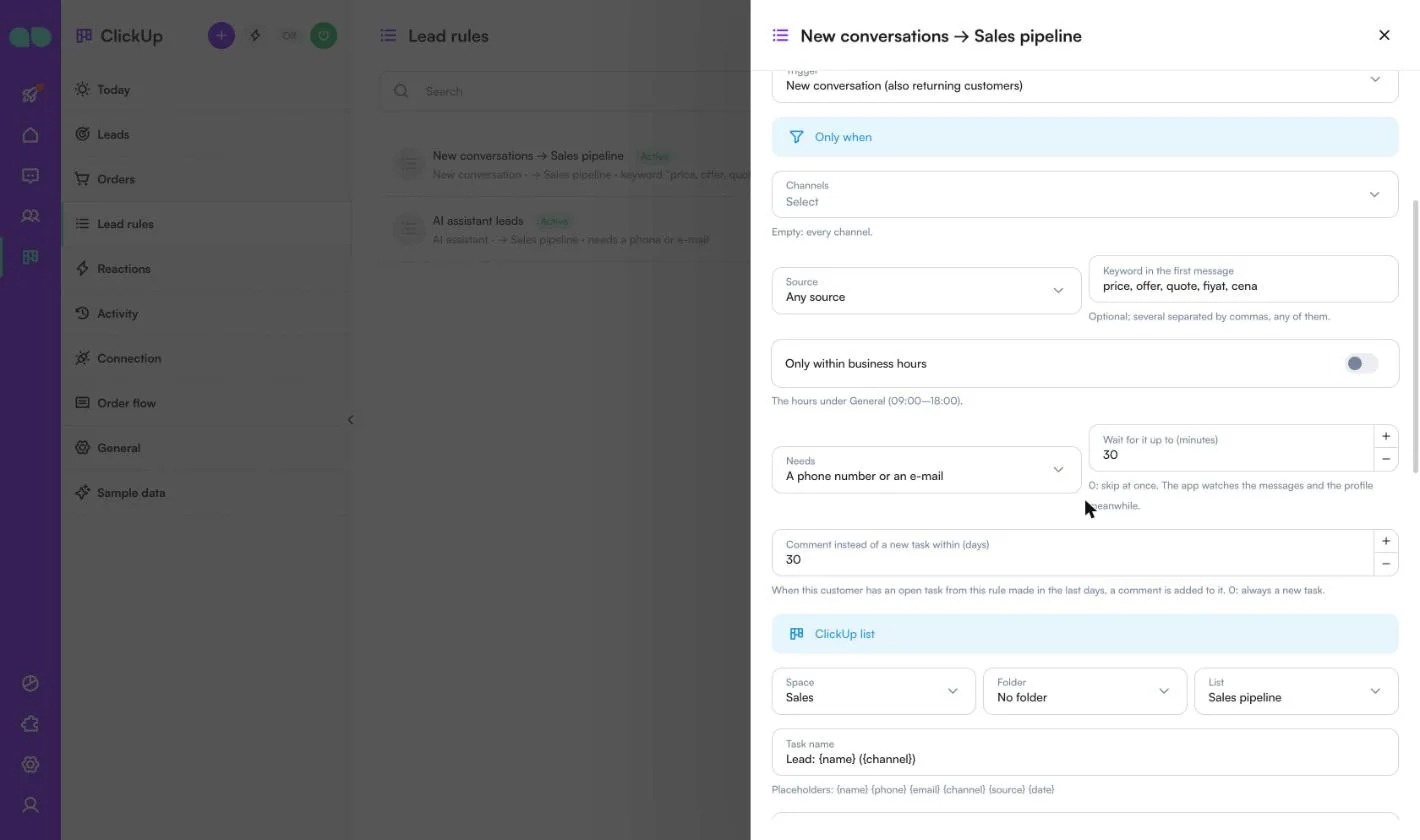
ClickUp list says where the task goes and how it is filled:
- Space, Folder and List.
- Task name and Task description with placeholders:
{name}{firstName}{phone}{email}{channel}{source}{date}{firstMessage}{conversationLink}{agent}{tags}{summary}{interest}{notes}{answers}. - Status (empty: the list’s first status), Priority, Assignee (Nobody, A fixed ClickUp member or The conversation’s agent (same e-mail in ClickUp)) and Task tags.
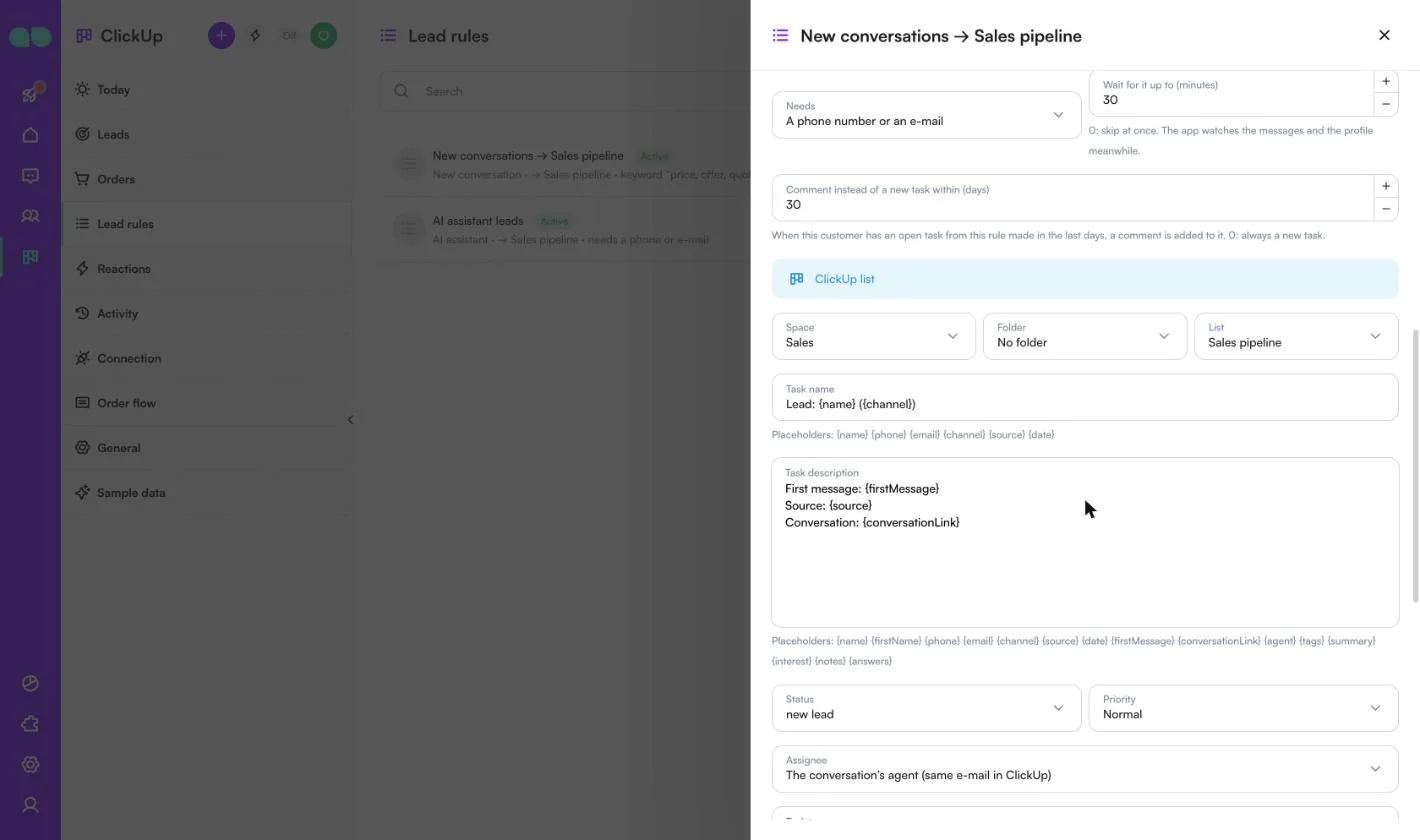
Fields maps MonoChat values to ClickUp custom fields. For each row choose the MonoChat value (name, first name, phone, e-mail, channel, source or ad, first message, conversation link, assigned agent, tags, a CRM profile field, a Lead form answer, the AI summary or AI: interest, the date or Fixed text), the ClickUp field and the Direction:
- MonoChat → ClickUp: the value is written when the task is created.
- Both ways (name, phone, e-mail and CRM profile fields): when your team changes the field in ClickUp, the customer’s profile in MonoChat is updated (a drop-down option becomes the matching profile option, a date its day, a checkbox yes or no); when it changes in MonoChat, the open task is updated. A value the app has just written is never sent back.
A value that does not fit the field (a word in a number field, an option the drop-down does not have) is left empty and named in Activity. Link tasks made in ClickUp by phone / e-mail links a task someone creates in this list to the MonoChat customer whose phone or e-mail is in its mapped field, so its reactions work too.
Reactions
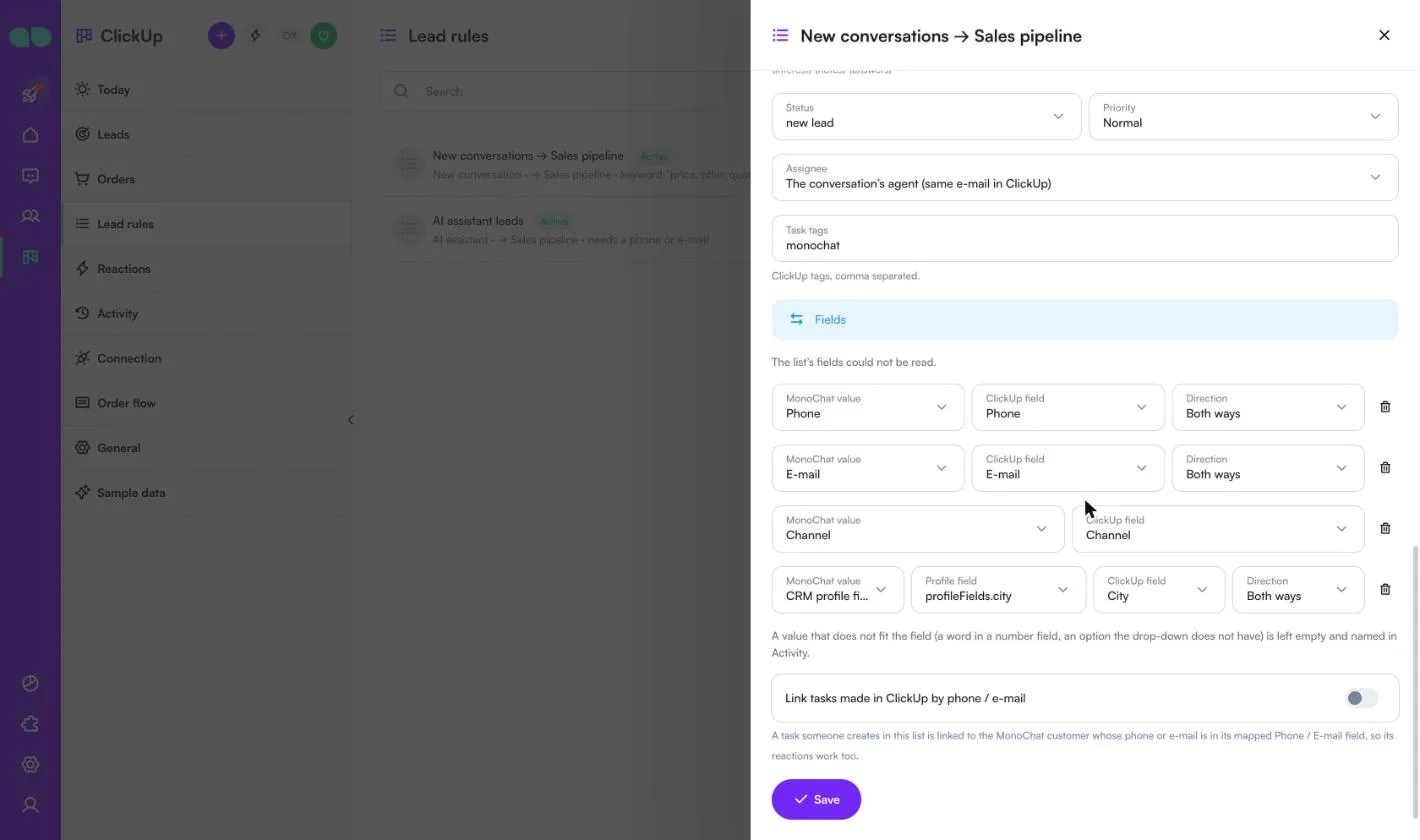
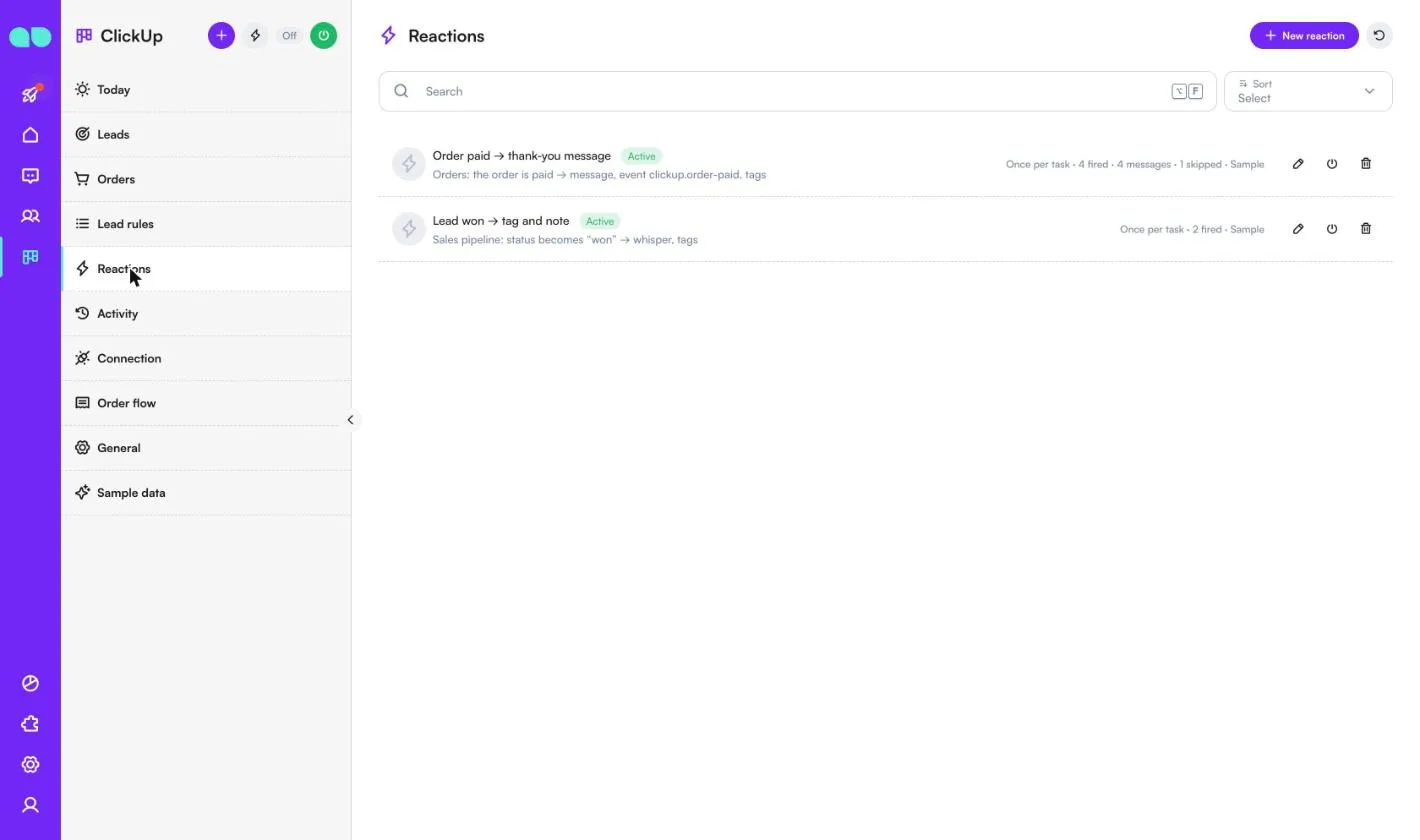
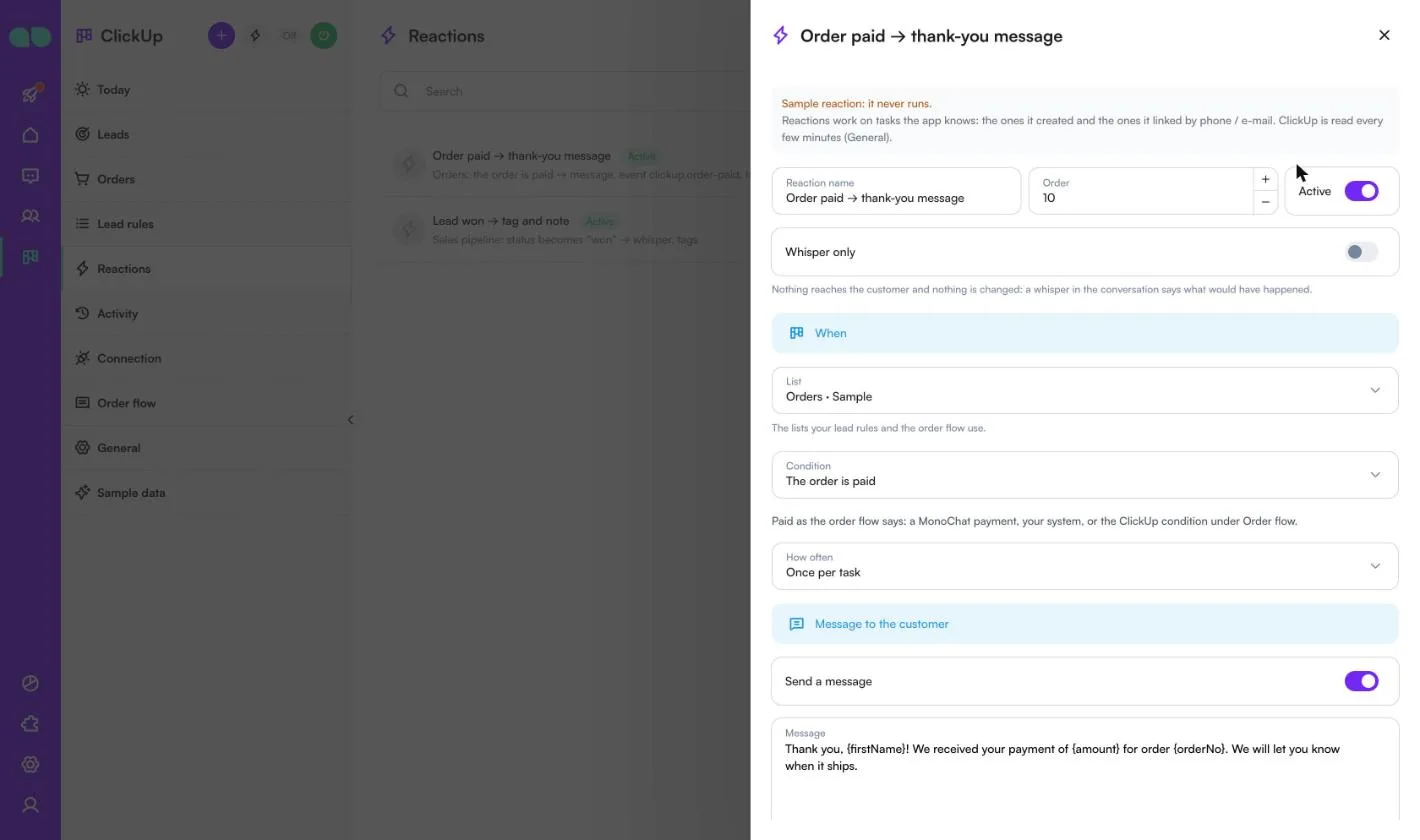
ClickUp › Reactions decides what MonoChat does when something changes in ClickUp. Reactions work on tasks the app knows: the ones it created and the ones it linked by phone or e-mail. Each row shows the list, the condition, what it does, Once per task or every time, and how many times it fired, sent a message or was skipped.
In the reaction form:
- When: the List, then the Condition: The status becomes a status you choose, A field condition (a checkbox is ticked, a field is set, a drop-down includes an option, a number is more than 0) or The order is paid. How often: Once per task or Every time it becomes true.
- Message to the customer: Send a message with placeholders
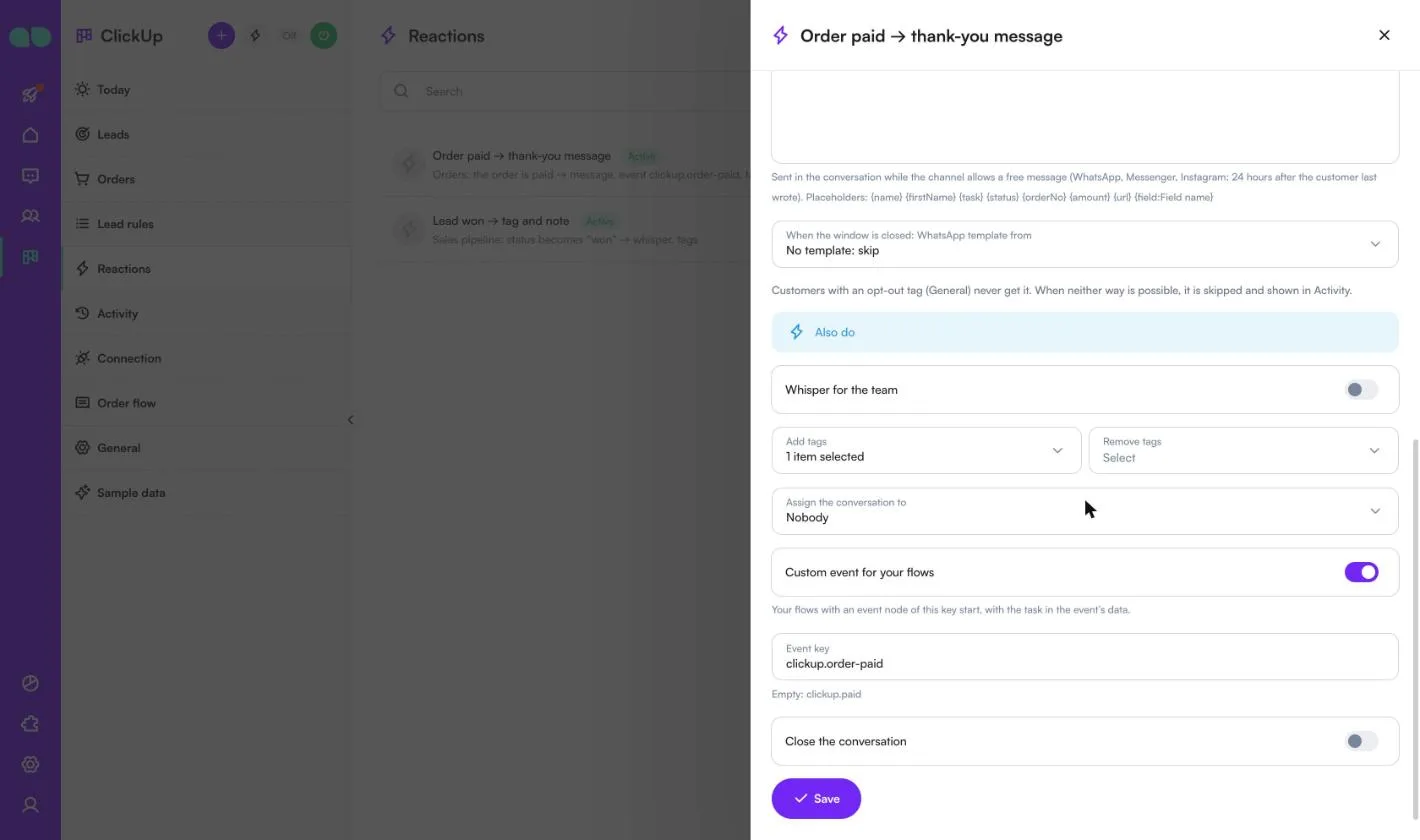
{name}{firstName}{task}{status}{orderNo}{amount}{url}{field:Field name}. It is sent as a free message while the channel allows one (WhatsApp, Messenger, Instagram: 24 hours after the customer last wrote); otherwise When the window is closed: WhatsApp template from a template you choose, or skip. Customers with an opt-out tag never get it.
- Also do: Whisper for the team, Add tags and Remove tags, Assign the conversation to a team or a person, Custom event for your flows (your flows with an event node of this key start, with the task in the event’s data; empty key:
clickup.paid) and Close the conversation.
Activity
ClickUp › Activity keeps 90 days of what the app did: All, Tasks, Reactions, Skipped or Errors. Each event shows the task and customer, what happened and why, and for errors how many tries were made. Anything that failed can be retried.
Connection
ClickUp › Connection holds the ClickUp API token and the Workspace. Paste the token, click Test to list your workspaces, choose one and click Save.
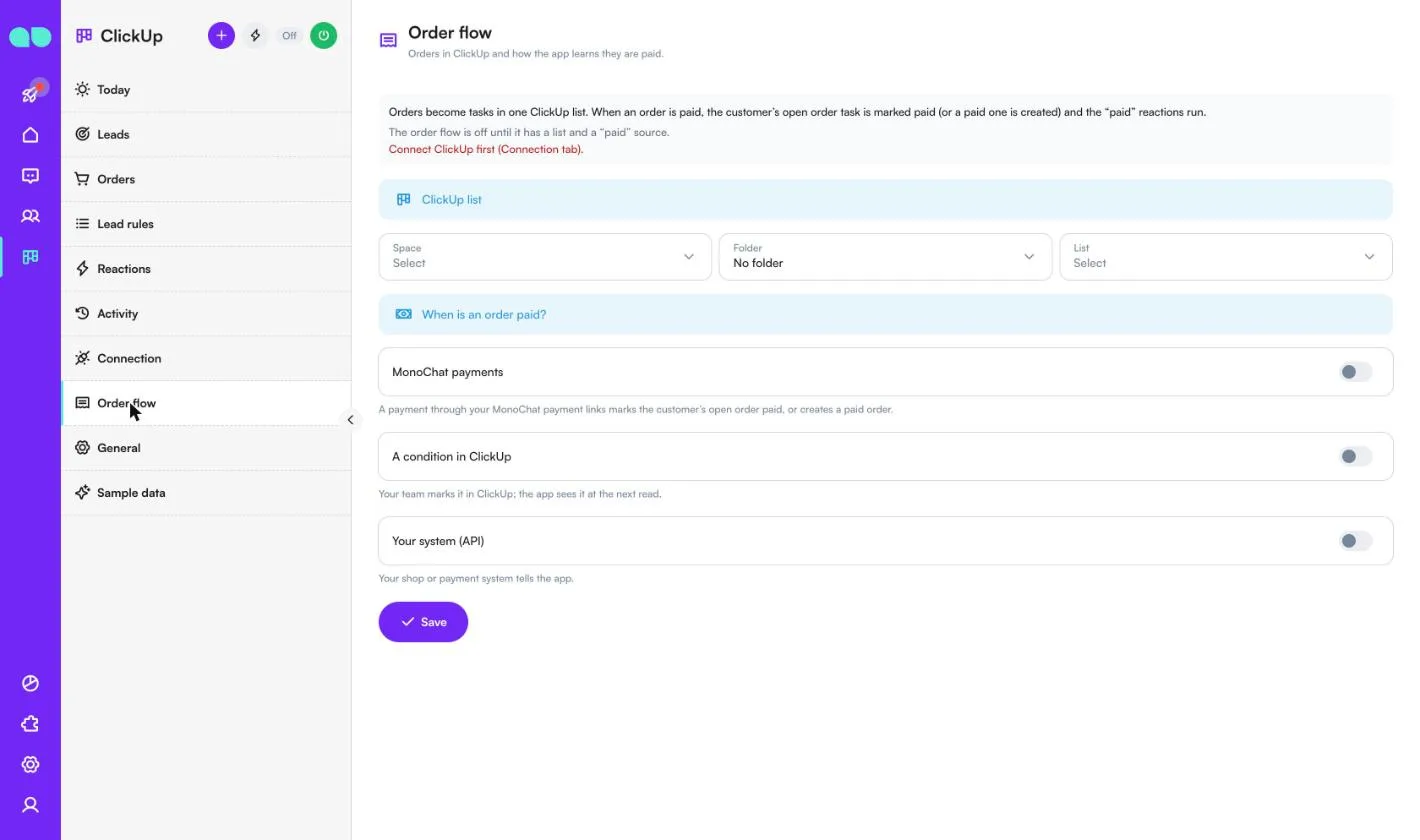
Order flow
ClickUp › Order flow turns orders into tasks in one ClickUp list. When an order is paid, the customer’s open order task is marked paid (or a paid one is created) and the “paid” reactions run. The order flow is off until it has a list and a “paid” source.
- ClickUp list: space, folder and list, the task name and description, the status of a new order, priority, assignee, tags and field mapping (amount, currency, items, order number, payment method and reference, address and the customer’s details).
- When is an order paid? One or more of:
- MonoChat payments: a payment through your MonoChat payment links marks the customer’s open order paid, or creates a paid order.
- A condition in ClickUp: your team marks it in ClickUp (a status, or a field); the app sees it at the next read.
- Your system (API): your shop or payment system tells the app. The screen shows the address, an App key and a ready
curlcommand. The call needs a MonoChat user API token and the app key, plus the customer’s phone, e-mail or id and the amount; order number, currency, items, payment method, address and reference are optional. The same reference is recorded once.
- When MonoChat or your system says paid, the app marks the task: set the status, and optionally tick a checkbox.
Your team can also click Create order on the ClickUp card beside a conversation: an unpaid order task for that customer, marked paid when the payment comes.
General
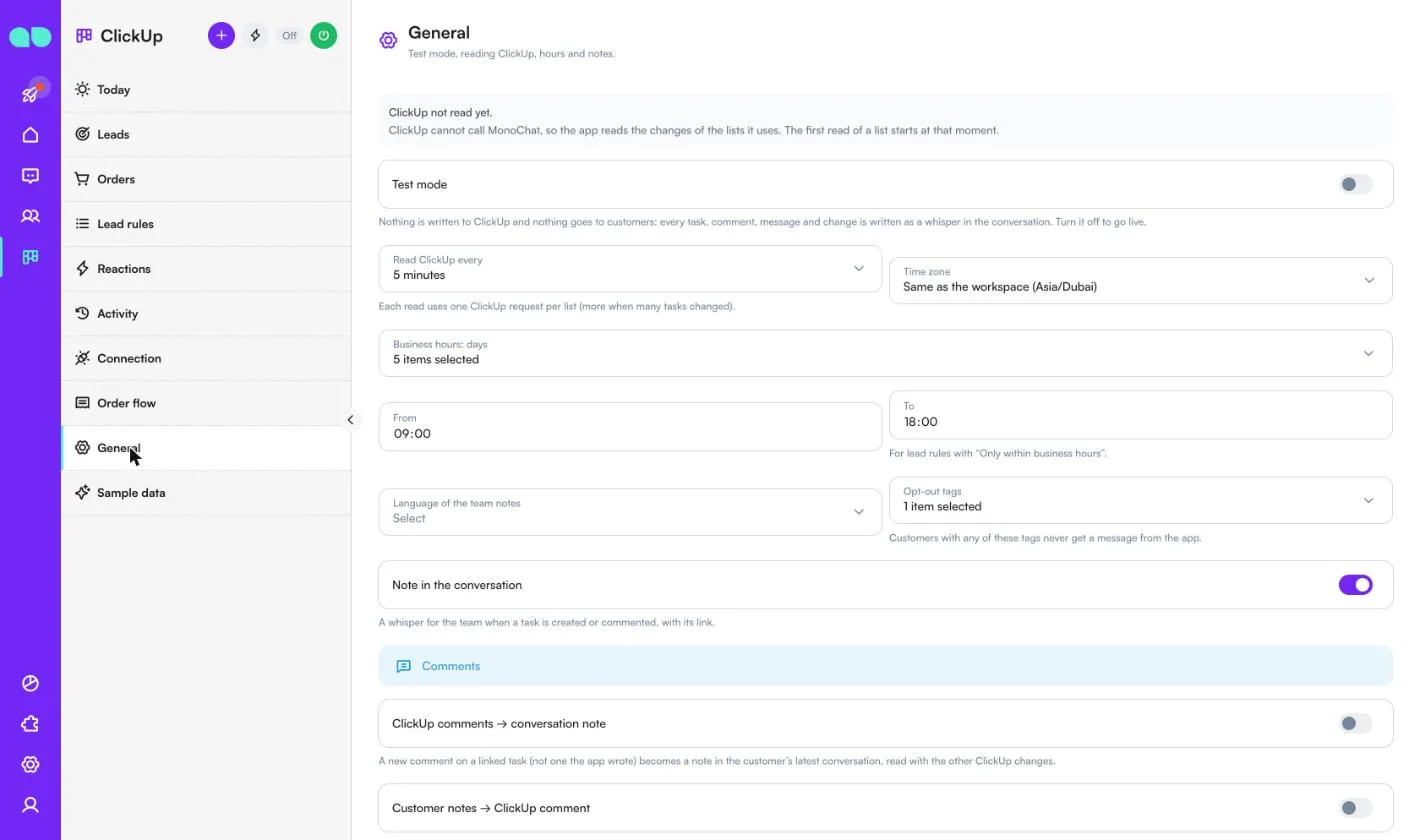
ClickUp › General:
| Setting | What it does |
|---|---|
| Test mode | Nothing is written to ClickUp and nothing goes to customers: every task, comment, message and change is written as a whisper in the conversation. Turn it off to go live. |
| Read ClickUp every | 1, 5 or 15 minutes. Each read uses one ClickUp request per list (more when many tasks changed). |
| Time zone, Business hours: days, From, To | For lead rules with Only within business hours. |
| Language of the team notes | The language of the whispers the app writes. |
| Opt-out tags | Customers with any of these tags never get a message from the app. |
| Note in the conversation | A whisper for the team when a task is created or commented, with its link. |
| ClickUp comments → conversation note | A new comment on a linked task (not one the app wrote) becomes a note in the customer’s latest conversation. |
| Customer notes → ClickUp comment | A note your team adds to a customer (the Notes card beside the conversation) is posted as a comment on the customer’s open task, with the writer’s name. |
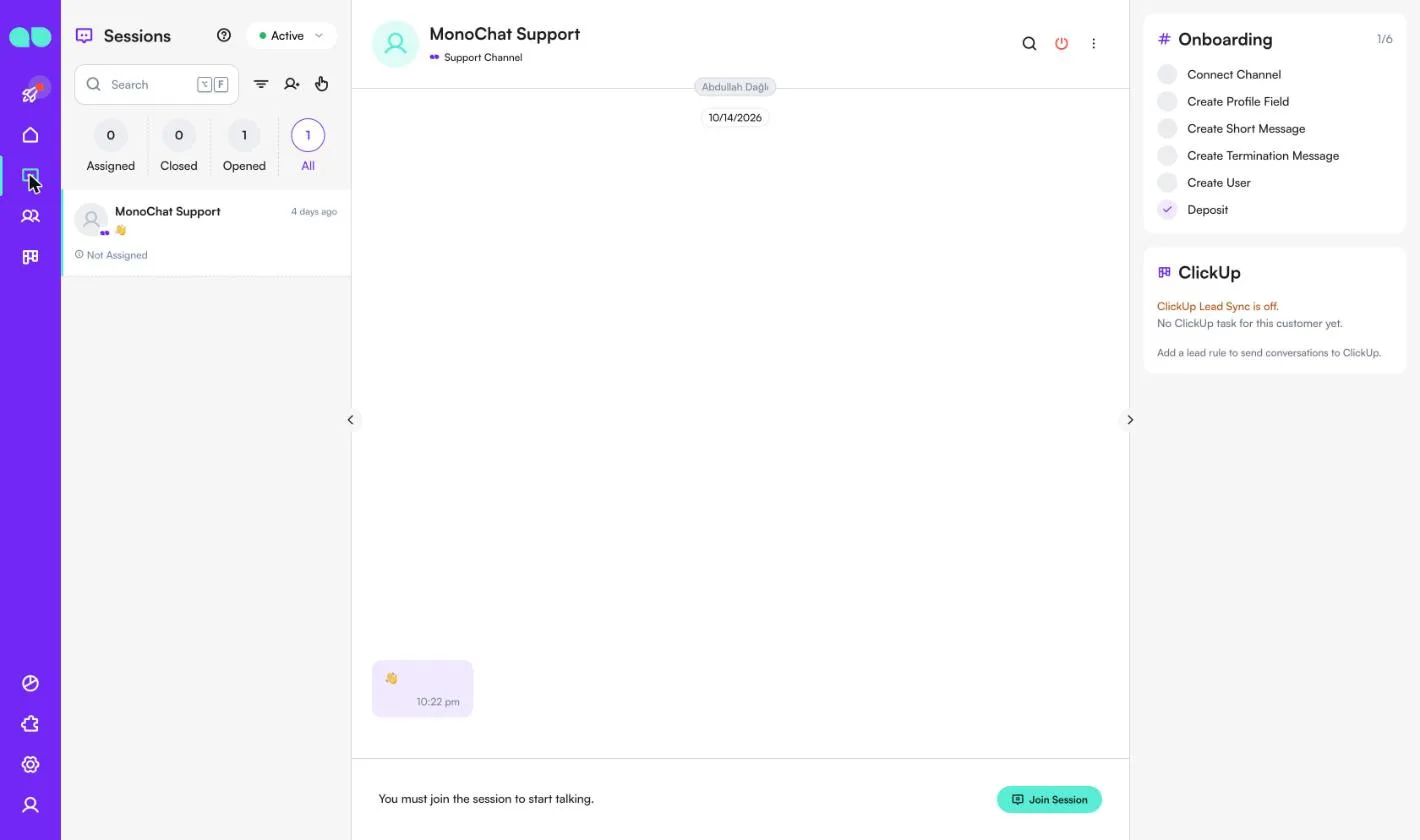
The ClickUp card beside a conversation
In the inbox, a ClickUp card beside the conversation shows the customer’s tasks, their status and the latest ClickUp comment, with Open in ClickUp. Your team can Send as lead (choose the rule) or Create order with one click. While the app is off, or before the customer has a task, the card says so.
FAQ
Does ClickUp update MonoChat instantly? No. ClickUp cannot call MonoChat, so the app reads the lists it uses every 1, 5 or 15 minutes. Connecting with your ClickUp login (OAuth) and instant updates are planned.
Will the same customer get many tasks? Not from the same rule: within the days you set in Comment instead of a new task within (days), the app adds a comment to the customer’s open task instead.
What happens when a message cannot be sent? Outside the 24-hour window the app uses the WhatsApp template you chose. When neither a free message nor a template is possible, or the customer has an opt-out tag, the step is skipped and shown in Activity.
Can I try it without touching ClickUp or customers? Yes. Turn on Test mode under General, or Whisper only on a single rule or reaction: everything is written as a whisper in the conversation.